
Overview
The production forecast is the final forecast which is used in the creation of a schedule. Any draft forecast created within the studio environment can be selected, and used, as the production forecast.
Note that only users with the WFM_SCHEDULER role assigned are able to modify production forecasts! Read more about Workforce Management Roles.
Checking Production Forecasts
To display existing production forecasts, expand the Forecasting module within the navigation tree and click Studio. The Forecasting Studio screen will display.
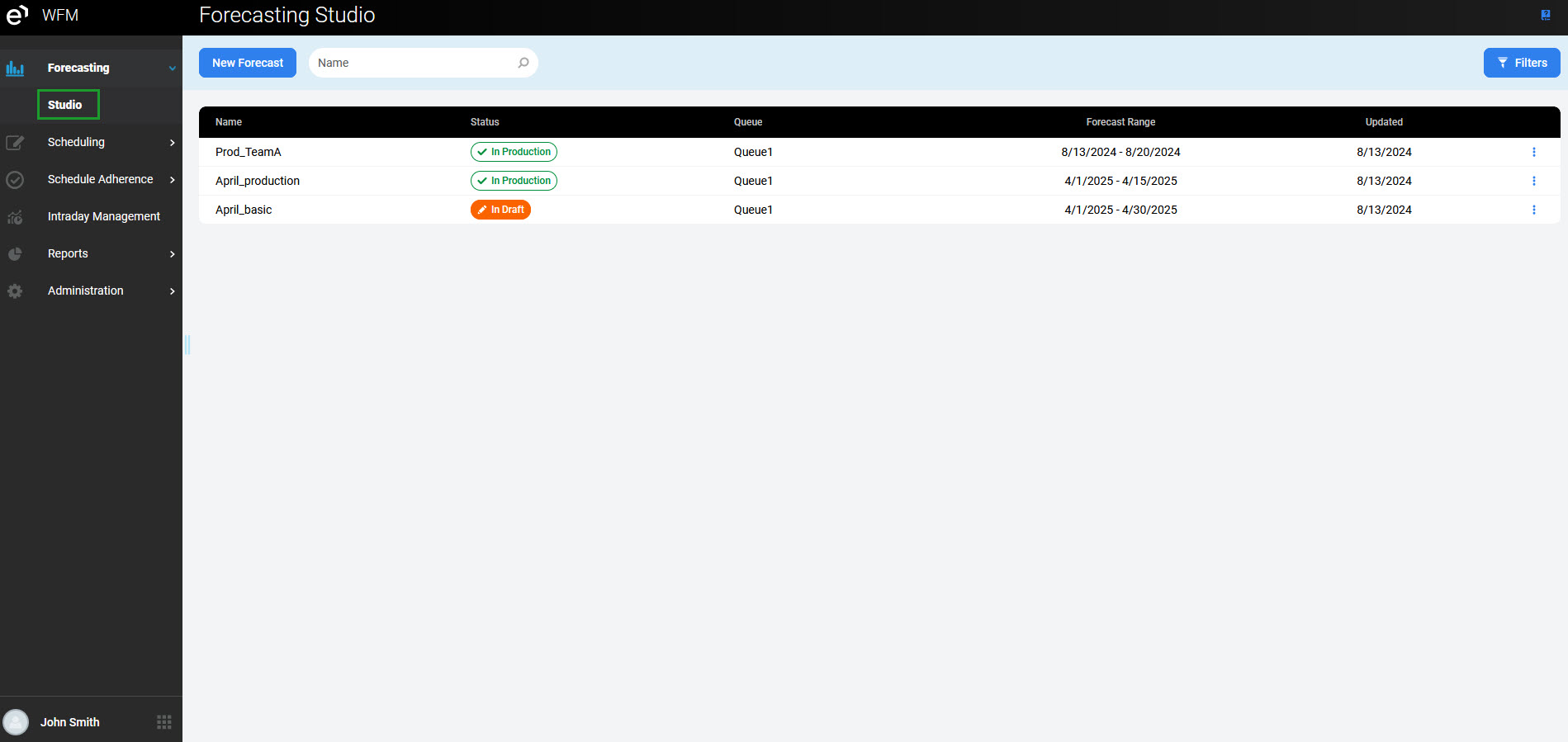
The forecast(s) currently in production is/are marked with the green In production label in the Status column:
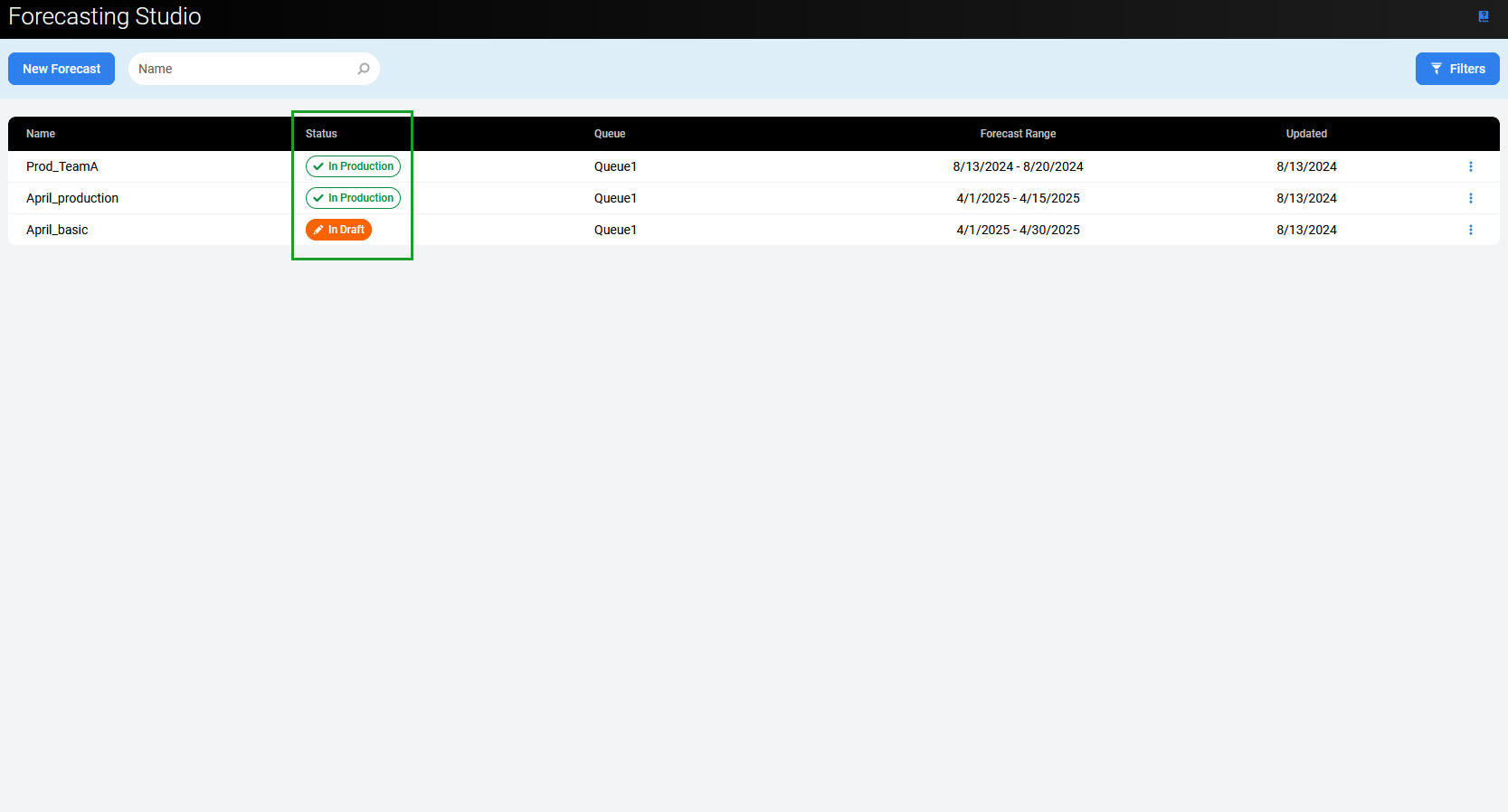
Note that only one forecast can be selected as the production forecast for each queue for any given day!
-
When a new production forecast is selected for the same time range and queue, the previous production forecast is automatically converted to a draft.
-
If a new production forecast is selected that contains an overlapping time range with an existing forecast that is in production, both forecasts will stay in production, but the overlapping days will be overwritten by the new production forecast.
The menu on the right allows further actions in regards to the production forecasts:
-
the View button enables the user to review the forecast – this option is available only to users with the
WFM_ANALYSTrole assigned -
the Edit button allows for the modification of the forecast – this option is available only to users with the
WFM_SCHEDULERrole assigned -
the Delete button allows for the removal of the forecast – this option is not active for production forecasts
The table below indicates which actions are enabled based on particular permissions:
|
|
VIEW |
EDIT |
REMOVE |
|---|---|---|---|
|
|
YES |
NO |
NO |
|
|
YES |
YES |
YES |
|
|
NO |
NO |
NO |
Note that a production forecast cannot be removed!
Selecting a New Production Forecast
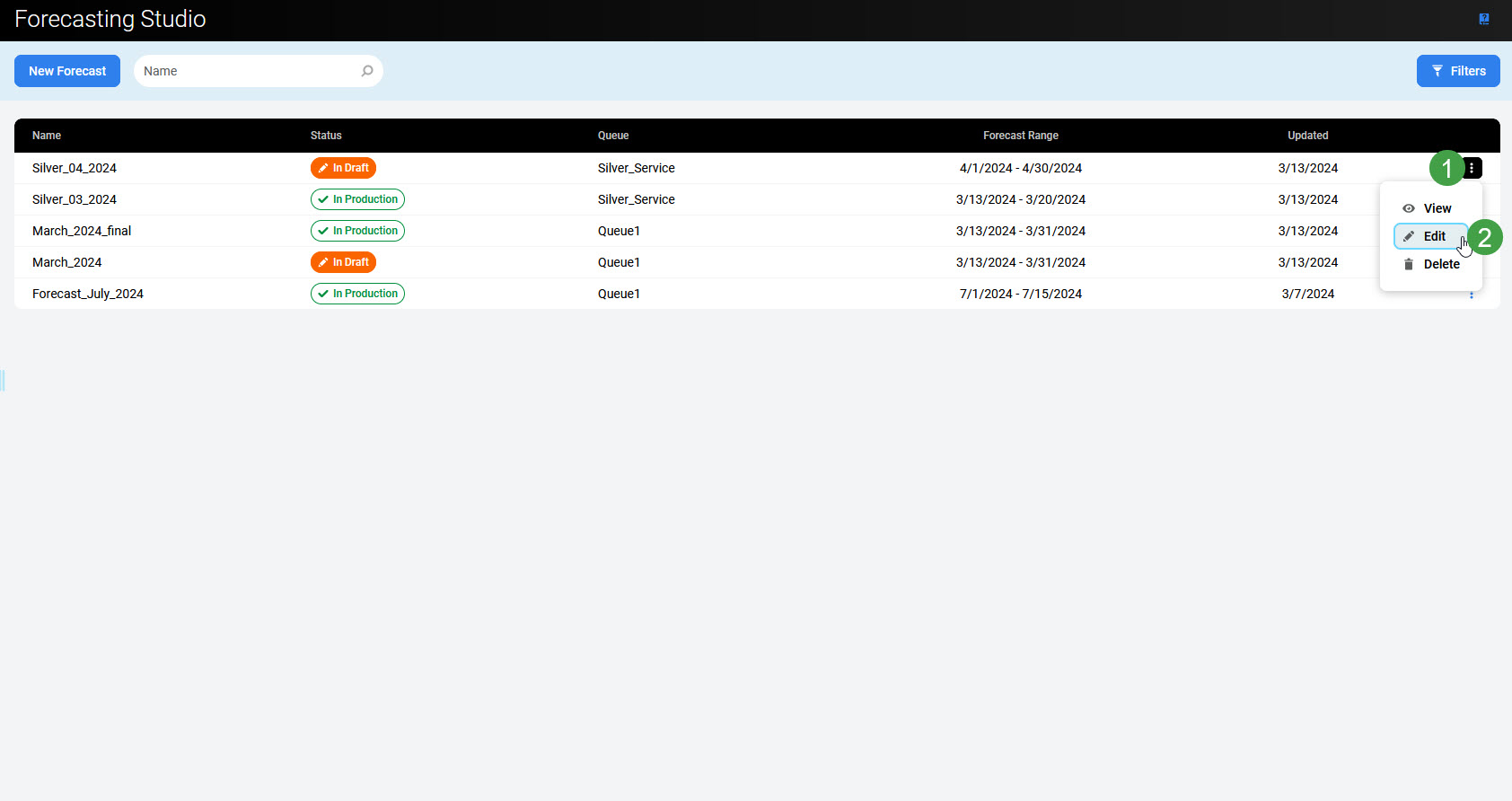
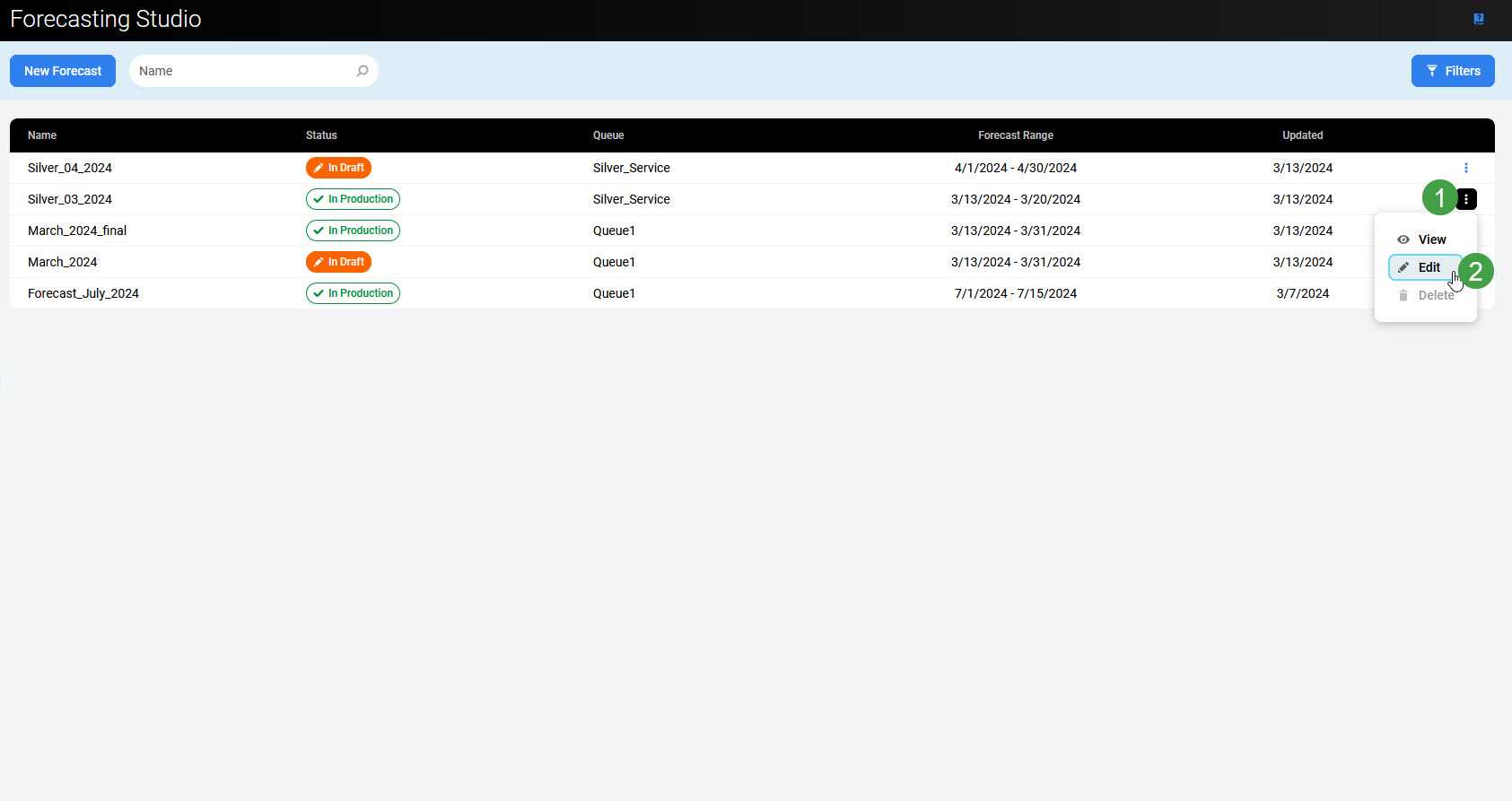
To put a forecast to production, click the Edit button for the forecast that you wish to put to production.
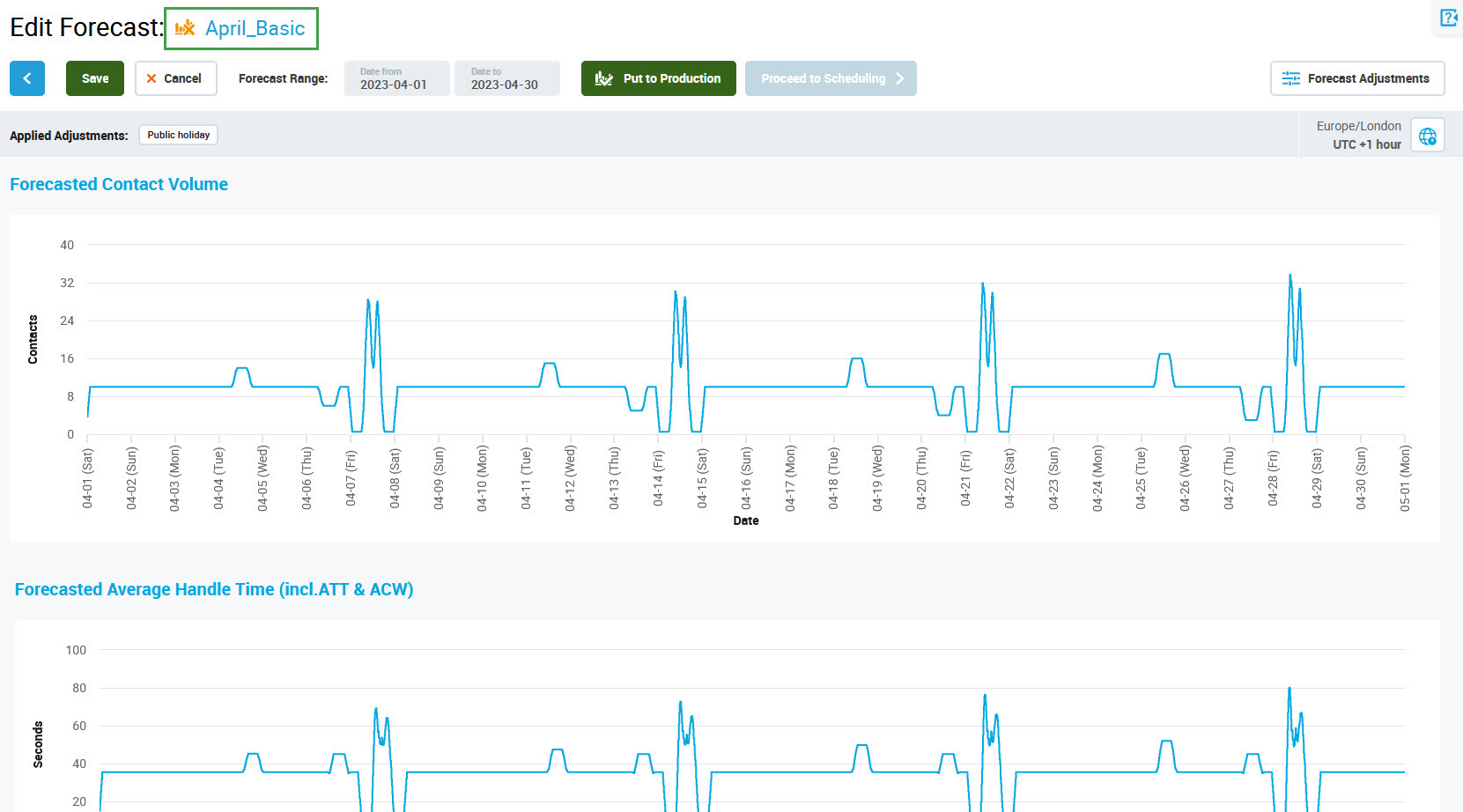
Click Next step to navigate to the second step of the wizard. Click the Put to Production button to put the forecast to production.
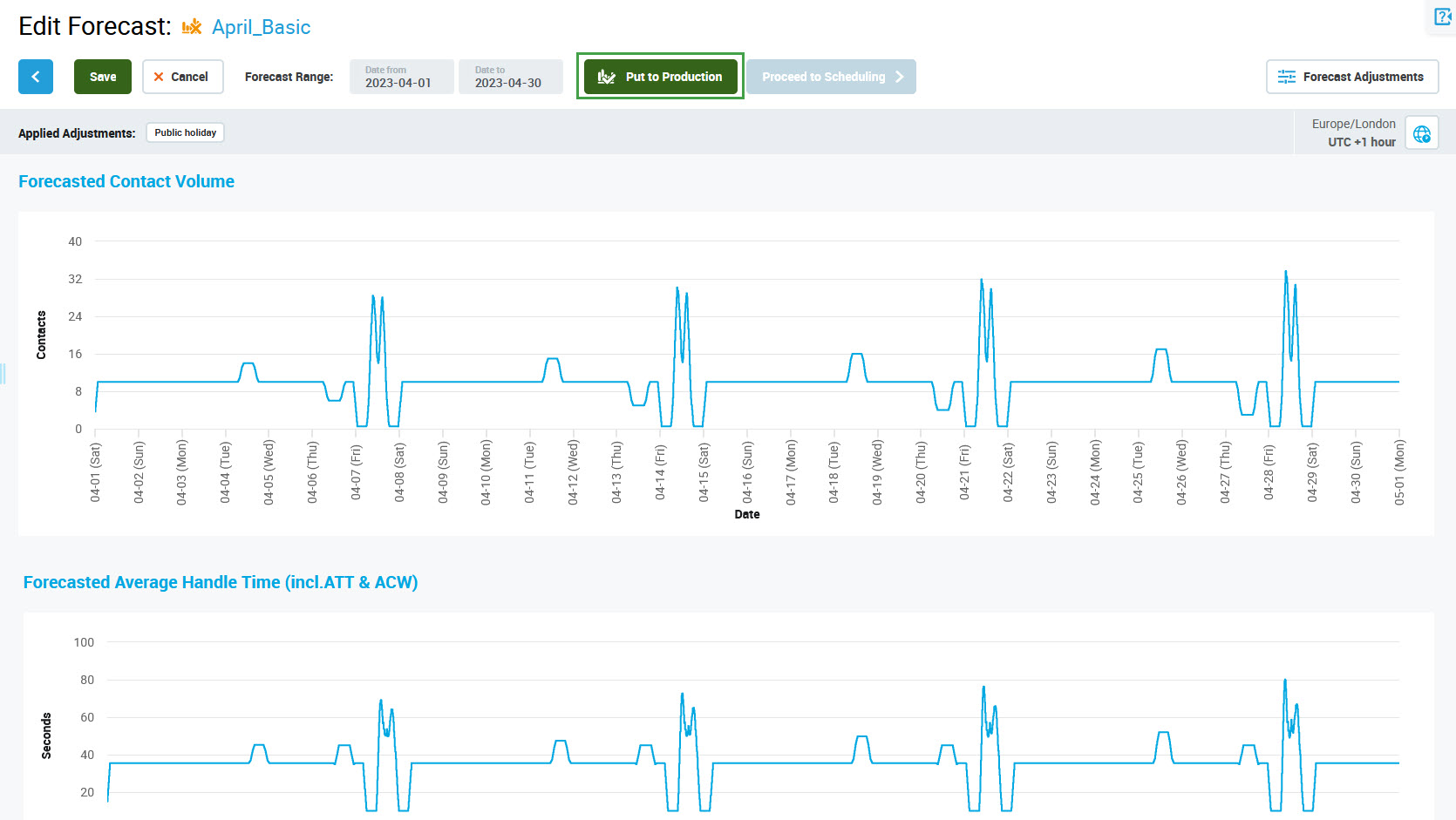
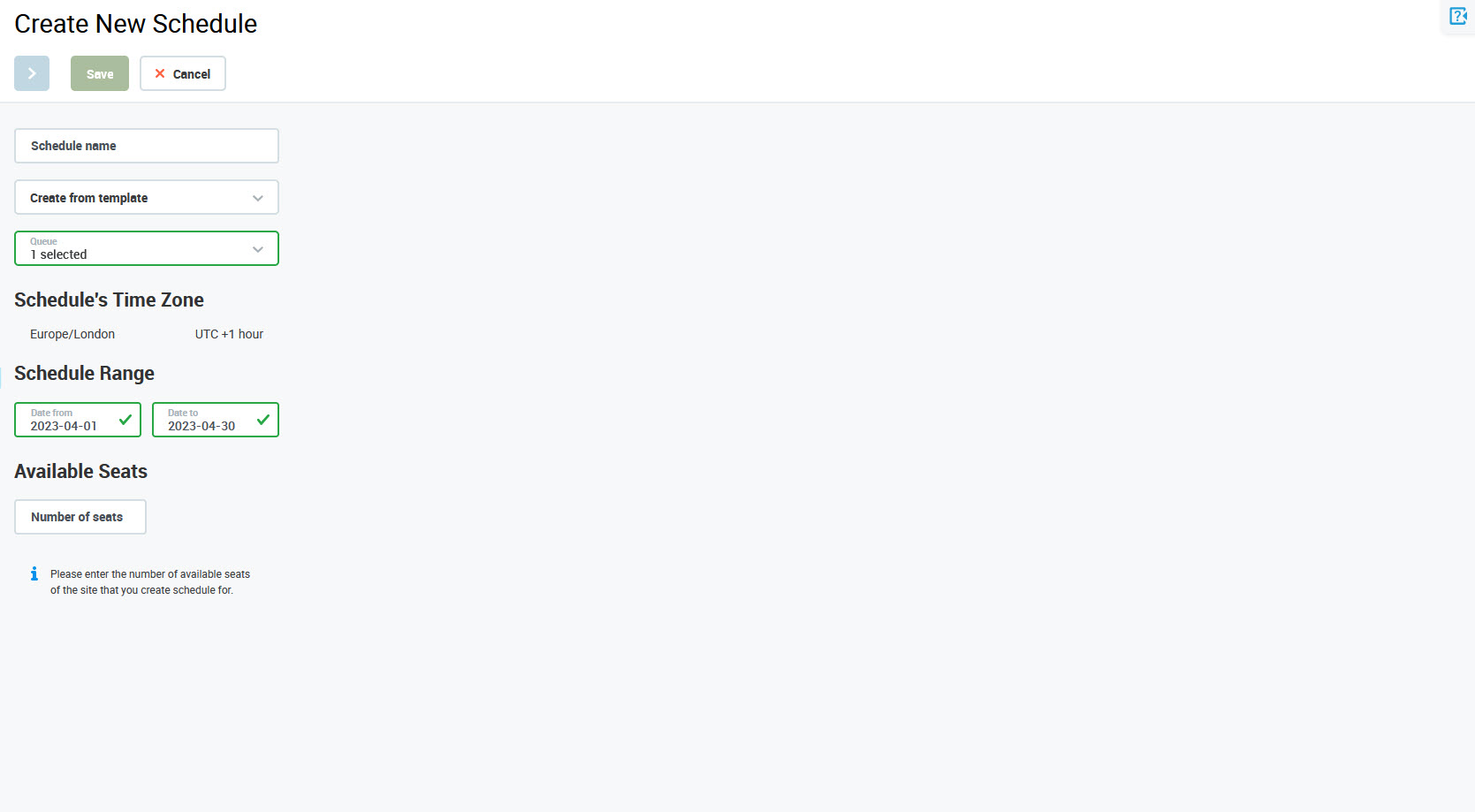
The In Production icon next to the forecast's name indicates that this forecast is in production. The Proceed to Scheduling button sends you to the Create New Schedule page.
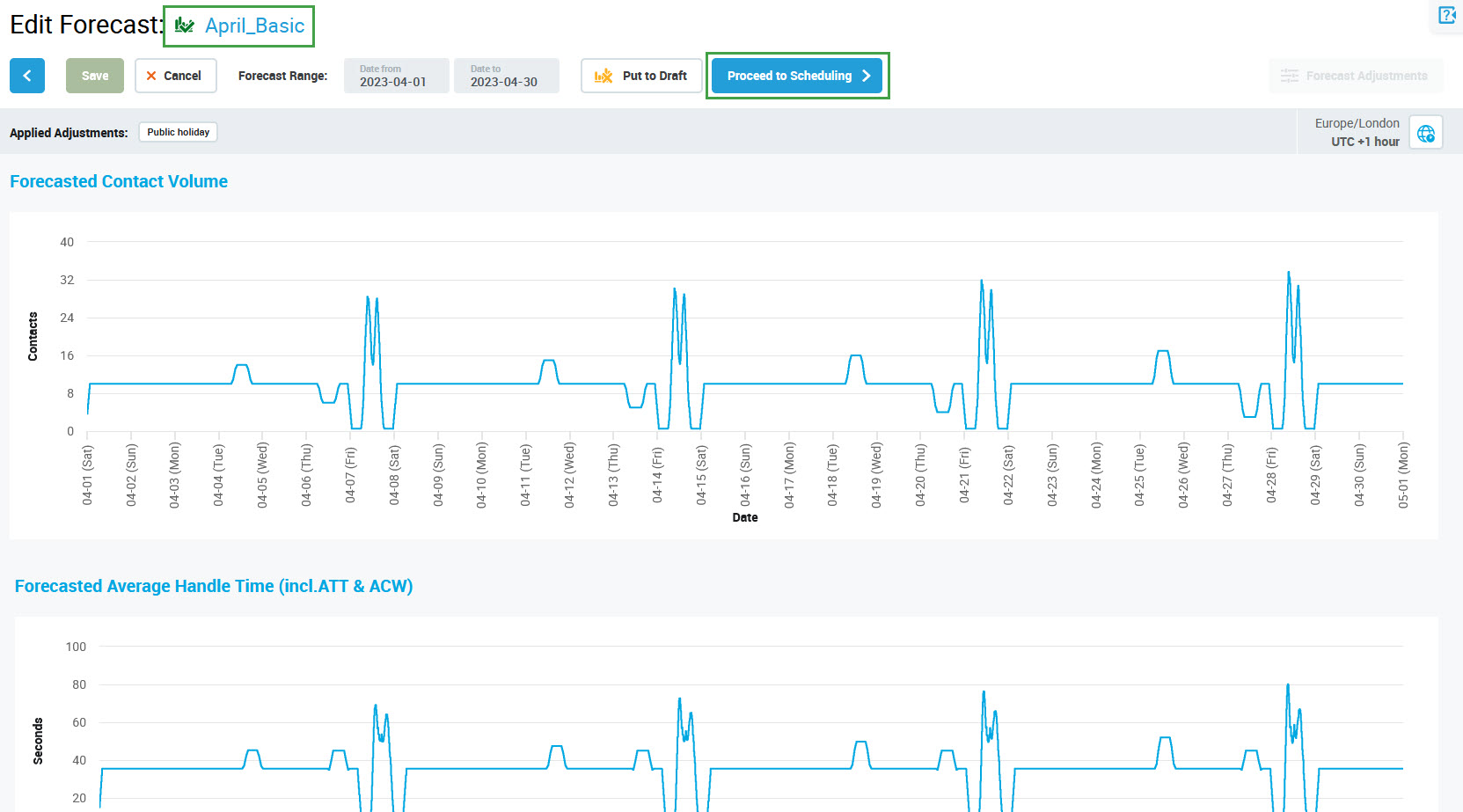
Data selected in the Forecasting Studio (Queue, Date from, Date to) is used as input.
Note that using the Put to Production button not only changes the forecast from draft to production but also saves all other unsaved changes. If the button is used during the creation of a new forecast, the forecast is first created and then put to production.
Editing the Production Forecast
The production forecast cannot be modified. If changes to a forecast which is in production are needed, first remove it from production, edit it and then put it back to production.
Removing a Forecast From Production
To remove a forecast from production, click the Edit button for the forecast which is in production.
Click Next step to navigate to the second step of the wizard. Click the Put to Draft button to remove the forecast from production.
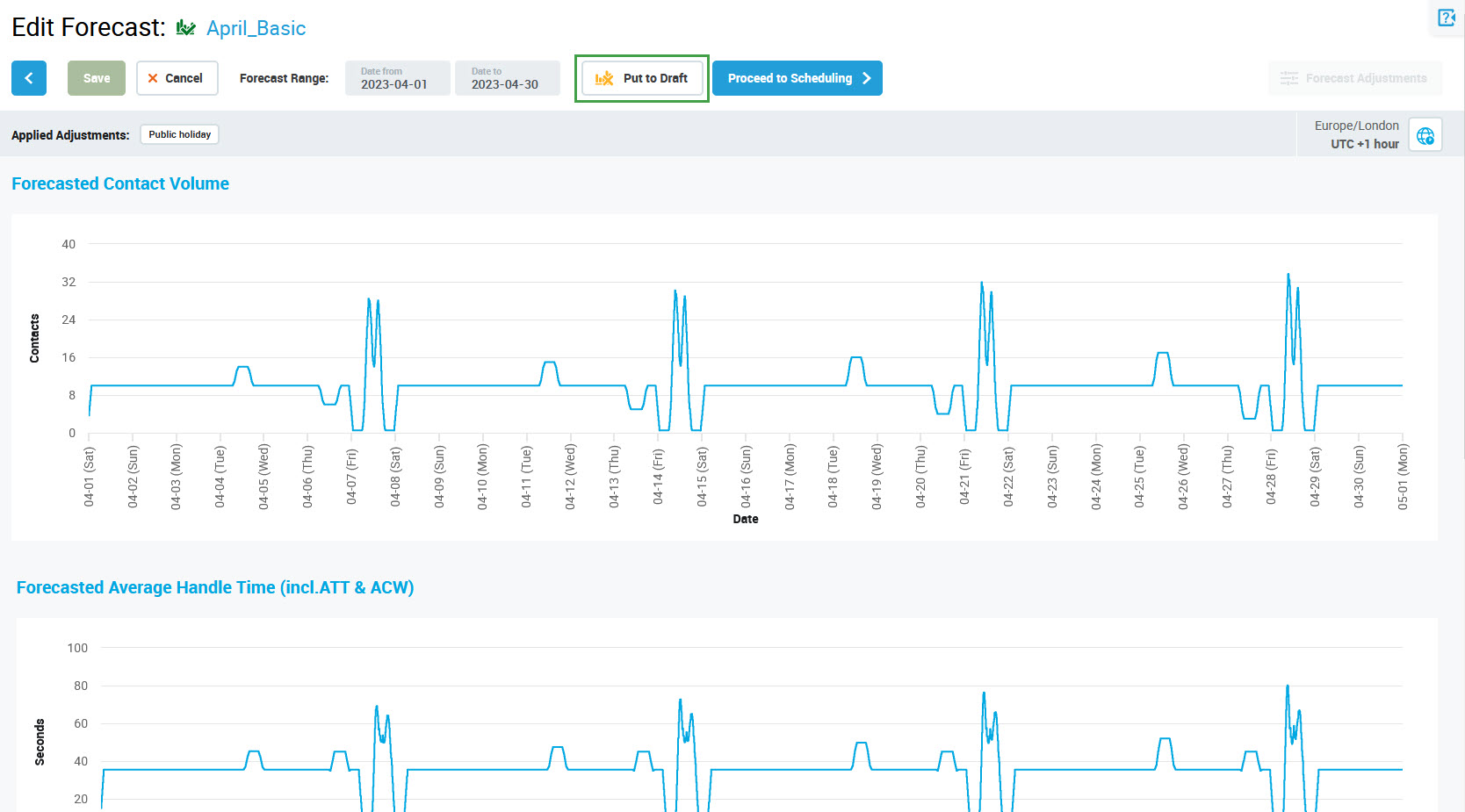
The In Draft icon next to the forecast's name indicates that this forecast is no longer in production.
The Save and Forecast Adjustments buttons are active again, the forecast can be modified.