Overview
The filtering feature is present on most screens within Eleveo WFM. Use it to limit what is displayed on the screen. For example:
-
Filters on the Forecasting Studio screen display only forecasts for the defined queues.
-
Filters on the People screen display only people handling the selected skills.
-
Filters on the Adherence History screen show only reports that contain specific events.
Accessing Filters
Click the Filters button in the top right corner of the screen.
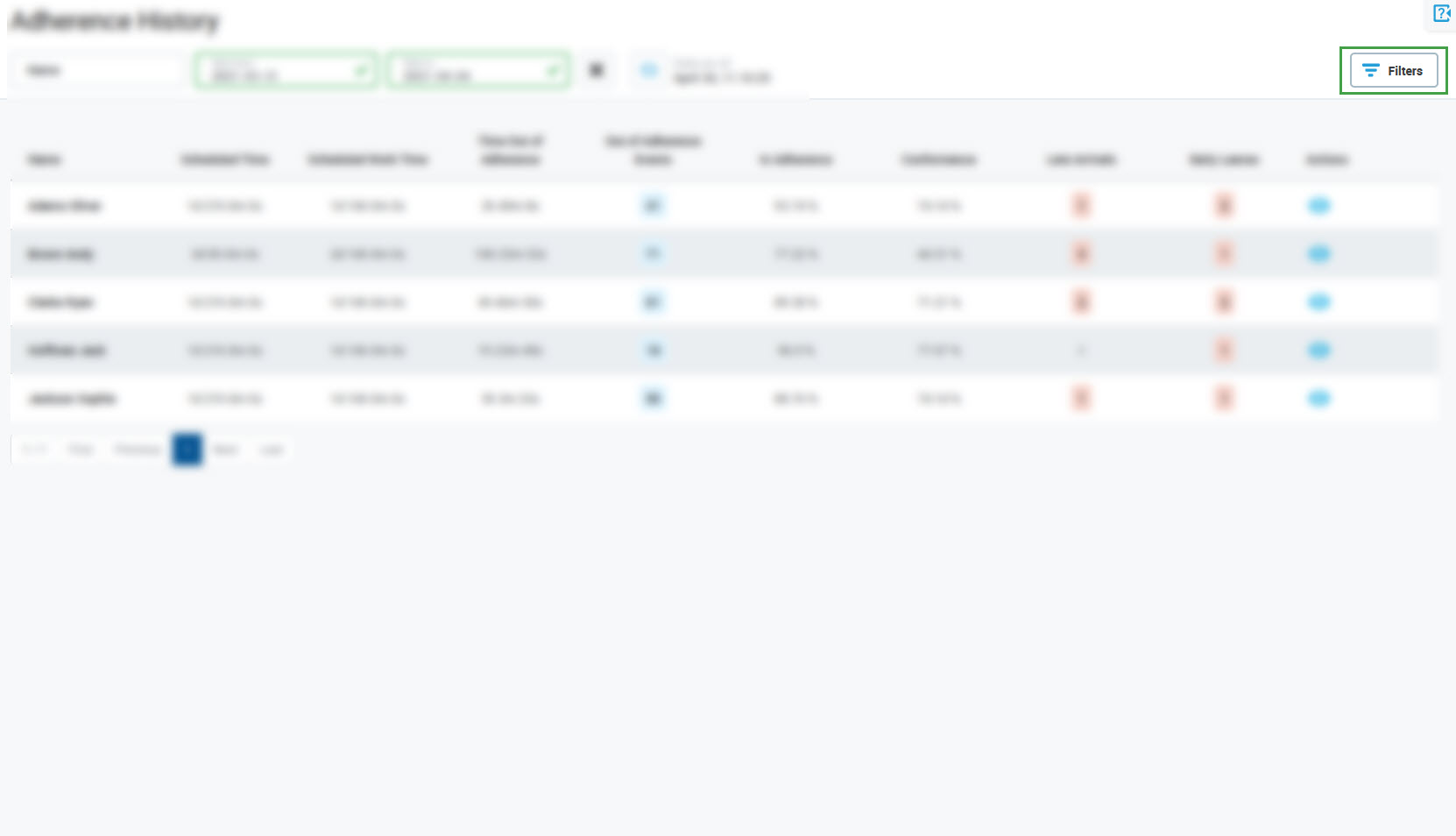
The Filters pane will open.
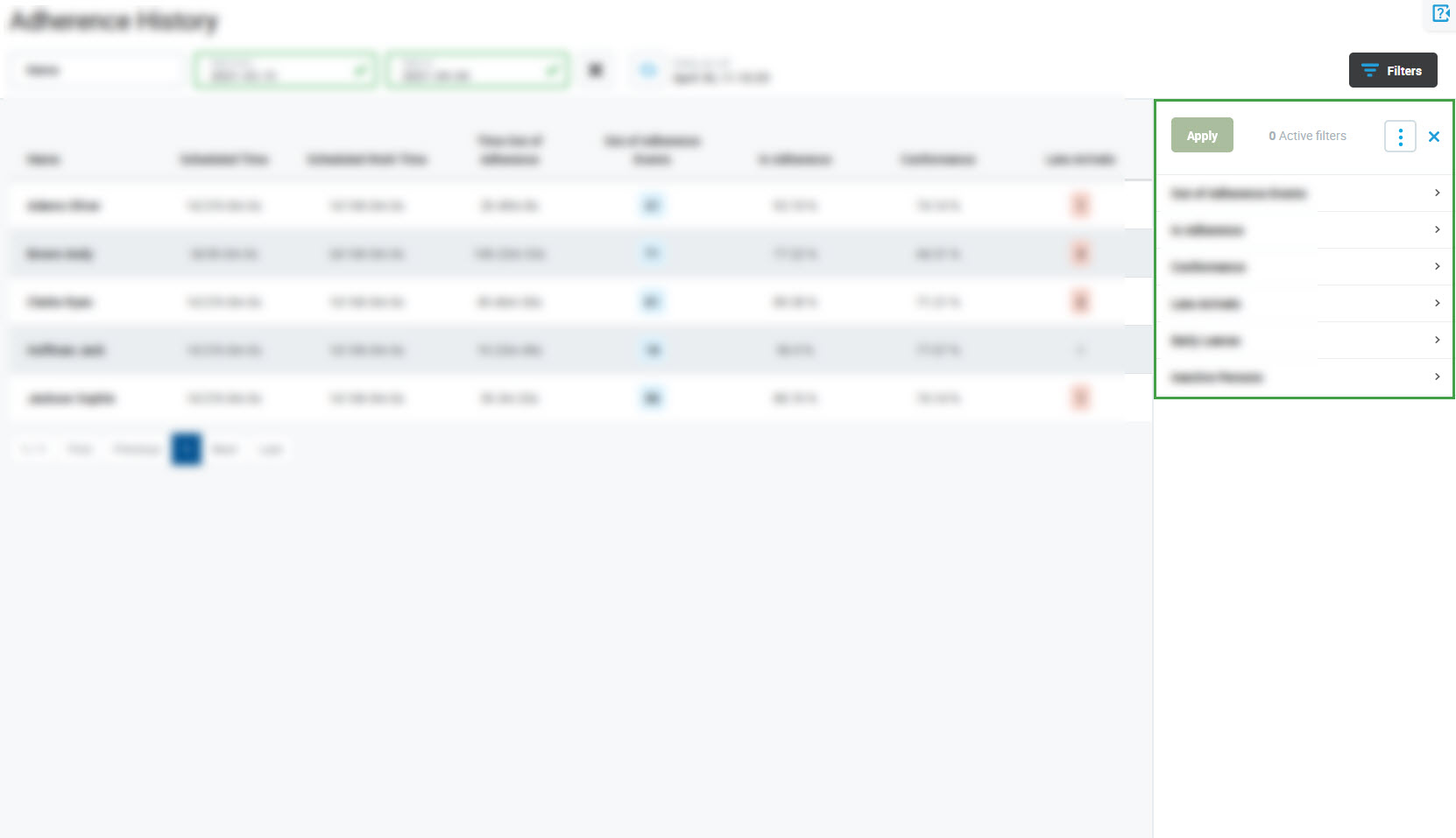
The content of the pane differs between screens – different criteria are available for different functions. For screen-specific filter information, see:
Configuring Filters
Click the individual tabs to expand them and to display the available filters, for example:
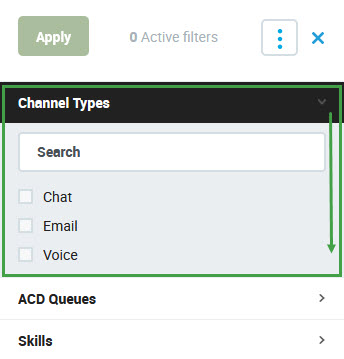
Depending on the filter that is available, different configurations are possible:
-
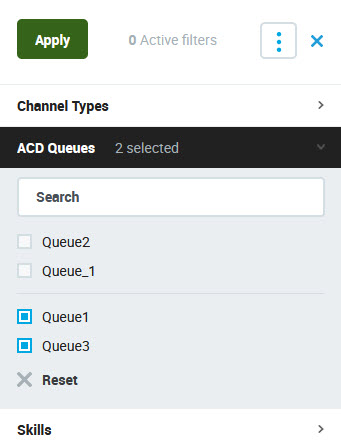
Checking one or more values:
-
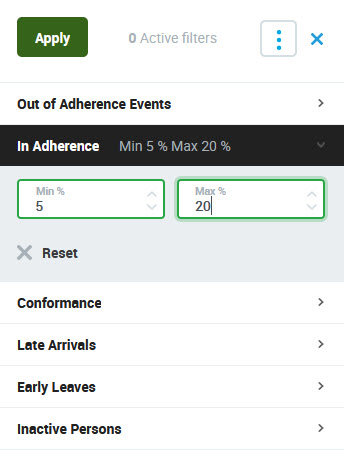
Filling in values:
-
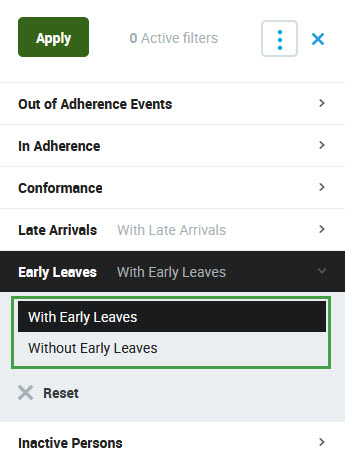
Selecting one of two values:
.jpg?cb=3eb0e8cf6b72d05e2d69b37d4bfbd557)
Configured filters are displayed on the tabs (but not highlighted).
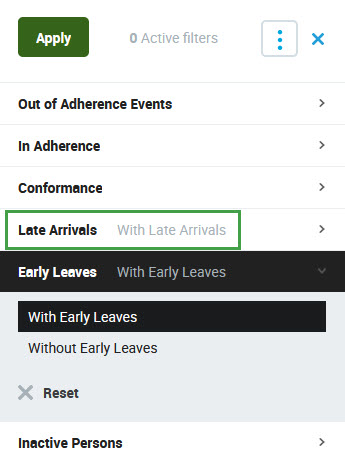
If the tab is expanded, the selected value is highlighted in black (even if the filter has not been applied yet).
Applying Filters
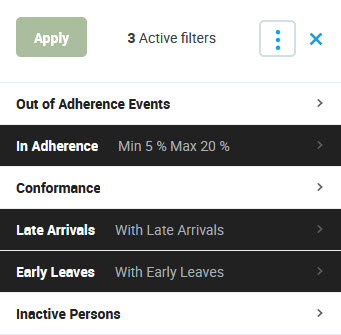
Click Apply to activate the configured filters. The number of active filters is displayed to the right of the Apply button – all applied filters are highlighted in black.
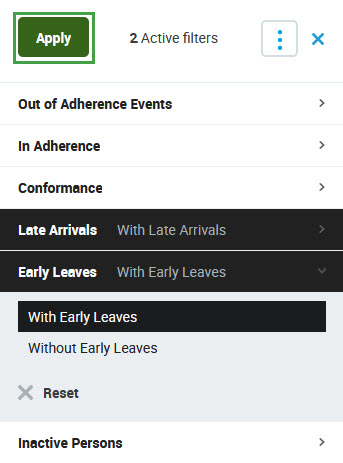
If an additional filter is added at any point in time, it will not be highlighted until it is applied.
Example:
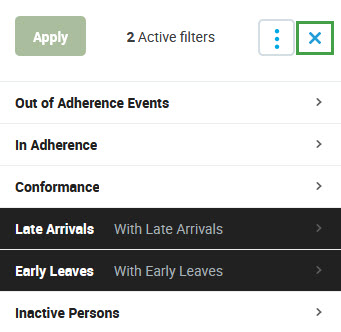
For example, in the image below, two filters (In Adherence and Early Leaves) were applied previously and are marked in black. The third filter (Late Arrivals) has not been applied yet and it is not highlighted.
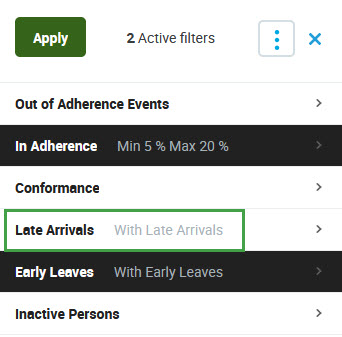
Click Apply again to activate the third filter. All filters will be highlighted in black:
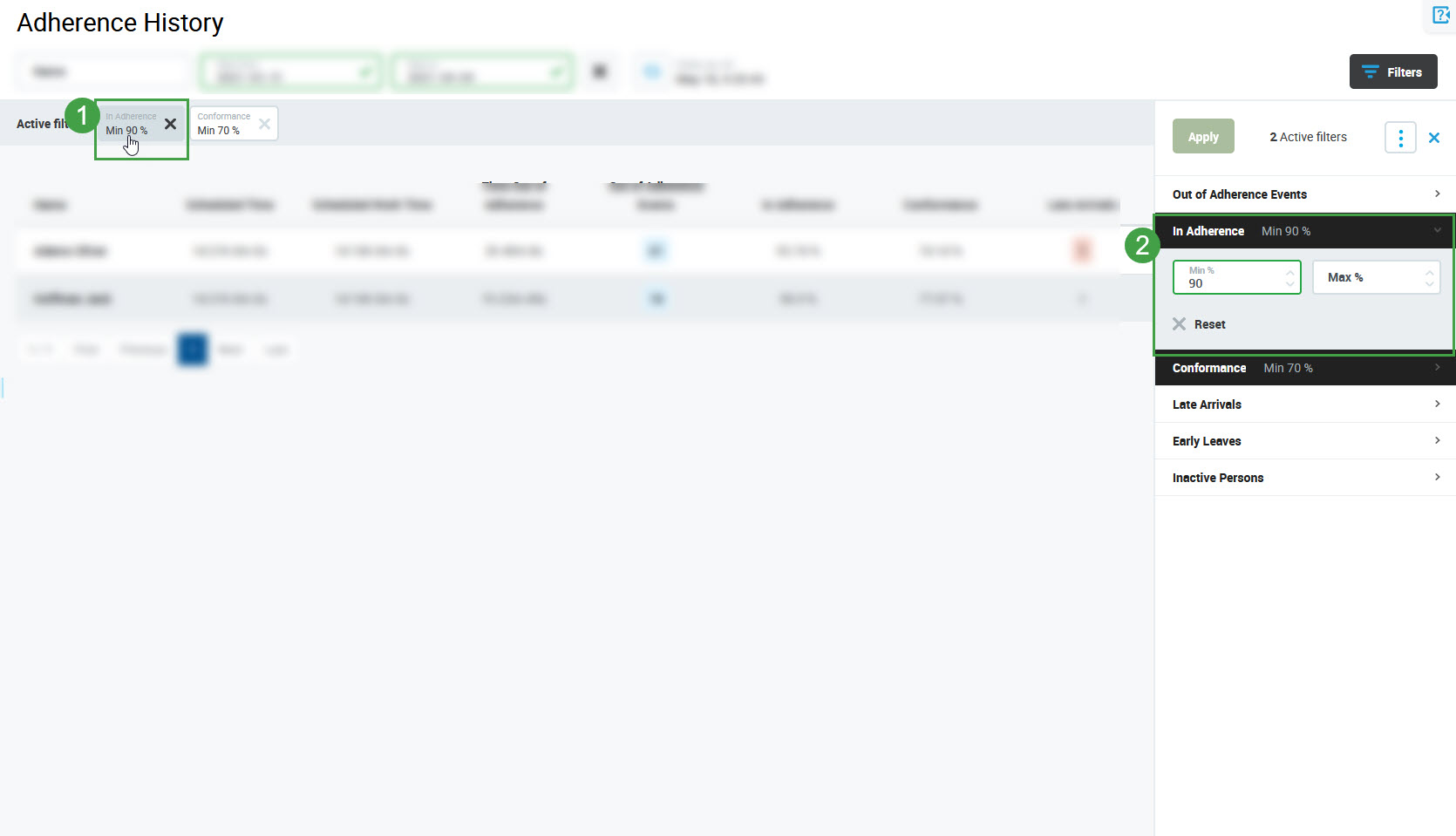
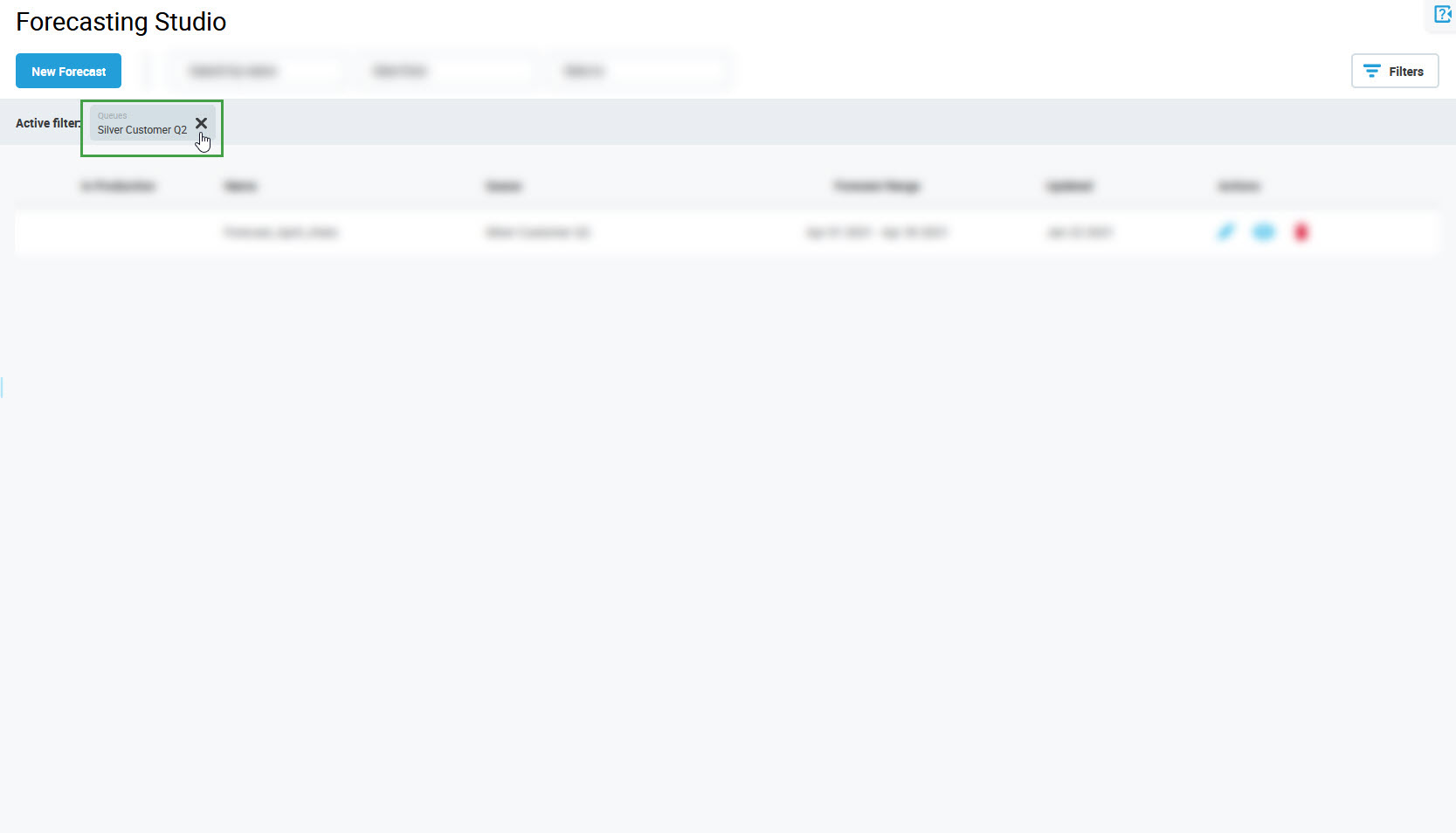
Applied filters are listed on the Active filter bar at the top of the screen.
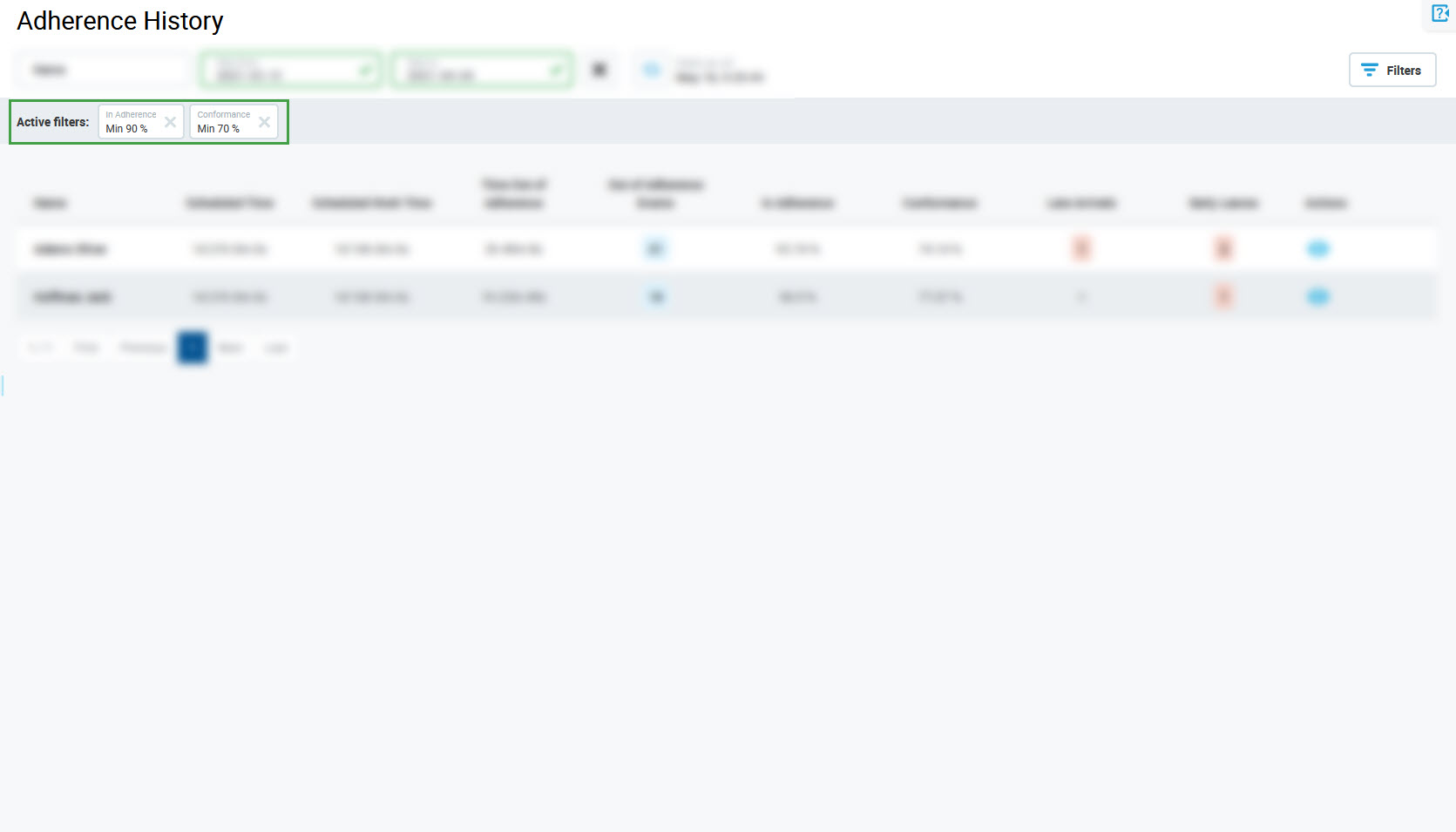
To open the Filter pane and expand the tab with the filter, click its name.
Removing Filters
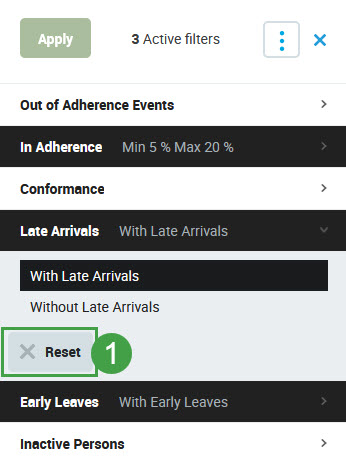
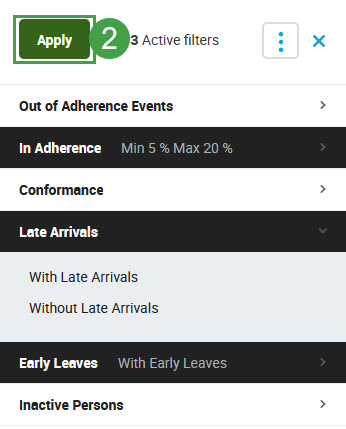
On the tab to clear, click Reset, then click Apply.
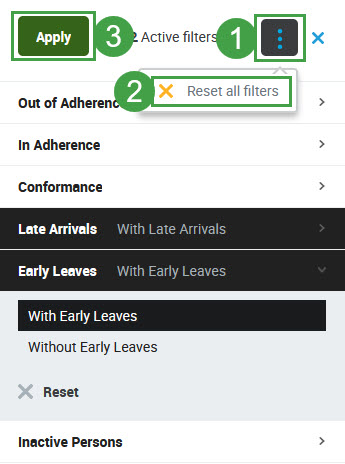
To remove all filters, click the More options button in the top right corner of the pane and click Reset all filters. Then click Apply again.
Alternatively, click the Reset button next to the filter to remove on the Active filter bar.
Hiding Filters
Click Close to hide the pane.