
The default application language and region-specific UI setting is English (US). The language can be switched to one of the following:
-
Polish
-
Bulgarian
-
Czech
-
English (United Kingdom)
-
French
-
German
-
Latvian
-
Portuguese
-
Romanian
-
Russian
-
Slovak
-
Slovenian
-
Spanish
-
Turkish
-
Arabic
-
Ukrainian
The change applies to the whole Eleveo application: Workforce Management, User Management, and Quality Management.
If a selected language is not supported by one of the applications or components (for example, Arabic is not supported by WFM), the default English (US) language will be applied.
The language can be switched in two ways:
On the Login Page
-
Open the application URL in the web browser.
-
Change the application language and then provide the credentials.
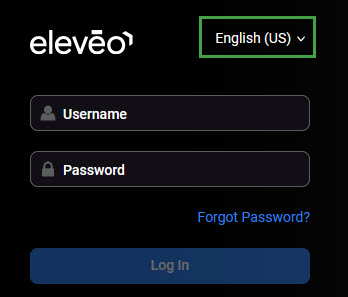
For more information, see Login to User Management.
From the User Profile
-
Click the username at the bottom left to expand the menu and then click User profile. Alternatively, go to User profile in the navigation tree.
-
Change the Language parameter and click Save.
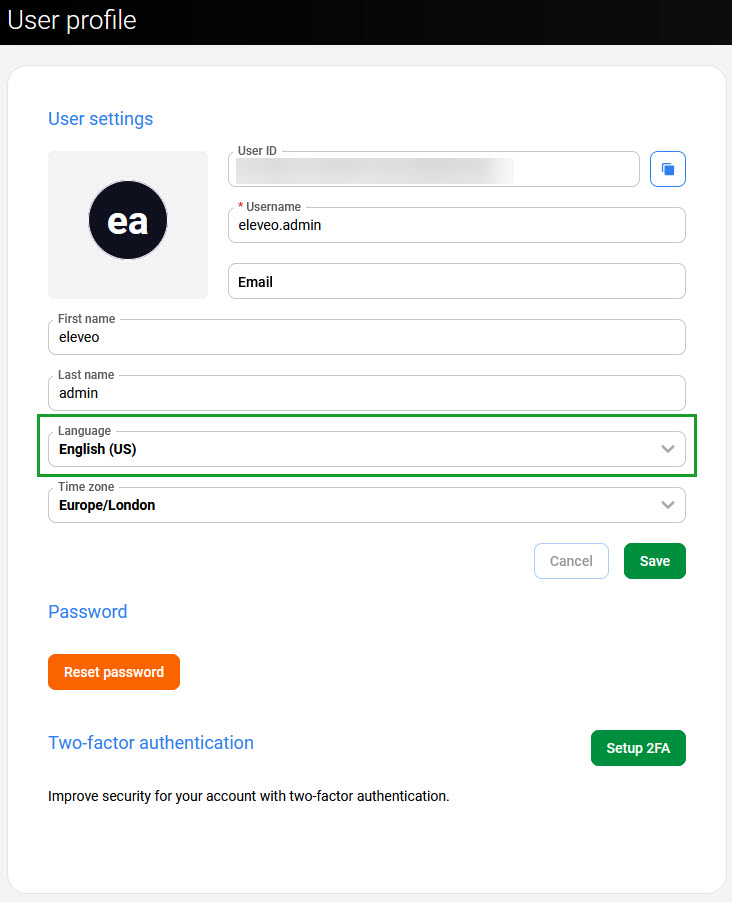
For more information, see Configuring User Profile and Password.