
Blank screen when accessing User Management?
If User Management does not display/load properly, and users encounter a blank screen, check that the internet browser is up-to-date. Usually, this issue is resolved by updating the browser to the most recent supported version.
Accessing User Management
To access User Management, click Enter on the landing page:
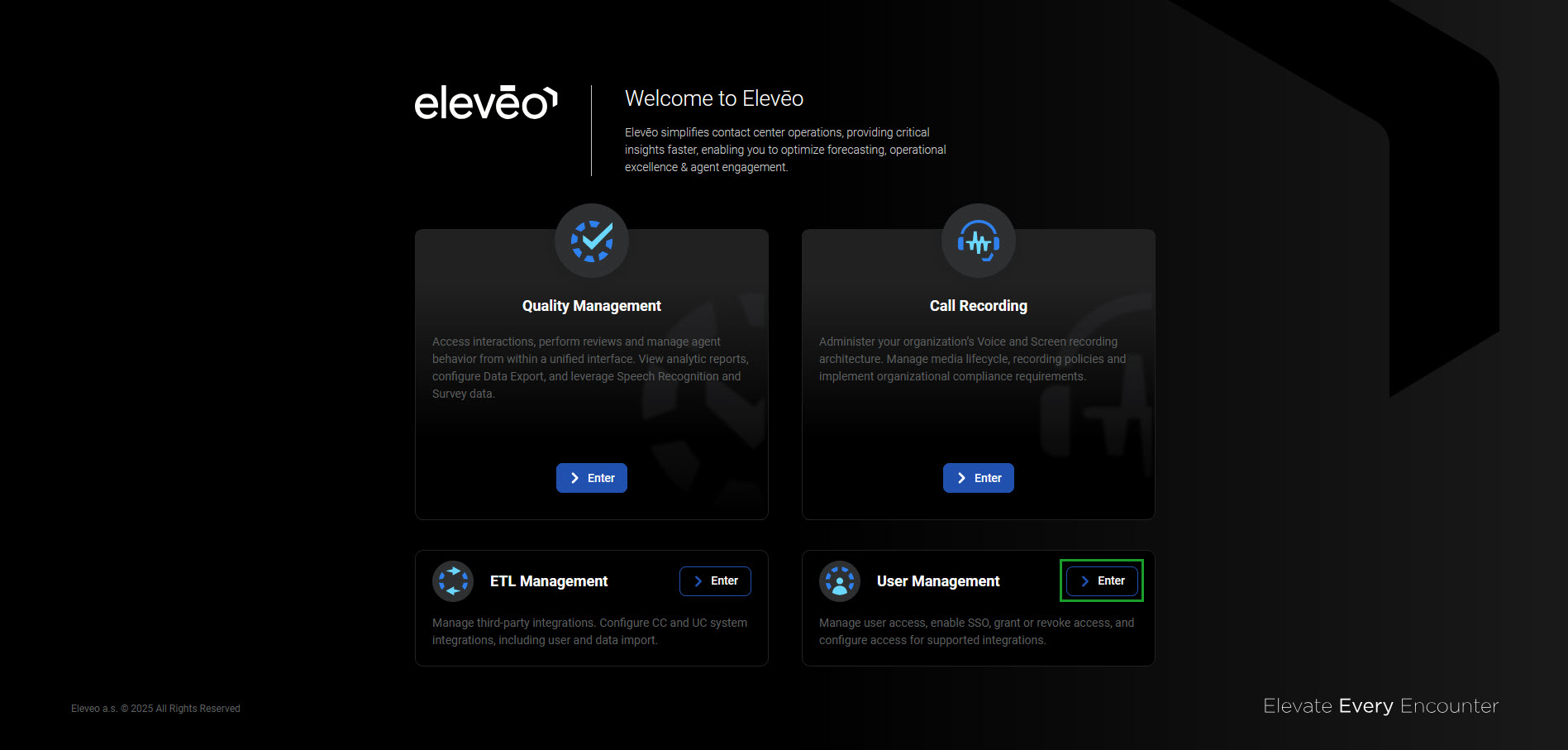
Alternatively, use the URL of User Management: https://<FQDN>/app/um
Note that you need to log in as an eleveo.admin user (find more details on the Default Users page).
The user eleveo.admin is prompted to change their password the first time they log in.
Settings for all other users can be configured as temporary by the administrator or may be defined by the SSO integration. See the Setting a New Password section below in this article.
Newly created users will be able to log into all applications once the systems sync, this takes about 10 minutes.
Using legacy UI
It is still possible to access User Management with the legacy UI. Go to https://<FQDN>/auth-login and log in with the eleveo.admin credentials.
Accessing User Profile
Each user can access and modify the details of their account from within User Management. Use the following URL to access your account settings: https://<FQDN>/app/um/user-profile.
More information about the User Profile can be found on the page Configuring User Profile and Password.
Login Screen
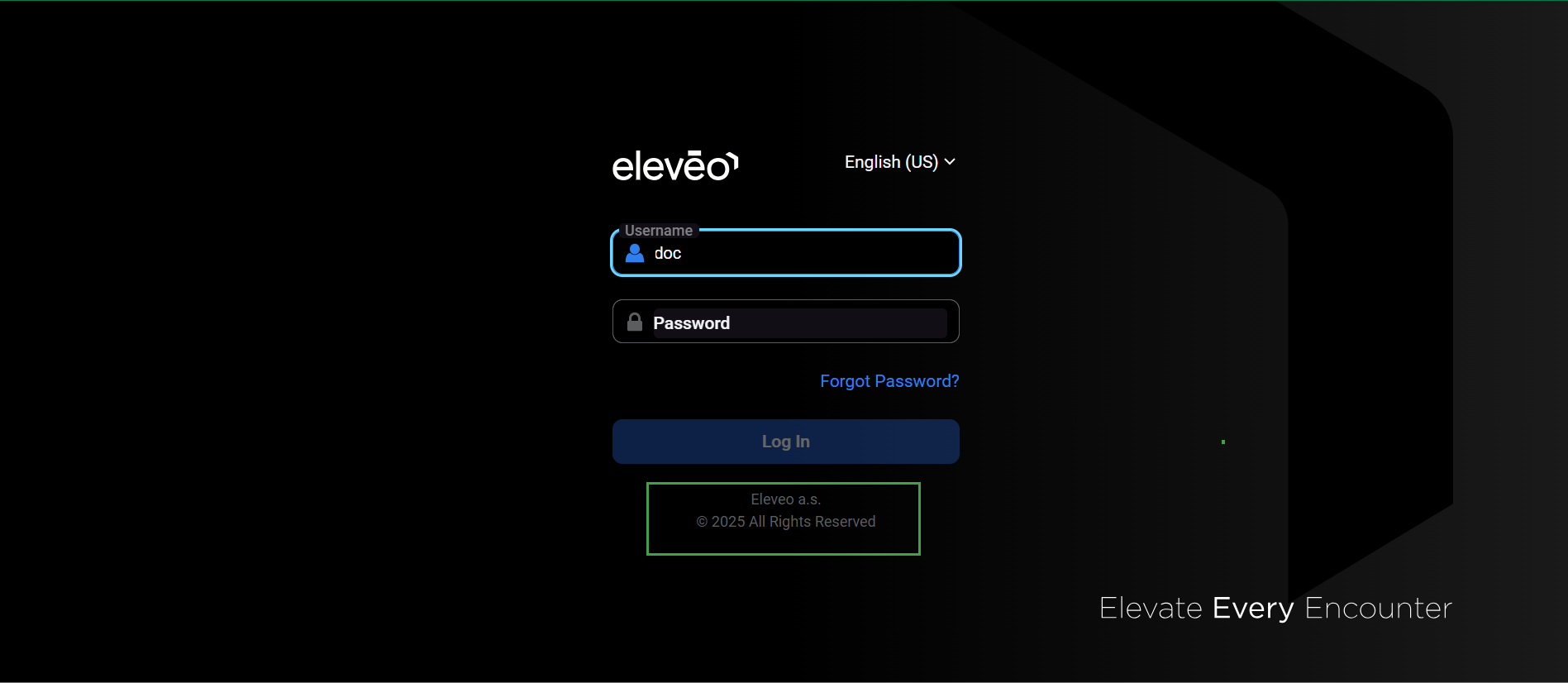
To log in, open the application URL in the web browser:
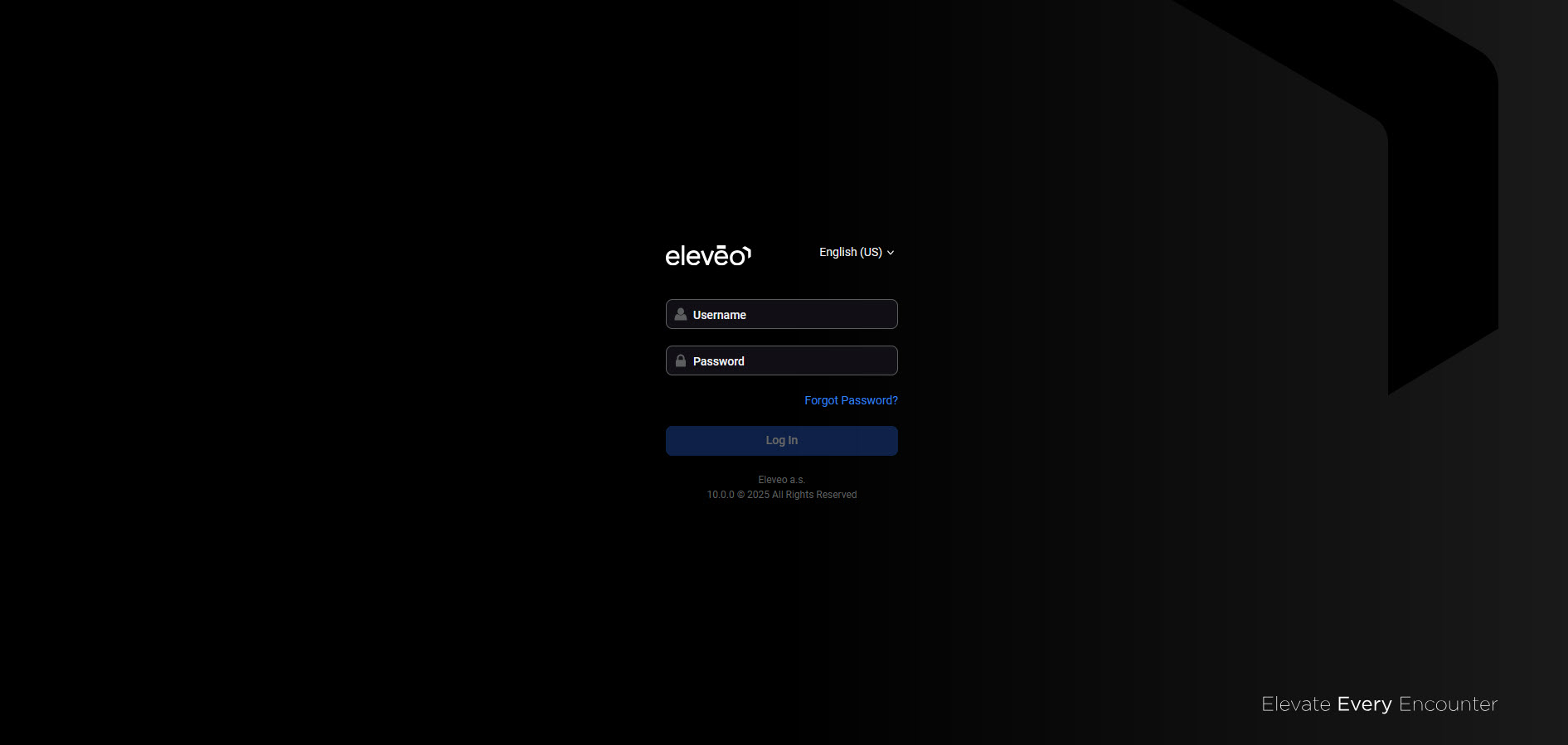
Enter the user credentials (username and password). If needed, change the application language. More details about the language selection can be found on the Switching the Language page. Then click on Log in.
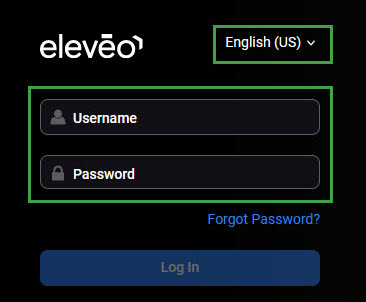
Users imported from UCCE/X can log in using the UCCE/X credentials and are authenticated against UCCE/X.
A fresh installation has only a limited number of Default Users preconfigured.
Setting a New Password
If a password was set as temporary, it needs to be changed during the first login. By design, the system requires that enhanced complex passwords be used.
The following notification will appear:
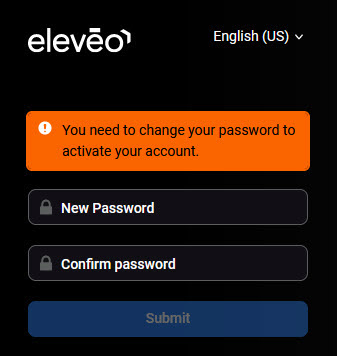
Provide a new password and click Submit.
Logging in via UCCE Single Sign-On
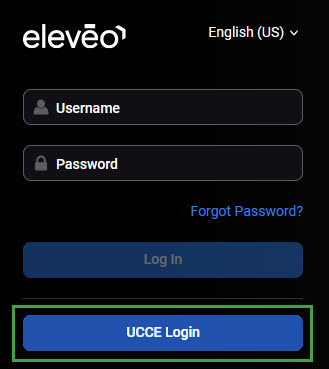
For users imported from UCCE who have SSO enabled, an additional UCCE SSO option is available. Click the UCCE Login button.
An organizational SSO login page is displayed, where you can enter the credentials.
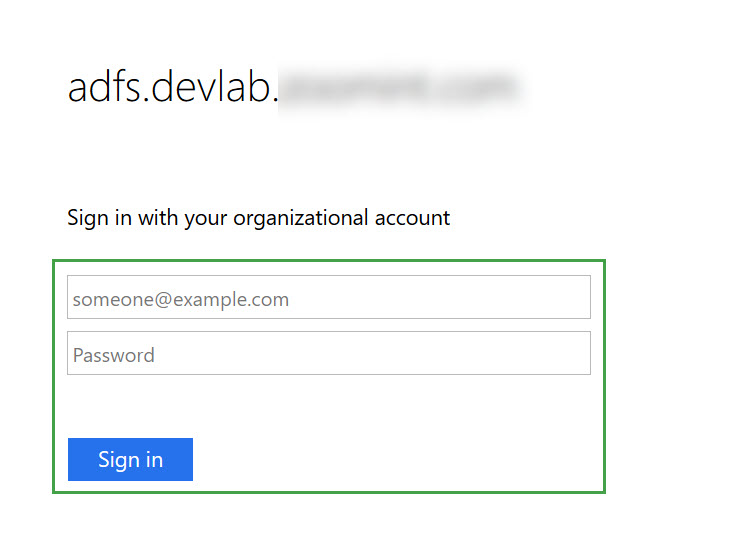
Successfully logged-in users will be taken back to the application.
In order to be able to use the UCCE SSO option, the UCCE needs to be configured as an Identity Provider by an administrator.
As a result, a new ucce-sso button will display on the login screen.
Only UCCE users who were successfully imported into User Management (and have SSO enabled) can log in using SSO. The credentials of a user not yet imported will not be recognized, even if they are correct. The following error will display:
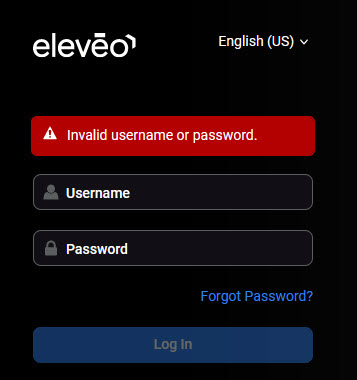
For the imported users, the following rules apply:
-
UCCE users who have SSO enabled should log in using the UCCE Login button only.
-
UCCE users who have not SSO enabled should log in using the user/password form only.
Local users (manually added to User Management) should log in using the user/password form as well.
Multiple instances of the application opened within the same browser share the same server-side session.
Logging in multiple users within the same browser is not recommended. This will invalidate the user session and prevent the correct functioning of the application. Use a different browser or incognito mode if it is necessary to use multiple accounts on the same workstation.
Logging into a second browser (or switching to incognito mode) will invalidate the original user session.
Logging Out
To exit the application, click on the username icon in the bottom left corner of the screen and then click Logout.
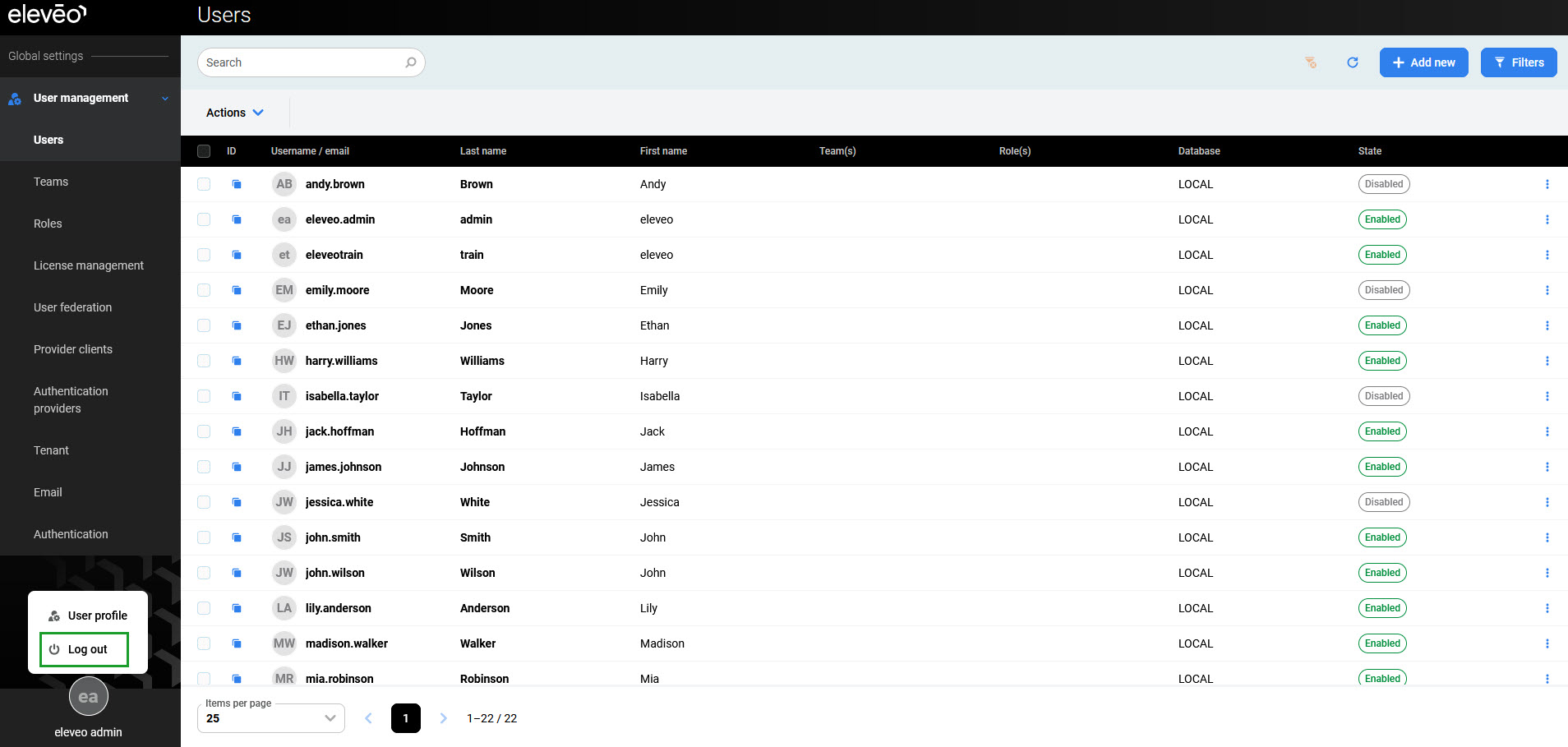
The application will close, and the login screen will be displayed again.
If the browser is not closed completely, users enabled for single sign-on risk having their accounts misused by others. If the browser is left open, a different user can access the application from the browser page without entering any credentials.
Checking the Version Information
Eleveo Cloud Native is always kept up to date with the latest release. Regular updates occur every two weeks. However, the current ECN version is not visible in the web UI.
Supported Authentication Sources
User Management supports several authentication sources:
-
local users (created locally from within User Management) – they are authenticated against the local User Management database
-
users imported from UCCE – they are authenticated against the UCCE database, through Data Provider
-
users imported from UCCX – they are authenticated against the CUCM database (AXL), through Data Provider
-
users imported from CUCM – they are authenticated against the CUCM database (AXL), through Data Provider
-
users imported from Genesys – they are authenticated against the Genesys API, through Data Provider
-
users imported from UCCE, who have Cisco SSO (IDS) enabled – they can use the UCCE SSO button to be redirected and authenticate against Cisco SSO
-
users imported from Webex Contact Center – they can use the Webex CC SSO button to be redirected and authenticate against Webex SSO
-
users imported from Webex Calling – they can use the Webex Calling SSO button to be redirected and authenticate against Webex SSO
-
users imported from MS Teams – they can use the MS Teams SSO button to be redirected and authenticate against the Microsoft Identity Provider using the SAMLv2 provider.
All external authentication sources should be configured by a user with admin privileges and access to the external infrastructure.