
Overview
The ETL Management is dedicated to configuring integrations with various data sources. Eleveo supports the regular (automatic) import of users, groups, or other data from various external sources. Support for the import of users and data includes (but is not limited to): Webex Calling / Webex Calling Customer Assist, User profiles to Eleveo User Management, and historical data to Eleveo WFM.
Accessing ETL Management
Use the URL of the server to access the ETL Management: https://<FQDN>/etl where <FQDN> is the FQDN of the server where Eleveo is installed.
Note that eleveo.admin privileges are needed. Please, check ETL Management Roles to get more details about the roles and permissions for working with Integrations UI.
Adherence and Historical Data Import
Order of installation steps
Once authorization with Webex Calling / Webex Calling Customer Assist is successful and the User Sync task is configured properly, import of historical data and adherence can be configured.
The automatic import of historical data from Webex Calling / Webex Calling Customer Assist into Eleveo WFM can be achieved by configuring ETL Management.
The forecasting tool helps to predict contact center workload and staffing requirements based on historical data. This is a key prerequisite for the scheduling tool that creates an actual agent schedule optimized to fulfill the forecasted contact center load. There are multiple ways to predict the contact center workload. We use call volumes and average handling time (AHT) for each queue, aggregated to 15-minute intervals.
Schedule adherence is a workforce management metric that tells how effectively an agent follows their schedule. Historical adherence compares the agent's schedule with their actual behavior, e.g., when the agent was available for the call (or handling a call) when they went for a break or lunch, etc., and creates reports.
Historical Data
The import of historical data allows one to get information such as names and IDs of the queues, start and handle time, and the number of tasks offered to the queues. That data can be used for the forecasting process in WFM.
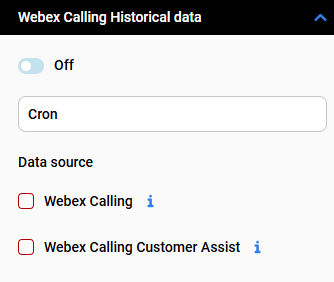
The following configuration can be performed for the task:
-
On/Off - the task can be configured as active or inactive
-
Cron - cron expression that specifies when the current task should be started
|
* |
* |
* |
* |
* |
|---|---|---|---|---|
|
minute (0-59) |
hour (0 - 23) |
day of the month (1 - 31) |
month (1 - 12) |
day of the week (0 - Sun, 1 - Mon etc) |
To validate the cron expression, use the editor for cron schedule expressions.
Cron job uses the UTC timezone. You can check the time on the server by typing the following date command in the terminal: date -u
We recommend that the cron job be configured to import historical data every 15 minutes: */15 * * * *
-
Data Source - Select which source(s) to import data from (at least one must be selected)
-
Webex Calling
-
Webex Calling Customer Assist
-
Note – Look back period – Importing Historical data for the past two(2) days is currently supported. It is not currently possible to import older data.