
Interactive Guide
Login Screen
To access the Eleveo Quality Management application, enter the server address in the browser. On the landing page, click the Enter button under Quality Management.
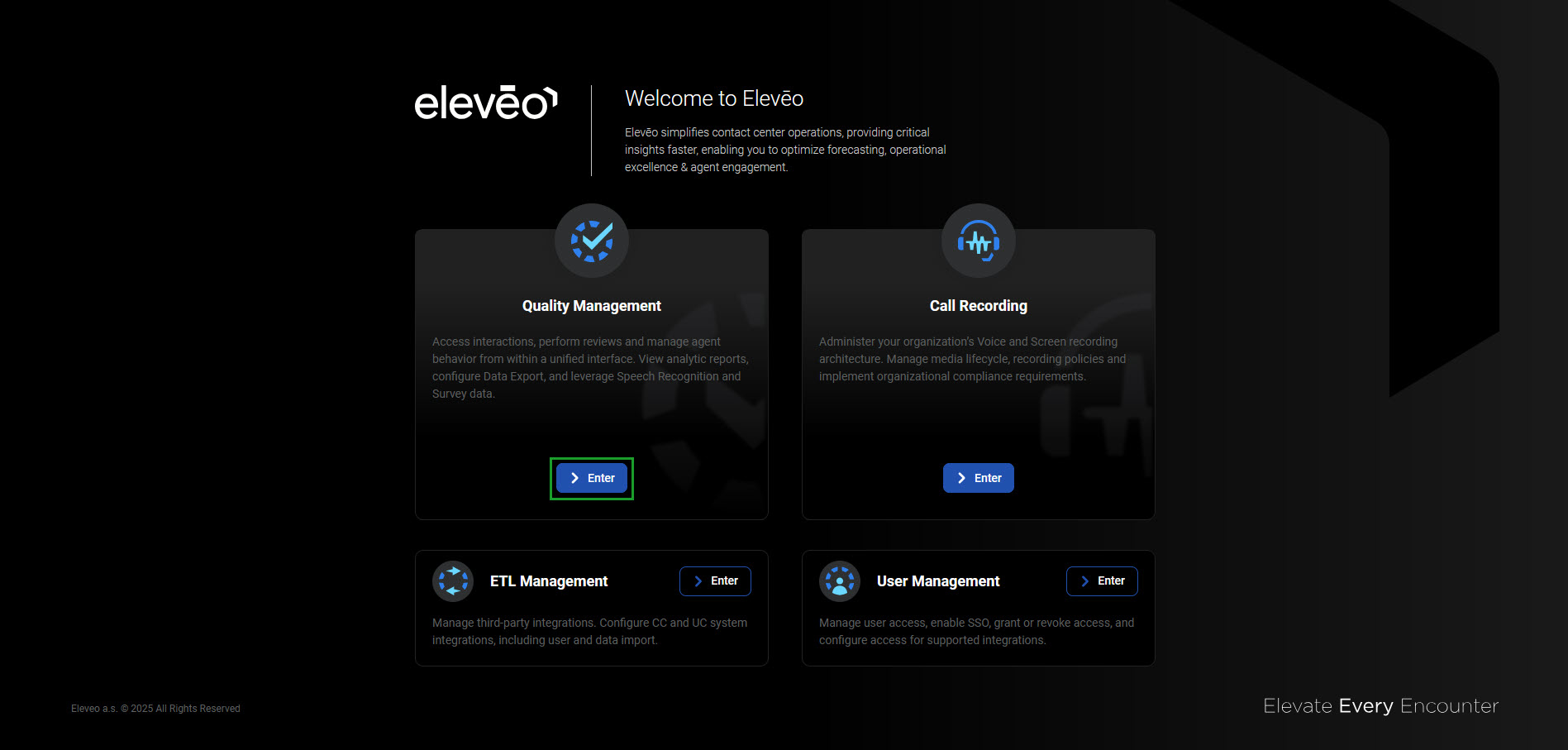
Alternatively, use the URL: https://<FQDN>/app/ The login screen appears.
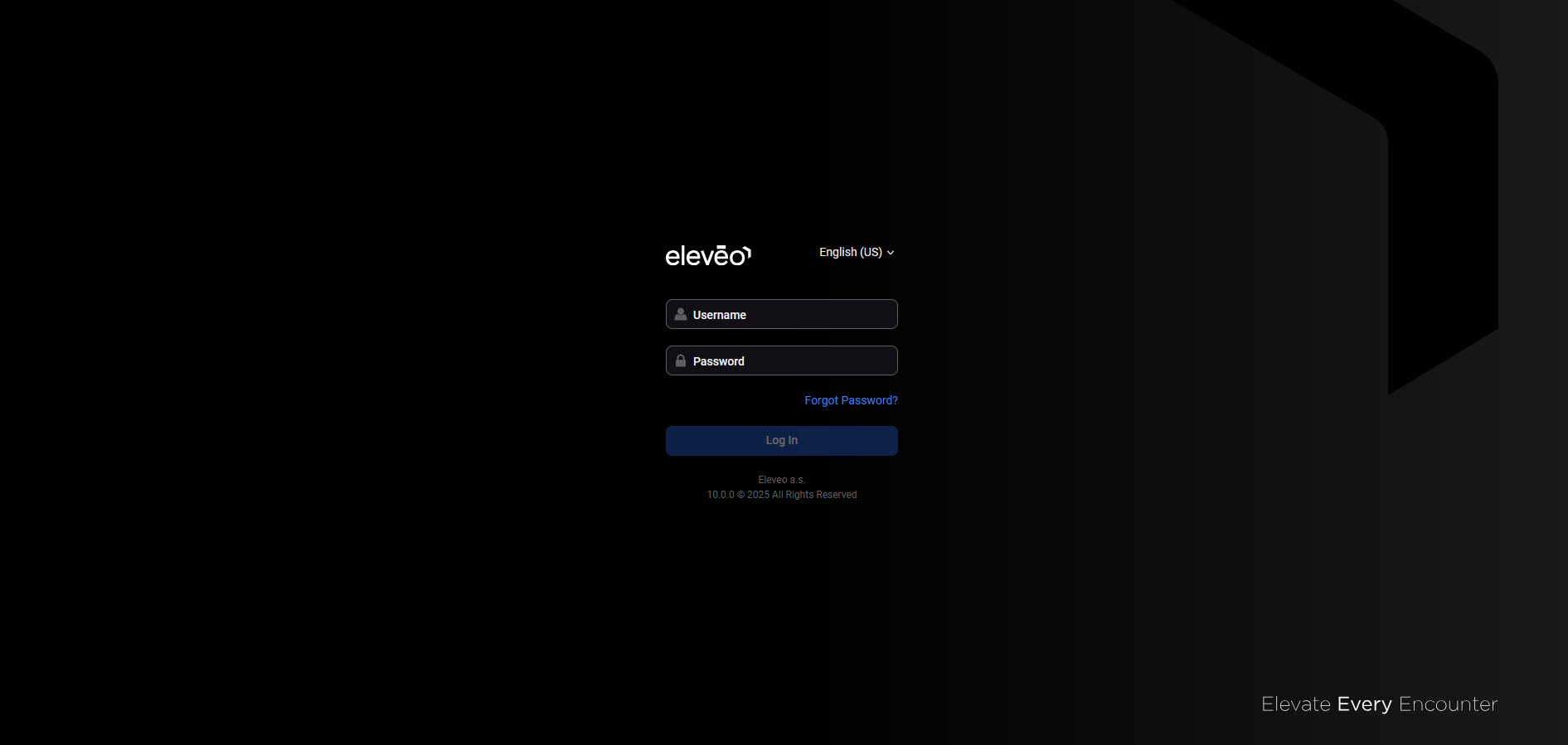
Change the application language if needed. Then click Log in.
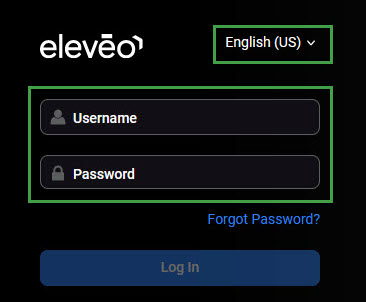
A fresh installation has only two default users preconfigured: eleveo.admin and eleveotrain.
Setting a New Password
If a password was set as temporary, it needs to be changed during the first login. The following notification will appear:
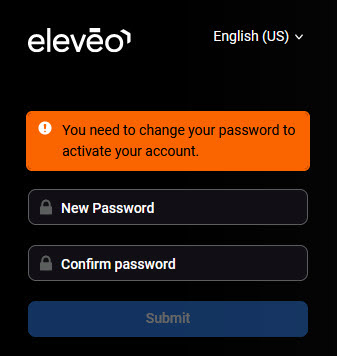
Passwords must be at least 8 characters long, contain at least one digit, one lowercase letter, and one uppercase letter, expire after 365 days, and cannot reuse the previous password.
Provide a new password and click Submit.
Logging in via UCCE Single Sign-On
For users imported from UCCE who have SSO enabled, an additional UCCE SSO option is available. The UCCE needs to be configured as an Identity Provider by an administrator. As a result, a new ucce-sso button will display on the login screen:
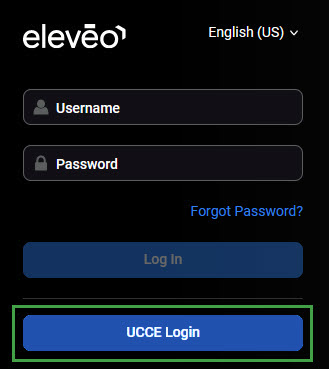
Click the UCCE Login button.
Enter the credentials on the organizational SSO login page.
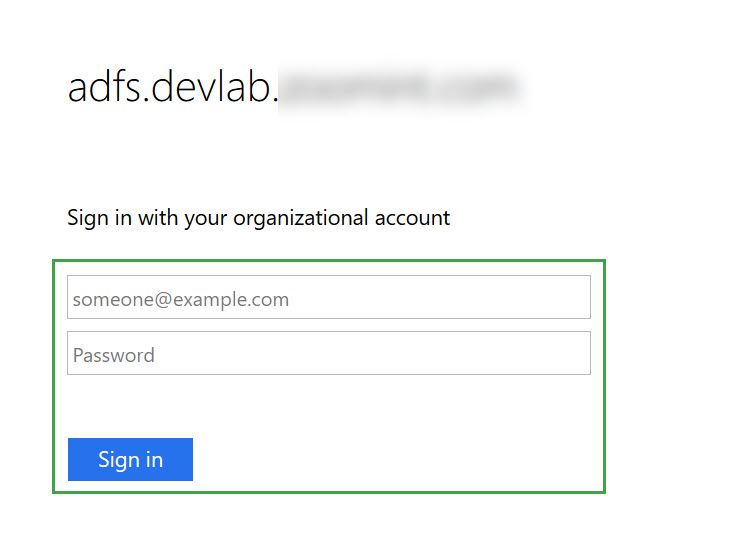
Successfully logged in users will be taken back to the application.
The credentials of a user not yet imported will not be recognized, even if they are correct. The following error will display:
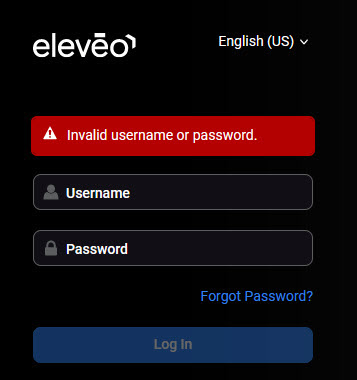
For the imported users, the following rules apply:
-
UCCE users who have SSO enabled should log in using the UCCE Login button only.
-
UCCE users who have not SSO enabled should log in using the user/password form only, same as manually added to User Management (local users).
Logging in as multiple users in the same browser on the same workstation will break the session. To use multiple accounts on one workstation, use a separate browser or incognito mode for each account.
Logging Out
To exit the application, click on the username icon in the bottom left corner of the screen and then click Logout.
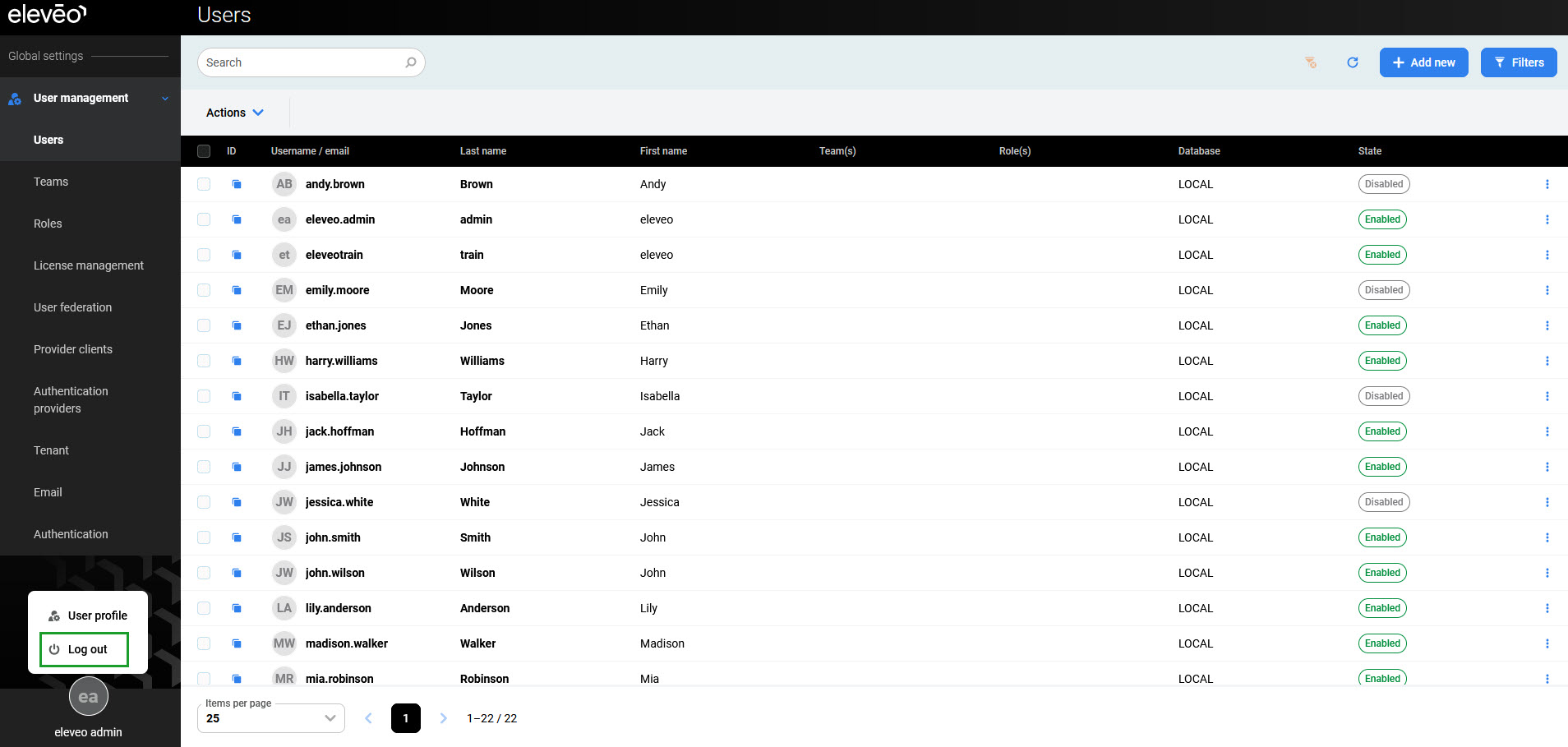
The application will close, and the login screen will be displayed again.
For SSO-enabled accounts: Always close the browser completely after logging out. If the browser is left open, other people on the same workstation can access the application without credentials.
Changing a Password
To change a password or retrieve a forgotten password, follow the procedure described on the page User Profile and Password.