Overview
The appearance of various features in Quality Management is affected by the individual screen resolution on each workstation.
For users whose screens are set to the minimum resolution supported by Quality Management (1366× 768) certain elements on the right side of the screen appear partially displayed.
Using the Navigation Tree
The navigation tree is located on the left of the screen and is expanded by default.
Click a menu item to view the content or expand to view more options .
The selected menu item is highlighted in bold and its associated icon is highlighted in blue.
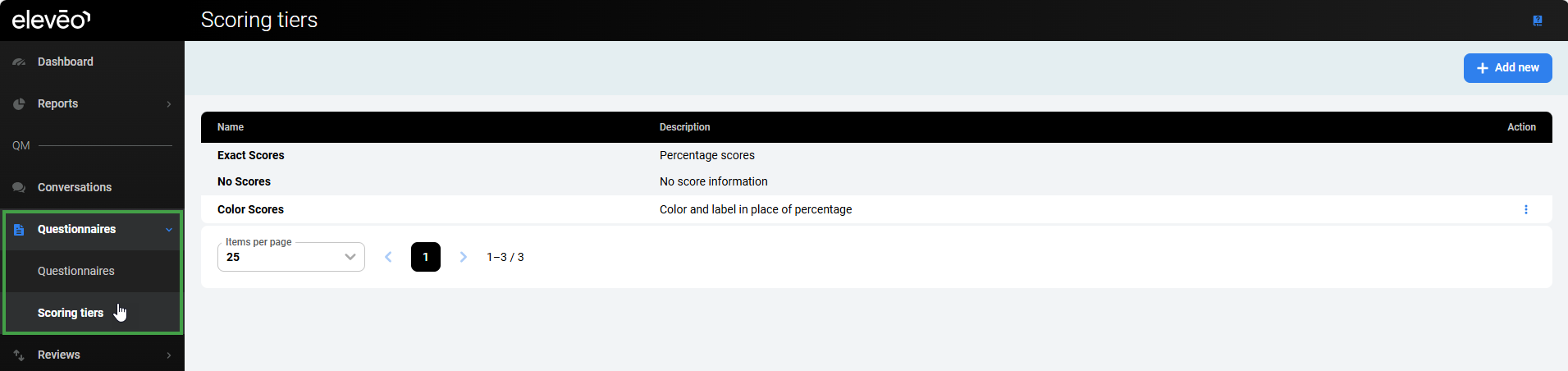
Click on any menu item with a small arrow beside it to expand the connected submenu. Click on the submenu item to change screens.
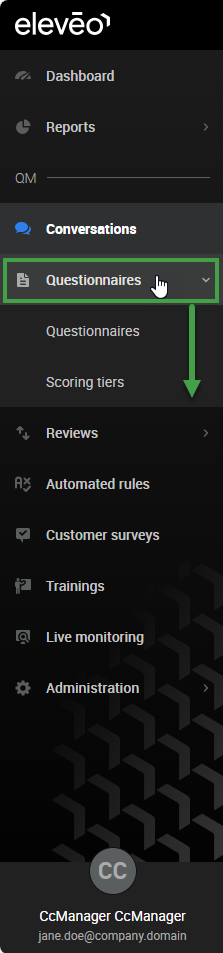
Both the menu and submenu items are highlighted in bold, the associated icon is highlighted in blue.
Hiding the Navigation Tree
It is not possible to hide the navigation tree.
Log out
Click on the User Profile button to display additional options:
-
User profile – redirects the user to User Profile and Password
-
Log out – logs the current user out of the application
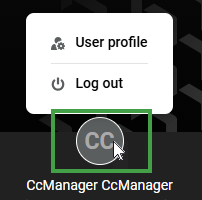
The name displayed next to the User Profile button is the first and last name of the user configured from within User Management. If the first and last names are not configured, the username is displayed.
The user needs to have one of the following roles to see User Management on this list: manage-licenses, manage-users, view-realm. By default, the ccmanager role doesn't have permission to open User Management. The composite role IT_ADMIN does have these permissions.
The user needs to have any WFM role assigned to be able to see Eleveo WFM on this list.
The user needs to have any ETL role assigned to be able to see Eleveo ETL Management on this list.
If they don't have any of these roles assigned, they won't have access to the Switch Applications option.
When switching between applications all open tabs and unsaved changes will be lost. Save all changes before switching applications!
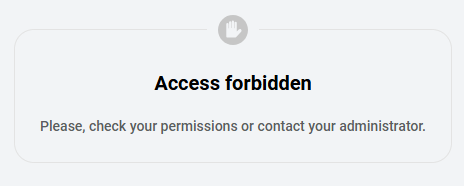
Access Forbidden
Each screen in Quality Management is licensed separately. If a user does not have permission to view a particular screen, they will encounter an error message stating, Access forbidden. In most cases, this indicates that they have not been granted the required permission. An administrator can grant permission if needed.