
It is possible to filter displayed forecasts based on a name, a date range, or configured criteria. This functionality available on the Forecasting Studio screen simplifies the forecast-related actions.
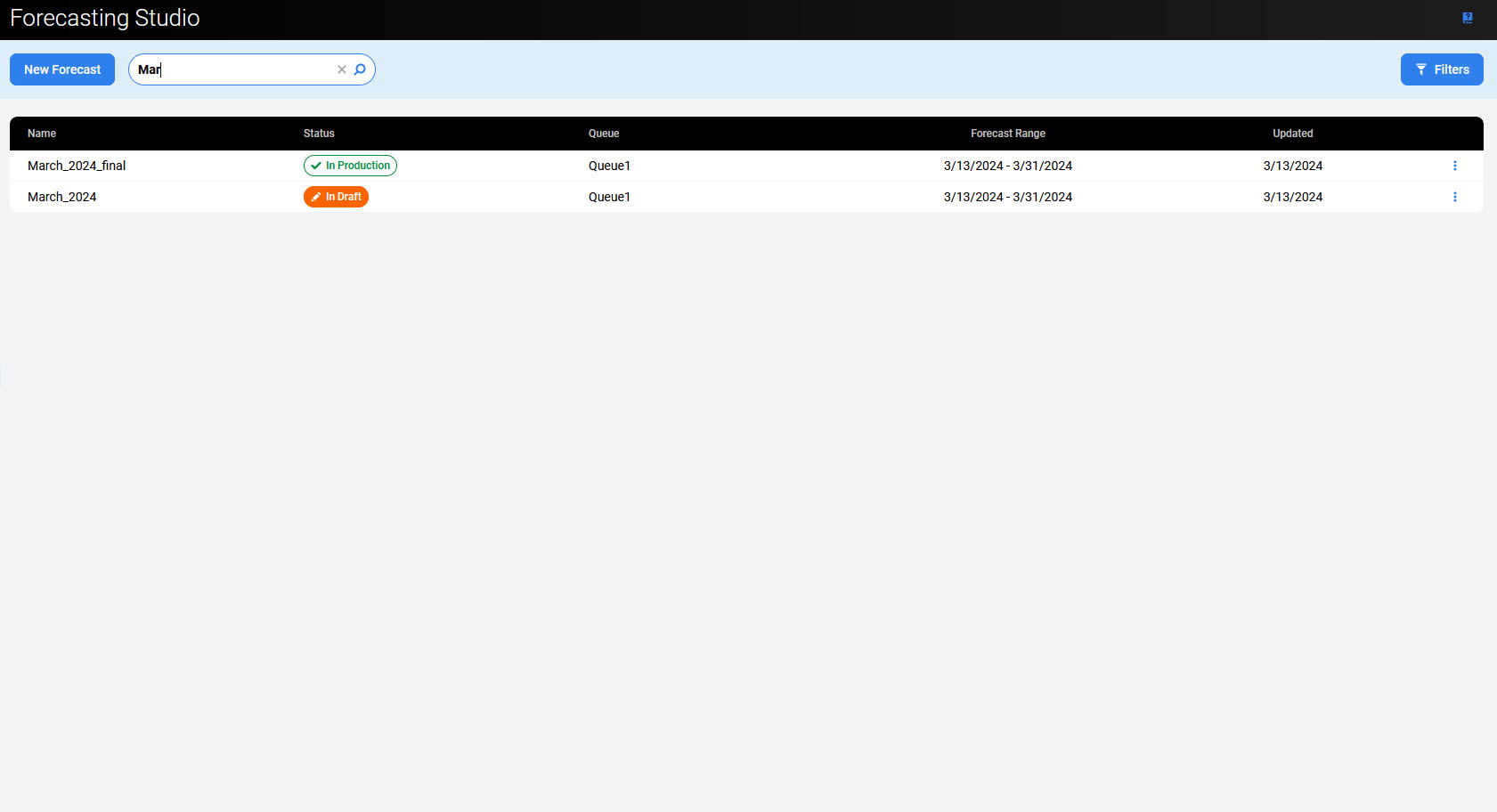
Filtering Based on a Name
Fill in the Name field to find matching forecasts. Search is not case-sensitive. Results will be dynamically displayed while entering the name. Click the x button inside the Name field to remove the name.
Filtering Based on Criteria (Filters)
To filter forecasts based on configured criteria, click the Filters button in the top right corner of the screen. The Filters pane will open.
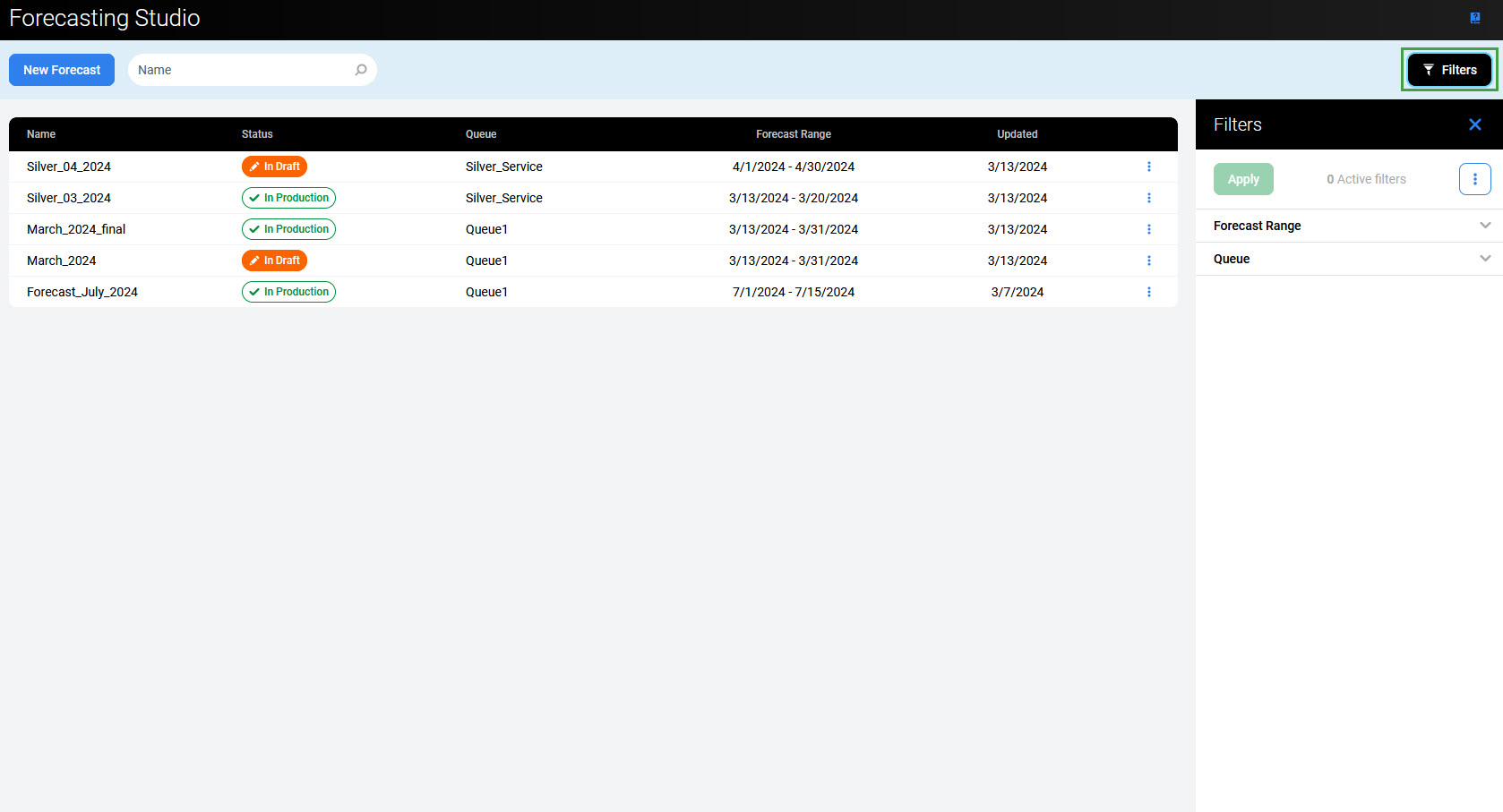
Click the tabs to expand them and display the following filters:
-
Forecast Range – displays only forecasts within the selected time range
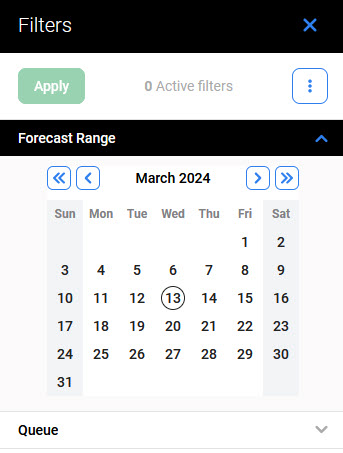
After selecting Date from and Date to, all forecasts which overlap with the selected period will display.
Example:
The following filter was applied: from 1 January 2019 to 31 January 2019.
As a result, all forecasts below can be displayed:
-
Forecast1 – forecast range: 1 January 2019 - 31 January 2019
-
Forecast2 – forecast range: 2 January 2019 - 4 January 2019
-
Forecast3 – forecast range: 1 September 2018 - 31 March 2019
-
Forecast4 – forecast range: 15 January 2019 - 15 February 2019
-
Queue – displays only forecasts for the selected queue(s)
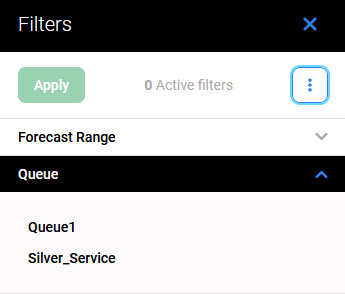
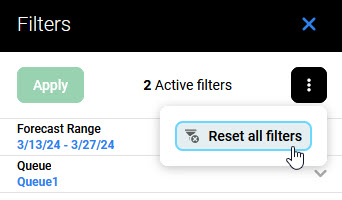
Use the Reset all filters button to reset all filtering criteria:
To read more about how to use the Filters pane, visit the page Using Filters.