
Overview
To prevent users from accessing Eleveo applications, they can be disabled from within User Management. By default, all newly created users are enabled and can access applications based on the roles assigned to them. If no roles are assigned to a user, they do not have access to any application.
Users imported into User Management from external systems (like UCCX, UCCE, etc.) are imported with their statuses: enabled (active) or disabled (inactive). Users removed or disabled from within the external system after the import are disabled in User Management after the next synchronization with the external system.
Disable users instead of deleting them. Deleting users can cause database inconsistencies and the loss of historical data associated with them.
Disabling a User
To disable a user:
-
Go to the Users screen and click the user's row. Alternatively, expand the user's menu on the right and click Edit.
-
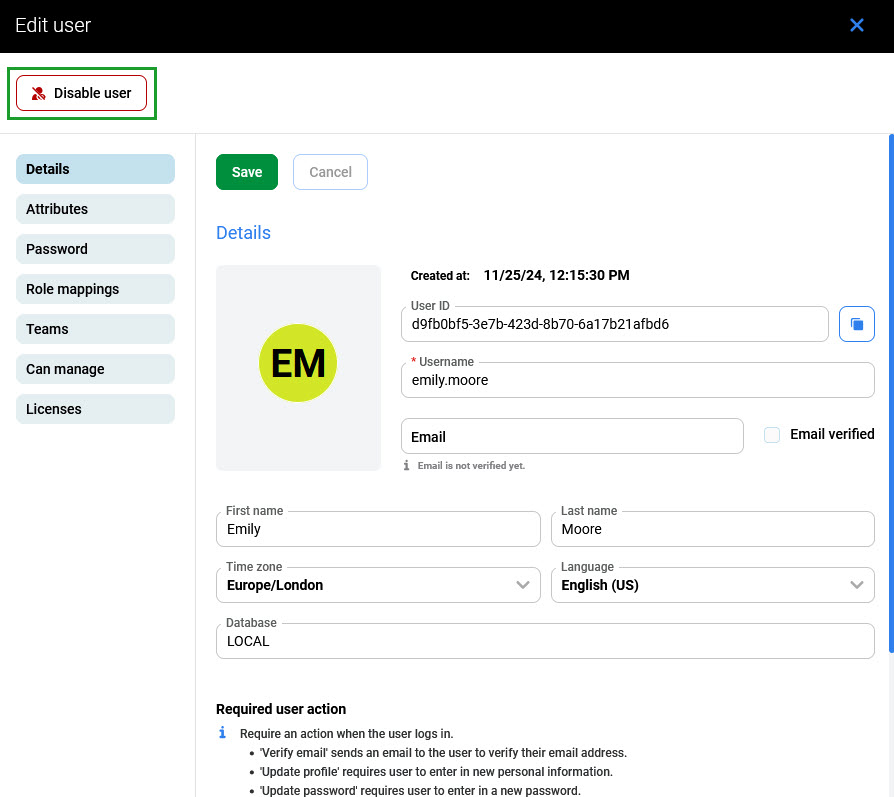
On the Details tab, click Disable user. Disabled users cannot log in to any applications.
Enabling a User
To enable a user:
-
Go to the Users screen and click the user's row.
-
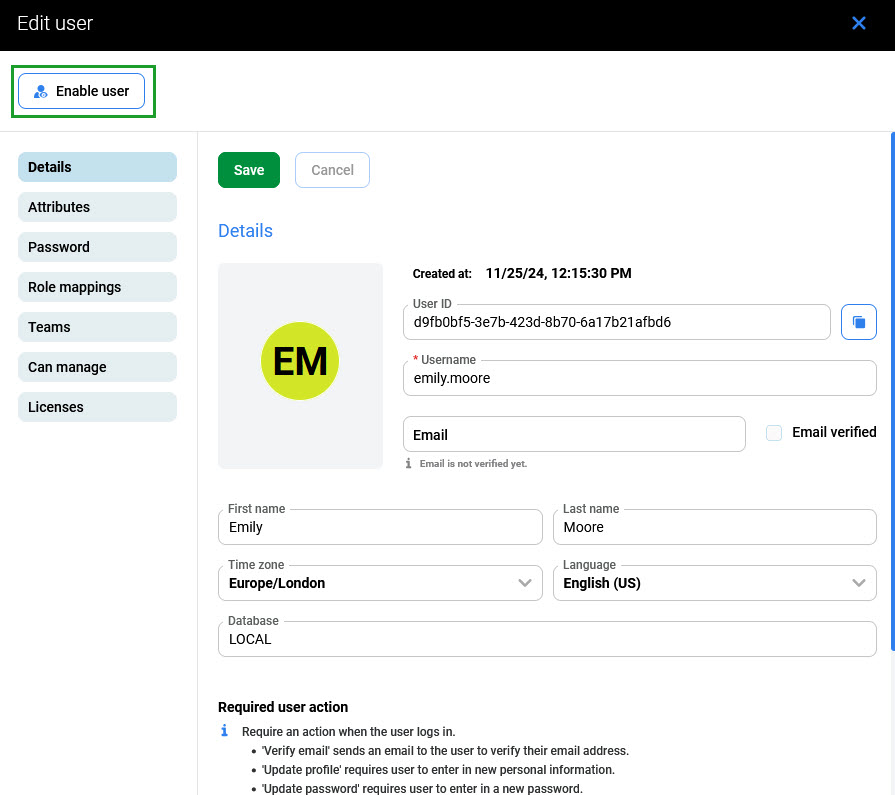
On the Details tab, click Enable user.
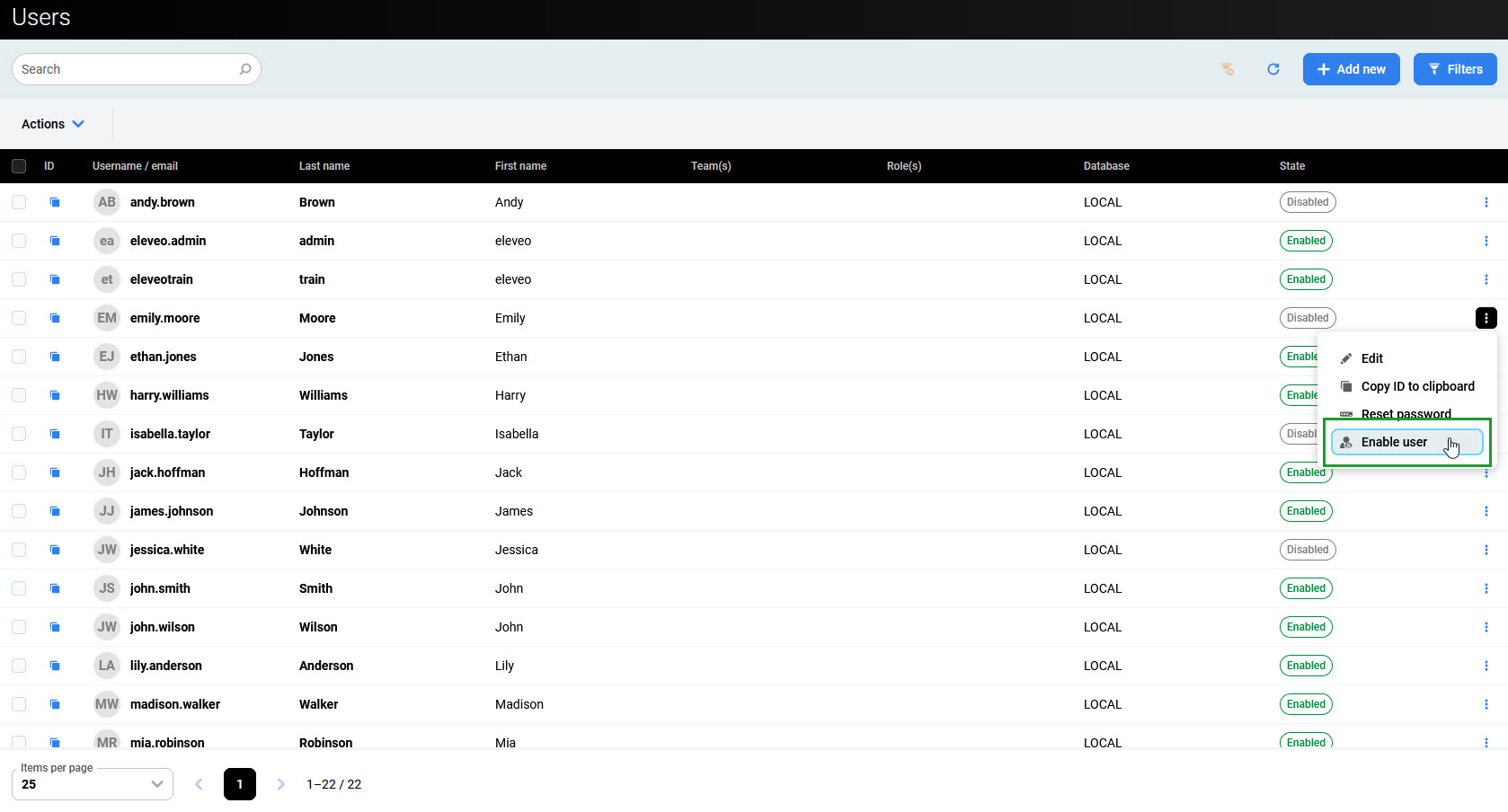
To disable or enable a user directly from the Users page, expand the user's menu on the right and click Disable/enable user.
To enable or disable multiple users at once:
-
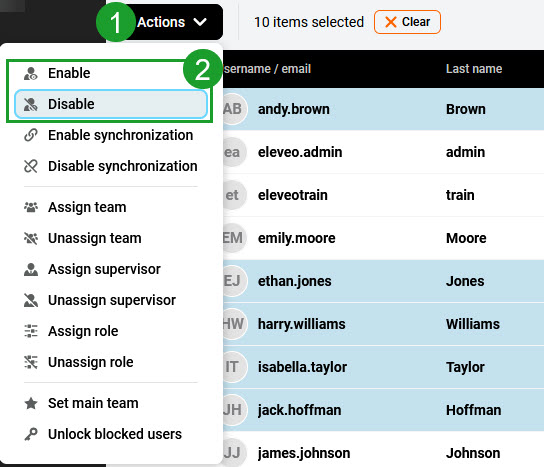
Select the users using the checkboxes.
-
Click Actions, then click Enable/Disable.
Disabling and Enabling an Imported User
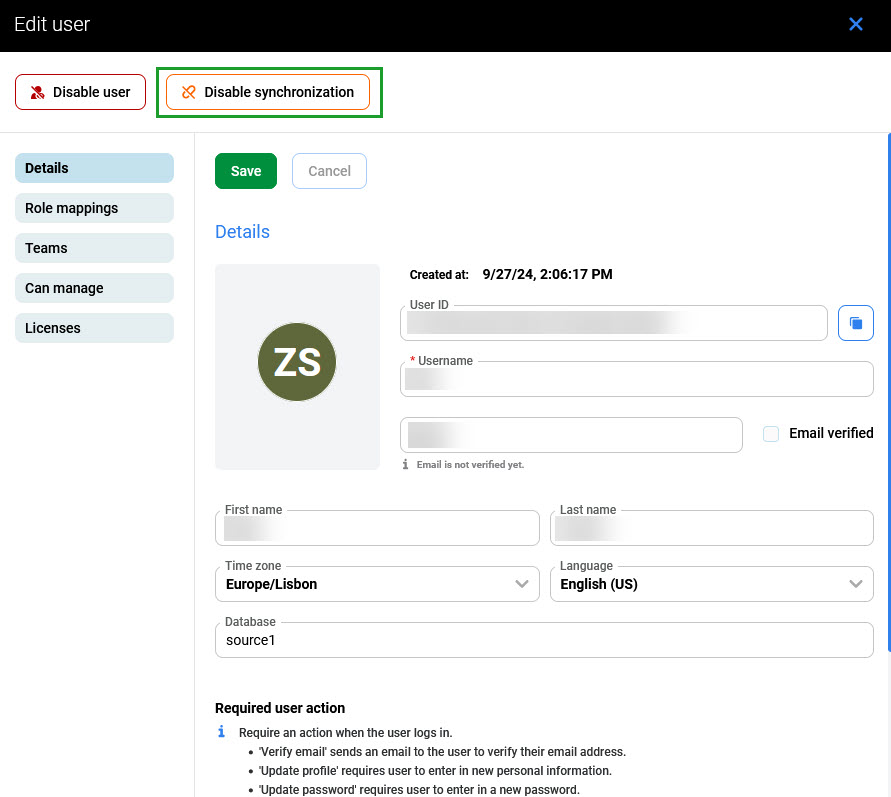
Users imported from an external system (UCCE, UCCX) can also be disabled using the Disable user switch. However, if synchronization is still enabled, this setting is overwritten during the next import or synchronization. To prevent this, click Disable synchronization or disable the user in the external system. The same applies to enabling a previously disabled user.
Unlocking a Locked User
After 30 unsuccessful login attempts, the user's status changes to Disabled. The user cannot log in for the next one minute or until the user is enabled again. This feature applies to local users only.
Users imported into User Management from external systems (like UCCX, UCCE, etc.) are not locked by User Management after unsuccessful login attempts.
To enable a user again, click Enable user.