Prerequisite: Ensure that Eleveo User Management is correctly configured before proceeding with Eleveo WFM.
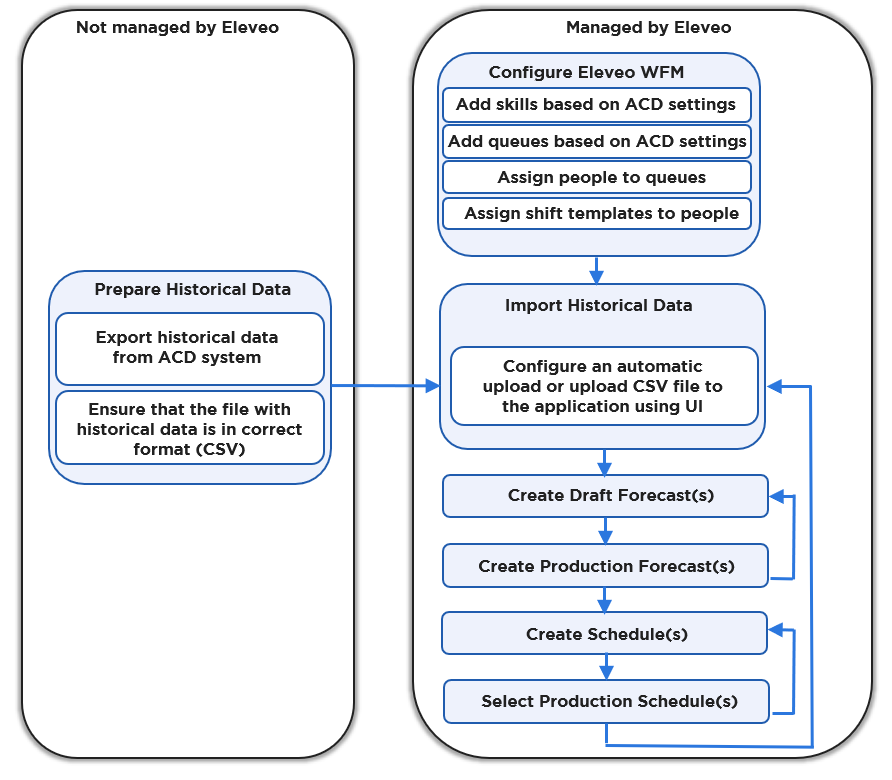
Complete the following steps to create the first schedule:
-
Add Skills to the Eleveo WFM application.
-
Add Queues to the Eleveo WFM application.
-
Assign People to queues.
-
Assign Shift Templates to people.
-
Import historical data to Eleveo WFM:
-
Manual Import of Historical Data. Check the File Format for required file specifications before importing.
-
Create a draft forecast in the Studio environment for a queue that has historical data available. Apply forecast adjustments when needed.
-
Create a production forecast in the Studio environment.
-
Create a draft schedule in the Studio environment.
-
Select a production schedule in the Studio environment.
-
Use Intraday Management to correct staffing levels and adjust the schedule based on live contact center data.
The diagram below indicates how the tasks performed within the Eleveo WFM application and externally are related: