The User Profile is a collection of settings associated with each user of Eleveo applications managed by User Management (Quality Management, Workforce Management). It is hosted by User Management, however, no additional effective roles are necessary to access it. All users of QM or WFM are able to modify their settings, as well as change their passwords from within their User Profile.
This is the only page of User Management, which doesn't require any specific rights to the system.
The User profile section allows for configuring the basic settings of a user who is currently logged in. Click the username icon and then User profile in the bottom left corner.
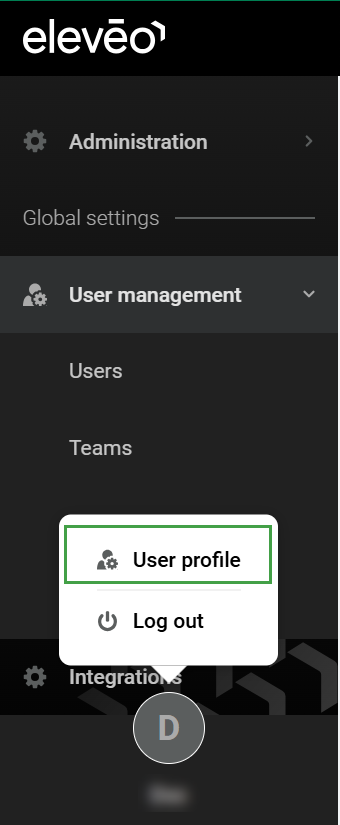
Configuring User Settings
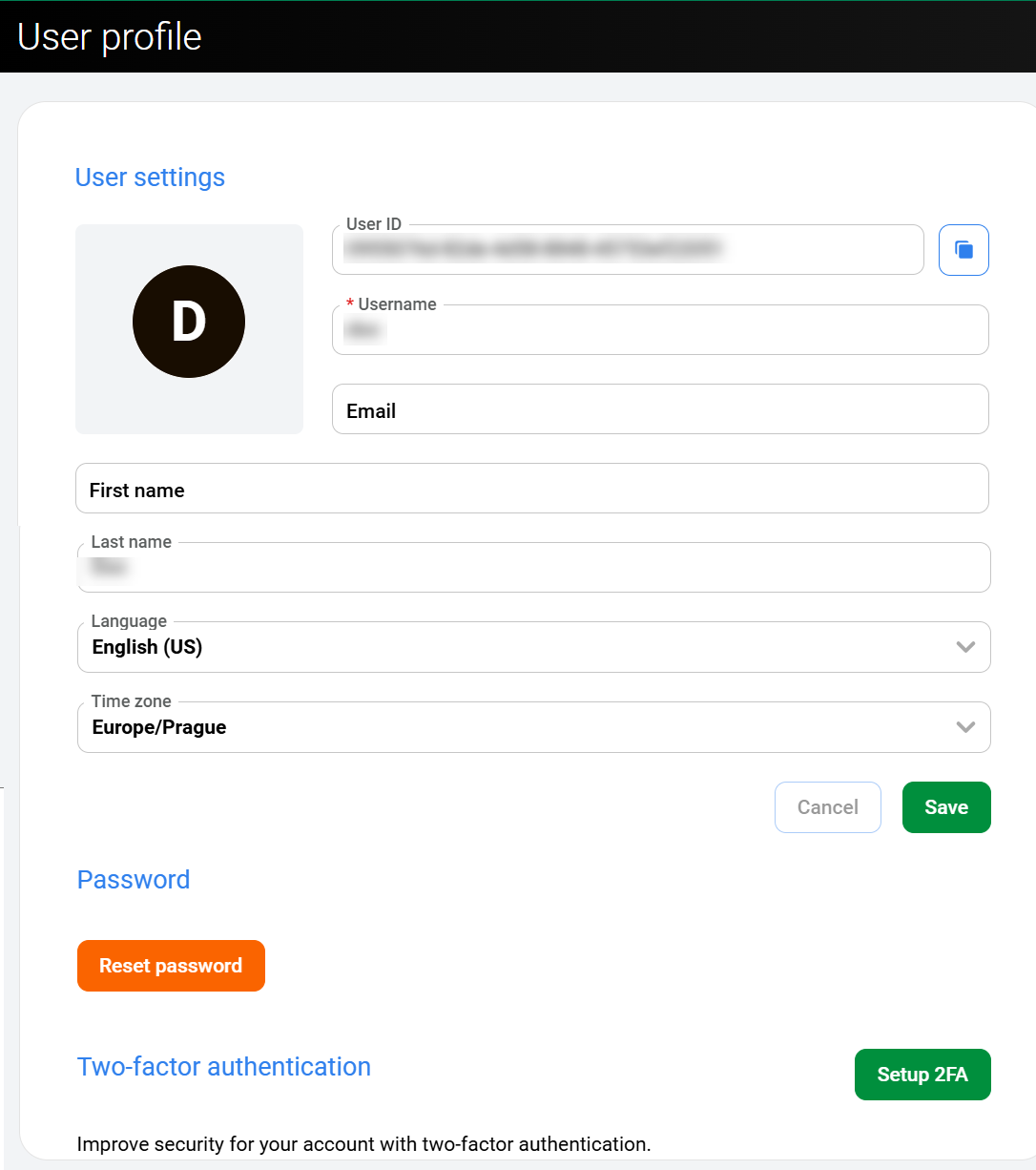
The following details are read-only:
-
User ID (click the copy icon on the right to copy the User ID)
-
Username
The following details can be configured:
-
Email – contact email of the user
-
First name – first name of the account owner
-
Last name – last name of the account owner
-
Language – default language of the user. More details about the language selection can be found on the Switching the Language page.
-
Time zone – time zone of the application (when not selected, the value from Tenant Settings is used).
Only the time zones listed in the drop-down menu are supported! If the timezone is not available in the dropdown list, it is not supported.
Click Save to apply the changes or click Cancel to abandon any changes.
Please note that users imported from an external source, cannot modify all the settings.
Changing Password
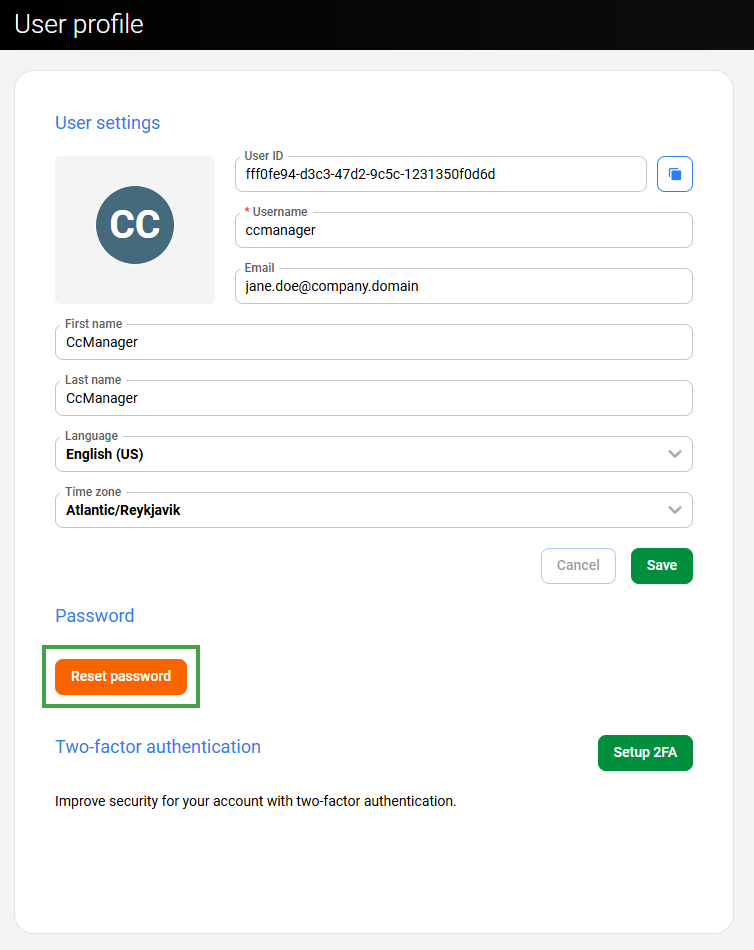
To change the password, click the Reset password button. You will be redirected to the login page and asked to provide a new password. Provide the new password twice and click Submit.
Setting up 2FA
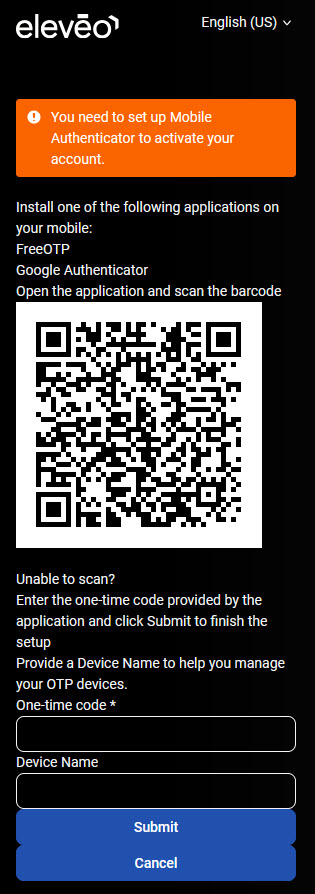
To configure two-factor authentication (2FA), click the Setup 2FA button. You will be redirected to the login page and asked to re-authenticate again.
Then follow the steps: