
Overview
The studio environment supports the creation of multiple forecasts based on different historical data. It also contains modifiable user-defined settings. Forecasts can be created for different time periods, and may even overlap. Draft forecasts are used when creating the production forecast.
Note that only users with the WFM_SCHEDULER role assigned are able to add, modify or remove forecasts! Read more about Workforce Management Roles.
The forecast calculation is based on the historical data previously imported into the application, as described on the Importing Data for WFM page. Historical data should contain:
-
Date and Time – date and time of the beginning of the time interval for which the data was calculated
-
ACD ID (string) – unique identifier of the ACD which is the source of data
-
Queue (string) – the name of the relevant queue
-
Contacts Offered (integer) – total number of contacts offered to people assigned to the queue during the time interval – this includes both: Contacts Handled and Abandoned Contacts
-
Average Handle Time (decimal, in seconds) – Average Handle Time calculated by the ACD for the queue for people handling the referenced contacts during the time interval – AHT should include Talk Time, Hold Time, and After Call Work
Calculation of data for the future period is done based on the day of the week. Data are calculated in 15 minutes intervals. For example, if historical data covers two months from the past, the forecast for any given Monday(s) in the future is performed based on the data from historical Mondays.
Note that to be able to create a forecast for a particular queue, this queue needs to be added to the application and mapped to the relevant ACD queue (read more on the Managing Queues page). It is impossible to create a forecast for a queue that is not mapped to an ACD queue containing at least 14 days of historical data.
Please note that the import of historical data should be your first step before proceeding to create a queue. After the historical data is imported, you can proceed to Queue Administration.
Displaying Draft Forecasts
To display existing draft forecasts, expand the Forecasting module within the navigation tree and click Studio. The Forecasting Studio screen will display.
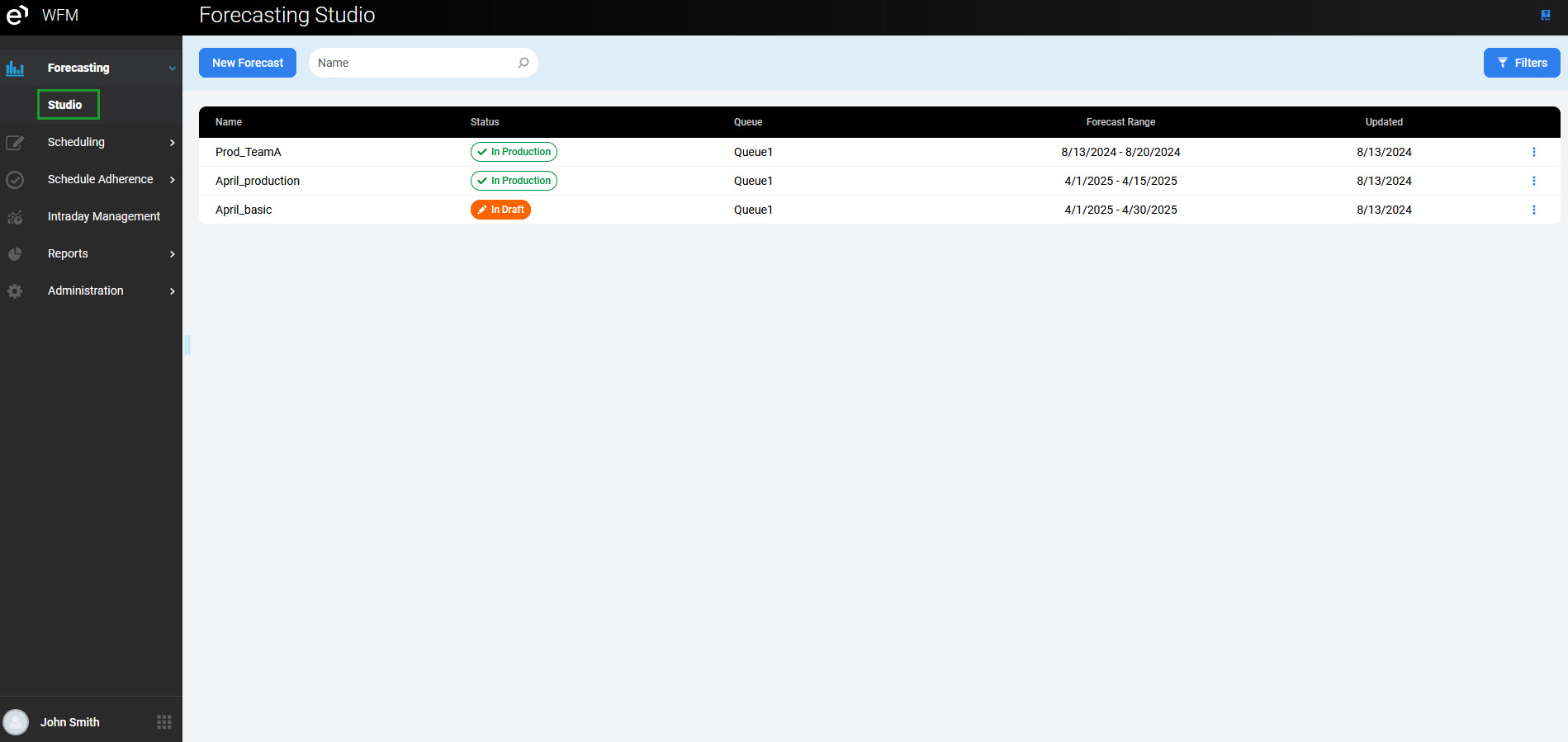
Basic information about existing forecasts are displayed under the following columns:
-
Name – the name of the forecast
-
Status – In Draft or In Production
-
Queue – the name of the queue for which the forecast was created
-
Forecast Range – date range covered by the forecast being "from" a specific date "to" a specific date
-
Updated – date of the last update
The menu on the right allows further actions related to the forecast:
-
the View button allows the forecast to be viewed, but not modified – this option is available to a user with the
WFM_ANALYSTrole assigned and to a user with theWFM_SCHEDULERrole assigned -
the Edit button allows for the modification of the forecast – this option is available only to a user with the
WFM_SCHEDULERrole assigned -
the Delete button button allows for the removal of the forecast – this option is available only to a user with the
WFM_SCHEDULERrole assigned, and when the forecast is in the draft stage
The table below shows which icons allow particular users to perform specific actions:
|
|
VIEW |
EDIT |
REMOVE |
|---|---|---|---|
|
|
YES |
NO |
NO |
|
|
YES |
YES |
YES |
|
|
NO |
NO |
NO |
Available Actions
For more forecasting functionality go to: