
Access Credentials
Valid credentials are needed to access and use the Eleveo WFM application. Every new installation is provided with a user and a link to the Eleveo WFM application. The first user has the following roles assigned:
-
WFM_SCHEDULER– The user who is responsible for forecast and schedule creation and management. -
WFM_ANALYST– The user who is responsible for initial application settings, such as uploading historical data, configuring queues, and assigning people to queues, as well as reviewing forecasts and schedules (without the possibility to create or modify them).
For more information, see the User Roles page.
Credentials for other users can be obtained using the Eleveo User Management application. It allows adding users and groups, managing their access permissions, and setting their credentials. The SSO functionality provided by Eleveo User Management allows company members to use a single sign-on (SSO) account. This grants access to all integrated applications with one login.
First Login
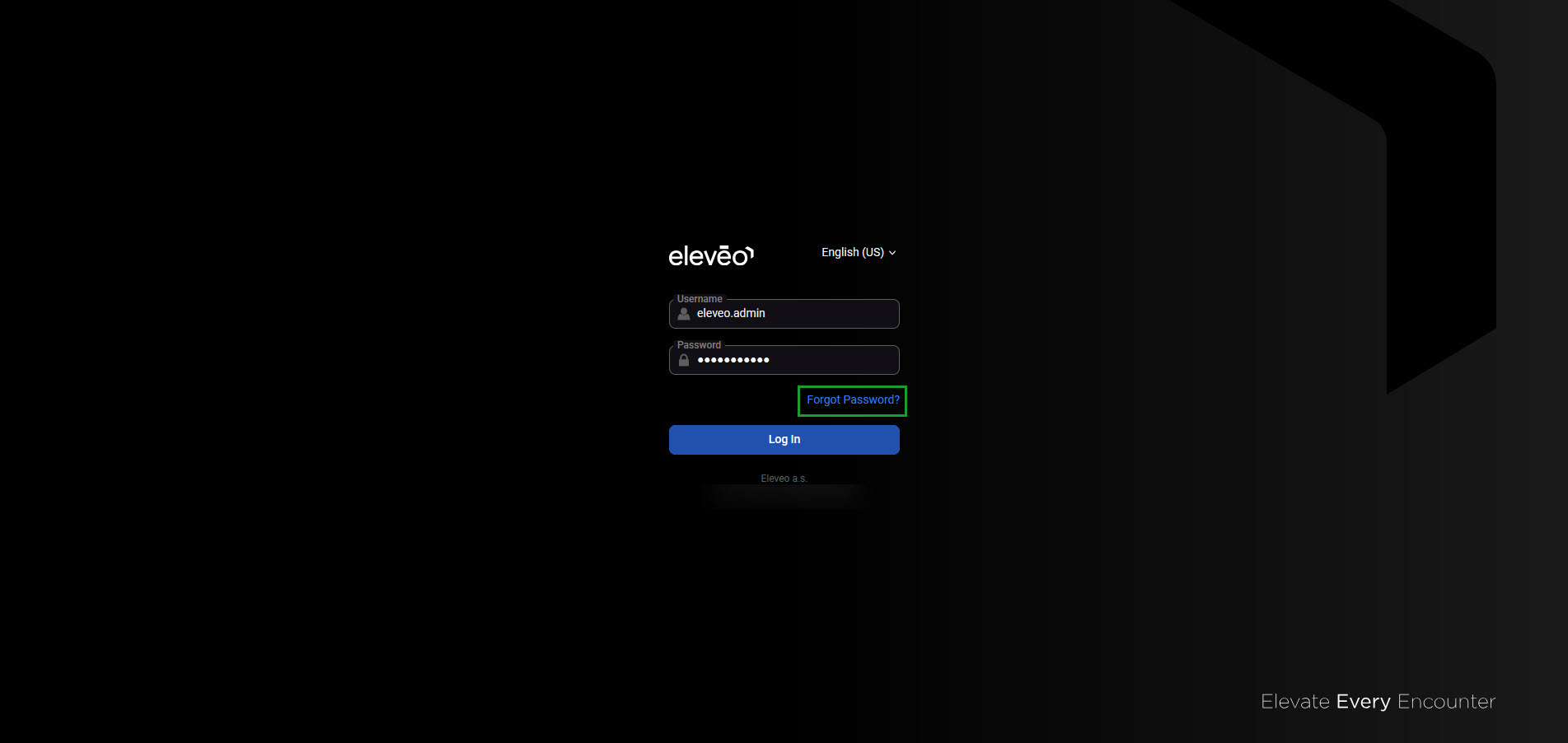
To access the application for the first time, click the link to open the login screen and then click Forgot Password.
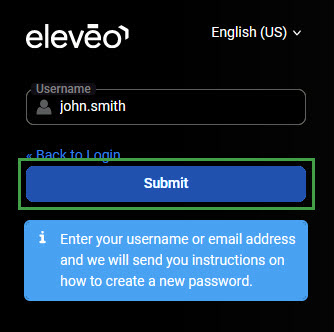
A new screen will display. Enter the username and click Submit.
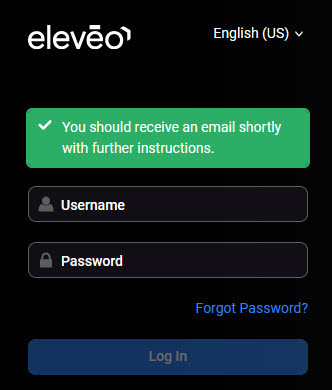
An email containing a password reset link will be sent to the email address associated with this user account.
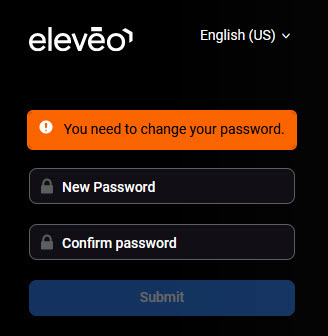
Click the link received in the email. A screen will display, allowing for a new password to be configured. Enter the new password twice and click Submit.
Confirmation about the updated password will display. Return to the login page. Access the application using the username and the newly configured password.
Managing Users
Eleveo User Management (SSO) allows additional users to be configured. To add new users, complete the following steps:
-
Access User Management from the login screen or access Eleveo WFM. For more information, see the Accessing the Application page.
-
Expand the User management section in the Global settings menu. Click Users.
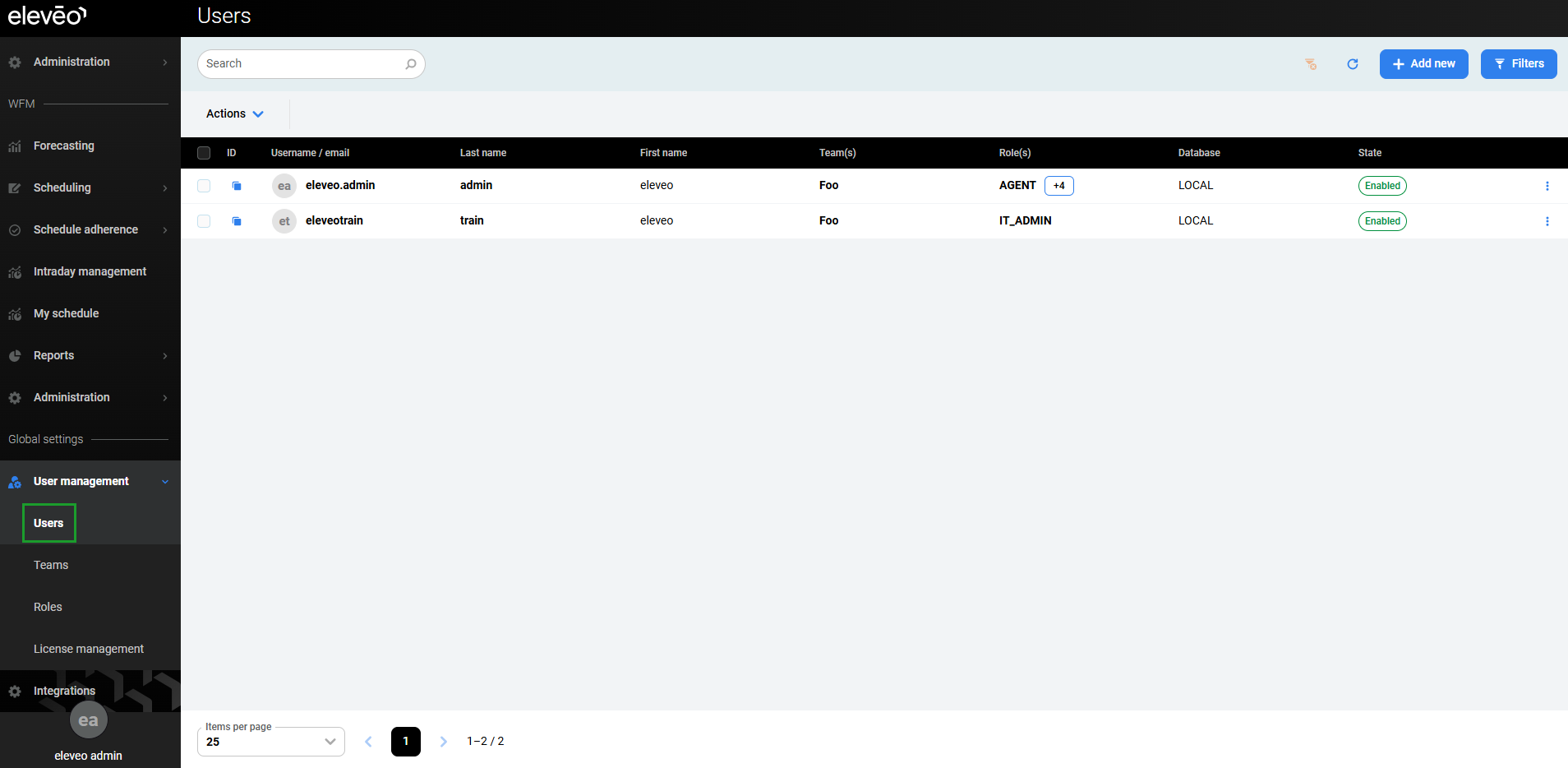
-
Configure users as needed. Use the instructions provided on the Managing Users page:
-
To create new users, see the Adding New Users page.
-
To assign roles to new users, see the Assigning Roles page.
-
To change a password for existing users, see the Changing Passwords for Users page.
-
-
Each new user can access the application for the first time as described in the First Login section above.
Setting a password for a new user in User Management is not mandatory. The password can be set upon first login using the Forgot Password link.
For more information about User Management, see the Eleveo User Management guide. Only users with the User Management\user-management-admin role can manage users in the Eleveo User Management application.
Changing the Password
To change the password at any time, follow the steps in the First Login section above. Alternatively, change the password using the Configuring User Profile and Password page.