
Application Layout
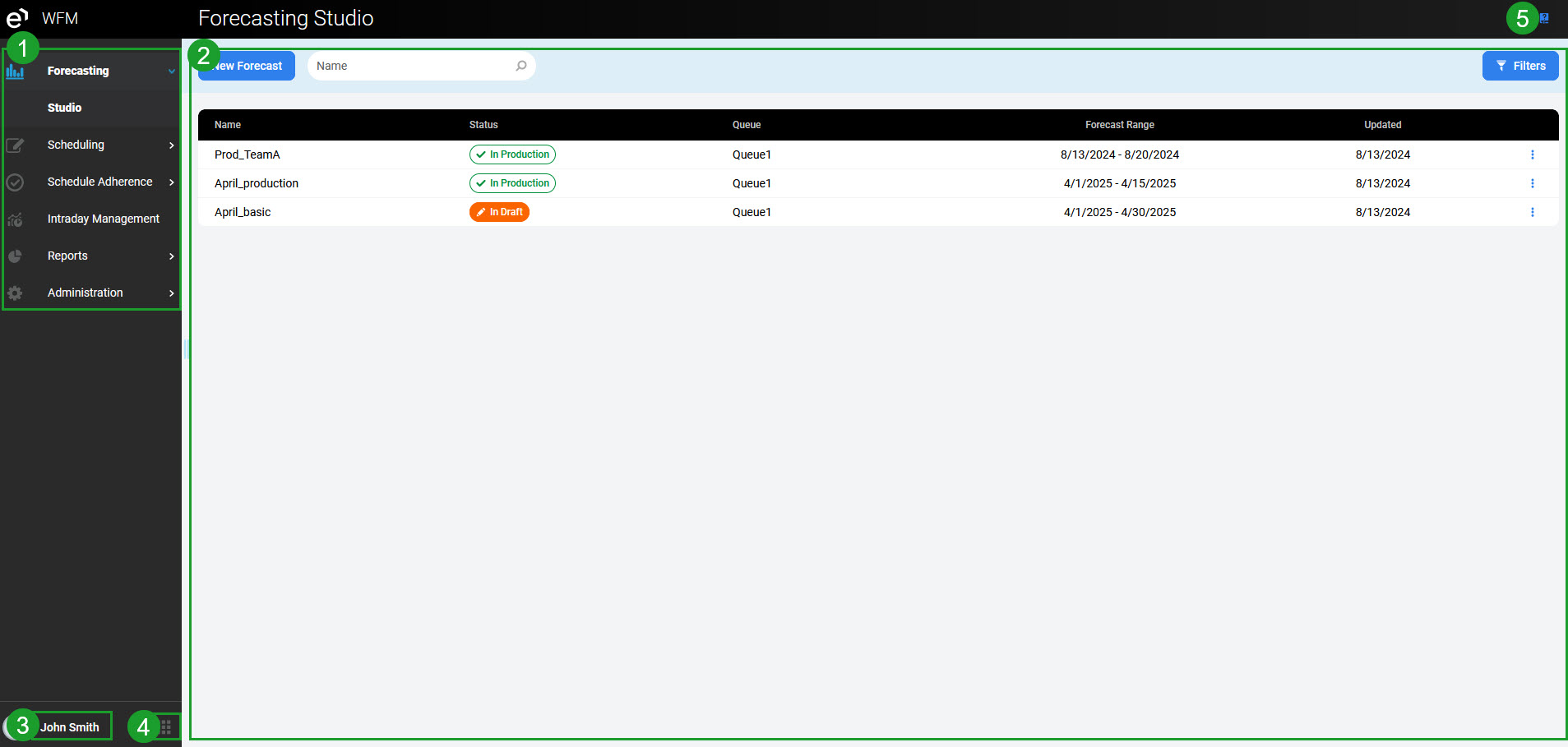
The application consists of the following elements:
-
Navigation tree (also called: Menu)
-
Active screen of a particular feature
-
The User Profile button
-
The Switch Applications button (visible only to users who have privileges allowing them to access other applications)
-
The Documentation icon.
Using the Navigation Tree
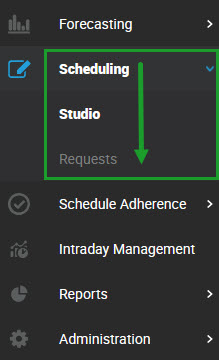
Click on the module name within the navigation tree to expand it. Then click on a submodule name to display the screen.
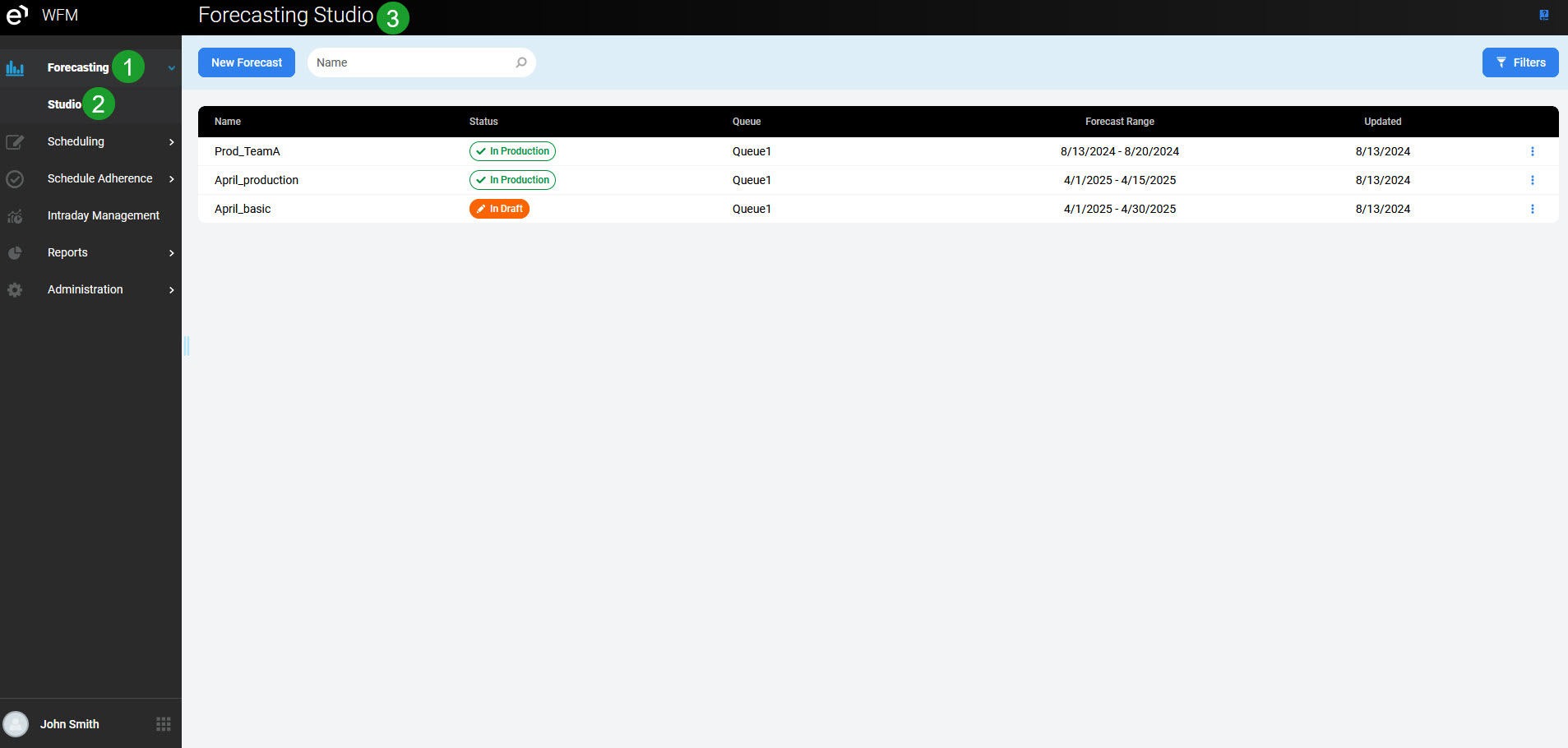
The module which is expanded is highlighted in bold and is marked with an arrow pointing down. The name of the currently displayed submodule is highlighted in bold font. The modules which are not expanded are marked with an arrow pointing to the right.
Click the hide icon to hide the navigation tree.
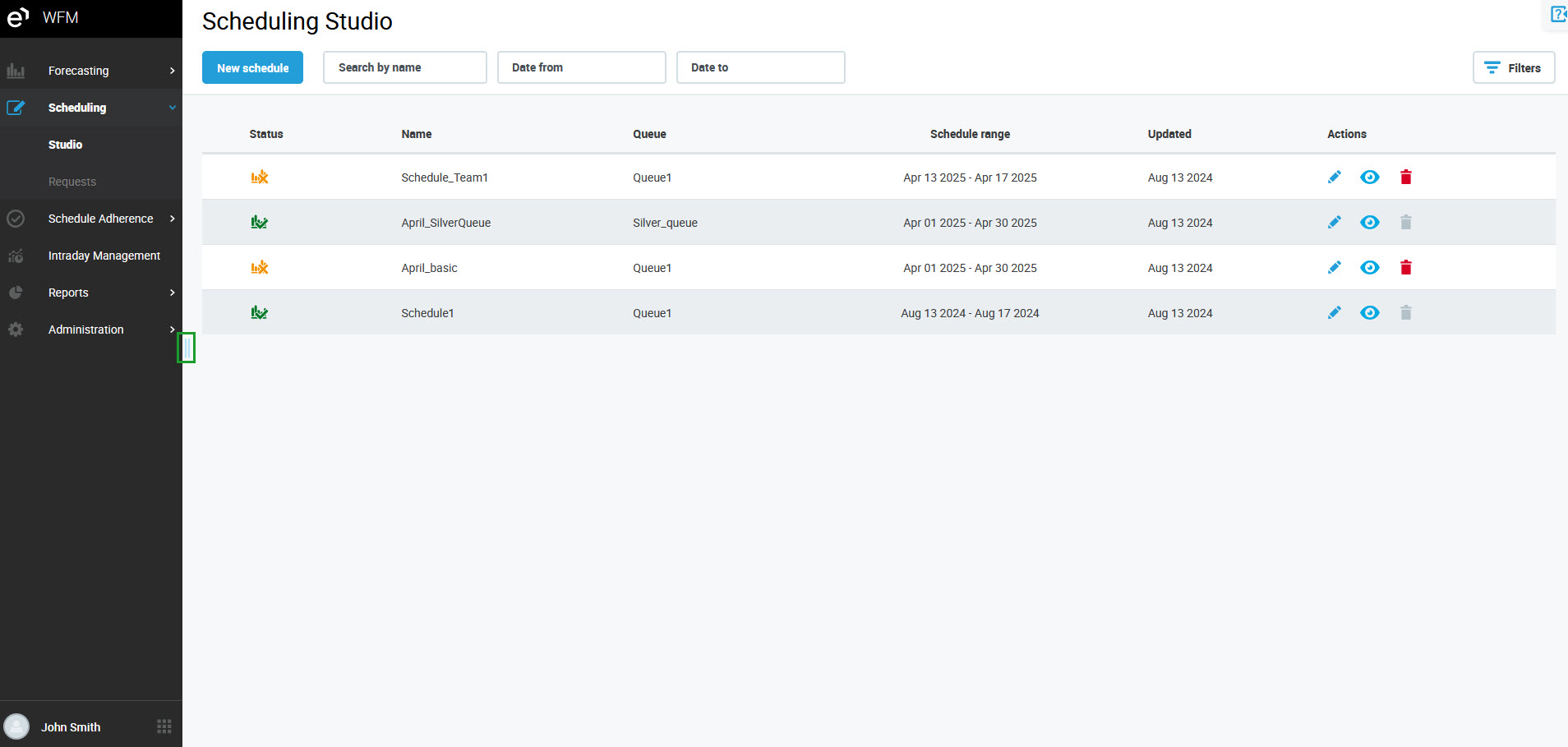
The navigation tree will be minimized.
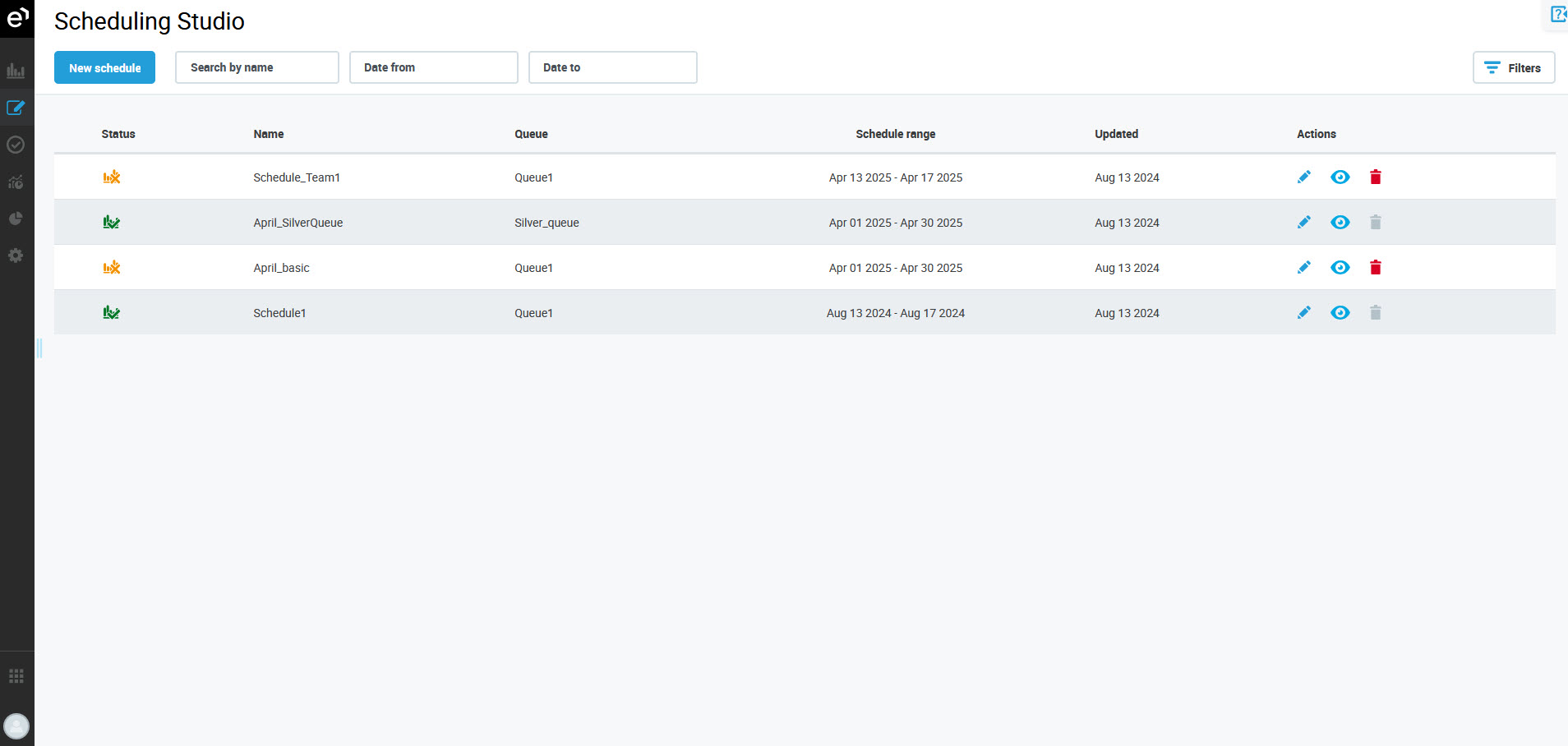
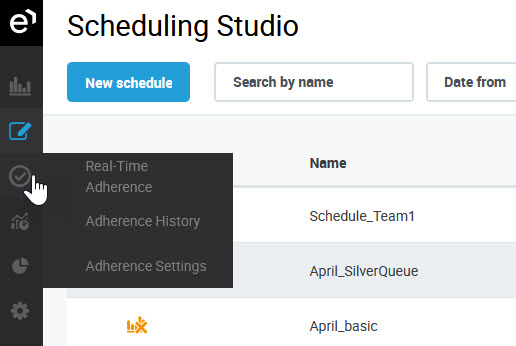
The icons representing modules will still be displayed. Hover the mouse pointer over the icons to view the available submodules. Then click on a submodule to switch to a new module.
Click the hide icon again to expand the navigation tree.
The navigation tree is not hidden by default.
Using the User Menu
Click on the User Profile button or a username in the bottom left corner to display additional options:
-
Manage account – redirects the user to the User Profile section in User Management
-
Sign out – logs the current user out of the application
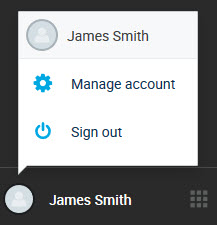
The name displayed next to the User Profile button is the First and Last name of the user configured from within User Management. If the First and Last names are not configured, the username is displayed.
Accessing the Documentation
Documentation is available on the web. The help.eleveo.com site can be accessed at any time directly from within the application. A documentation icon is visible in the top right corner of every screen of Eleveo WFM.
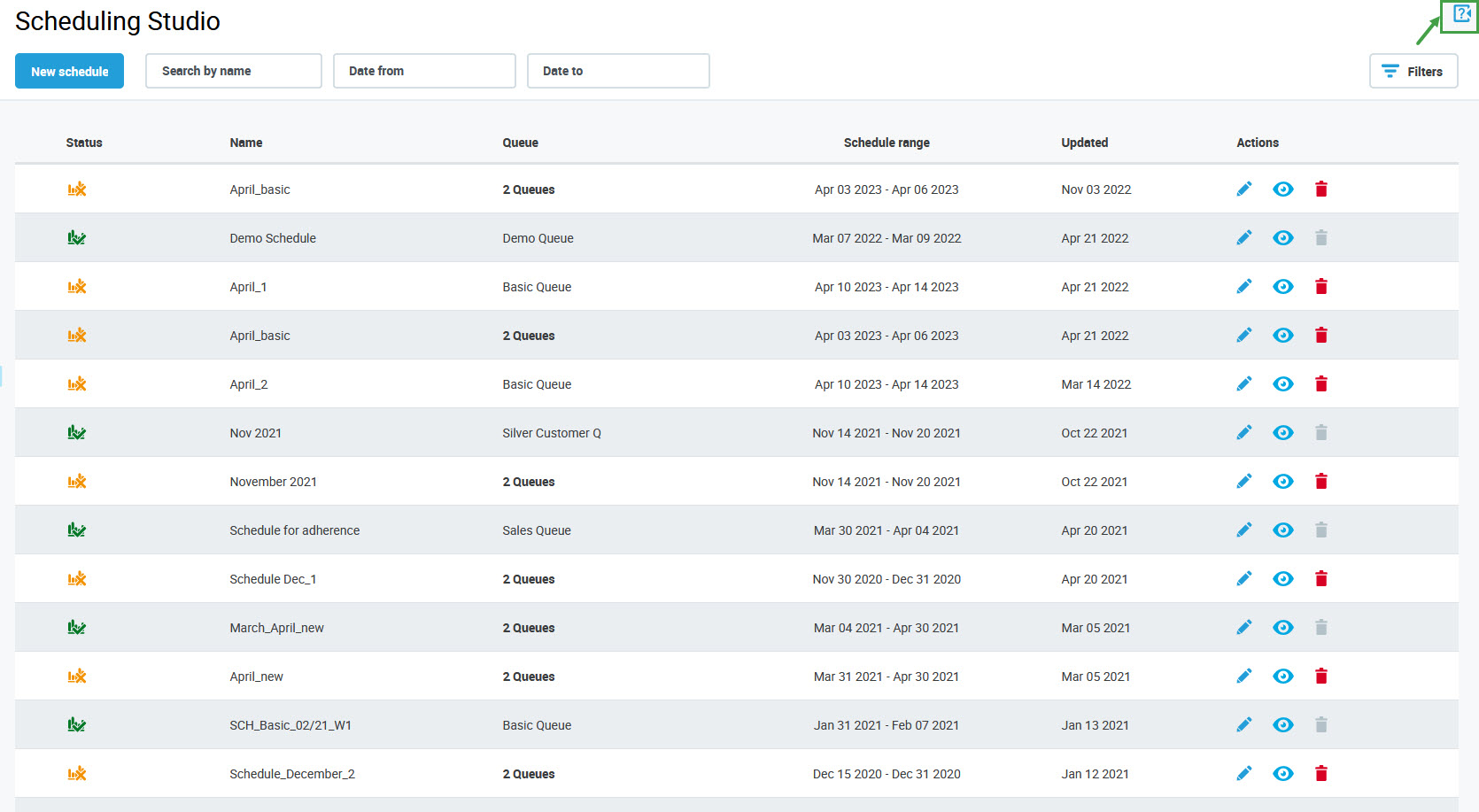
Hover the mouse pointer over the icon. Then click the Go to Documentation button:
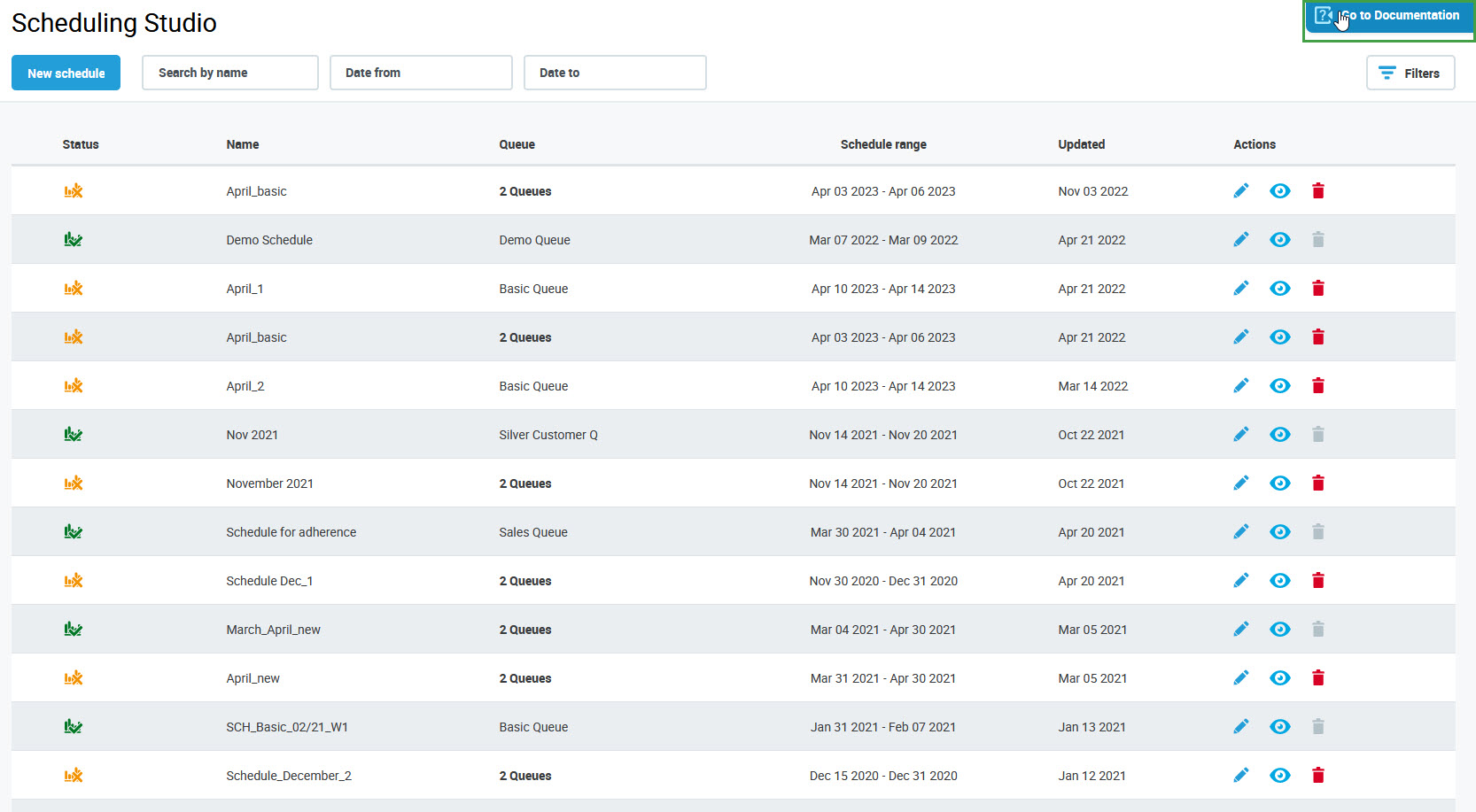
The documentation will open in a new browser window. Select Eleveo Workforce Management, then navigate to Eleveo WFM (cloud version).