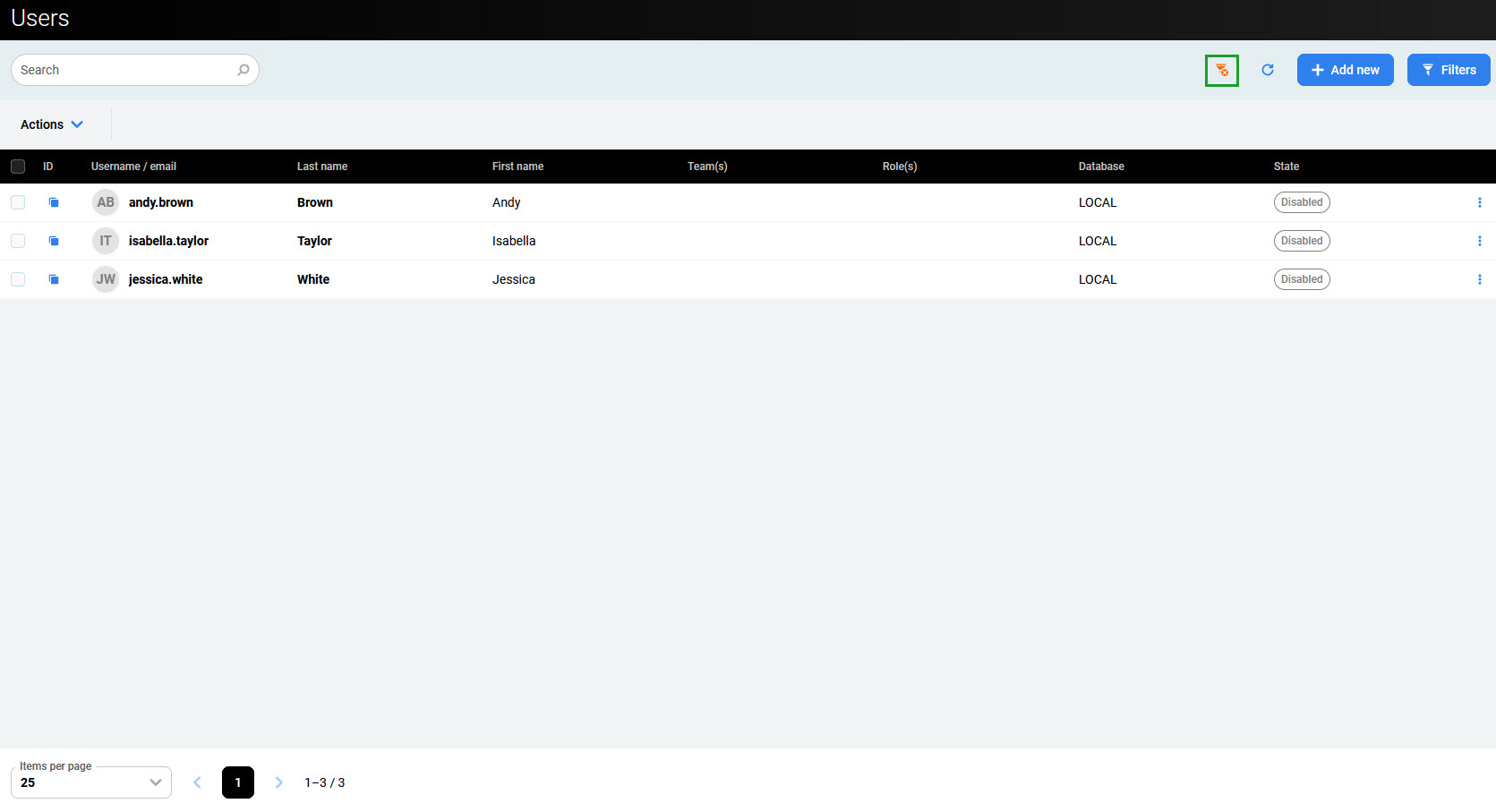
User accounts configured in User Management are basic accounts granting access to all applications to their end users. The User Management application enables the creation, review, and adjustment of existing accounts to facilitate the usage and management of the complete solution.
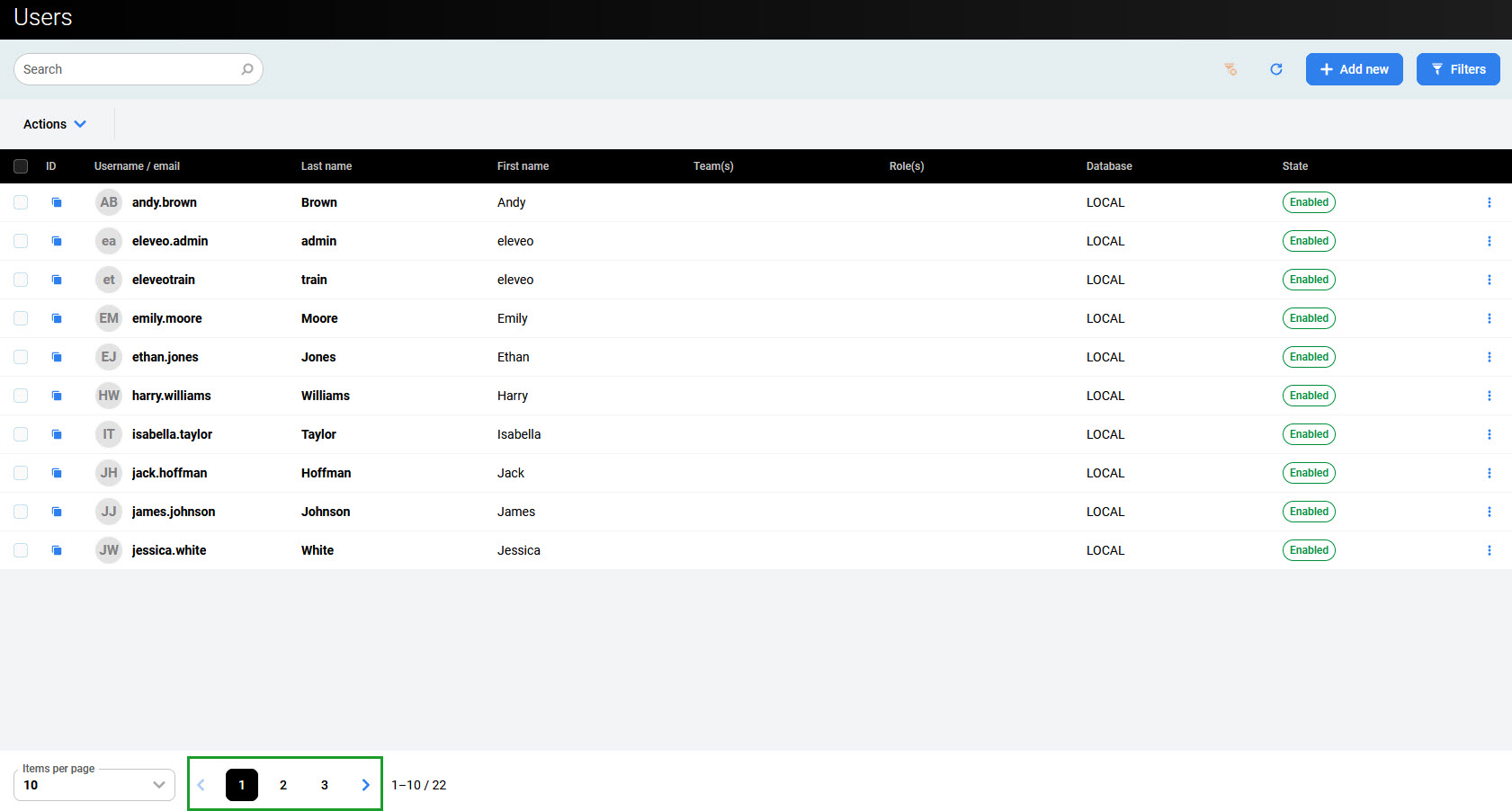
To view users that already exist in the system, click on User management > Users within the navigation tree on the left. The Users screen will display.
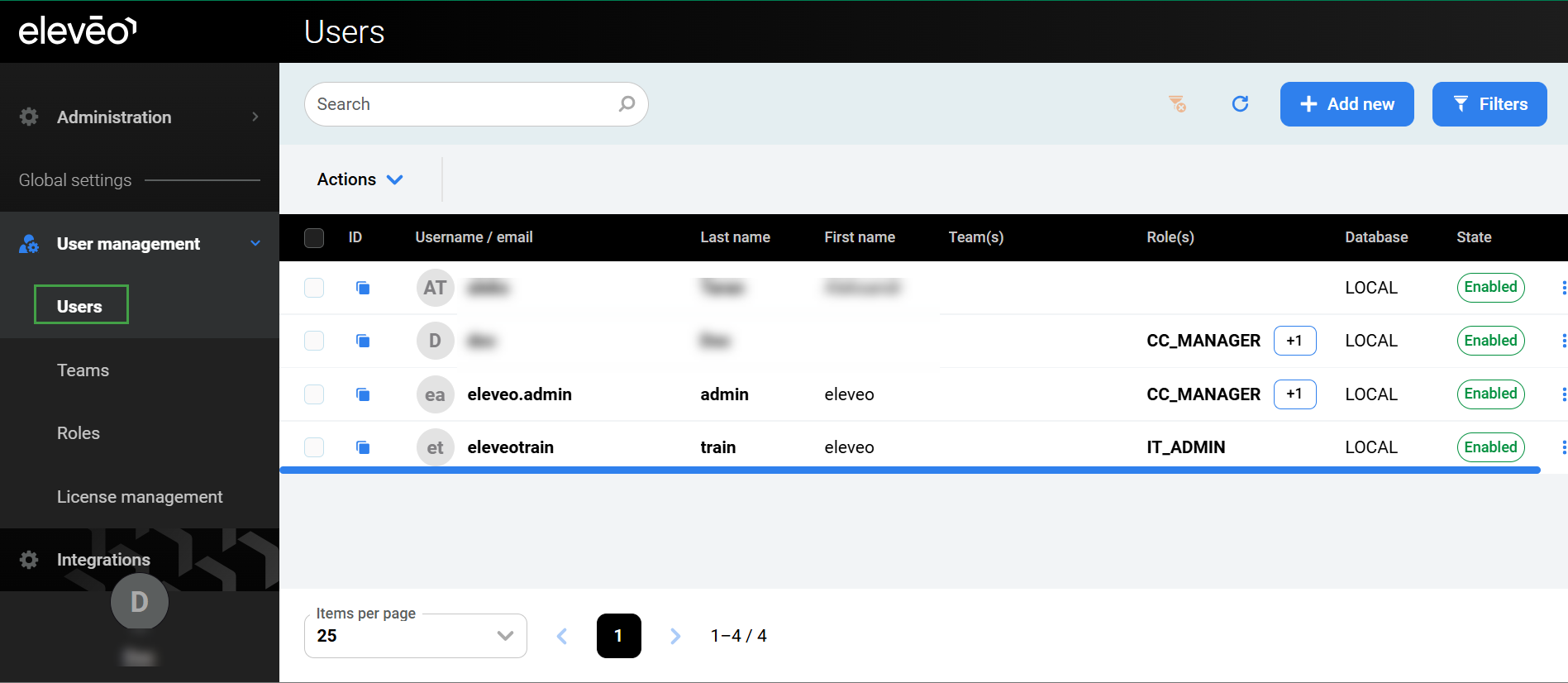
Basic information about each person is displayed in the following columns:
-
Username/email – username and (optionally) an email of a user
-
Last name – last name of the user
-
First name – first name of the user
-
Team(s) – team(s) to which the user belongs
-
Role(s) – role(s) assigned to the user
-
Database – source of the user (local database or external system from which the user was imported).
-
State – current state of the user (disabled or enabled)
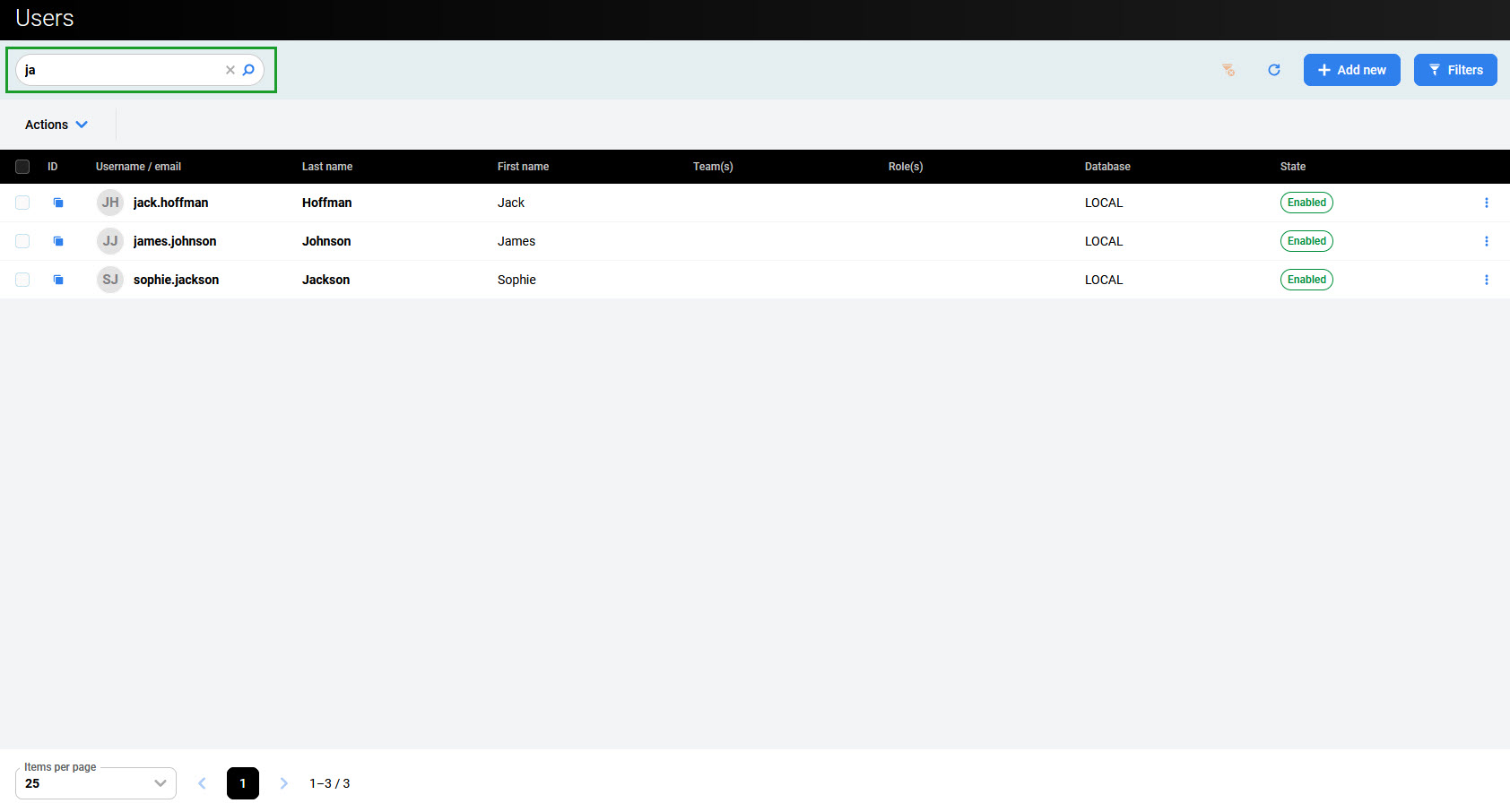
To search for a user in the user database, fill in the user's first name, last name, email address, or ID in the search box and click the Enter key. All users who match the entered criteria will be displayed.
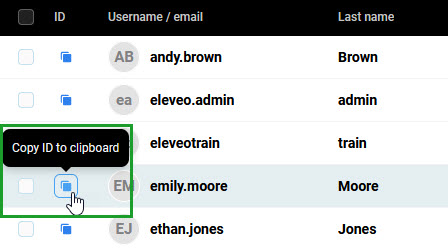
To copy the user’s ID, click the Copy ID to clipboard icon on the left of the username.
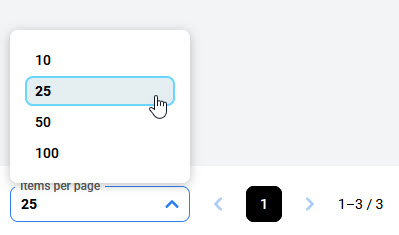
At the bottom of the page, it is possible to adjust how many items are displayed on each page.
Use the arrows or page numbers to switch between the pages.
Filtering Users
To filter users based on specified criteria, click the Filters button in the top right corner of the screen. The Filters pane will open.
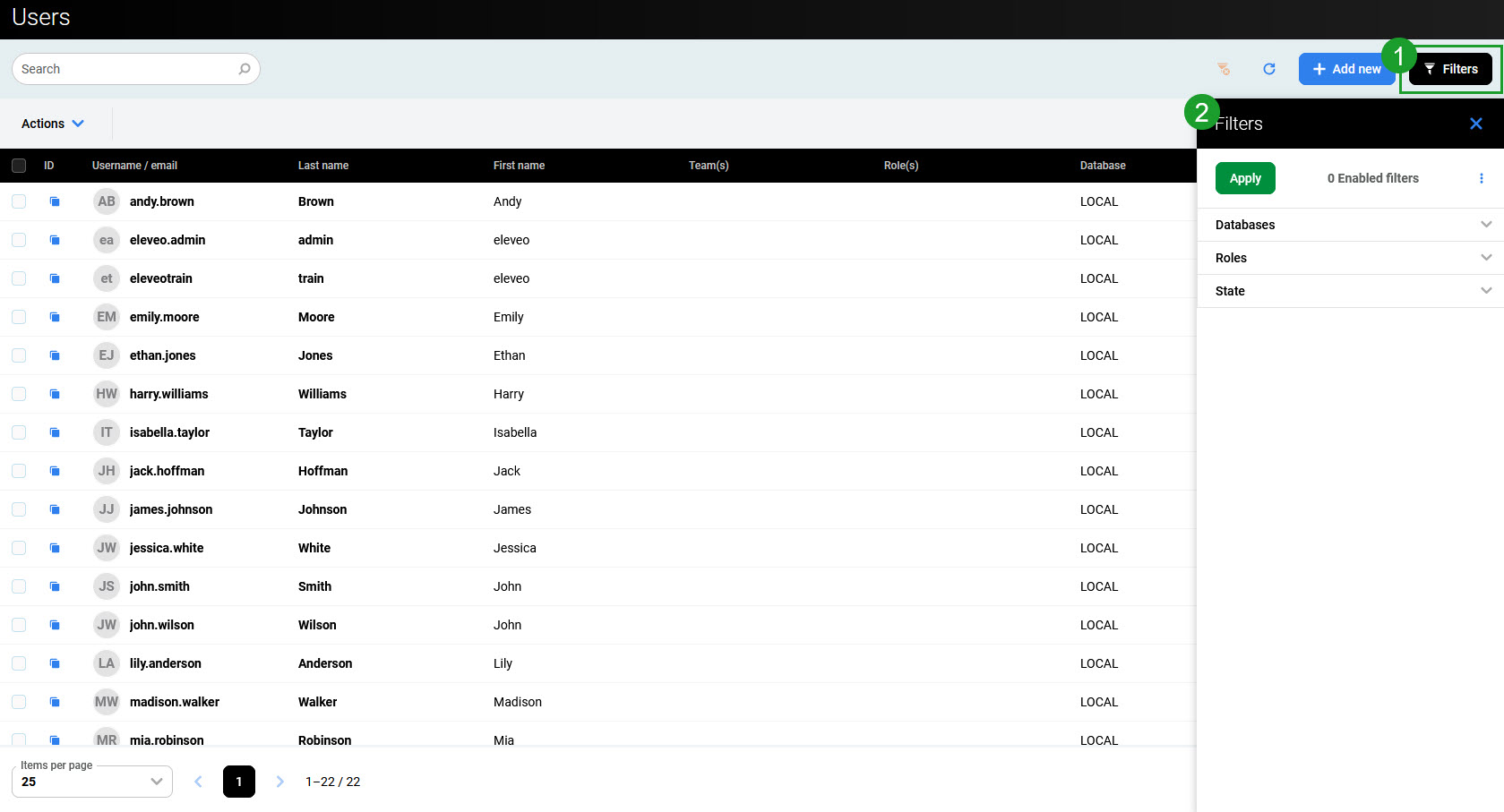
Expand the sections to select the search criteria:
-
Databases – select database(s) to display only users from these sources (for example, only imported from UCCE or only local, etc.)
-
Roles – select role(s) to display only users who have at least one of these roles assigned (only custom roles can be selected)
-
State – select to display only users in this state (enabled or disabled).
To hide the databases or roles that are not selected, use the Show selected only switch.
Click Apply to apply filters. To reset filter selection, expand the More options menu (three dots) and click Reset all filters.
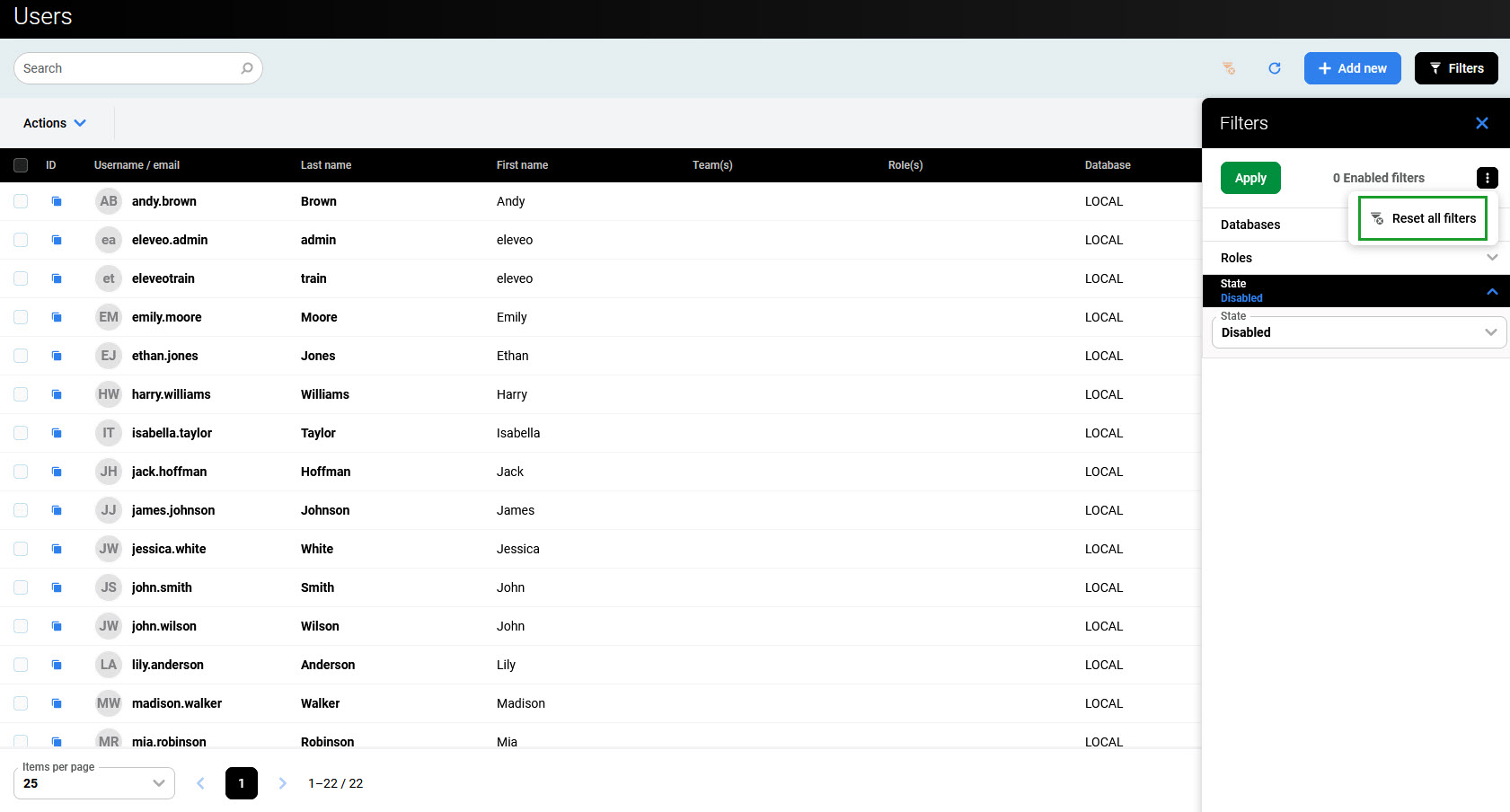
After applying the filter, only filtered users are displayed on the Users screen. To remove it, click the Remove filter icon.