
Accessing the Conversation Explorer
To access the Conversation Explorer users require at least 2 permissions
-
VIEW_CONVERSATIONS_SCREENAND one of the following permissions:INTERACTIONS_AGENT_VIEW, INTERACTIONS_GROUP_VIEW,orINTERACTIONS_FULL_VIEW
Generative AI
Users with the required permission can view AI Generated ratings for conversations, view summaries, detected topics and flags and highlights within the Details Pane. See Viewing Conversations - Details Pane.
Speech Recognition
The backend speech engine has changed. Transcriptions are now used to find Speech Tags in conversations.
Search Functionality
Users with the required permission can create and share search filters with other users. Users who have filters assigned to them by a supervisor/manager will be able to view additional conversations based on the newly assigned filters. Please read about the new Advanced Permissions functionality on the page Saved Filters.
Getting Started
The Conversation Explorer screen provides search and replay functionality for the various media types saved to Eleveo servers. Use the advanced search filters to find and then review recorded media. The built-in Interaction Player supports playback of several media types; including audio, video and recorded screens. If you have email or chat integrated with your installation, the Conversations Explorer provides a preview of these conversations. Currently, we support email integration with Salesforce.
Click Conversations in the navigation tree of Quality Management to get started. The Conversation Explorer is where you can search and view emails, chats or play recorded conversations as well as initiate a conversation review. You need proper privileges to access the Conversation Explorer and to view conversations. See the Quality Management Roles page for more details.
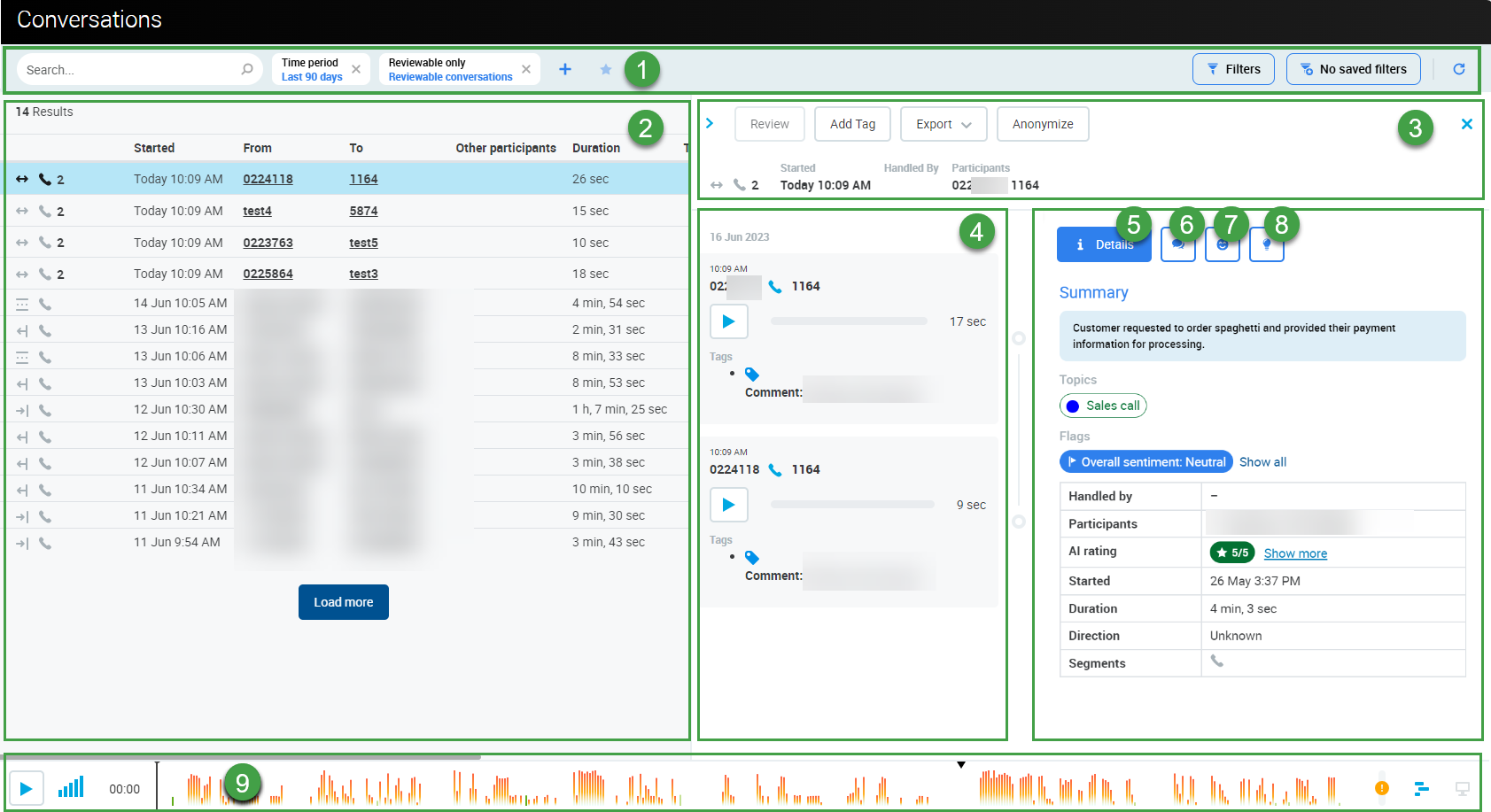
The Conversation Explorer consists of the following main sections.
-
Top bar – Contains the search bar, currently applied filters, and action buttons used for saving, refreshing, and resetting filters.
-
List of conversations – All or the filtered conversations are listed in this main section, together with the number of the conversations found. The Load More button and the selected row will be highlighted. The columns displayed are customizable (see Conversation Settings page). By default, conversations are displayed in the order in which they occurred. Starting from the current time (most recent events) and then proceeding backwards in time.
-
Key conversation info and actions – Summary of the selected conversation and the key actions used for reviewing, tagging, downloading/exporting, or anonymizing.
-
The follow items for individual conversations can be downloaded / exported:
-
JSON files - Participants, custom data, reviews, etc. Text contained within emails, chat content, assigned tags, transcriptions, AI grading, flags and topics detected,
-
MP3 files - Enabled if the conversation contains at least one call - download the call conversation audio file. (video recordings are not exported from this screen!)
-
ZIP files- This option exports all available media in ZIP format. (Screen Recordings are not available for export)
-
-
-
Preview pane – Shows conversation segments and review history on a timeline. Call segments can be played from here, chats will be grouped in threads, and emails listed in the order they occurred. Results of Automatic Reviews are also displayed.
-
Detail pane – Shows detailed information about the selected conversation segment. (Click on one of the segments to view more details, including the Automatic Review score and Correlation ID/SID) Note- if MP4 files are processed there will be multiple segments visible in the details pane.
-
Summary – A brief summary of the conversation generated by the Speech Generative AI service will display (if available). multilingual
-
Topics – Conversation topics detected by the Speech Generative AI service will display (if available). english only
-
Flags – A set of Viewing Conversations - Details Pane | aiflag are displayed. Available flags include: overall sentiment, repeat contact, escalation requested, churn risk identified. If detected, the relevant flag is highlighted. See Viewing Conversations - Details Pane | aiflag english only
-
AI Rating – The Speech Generative AI server evaluates every conversation. The resulting score is visible to users with the appropriate privileges. See Viewing Conversations - Details Pane | airatingdetail multilingual
-
-
Transcription – Transcriptions for the media (if available, see Viewing Conversations - Details Pane | Transcription ) display in the Detail Pane. Click to reveal, and then scroll to view the available transcription. The name of the speaker (if known) and their emotion (if available) are indicated for each spoken phrase. multilingual
-
Acoustic and emotion – Acoustic and emotion information is displayed (if available, see the Viewing Conversations - Details Pane | Emotion and Acoustic Parameters). Click to reveal, and then scroll to view the text. The overall emotion of the speaker at the end of the last segment is indicated for the segment. This is the emotion of the speaker when they left the call.
-
Insights – AI generated highlights and recommended next steps (if available, see Viewing Conversations - Details Pane | Insights). Click to view a detailed breakdown. multilingual
-
Player – Media playback is controlled from within the player. The audio waveform, speech tags and other recorded media are displayed within the player.
The listed conversations are divided into (1) Default Columns and (2) Custom Columns:
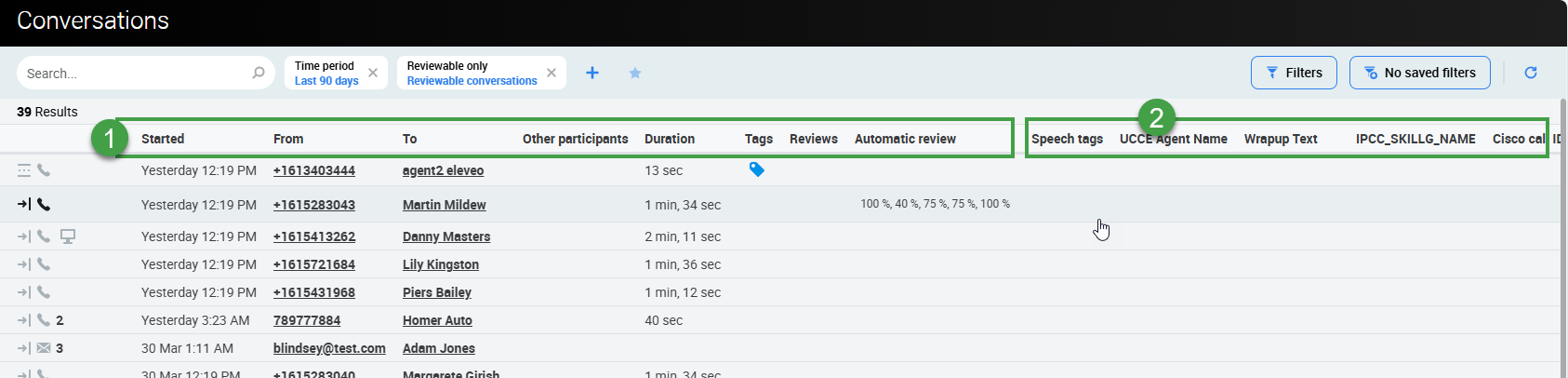
Default Columns
-
Direction – You can determine the call direction; whether it was an Inbound, Outbound, Internal, or (due to some constraints) an unknown direction.
-
Types – Here you can see if the recorded conversation was a Call, Screen, Video Call, Email, or Chat, as well as the associated conversations count.
-
Started – The date and time when the conversation started.
-
From/To – Identified Agent(s) and/or customer involved in the conversation.
-
Other participants – Customers identified either by Name, ID, Phone or Email Address and other participating agents not identified in the Agents column.
-
Comments – Comments associated with any conversation or its segments are displayed.
-
Duration – You can see the duration of the call conversation in – hours, minutes and seconds.
-
Tags – If you see the Tag icon, this indicates that the conversation is tagged. Hovering over the icon will show all available tags. Clicking the tag will enable you to view all the tags and comments associated with the selected conversation. More information about Conversation Explorer is covered later on this page.
-
Review score – If available, showing the conversation's review score. Clicking the review icon opens the review details section in the Conversations Details Window.
-
Automatic Review – If Automated Quality Management (AQM) is licensed, and configured, the score assigned by Automated Rules is visible. Multiple scores may be displayed, based on the Automated Rules configured within the system.
-
Custom Columns
-
Additional columns are displayed if they have been customized by an administrator, as described on the Conversation Settings page.
-
A NOTE ON DATES/TIMES
The time displayed corresponds to the timezone of the current user. Not necessarily the server timezone.
The system recalculates the time and displays it according to the current user's timezone as set in User Management. Details on how to change this setting are described on the dedicated page called Configuring User Profile and Password
The total number of found conversations is displayed at the top of the active window (1). When you scroll down the Conversation Explorer, you can click the Load more button (2) to load more conversations.
If there are no stored conversations found, the message No conversations found will be displayed.
Save or Refresh Search
Search for conversations according to the criteria described in the following sections.
The default filters are displayed on the top left of the Conversation Explorer.

-
Search in Conversations – Search conversations that either include or exclude specified terms, names or other entered text contained in several fields. Learn more in the Searching for Conversations in the Conversation Explorer. Best matching conversations are listed first.
-
Default Time period filter – A preset filter to display conversations that occurred in the last 90 days. You may remove the filter by clicking the cross button on the filter label. Alternatively, along with other filters, you may change the Time period filter to another date range as explained in the following sections.
-
Default Reviewable only filter – A preset filter to display reviewable conversations. You may remove or modify the filter as described in the following sections.
-
Filters – Click to view the filtering options. A filtering pane with all filter options opens to the right of the screen. Individual filters are explained in the following sections. Available options are customizable (more details on the Conversation Settings page).
-
Three dot menu – Click to view additional options.
-
Save your active filters – Click to create a new Saved Filter based on the currently applied settings. (The Saved Filters pane will display.)
-
Reset filters to default – Clear all filters nad revert to default settings.
-
Reset all filters – clear all filters.
-
Clicking any of the set filters at the top bar opens the filters pane with the selected filter option.
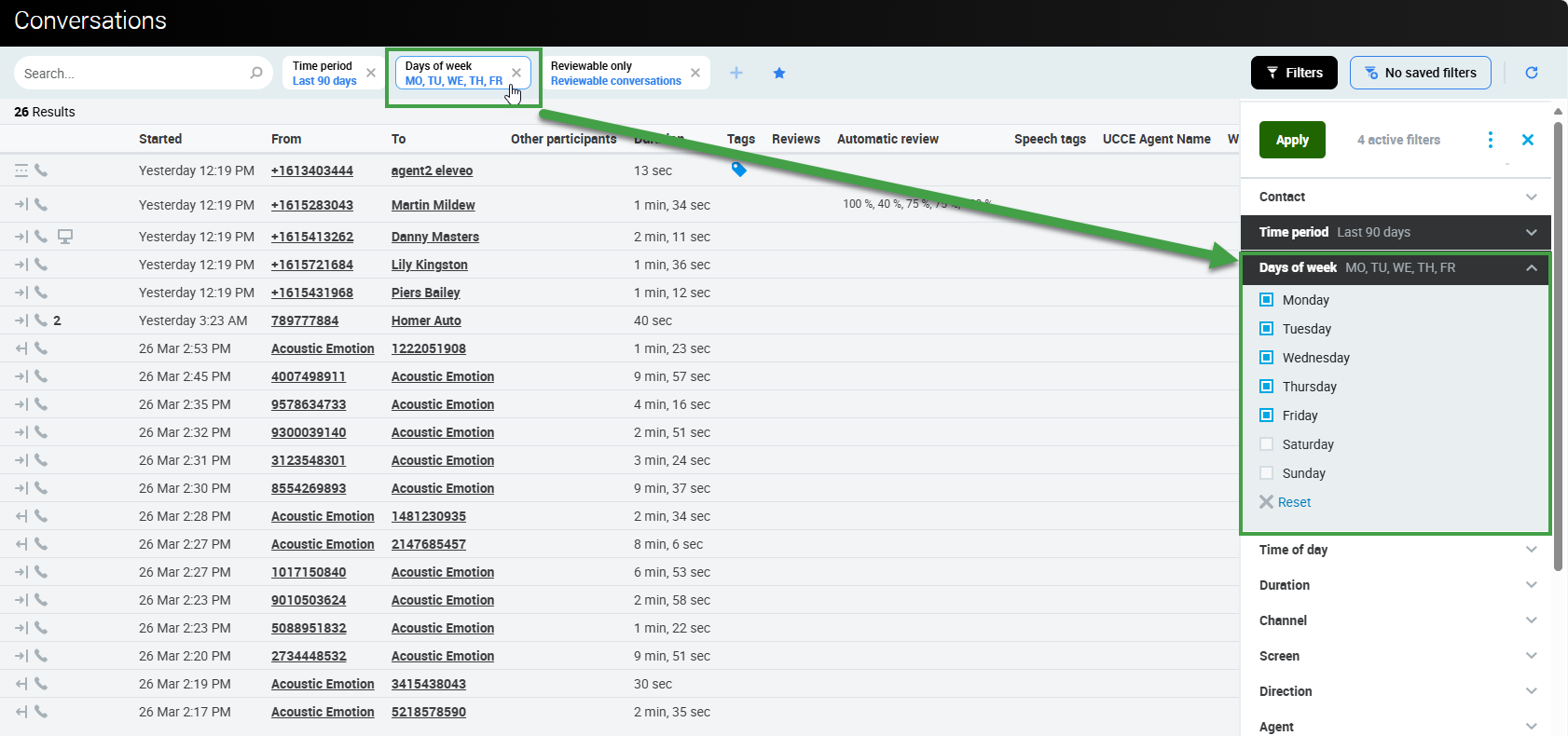
At any time, while searching for conversations, you can use the buttons at the top right of the active window to perform the following actions:

-
Filters – Click to view the filtering options available to narrow down the number of displayed conversations.
-
Active filters are highlighted:
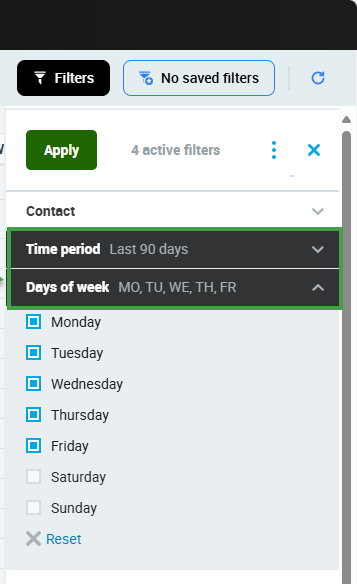
-
-
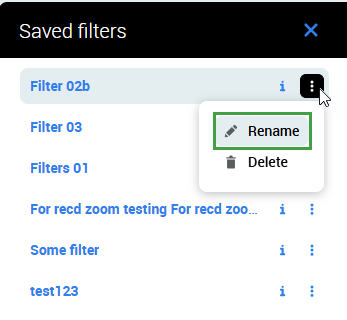
Saved Filters – Retrieve and use your previously saved filters or create a new one.
-
You can rename or delete your saved filters. (Use a unique name for each search you wish to save!) A confirmation dialogue asks you to confirm that you wish to proceed.
-
-
Refresh Filters – Re-run the search with all the parameters you've just set, or refresh the list.

Interaction Player
The Interaction Player and Its Functionality
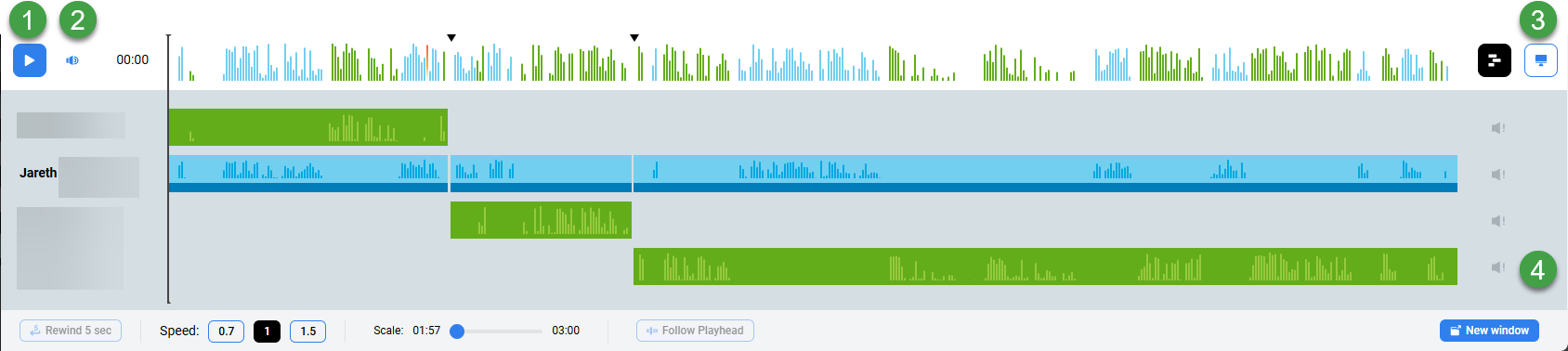
The various parties in the conversation are displayed below the primary waveform separately. Click on the waveform button to view or hide the individual segments. Each individual waveform is color-coded: green for customers, blue for agents (if the ID or DN for the specific agent is available to be paired with the conversation or segment).
-
Click the Play or Pause button to control the conversation playback(long recordings may take some time to load before they are playable).
-
Hover over the volume icon and click to adjust the audio volume or click the speaker icon to mute the sound.
-
If media files are present, the following options may be visible:
-
Screen Recording – If the conversation you are playing contains a screen recording (record will be marked with the Screen button). Click on the button to open the playback window. If no screen recording is available, the button is greyed out.
During playback, the button will be highlighted. Screen recordings are not loaded until you expand the playback window. Audio can be played back at any time.
-
Video Recording – If the conversation you are playing contains a video recording (record will be marked with the Video recording button). Click on the button to open the playback window. If no video recording is available the button is greyed out.
-
-
The scroll bar (on the right-hand side) is only visible in the case that there are more than four media streams.
Note: When video is attached to recordings, the conversation will play from the beginning to the end without the ability to skip throughout the recording (seeking is not supported for video and conference video recordings). This is due to the way encryption and decryption work on the server side in this version.
For more details and advanced functionality, please refer to the Interaction Player page.
Advanced Functionality
Please refer to the dedicated pages for more information about using the Conversation Explorer: