
When a customer completes a survey, the information provided is uploaded to Quality Management. If a customer provides voice comments at the end of the survey, they are also available for playback in Quality Management. The survey is saved if at least one question is answered.
Viewing Completed Surveys
The Customer Surveys page is used to replay customer feedback. The embedded player helps to replay customers' feedback, when available.
The following actions are supported:
-
Click the report you want to work with.
-
On the toolbar click one of the following:
-
View: shows review results in read-only mode. The Grading form is displayed when a user clicks the conversation link from the review detail report. For more information about survey details, refer to Grading Forms.
-
Report: shows the review results report which can be printed or exported to .xsl format.
-
Within the folder, the menu displays the Agent name and ID, Questionnaire Name (more than one survey can be used concurrently), Calling Number, Called Number, Score, and the date Created.
Understanding the Customer Survey Screen
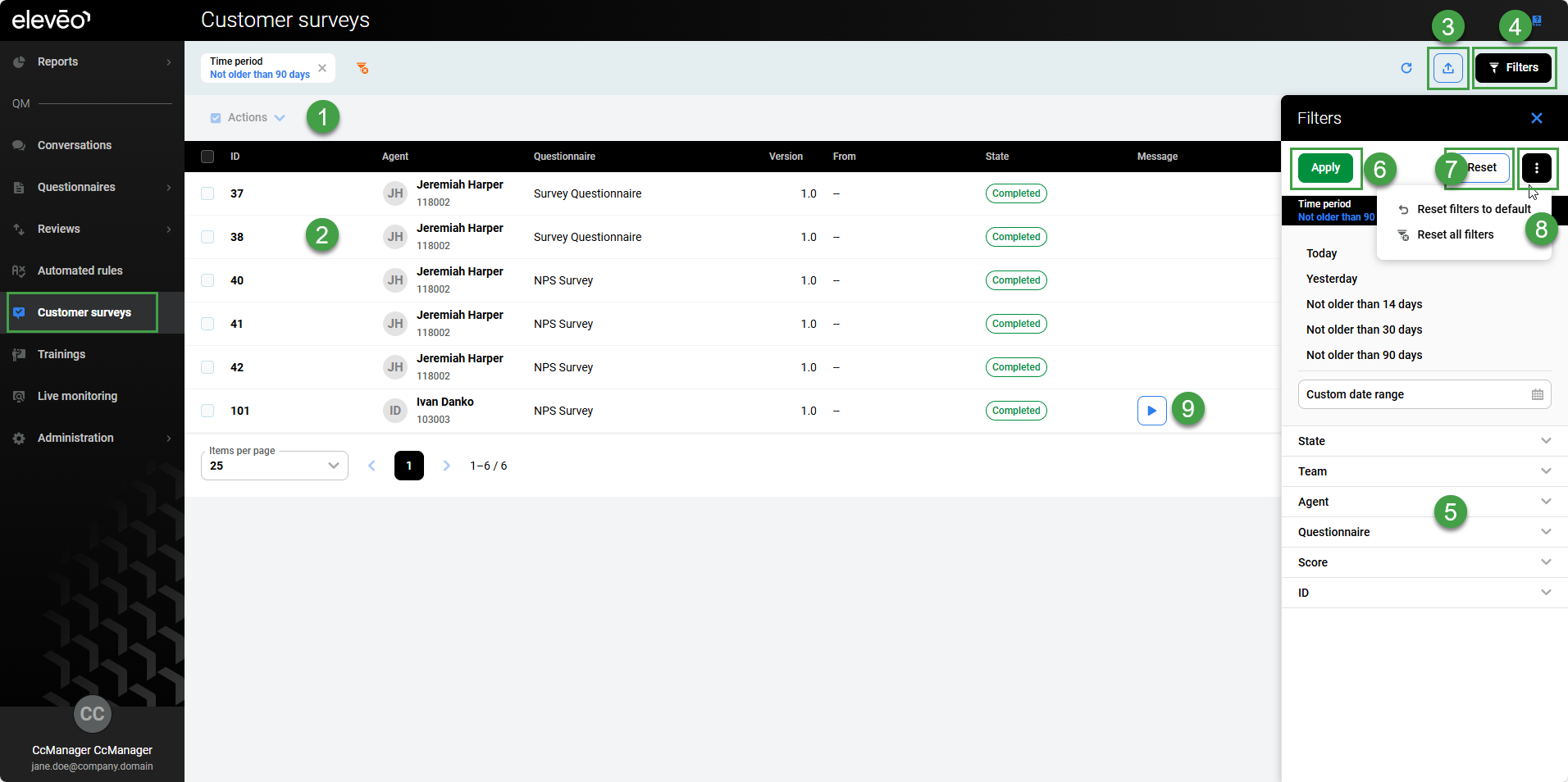
The following information is available from the Customer Surveys screen:
-
Actions menu – Click to view options available
-
View Report(s) – Go to the linked reports.
-
Include in reports – Dictates whether a review is included in the statistical reports. Regarding the compare reviewers report, all reviews are included in this report regardless of whether the check box is selected.
-
Exclude from reports – Dictates whether the survey is included in the statistical reports. Regarding the compare reviewers report, all reviews are included in this report regardless of whether the check box is selected.
-
Reveal results to agent – Permits agents to review the results. Once the Reveal results to agent option is selected the Agent will be able to view the results and submit feedback from the Reviews screen. Even if the review has not yet been completed, or is ongoing!
-
Hide results for agent – Hides the results from the agent. The Agent will not be able to view the results and submit feedback from the Reviews screen.
-
Delete – Delete the selected Survey (items must be selected prior to deletion).
-
-
List of Surveys
-
ID – ID of the survey. This is a unique number identifying the survey within Quality Management.
-
Agent – The agent who handled the conversation this survey is related to.
-
Questionnaire – Name of the questionnaire used.
-
Version – This is the questionnaire version number.
-
From – Indicates the calling party (customer).
-
State – Status of the questionnaire. These include:
-
Awaiting Review: Surveys that are created but don't have any customer feedback.
-
In Progress: These are surveys that were answered by a customer but for some reason, the associated call for this survey is not available. In most cases, it becomes available later, and Quality Management just needs to wait for it. This happens most often when a person doesn't complete the survey properly. The results of the survey are still available, but you cannot play the corresponding call.
-
Completed: Surveys that have customer feedback.
-
-
Message – Indicates that there is a message associated with the survey. Click to play the customer's voice response (if available).
-
Score – Customer-provided score for the particular survey (varies based on the questionnaire settings).
-
Last change – A time stamp indicates when the survey was last updated in the system. Usually, this is the time when the survey was created.
-
Additional details – Click to view options available
-
Detail – Opens the Survey form. This screen displays details about the survey, including customer responses.
-
View Report(s) – Go to the linked reports.
-
Review Conversation – Triggers a review of the conversation linked to the survey.
-
Exclude from reports – Dictates whether the survey is included in the statistical reports. Regarding the compare reviewers report, all reviews are included in this report regardless of whether the check box is selected.
-
Reveal results to agent – Permits agents to review the results. Once the Reveal results to agent option is selected the Agent will be able to view the results and submit feedback from the Reviews screen. Even if the review has not yet been completed, or is ongoing!
-
Delete – Delete the selected Survey (items must be selected before deletion).
-
-
Export – Export results(select items before clicking the export icon)
-
Filters – Open the filter pane.
-
Filters criteria – Use these options to filter what is displayed on the screen.
-
To search for a particular Survey, use one of the following fields:
-
Time period – Select a preset date period (for example, Today, Last 14 days, …) or provide a custom date range.
-
State – Select a Survey state: Awaiting review, In progress, Completed.
-
Team – Select a team to which the Survey is connected.
-
Agent – Select an agent team connected to the Survey.
-
Questionnaire – Select a questionnaire that has been used in the Survey(selectable from the list of available questionnaires).
-
Score – Provide a specific range of scores (in points or percentages).
-
ID – Select the specific range of IDs (provide From and To ID numbers).
Then click Apply to apply the filter, or Reset to clear the search fields.
Alternatively, click the More options icon (three dots) to display the possibilities:
-
Reset filters to default – set all search fields to their default values,
-
Reset all filters – clears all the search fields.
-
-
-
Apply – Click to enable your selected filter criteria.
-
Reset – Reset all filters to default.
-
Additional options – Reset the filters to default or Reset all filters (remove all filters).
-
Customer feedback – If available customer voice responses can be played back direclty from the Customer surveys screen.
View Survey Results - Survey Form
To open the Survey Form:
-
Go to Customer Surveys and click the survey name or click on the three-dots menu item.
-
Select Detail.
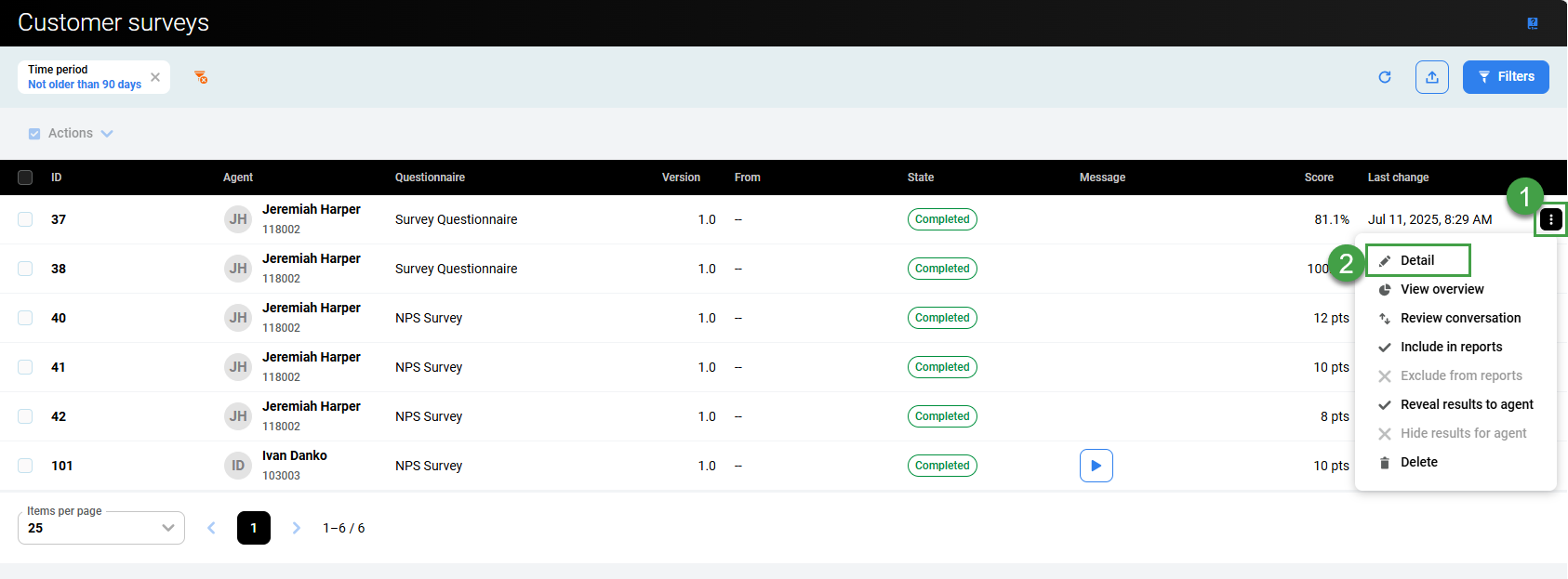
The Survey Form will open.
The Survey form contains the following information:
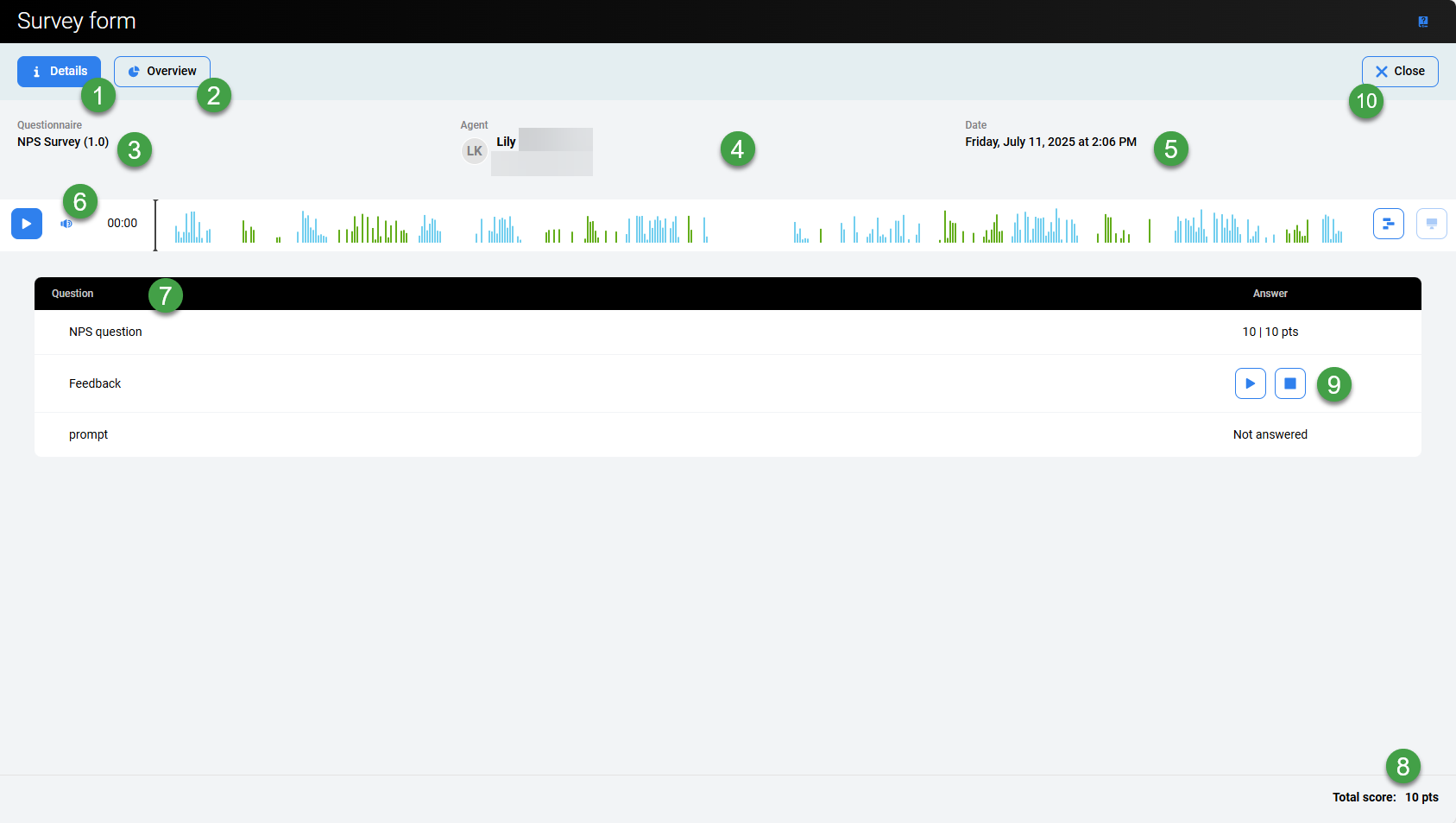
The following information is provided:
-
Details – Opens the conversation detail pane. This allows you to find out more about the linked conversation. Provides detailed information related to the recorded audio conversation, including all metadata.
-
Overview – Opens the overview screen. It is possible to print or export the results from the overview screen.
-
Questionnaire – Name of the questionnaire used for this survey.
-
Agent – Name of the agent who initiated the survey.
-
Date – Date when the survey was taken.
-
Player – The Player allows you to playback the associated media recording.
-
Questions – A list of all survey questions and the customer responses.
-
Total score – The final score provided for the survey.
-
Customer feedback – If available, customer voice responses can be played back using the integrated player.
-
Close – Return to the previous screen.
If the survey contains the customer's voice feedback a player is displayed on the page.
Click here to learn more about the Interaction Player
The Interaction Player and Its Functionality
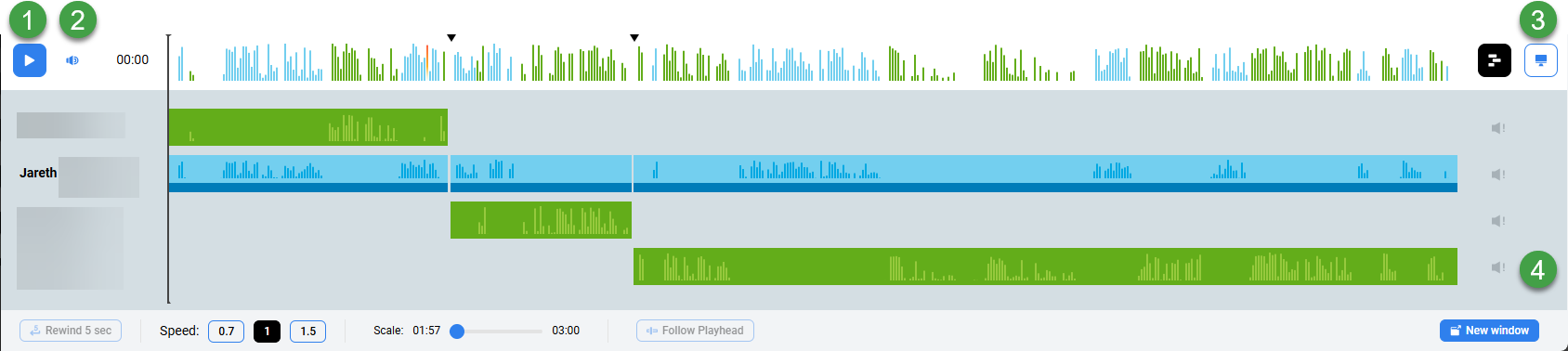
The various parties in the conversation are displayed below the primary waveform separately. Click on the waveform button to view or hide the individual segments. Each individual waveform is color-coded: green for customers, blue for agents (if the ID or DN for the specific agent is available to be paired with the conversation or segment).
-
Click the Play or Pause button to control the conversation playback(long recordings may take some time to load before they are playable).
-
Hover over the volume icon and click to adjust the audio volume or click the speaker icon to mute the sound.
-
If media files are present, the following options may be visible:
-
Screen Recording – If the conversation you are playing contains a screen recording (record will be marked with the Screen button). Click on the button to open the playback window. If no screen recording is available, the button is greyed out.
During playback, the button will be highlighted. Screen recordings are not loaded until you expand the playback window. Audio can be played back at any time.
-
Video Recording – If the conversation you are playing contains a video recording (record will be marked with the Video recording button). Click on the button to open the playback window. If no video recording is available the button is greyed out.
-
-
The scroll bar (on the right-hand side) is only visible in the case that there are more than four media streams.
Note: When video is attached to recordings, the conversation will play from the beginning to the end without the ability to skip throughout the recording (seeking is not supported for video and conference video recordings). This is due to the way encryption and decryption work on the server side in this version.
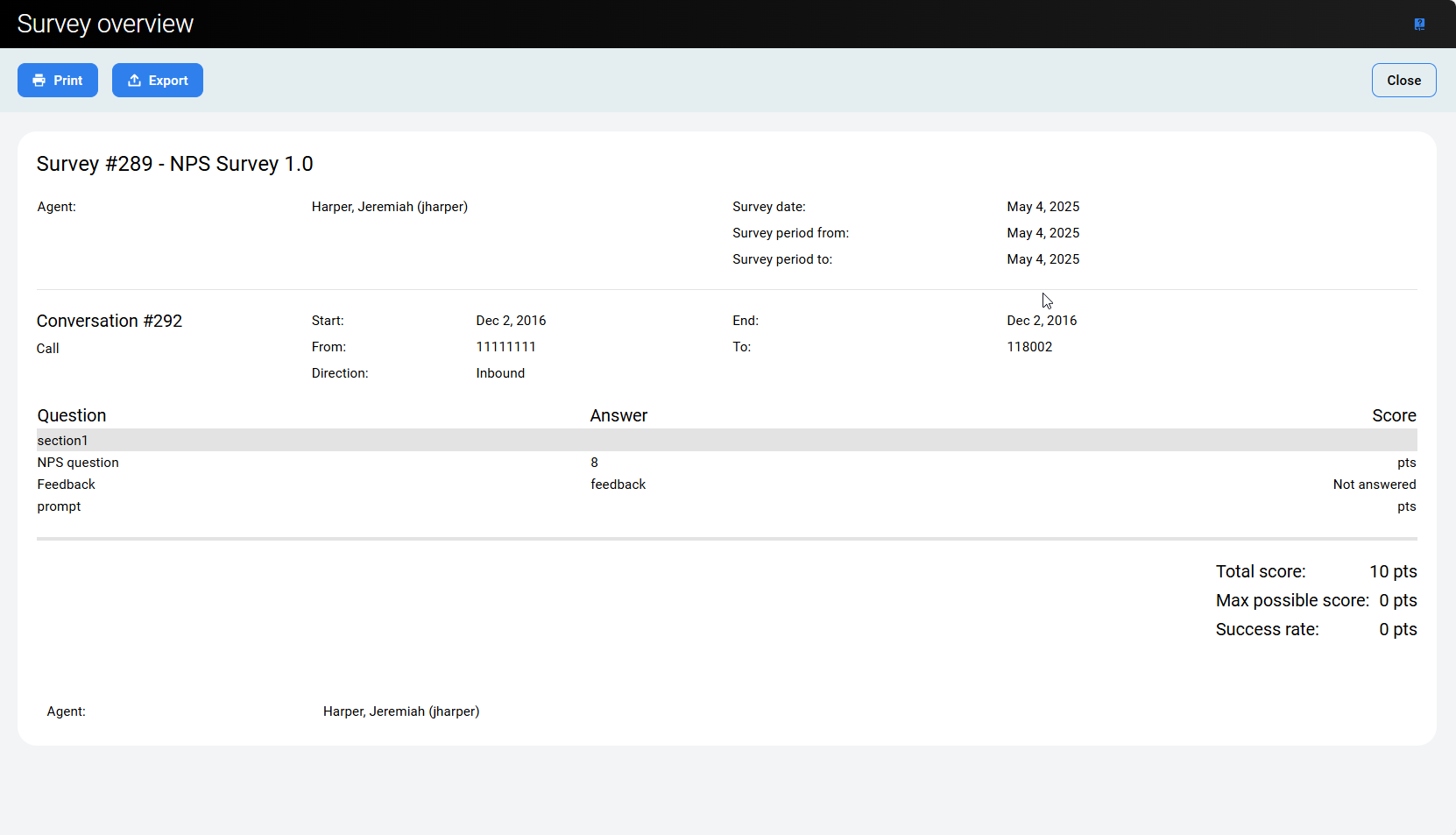
Survey Overview
The survey overview allows you to print or export the survey results.
This screen provides a simplified view of the survey results. All relevant information about the Survey is displayed in text format.
Quality Management Reports
Reports can help you analyze customer feedback over specific periods of time, identify trends and more.
Relevant reports may include: Compare teams, Teams & Agents Skills and League table.
Replaying Voice Prompt Files
Once the survey is ready and it has all the questions and voice prompt files there is an option to replay the files to make sure that correct files are uploaded. You can delete (x) and re-upload audio files.
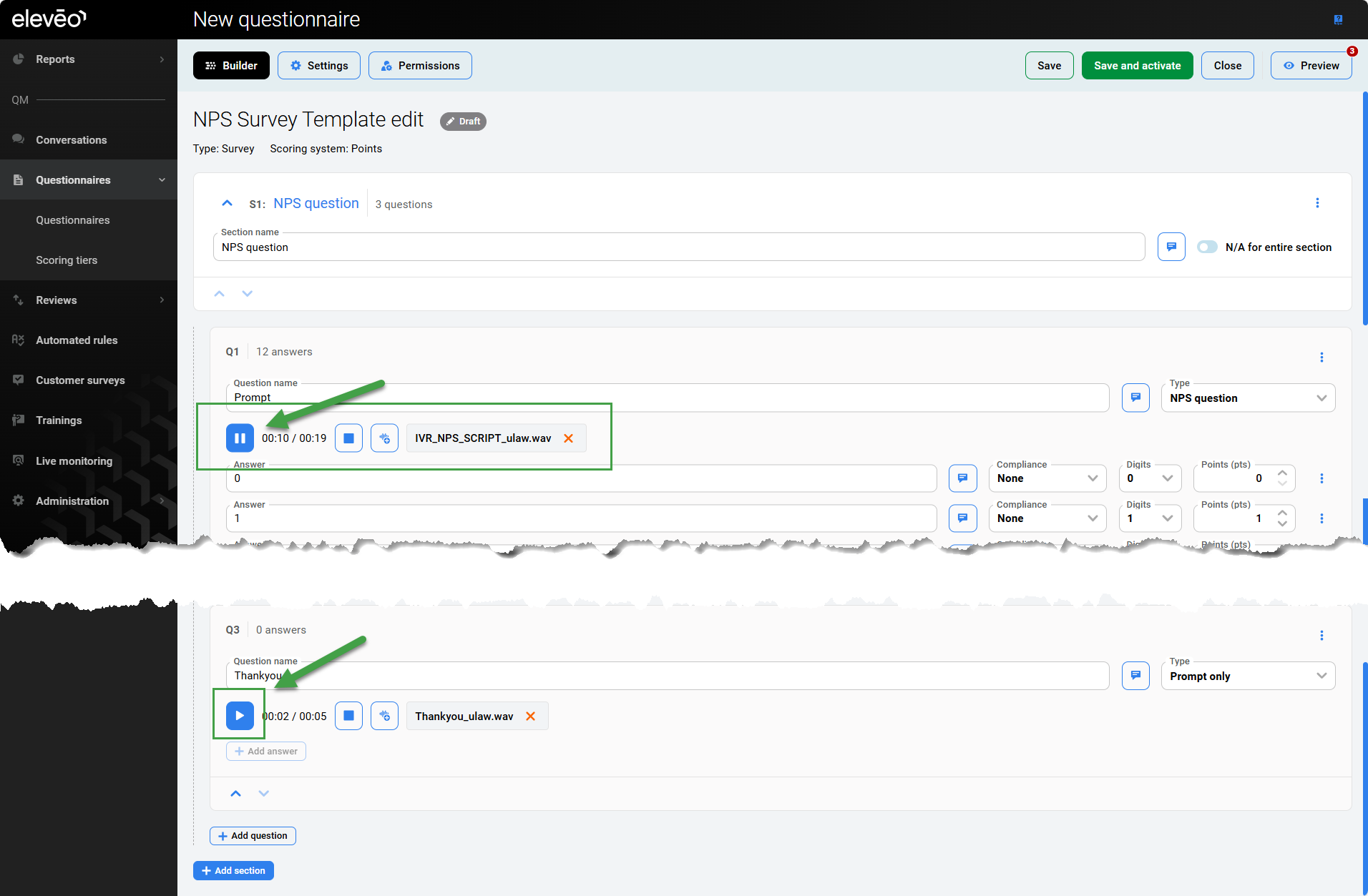
Important: The survey should be saved before you can play voice prompt files.
To play a voice prompt file:
-
In the Questionnaires open/edit the survey you want to check.
-
Click the Play icon next to the audio file you want to listen to.
All conversations used in Surveys are flagged with the Quality Management Usage flag and marked as protected against removal.
-
This 'protection' can not be easily removed; it can only be removed via the UnProtect Tool.