
Quality Management preferences can be viewed and modified by a user with the permission PREFERENCES_EDIT. (This permission is assigned to the DEFAULT_CC_MANAGER and DEFAULT_IT_ADMIN as part of the Default Composite Application Roles.)
Go to Administration > Preferences to get started. The Preferences screen opens.
You may view and edit the following preferences, changes are applied after clicking Save. Clicking Close will reset the settings to the last saved state:
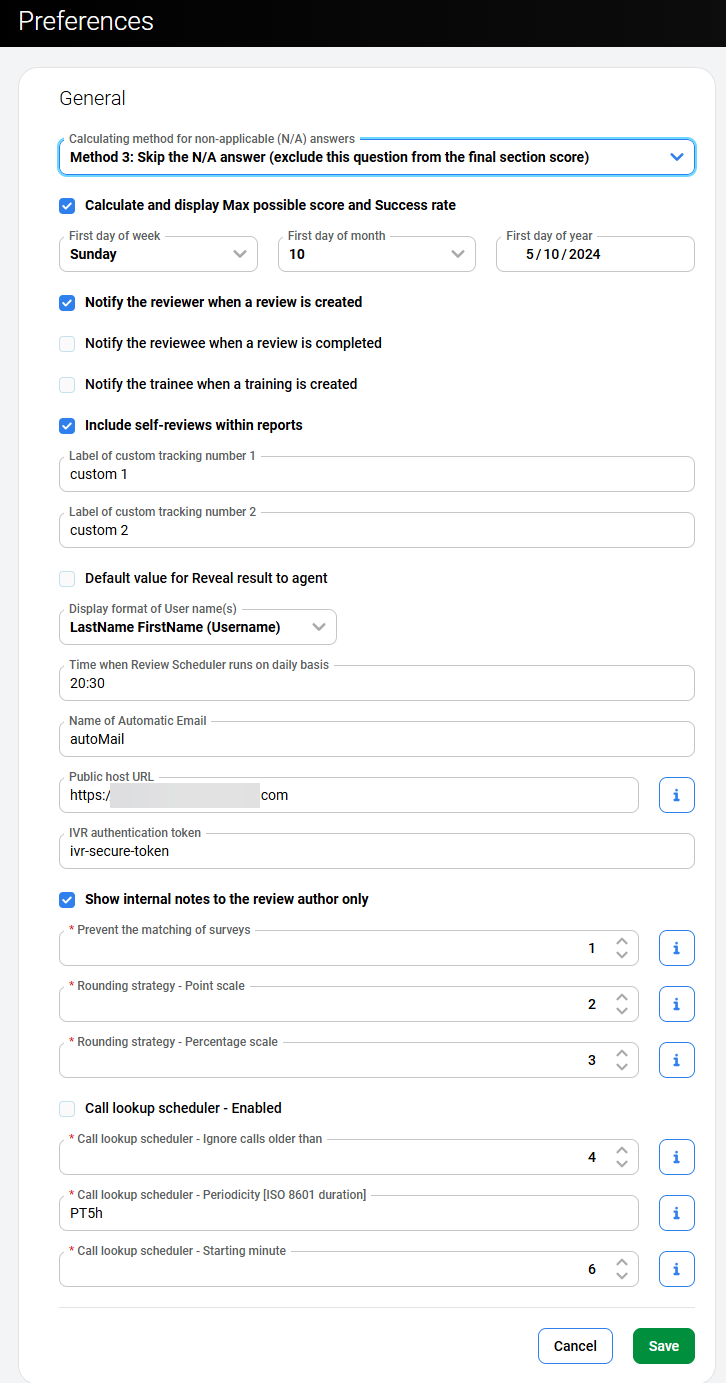
General
-
Calculating method for non-applicable (N/A) answers – This setting controls how the N/A compliance setting for questionnaire answers is calculated. These options are global for all questionnaires. Their purpose is to assign a score to N/A answers that will be statistically non-significant, neither unduly penalizing nor rewarding the agent for being given such an answer. These general settings have the following meanings:
-
Method 1: Use the average value of all actual answers in the section – This means that the score given to the N/A answers is the average (arithmetic mean) of the scores of the answers that were ACTUALLY GIVEN in the rest of the section. (See table below)
-
Method 2: Use average value of all possible answers in the section – This means that the score given to the NA answers is the average score of all POSSIBLE answers to questions in the section. (See table below)
-
Method 3 (No tick): Skip the N/A answer (exclude this question from the final section score) – The practical effect of this is that the score given to N/A answers is zero, while no change is made to the maximum possible score to remove this from the calculation. (See table below)
-
Method 4: Use average value of all actual answers in the whole questionnaire – This works in the same way as Calculation Method 1 (see above), but the average score is calculated based on the arithmetic mean of all scores for answers ACTUALLY GIVEN to questions in the WHOLE QUESTIONNAIRE. (See table below)
-
Calculate and display Max possible score and Success rate – only available if the above calculation method is set to Method 3. By default checked. If checked then the "Max Possible Score" and "Success Rate":
-
will be calculated for both scoring systems (percentage, points)
-
will be displayed on Review and Grading form (below current "Total Score")
-
will be shown also in Review report (below "Total Score" as 2 new lines)
-
will be also present in export to XLS/CSV and in Quality Management API so they are available for reporting
-
-
Calculation methods example:
The table below shows a scenario in which the scores for a review are shown where the review is the same, but the Not Applicable calculation method is different, so that users can compare the results for each method. The "Question" column shows the Question text, the "Answer" column shows the answer text ("Y" = "Yes", "N" = "No" and "NA" = "Not Applicable". The "Score" column shows the score that has been assigned to each answer, other than the "Not Applicable" answer, which, of course, varies, depending on which calculation method is used.
-
|
Question |
Answer |
Score |
Method 1 |
Method 2 |
Method 3 (No tick) |
Method 3 (With tick) |
Method 4 |
|
|---|---|---|---|---|---|---|---|---|
|
|
|
|
|
|
|
Actual Score |
Max Score |
|
|
Section 1 |
|
|
|
|
|
|
|
|
|
Q1 |
Y |
100 |
100 |
100 |
100 |
100 |
100 |
100 |
|
Q2 |
Y |
100 |
100 |
100 |
100 |
100 |
100 |
100 |
|
Q3 |
Y |
100 |
100 |
100 |
100 |
100 |
100 |
100 |
|
Q4 |
N |
0 |
0 |
0 |
0 |
0 |
100 |
0 |
|
Q5 |
NA |
? |
75 |
50 |
0 |
|
|
77.77777778 |
|
Section 1 subtotal |
|
|
375 |
350 |
300 |
300 |
400 |
377.777777778 |
|
Section 2 |
|
|
|
|
|
|
|
|
|
Q6 |
Y |
100 |
100 |
100 |
100 |
100 |
100 |
100 |
|
Q7 |
N |
0 |
0 |
0 |
0 |
0 |
100 |
0 |
|
Q8 |
Y |
100 |
100 |
100 |
100 |
100 |
100 |
100 |
|
Q9 |
Y |
100 |
100 |
100 |
100 |
100 |
100 |
100 |
|
Q10 |
Y |
100 |
100 |
100 |
100 |
100 |
100 |
100 |
|
Section 2 subtotal |
|
|
400 |
400 |
400 |
400 |
500 |
400 |
|
Method 3 with tick Sub totals |
|
|
|
|
|
700 |
900 |
|
|
Final score |
|
|
77.5 |
75 |
70 |
77.77777778 |
77.77777778 |
|
|
Notes describing how final score is calculated. |
|
|
Calculated as the total score of all answers shown in the "Method 1" column divided by 1 000 (Maximum possible score) x 100% |
Calculated as the total score of all answers shown in the "Method 2" column divided by 1 000 (Maximum possible score) x 100% |
Calculated as the total score of all answers shown in the "Method 3 (No tick)" column divided by 1 000 (Maximum possible score) x 100% |
Total score = total actual marks awarded (See "Subtotals" under "Actual Score")/ total maximum marks (See "Subtotals" under "Max Score") which can be awarded x 100% |
Calculated as the total score of all answers shown in the "Method 4" column divided by 1 000 (Maximum possible score) x 100% |
|
|
NA formula |
|
|
=AVERAGE(Answers:Q1 to Q4) |
=AVERAGE(All possible answers to questions - in this case = ((5 x 100 (Score for "Yes" answers) + (5 x 0 (Score for "No" answers)/ 10 (# of answers in the first 5 questions)) |
0 points are always assigned to not applicable answers using this method |
See above |
=AVERAGE(Answers: Q1 to Q4 and Q6 to Q10) |
|
-
First day of week – local time settings – For example, in the USA, the first day of the week is Sunday, whereas in most of Europe it is Monday.
-
First day of month – if your company follows different month periods, use this field to indicate the custom beginning of the month. E.g. You can set your month to start on the 15th of each calendar month. (Values 1 through 31 should be used)
-
First day of year – for companies that wish to align their business calendar with their financial calendar it is possible to define a custom first day of the year.
-
Notify reviewer when review is created – when checked, reviewers will automatically receive a notification when a review has been created for them, providing them with an option to take further actions in the review process.
-
Notify the reviewee when review is completed – when checked, notifies agents automatically that a review about them has been completed. This allows them to see that the review was completed and (if they are given the view report permission) to view the results.
-
Notify the trainee when a training is created – when checked the trainee will automatically receive a notification when a training has been created for them.
-
Include self-reviews in reports – Since self-reviews are subjective including their results in reports could affect results considerably. However, checking this option will include self-reviews in all reporting.
-
Label of custom tracking number 1 and Label of custom tracking number 2 – these fields permit users with appropriate permissions to customize the default labels "Mail Tracking Number" and "Ticket Number" which are displayed on the Using the Reviews Screen form.
-
Default value for Reveal Results to Agent – Checked by default in every NEWLY created review. Existing reviews are not changed. This option indicates whether or not the "Reveal Results to Agent" checkbox will be checked or not by default in every single review.
-
Display format of User name(s)—Choose your preference for how the agent names will be displayed in reports. For example, FirstName LastName, FirstName LastName (Username), LastName FirstName, etc.
-
Time when Review Scheduler runs on daily basis – Note that the individual reviews will not be shown on the Reviews screen until the date when each occurrence of the recurring review is effective. The time when the individual reviews are created is set by default to 3:00 AM UTC. You can change the time in this field as required. The system will process all pending items at the next run.
-
Name of Automatic Email – by default set to "noreply" (noreply@localhost). You must configure the automatic emails sender's address in this field. Emails will not be sent unless a valid email address is used.
-
Public host URL – This URL path is used in links sent via email. It may be visible to end users in emails send by the system. (as of 10.0.1 )
-
IVR authentication token – A random string (we recommend that a universally unique identifier be created for this purpose) that will be used to authorize the Interactive Voice Response (IVR) when making requests for Voice of the Customer surveys for Customer Voice Portal (CVP)(not supported in cloud deployments).
-
Show internal notes to the review author only – If unchecked (by default), internal notes in the Grading form and in the Review Report are in addition to the review author or the delegated user also shown to any user with the permission to review a group belonging to the same hierarchy. Check this checkbox to restrict showing the internal notes only to the author of a review or the delegated user.
-
Prevent the matching of surveys – time period in hours – This setting defines the range allowable to pair calls and surveys. If set to 10, then the system will only pair calls within the past 10 hours (of the survey creation time). Calls outside this timeframe are ignored. This setting ensures that only recent calls are paired with recent surveys.
-
Rounding Strategy - Point scale – Set the number of decimal places used for question groups, questions, and answers for the scoring type (points) in questionnaires. In turn, the number of decimal places are reflected in the scores on evaluations and reports.
-
Rounding strategy - Percentage scale – Set the number of decimal places used for question groups, questions, and answers for the scoring type (percentage) in questionnaires. In turn, the number of decimal places are reflected in the scores on evaluations and reports.
Any configuration changes made to the section Call lookup scheduler are currently ignored by the system. The Scheduler runs automatically every three (3) hours on the hour and targets any Survey that has the status In Progress.
-
Call lookup scheduler – Enabled – Check the box to enable the scheduler. This scheduler attempts to match surveys with the correct call. Sometimes a survey may exist in the system that remains unmatched because the recorder server has not yet matched it correctly. Enable if using survey functionality.
-
Call lookup scheduler - ignore calls older than – Items older than this period (in days ) are ignored when searching for surveys to process. If a Survey is still in progress and has not been matched to a call for <this many> days/hours the Survey will be marked as finished and will not be paired to any call.
-
Call lookup scheduler - Periodicity [ISO 8601 duration] – Defines how often the eval calls lookup process will run. If set to 1 it will run once every hour.
-
Call lookup scheduler - Starting minute – Determines at which time (in minutes) the scheduler should start. If the value is set to 20 then it will start regularly at 09:20, 10:20, etc.
Click Save at the bottom of the screen to save changes. Alternatively, click Cancel to revert changes to the last saved state.Interactive Voice Response (IP IVR)