
Training is designed to help your staff learn new information and to test their knowledge of it. Each training comes with full instructions and can contain links to training material or video tutorials. If a conversation is attached, staff can view the conversation or listen to the call. This provides context which helps them better retain the information.
To see a complete list of trainings assigned to you (as a trainee), click Trainings.
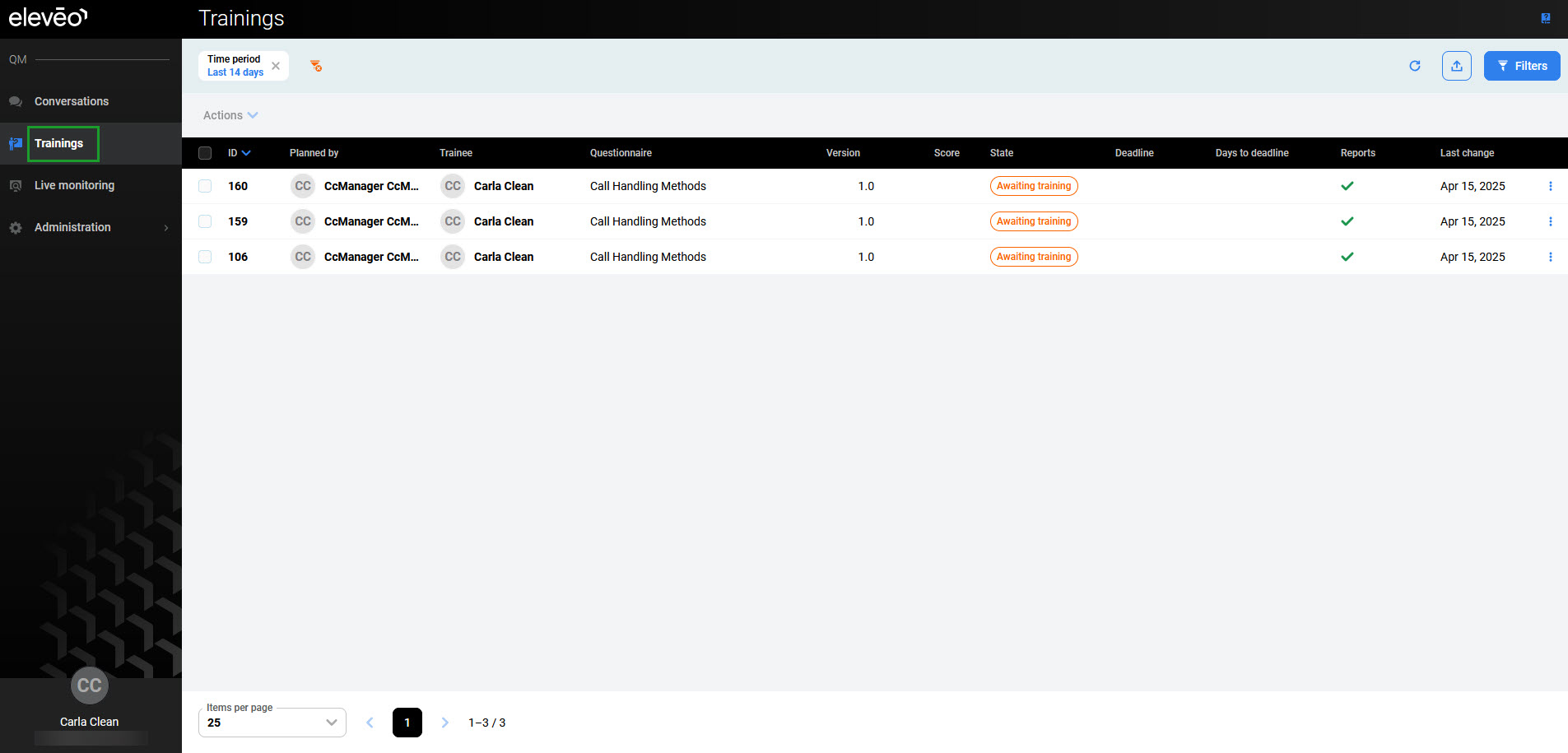
To begin your training:
-
Click on training in the Awaiting training state. The training form will open. Instructions can be found at the top of the form.
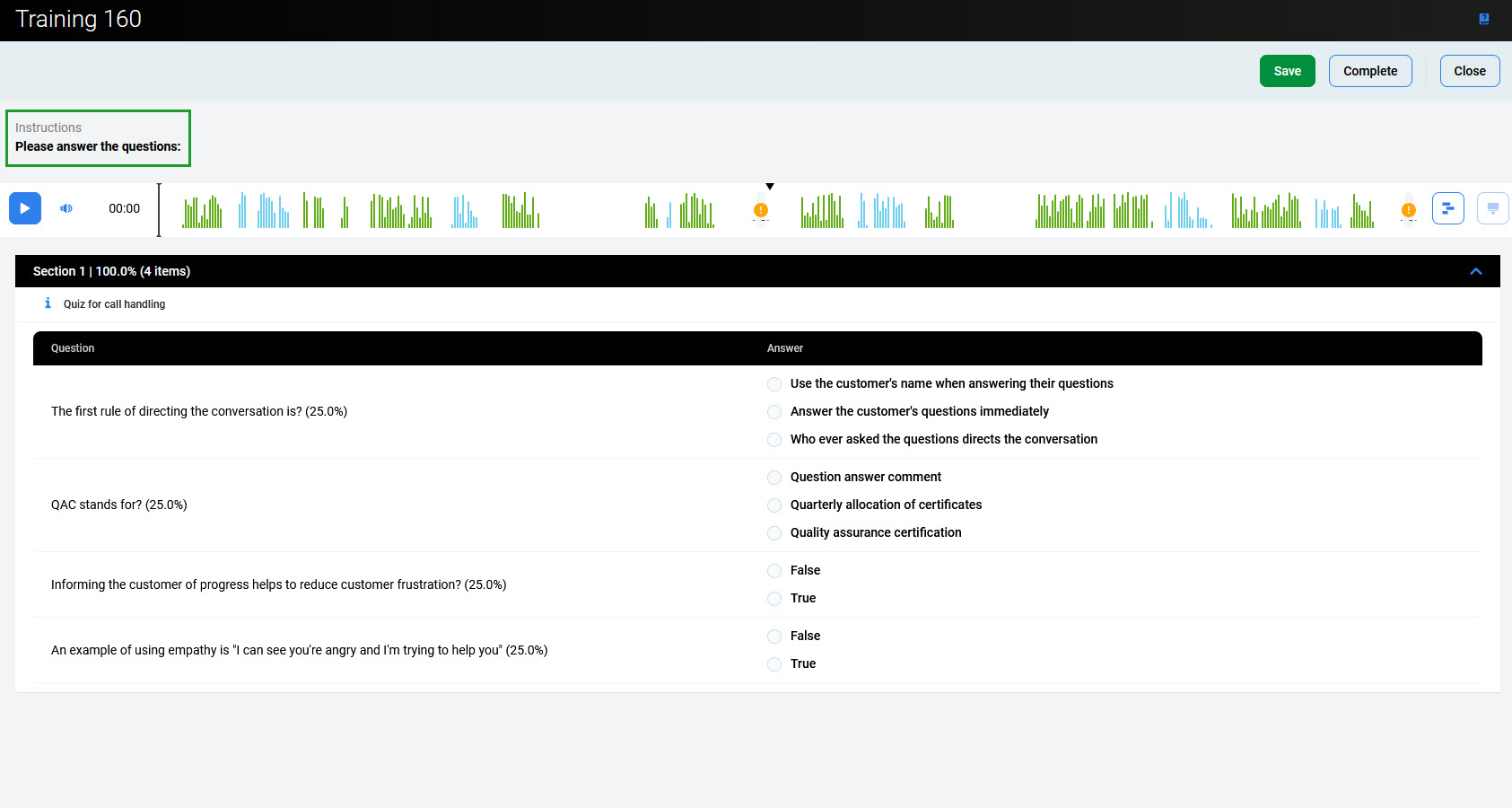
-
If a link to external material is provided, study or watch the training material in a separate browser window.
If there is an attached audio file, listen to the media file using the Player.
Please note that to be able to play a conversation, the trainee needs to be assigned to the Saved filter that includes this conversation. Read more details in the Prerequisites section of the Planning Training page.
-
Select the correct answer (or use the drop-down menu) for all the questions.
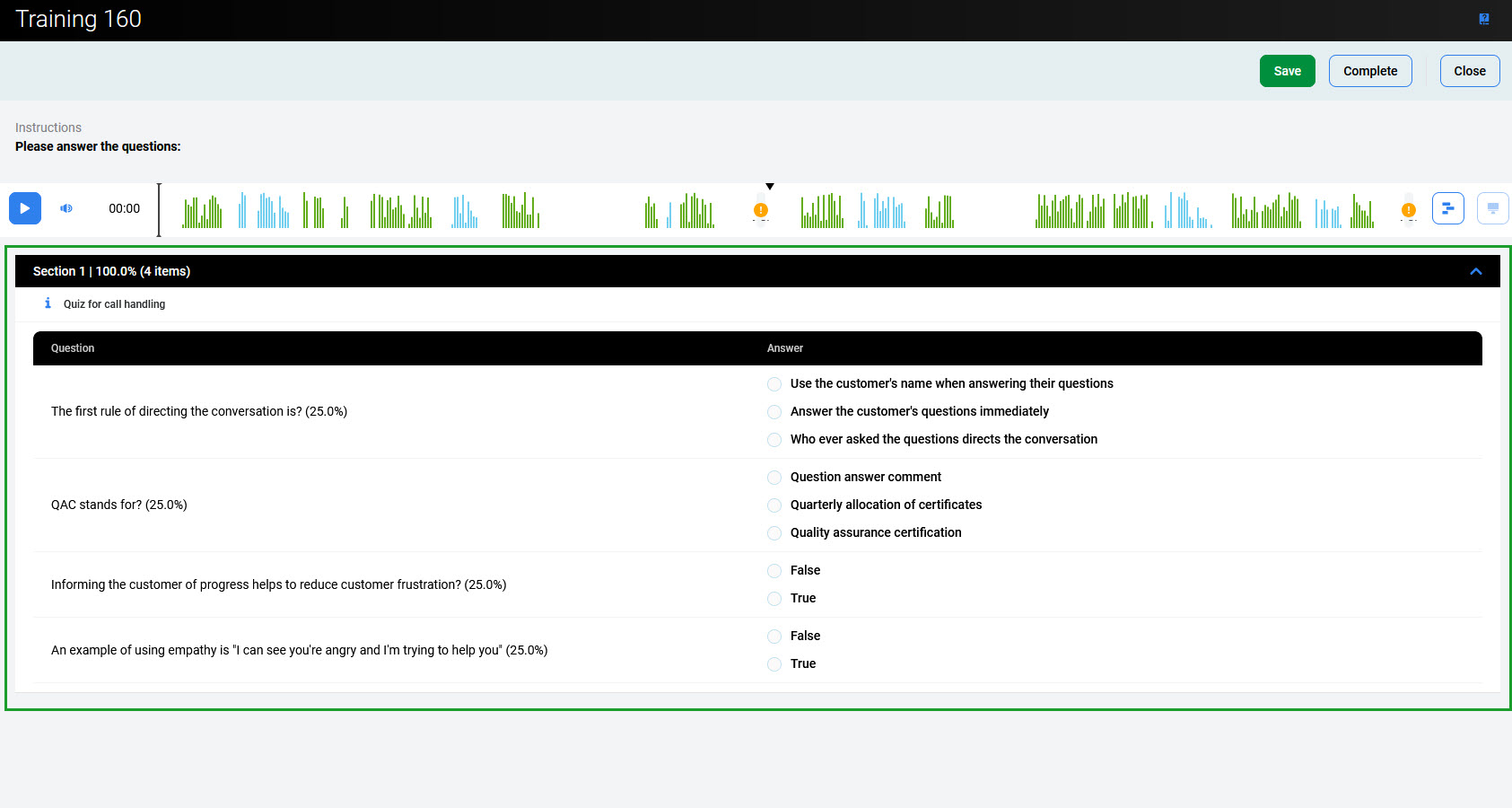
-
Once you're satisfied with your answers to all the questions, click Complete. If you would like to complete the training later, click Save.
-
To return to the Trainings screen, click Close.
Completing Training Later
If you're unable to complete the training, e.g. because of time constraints, click Save. All answers that you've already selected will be saved for when you return, but the training will not be labeled as completed.
To complete the training later, return to the Training List by selecting Trainings and follow the steps:
-
Click the row of the training (it has the In Progress state now). The training form will open, showing the questions already answered as well as questions with no answer.
-
If necessary review the instructions and review or listen to the conversation, if any, and answer the remaining questions by selecting the most appropriate answers.
-
Once you're satisfied with your answers to all the questions, click Complete. To return to the Trainings screen, click Close.
The Interaction Player and Its Functionality
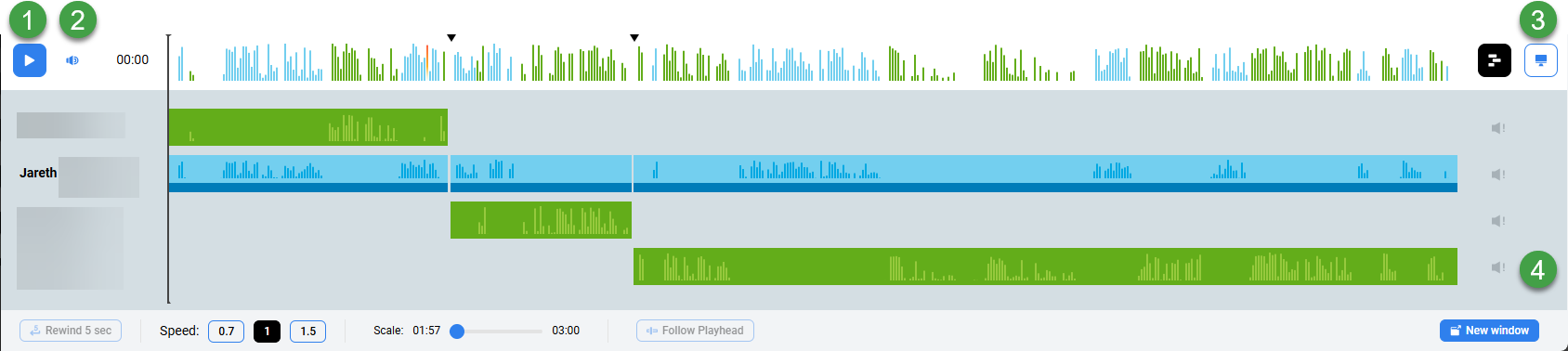
The various parties in the conversation are displayed below the primary waveform separately. Click on the waveform button to view or hide the individual segments. Each individual waveform is color-coded: green for customers, blue for agents (if the ID or DN for the specific agent is available to be paired with the conversation or segment).
-
Click the Play or Pause button to control the conversation playback(long recordings may take some time to load before they are playable).
-
Hover over the volume icon and click to adjust the audio volume or click the speaker icon to mute the sound.
-
If media files are present, the following options may be visible:
-
Screen Recording – If the conversation you are playing contains a screen recording (record will be marked with the Screen button). Click on the button to open the playback window. If no screen recording is available, the button is greyed out.
During playback, the button will be highlighted. Screen recordings are not loaded until you expand the playback window. Audio can be played back at any time.
-
Video Recording – If the conversation you are playing contains a video recording (record will be marked with the Video recording button). Click on the button to open the playback window. If no video recording is available the button is greyed out.
-
-
The scroll bar (on the right-hand side) is only visible in the case that there are more than four media streams.
Note: When video is attached to recordings, the conversation will play from the beginning to the end without the ability to skip throughout the recording (seeking is not supported for video and conference video recordings). This is due to the way encryption and decryption work on the server side in this version.