
Prerequisites
It is necessary to first create questionnaires of the type Quality Review before proceeding. Please review the page Adding a New Questionnaire for instructions.
Only agents Enabled in User Management with the permission REVIEWS_AGENT_ENABLED can be reviewed.
If unlicensed, no Review be created for the agent.
Performing a Review or Scheduling a Review
You may create new reviews in one of the following ways:
-
From the Conversation Explorer screen – How to create an ad-hoc review for a selected conversation from the Conversation Explorer is described on this page.
-
From the Reviews Screen.
-
Using the Review Scheduler – this is the preferred method for creating reviews for yourself or for others.
Create A Review From The Conversation Explorer
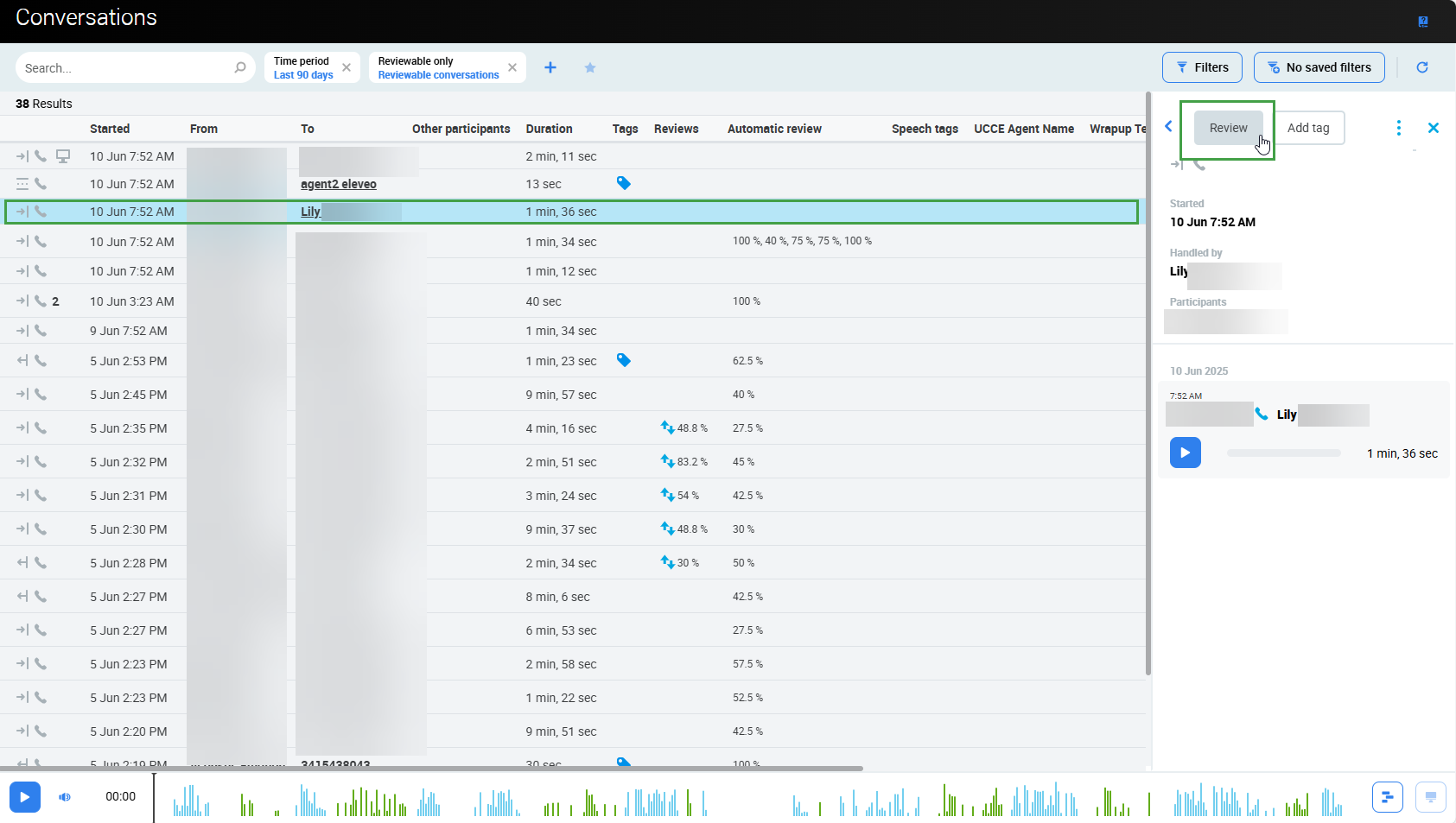
From the Conversation Explorer, you can trigger a review of a selected conversation. A conversation may have one or more identified agents associated with the selected conversation:
-
In case there is only one identified agent in the conversation, click Review and the Review Conversation dialog displays. (If it is not possible to perform a review an option to View will be displayed).
-
In case there is more than one agent associated with the conversation, the Review button changes into a dropdown from which you need to select the agent you wish to review.
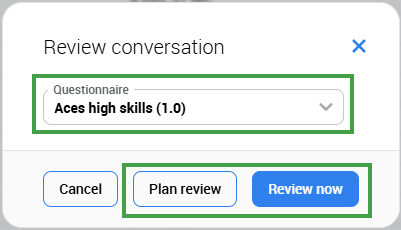
The Review Conversation window displays:
Note - Agents must be licensed in order to be reviewed. This means that the agent must have the role REVIEWS_AGENT_ENABLEDin order for the grading form to load. They must also have the REVIEWS_SELF_ADD role if they are to perform self-reviews.
-
Select a Questionnaire to be used for the given review.
-
Click Review now to go straight to the Grading form and subsequently perform the review process (if you have permission to do a review (for yourself or other agents).
-
Agents must have the role
REVIEWS_AGENT_ENABLEDin order for the grading form to load.
-
-
Click Plan review to select Reviewers.
-
-
Select one or more Reviewer(s) from the Review conversation window. Select multiple if you plan to use this for calibration purposes. You may select/deselect all Reviewers by using the option Select all listed or the Clear option. Only qualifying reviewers who have the right to review the respective agents will be listed. This also includes the agents that participated in the conversation if they have the
REVIEWS_SELF_ADDpermission.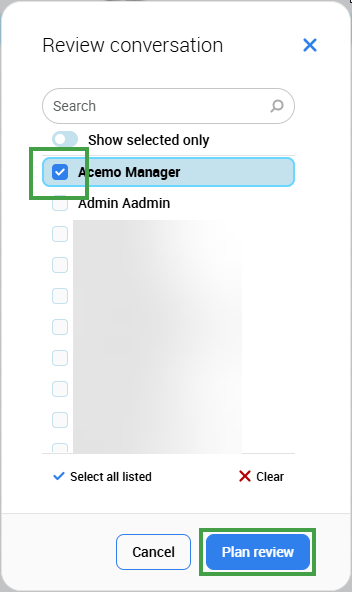
An agent with the REVIEWS_SELF_ADD permission cannot see others on the reviewers' list, create reviews for them or change a reviewer. See the Quality Management Roles page for more details on permissions.
-
Click Plan review to confirm. The window will close. Switch to the Reviews screen to see the recently created items.
In this example, the newly created reviews are visible on the Reviews screen(note that the filter is set to show only recent reviews).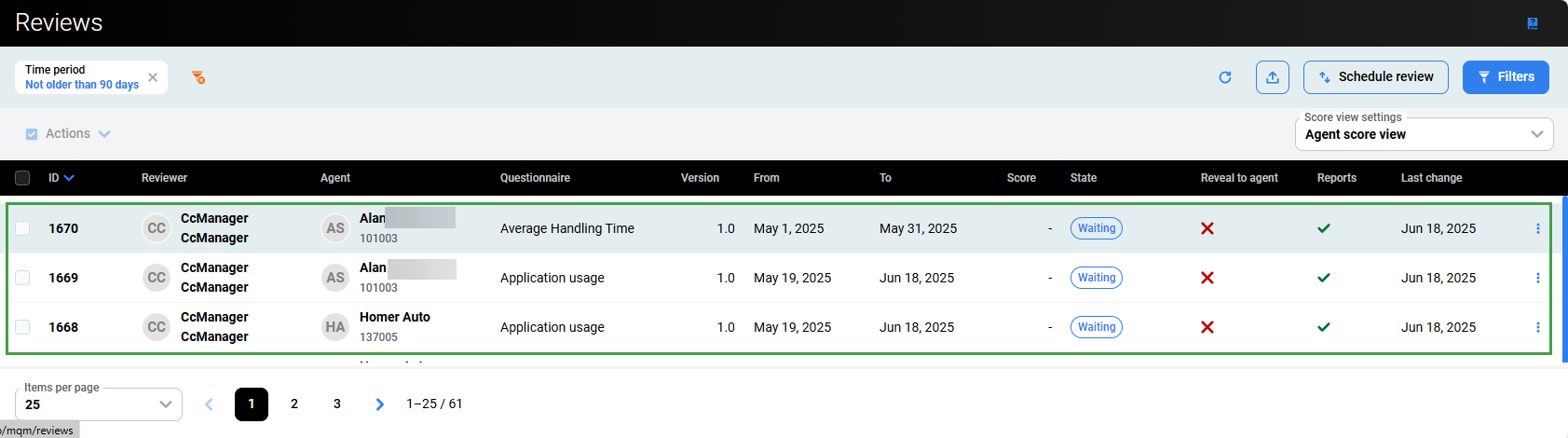
All conversations used in reviews are flagged with the Quality Management Usage flag and marked as protected against removal.
-
This 'protection' can not be easily removed; it can only be removed via the UnProtect Tool.
The Quality Management application recognizes membership in one group only. This group should be marked as a 'main' group in User Management. If users were imported from external systems, like UCCX or UCCE, carefully consider whether their group membership and/or the main group selection should be manually modified from within User Management.
A reviewer must have the agents' main group assigned to them if they wish to perform reviews on these agents.
The following rules apply to setting the main group in User Management:
-
If a user is a member of one group only, this group is set as main.
-
If a user is a member of more than one group, only one group can be set as main.
-
If a user is removed from the main group, the first group from available groups sorted alphabetically will be set as the new main group.
How to determine if a supervisor/manager has the correct agent / group(s) assigned to them?
How to determine if a supervisor/manager has the correct agents group(s) assigned to them?
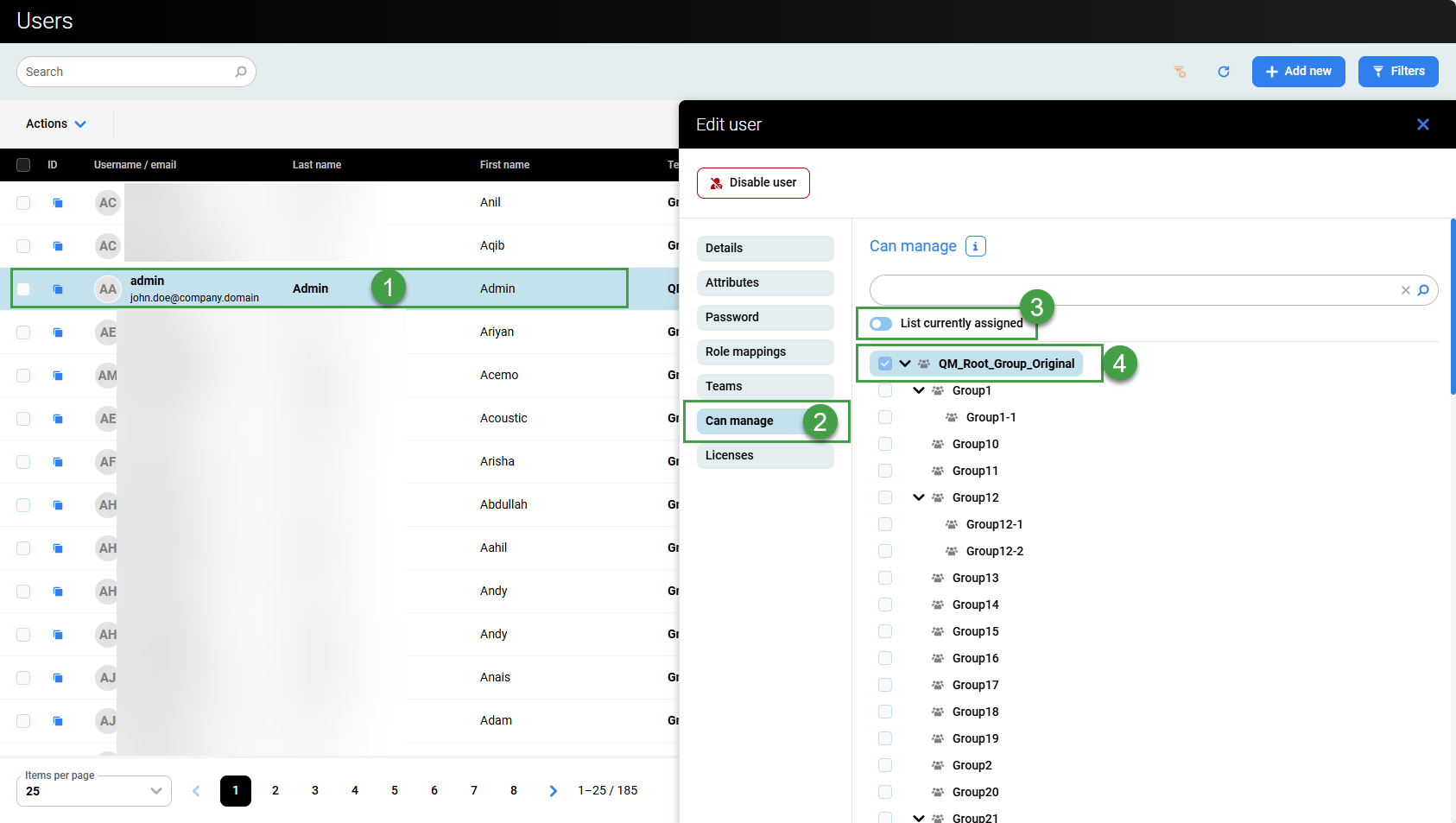
A reviewer must have the agents' main group assigned to them if they wish to perform reviews on these agents. If a supervisor/manager is not able to perform reviews for a user, double-check that they have the correct groups assigned to them in User Management.
Switch to User Management.
Go to Users.
-
Select the Supervisor or Manager you wish to modify.
-
On the Edit user pane, open the Can Manage option.
-
Toggle the List currently assigned option to view all groups.
-
Check that the correct agent groups is/are selected for this particular Supervisor/Manager. In this example we have selected the Root group, the Admin user can perform a review for all users as a result.
If not selected, the reviewer will not be able to perform reviews for the agents in the group.
Known limitation - it is necessary to manually select all groups and subgroups! Selecting only the Root group or a group with subgroups WILL NOT include the subgroup. We are actively working to resolve this issue.
|
Question |
Role required |
|---|---|
|
Who can view review scores? |
|
|
What permissions are required to create or schedule reviews,
|
|
|
Who can perform a review? |
Any user with the role:
|
|
Who can be evaluated? |
|
|
Reviews can be planned/scheduled for any licensed agent. This means that the Agent must have the role |
|