
Exporting a Questionnaire
The Questionnaires screen features the import and export functionality, enabling powerful manipulation of questionnaires and their content. Typical uses include creating backup questionnaires and templates, rapidly setting up questionnaires on new systems, and creating, editing, and sharing questionnaires using external text editors and tools.
To export a questionnaire:
-
Go to Questionnaires, select a questionnaire, and click the three dots icon to expand the list of options available. Select Export. The Questionnaire XML file will be downloaded (the exact download process may vary based on your browser).
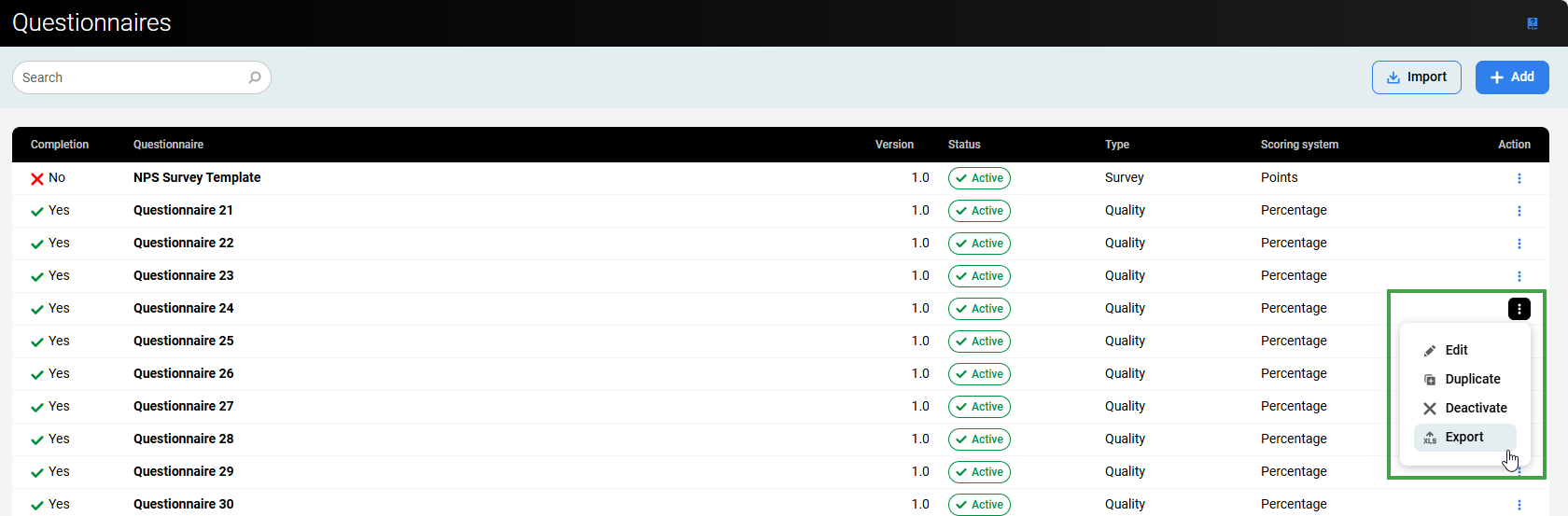
or open an existing questionnaire and click the export icon to download the file.
-
Save the downloaded XML file to your desired location and change the default file name to something easily identifiable in your system.
Editing an Exported Questionnaire
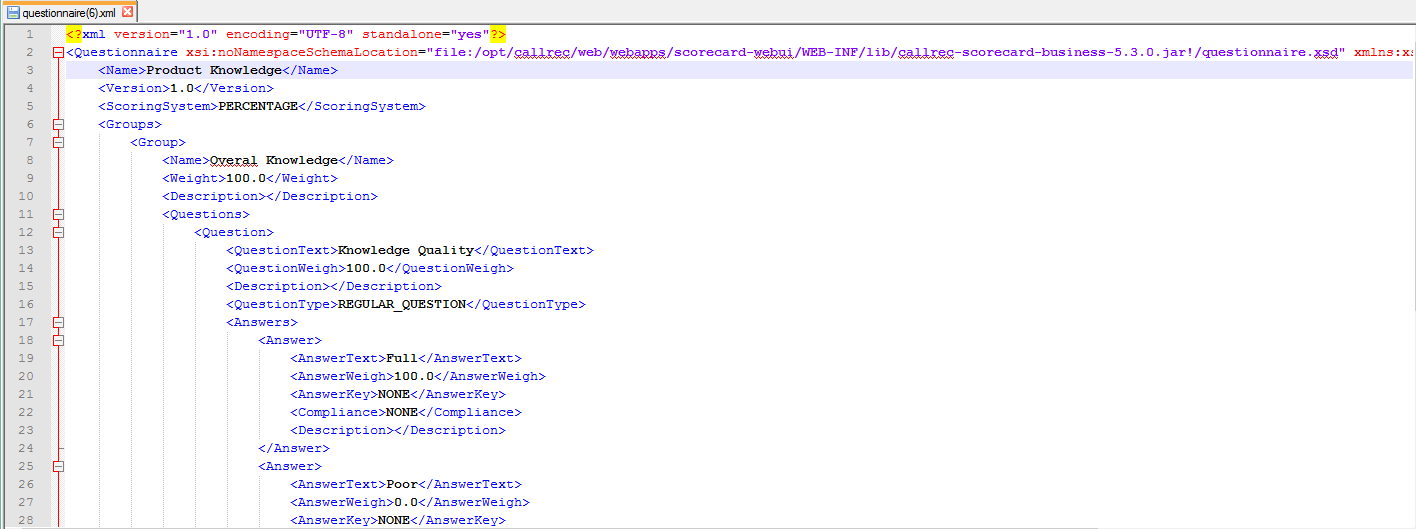
View and edit exported questionnaire files in any XML-compatible text editor (such as Notepad++).
-
Edit the name of the exported questionnaire and use the renamed questionnaire to create a simple questionnaire template system. Your XML text editor will present the file in a format similar to the following image:
-
Edit your questionnaire as desired.
XML files can be difficult to work with. If you are not experienced in editing XML files you may find the results to be unusable. In the case that you have issues after modifying the files, it is recommended that you create templates within the Quality Management and then export them for future re-import.
Importing a Questionnaire
Eleveo enables you to import valid Eleveo questionnaires in XML format that were previously created in Quality Management and subsequently exported. An error message appears if the system does not recognize or cannot validate the imported file.
To import a questionnaire:
-
Go to Questionnaires > Import.

-
Browse and select the file you wish to import.
-
Click Open/Import to start the import(browser-specific).
After the questionnaire has been imported successfully, it will automatically open for editing with the status, Draft.

-
The questionnaire name and version number can NOT match any questionnaire already in Eleveo. Switch to the settings screen and modify the name or version number.
-
Click Save to save the questionnaire after making any modifications.
Permissions for imported questionnaires
To ensure backward compatibility, imported questionnaires do not support the use of permissions. By default, all imported questionnaires are viewable by ALL users.