
Searching for Conversations by STANDARD Criteria
Search in Conversations - Full-Text Search

A great way to filter conversations according to content. This can be helpful when you wish to find all conversations that include a certain word(s).
With full-text search, you may search conversations that include or exclude specified terms, names or text. The following is searchable:
-
tag's comment
-
email address – Exact match is required for an email address to be found!
-
email subject
-
email body
-
chat room name
-
chat message
-
conversation ID (exact match only)
-
transcripts of recordings (supported if Speech Recognition is installed and properly licensed).
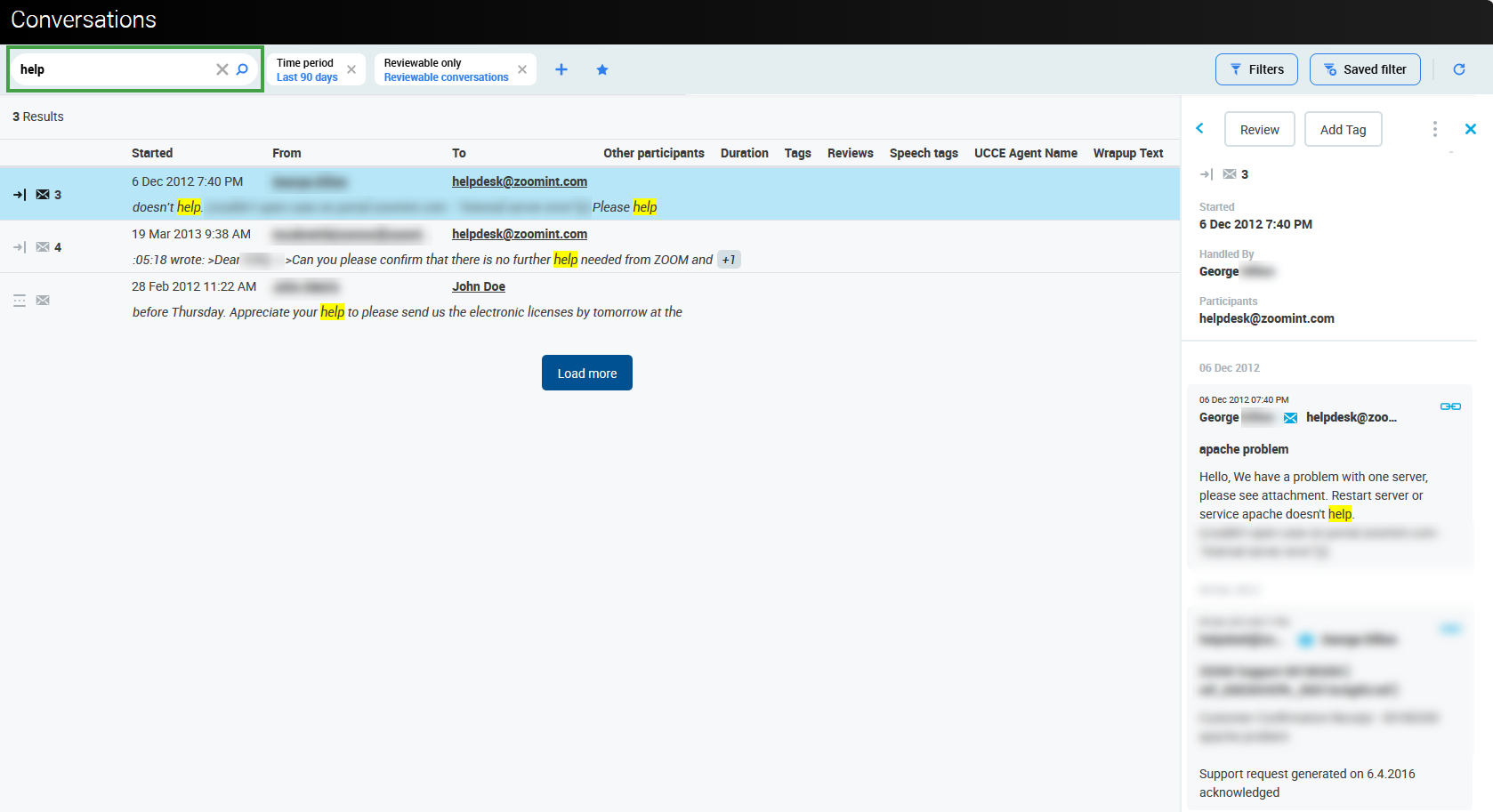
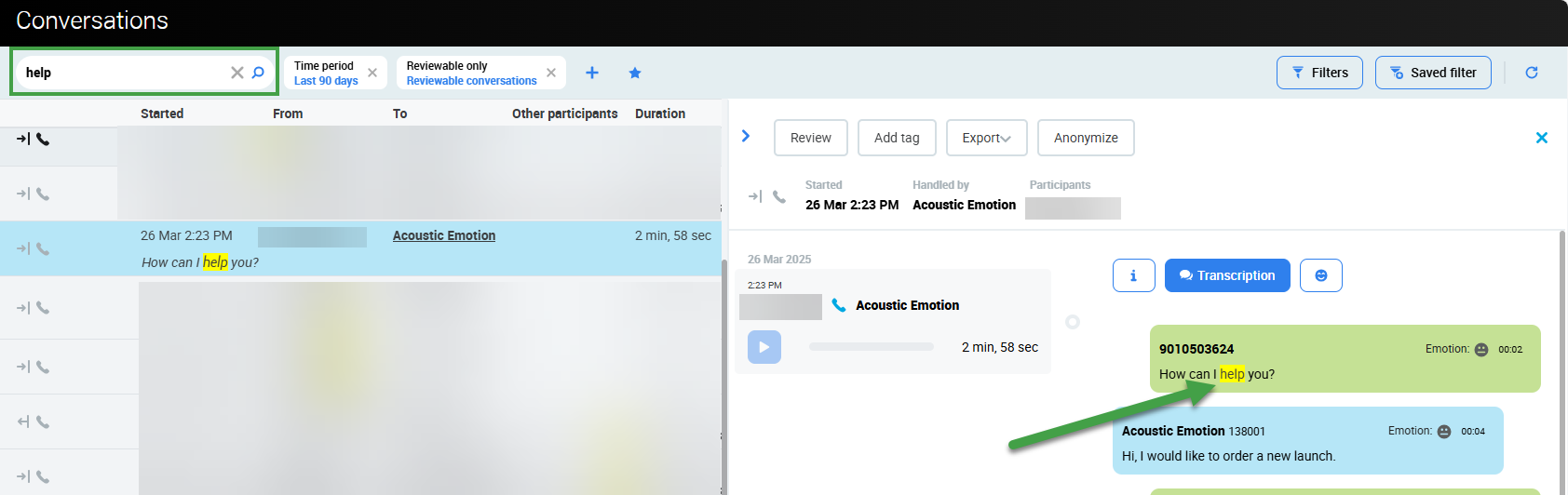
Found conversations will be sorted by their match probability score. The first occurrence of any searched terms will be highlighted and the respective text line together with the number of highlighted occurrences in the conversation displayed directly on the Conversation preview row.
In the following example, we searched for the word "help":
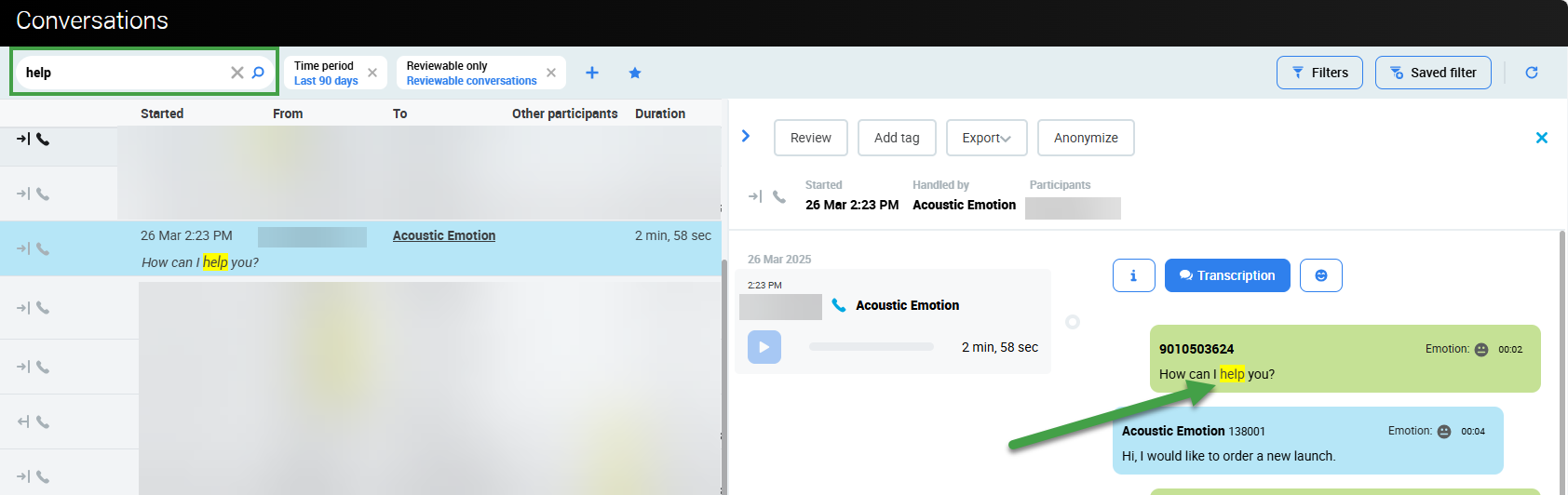
The highlights will also be visible in all the conversations you choose to view.
Example of searching in Emails:
Example of searching in Transcription files:
Exact matches will be found in any language or alphabet, however, for results returning variations of the entered words the results are limited by the language you set and its library. E.g. If your language is set to English and you search for the word help, the search results return the exact match help but also helping, helped, helpful, unhelpful, etc. The full-text search is case-insensitive.
Please note that words that do not exist, or are misspelled will not be found. For example, if you search for the word helpe, there are no similar words associated with this word in the dictionary (since it does not exist in the English language dictionary). The search index will not find any similar words, only exact matches of this specific non-word. This is important to consider when searching for unusual words, such as Eleveo.
Full-text search - language preference
The full-text search is by default set to perform language analysis using the English language. A different language can be configured by your Administrator.
Using Double Quotes
To look for an exact phrase, enclose it in double quotes. For example "customer satisfaction" will match only conversations that have exactly those two terms together.
Boolean Operators
You may also use the Boolean operators (in UPPERCASE) to limit the results displayed in a full-text search. The Boolean operators must be used in addition to a standard search. This table summarizes the available operators and examples for the three most common verticals:
|
Operator |
Meaning |
Example of a complete search phrase
|
Example of a complete search phrase
|
Example of a complete search phrase
|
|---|---|---|---|---|
|
|
EXCLUDE the term or phrase immediately (no space) after this operator |
Monday -"appointment with a doctor" |
received -"receipt" |
term investment -"interested in" |
|
+ |
MUST INCLUDE the term or phrase immediately (no space) after this operator |
Monday +appointment
|
received+"billing"
|
term investment +"reduced"
|
|
AND |
MUST INCLUDE BOTH the terms or phrases before and after this operator |
Monday +appointment AND "Dr. Smith" |
bill AND disconnection |
"reduced" AND "penalties" |
|
OR |
MUST INCLUDE EITHER of the terms or phrases before or after this operator |
"John Smith" OR "James Smith" |
"bill" OR "invoicing" |
"penalty" OR "charge" |
|
NOT |
EXCLUDE the term or phrase after this operator (this must be combined with a search phrase or other operator) |
Monday NOT "appointment with a doctor" admin@company.com AND NOT you@yourmail.com |
received NOT "receipt" |
term investment NOT "interested in" |
Examples of common search phrases that are properly formatted (phrases enclosed in double quotes will reduce the number of results displayed to only those containing those exact terms):
-
Help NOT "Help needed" -
Looking -"Lack of free space" -
"Problem" OR "Help" -
Hello AND communication -
Server OR communication -
Server +attachment -
Server -attachment -
Recorder Server -attachment -
"Recorder Server" -attachment -
hotline@company.com AND NOT maciadias@yourmail.com -
2662 AND NOT Conference16880
Grouping more operators
It may be useful to combine more Boolean operators in one search query. For example, to search for problematic conversations for a given customer you could use the following: (problem OR issue) AND xyzCompany.
Full-text search
The full-text search functionality searches within each instance of an indexed field (segment/comment/contactFrom/contactTo/etc.) all at the same time. This means that the full-text search is searching within the sub-parts of all conversations and will display any occurrence of the word or phrase searched for, and may find multiple instances within a single conversation.
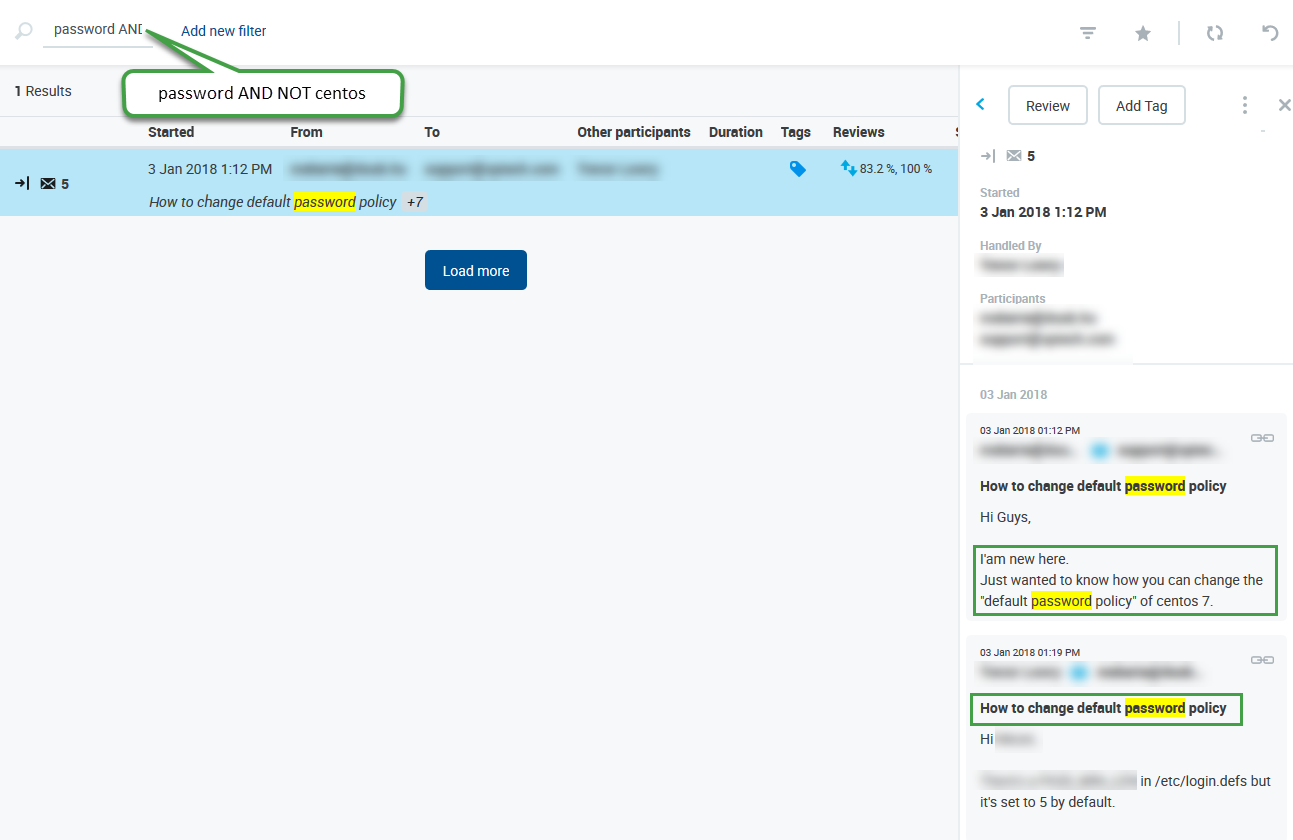
Due to this, it is possible that a search containing AND NOT operators will still find and display a conversation that you might expect to be excluded by your search. This occurs because another indexed field contains the word or phrase searched for.
As an example, using the search phrase password AND NOT centos on our server will still result in a conversation being displayed, as there are multiple segments and at least one contains the word 'password' and not the word 'centos'.
Saved Filters
Saved Filters enable users with the required permission to create and assign search filters to other users so that they can view additional conversations not normally visible to them. The required permission is assigned to the DEFAULT_CC_MANAGER as part of the Default Role. Users who have a Saved Filter assigned to them by a supervisor/manager will be able to view additional conversations based on the newly assigned filters. This means that the use of Saved Filters expands the number of conversations visible to a user. Users will be able to view conversations as normal, plus any additional conversations that are included in the new Search Filters.
Users with the required permission can create and assign Saved Filters to other users. Detailed information about the creation and assignment of Saved Filters and additional instructions are described on the dedicated page named Saved Filters.
Using Filters
-
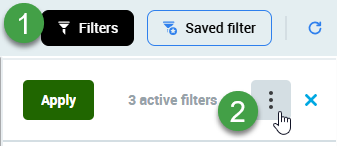
Click the Filters button to view the filtering options.
-
Click the More Options button (three dots) to Save, Modify or Reset the filters.
Quickly Create a Filter Using the Currently Available Contacts
Click on an item on the conversation list to view the available options. The following options enhance the search creation process and improve workflow:
-
Create a new filter with contact "
<contact>" – quickly create a new search filter by adding the selected contact to the current filter. -
Add "
<contact>" to contact search – add multiple contacts to the current filter quickly and easily by selecting this option. -
Copy "
<contact>" to clipboard – Copy the currently selected contact to the clipboard for use outside of the application.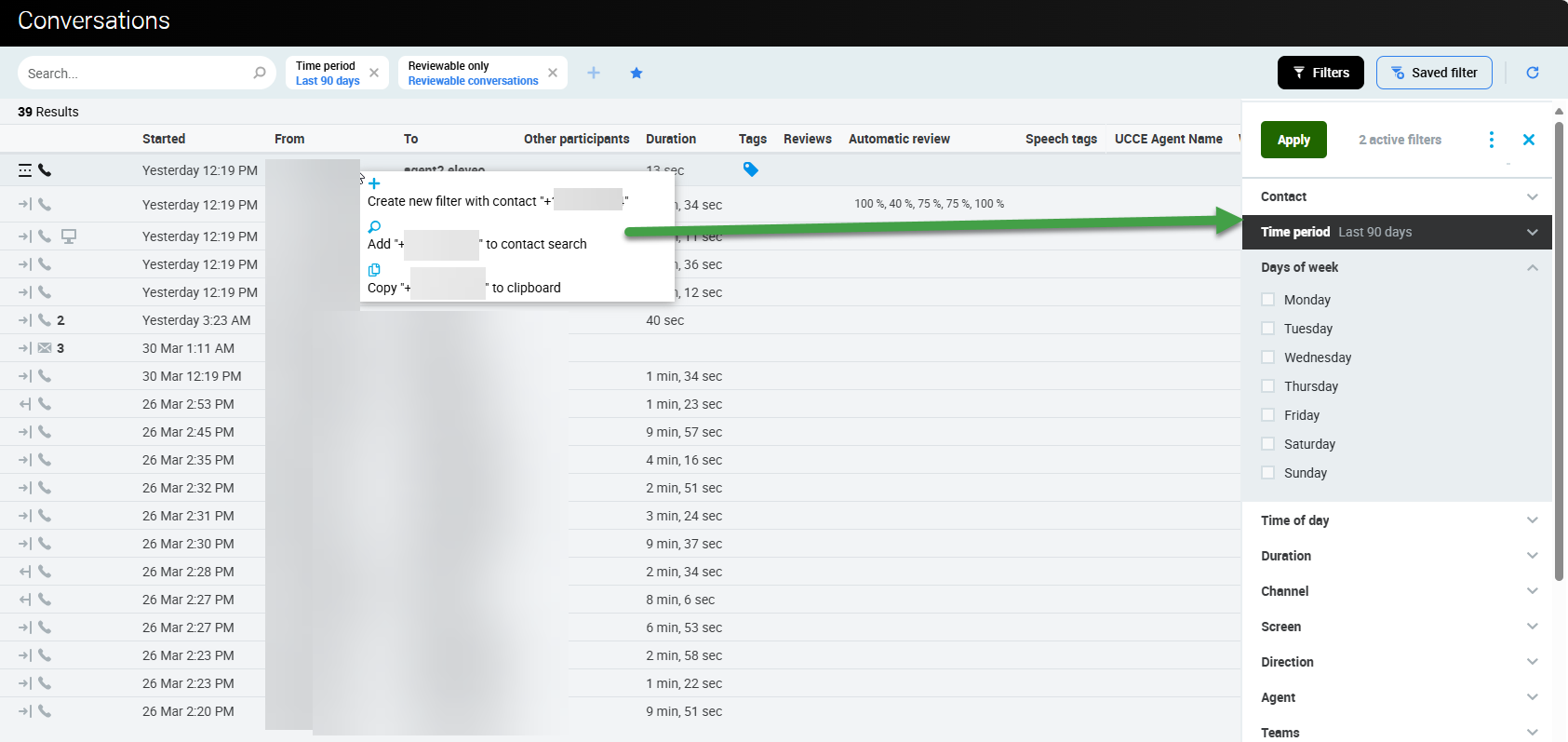
Contact
Search using the Contact field if you know a part of, or the whole name or telephone number of a participant in a conversation. It is possible to further refine the search to find conversations where one or more contacts called/sent/received a message to/from another contact, or where at least one contact was a participant in a conversation.
Use this search option if you know the participant's phone number or email (e.g. customer, other agent) or at least one-to-several characters of the participant you wish to find. You may use special characters as well as spaces for enhanced clarity. By default, the search will return any combination of matching characters occurring at the end of the contact. Modify the filter to search for a contact starting with, ending with, or is exactly. Conversations that include the specified phone number or email, or any combination of the defined sequence, will be returned.
The default search will attempt to match your search with any party, ends with. A search for the last few digits of a known participant will rapidly display relevant content.
Modify Search Filters
You can modify the search parameters to return results. Click a filter in the list of filters to view additional options, and to modify the search parameters applied to each particular filter. When modifying the applied filters, you may select from a combination of Party and Filter.
Select a party (participant):
-
From any party: Searches for any match.
-
From: Restrict results to those from a particular party.
-
To: Restrict results to those to a particular party.
Select a filter to limit the search:
-
Starts with: Returns only results where the contact starts with the search phrase.
-
Ends with: Returns only results ending with the search phrase.
-
Is exactly: Returns results only matching the exact search.
The selection will be displayed in the format; <Search phrase or number Party, Filter>.
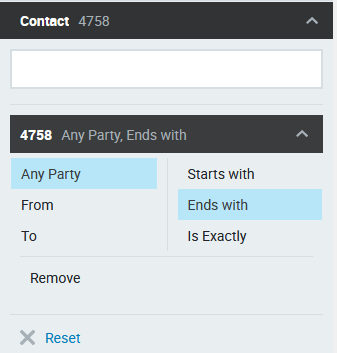
It is possible to create additional filters to further restrict the search results.
Advanced Functionality of the Contact Search Field
To further limit the results displayed you can use the following options:
-
AND: Create any combination of filters to display only those conversations matching both of the filters. For example, creating two filters, colburn and andy, and setting the filter to Any Party, Starts with returns all emails with both of these two participants (including if they were specified as 'other participants' in an email chain).
The filter appears as follows in the list of filters:
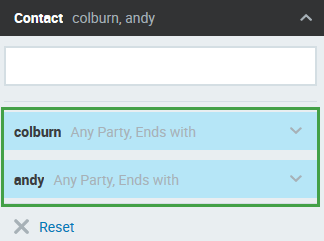
The filters are displayed at the top of the screen in the following format:

-
OR: Enter two known numbers or names separated by a comma. For example, searching for colburn, andy and setting the filter to Any Party, Starts with returns all emails with these two participants (including if they were specified as 'other participants' in an email chain).
The filter appears as follows in the list of filters:
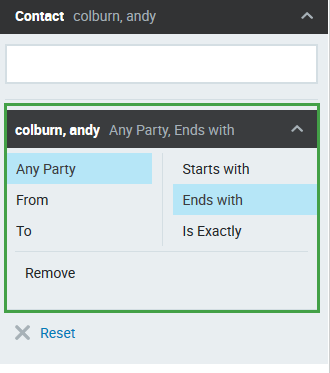
Each component can be modified separately:
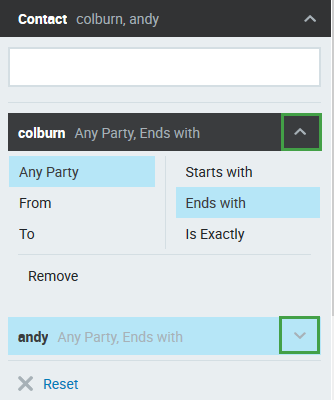
The filter is displayed at the top of the screen in the following format:

Time Period
You may search for conversations based on the time period they started.
-
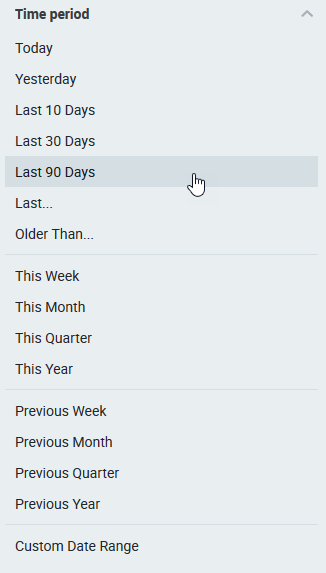
By default two filters are applied when you open the Conversations Screen:
Last 90 DaysandReviewable Only. Clear all filters to return all conversations without any time restriction. Most recent conversations will be displayed first.
-
Today, Yesterday, Last 10 Days, Last 30 Days – Quickly find conversations started in the predefined time period.
-
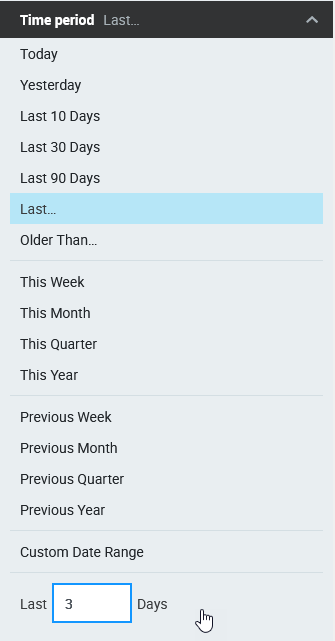
Last... # Days – Use this search criteria option to enter a custom number of days.
Using Last days
Using 'last days' returns conversations started during the selected number of preceding full days including up until the moment when the search is performed.
E.g. If a search is performed on Wednesday midday to return the last 2 days the results will show conversations that started on that week Monday, Tuesday plus on Wednesday until noon.
-
Older Than... – Find conversations that are older than the number of days you set. In other words, if you set Older Than "90" Days, all conversations in the last 90 days will be filtered out.
-
This Week, This Month, This Quarter, This Year – Quickly find conversations started in the specified current time period.
-
Previous Week, Previous Month, Previous Quarter, Previous Year – Quickly find conversations started in the specified previous time period.
-
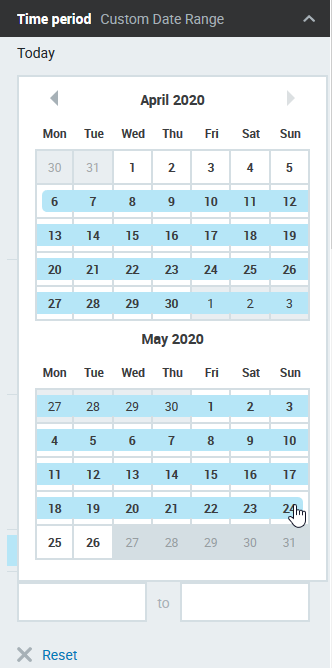
Custom Date Range – Select this option to pick a custom date range for the conversation’s start using the calendar. You may click the month or year to change it.
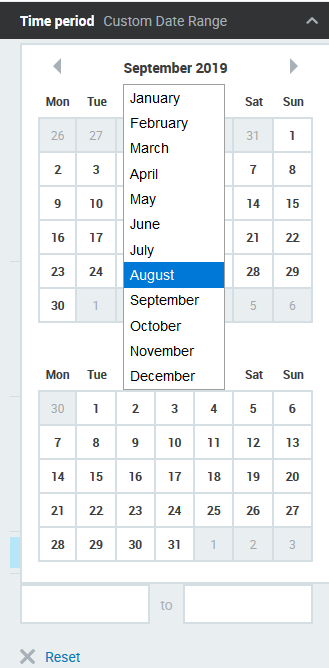
Click a date in the calendar, then click another date and the date range will be intuitively highlighted.
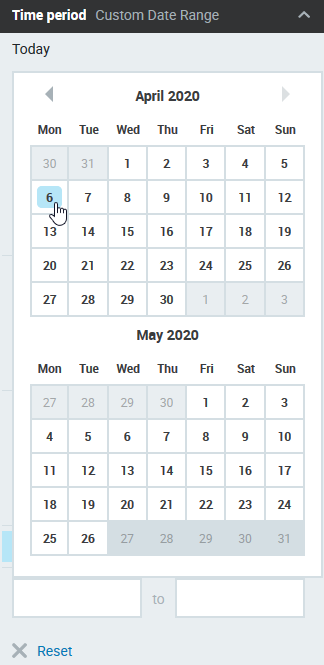
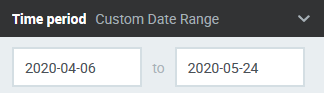
Your selected date range will be applied.
If you decide to change the selected time period, select a different date range from the calendar or choose your preferred item from the drop down menu and the filter will be reset.
Please Note
Only conversations started within the selected time period (based on the timezone of the current user) will be returned.
Days of Week
You may search for conversations that started on specified days of the week.
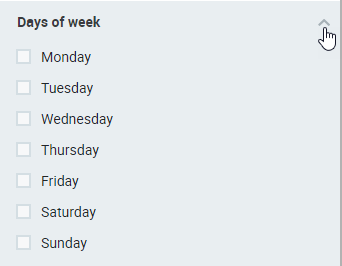
-
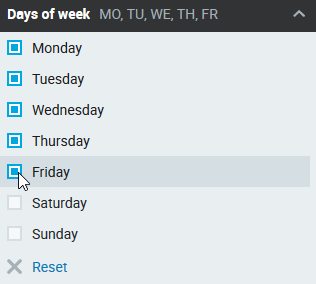
Monday, Tuesday, Wednesday, Thursday, Friday, Saturday, Sunday – Choose a day or more days of the week to filter conversations that started only on the specified day. Selected days will also display next to the filter label.
Time of Day
You may further define your search for conversations by time of day range, e.g. If you know at what time they roughly occurred. Click Time of day, then Custom Time Range.
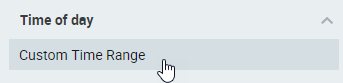
-
Custom Time Range – Use this option to search for conversations that started during the specified hours of the day. Enter the specific hour and minute of a day in each field in the suggested four-digit format 00:00 – 23:59.
The time displayed corresponds to the timezone of the current user. Not necessarily the server timezone.
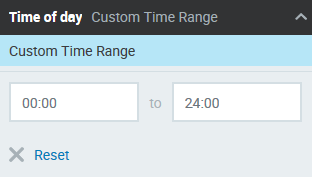
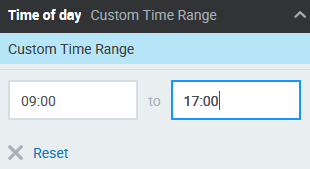
Custom Time Range
The two time fields work on a From – To basis, thus the second field must represent a later time.
The application accepts incomplete values as illustrated in the following examples:
|
User input |
Result |
|---|---|
|
3 |
3 hours |
|
3.5 |
3 hours and 30 minutes |
|
3:5 |
3 hours and 5 minutes |
Time Discrepancy - Daylight Savings Time
When performing searches based on time of day, conversations falling outside of the defined range may be displayed. This is due to a known issue related to daylight savings time. Unfortunately, the system does not always take into account daylight savings time when processing data.
Duration
You can search call conversations by the duration of their talk time.
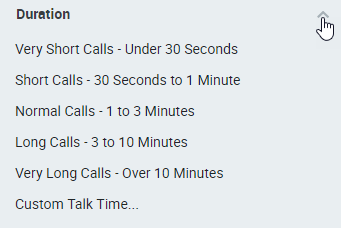
Search for conversations with the specified talk time:
-
Very Short Calls - Under 30 Seconds
-
Short Calls - 30 Seconds to 1 Minute
-
Normal Calls - 1 to 3 Minutes
-
Long Calls - 3 to 10 Minutes
-
Very Long Calls - Over 10 Minutes
-
Custom Talk Time... – You may specify the Talk Time (left side) as the minimum duration and the maximum duration (right side) in hours, minutes and seconds, using the format – HH:mm:ss.
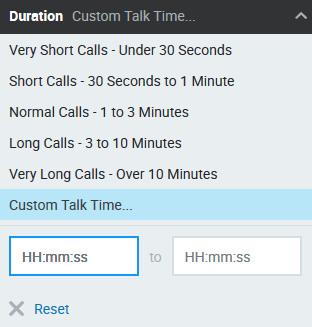
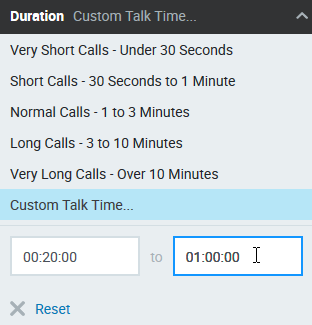
Custom Talk Time
If you leave the left Talk Time field with the default value (00:00:00), the field will be considered as having the duration value of 0.
If you leave the right duration field with the default value (00:00:00), the field value will be considered unlimited.
The application accepts incomplete values as illustrated in the following examples:
|
User input |
Result |
|---|---|
|
3 |
3 minutes |
|
3.5 |
3 minutes and 30 seconds |
|
3:5 |
3 minutes and 5 seconds |
|
75 |
1 hour and 15 minutes |
|
1:3:5 |
1 hour and 3 minutes and 5 seconds |
Channel
Select one option to filter conversations by channel type.
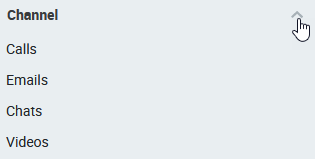
-
Calls – Include conversations that contain a call.
-
Emails – Include conversations containing an email.
-
Chats – Include conversations containing a chat.
-
Videos – Include conversations containing a video recording.
Screen
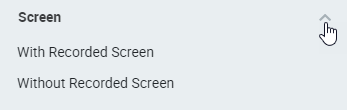
You may choose to filter conversations by whether or not they contain an agent desktop screen recording.
-
With Recorded Screen – Include only conversations with a recorded screen.
-
Without Recorded Screen – Include only conversations without a recorded screen.
Direction
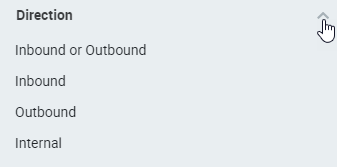
You can search for conversations based on their direction.
-
Inbound or Outbound – Include both, either inbound or outbound conversations. Internal conversations will be excluded.
-
Inbound – Displays inbound conversation only.
-
Outbound – Displays outbound conversation only.
-
Internal – Displays only internal conversations, for example between agents.
Agent
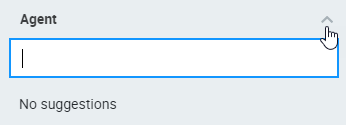
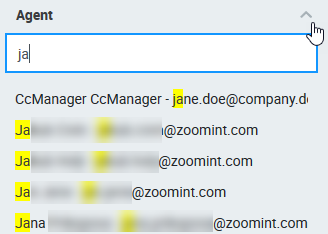
You may search conversations by participating Agent's name, extension or email address. As soon as you type the second character the search will start suggesting matches. You may search for one agent at a time.
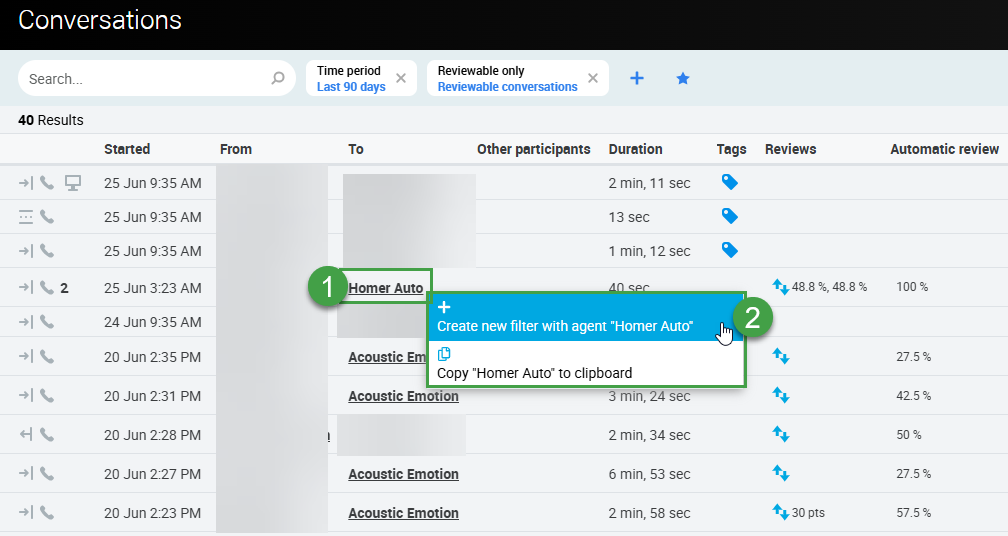
You can also click on any name in the conversation list and a context menu will open. Create a new filter and directly search for all conversations with that user.
Teams
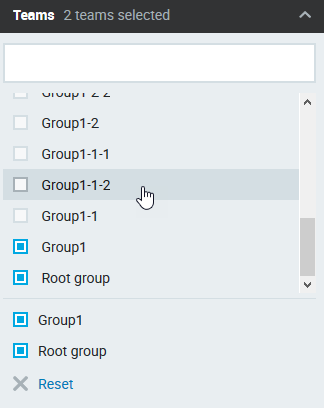
You can search for conversations based on Team. To filter conversations by a particular team or teams enter the first few letters of the team name. Select the relevant team or teams from the suggested options. Multiple teams can be selected, any combination of results matching any of the selected teams will be displayed. If a group is selected the system will also display conversations that belong to sub-groups of the selected group(s).
For details related to who can view conversations, please see the page Quality Management Roles.
Viewing conversations involving multiple teams (transfers, email chains, or conference calls)
When a conversation involves agents from more than one team — for example, when a call is transferred between agents — a user with access to any part of that conversation can view the entire conversation, including segments handled by agents from teams they don't manage. This is expected behavior.
Emotions
You can search for conversations based on Emotion detected by Speech Recognition (if Speech Recognition is installed and properly licensed and it is supported for your language). Conversations meeting the criteria will be displayed on the Conversation Explorer.
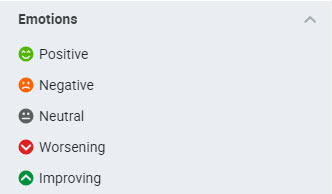
Filter conversations containing one or more of the five levels of emotion detected for each of the participants when they leave the conversation:
-
Positive
-
Negative
-
Neutral
-
Worsening
-
Improving
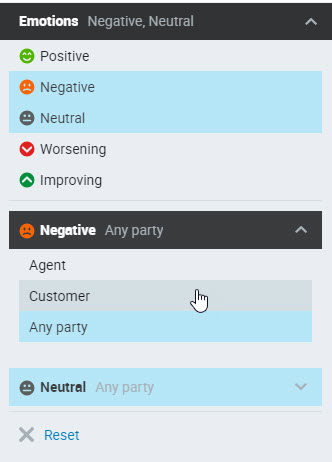
It is possible to select multiple emotions and also which party expressed the emotion. Search for emotion from:
-
Agent – agent emotion detected
-
Customer – customer emotion detected in the conversation
-
Any party – emotion detected is by either party
In this example, we filter by Negative and Neutral emotions from any participant in the conversation. Click to expand each section.
Reviews
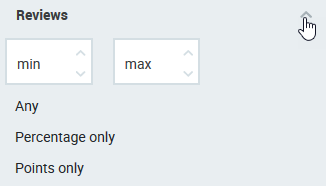
You may choose to filter conversations by the review score. You may select; Any, Percentage, or Points. Conversations meeting the criteria will be displayed on the Conversation Explorer.
-
Min/Max – Fields are optional. Only conversations that have a score falling within the range specified will be displayed.
-
Any - Only conversations that have a review connected will be filtered.
-
Percentage Only – Include only conversations that have at least one review scored using percentage as a scoring system within the range defined.
-
Points Only – Include only conversations that have at least one review with points as a scoring system within the range defined.
Surveys
You may choose to filter conversations by the Survey score. You may select; Any, Percentage, or Points. Conversations meeting the criteria will be displayed on the Conversation Explorer.
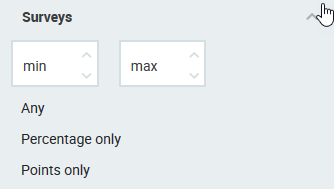
-
Min/Max – Fields are optional. Only conversations that have those survey scores will be displayed.
-
Any - Only conversations that have a survey connected will be filtered.
-
Percentage Only – Include only conversations that have at least one survey scored using a percentage as a scoring system within the range defined.
-
Points Only – Include only conversations that have at least one survey with points as a scoring system within the range defined.
Tags
Searching by Tags
Tags are a great way to mark conversations for future references, such as for quality management or compliance purposes, use the Tags filter to quickly find tagged conversations.
-
Type in the tag name to quickly find it, useful in the case of many tags. As you start typing, you will see the available options with a match highlighted.
-
Alternatively, use the scroll bar to see all available tags and to find the tag you need.
-
Use the corresponding check boxes to choose one or more tags. Already selected tags will also be displayed in the form of an icon next to the filter name. To remove a selected tag, uncheck its checkbox. To remove all checked tags click (x) Reset.
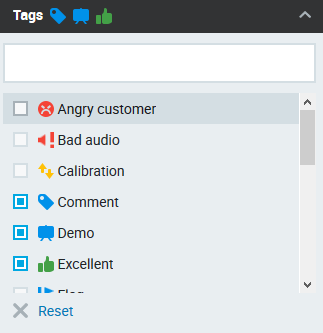
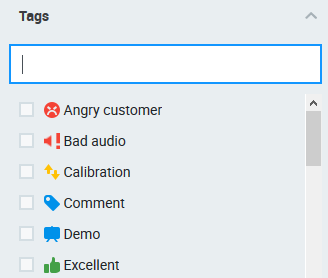
As soon as you make your tag(s) selection conversations will be filtered by the chosen tags.
When multiple tags are selected any conversation with one or more matching tags will be displayed. The search logic used for multiple tags is OR.
You may also use the Full Text Search to find conversations with particular text contained in the tag's comments. The text is case insensitive.
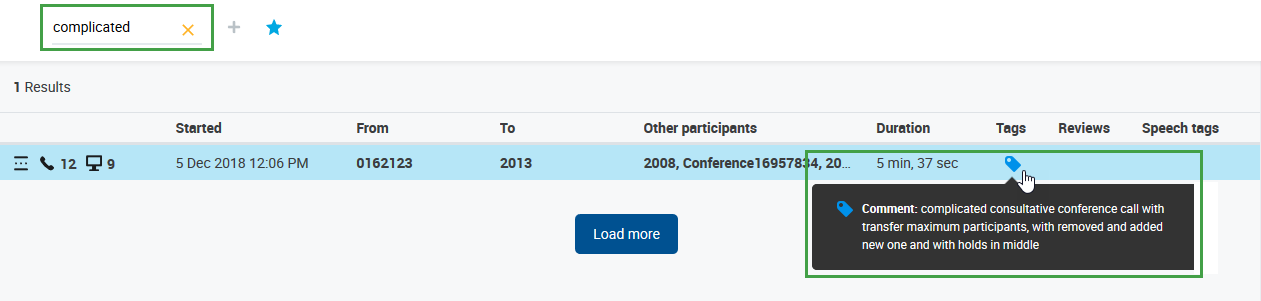
Data Tags
Tags can also have an associated data Key-Value pair and thus two additional behaviors:
-
If you add such a tag to a conversation, the corresponding Key-Value pair will be applied to the metadata of all conversation segments. Modifying or deleting such a tag will also affect the metadata Key-Value pair.
-
When metadata for a segment includes the corresponding Key-Value pair, it will be visualized as this data tag automatically by the system. This visualization is not a user-added tag and cannot contain comments. However, it can be used to modify metadata directly for just one segment by changing the data tag to another data tag or deleting it completely.
-
In addition to any user-added tags, the application will show a data tag for each segment with the corresponding Key-Value pair. This means that in a conversation you should see 1 tag that was added by a user plus as many tags as the number of segments with the corresponding Key-Value pair. Segments without the corresponding Key-Value pair in the source DB won't show the data tag, resulting in there being fewer tags than segments in the conversation. This could potentially occur when you delete the tag from one of the segments in the QM Conversation Explorer.
-
Changes to the data tags will also be propagated back to the conversation's metadata (couple_extdata table) stored in the database.
EXAMPLE: When you use a GDPR tag for a conversation with, say, 7 segments, you will see 8 tags in total (1+7). If one metadata representing the GDPR tag is removed via the Conversation Explorer, you will see that there are 7 segments, but 1+6 tags.
The Add Tag button is explained in the Adding Tags section.
Speech Tags
If your Quality Management version also includes Speech Recognition functionality you may benefit from this powerful technology. Read more about Speech Recognition.
Search for conversations based on the configured Speech Phrases / Speech Tags. Read more about it on the page Using Speech Tags and Phrases.
Each conversation with Speech Tags will display the first 20 Speech Tag icons on the row in the order they appear in the conversation. If there are more than 20 Speech Tags, this will be indicated by the number of additional Speech Tags found in the conversation.
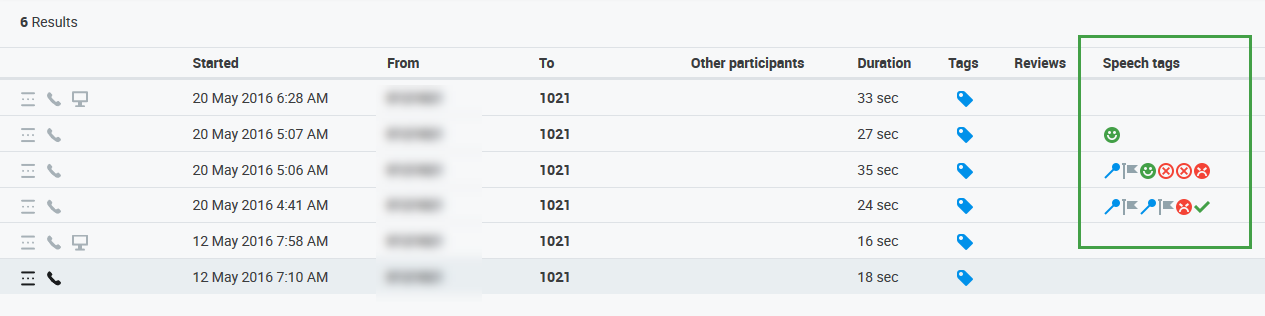
To search conversations by Speech Tags, filter the available conversations using the Speech Tags drop-down menu.
Use the search field to search based on the available Speech Tags (listed alphabetically). Scroll down if needed. Enter the first letter to view the first ten results that contain the typed character. Once you select one Speech Tag only those conversations will be returned in your search that either include (by default) or exclude this specific Speech Tag depending on your selection. After selecting a Speech Tag you may specify the following options by clicking the relevant Speech Tag to view its associated drop-down.
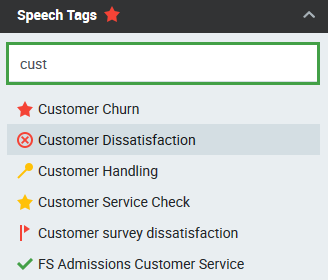
Click the active Speech tags in the list to view additional options:
-
Include – Default action. Conversations with the Speech Tag within the specified confidence range will be included.
-
Exclude – Conversations containing the Speech Tag will be excluded from the searched conversations. Conversations with the Speech Tag within the specified confidence range will be excluded.
-
Certainly – Default confidence. This means that the confidence is 65% or higher.
-
Probably – The minimum confidence is set to 50%.
-
Maybe – The minimum confidence is set to 40%.
-
Remove – Click to remove the Speech Tag from your filter.
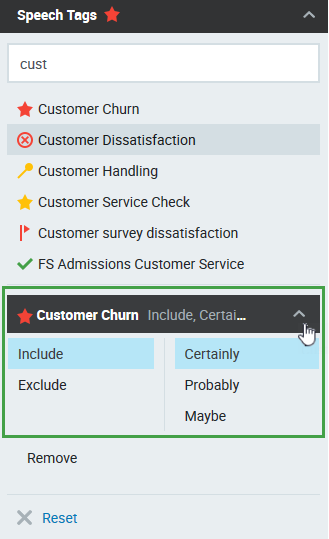
The more Speech Tags you choose to be included or excluded the narrower your search will be. All filters applied are displayed alongside the Search bar.

To return to the default setting showing conversations not filtered by specific Speech Tags, remove all the Speech Tags you selected. Alternatively, click Reset Search, however, this will clear ALL the search filters you've set.
Number of Segments
You may choose to filter conversations by the number of segments they contain. This includes chats, emails and calls. You may select; only one, or both of the Min/Max filters. Calls meeting the criteria will be displayed on the Conversation Explorer.
This is a good way to enhance your search to determine which agents are often transferring calls, putting customers on hold, or that the automated routing system is incorrectly assigning agents to calls.
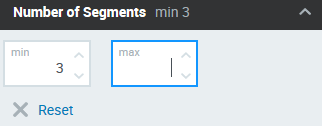
-
Min – Include only conversations with at least this many segments.
-
Max – Include only conversations with no more than this number of segments.
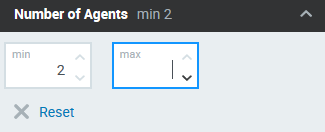
Number of Agents
You may choose to filter conversations by the number of Agents who participated. This includes chats, emails and calls. You may select; only one, or both of the Min/Max filters. Calls meeting the criteria will be displayed on the Conversation Explorer.
-
Min – Include only conversations with at least this many Agents.
-
Max – Include only conversations with no more than this number of Agents.
Sampling
Applying a sampling filter displays a selection of conversations with a uniform distribution based on the same percentage defined in the search. For example: If an existing filter is configured to find all conversations from the previous day, and 1000 conversations are found, if sampling is set to 10%, only a subset of 100 conversations will be displayed. If the sampling filter is set to 30%, then a subset of 300 conversations will be listed. The sample is not an exact percentage, but an approximate sample, the sample criteria perform better when more conversions are available for selection.
Any number may be used between 0.01 and 99.99
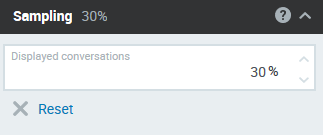
Tip: The sample provided by the system is stable. This means that if a sampling filter is saved it will display the same list of conversations repeatedly (if all calls are from the same time period).
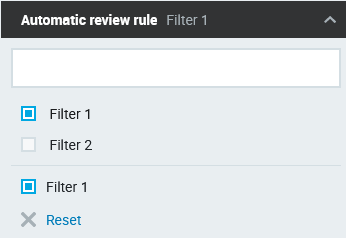
Automatic Review Rule
Filter conversations based on one of your predefined Automated Rules. All rules that were ever active (now or in the past) are displayed, you may also search for a specific rule.
Automatic Review Score (AQM)
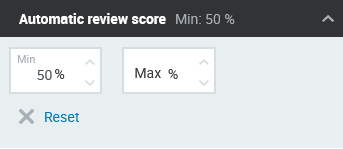
Filter conversations based on the score assigned to a conversation based on predefined Automated Rules. Click on the up or down arrows to select a value, or enter any number between 0-100. Click outside of the field or hit enter on your keyboard to apply the filter.
Accepted values range from 0-100% and include numbers with up to 2 (two) decimal places. For example, 10-88% or 10.5 - 33.33%.
-
Min – Include only conversations with at least this score.
-
Max – Include only conversations with a score no higher than this score.
AI Rating
Filter conversations based on the score assigned automatically to a conversation by the Speech Generative AI server. This filter is visible to users with the permissionAI_RATING_VIEW.
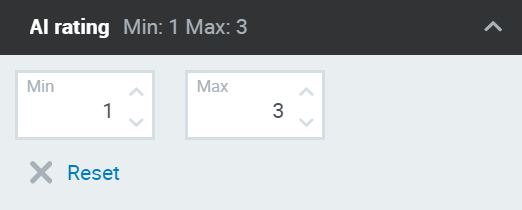
Select any combination of values to refine the number of conversations shown. Filter either by a minimal or maximum score, or a range of values. If only one value is entered, then all conversations with a score above (min) or below (max) the value specified will be shown.
-
Min – Include only conversations with at least this score.
-
Max – Include only conversations with a score no higher than this score.
AI Flags
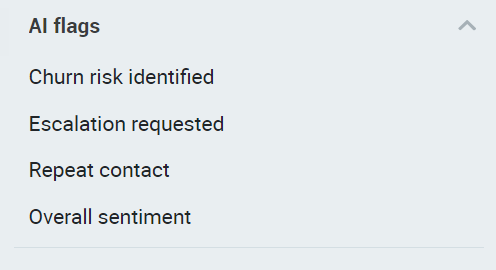
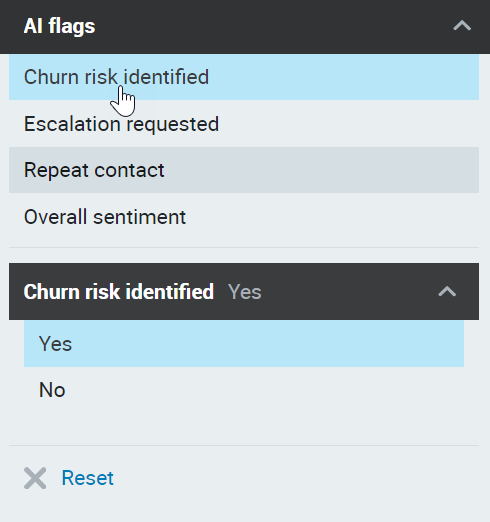
Filter conversations based on the flags identified by the Speech Generative AI server. Select one or more flags and Select Yes or NO to filter by conversations that contain, or do not contain the selected flag. This filter is visible to users with the permission AI_Outputs_View.
Filter conversations containing one or more of the four predefined flags:
-
Churn risk identified
-
Escalation requested
-
Repeat contact
-
Overall sentiment
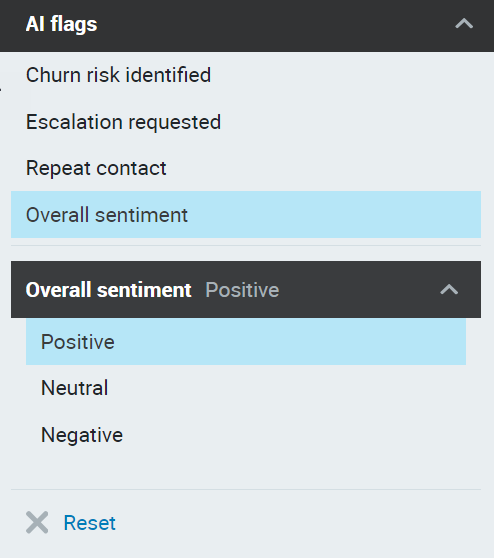
If overall sentiment is selected an additional menu will display with the following options:
-
Positive
-
Neutral
-
Negative
AI Topics
Filter conversations based on the topics detected by the Speech Generative AI server. Select one or more of the available options and Select Yes or NO to filter by conversations that contain, or do not contain the selected topic. To save space only the first three selected topics will be visible in the list of active filters at the top of the screen, even if more are selected when creating a filter.
There is a dedicated UI for modifying topics.
This filter is visible to users with the permission AI_Outputs_View.
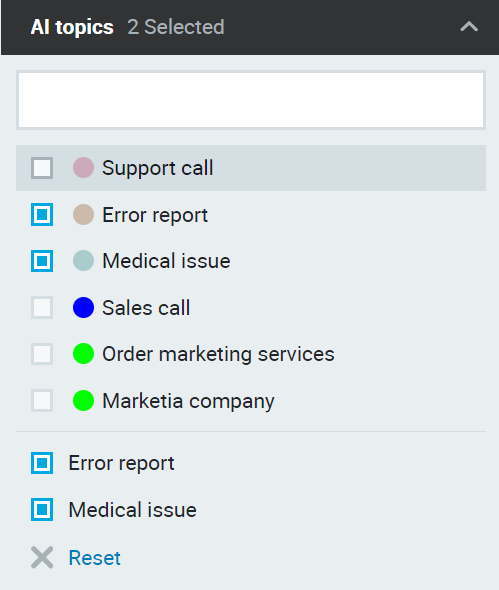
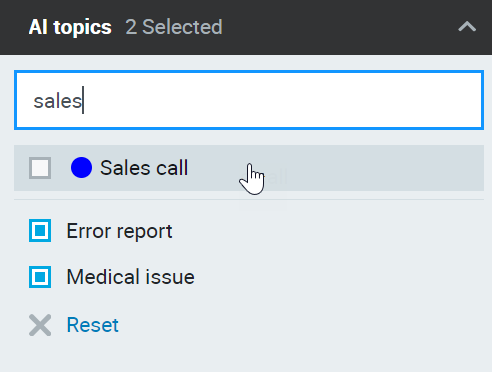
You can also search for a topic if it is not visible in the list.
Reviewable Only
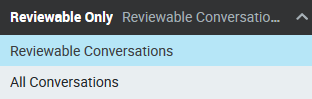
By default, you will only see "Reviewable" conversations. This means any conversation with at least one playable segment or containing chat/email. In other words, conversations with no playable media and without chat/email will be excluded from the search.
To see all conversations, including those without playable media, click the Reviewable filter and select the All value.
Searching for Conversations by CUSTOM Data (Configurable by Administrator)
In addition to the standard filters, you may also search conversations by the custom external data stored within the email, chat or media recording. External data includes: JTAPI_CISCO_ID, Genesys Connection ID, or additional information that is collected or integrated into your contact center applications. The custom data available are configured by your Administrator.
Autocomplete is executed (suggestions are displayed) only after the Search Suggestions button is clicked.
It is not possible to search for multiple items in a custom filter simultaneously.
Administrators, see the Conversation Settings page.
Example: Cisco ID
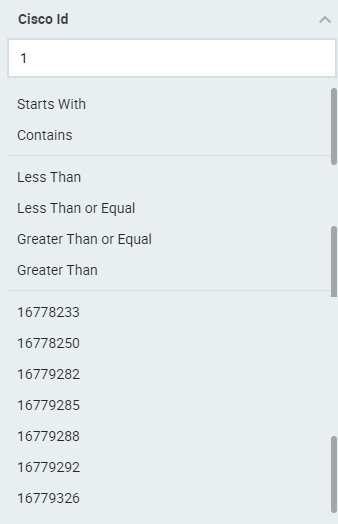
An example of a search based on custom data is to filter by Cisco ID.
-
Starts with – Search for conversations where Cisco ID starts with the characters you typed.
-
Contains – Search for conversations where Cisco ID contains the characters you typed.
-
Less Than, Less Than or Equal, Greater Than or Equal, Greater Than – Optionally, use any of the available operators to define the Cisco ID. Only available if the typed character(s)/digit(s) match any of the records.
-
You may use the checkboxes next to the found matches to include those specific Cisco IDs in your search.
Example: CDR Hangup Party
If your implementation supports it (and the call type is supported) information about who hung up first is available in the metadata of each recording. The information shows who hung up the call first. The values available are Called or Calling.
If an administrator configures Quality Management to display this information on the UI, you may see an extra column and/or a search filter on your screen.
Use the filter to refine your search.
-
Conversations with this attached metadata will display
-
Compare with additional information (Queue, for example) to determine if the call is inbound or outbound. This will help you understand who hung up first.
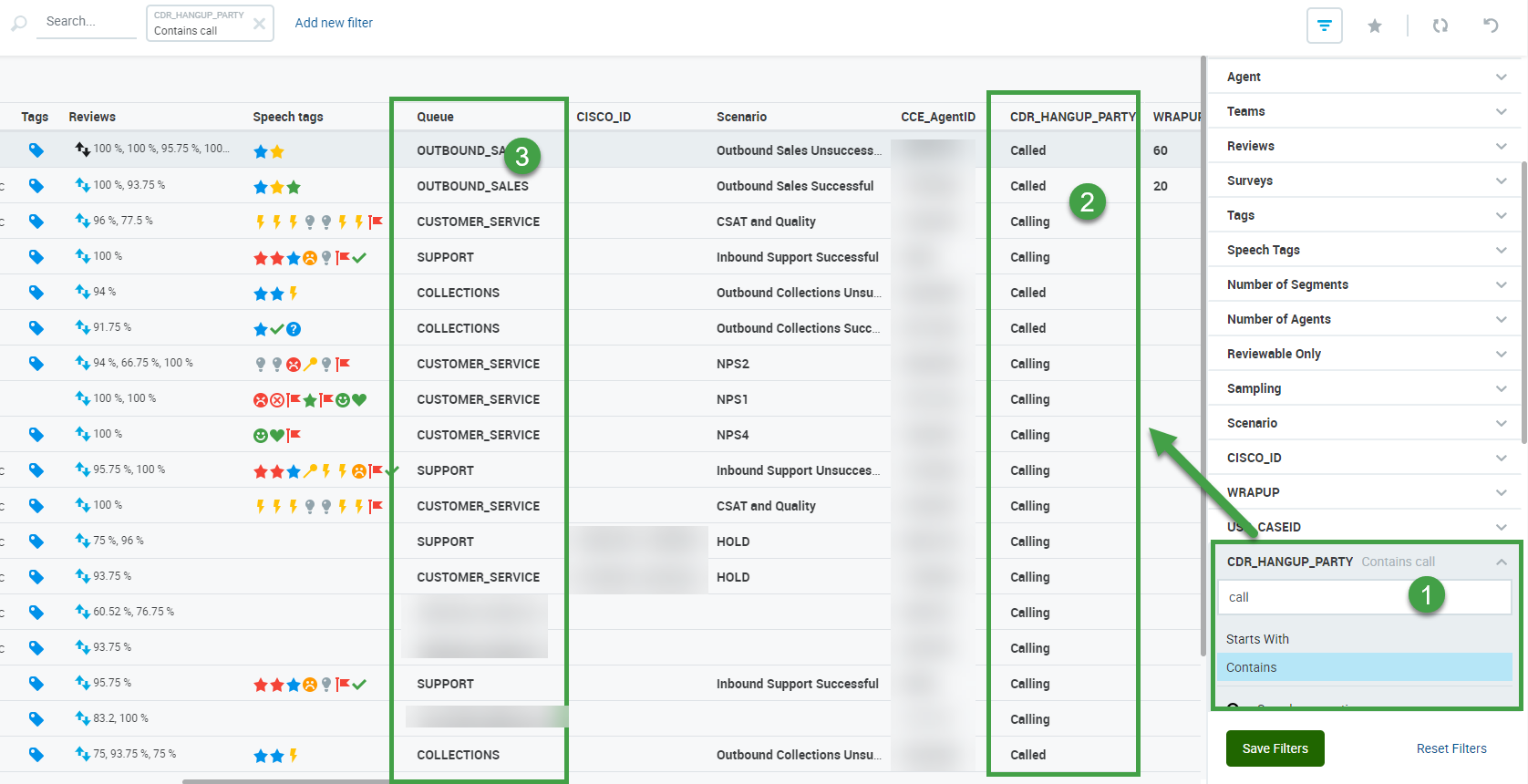
The information for each recording is also visible in the Details pane.
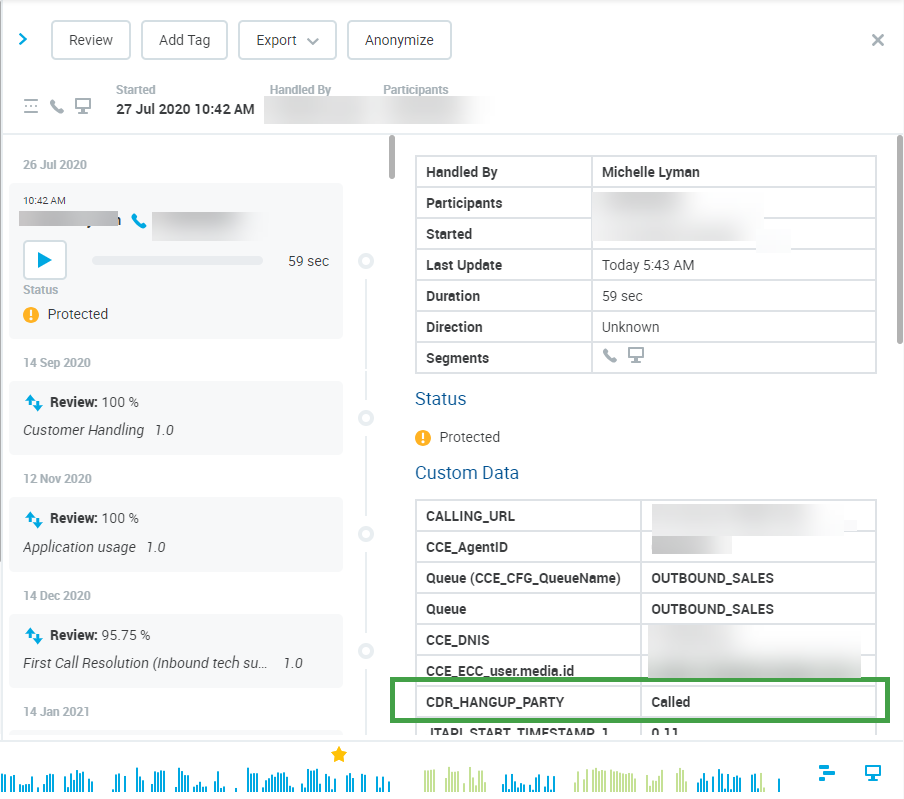
Please note that in order to properly understand what the information means you need to know who initiated the call.
Calling / Called does not equal agent or customer. You must compare who hung up with the information about who initiated the call.
EXAMPLES
-
An agent makes an OUTBOUND call, interacts with the customer and the customer hangs up on the agent. The system will display that the called party hung up first.
-
An agent receives an INBOUND call, interacts with the customer and the customer hangs up on the agent. The system will display that the calling party hung up first.
The information available is installation-dependent. Refer to the cisco documentation to better understand how the information is collected and displayed.