
-
Purpose of this guide: This guide provides a general overview of Microsoft Teams Integration.
-
Audience: Customer's Azure and MS Teams Administrators.
-
Previous steps: No previous steps are required.
-
When: Use this guide to understand what is required to deploy the Eleveo Recording Bot for MS Teams recording.
Supported for CLOUD Deployments + on-premise DEPLOYMENTS + Hybrid Deployments
What Is It
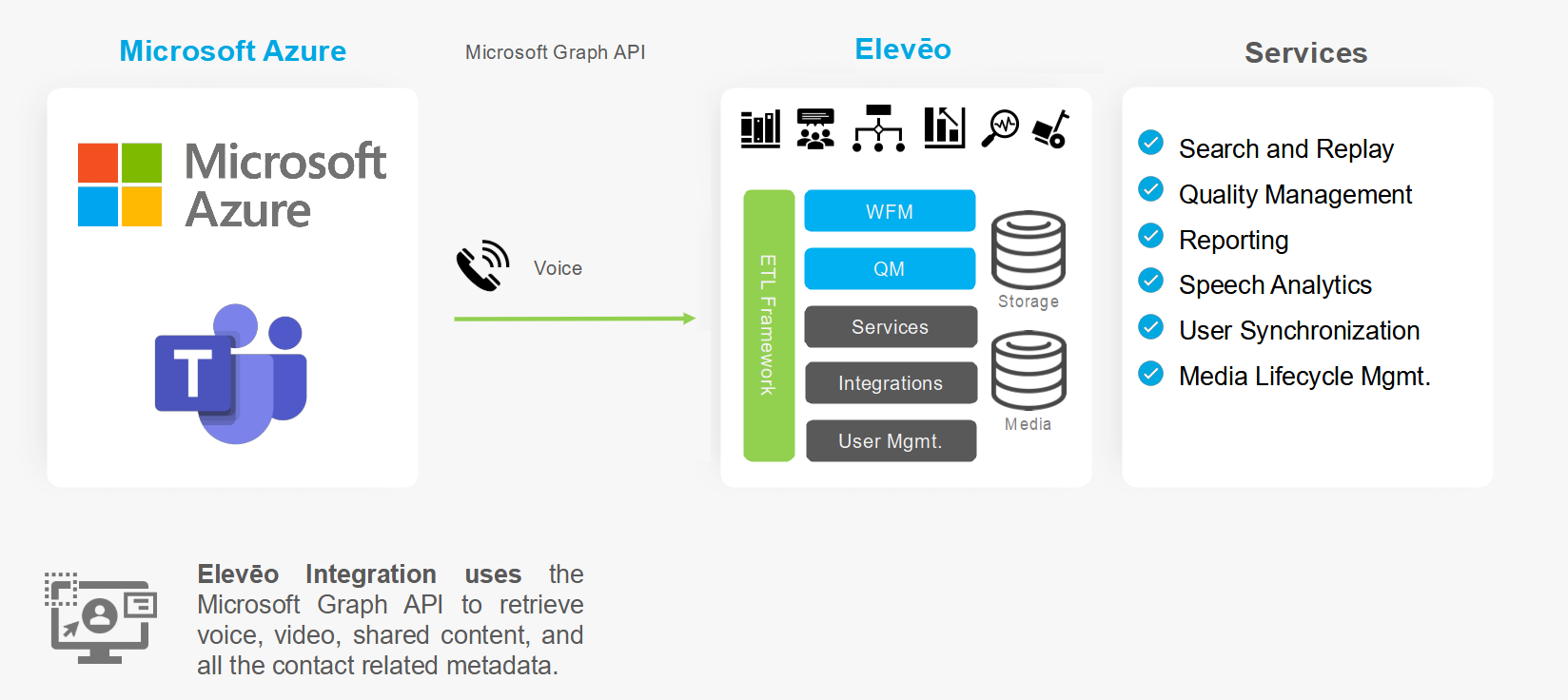
For organizations that use Microsoft Teams as a communication platform for customer calls, our back-office integration allows recording voice calls and meetings performed using the Teams platform. The recorded conversations can be stored, managed, and played back by the Eleveo suite. Microsoft Teams is widely used as a unified communications platform for the back office as well as integrated into a contact center solution.
How It Works
The implementation leverages Microsoft’s policy-based recording with an Eleveo Recording Bot running in the MS Azure Cloud. Policy-based recording automatically triggers the recording of predefined conversations. The Eleveo Recording Bot is invited into the conversation and receives media (voice). All the recorded data are cached in Azure Blob Storage. When the conversation is finished, the MS Teams Media Importer is checking the Blob Storage for new recordings. It passes the metadata to the Eleveo Orchestrator Service, which extracts external data and sends both to the Interaction Service. The Interaction Service downloads the recorded media and save the record in the database. All the recorded media and metadata are stored in the Eleveo Server and are available for the customer to search and playback within the Eleveo Conversation Explorer.
In this type of integration Eleveo can be installed on-premise, in AWS or in Azure Cloud.
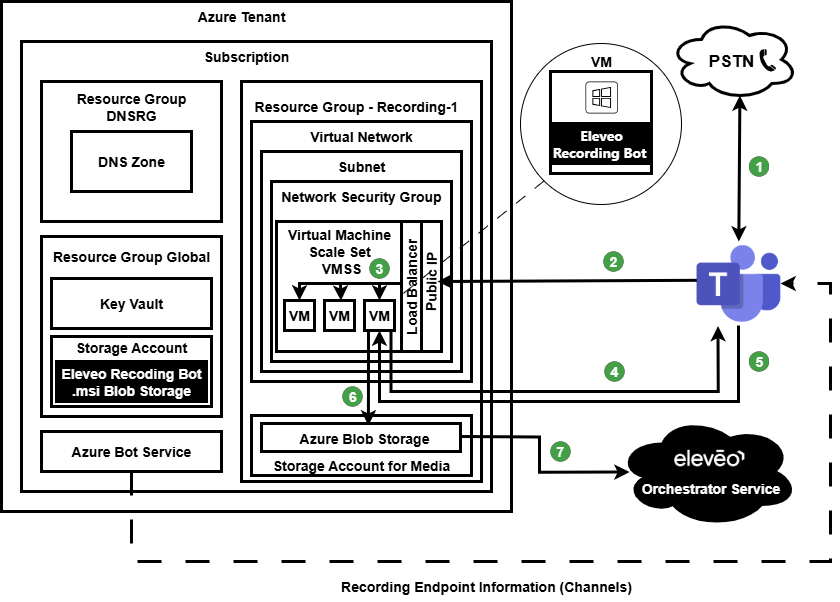
The Azure Bot Service has configured the MS Teams channel registration. In other words, the Azure Bot Service informs MS Teams about the public hostname of the recording infrastructure. The registration is the webhook API endpoint URL.
-
New call - Is established.
-
Call Signaling - Thanks to the Azure Bot Service, the MS Teams infrastructure is aware of the recording requirements and the endpoint where to send the call information. MS Teams sends the call information to the Public IP address of the recording infrastructure.
-
Load Balancer - The Load Balancer finds an available resource that can handle the recording session. The resource is one of the Virtual Machines (VM) with the Windows OS where the Eleveo Recording Bot application is installed.
-
Eleveo Recording Bot Callback - The Eleveo Recording Bot application connects back to the MS Teams with the call identification provided in the initial request and negotiates the recording session with MS Teams.
-
Media Stream - The recording session negotiation is direct between the Eleveo Recording Bot application and MS Teams. Once the session is negotiated, the recording can start. MS Teams starts to send the audio streams to Eleveo Recording Bot application.
-
Storage Account for Media - Stores recorded calls. After the call is finished, the Eleveo Recording Bot application sends the recorded audio and call-related metadata to the Azure Blob Storage in the Storage Account for Media.
-
Media download - When the conversation is finished, the MS Teams Media Importer is checking the Blob Storage for new recordings. It passes the metadata to the Eleveo Orchestrator Service, which extracts external data and sends both to the Interaction Service. The Interaction Service downloads the recorded media and save the record in the database.
Supported Integration Use Cases
Eleveo supports the integration for the following purposes:
-
Import of Media – Voice Recordings – Recording of MS Teams is achieved by retrieving a recording from the Azure Blob storage after the recording has been completed
-
Users and groups import – Ensure that the correct users and groups are matched to media recordings
-
User Authentication and Single Sign On (SSO) – Single Sign On allows users to access Eleveo applications without storing their user credentials within the Eleveo User Management application.
-
Conversation Explorer – Search, view, and playback recorded media
-
Quality Management – Perform quality reviews from within Eleveo Quality Management
-
Screen Capture – Screen Capture is supported using the Eleveo Screen Capture for Contact Center as a Service (CCaaS) application. Record and assess Contact Centre agents' calls and desktop screens.
-
Media Lifecycle Management tools – Delete and Relocation
-
High Availability - MS teams media integration supports HA recording. If the Eleveo Recording Bot is installed in HA (see Preparing MS Teams Contact Center for Integration), then the only required setup on importer side is to configure HA Azure Blob storage connection string during setup of the importer.
What Is Supported
|
Feature |
Recording |
Screen
|
Video sharing |
Screen Sharing
|
User Import |
User Authentication
|
SSO |
Conversation Explorer |
QM(Reviews) |
Speech
|
Speech Generative AI |
Live
|
Voice of the
|
WFO Analytics
|
WFM (historical data)
|
WFM Intraday |
WFM Real Time Adherence |
|---|---|---|---|---|---|---|---|---|---|---|---|---|---|---|---|---|---|
|
MS Teams |
|
|
|
|
|
|
|
|
|
|
|
|
|
|
|
|
|