
-
Purpose of this guide: This page describes the users and teams import from Webex Contact Center to Eleveo User Management.
-
Audience: Customer, partner, or other professional responsible for the Cisco WebexCC platform.
-
Previous steps: Preparing Cisco Webex Contact Center for Integration.
-
When: These steps are required when you want to import users and teams from the Cisco WebexCC platform to the Eleveo solution.
-
Next steps: Configuring Identity Provider for Webex Contact Center.
Order of installation steps
Due to technical constraints, it is important that the import of users and teams be configured FIRST.
First, configure the Synchronization of users from Webex Contact Center as described on this page.
After importing users, it is possible to configure the following integrations (please contact Eleveo Support Team):
-
User Authentication (SSO): Configuring Webex Contact Center as Identity Provider
-
Import of media and historical data: Configuring Cisco Webex Contact Center Integration for Media Import
If the import of users is not configured first, then it is likely that the system will NOT correctly pair media conversations to users/agents.
Prerequisites
It is mandatory that you follow the guide Preparing Cisco Webex Contact Center for Integration before proceeding.
Please note that the way the ETL configurations are authorized with Webex CC has changed between versions 9.7 and 10.0. If you have any configurations that were added prior to the 10.0 release, these configurations should still work until the tokens are revoked. However, they will not be able to reauthorize again the old way. Instead, you will need to set up that again using the Service App (as described on the page Preparing Cisco Webex Contact Center for Integration).
Overview
This page is dedicated to the users and teams import from Webex Contact Center to Eleveo User Management. This integration enables imported users to authenticate against the Webex Contact Center authentication service (no local user passwords are stored within Eleveo User Management).
The following steps should be completed to integrate with Webex Contact Center successfully:
-
Deploy ETL Management in Rancher
-
Add configuration within ETL Management UI.
-
Configure a User Sync task in ETL Management UI – steps are covered on this page.
Accessing ETL Management
On the landing page, click the Enter button next to ETL Management. Alternatively, use the URL of the server: https://<FQDN>/etl where <FQDN> is the FQDN of the server where Eleveo is installed.
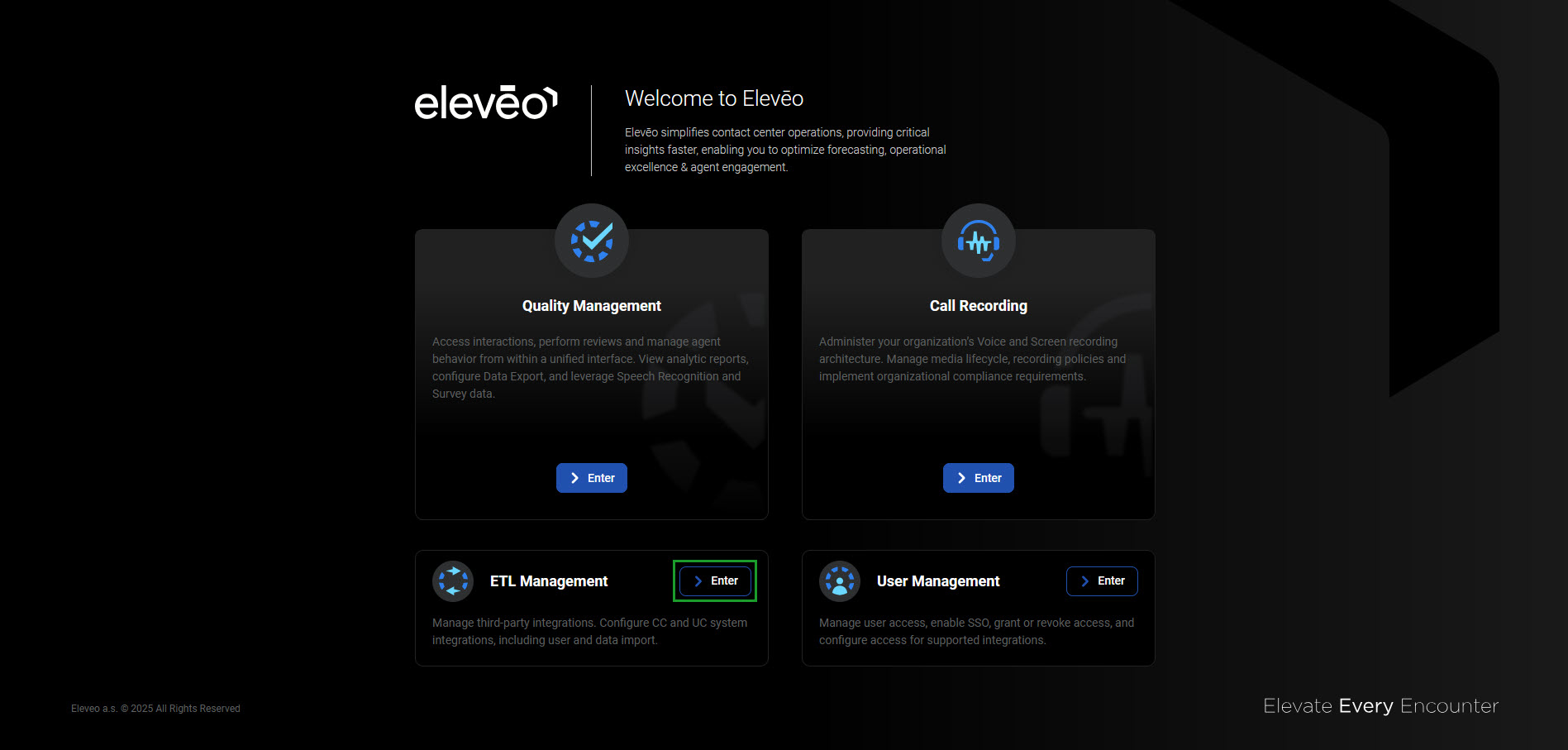
Note that eleveo.admin privileges are needed. Please, check ETL Management Roles to get more details about the roles and permissions for working with Integrations UI.
Authorizing With Webex CC
Follow the steps to add a new integration on ETL Management UI:
-
Go to My configurations > New configuration.
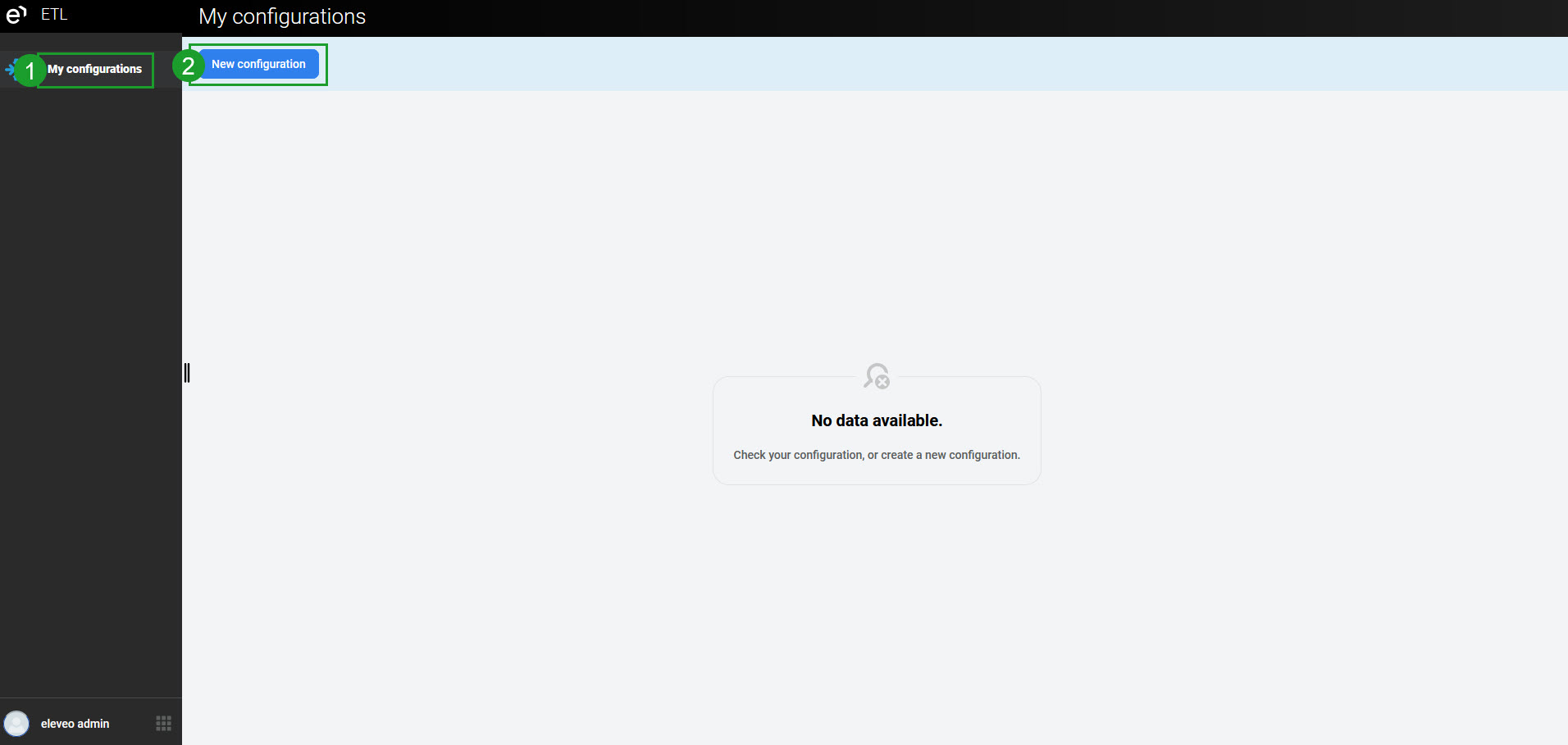
-
From the drop-down menu select the configuration type Webex CC.
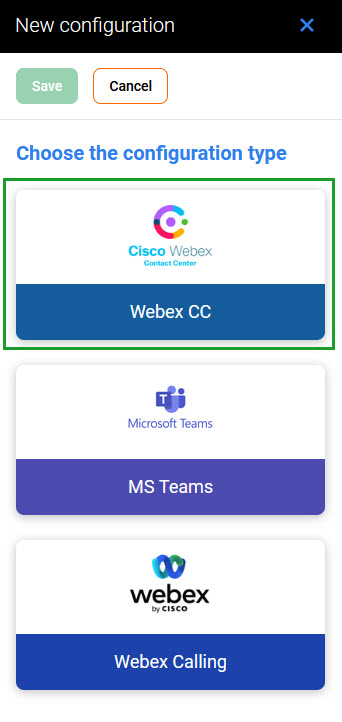
-
The new configuration tab will display. Do not close this screen, as it cannot be saved without first providing further data taken from Webex Contact Center.
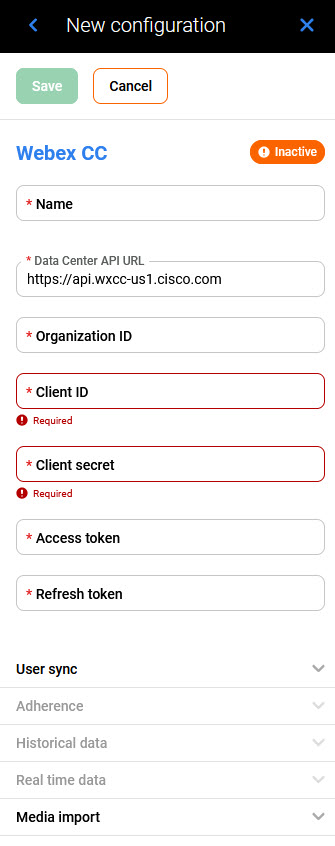
Fill in the following data:
-
Name – Name of your integration configuration
-
Data Center API URL – The URL of your Webex CC Data Center API. Geo-URLs for Different Datacenters on Webex Contact Center you can find in official Webex CC documentation
-
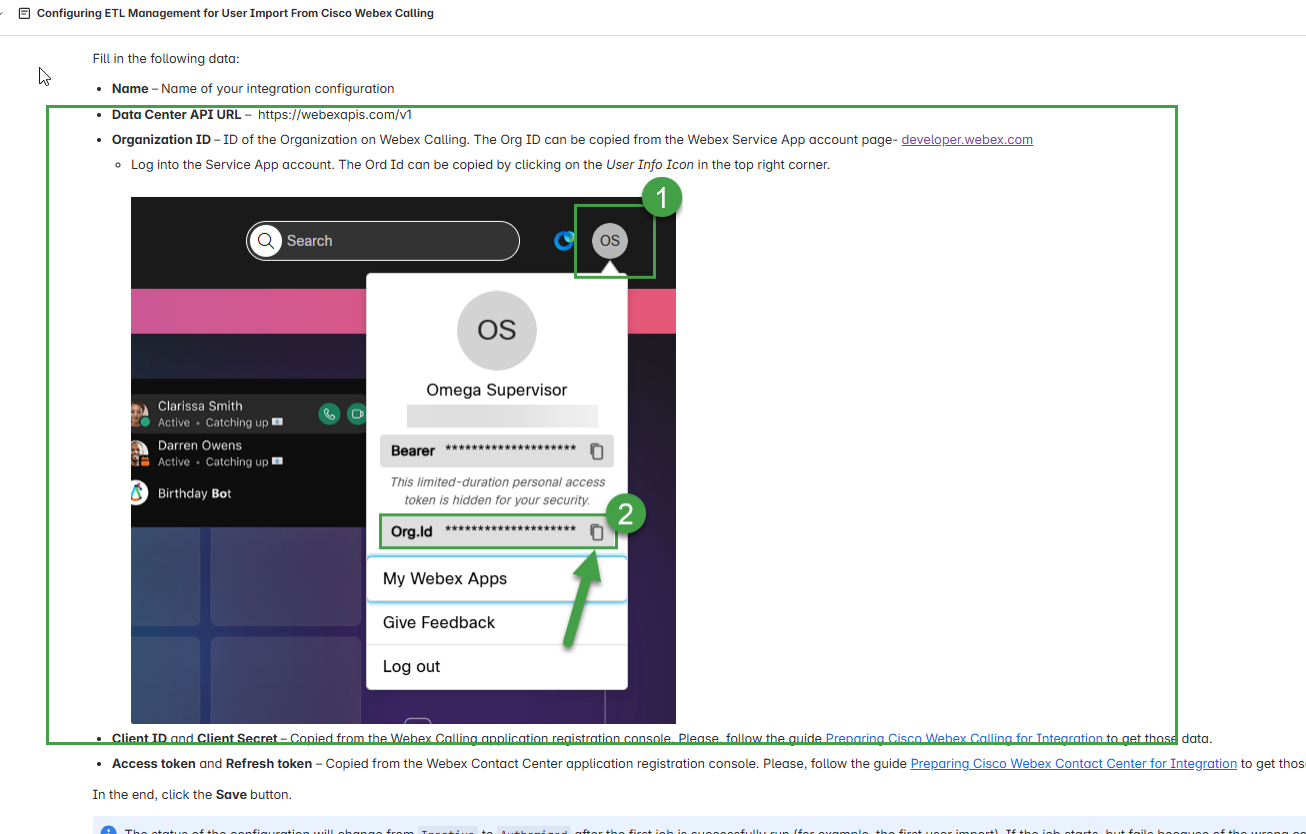
Organization ID – ID of the Organization on Webex CC. The Org ID can be copied from the Webex Service App account page- developer.webex.com
-
Log into the Service App account. The Ord Id can be copied by clicking on the User Info Icon in the top right corner.
-
-
Client ID and Client Secret – Copied from the Webex Contact Center application registration console. Please, follow the guide Preparing Cisco Webex Contact Center for Integration to get those data.
-
Access token and Refresh token – Copied from the Webex Contact Center application registration console. Please, follow the guide Preparing Cisco Webex Contact Center for Integration to get those data.
In the end, click the Save button.
The status of the configuration will change from Inactive to Authorized after the first job is successfully run (for example, the first user import). If the job starts, but fails because of the wrong configuration, the status will change to Unauthorized.
Multiple instances of the Webex Contact Center ETL Configuration with the enabled Media Import feature are not supported.
User Import
The User Sync task allows users and teams to be imported from the Webex Contact Center to Eleveo User Management.
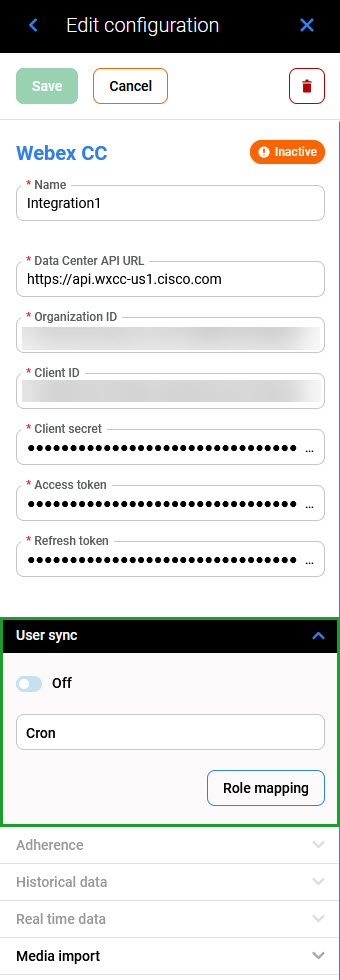
Once the authorization is successful, the following configuration can be performed:
-
On/Off - task can be configured and active or inactive
-
Cron - cron expression that specifies when the current task should be started
*
*
*
*
*
minute (0-59)
hour (0 - 23)
day of the month (1 - 31)
month (1 - 12)
day of the week (0 - Sun, 1 - Mon etc)
To validate cron expression use the editor for cron schedule expressions.
Cron job uses the UTC timezone. You can check the time on the server by typing the following date command in the terminal: date -u
Click Save to save the configuration.
Role Mapping
Role mapping between the Webex Contact Center and Eleveo User Management can be configured by clicking the Role mapping button. All created 'standardized' user roles from User Management will be available for configuration. Follow the guide Using Eleveo Specific Roles to create them. Those roles can be:
-
AGENT
-
TEAM_LEADER
-
SUPERVISOR
-
CCMANAGER
-
ITADMIN
From the Webex Contact Center side there are multiple profile types, that can be used for mapping to Eleveo roles:
-
ADMINISTRATOR - access to all modules
-
ADMINISTRATOR_ONLY - access to all modules
-
ANALYZER_ADMINISTRATOR - access to Reporting and Analytics, and Provisioning modules
-
ANALYZER_SUPERVISOR - access to Reporting and Analytics, and Provisioning modules
-
ANALYZER_USER - access to Reporting and Analytic
-
PREMIUM_AGENT - access to Agent Desktop and Multimedia module
-
STANDART_AGENT - access to Agent Desktop module
-
SUPERVISOR - access to all modules except to manage tenants in the Provisioning module
You can choose one or multiple Webex CC roles to be mapped to Eleveo roles.
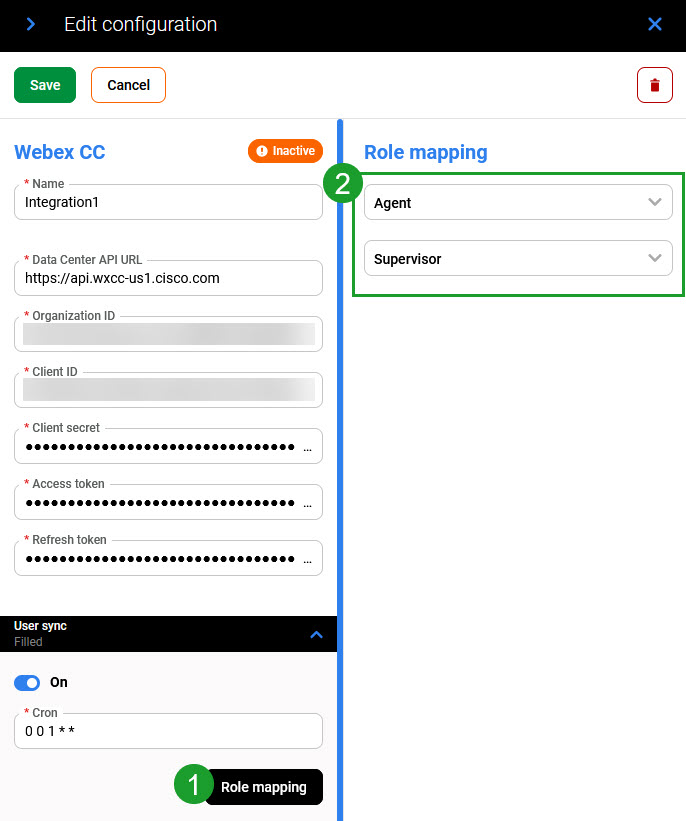
If a role from Webex CC is selected for multiple standardized Eleveo roles, all their effective roles will be assigned to this role. If the Webex CC role is not selected for any of Eleveo roles, the default agent role with dedicated permissions will be assigned to it.
Deactivated Role Mapping
In some scenarios, you can see the section Deactivated Role Mapping below the main configuration of the Role Mapping. That section is visible in ETL Management only if Role Mapping was configured and later one or multiple Eleveo roles were deleted or overwritten from User Management. That section informs you that the mapping for the deleted role is not working anymore. Listed role mappings must be replaced by new role mappings and then deleted.
.jpg?cb=ee55f74a05024454a8af811d0f3bcbe2)
Technical Details and Limitations
Data Mappings - Users
The following tables describe how users' data imported from Webex Contact Center is mapped to the User Management database.
|
Webex Contact Center |
User Management API |
User Management Table |
User Management Column |
Mandatory? |
Notes
|
|---|---|---|---|---|---|
|
users.id |
externalUserId |
user_attribute |
value (key: agentId) |
YES |
|
|
users.email |
username |
user_entity |
username |
YES |
|
|
users.firstName |
firstname |
user_entity |
first_name |
no |
|
|
users.lastName |
lastname |
user_entity |
last_name |
no |
|
|
userProfile.profileType |
client/role |
user_role_mapping |
|
no |
Search by users.userProfileId. Keycloak accepts a list of values delimited by # (client/ROLE1#client/ROLE2#...). Mapping will be provided by the user in the UI. |
|
users.teamIds |
teamIds |
user_group_membership |
|
no |
Keycloak accepts a list of values delimited by # (5e06f19f-e97c-4585-babf-2da0475368a8#c56cf800-699d-4f83-b759-86c5e189f511#...) |
|
users.active |
enabled |
user_entity |
enabled |
no |
|
|
users.email |
|
user_entity |
|
no |
|
|
users.<workPhone, mobile, defaultDialledNumber> |
phoneExtension |
user_attribute |
value (key: phoneExtension) |
no |
Keycloak accepts a list of values delimited by # (5e06f19f-e97c-4585-babf-2da0475368a8#c56cf800-699d-4f83-b759-86c5e189f511#...) |
|
teamIds |
teamIds |
user_supervisor_membership |
|
no |
WebexCC does not provide a list of supervised teams |
Data Mappings - Teams
The following tables describe how teams' data imported from Webex Contact Center is mapped to the User Management database.
|
Webex Contact Center |
User Management |
Mandatory? |
Notes
|
|---|---|---|---|
|
groups.id |
externalGroupId |
YES |
|
|
groups.name |
GroupName |
YES |
|
|
- |
childGroupsExternalIds |
no |
|
Changing User's Details
Note that Webex Contact Center uses emails for authorization and user identification (usernames are not used). Users' emails from Webex Contact Center are mapped to their usernames in User Management (as stated in the table above).
A change of the user's details in Webex Contact Center (for example, when women change their surname) is handled in the following way:
-
If an email stays the same (for example, only a surname is changed), this information of the existing user is updated in User Management during the synchronization process.
-
If an email is changed, it is also updated in User Management during the synchronization process, while the AgentId stays the same.
Attributes added on the Attributes tab will not be overwritten or removed during the next synchronization process.
Disabling, Deleting, Re-Enabling and Re-Creating Users
Disabling, re-enabling and deleting users from Webex Contact Center is handled in the following way:
-
A user disabled in Webex Contact Center will also be disabled in User Management.
-
If a user is re-enabled in Webex Contact Center, this user will be re-enabled in User Management and all mappings (roles assigned, teams membership) will be set in the same way as they were set before.
-
A user deleted in Webex Contact Center will be disabled in User Management.
Re-creating a user who was already deleted in Webex Contact Center is handled in the following way:
-
If a user who was imported from Webex Contact Center is deleted in User Management and then added back manually (with the same username), this manually created user will remain in User Management and will not be synchronized with Webex Contact Center or imported again. The reason for that is that usernames need to be unique. In case this manually added user is later deleted in User Management, the user with the same username will be imported again from Webex Contact Center during the next synchronization.
-
If a user with the same username and the same AgentID value is added again in Webex Contact Center, this user will be re-enabled in User Management after the next synchronization process and all mappings (roles assigned, teams membership) will be set in the same way as they were set before.
-
If a user with the same username but with a different AgentID value is added to the Webex Contact Center, it is not possible to import this user to User Management (or to re-enable the disabled user with the same username).
Teams and Team Membership
Any changes to the teams configured in User Management are handled in the following way:
-
If an admin manually adds a subteam to a team that was imported from Webex Contact Center, it will be deleted. teams that exist in Webex Contact Center are compared with teams (and subteams) that exist in User Management (and are from the same User Federation). If such teams in User Management (from the same User Federation) contain any teams/subteams which don't exist in Webex Contact Center, these non-existing teams will be removed.
-
If the team that was imported from Webex Contact Center was renamed in User Management, the name will be changed back. Any manual changes to the team names will be overwritten to match those in Webex Contact Center.
Membership in a team is handled in the following way:
-
If a user is added as a member to a team in Webex Contact Center, he/she will also be added to a team in User Management.
-
If a user is being unassigned from a team in Webex Contact Center, he/she will also be unassigned from a team in User Management. team membership doesn't affect a state of a user (even if users are unassigned from all teams, their state - active/disabled - remains unchanged).
-
If a user imported from Webex Contact Center is being manually added as a member to a team that was manually created in User Management, this membership will not be removed during the next synchronization process (the user will stay in this team).
-
If a user imported from Webex Contact Center is being manually added as a member to a team that was also imported from Webex Contact Center, this membership will not be removed during the next synchronization process (the user will stay in this team).
-
Users can be moved between teams in Webex Contact Center. After the next synchronization, these users will also be moved in User Management - they will then belong to the same teams as in Webex Contact Center (even if the structure of teams was modified in User Management). The order of teams in User Management is not affected by the synchronization.
Setting a team as main is handled in the following way:
-
If the main team is changed from A to B manually in User Management, and both teams exist in Webex Contact Center, this change will not be overwritten during the next synchronization process. However, if team B is local only (it doesn't exist in Webex Contact Center), this change will be overwritten during the next synchronization process.
'Can Manage' Assignment
The assignment of teams that a user with the Supervisor/Teamlead role can manage is handled in the following way:
-
If a user with the Supervisor/Teamlead role has no teams assigned in Webex Contact Center, he/she will also be imported to User Management without any teams assigned.
-
A team assigned to a user in Webex Contact Center will also be assigned in User Management during the synchronization process.
-
If a team is being unassigned from a user in Webex Contact Center, it will also be unassigned in User Management.
-
If a team was assigned to a user manually from within the User Management UI, no matter if this user and team were imported or created manually, this change will not be overwritten during the next synchronization.
-
If a team was assigned to a user automatically and then this assignment is modified manually (a team is unassigned from a user), this change will be reverted and a team will be automatically assigned to a user during the next synchronization.
-
It is impossible to demote a Supervisor/Teamlead to Agent in Webex Contact Center if any teams are assigned to this user. First, unassign that user's teams and then change the role. As a result, the user will have teams unassigned and will change their role in User Management during the synchronization process.
Once authorization with Webex Contact Center is successful and the User Sync task is configured properly, import of historical data and adherence can be configured. More details on page Configuring ETL Management for Data Import From Cisco Webex Contact Center