
Before you can see a calendar subscription on all your devices, subscribe to the calendar on your device first. If you subscribe to the calendar on your iOS device, iCloud won't update it on your other devices.
Adding a Calendar
If you use an Apple® device, follow the steps below:
On your device, go to Settings → Passwords & Accounts:
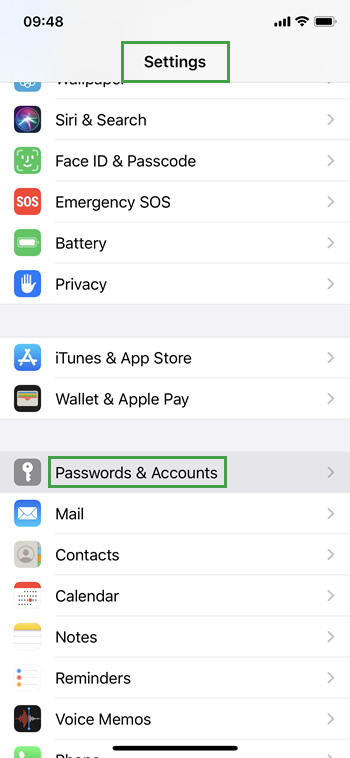
Add Account:
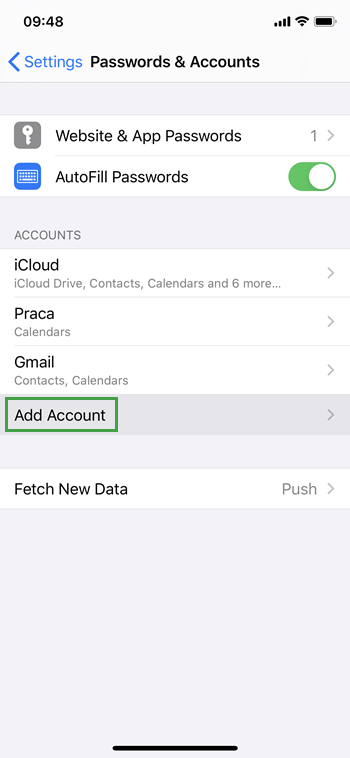
Select Other:
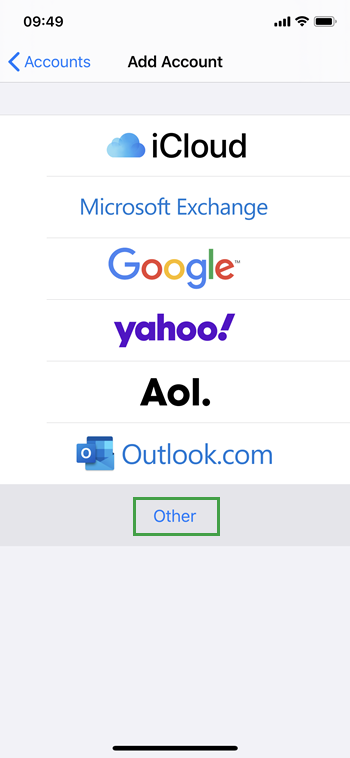
Select Add Subscribed Calendar
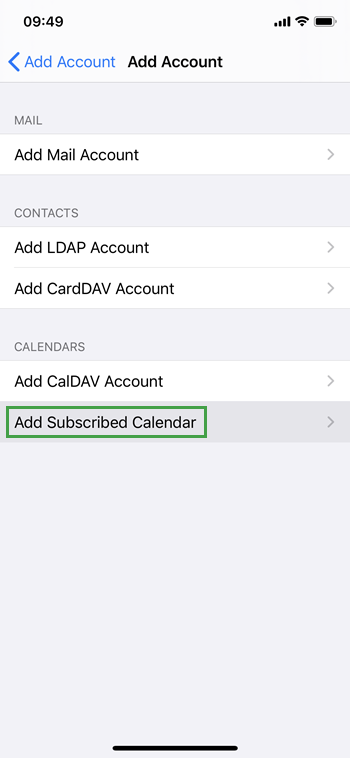
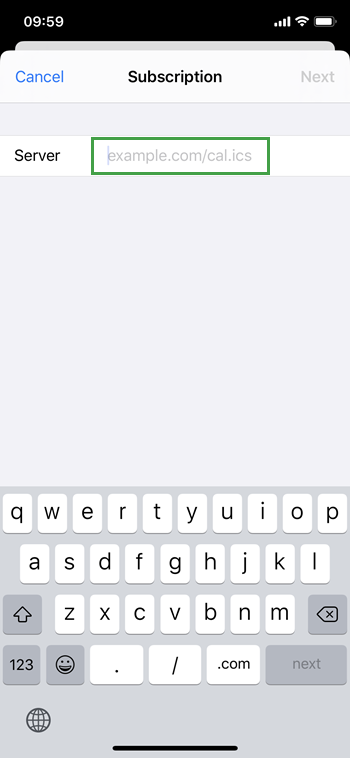
Paste the copied URL (the one you copied in the previous step) to the Server field:
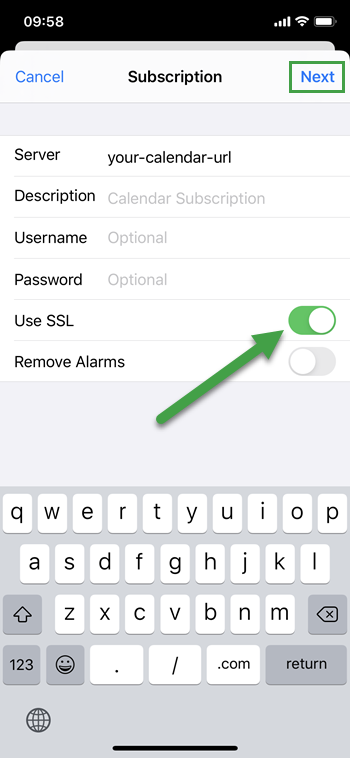
Enable the Use SSL option and click (or tap) on Next
The My Schedule Calendar should now be displayed in your personal calendar.
It may take some time for the calendar data to display.
Removing a Calendar
To remove a calendar from your device open Calendar. Tap Calendars → Tap

→ and then Tap Delete Calendar.
"IOS is a trademark or registered trademark of Cisco in the U.S. and other countries and is used under license."
"Apple, iCloud and iPhone are trademarks of Apple Inc., registered in the U.S. and other countries."