
-
Purpose of this guide: This page provides a description of the Webex Contact Center Identity Provider.
-
Audience: Customer, partner, or other professional responsible for the Cisco WebexCC platform.
-
Previous steps: Configuring ETL Management for User Import From Cisco Webex Contact Center
-
When: Use this guide to configure Identity Provider for Webex Contact Center.
-
Next steps: Adding Webex Contact Center as Identity Provider.
Order of installation steps
Due to technical constraints, it is important that the import of users and groups be configured FIRST.
First, configure the Synchronization of users from Webex Contact Center. Refer to the dedicated guide: Configuring ETL Management for User Import From Cisco Webex Contact Center.
After importing users it is possible to configure the following integrations:
-
User Authentication (SSO): Configuring Identity Provider for Webex Contact Center (this page)
-
Import of media and historical data: Configuring Cisco Webex Contact Center Integration for Media Import
If the import of users is not configured first, then it is likely that the system will NOT correctly pair media conversations to users/agents.
Adding Webex Contact Center as an Identity Provider allows Webex users who have SSO enabled to sign in to Eleveo applications without having their credentials stored in Eleveo User Management.
When accessing the login page for any Eleveo application, a user will be able to use the special login button.
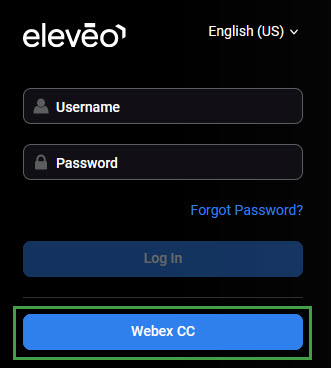
After clicking it, the user is redirected from User Management to the Webex Contact Center SSO login page where credentials can be provided. If credentials are correct, the user is redirected back to the Eleveo site and can proceed to use the Eleveo application.
If Webex Contact Center users provide their credentials in the standard Username and Password fields (instead of clicking the special login button), they will not be able to log in. Their passwords are not stored locally within Eleveo User Management.
Two-Part Configuration Process
The configuration process consists of two parts, which should be completed simultaneously: Adding Webex Contact Center Identity Provider (please contact Eleveo Support) and Preparing Cisco Webex Contact Center for Integration.
Each page contains information about who can complete the step, where it should be configured and what privileges are needed to succeed.
Prerequisites
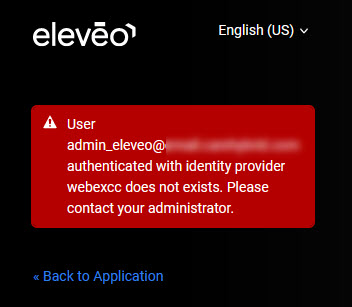
Before the integration is established, it is mandatory that users be imported from Webex Contact Center to User Management. This can be configured from within Integrations UI. Please contact Eleveo Support to configure User Import From Cisco Webex Contact Center.
If this is not done, users will not be able to log in and the following error will display:
Limitations
After logging out from Eleveo, a user will be redirected to the Eleveo landing page. To log in again, access the User Management URL and click the Webex CC button.