
It is possible to filter displayed forecasts based on a name, a date range, or configured criteria. This functionality available on the Scheduling Studio screen simplifies the schedule-related actions.
Filtering Based on a Name
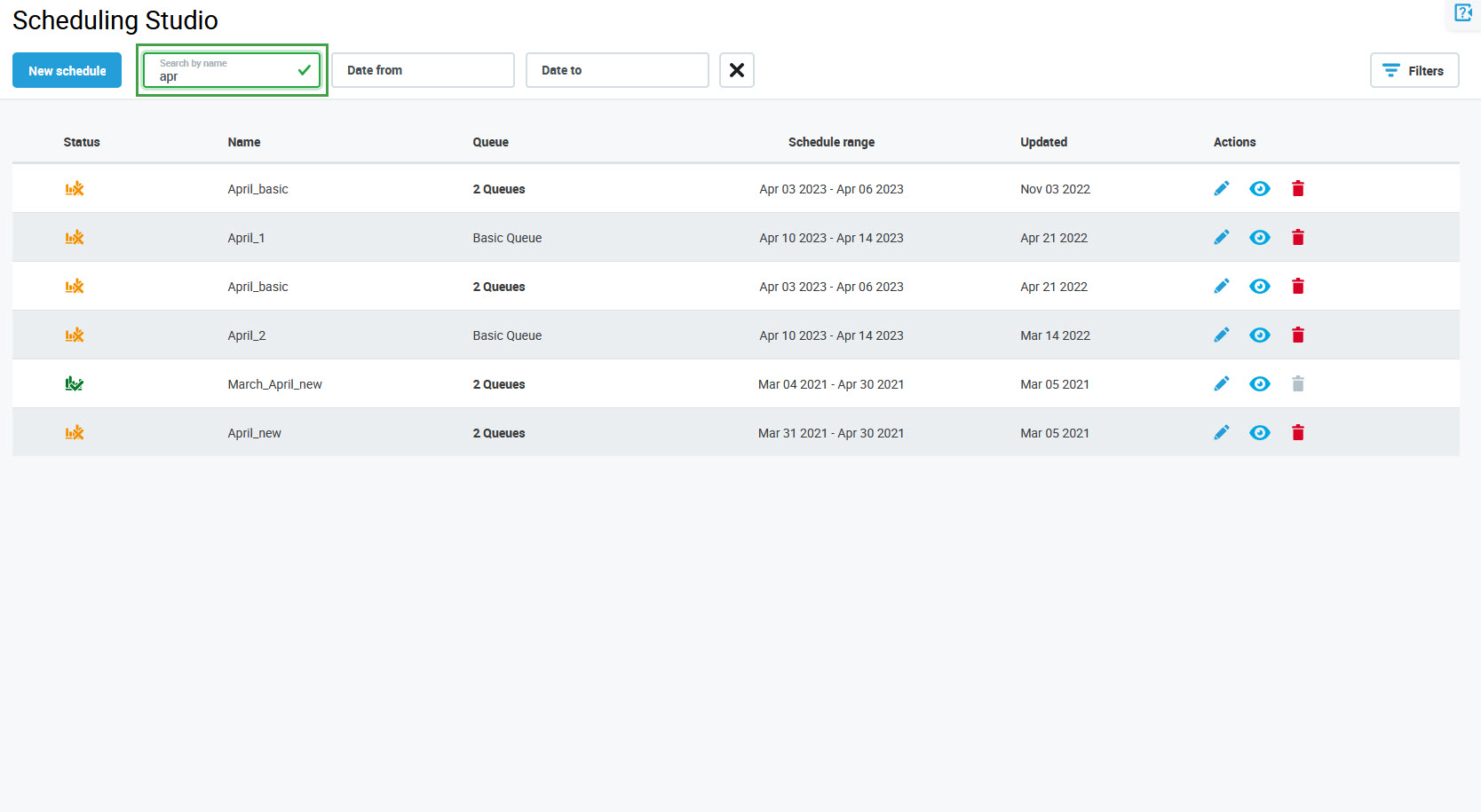
Fill in the Search by name field to find matching schedules. Search is not case-sensitive. Results will be dynamically displayed while entering the name. Click the Reset filter button to remove the name.
Filtering Based on Criteria (Filters)
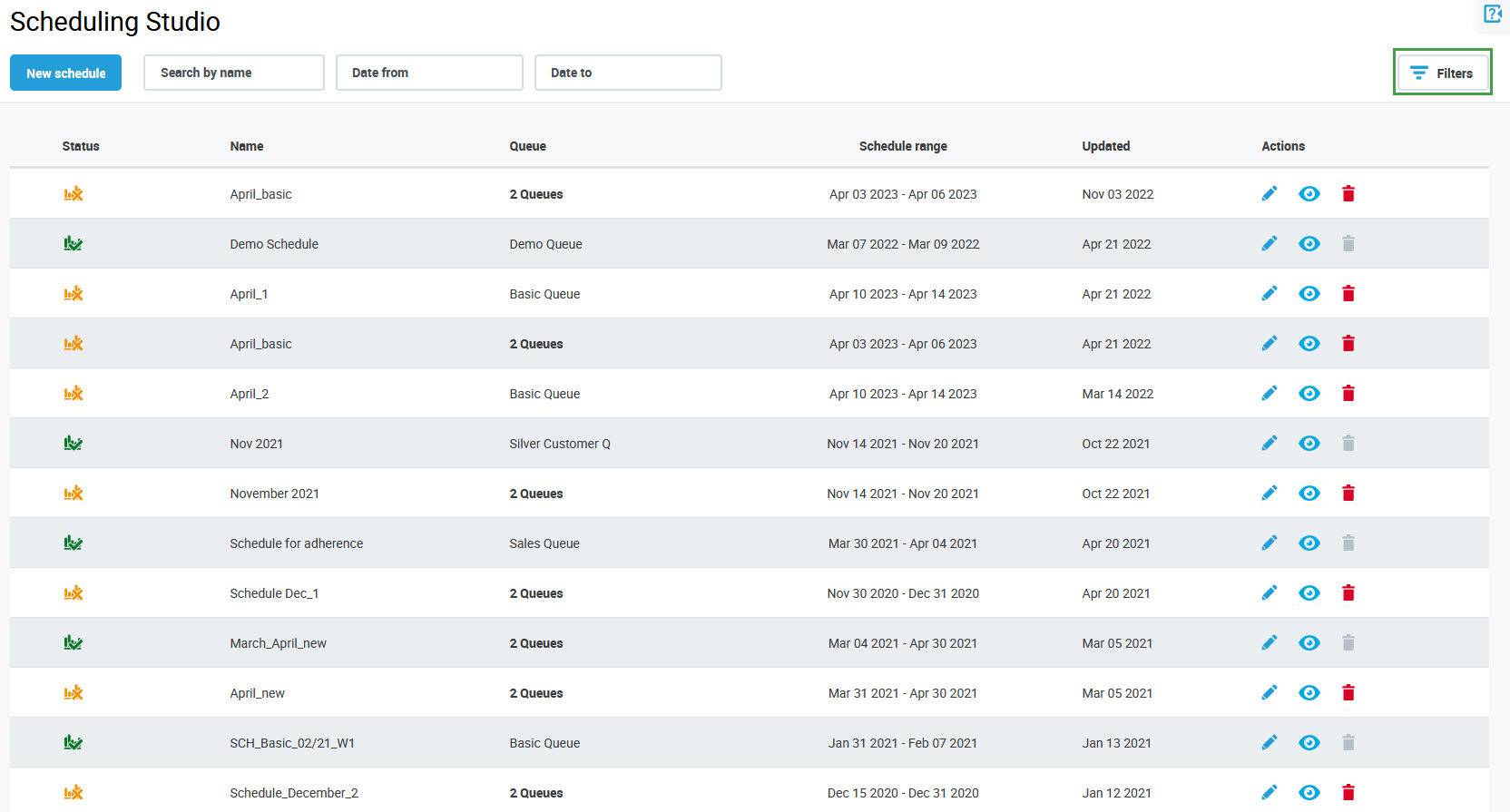
To filter schedules based on configured criteria, click the Filters button in the top right corner of the screen.
The Filters pane will open.
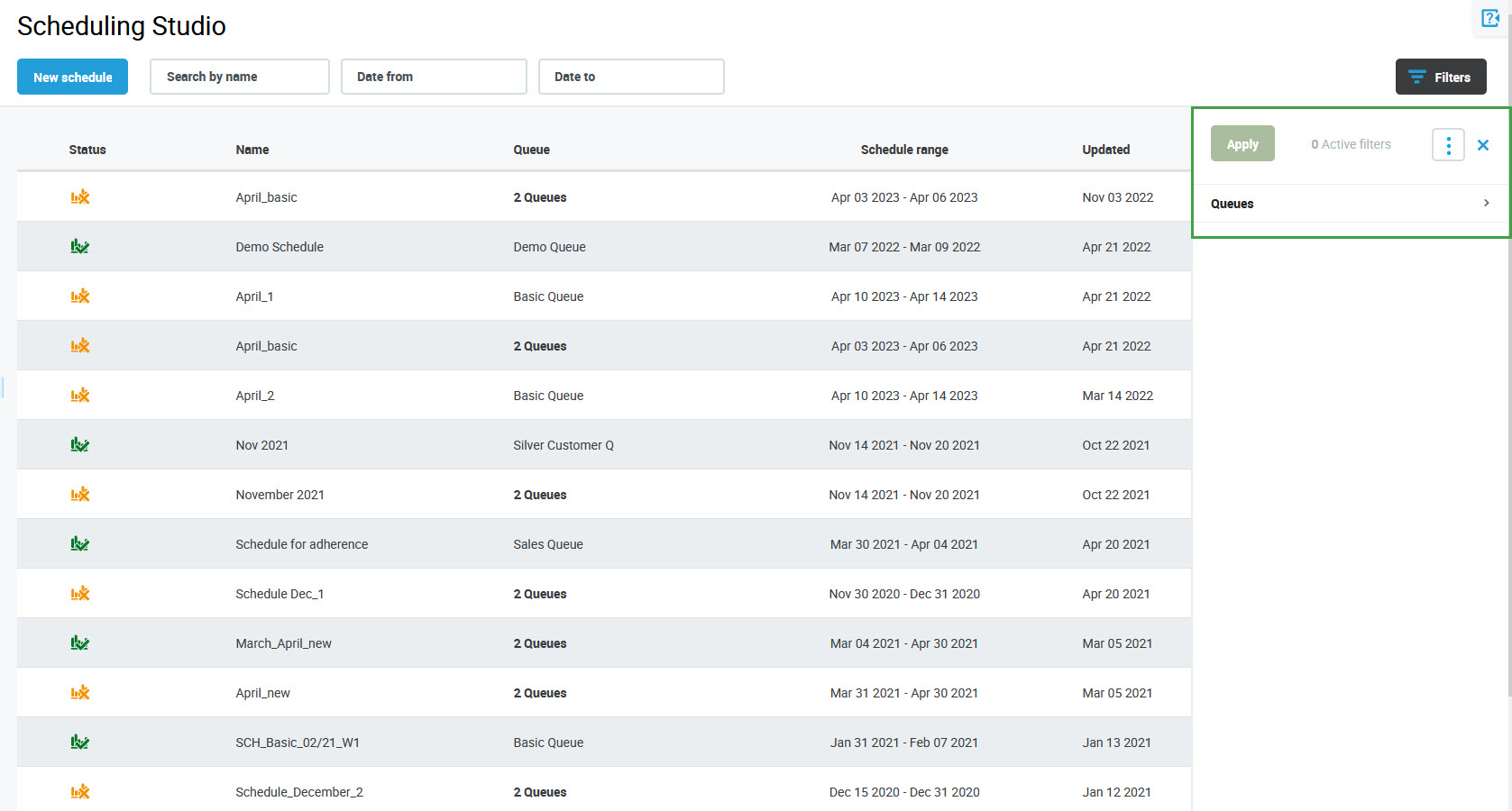
Click the tabs to expand them and display the following filters:
-
Queue – display(s) only schedules for the selected queue(s)
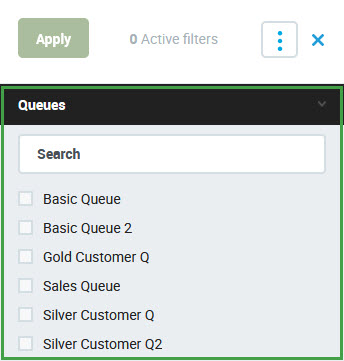
To read more about how to use the Filters pane, visit the page Using Filters.
Filtering Based on a Date Range
Fill in the Date from and Date to fields to find matching schedules:
-
Date from – beginning of the time period for which the schedules are displayed (select on the calendar)
-
Date to – end of the time period for which the forecasts are displayed (select on the calendar)
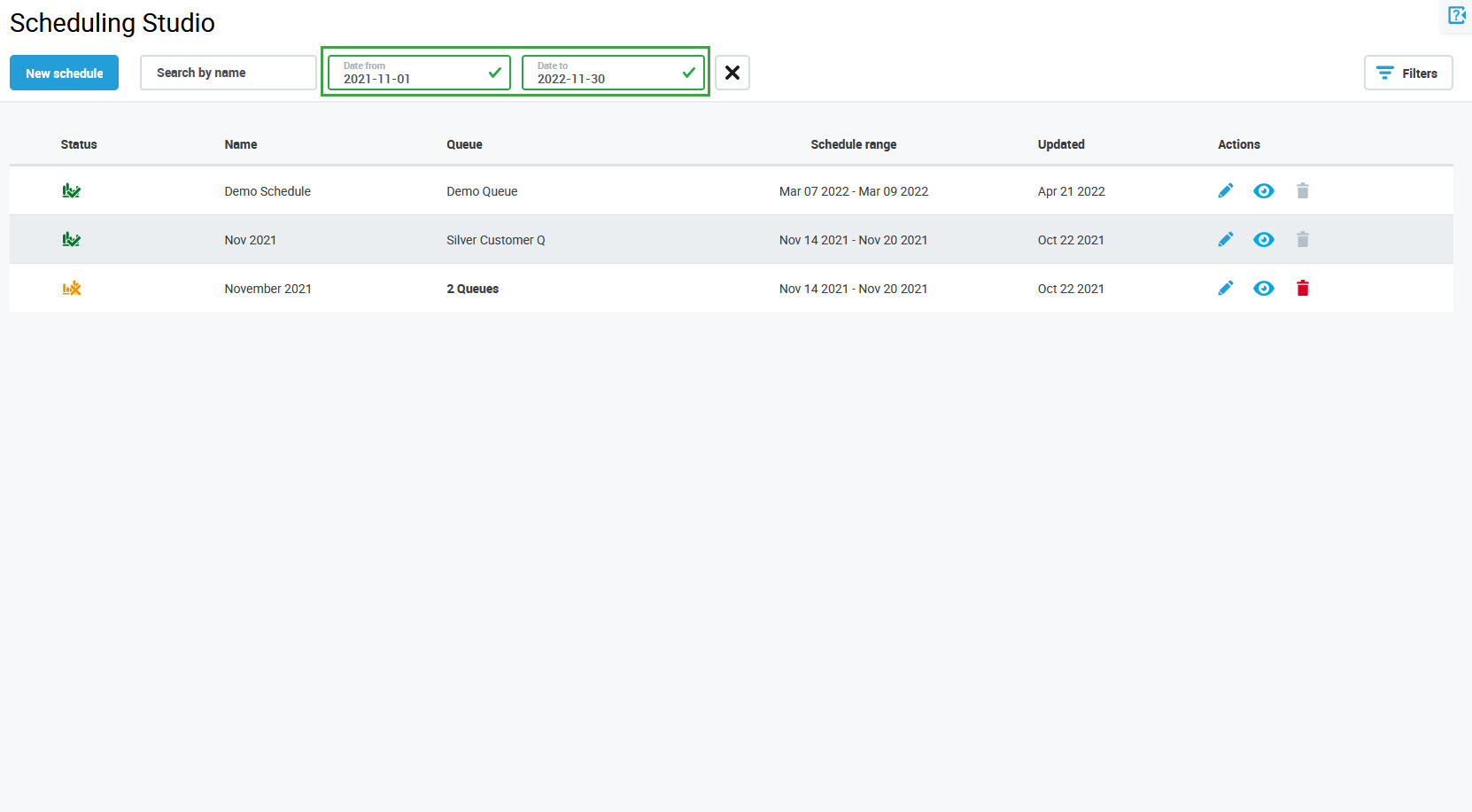
Click the Reset filter button to remove the dates.
Note that after selecting Date from and Date to, all schedules which overlap with the selected period will display.
Example:
The following filter was applied: from 1 January 2019 to 31 January 2019.
As a results all schedules below will be displayed:
-
Schedule1 – schedule range: 1 January 2019 - 31 January 2019
-
Schedule2 – schedule range: 2 January 2019 - 4 January 2019
-
Schedule3 – schedule range: 1 September 2018 - 31 March 2019
-
Schedule4 – schedule range: 15 January 2019 - 15 February 2019