
Application Layout
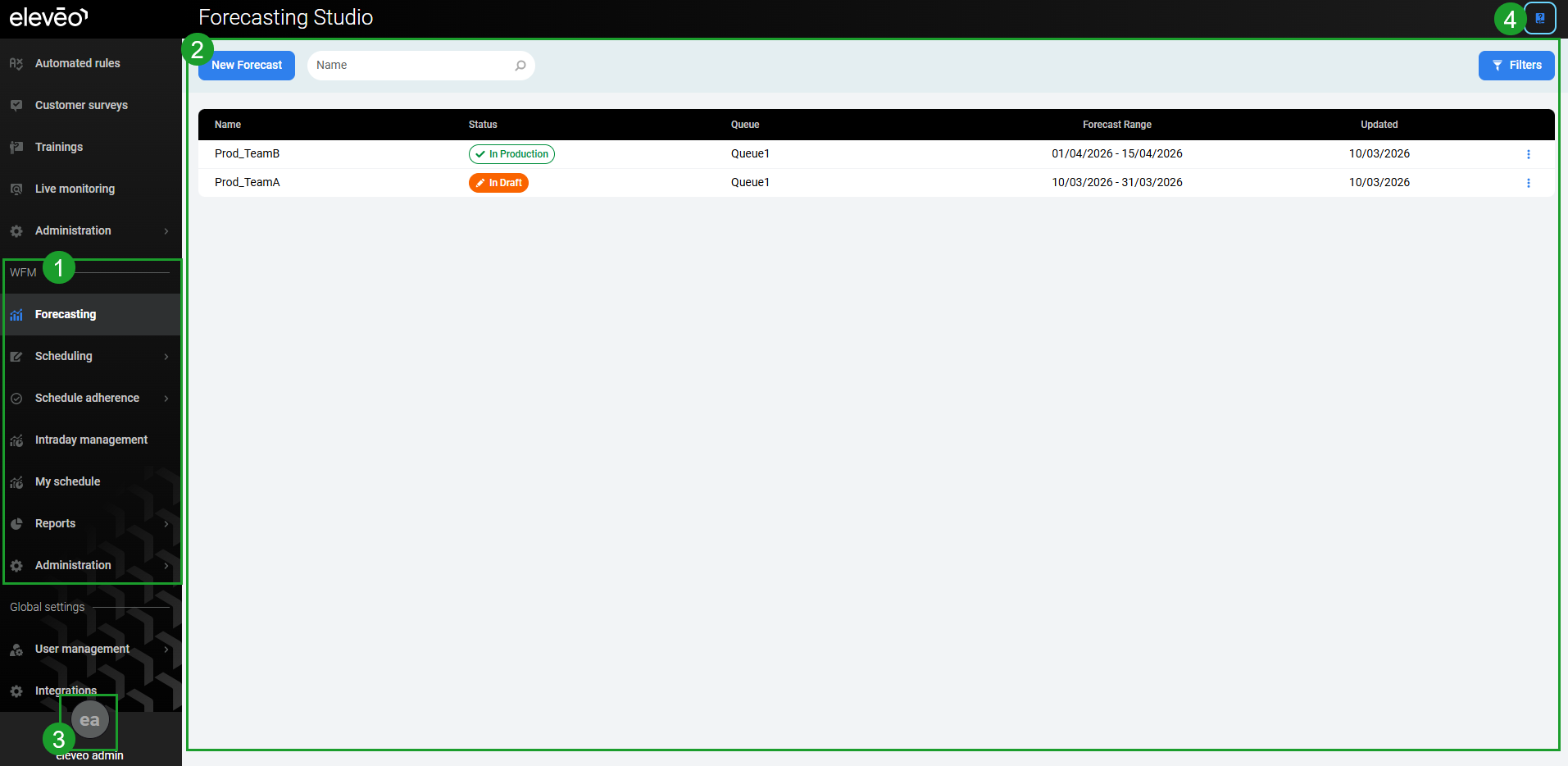
The application consists of the following elements:
-
WFM menu within the navigation tree.
-
Active screen of a particular feature.
-
The User Profile button.
-
The Documentation icon.
Using the Navigation Tree
The navigation tree contains all applications and their modules that a user has permission to access. Workforce Management modules are listed in the WFM section of the menu.
Click the module name within the navigation tree to expand it. Then click a submodule name to display the screen.
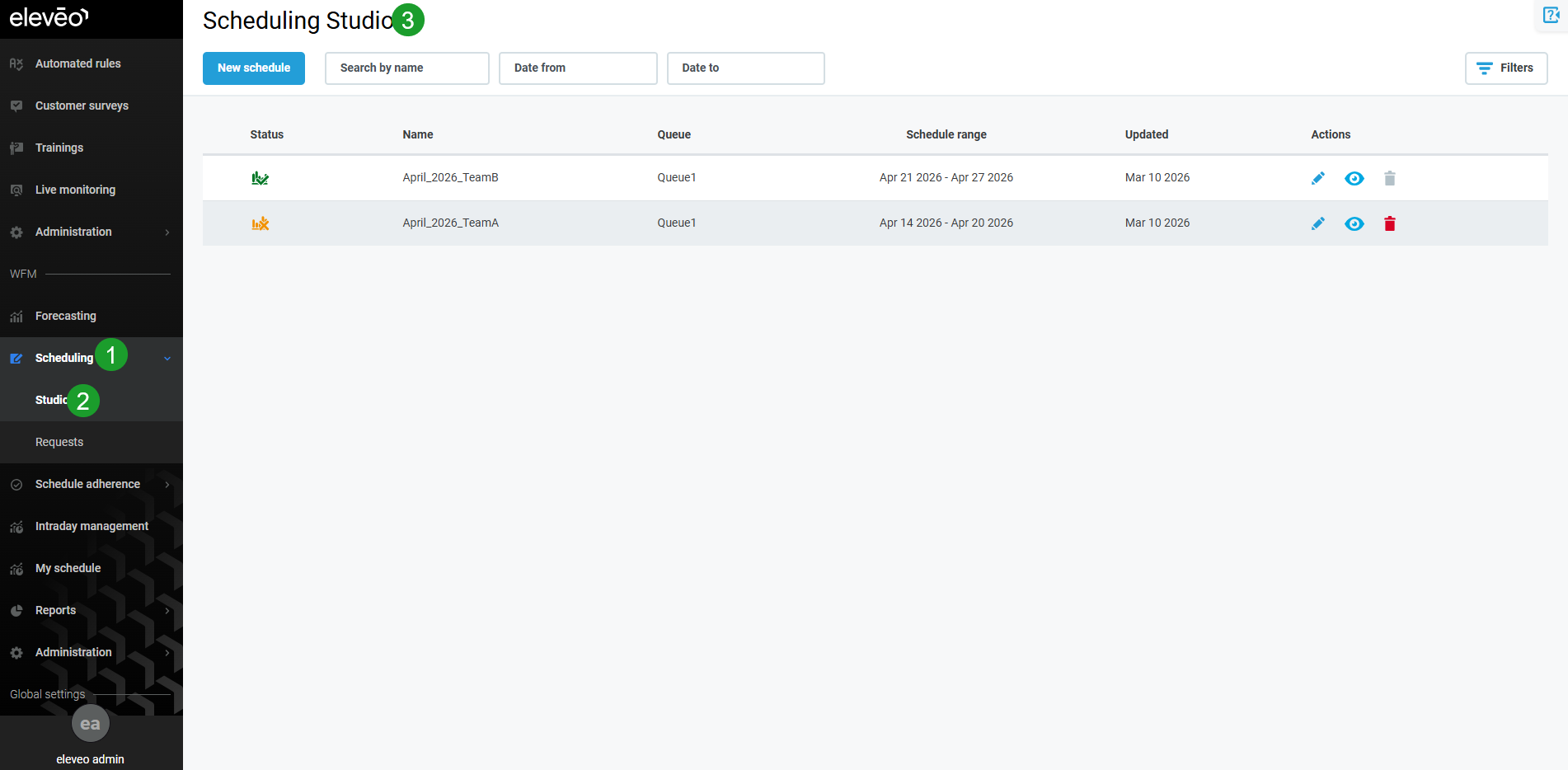
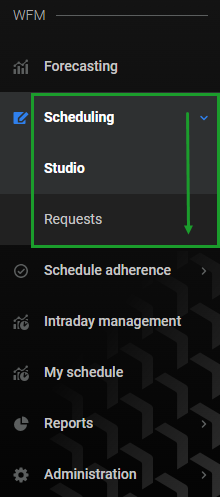
The module that is expanded is highlighted in bold and is marked with an arrow pointing down. The name of the currently displayed submodule is highlighted in bold font. The modules that are not expanded are marked with an arrow pointing to the right.
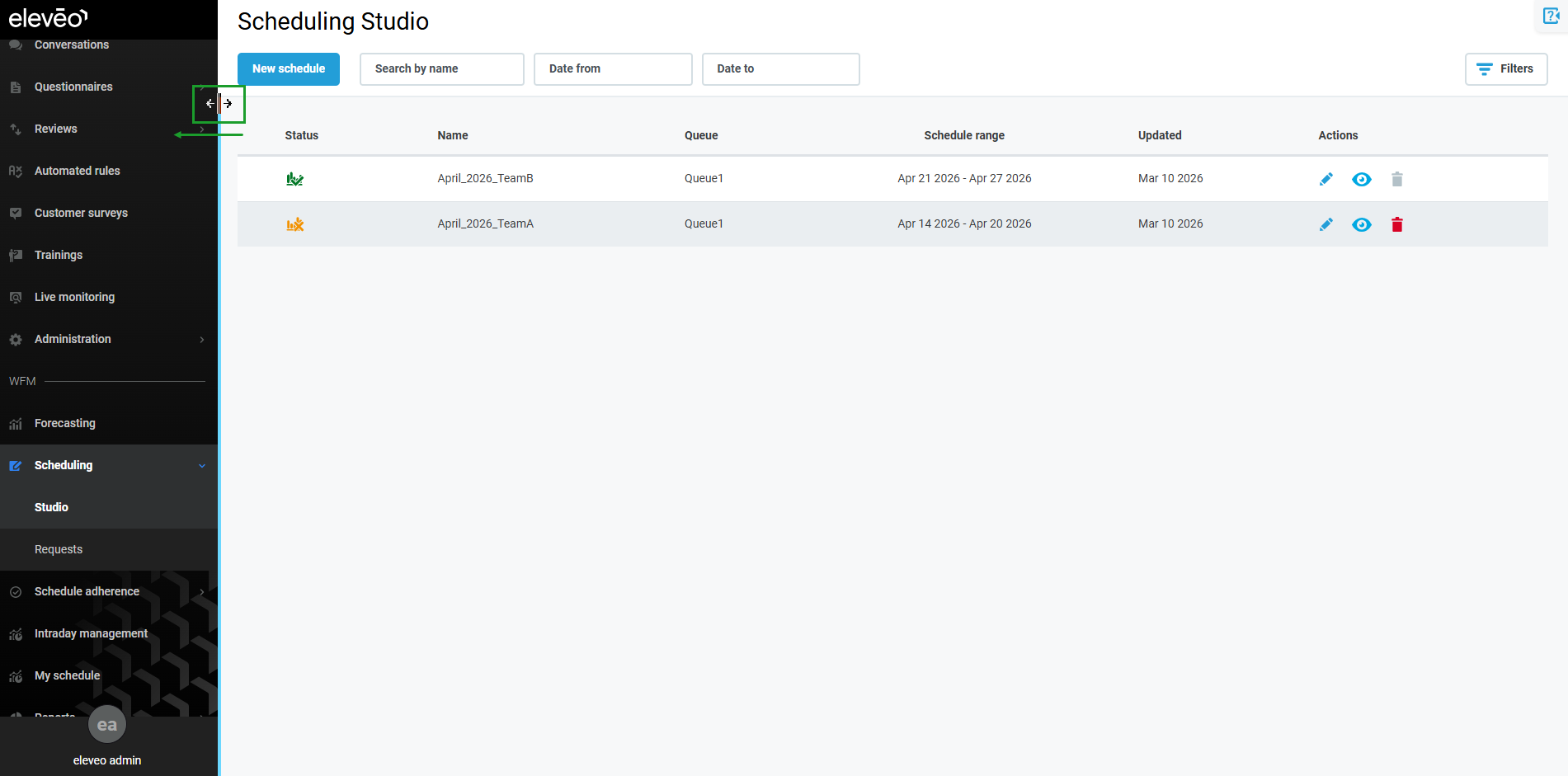
The navigation tree can be dragged and minimized as required.
The icons representing modules will still be displayed. Hover over the icons to view the available submodules. Then click a submodule to switch to a new module.
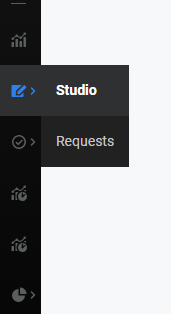
The navigation tree is not hidden by default.
Using the User Menu
Click the User Profile button in the bottom left corner to display additional options:
-
User profile – Redirects to the User Profile section in User Management.
-
Log out – Logs out of the application.
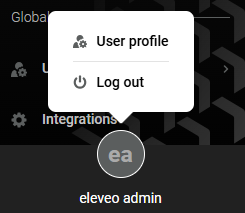
The name displayed under the User Profile button is the first and last name of the user configured in User Management. If the first and last names are not configured, the username is displayed.
Accessing the Documentation
Documentation is available on the web. The help.eleveo.com site can be accessed at any time directly from within the application. A documentation icon is visible in the top right corner of every screen of Eleveo WFM.
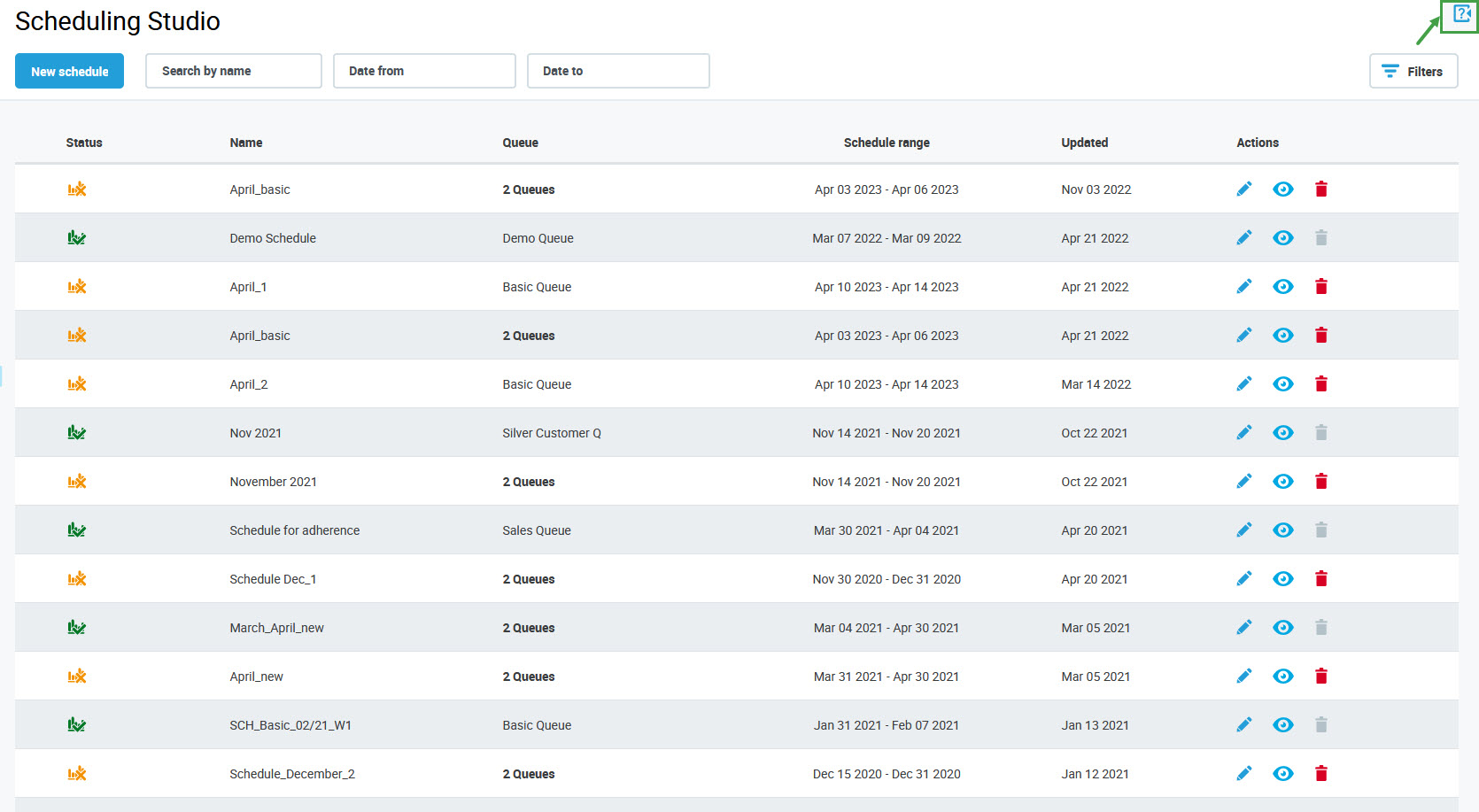
Hover over the icon, then click the Go to Documentation button:
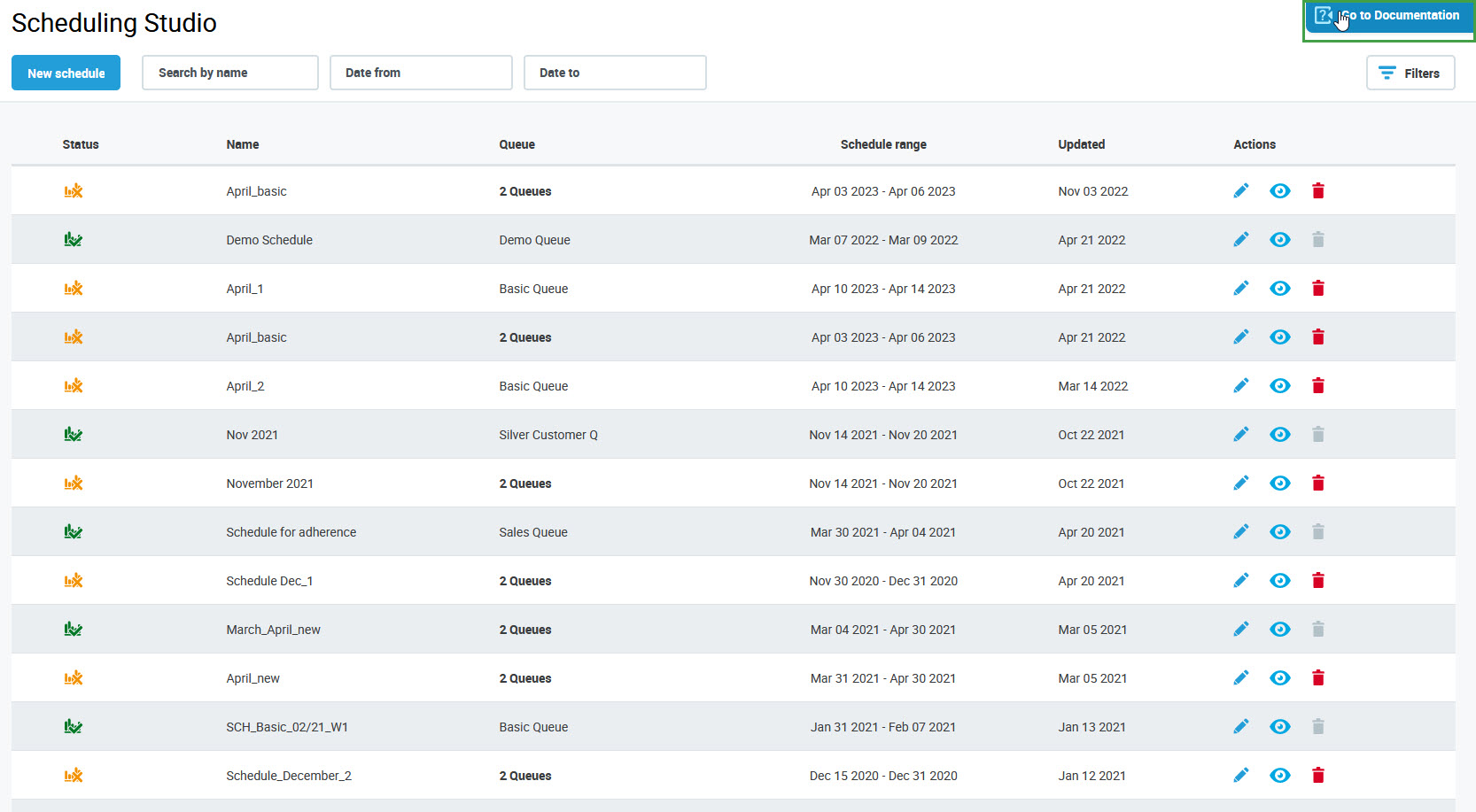
The documentation opens in a new browser window. Select Eleveo Cloud Native, then navigate to Workforce Management (WFM) – User Guide.