-
Purpose of this guide: This page is dedicated to the historical, adherence, and real-time data import from Webex Contact Center to Eleveo Workforce Management.
-
Audience: Customer, partner, or other professional responsible for the Cisco WebexCC platform.
-
Previous steps: Preparing Cisco Webex Contact Center for Integration.
-
When: These steps are required when you want to import historical, adherence, and real-time data from the Cisco WebexCC platform to the Eleveo solution.
-
Next steps: Configuring ETL Management for User Import From Cisco Webex Contact Center.
Prerequisites
It is necessary for an administrator to first prepare Cisco Webex Contact Center for Integration before proceeding.
Please note that the way the ETL configurations are authorized with Webex CC has changed between versions 9.7 and 10.0. If you have any configurations that were added prior to the 10.0 release, these configurations should still work until the tokens are revoked. However, they will not be able to reauthorize again the old way. Instead, you will need to set up that again using the Service App (as described on the page Preparing Cisco Webex Contact Center for Integration).
Order of installation steps
The import of data can be configured only after authorization with Webex Contact Center is successful and the User Sync task is configured properly!
Overview
This page is dedicated to the historical, adherence, and real-time data import from Webex Contact Center to Eleveo Workforce Management. Imported data can be consumed by the Forecasting, Adherence History and Real Time Adherence features.
The following steps should be completed to integrate with Webex Contact Center successfully:
-
Please contact Eleveo Support to Deploy ETL Management in Rancher.
-
Add configuration within ETL Management UI.
-
Configure data import task(s) in ETL Management UI – steps are covered on this page.
Please keep in mind that multiple instances of the Webex Contact Center ETL Configuration with enabled Media Import feature are not supported.
Accessing ETL Management
On the landing page, click the Enter button next to ETL Management. Alternatively, use the URL of the server: https://<FQDN>/etl where <FQDN> is the FQDN of the server where Eleveo is installed.
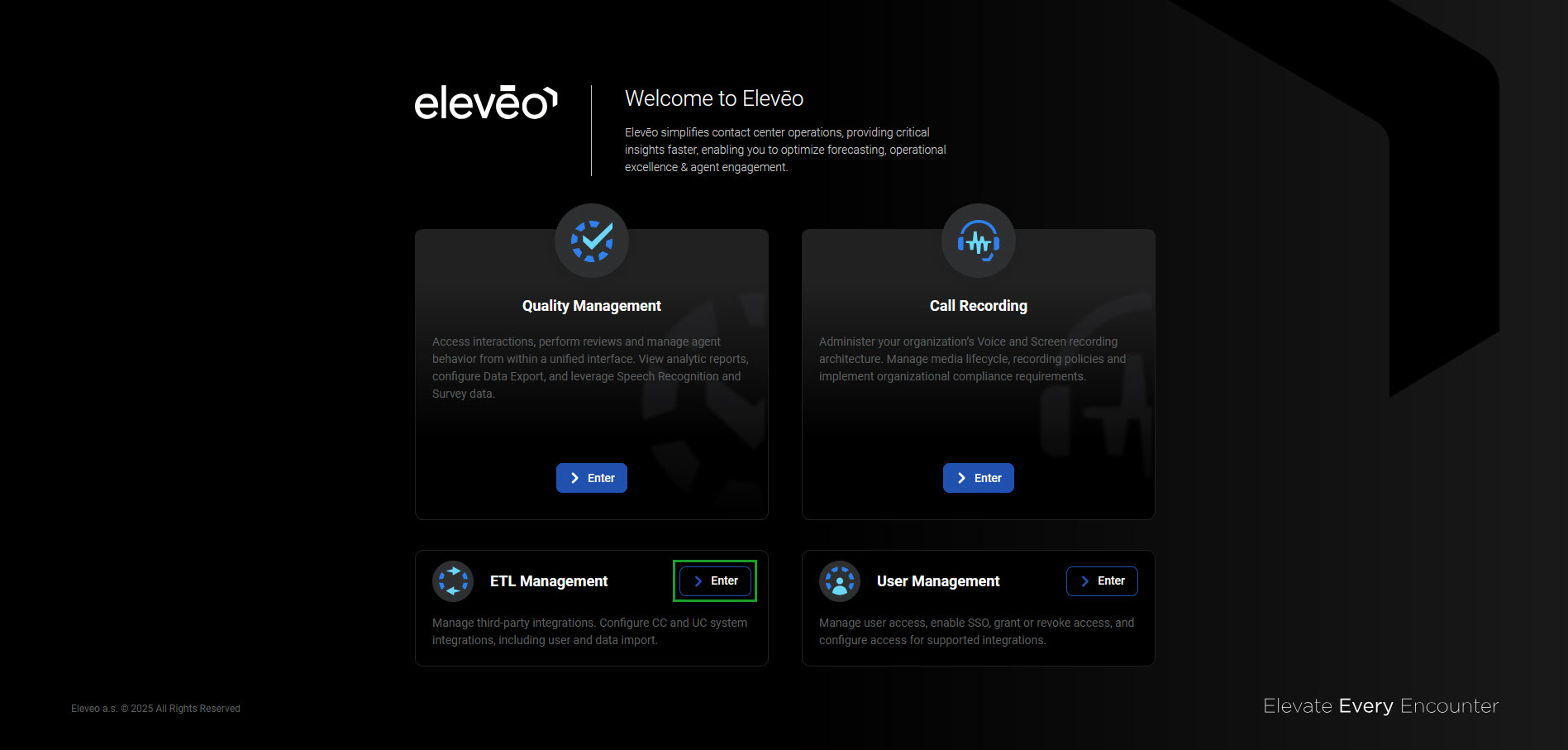
Note that eleveo.admin privileges are needed. Please, check ETL Management Roles to get more details about the roles and permissions for working with Integrations UI.
Data Import
An automatic import of data from Webex Contact Center into Eleveo WFM or QM can be achieved by configuring the Historical data, Adherence, Real Time Data or Media Import tasks in ETL Management.
Please note that adding multiple configurations with the same Organization ID is not supported! It is strongly suggested to add one configuration for one Organization ID and enable all possible imports (User Sync, Adherence, Historical, Real Time Data and/or Media Import) there.
Historical Data
The import of historical data allows one to get information such as names and IDs of the queues, start and handle time, and number of tasks offered to the queues. Those data can be used for the forecasting process in WFM.
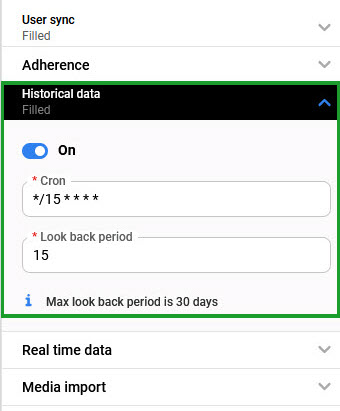
The following configuration can be performed for the task:
-
On/Off - the task can be configured and active or inactive
-
Cron - cron expression that specifies when the current task should be started
*
*
*
*
*
minute (0-59)
hour (0 - 23)
day of the month (1 - 31)
month (1 - 12)
day of the week (0 - Sun, 1 - Mon etc)
To validate the cron expression, use the editor for cron schedule expressions.
Cron job uses the UTC timezone. You can check the time on the server by typing the following date command in the terminal: date -u
For Intraday Management functionality to work properly, configure the cron job for importing historical data to run every 15 minutes: */15 * * * *
-
Look back period - max 30 days - time period that determines how many days of data from history will be imported.
Adherence Data
Adherence data are the data from the Contact Center about agents' statuses that can be used for planning purposes in the WFM application.
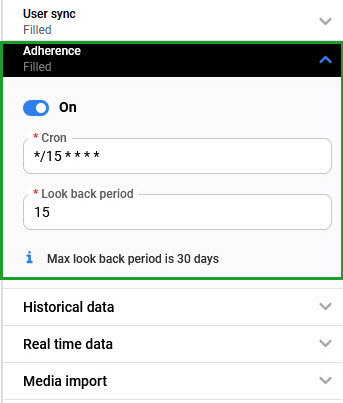
The following configuration can be performed for the task:
-
On/Off - the task can be configured and active or inactive
-
Cron - cron expression that specifies when the current task should be started
*
*
*
*
*
minute (0-59)
hour (0 - 23)
day of the month (1 - 31)
month (1 - 12)
day of the week (0 - Sun, 1 - Mon etc)
To validate the cron expression, use the editor for cron schedule expressions.
Cron job uses the UTC timezone. You can check the time on the server by typing the following date command in the terminal: date -u
-
Look back period - max 30 days - time period that determines how many days of data from history will be imported.
Real-Time Data
Real-time data are consumed by the Real Time Adherence feature in Eleveo WFM. This feature allows supervisors to display real-time information about people's statuses. Using this feature, it is possible to identify whether people follow their schedules as planned.
After enabling this feature or modifying the configuration file, it can take up to one hour for updated data to be visible in the User Interface.
Please note that if you plan to enable the Real-Time Data import for the first time on the version 9.4, but your application was upgraded/migrated from the older version and there was the WebexCC integration present on this older version, but without Real-Time Data import (for example for adherence data and/or user import only), additional steps need to be completed:
-
go to the Webex Contact Center for Developers page and add the
cjp:config_writescope in theeleveo_ETL_importintegration settings (more details can be found on the Preparing Cisco Webex Contact Center for Integration page), -
go to ETL Management, delete the whole Webex CC integration settings and configure it again (including User Sync, Adherence, Historical Data and RTA) by following the steps from the beginning of this page.
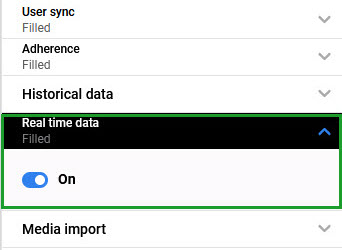
The following configuration can be performed for the task:
-
On/Off - enabling/disabling the import of real-time data.
Media Import
The Media Import allows for importing media files (call recordings) into the Quality Management application.
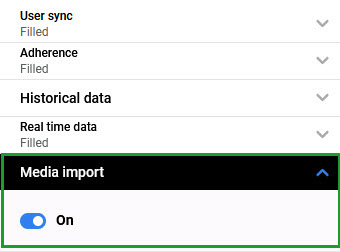
The following configuration can be performed for the task:
-
On/Off - enabling/disabling the media import.
Deleting Configuration
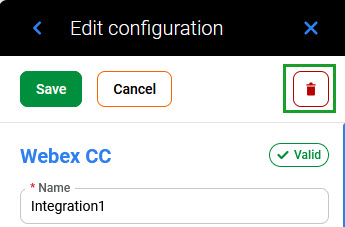
To delete the configuration, click on it to open the configuration tile and then click the Delete button in the top right corner.