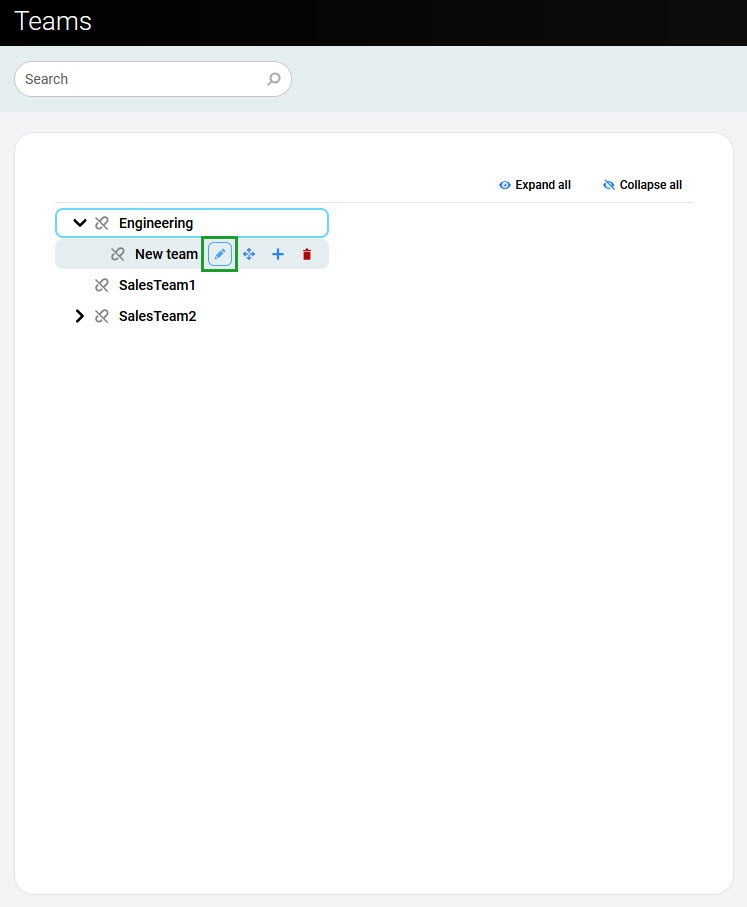
To edit existing teams, go to the Teams screen, select a team, and click the Edit icon (a pen).
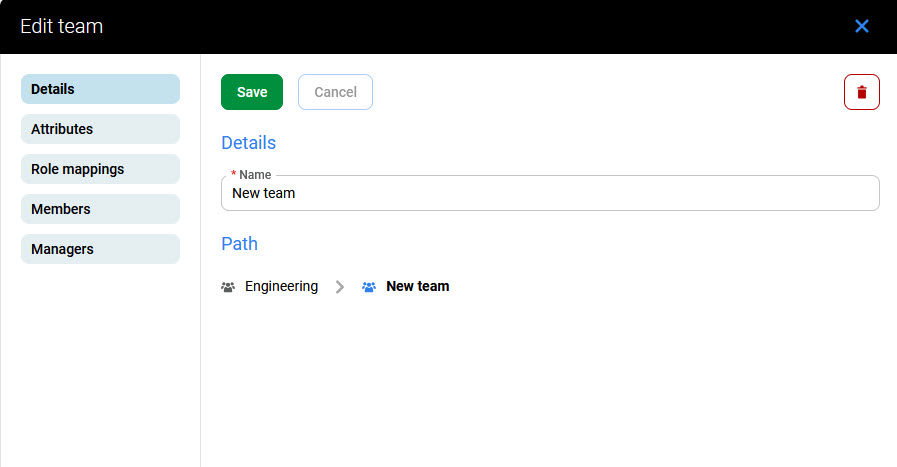
The team configuration screen opens. Any attributes and role mappings defined are inherited by the teams and users who are members of this team.
After adding a new team, the configuration screen opens automatically.
Details
The Details tab displays the team name and tree structure. Edit the team name here if needed.
Attributes
The Attributes tab configures team attributes. All team members inherit these attributes.
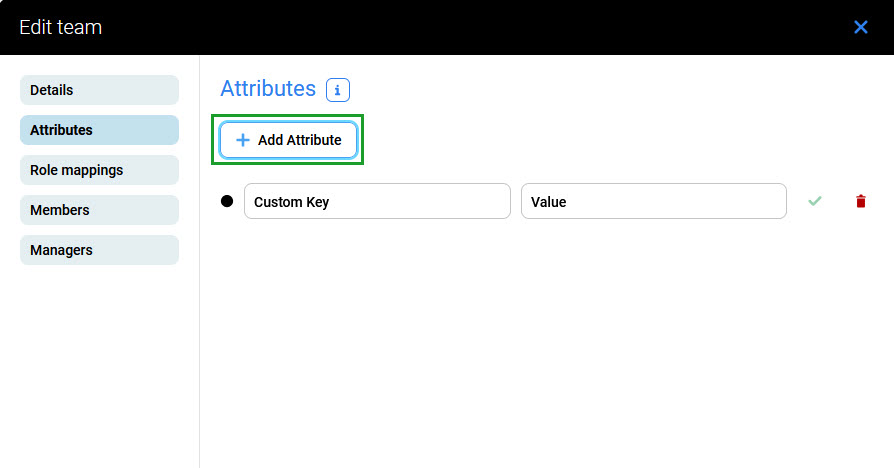
See the Editing Users page.
Role Mappings
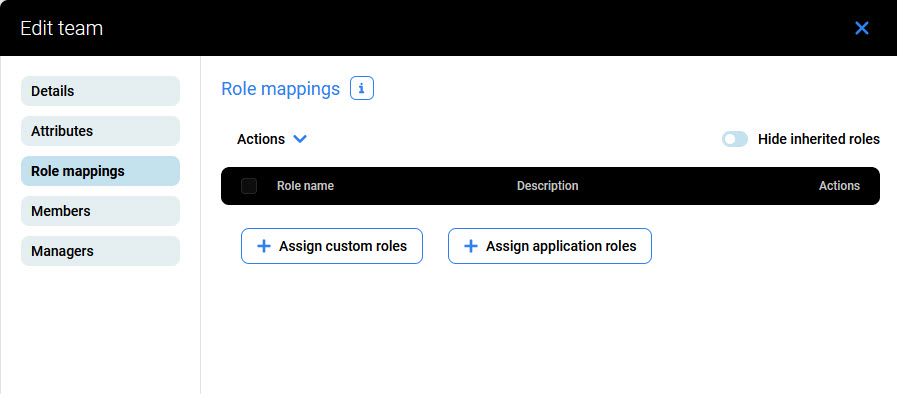
Open the Role Mappings tab and use the Assign Custom Roles and Assign Application Roles buttons to assign roles to a new team. A new team has no roles assigned.
To assign or unassign roles, follow the steps on the Assigning Roles page.
Members
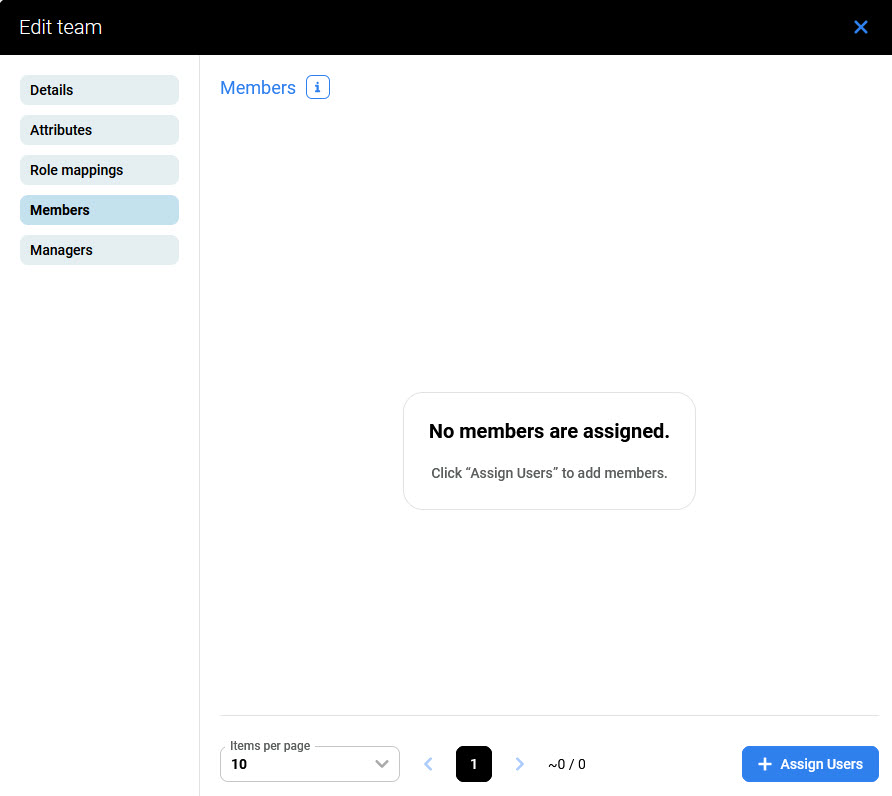
The Members tab shows all team members and allows new members to be added.
See the Adding Users to Teams page.
Managers
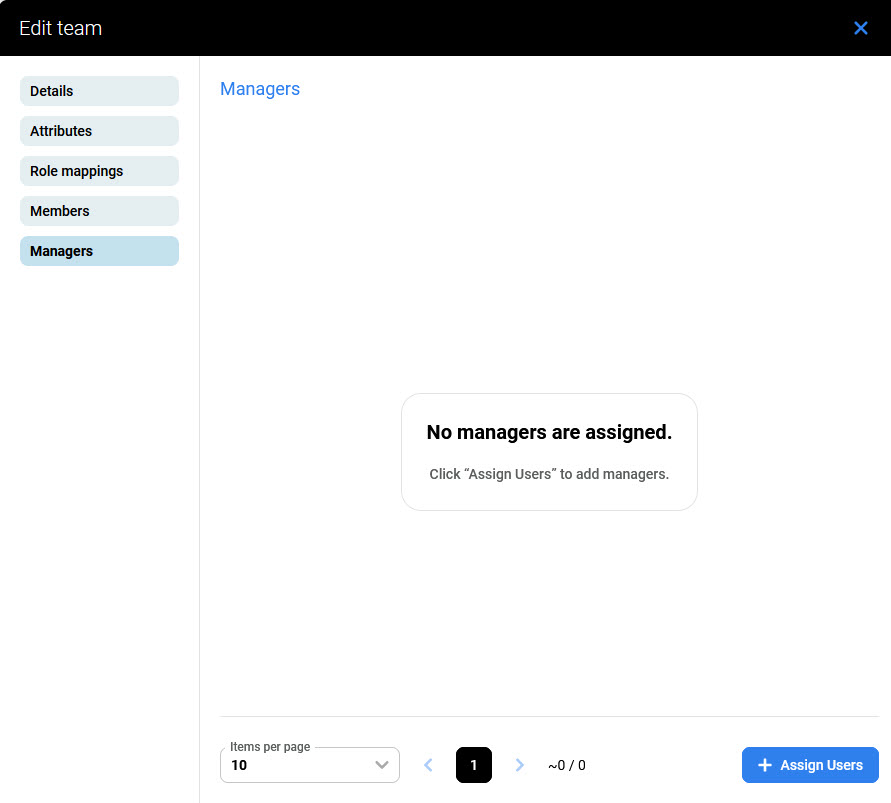
The Managers tab shows all users who are the team managers (can review that team in Quality Management) and allows new managers to be assigned.
See the Assigning Managers to Teams page.