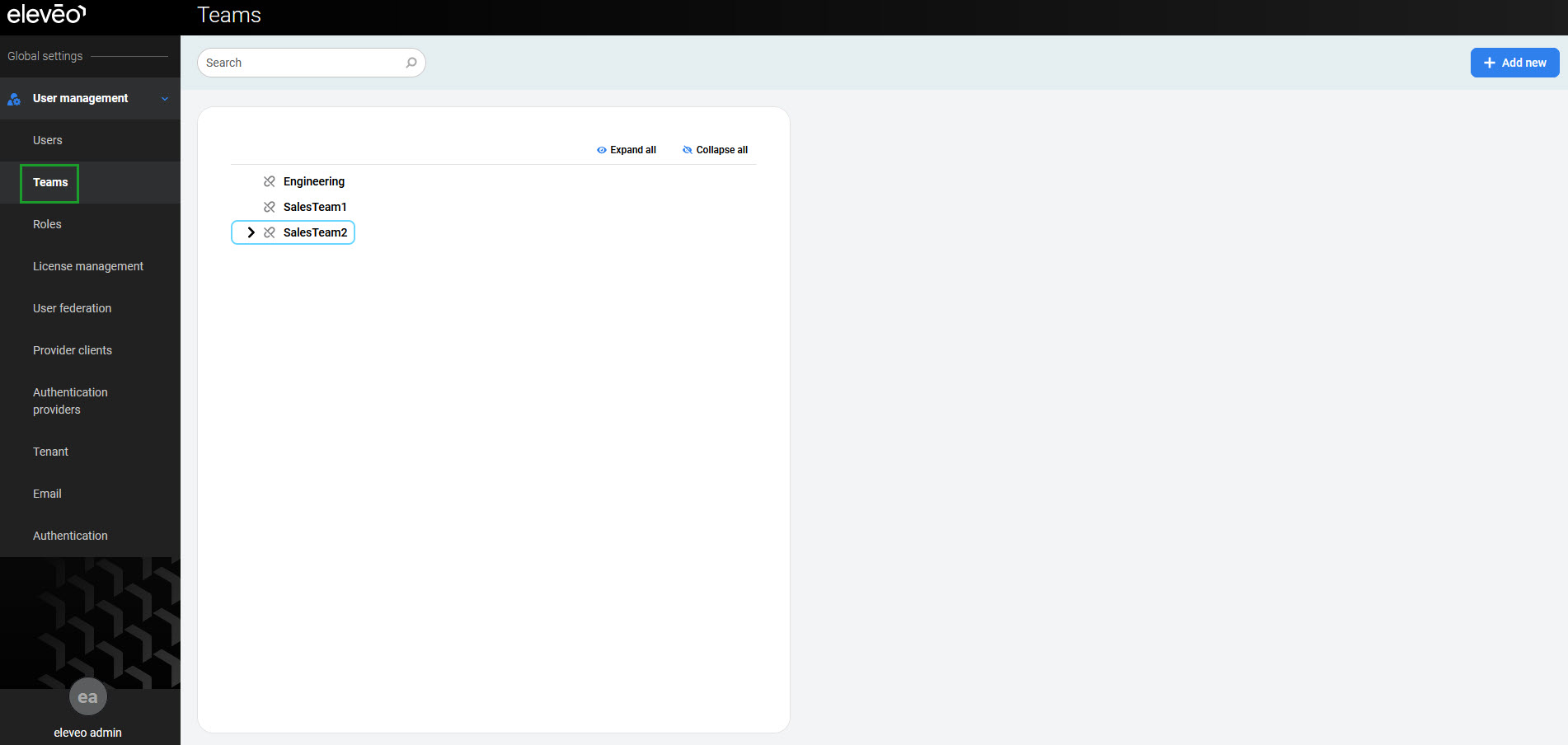
To display teams, click User Management > Teams within the navigation tree on the left. The Teams screen opens.
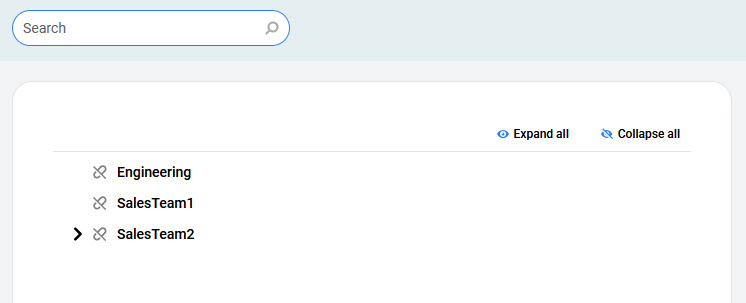
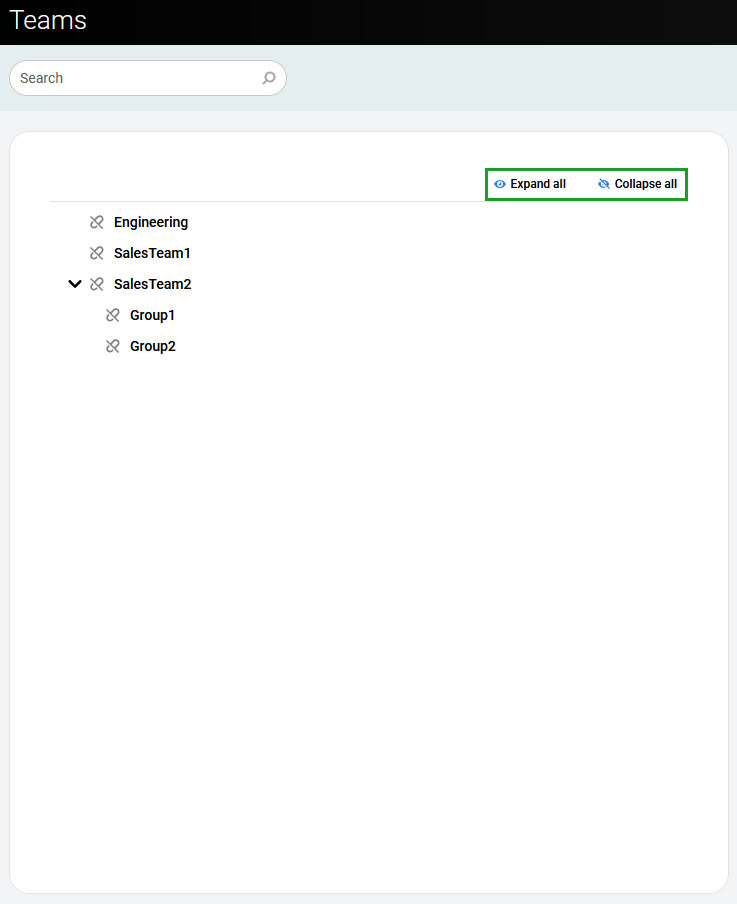
Teams are presented as a hierarchical structure. Click Expand all to expand the tree structure. Click Collapse all to hide them again.
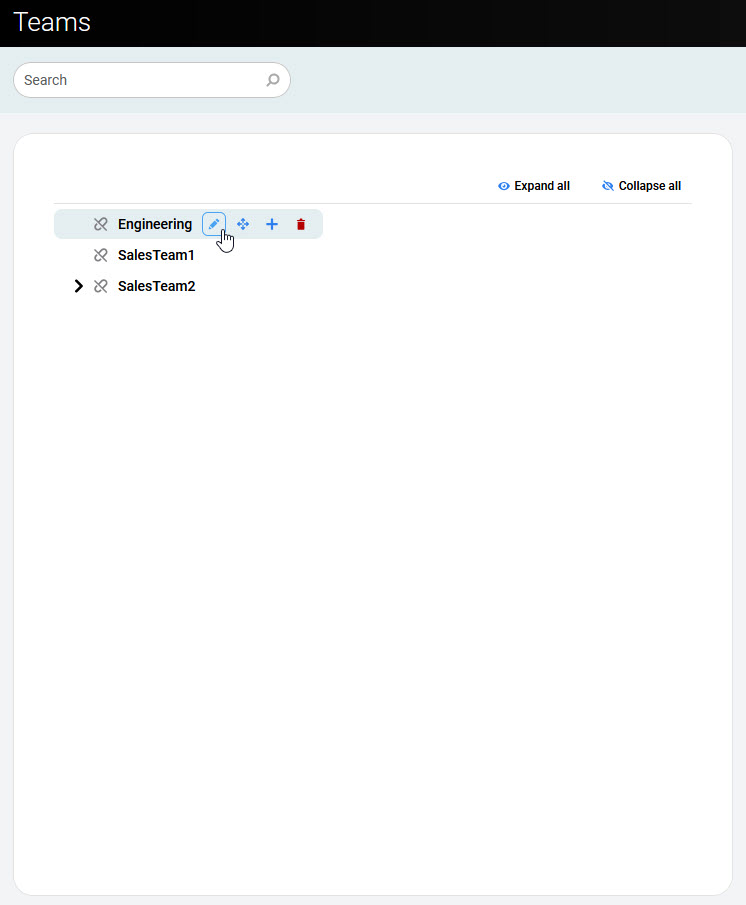
Hover over a team to access the following actions:
-
Edit – access the properties of a team and modify them, read more on the Editing Teams page
-
Move – move the selected team under another team
-
Add – add a new team under the selected team, read more on the Adding New Teams page
-
Delete – delete the selected team
All teams imported from one external source are located under the common parent team. The team's name is the name of the source defined in the User Data Importer (for example, ucce01, uccx01).
To search for a team, enter the team name or part of it in the search box and press Enter. Matching teams appear in the list.