Manual vs Automatic Assignment
Roles can be assigned to users in two ways:
-
Manually from within the User Management UI on the Role Mappings tab, by a user with adequate privileges (as described on this page).
-
Automatically during user import from UCCE/X or Webex Contact Center.
Users with both the manage-users and view-users effective roles assigned from the User Management client application (assigned to eleveo.admin by default) can manually assign roles to other users. They can assign only the roles they have.
If a role was assigned automatically and then removed manually, it is reassigned during the next synchronization.
Manually assigned roles are not removed during synchronization with Contact Center (UCCE/X or Webex).
If the role is assigned during synchronization, Data Importer takes ownership of that role. This means the role may be changed or removed in the future based on data from Сontact Center.
Example
The following scenario illustrates the case described above:
-
A user named Alex is imported from UCCE to User Management. The user is an agent in UCCE, so the
AGENTrole is automatically assigned in User Management as well. -
A local administrator (using the eleveo.admin account) accidentally removes the role.
-
The administrator notices the mistake and reassigns the role manually.
-
During the next synchronization, Data Importer evaluates the user. The user is an agent in UCCE, so the
AGENTrole should be assigned. However, the user already has this role (assigned manually). Data Importer takes back ownership of this user-role relationship, and from now on, the role is considered automatically assigned. -
After some time, the user is promoted to supervisor in UCCE. During the next synchronization, Data Importer assigns a new
SUPERVISORrole instead ofAGENT.
Role Mappings in UI
Start with an Eleveo Specific Role as the primary source of permissions for each user. If additional customization is needed, use Application Roles. Application Roles should not be the primary source of permissions for the initial setup.
Roles in Eleveo User Management are structured into two types:
-
effective roles – privileges that enable specific application functionality, equivalent to permissions (for example,
manage-users) -
composite roles – sets of effective roles, pre-configured to simplify user setup (for example,
ccmanager). Defined separately for each client application.
A user can have one or more composite roles assigned, as well as individual effective roles.
Assigning a Role to the User
By default, new users have only system roles assigned.
-
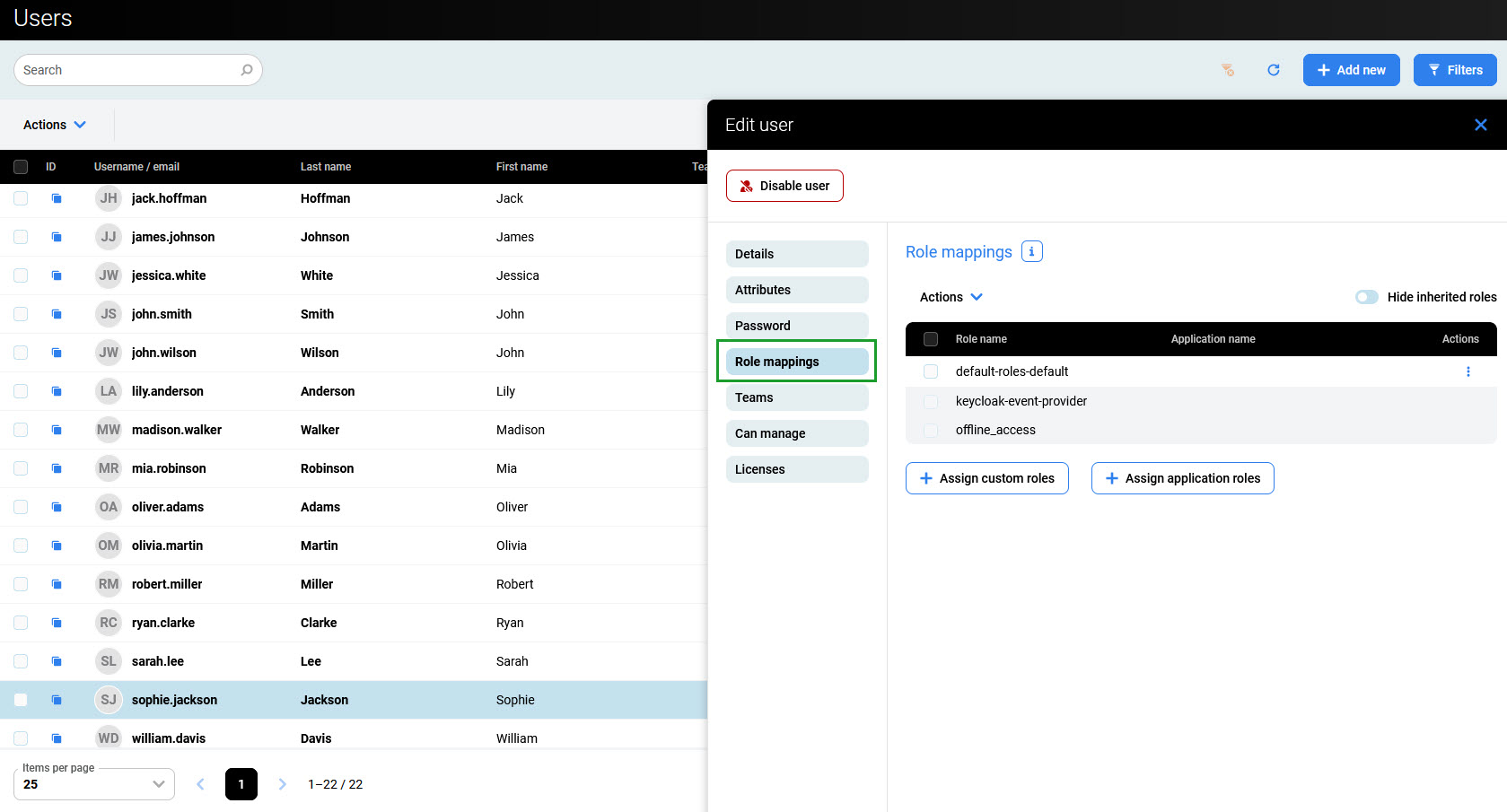
To assign roles to a user, go to the Users screen and click the user's row. Alternatively, expand the user's menu on the right and click Edit.
-
Then go to the Role mappings tab.
Assigning a Role to the Team
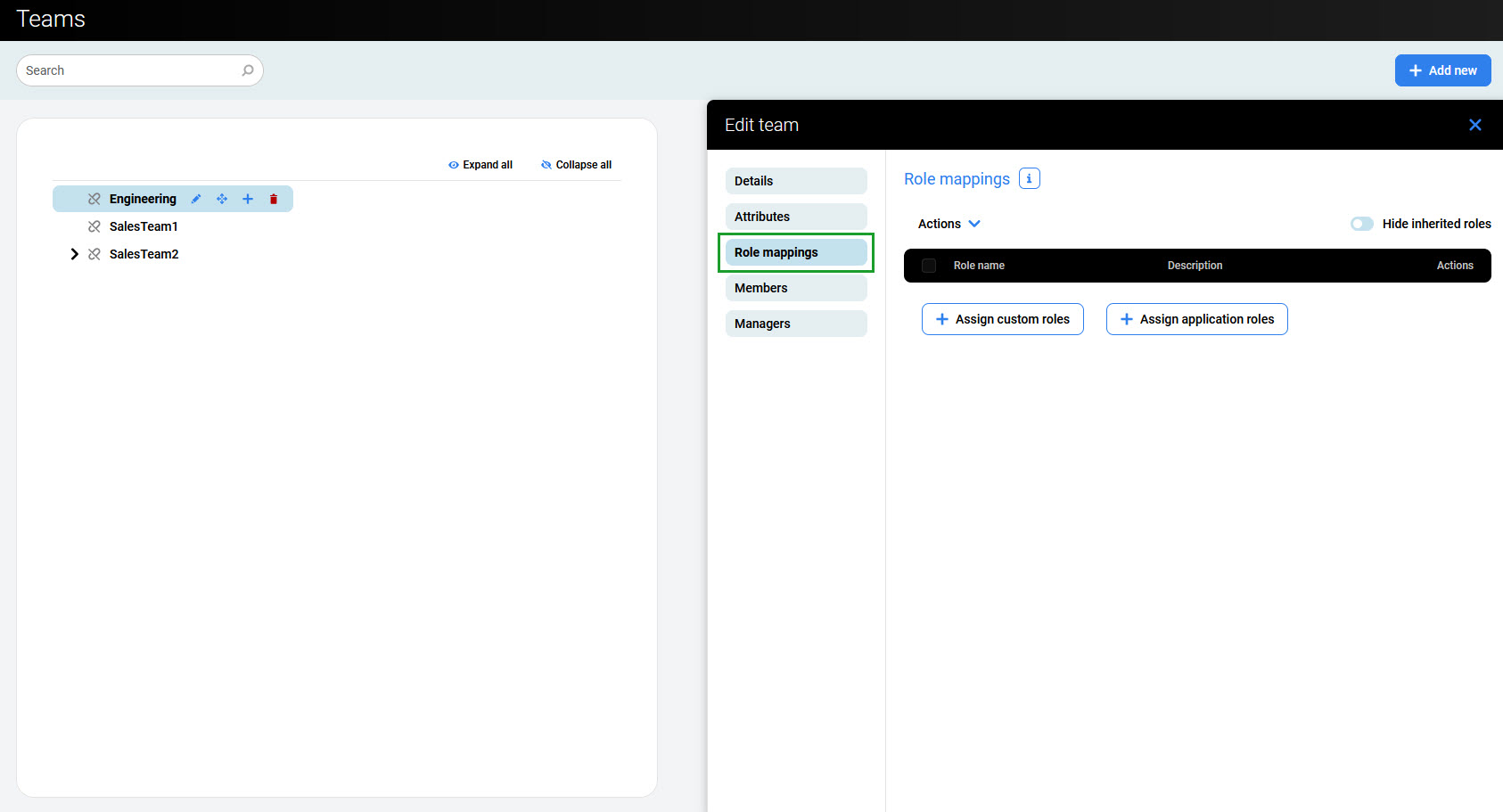
The new team has no roles assigned by default.
-
To assign roles to a team, go to the Teams screen and click the Edit (pen) icon on the right of the team's name.
-
Then go to the Role mappings tab.
Assigning Application Roles
-
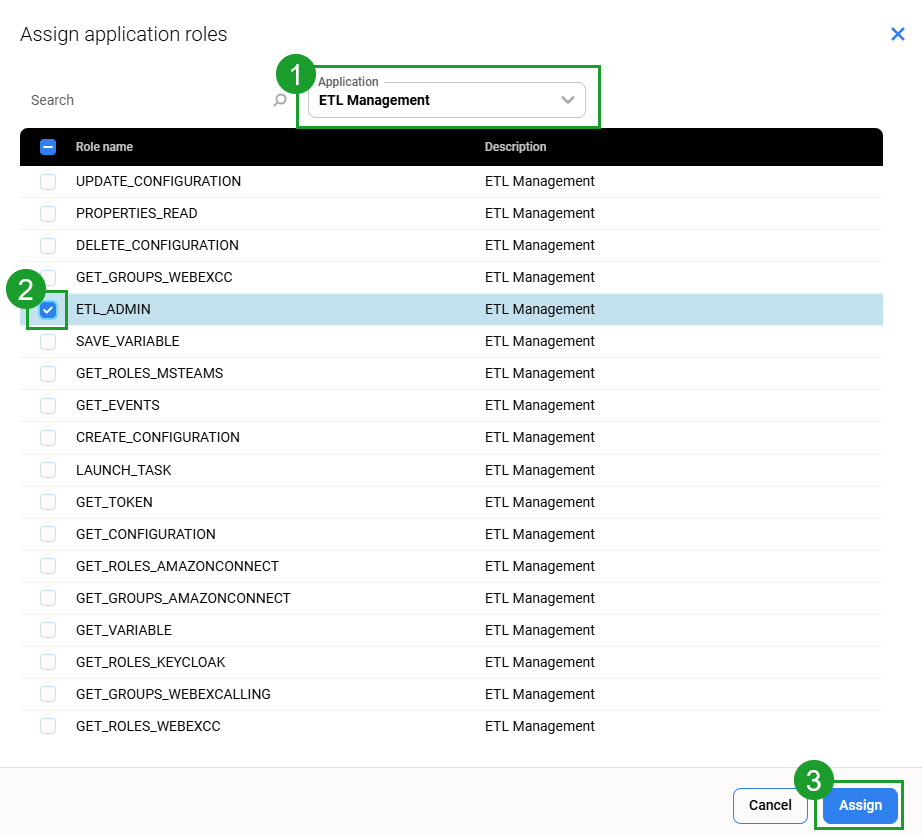
To assign an application role, click Assign application roles and select an application from the dropdown menu:
-
MQM– to assign default roles for Training, Reviews, or Surveys -
Conversation Explorer,Screen Capture,eLearning,LiveMON,WFO Analytics, orGenerative AI– to assign license-specific Quality Management roles -
ETL Management– to assign ETL Management roles -
User Management– to assign User Management roles -
WFM– to assign Workforce Management roles
-
Select roles using the checkboxes and click Assign.
-
The assigned roles and all effective roles they contain (for composite roles) are listed on the Role mappings tab. To hide inherited roles, use the Hide inherited roles switch.
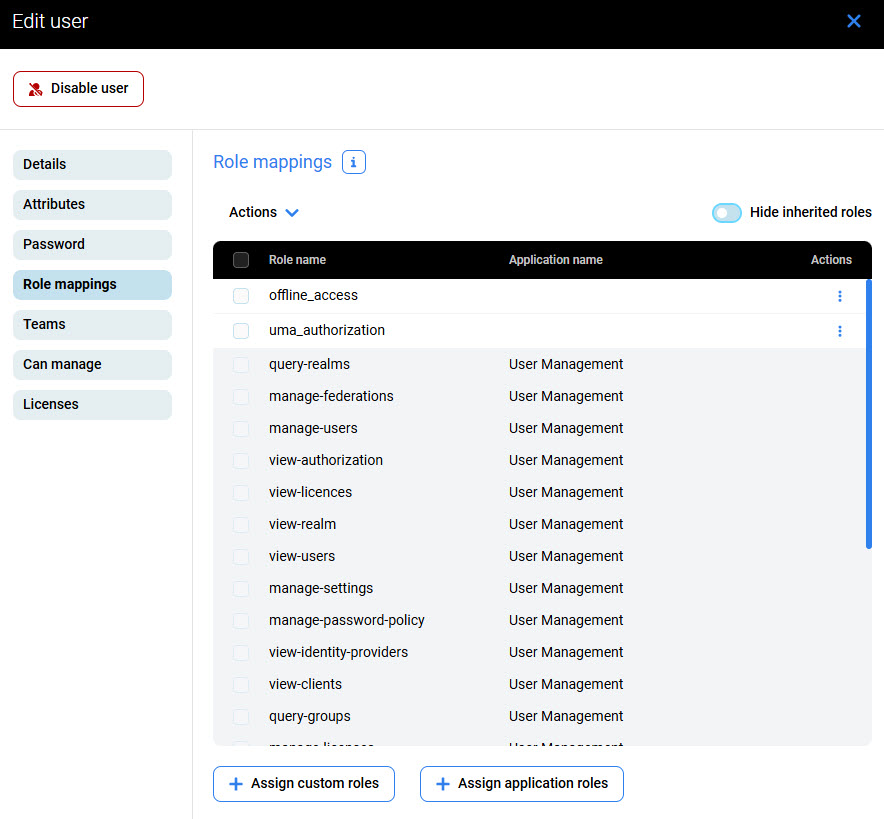
Assigning Custom Roles
To assign a custom role, click Assign custom roles, select roles using the checkboxes, and click Assign. For more information on creating custom roles, see Managing Custom Roles.
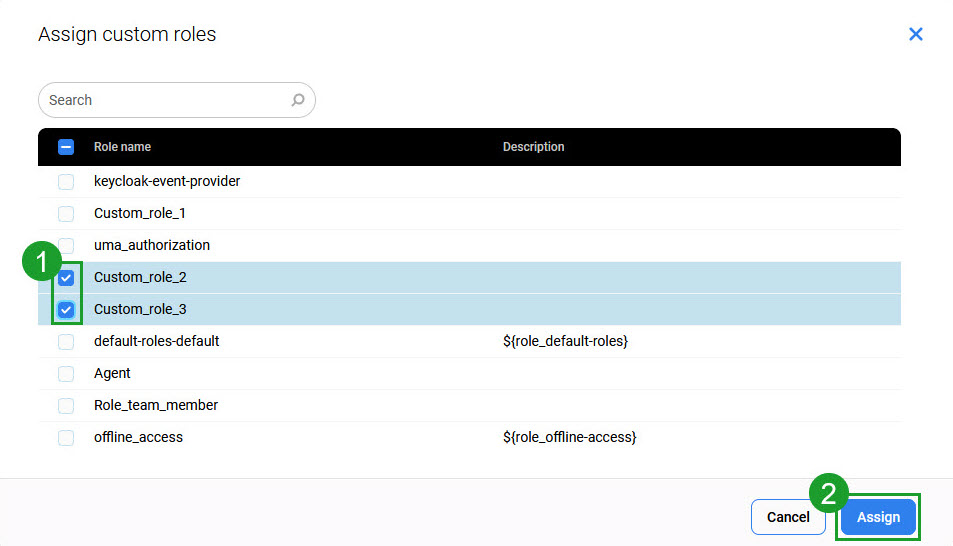
The assigned roles and all effective roles they contain (for composite roles) are listed on the Role mappings tab. To hide inherited roles, use the Hide inherited roles switch.
Unassigning Roles
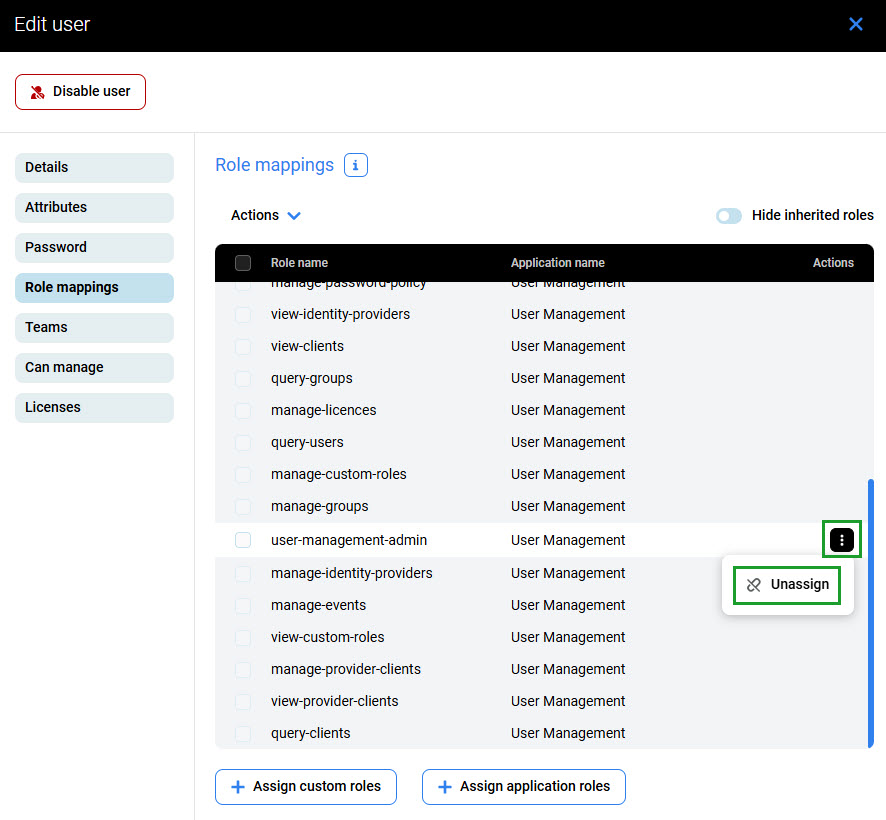
To unassign a role, click the menu icon (three dots) on the right and click Unassign.