
Overview
Licenses for the following applications are managed from within Eleveo User Management:
-
Conversations Explorer
-
Quality Management (Questionnaires, Reviews)
-
Automated QM
-
Generative AI
-
eLearning (Trainings)
-
Workforce Management (WFM)
-
WFO Analytics
-
Surveys
-
Speech Recognition (SpeechREC)
-
Live Monitoring (LiveMON)
Call and Screen Recording licensing is handled separately. User Management itself does not require any additional licenses.
Upload a license as the first step after deploying User Management. The applications listed above do not work without a valid license. License files can be obtained from Eleveo Support using the Partner Portal.
Only eleveo.admin user (or users with a manage-licenses role assigned) can manage licenses.
Accessing User Management
If accessing User Management for the first time, proceed as described on the Login to User Management page.
Consuming a License
Licenses are consumed as soon as roles are assigned to users. The following rules apply:
-
An enabled user with at least one application role assigned consumes one license for that application.
-
If an application role is assigned to a group, each group member consumes one license. Make sure the correct number of licenses is available.
-
One user can consume the same license only once, regardless of whether the role is assigned to the user, a group, or both.
-
Users imported from User Federations (for example, UCCE) also consume licenses — a first-come, first-served logic applies.
-
The Default Users (eleveo.admin and eleveotrain) do not consume any license.
Example
There are 1000 users imported into User Management. The WFM_AGENT role was assigned to the AGENTS group containing 30 users, and the WFM_SCHEDULER role was assigned to two users. As a result, 32 WFM licenses were consumed.
Types of Licenses
The following types of licenses can be issued:
-
commercial inactive – the first license file obtained from Eleveo Support, used to generate an activation key in User Management
-
commercial active – the final license file provided by Eleveo Support based on the activation key
-
temporary – license issued for a short period of time, without an activation key; can be used to evaluate the product
Grace Period
Activate the license file immediately after receiving it. There is a 30-day grace period from the date of issue. At 00:00 on the 30th day, an inactive license stops working.
Expiration Period
When a license expires, access to applications is blocked. eleveo.admin must import a new license file into User Management. To receive advance notification about license expiration, set the Expiration notification in days value on the Tenant Settings page. For more information, see Managing Tenant Settings.
Interactive Guide
Displaying License Information
To display license information, click User management > License management in the navigation tree on the left. The License Management screen opens. The table contains details of the uploaded license.
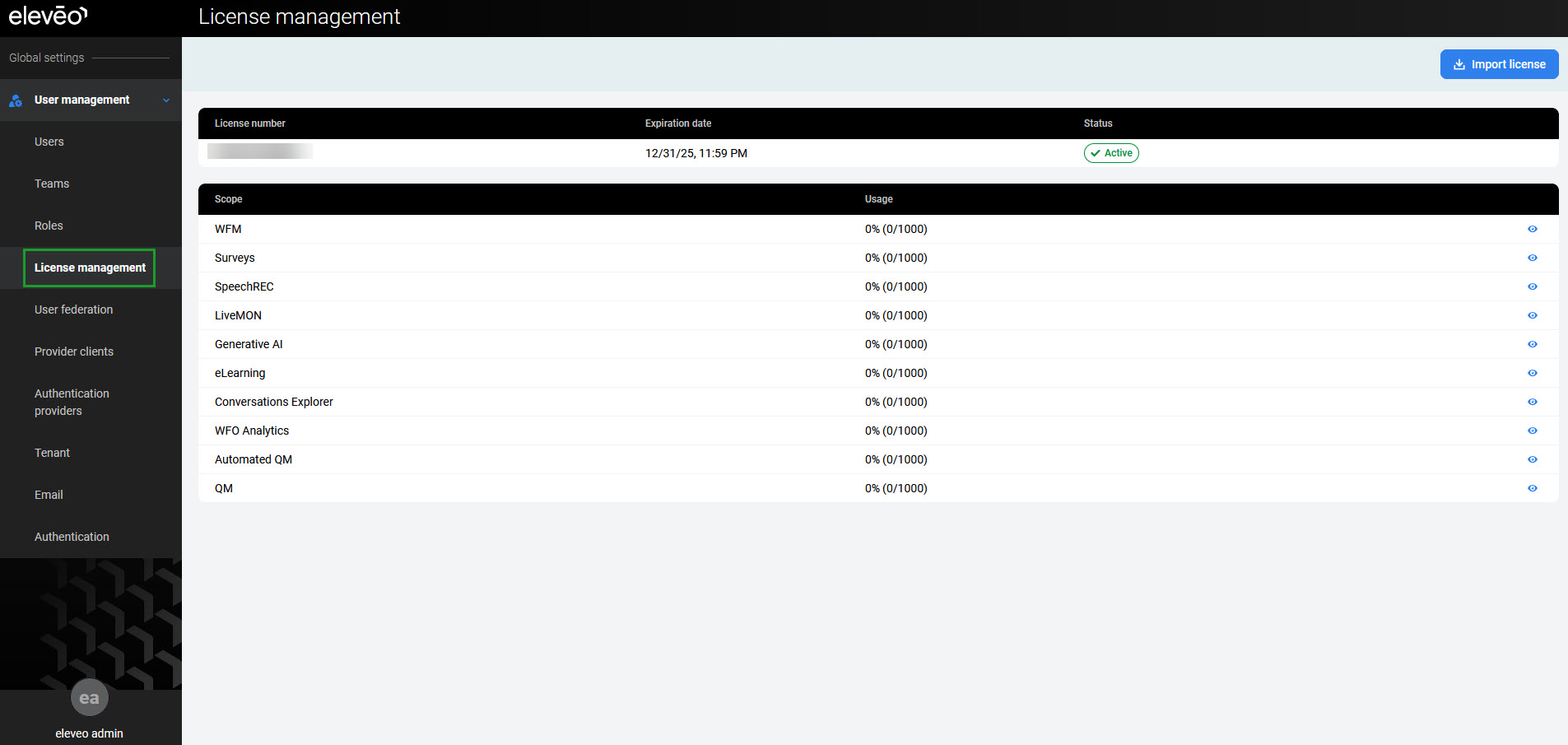
The following information is displayed in the table:
-
License Number – number of the license
-
Expiration Date – date when the licenses expire
-
State – OK when the license is active, NOT_ACTIVATED, or EXPIRED
-
Scope – list of the licensed applications and components
-
Usage – percentage and number of consumed licenses per application or component
To display the scope details, click the View details icon (eye).
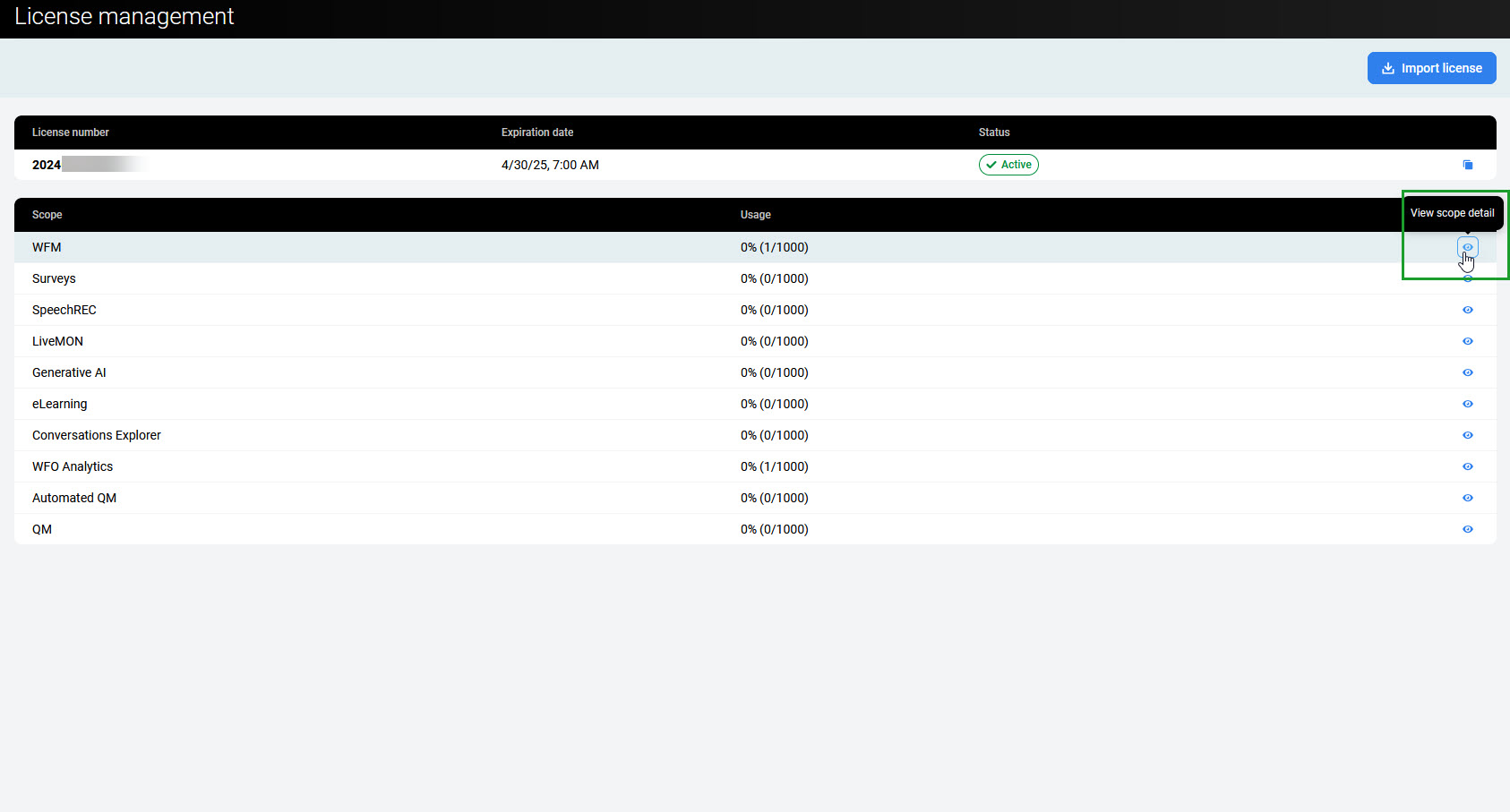
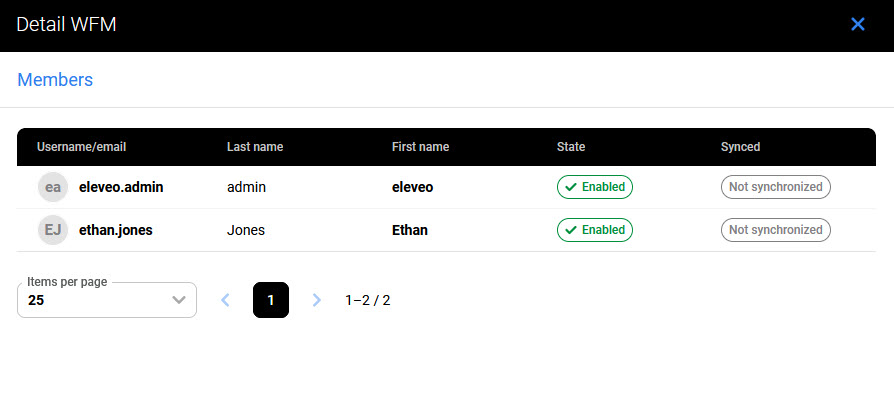
The Detail pane opens. It contains all users assigned to that license.
To receive advance notification about license expiration, go to Tenant Settings and configure the Notification of Expiration (Days) value. An email is sent to all users with the manage-license role, before the configured number of days of expiration. Make sure all these users have an email address configured in their settings.
Importing Licenses
The activation process consists of the following steps:
-
Import a commercial inactive license.
-
Activate the commercial inactive license.
Or:
-
Import a temporary license.
To import a license, access User Management at https://<FQDN>/app/um. Navigate to User Management > License Management in the navigation tree on the left. The License Management screen opens.
Importing a Commercial Inactive License
Click Import license and select the license file obtained from Eleveo Support (not yet activated).
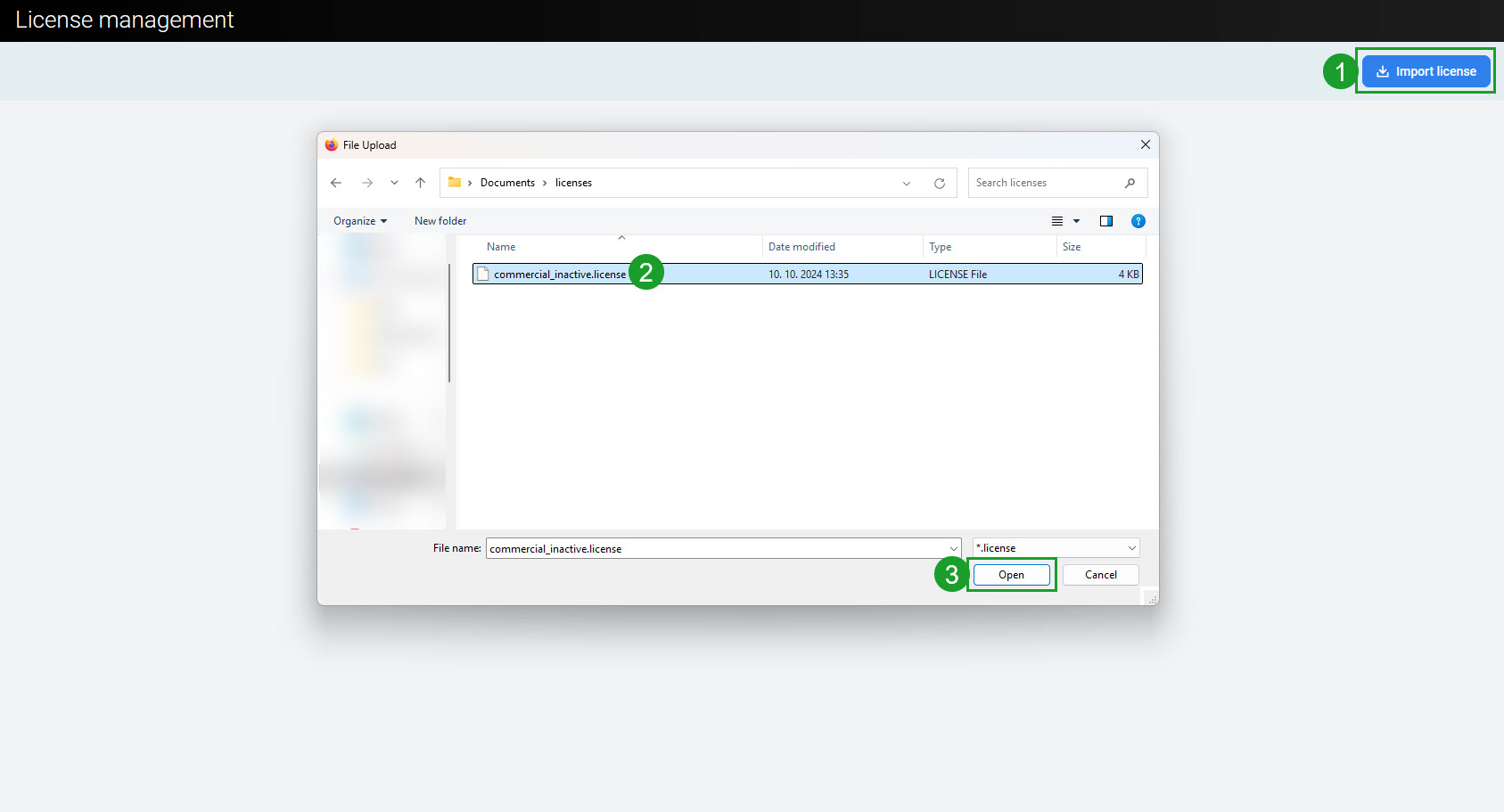
The license is imported.
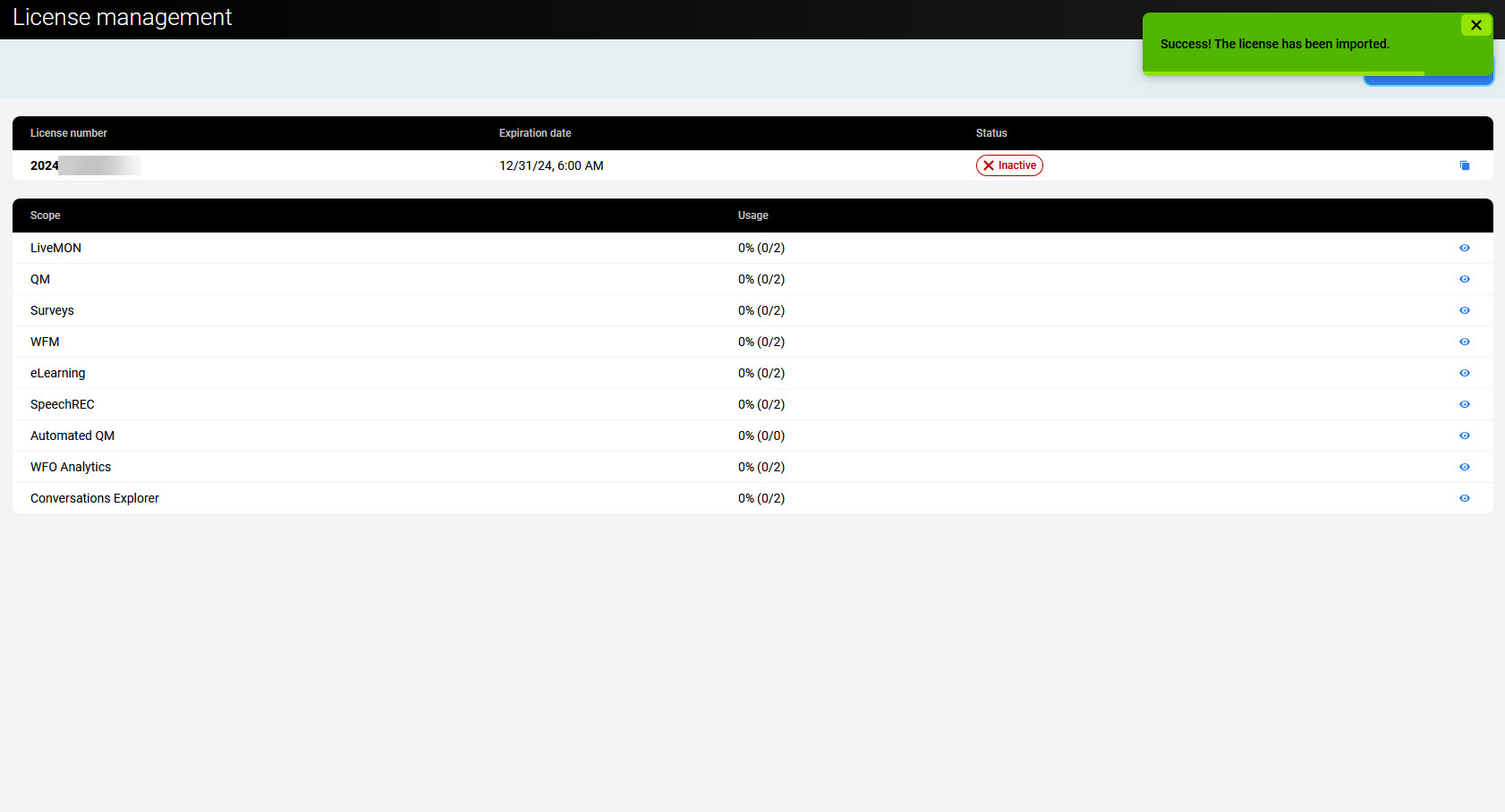
After the inactive license is uploaded, an activation key is generated based on a unique installation ID.
Click Copy license key to copy the key. Then paste it into the Support contact form on the Partner Portal.
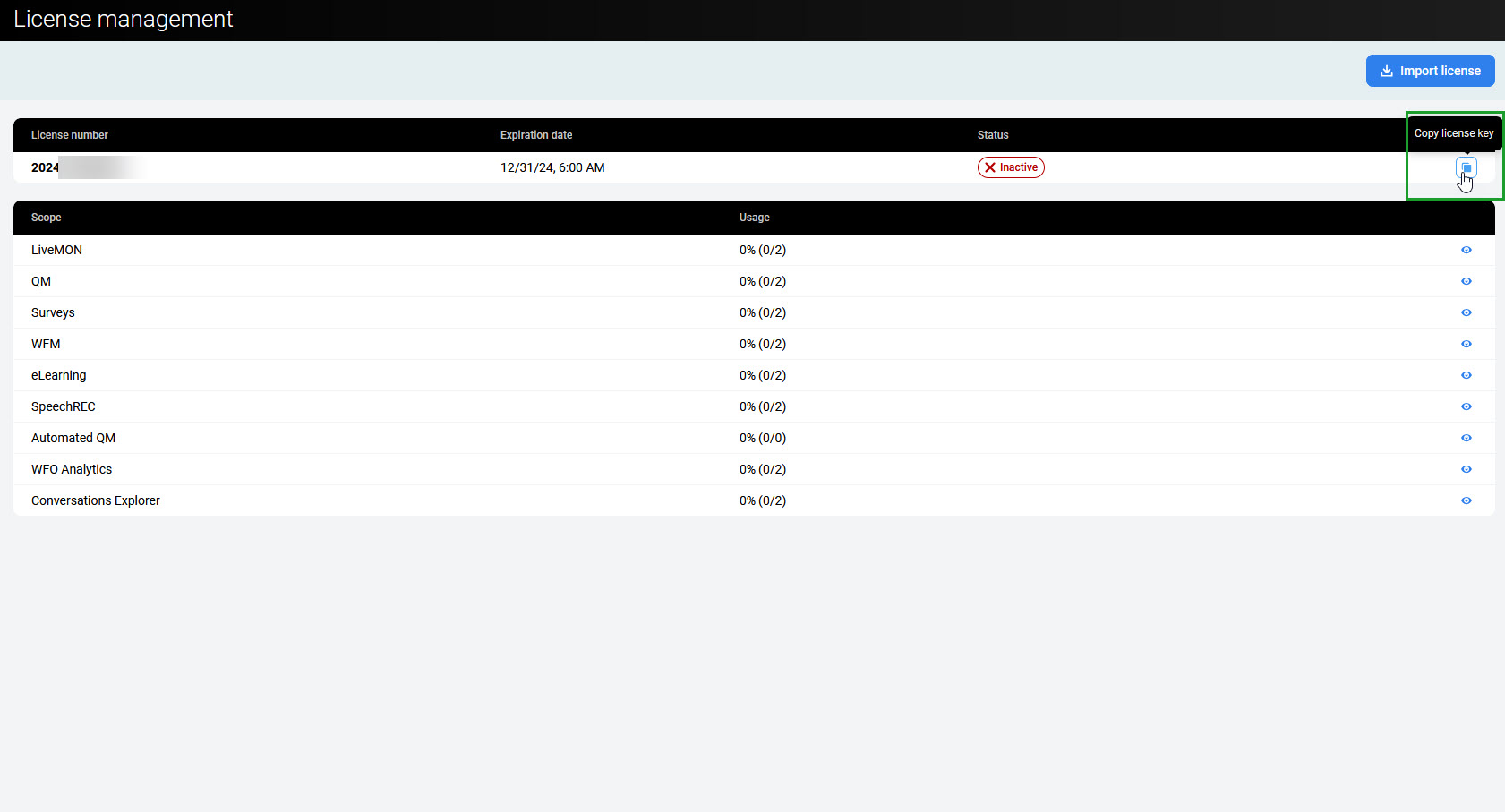
Support sends back an activated license file. Save the file in an accessible location and do not rename it. Then proceed with the activation steps below.
Activating a Commercial Inactive License
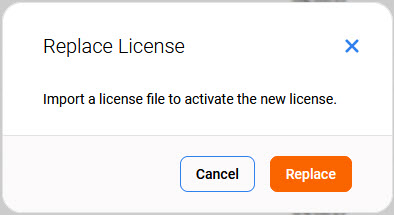
Go back to the License Management screen. Click Import license again and select the activated license file. When asked to replace the license, click Replace.
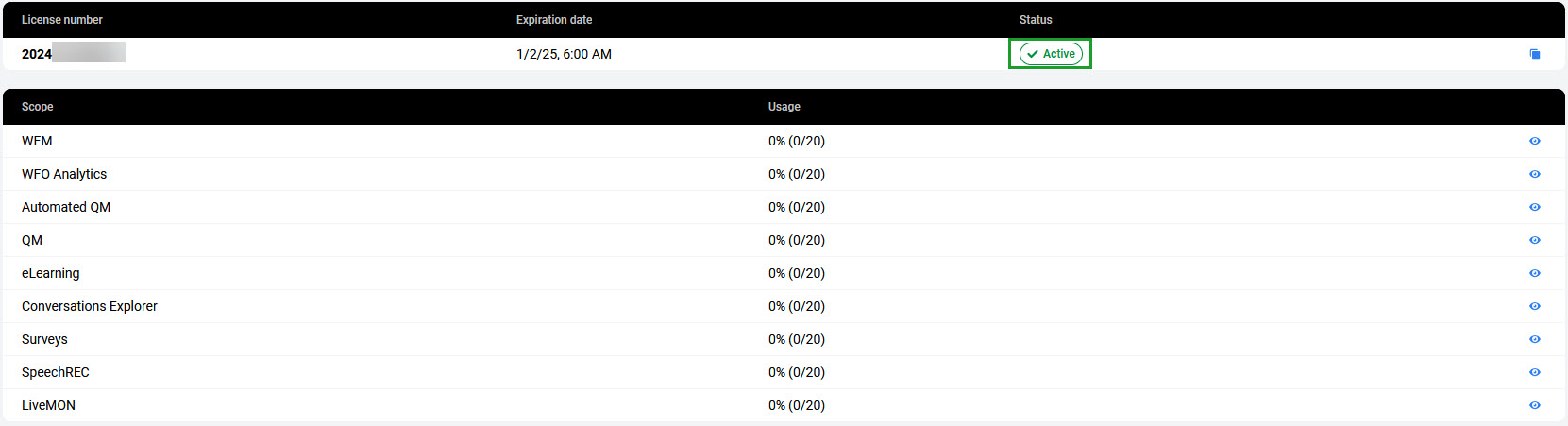
The license details are updated, and the status changes to Active. Verify that the uploaded license is correct.
Importing a Temporary License
Click Import license and select the temporary license file obtained from Eleveo Support.
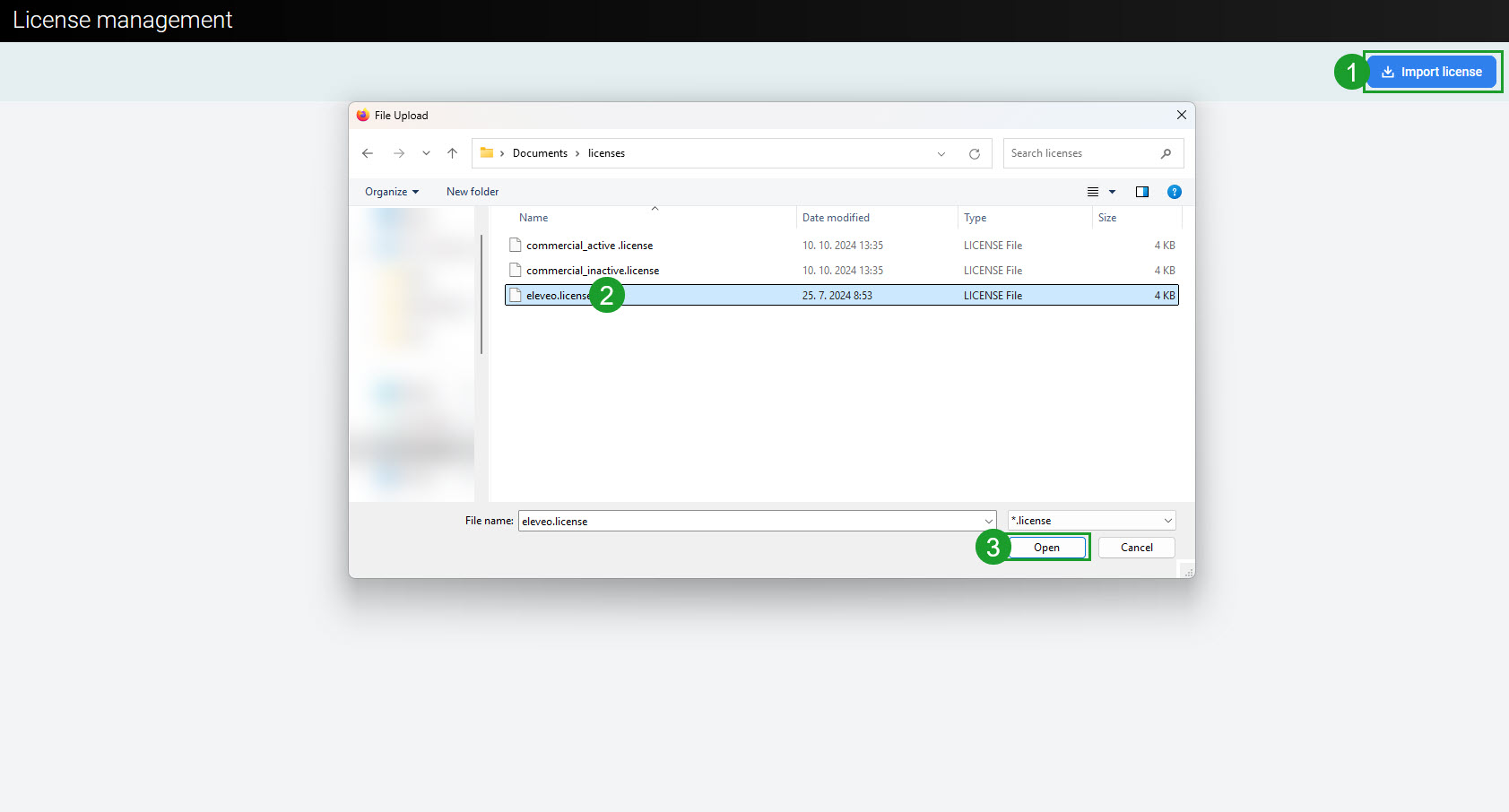
Once uploaded, the temporary license is immediately activated. There is no need to copy and send the activation key.
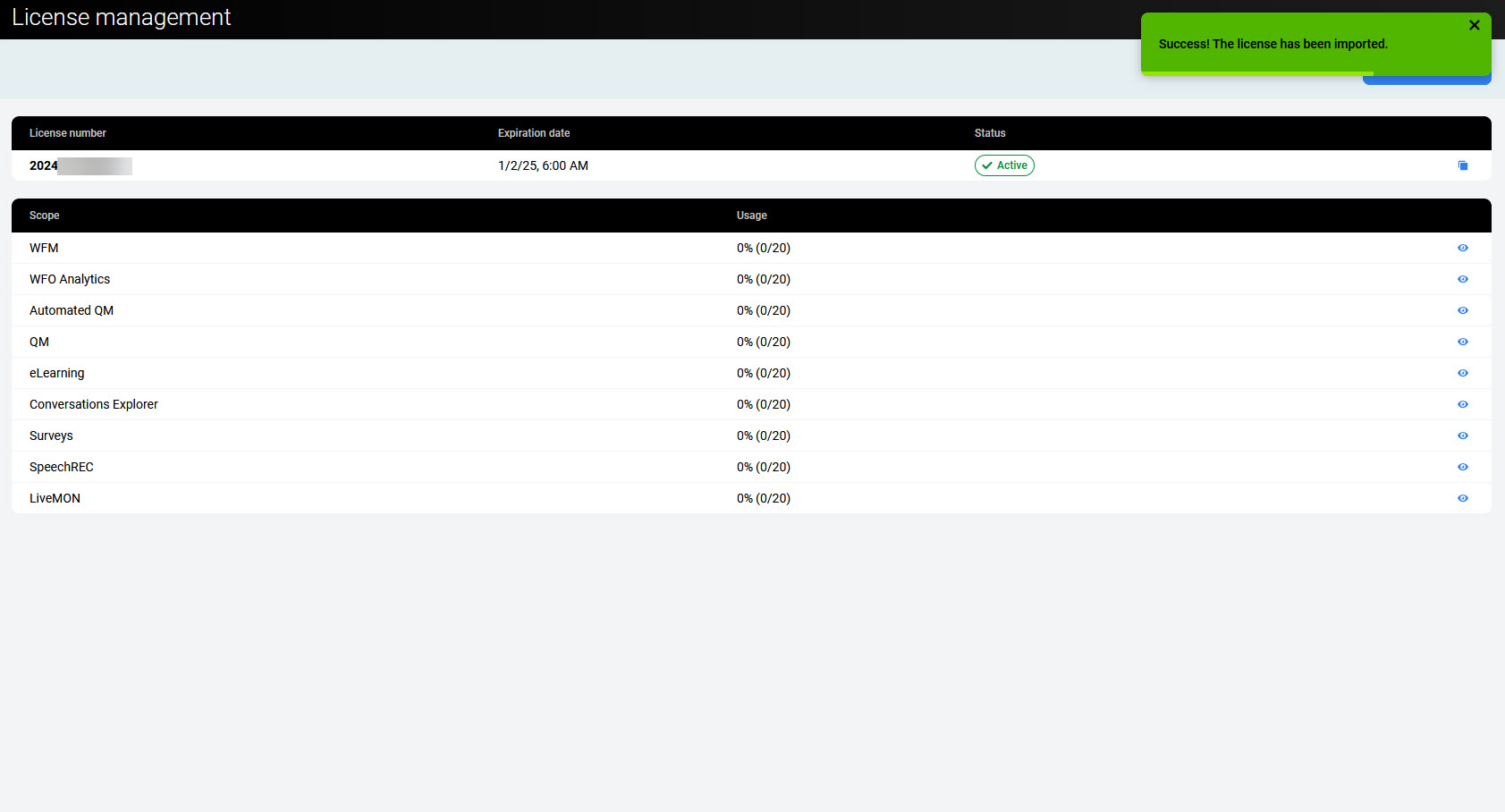
Verify that the uploaded license is correct.
Interactive Guide
Displaying License Consumers
Licenses are consumed after users are assigned roles (see the Consuming a License section above). To display users who consume a license, click the View scope detail icon (eye). The Detail pane opens. License consumers are listed in the Members table.
If the number of licenses is exceeded, the UM admin receives an email specifying which Eleveo Tenant is affected and which application is trying to consume licenses above the limit.
Users may experience issues accessing services until license usage is adjusted.
To extend licenses, contact your Eleveo sales representative or the Sales team at sales@eleveo.com. For technical issues, contact the Support team at support@eleveo.com.
Potential Issues
|
Issue |
Reason |
|---|---|
|
A user cannot be enabled |
The license for this user's roles was not assigned because the number of users exceeded the license capacity. |
|
A user has no access to any application except User Management |
The license has expired or no license was uploaded. |