
Provider Clients allow Data Importers to import data into User Management or other Eleveo applications. Adding a Provider Client is the first required step before deploying a WFM Data Importer (used by Eleveo WFM) or User Data Importer (used to import users and groups from UCCE/X).
To add a new client, click User management > Provider clients in the navigation tree on the left. The Provider Clients screen opens. Click Add new.
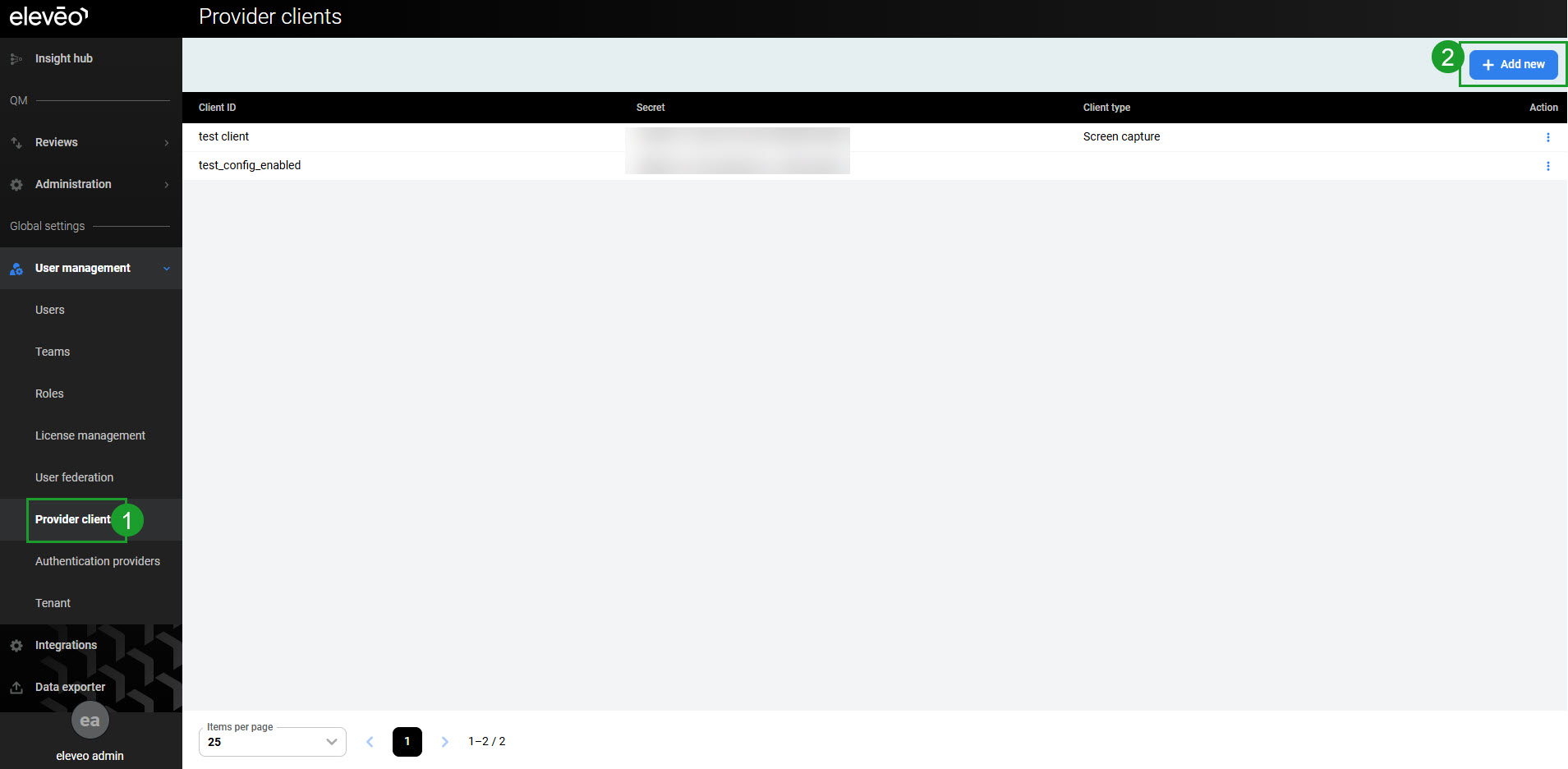
The New client pane opens.
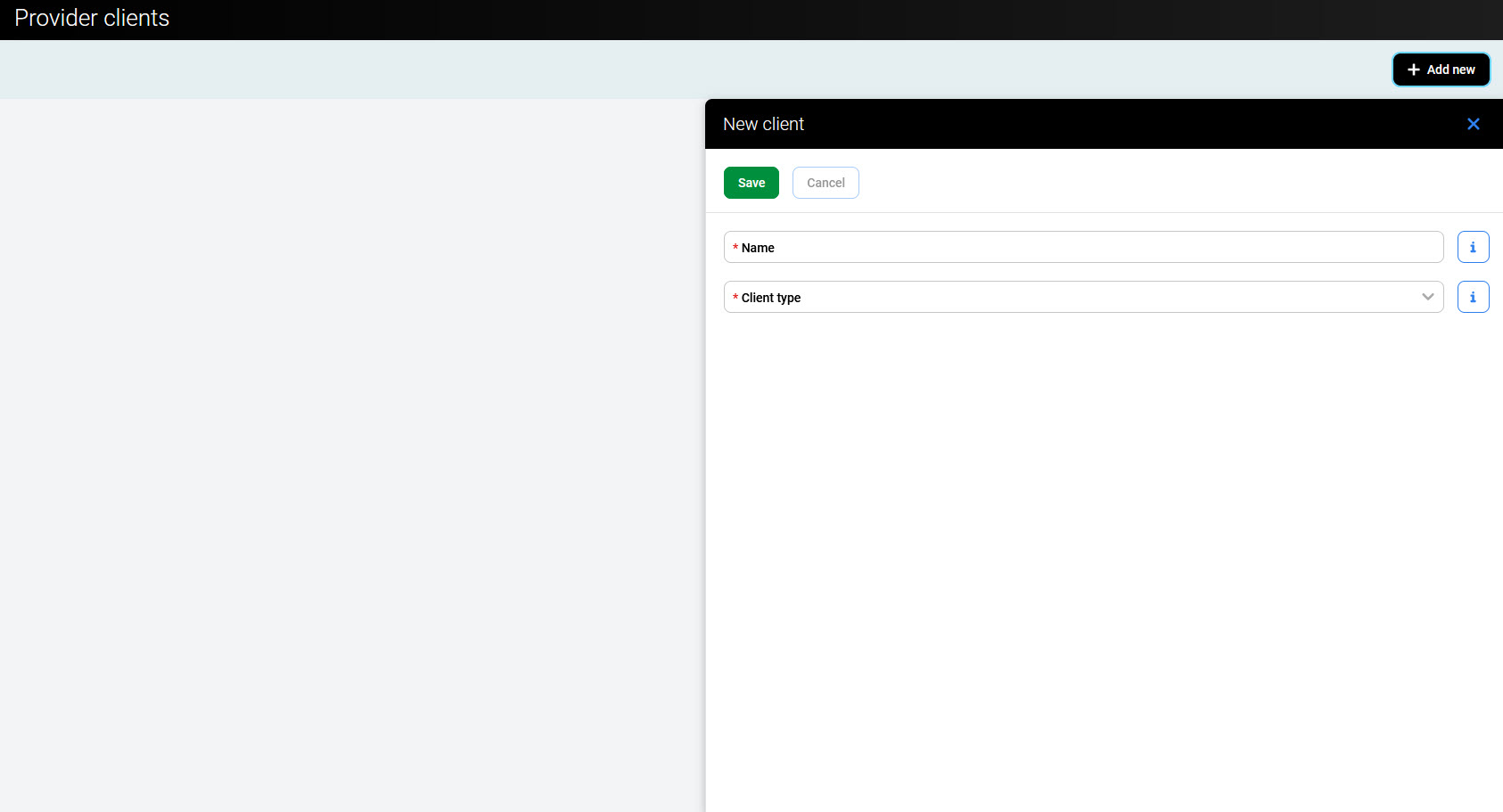
Configure the following fields:
-
Name – name of the client (for example,
ucce-user-pusher-apporuccx-user-pusher-app) -
Client type – select the correct type from the dropdown menu (see below)
Select the correct Client type based on the intended use:
-
CTI events import – to import Agent State events from Cisco CTI servers in real time into Eleveo
-
User import – to import users and groups from UCCX, UCCE, or CUCM servers into User Management
-
Cloud integration – to import calls and metadata from an on-premise server into a server in the cloud
-
Screen capture – to authenticate CCaaS (Cloud) Screen Capture clients against the Eleveo solution
-
Historical data import – to import historical and adherence data from UCCX or UCCE servers into the WFM application
-
Export integration – to download files from Interaction Service and export JSON files from Quality Management
-
Import integration – to import new integrations into Interaction Service and upload chats and emails into Quality Management
The ETL basic, ETL user import, and ETL historical data import Provider Clients are created automatically as part of the ETL Manager configuration, for example, when setting up integration with Webex Contact Center. Do not add them manually in the User Management UI.
Click Save to create the provider client.
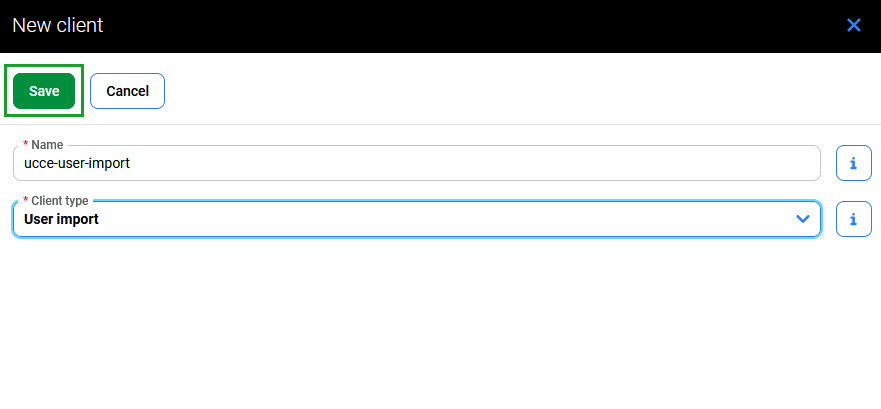
The new client is listed on the Provider clients screen. The Client ID and generated Secret are needed later during the Data Importer configuration.
Only new Provider Clients (added in the version 10.3) will have the Client type displayed in the table. All existing Provider Clients (add in previous versions) will have a blank space in the Client type column.
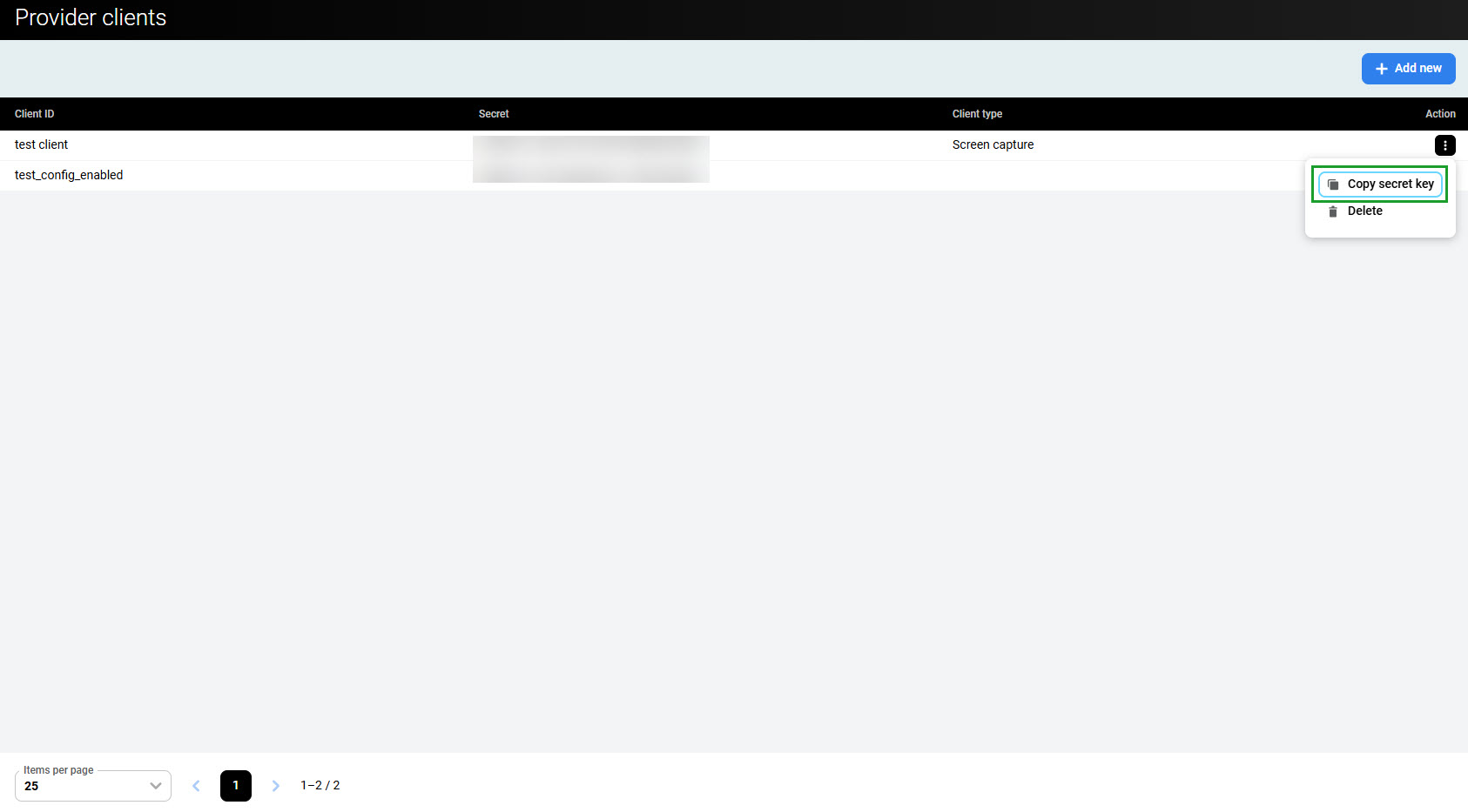
To copy the secret, expand the client's menu on the right and click Copy secret key.
Removing the Provider Client
To remove a Provider Client, expand the client's menu on the right and click Delete.
After removing a Provider Client, all imported users become local. If a Provider Client with the same name is added again later, these users remain local.