Overview
Managers can be assigned to teams manually in User Management or automatically during an import from Contact Center (Webex CC or UCCE/X). A manager assigned to a team can review agents in that team and all its subteams.
If a team is manually assigned to a user who is synchronized with Contact Center, this change is lost after the next synchronization.
For local users:
-
Only users with the
EVAL_AGENTSeffective role can review agents in their assigned teams and subteams. -
Only users with the
PLAN_team_EVALSandPLAN_ALL_EVALSeffective roles can schedule reviews for assigned teams.
Main Team Rules
QM and WFM recognize membership in one team only. This team must be marked as the main team in User Management. A manager must have the agent's main team assigned to manage those agents.
-
If a user belongs to one team only, that team is set as the main.
-
If a user belongs to more than one team, only one can be set as the main.
-
If a user is removed from the main team, the first available team, sorted alphabetically, becomes the new main team.
Assigning Managers to Teams
-
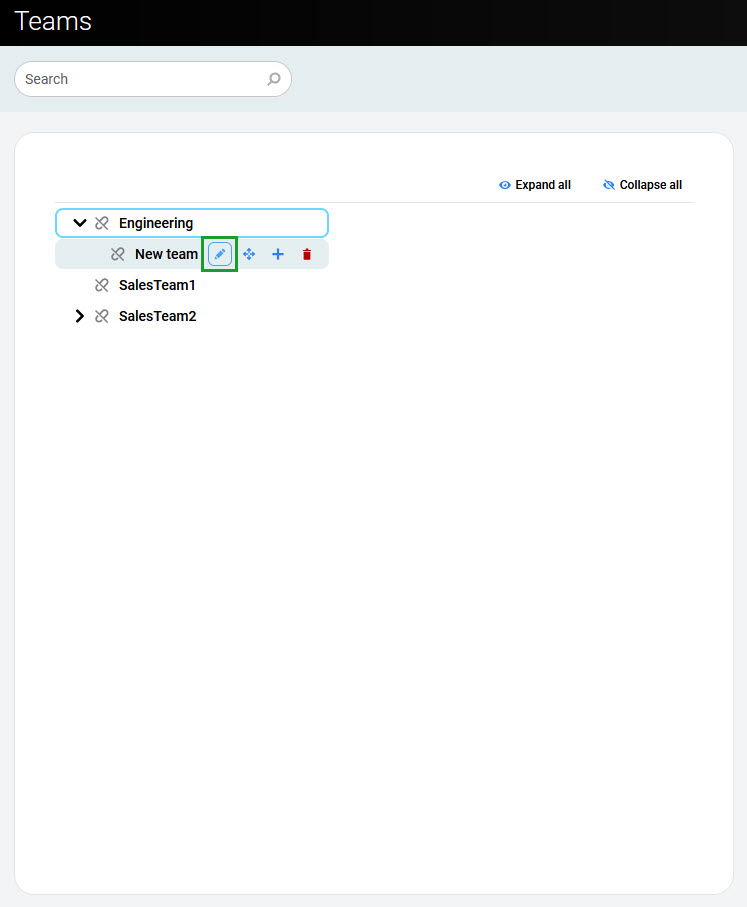
Go to the Teams screen.
-
Select a team and click the Edit

-
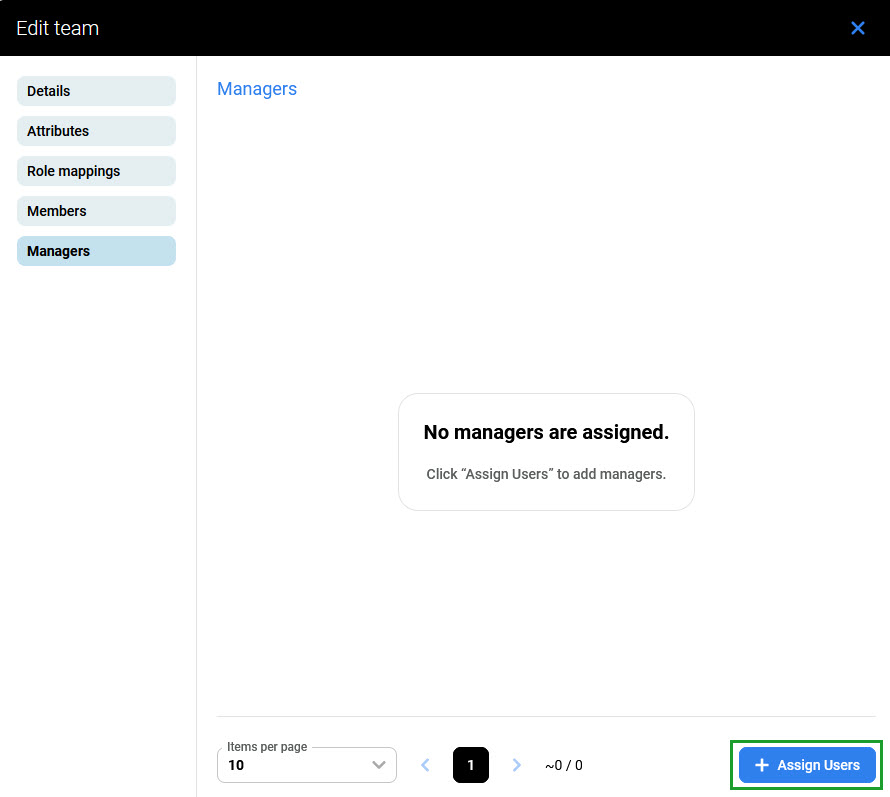
Go to the Managers tab. It shows all users who are team managers (can review that team in Quality Management).
-
Click Assign Users in the bottom right corner.
-
A new window opens, displaying all existing users. Select the users to assign, then click Assign.
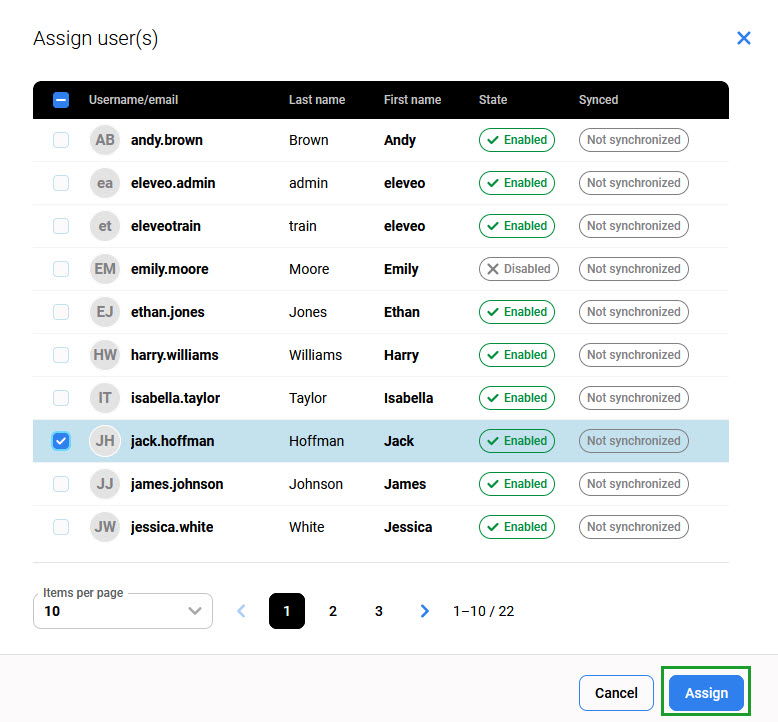
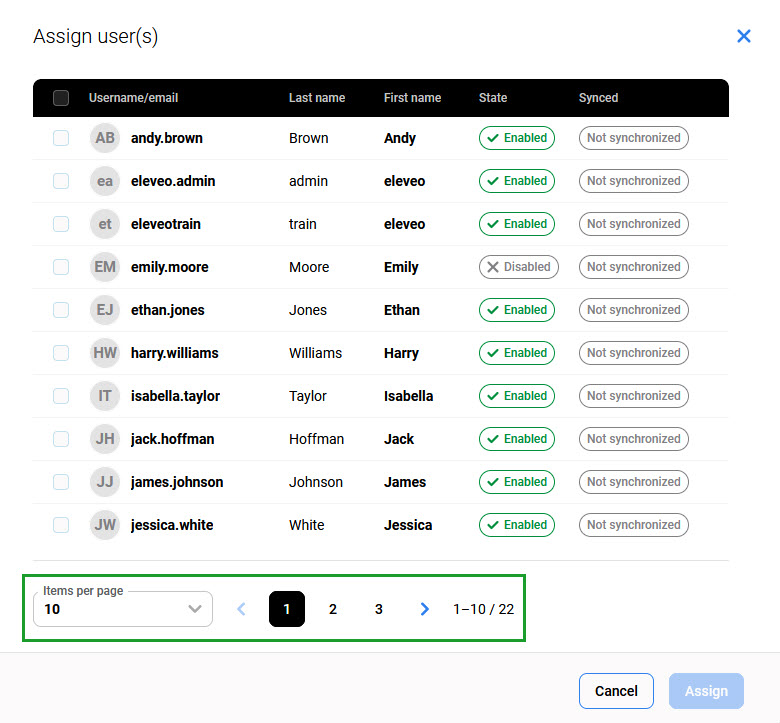
To adjust the number of users displayed per page, use the pagination controls at the bottom. Use the arrows or page numbers to navigate between pages.