
The manage-settings role is required to see the Tenant Settings menu item and manage the default time zone settings. eleveo.admin has the manage-settings role assigned by default, as part of the user-management-admin composite role.
Click User management > Tenant in the navigation tree on the left. The Tenant Settings screen opens.
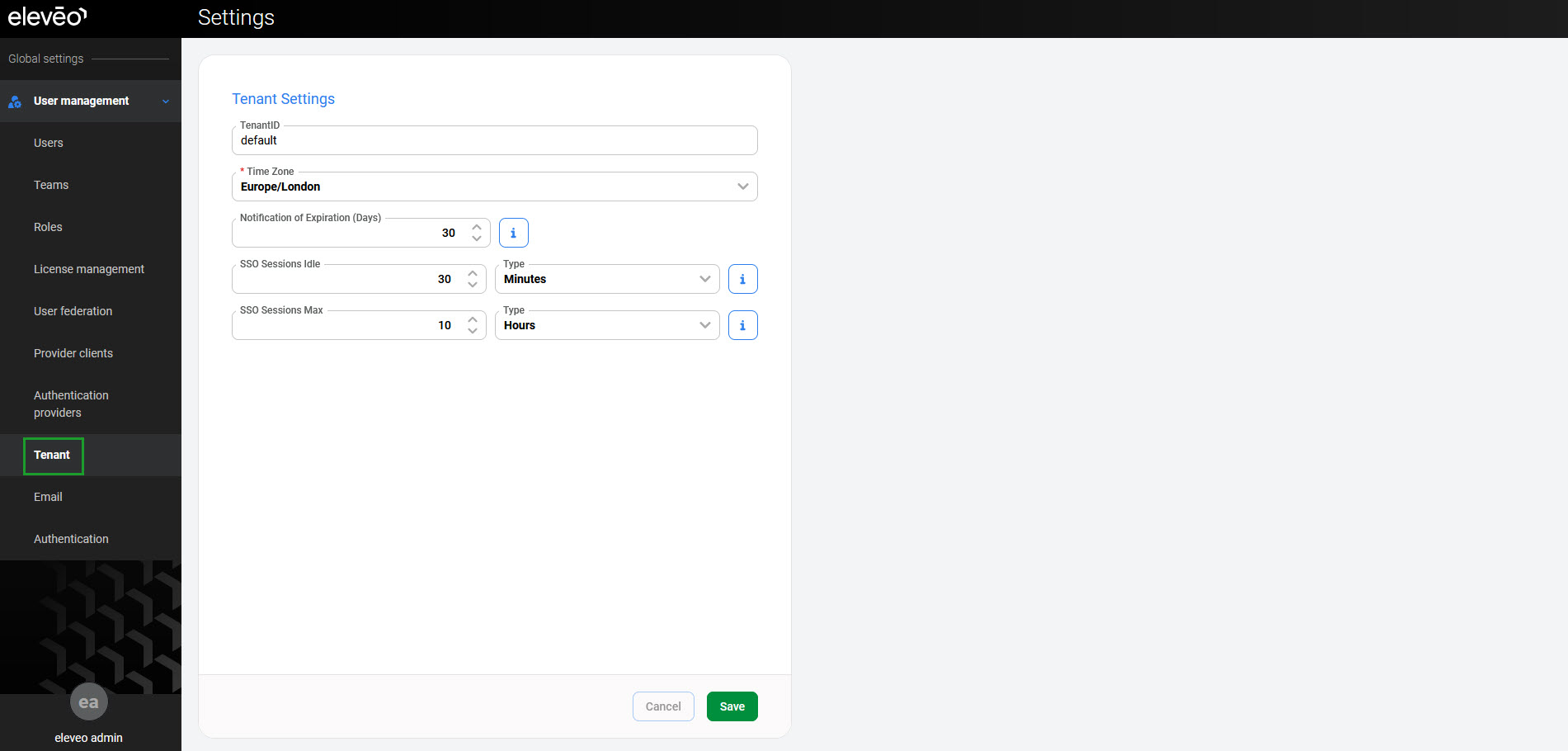
Checking Tenant ID
The Tenant ID is displayed at the top of the screen:
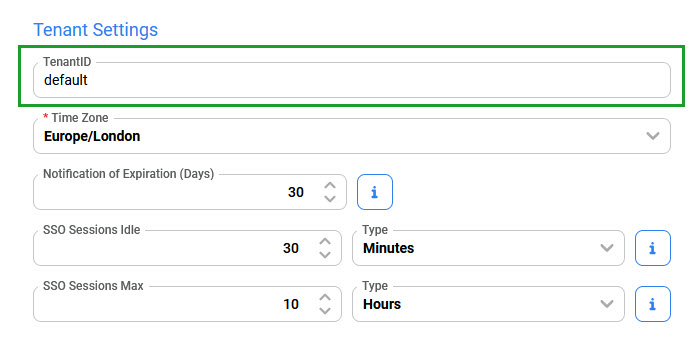
Configuring the Default Time Zone
Select a default time zone for all users in the tenant. By default, this is set to the time zone selected during deployment. An eleveo.admin or any user with the manage-settings role can change it.
Select a time zone from the dropdown menu and click Save. Click Cancel to discard changes.
The default time zone can be overridden for individual users in their user settings:
-
On the Details tab of the Edit user pane, by eleveo.admin.
-
On the User settings page, by the user themselves.
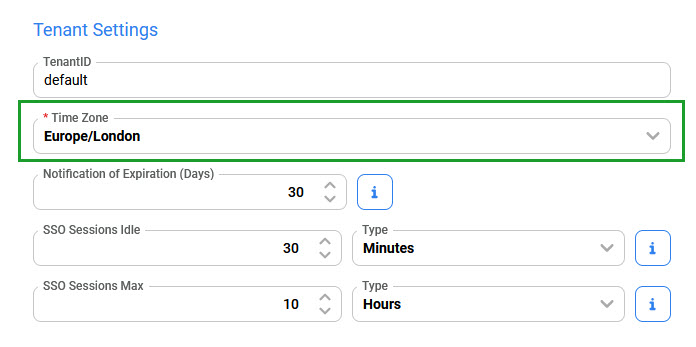
Configuring Notifications
To receive advance notification about license expiration, set the Notification of Expiration (days) value. This defines how many days before the license expires an email notification is sent. The email is sent to all users with the manage-license role. Make sure all these users have an email address configured in their settings.
The default value is 30 days, and the maximum value is 99 days.
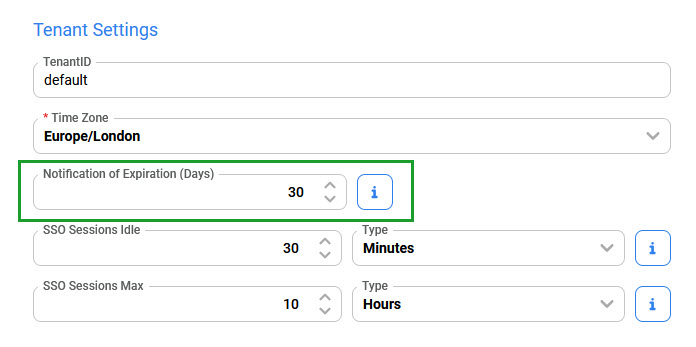
Modify the value if needed and click Save. Click Cancel to discard changes.
Configuring Session Expiration
To configure the session expiration period, set the following values:
-
SSO Session Idle – time a session can be idle before expiring; afterward, the session expires, and the user is logged out (default: 30 minutes)
-
SSO Session Max – maximum length of a session; afterward, the session expires, and the user is logged out (default: 10 hours)
Do not change these values without consulting the security team. Most security standards require short session timeouts — PCI DSS (15 min), NIST (30 min max), OWASP (15–30 min). Changing these values increases the risk of unauthorized access, data leakage, and session token or cookie exposure, and may cause regulatory compliance issues.
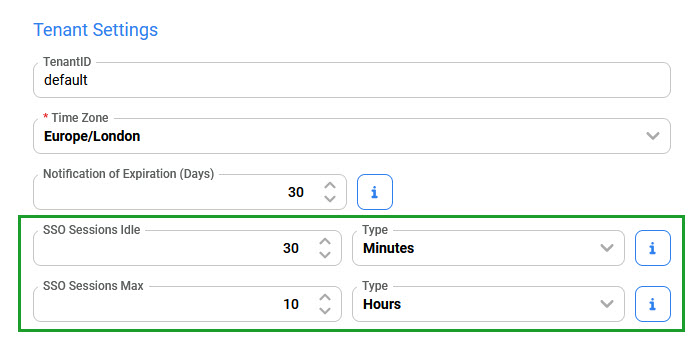
Modify the values if needed, and click Save. Click Cancel to discard changes.
An additional two minutes are always added to the configured SSO Session Idle value. For example, if the value is set to 30 minutes, the session expires after 32 minutes. These two minutes are added automatically to support token expiration in cluster and cross-datacenter environments.