
Available Configuration Sections
After a successful login, the User Management administration console will display.
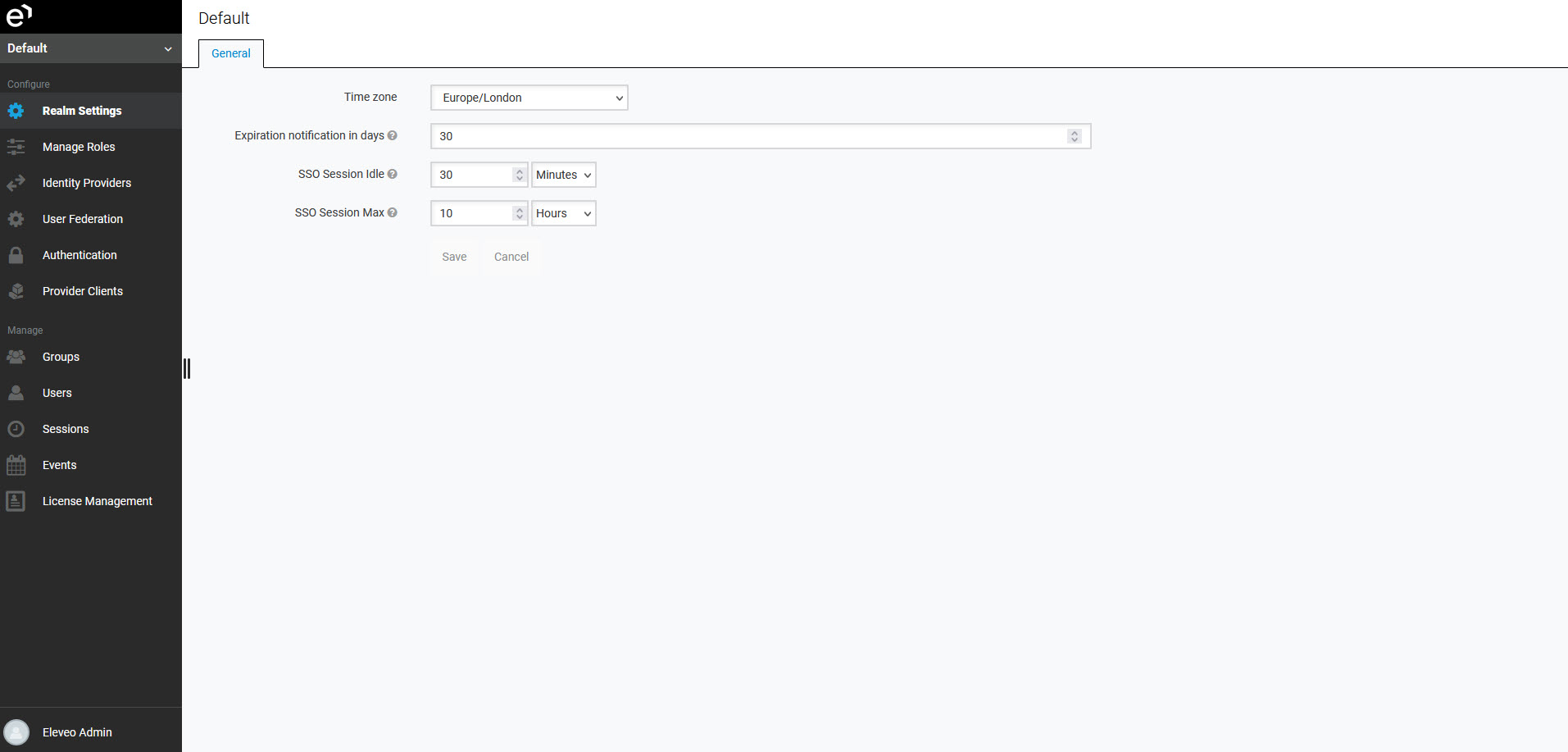
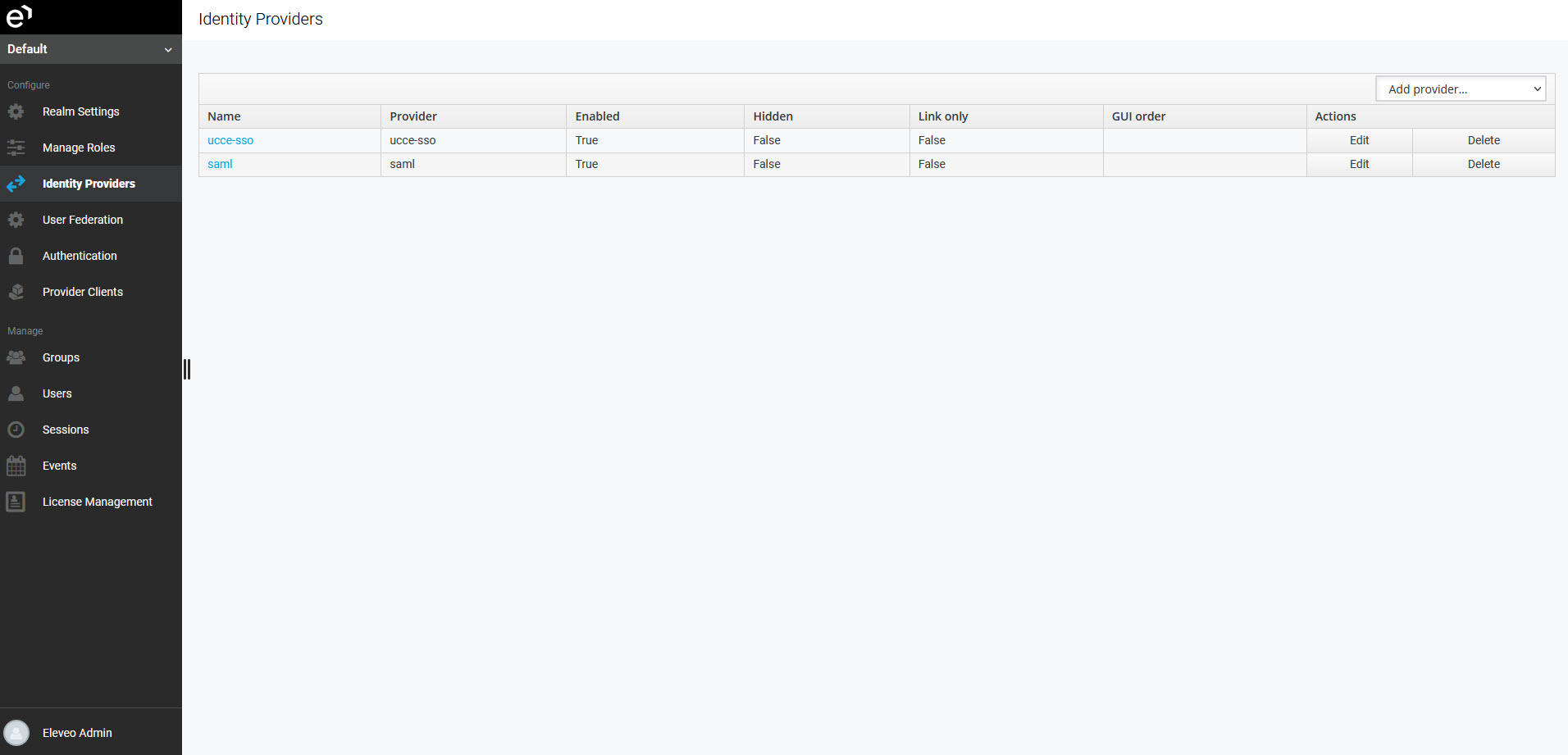
The following configuration sections are available in the navigation tree:
-
Realm Settings – modify the default settings of the realm (read more: Managing Realm Settings).
-
Manage Roles – add, modify, or remove custom composite roles (read more: Managing Custom Roles).
-
Identity Providers – add, modify, or remove an Identity Provider; this is necessary when configuring a user authentication with external authentication providers.
-
User Federation – add, modify, or remove a User Federation; this is necessary when configuring a user synchronization.
-
Provider Clients – add, modify, or remove a Provider Client; this is necessary when configuring the automatic import of users and groups from UCCE/X (read more: Managing Provider Clients).
-
Groups – add, modify, or remove user groups (read more: Managing Groups)
-
Users – add, modify, or remove user accounts (read more: Managing Users)
-
Sessions – manage user sessions (read more: Managing Sessions)
-
Events – view logged events (read more: Viewing Events)
-
License Management – upload licenses for other Eleveo applications (read more: Managing Licenses)
Using the User Menu
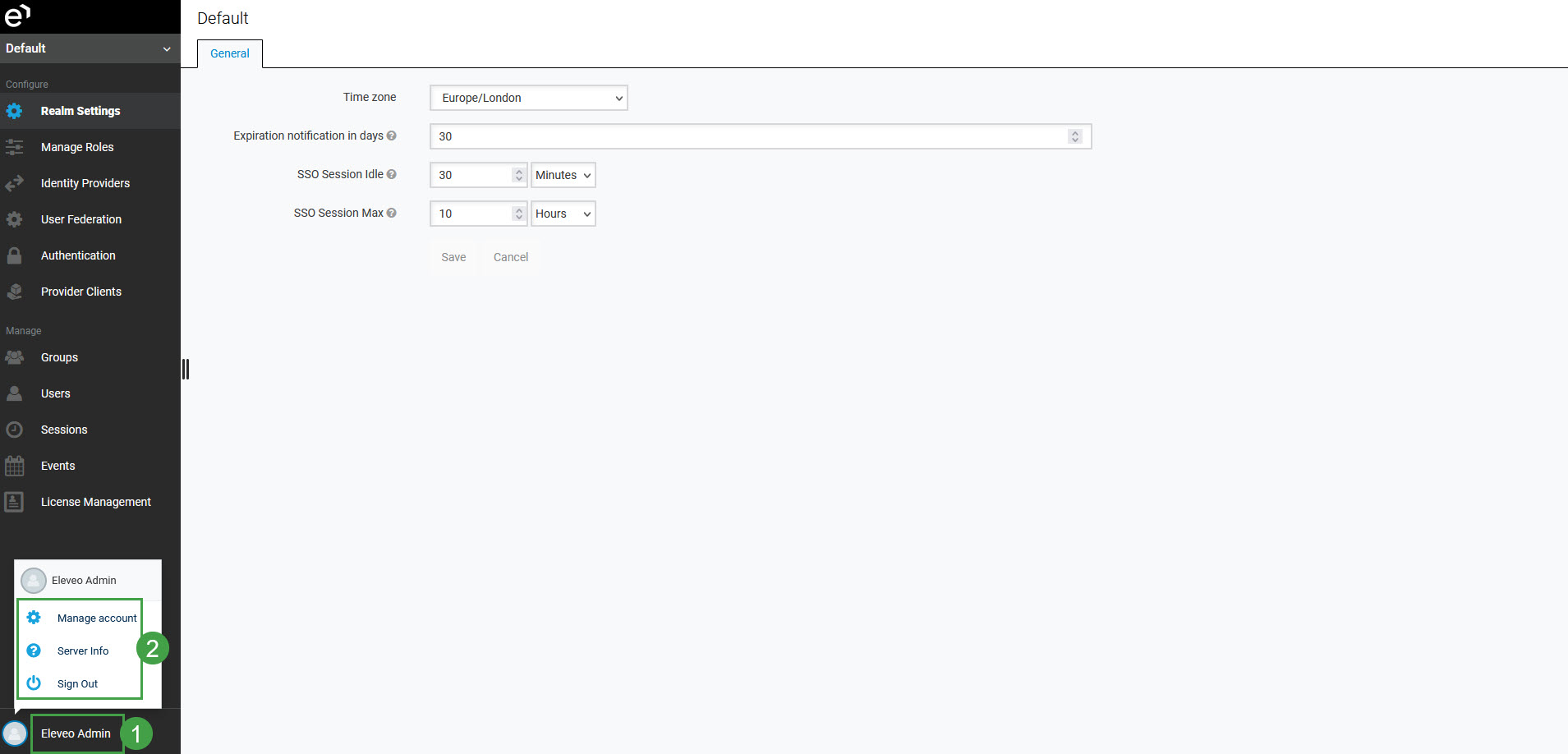
To manage the User Management user account, click on the User Profile button or the username in the bottom left corner to display additional options:
-
Manage account – redirects the user to Configuring User Profile and Password
-
Sign Out – logs the current user out of the application
Using the Navigation Tree
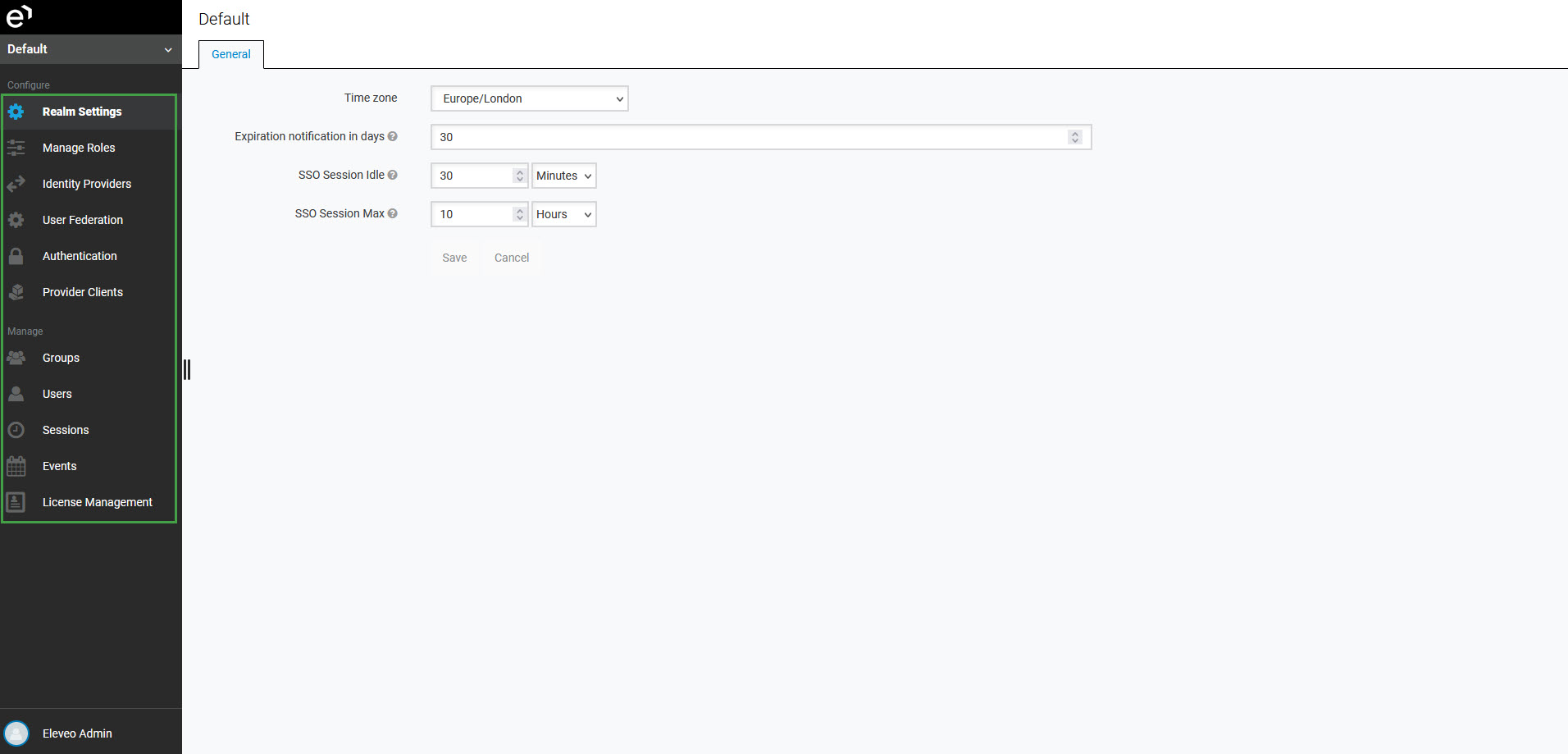
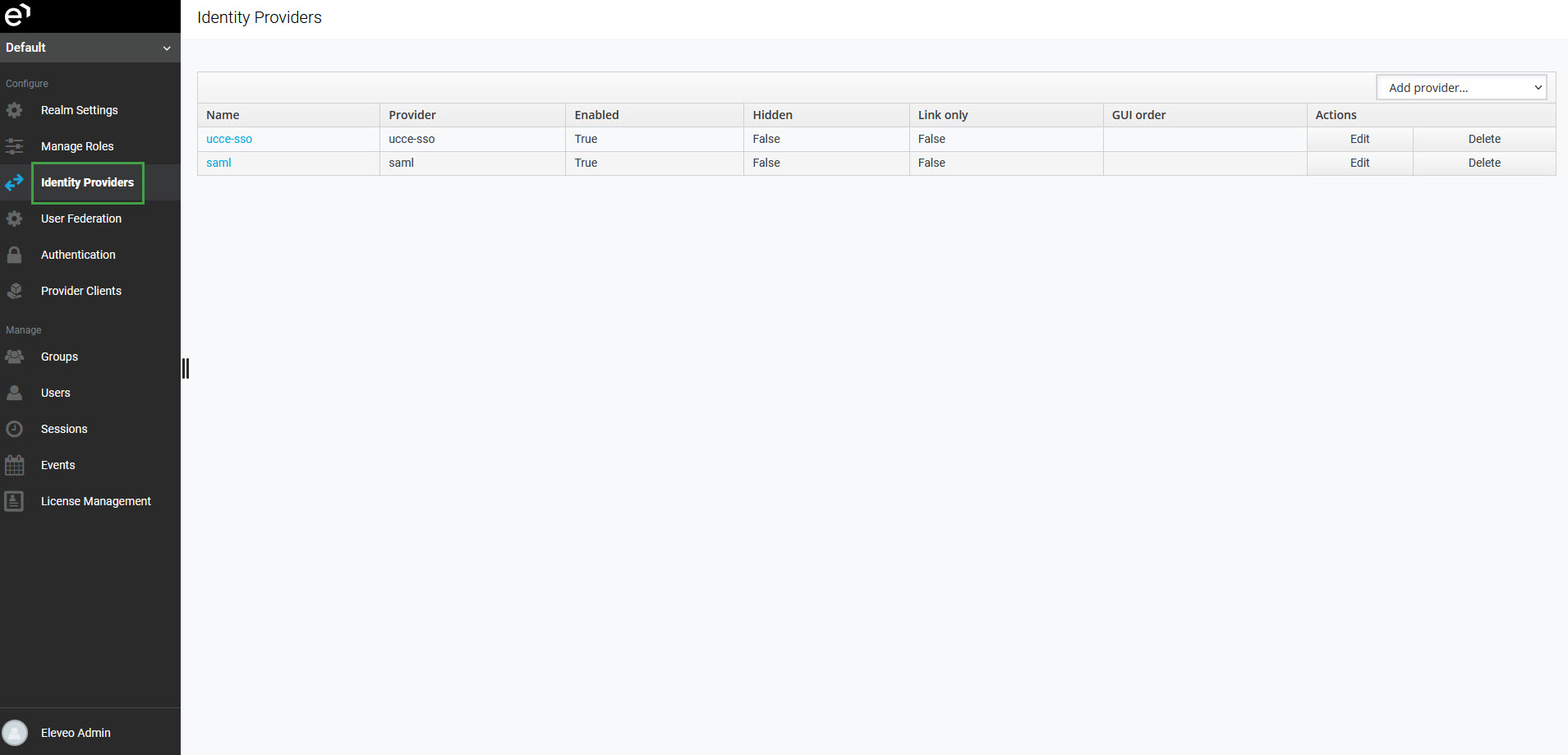
The navigation tree is located on the left of the screen and is expanded by default.
Hover the mouse pointer over the menu items. Click a menu item to view the content.
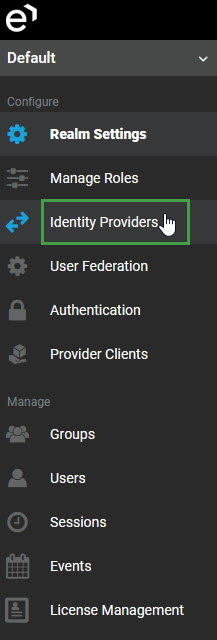
The selected menu item is highlighted in bold and its associated icon is highlighted in blue.
Hiding the Navigation Tree
To hide the navigation tree:
-
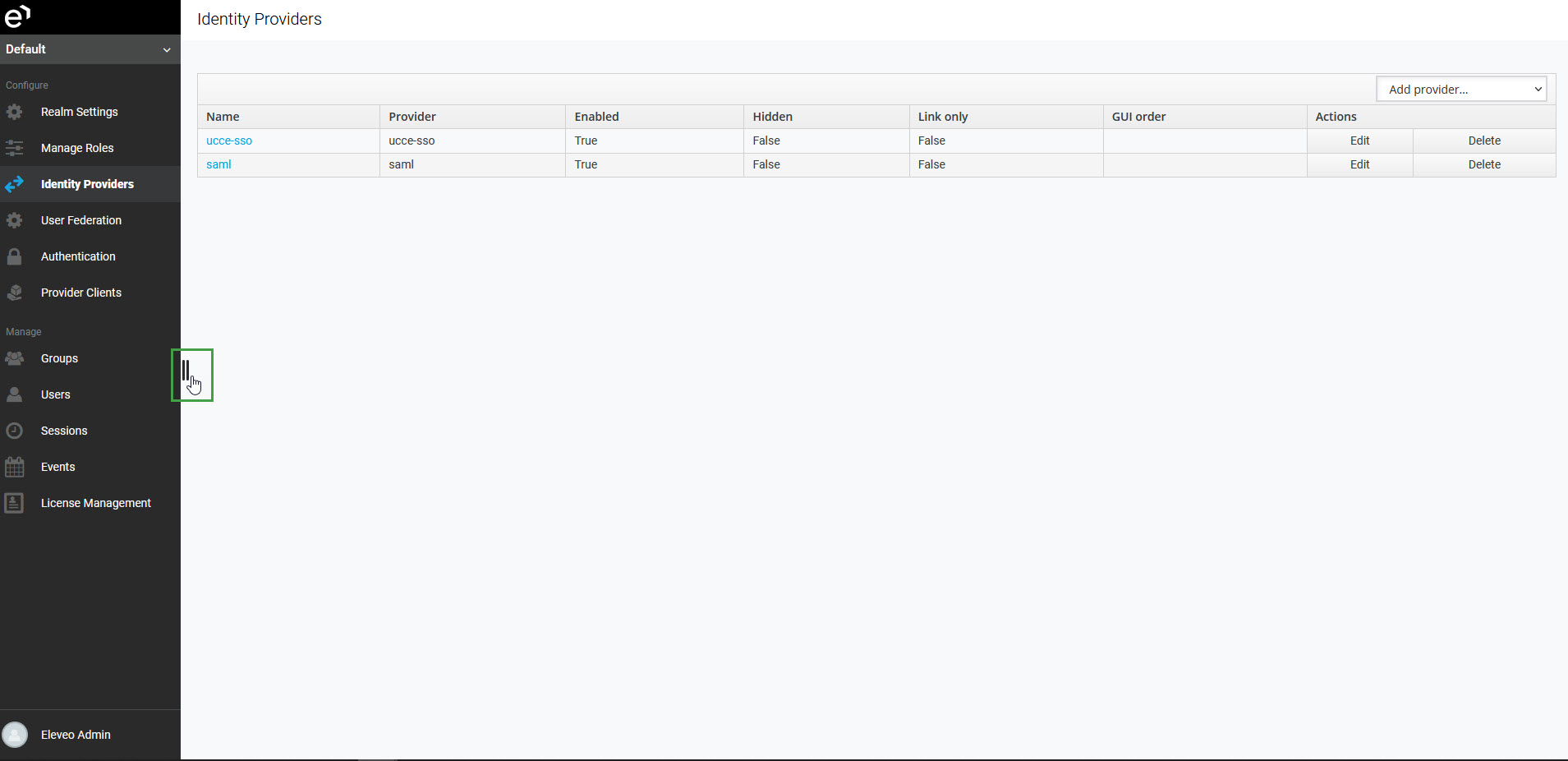
Click on the switcher in the middle of the navigation tree.
-
The navigation tree minimizes and all other screen elements are displayed.
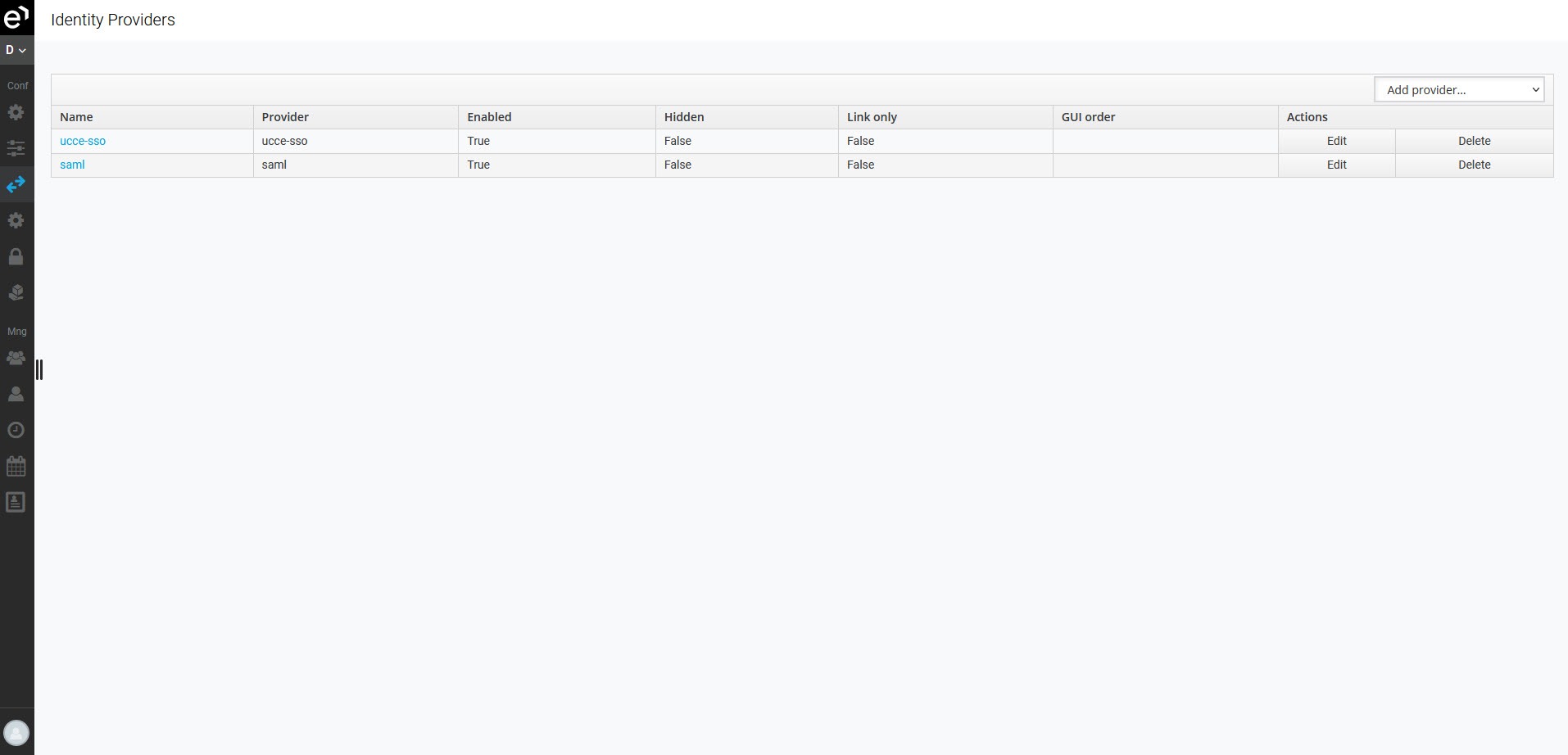
Icons that represent individual menu items display on the bar to the left. The icon representing the currently displayed screen is blue.

A Switch Applications button and a User Profile button, are also minimized in the bottom left corner.

Expanding the Navigation Tree
To expand the navigation tree:
-
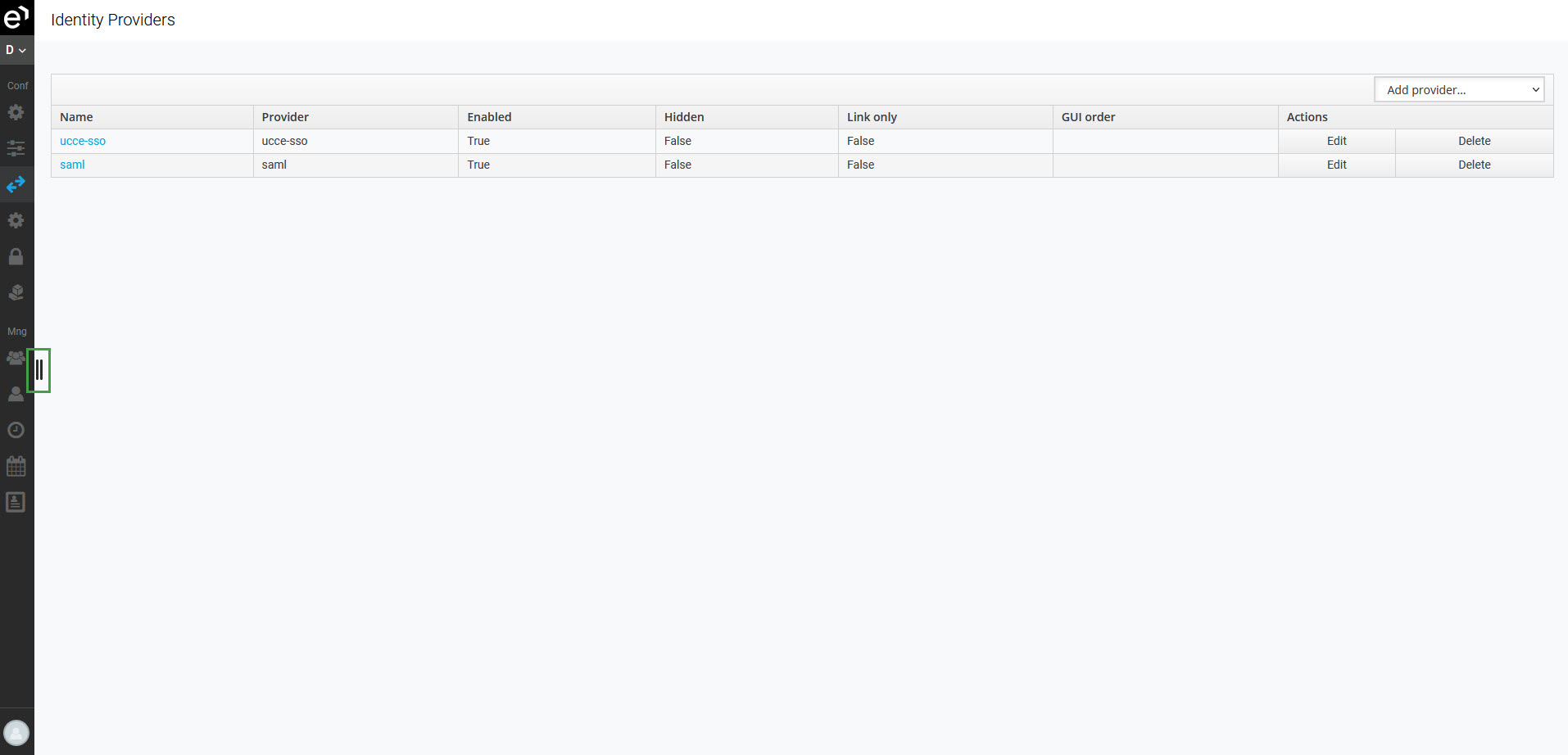
Click the switcher in the middle of the navigation menu.
-
The navigation tree will display.
Using the Switch Applications Button
To switch the application, click on the Switch Applications button in the bottom left corner of the screen.
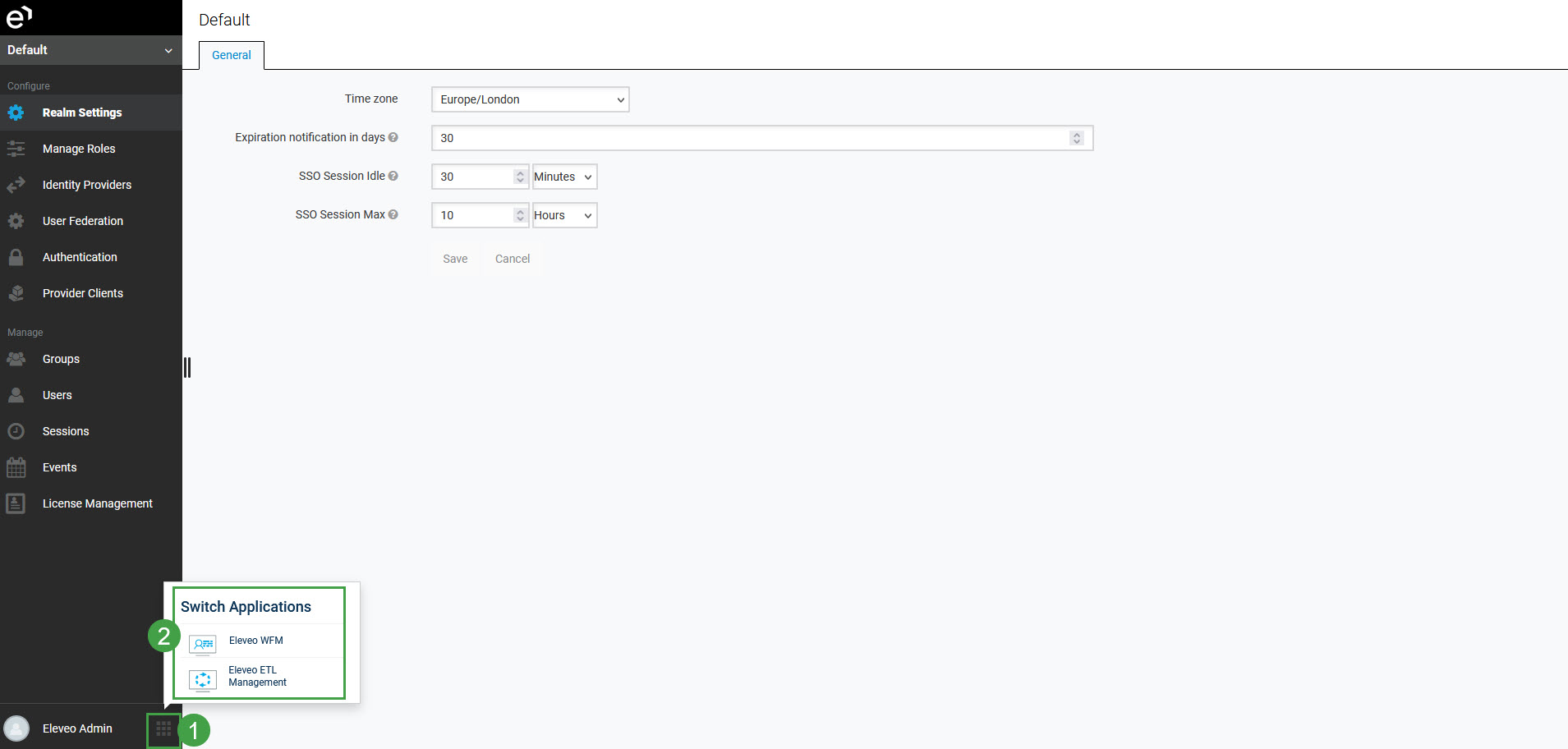
The options available are installation dependent:
-
users need to have any ETL role assigned to be able to see Eleveo ETL Management on this list
-
users need to have any WFM role assigned to be able to see Eleveo WFM on this list
-
users need to have any QM role assigned to be able to see Eleveo Quality Management on this list
-
the user-management-admin role needs to be assigned to users to see Eleveo User Management on the list (from within WFM or QM)
-
the Switch Applications button is not displayed if a user has no additional roles assigned (other than for the currently accessed application).