
Overview
The review export functionality allows an authorized user to export review data from the Reviews screen. An export can be generated immediately as a one-time file, or configured as a recurring export schedule that runs automatically and saves the resulting file to the file system or sends the output as an email.
Two related screens support this functionality: on the Export Schedules screen, all saved schedules are listed and managed, while clicking the Add new button redirects to the Reviews screen, where an export is configured and either run immediately or turned into a schedule.
This feature requires one or more of the following roles:
-
REVIEWS_EXPORT_SCHEDULES_SELFassigned to theSUPERVISORandTEAMLEADERusers by default. -
REVIEWS_EXPORT_SCHEDULES_ALLassigned to theCC_MANAGERusers by default.
Export Schedules Screen
Navigate to Reviews > Export Schedules to open the Export Schedules screen. It lists all export schedules that the current user is allowed to view.
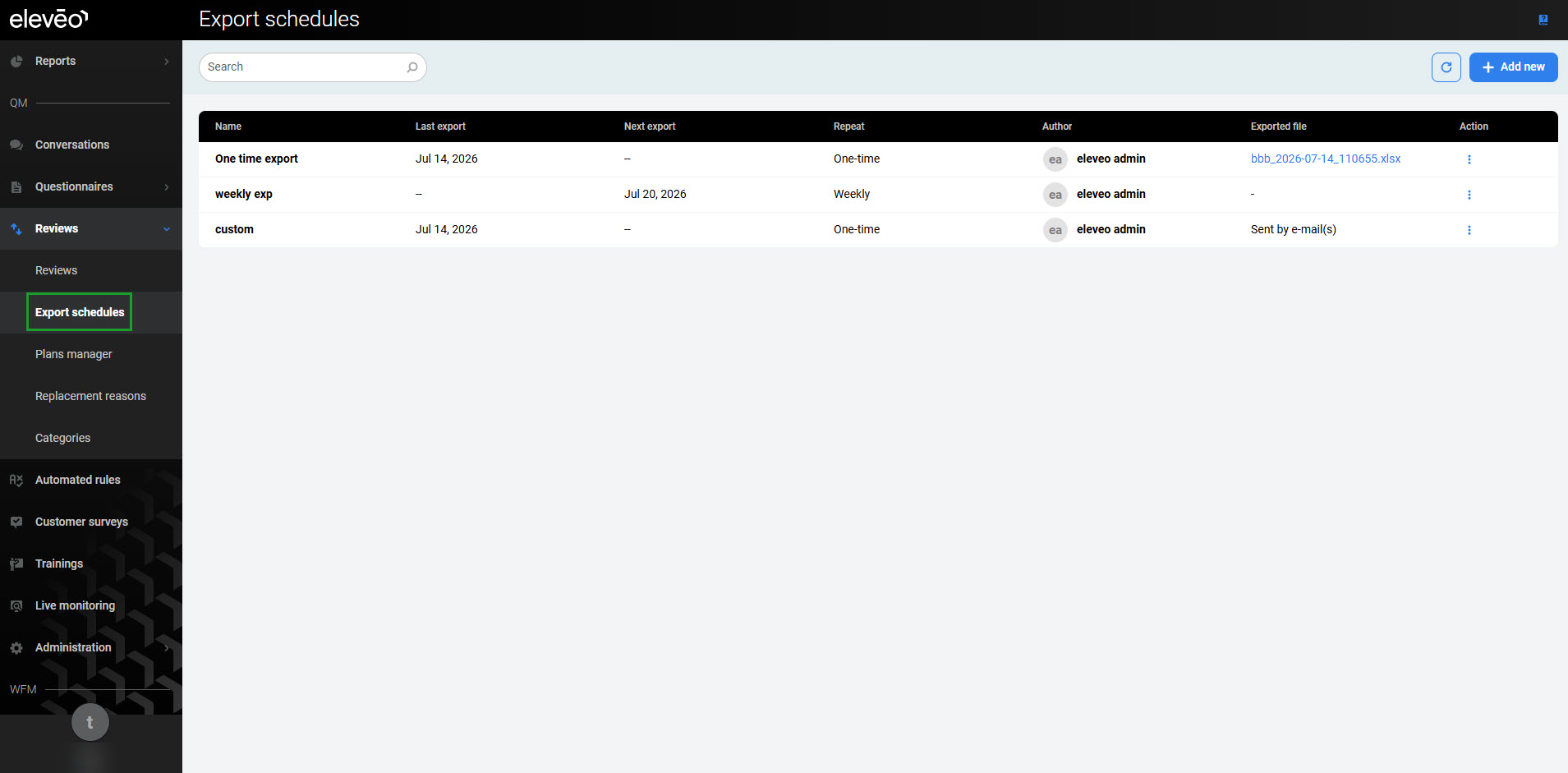
Each row in the list displays the following fields:
-
Name – The name given to the export schedule when it was created.
-
Last export – The date the schedule last produced a file. Displays a dash when the schedule has not yet run.
-
Next export – The date the schedule is next due to run. Not shown for one-time schedules, since a one-time export does not recur.
-
Repeat – The configured repeat frequency, for example, One-time or Weekly.
-
Author – The name of the user who created the schedule. This column is always shown, regardless of permission level.
-
Exported file – A download link to the most recently generated file, or a note that the file was sent by email. Displays a dash when no file has been generated yet.
-
Action – A menu for editing or deleting the schedule.
To search for a particular export schedule, type a partial name in the search box at the top of the screen to filter the list.
Permissions and Visibility
Access to export schedules is controlled by two permissions:
-
REVIEWS_EXPORT_SCHEDULES_SELF– Allows a user to see, edit, and delete only the export schedules they own. Granted by default to theSUPERVISORandTEAMLEADERroles. -
REVIEWS_EXPORT_SCHEDULES_ALL– Allows a user to see, edit, and delete export schedules owned by any user. Granted by default to theCC_MANAGERcomposite role.
A user without either permission does not see the Export Schedules option in the navigation tree on the left. A user with only REVIEWS_EXPORT_SCHEDULES_SELF cannot view, edit, or delete a schedule owned by another user, even through a direct link.
Creating an Export Schedule
To create an export schedule, click the Add new button in the top right corner of the Export schedules screen.
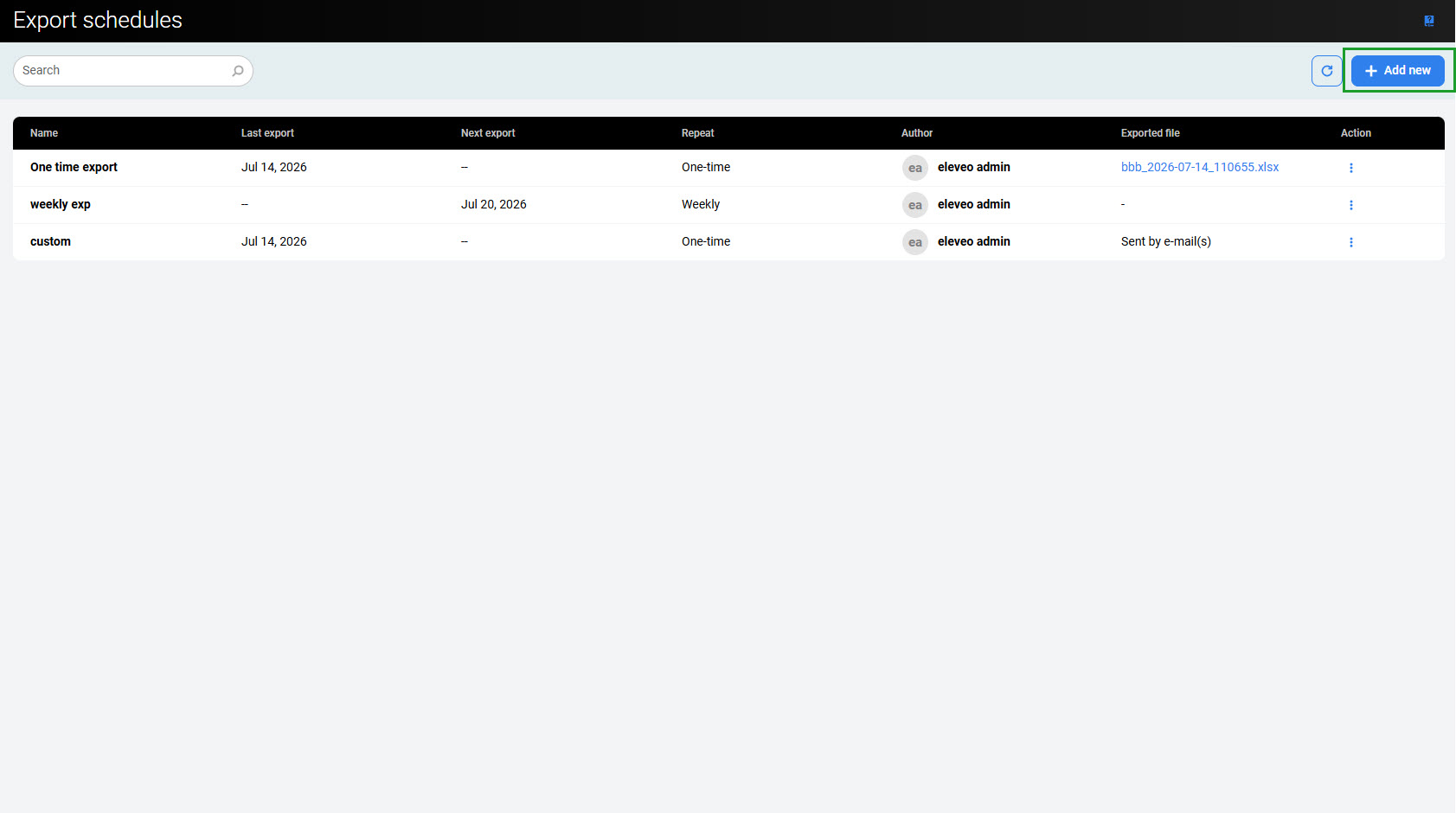
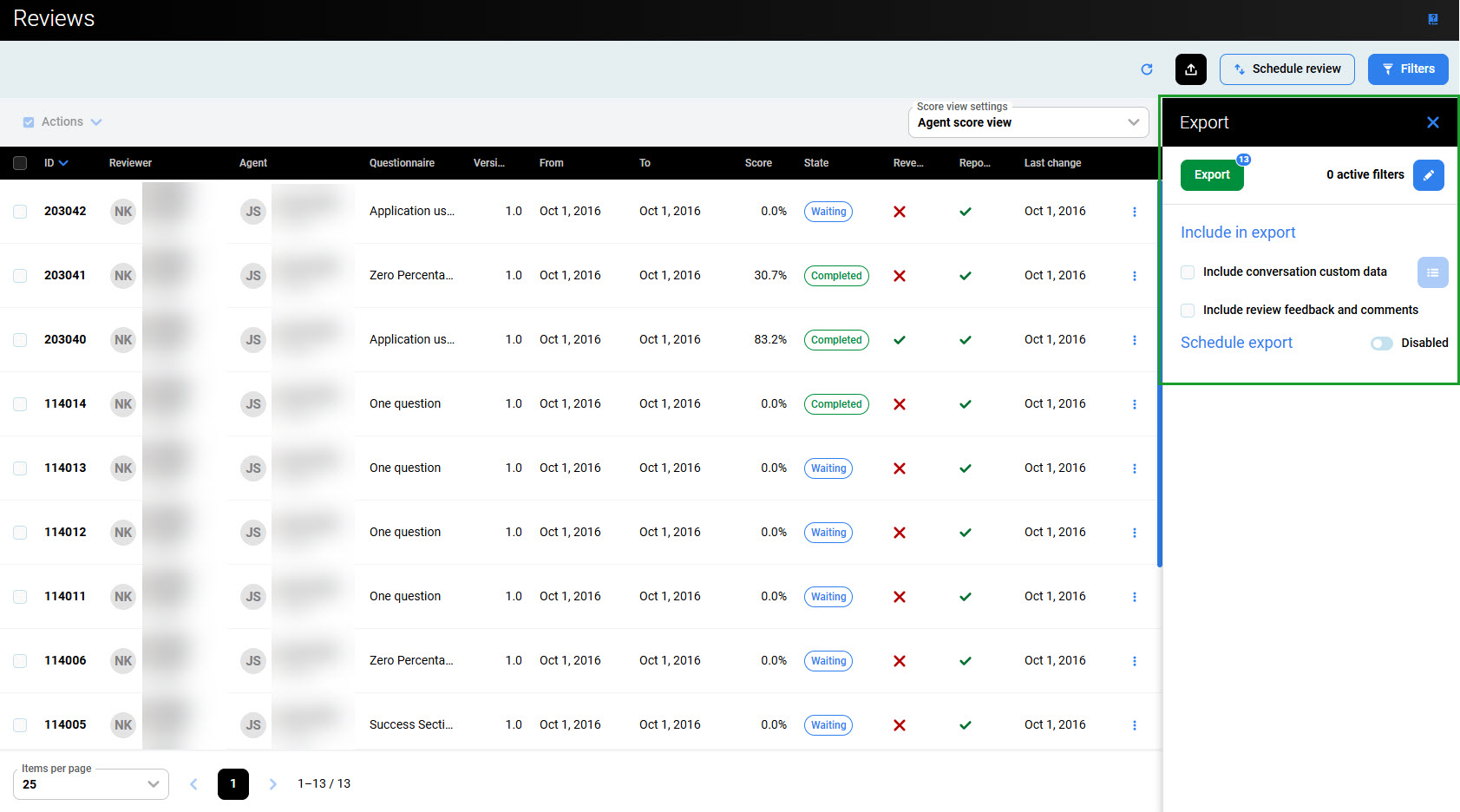
You will be redirected to the Reviews screen, and the Export pane will display. When no filters are selected, all reviews visible on the screen can be exported by clicking the Export button. The number of reviews available for export is displayed in its corner.

By default, Schedule export is set to Disabled, and clicking Export generates an immediate one-time export using the current filters.
Filtering the Export Data
Click the edit icon next to 0 active filters to open the filter list, then click Apply to confirm the selection.
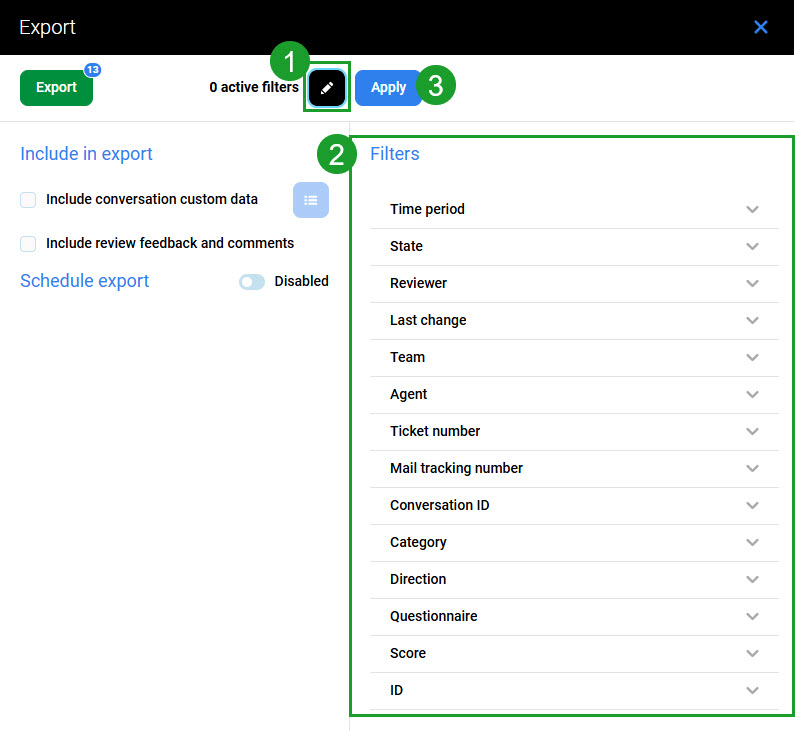
The following filters are available:
-
Time period
-
State
-
Reviewer
-
Last change
-
Team
-
Agent
-
Ticket number
-
Mail tracking number
-
Conversation ID
-
Category
-
Direction
-
Questionnaire
-
Score
-
ID
When applied to a recurring schedule, the time period value is re-evaluated against each run date, so every export covers a rolling period ending at the time the export runs.
Including Additional Data
Two checkboxes in the Include in export section add optional data to the export:
-
Include conversation custom data – Adds selected custom data fields to the export, for example,
CDM_SegmentCalledAgentEleveoUserId,IPCC_DIALED_NUMBER, orCALLING_STREAM_PAYLOAD. Click the list icon next to the checkbox to open the field picker, search or browse the available fields, and select the fields to include. Use Select all listed to include every field currently shown, or enable Show selected only to review the current selection. -
Include review feedback and comments – Adds reviewer feedback and comments to the export.
Scheduling an Export
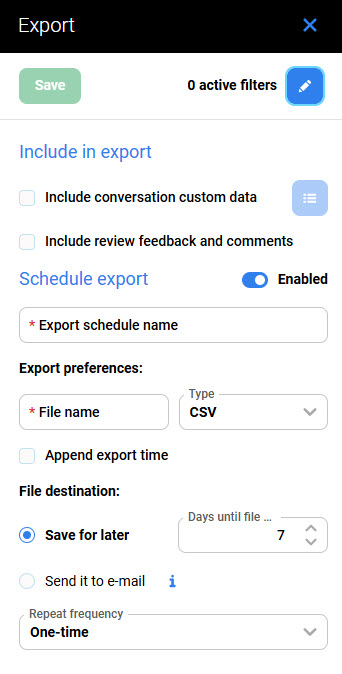
Set the Schedule export toggle to Enabled to reveal the scheduling fields and turn the current export configuration into a recurring scheduled export
Configuring Export Preferences
-
Export schedule name (mandatory) – The name shown for the schedule in the Export Schedules list.
-
File name (mandatory) – The base name of the generated file.
-
Type – The file format, CSV or XLSX.
-
Append export time – When selected, appends a filename-safe timestamp to the file name, for example,
2026-06-18T14:30:00+02:00. The timestamp is in the ISO 8601 format and uses the user's timezone.
Setting the File Destination
Choose one of the following delivery methods:
-
Save for later – Stores the generated file on the server for download from the Export Schedules list. Only the most recent file is kept. Set Days until file deleted to control the retention period (default 7, minimum 1, maximum 360).
-
Send it to e-mail (mandatory email address) – Sends the generated file as an email attachment. The email address is validated only when the schedule is created.
Setting the Repeat Frequency
Select a value from the Repeat frequency dropdown menu:
-
One-time
-
Daily
-
Weekly
-
Monthly
-
Quarterly
-
Yearly
A one-time schedule runs immediately when saved. Clicking Export generates an immediate one-time export using the current filters. A confirmation message informs the user that the export is being generated and to check back shortly. A one-time schedule does not show a next export date and does not recur.
A recurring schedule runs automatically, using the following export dates in the user's timezone:
|
Repeat frequency |
Export date* |
|---|---|
|
Daily |
Every day |
|
Weekly |
Monday (first day of the week) |
|
Monthly |
The first day of the month |
|
Quarterly |
January 1, April 1, July 1, and October 1 |
|
Yearly |
January 1 |
*The exact time of an export (for all Repeat Frequency options) is random, between 0:00 AM and 6:00 AM in the timezone of the user who created it.
The repeat frequency and the time period filter are configured independently, but pairing a matching time period with each frequency avoids gaps or overlaps in the exported data, for example Weekly with a 7-day window, Monthly with a 30-day window, Quarterly with a 90-day window, and Yearly with a 365-day window.
Creating a Scheduled Export
When all the above settings are configured, click the Save button. The new schedule appears in the Export Schedules list.
Managing Existing Export Schedules
Open the Action menu next to a schedule in the Export Schedules list to edit or delete it.
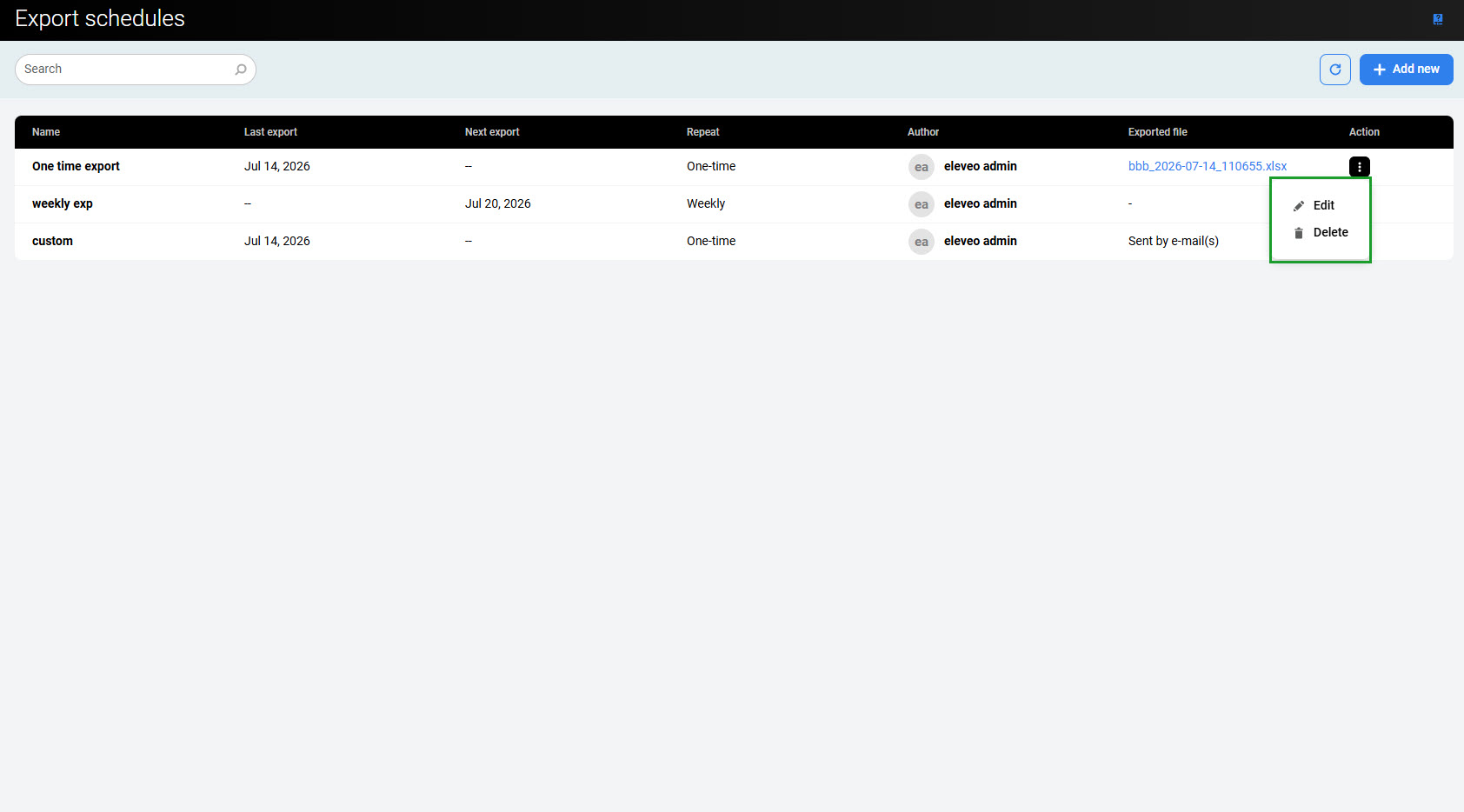
A user with REVIEWS_EXPORT_SCHEDULES_SELF can manage only the schedules they authored, while a user with REVIEWS_EXPORT_SCHEDULES_ALL can manage any schedule.
If a schedule's filter references a supervisor who has since lost visibility of a team, the export ignores that revoked team access rather than including data the supervisor can no longer see.