
Prerequisites
Before creating reviews, create at least one Quality Review questionnaire. See Adding a New Questionnaire for instructions.
Only agents enabled in User Management with the permission REVIEWS_AGENT_ENABLED can be reviewed. If an agent is unlicensed, no review will be created for them.
Performing a Review or Scheduling a Review
New reviews can be created in one of the following ways:
-
From the Conversation Explorer screen – Create an ad-hoc review for a selected conversation (described on this page).
-
From the Reviews Screen.
-
Using the Review Scheduler – This is the preferred method for creating reviews for yourself or for others.
Creating a Review from the Conversation Explorer
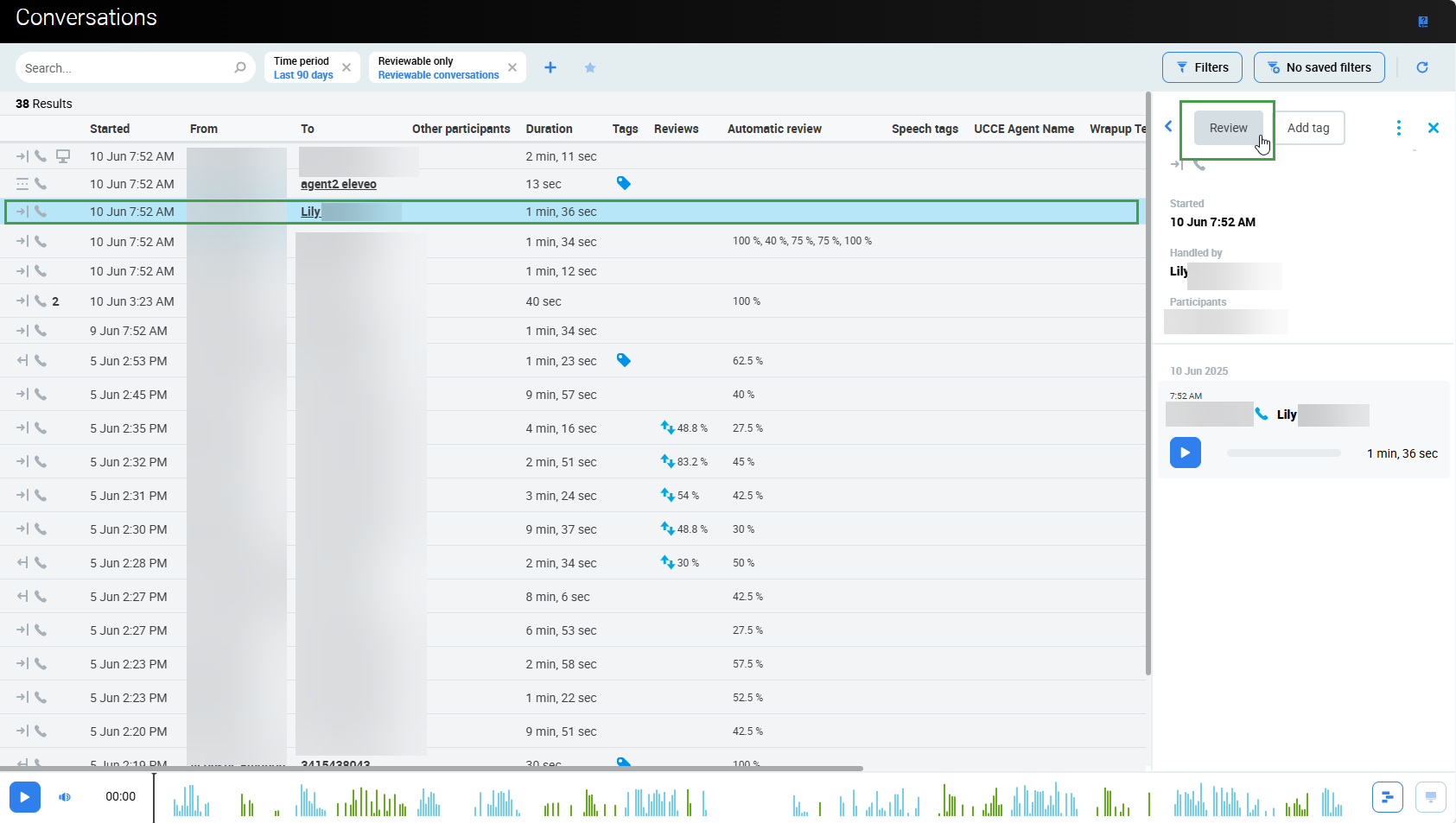
From the Conversation Explorer, a review of the selected conversation can be started. A conversation may have one or more identified agents associated with the selected conversation:
-
In case there is only one identified agent in the conversation, click Review and the Review Conversation dialog displays. (If it is not possible to perform a review an option to View will be displayed).
-
In case there is more than one agent associated with the conversation, the Review button changes into a dropdown from which the agent to review must be selected.
The Review Conversation window displays:
Note - Agents must be licensed in order to be reviewed. This means that the agent must have the role REVIEWS_AGENT_ENABLEDin order for the grading form to load. They must also have the REVIEWS_SELF_ADD role if they are to perform self-reviews.
-
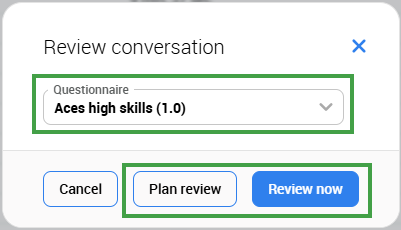
Select a Questionnaire to be used for the given review.
-
Click Review now to open the Grading form and begin the review immediately (requires permission to review the selected agent)
-
Agents must have the role
REVIEWS_AGENT_ENABLEDin order for the grading form to load.
-
-
Click Plan review to select Reviewers.
-
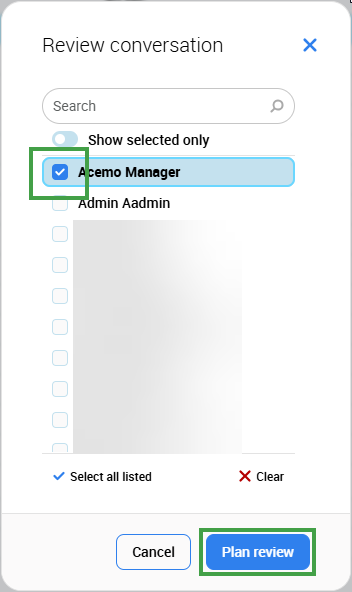
Select one or more Reviewer(s) from the Review conversation window. Select multiple if used for calibration.
-
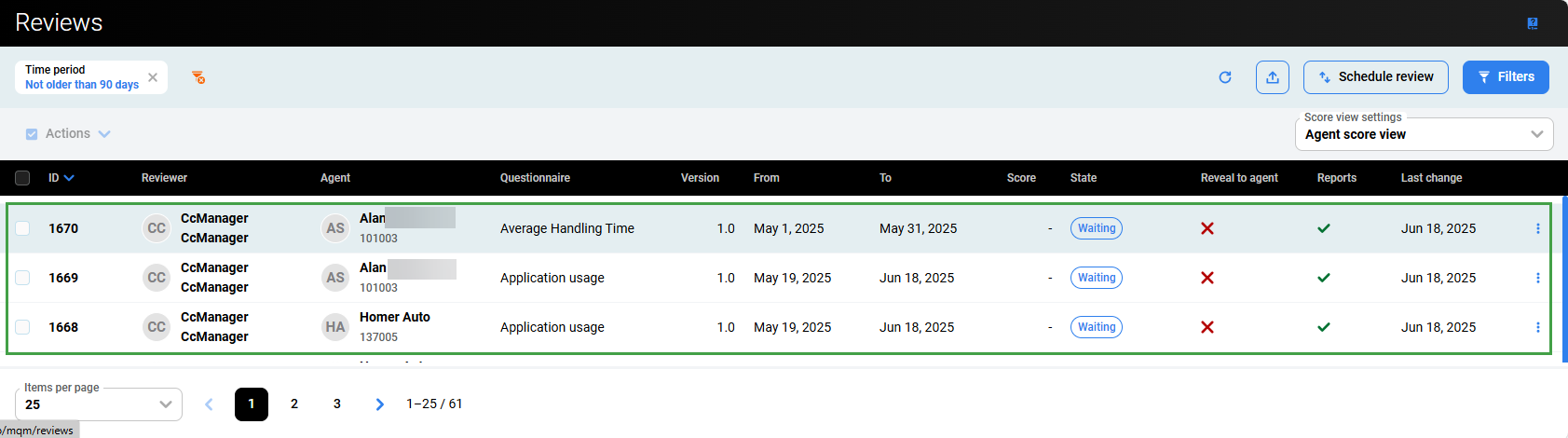
Click Plan review to confirm. The window closes, and the review appears on the Reviews screen.
In this example, the newly created reviews are visible on the Reviews screen.
Note – The filter is set to show only recent reviews.
All conversations used in reviews are flagged with the
-
This 'protection' cannot be easily removed; it can only be removed via the UnProtect Tool.
The Quality Management application recognizes membership in one group only. This group should be marked as a 'main' group in User Management. If users were imported from external systems, like UCCX or UCCE, carefully consider whether their group membership and/or the main group selection should be manually modified from within User Management.
A reviewer must have the agent's main group assigned to them to perform reviews on that agent.The following rules apply to setting the main group in User Management:
-
If a user is a member of one group only, this group is set as main.
-
If a user is a member of more than one group, only one group can be set as main
-
If a user is removed from the main group, the first group from available groups sorted alphabetically will be set as the new main group.
Determining Correct Agent Group Assignments
How to determine if a supervisor or manager has the correct agent group(s) assigned:
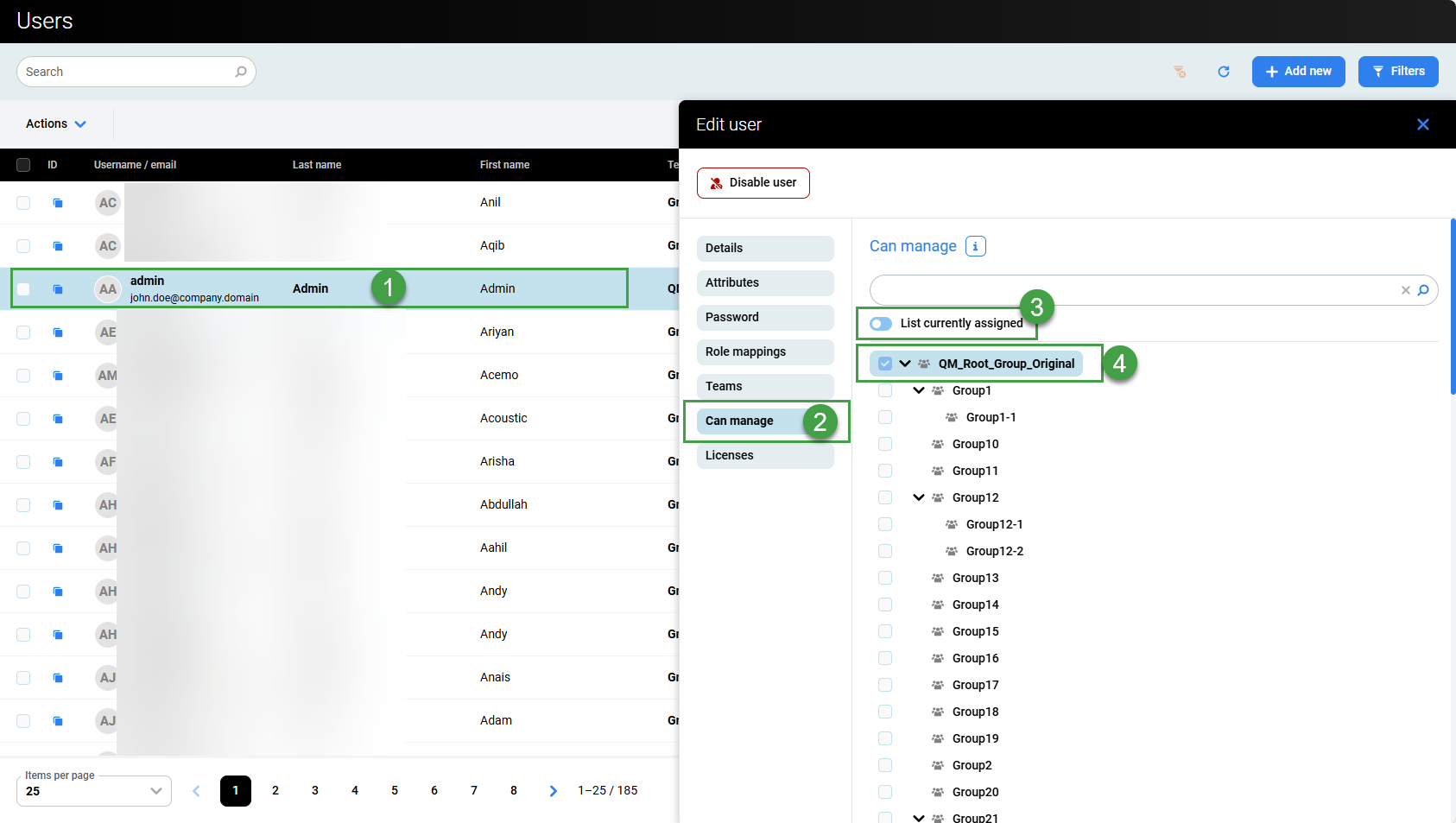
A reviewer must have the agent's main group assigned to them to perform reviews on that agent. If a supervisor/manager is not able to perform reviews for a user, double-check that they have the correct groups assigned to them in User Management.
Switch to User Management.
Go to Users.
-
Select the Supervisor or Manager to modify.
-
On the Edit user pane, open the Can Manage option.
-
Toggle the List currently assigned option to view all groups.
-
Check that the correct agent groups is/are selected for this particular Supervisor/Manager. In this example, the Root group is selected, the Admin user can perform a review for all users as a result.
If not selected, the reviewer cannot review agents in the group.
Known limitation - it is necessary to manually select all groups and subgroups! Selecting only the Root group or a group with subgroups does not include the subgroup.
|
Question |
Role required |
|---|---|
|
Who can view review scores? |
|
|
What permissions are required to create or schedule reviews,
|
|
|
Who can perform a review? |
Any user with the role:
|
|
Who can be evaluated? |
|
|
Reviews can be planned/scheduled for any licensed agent. This means that the Agent must have the role |
|