
Overview
User roles control access to Eleveo applications and their features. Every user must have roles assigned according to their position in the organization. Roles determine whether a user can configure an application, manage other users, review conversations, create schedules, or only view their own data.
-
Users and roles are managed centrally in Eleveo User Management, not in the individual applications.
-
Roles for individual applications are imported and become available for assignment only after the application is installed.
-
Changes to role assignments take effect after the affected user logs in again.
Assigning Roles
Refer to the dedicated page for instructions on assigning roles to a user. Assigning Roles
Role Types
Eleveo User Management distinguishes roles by origin:
-
Application roles – roles belonging to a client application, such as Quality Management or Workforce Management, and to its modules, such as LiveMON, Conversation Explorer, or eLearning. These roles are imported when the application is registered as a client.
-
Realm roles – custom roles created manually by an administrator.
Roles are also distinguished by granularity:
-
Effective roles – individual privileges that enable specific functionality, equivalent to permissions. An example is
manage-users. -
Composite roles – predefined sets of effective roles that simplify user setup. An example is
CC_MANAGER.
A user can hold one or more composite roles together with individual effective roles. Composite roles can contain other composite roles, which produces a parent and child structure where child roles are inherited automatically.
This page uses the following terms:
Recommended Approach
Use an Eleveo Specific role as the primary source of permissions for each user. Where further customization is required, add individual application roles on top. Application roles are not intended to be the primary source of permissions during initial setup.
Applications and Modules
Each application is registered as a client in Eleveo User Management. After registration, the roles of that application are imported and become available for assignment.
The following applications can be registered:
-
Eleveo Quality Management and its modules, visible on the Role Mapping tab as
QM,QM - shared roles,MQM Reviews,MQM Surveys,MQM Trainings,MQM Questionnaires,MQM Scoring Tiers,MQM Reports,MQM Replacement Reasons,MQM Administration,Conversation Explorer,Conversations - shared roles,Surveys,SpeechREC,eLearning,LiveMON,WFO Analytics,Automated QM,Generative AI,Interaction Service,Screen Capture, andWebexCC Media Importer -
Eleveo Workforce Management, visible as
WFM -
Eleveo ETL Management, visible as
ETL Management -
Eleveo User Management itself, visible as
User Management
Use the application module name to locate roles on the Role Mapping tab in User Management.
When an application is deployed, the roles for all of its modules are created, including modules that are not in use. Roles for unused modules must not be assigned, because they require a license. Installing an additional module does not require new role provisioning, because every Eleveo Specific role already contains the client roles for all modules.
Application Structure
For licensing purposes, the Workforce Optimization (WFO) application is divided into several separately licensed application modules. Each module requires additional effective roles. Some roles consume a license and must be assigned to the agent or user for interactions associated with that agent or user to be processed.
For example:
-
The
REVIEWS_AGENT_ENABLEDrole allows an agent to be reviewed. The role assignment consumes a license. -
The
SPEECH_PROCESSING_ENABLEDrole enables speech processing and transcription generation if at least one agent in the conversation has the role assigned. The role assignment consumes a license.
Roles are displayed after selecting the correct application module.
License-Consuming Roles by Module
Use the application module name to find the roles on the Role Mapping tab in User Management. The following application modules and their roles for WFO are available:
|
Application |
Application module* |
Associated roles |
Consumes License? |
|---|---|---|---|
|
Workforce Optimization |
|
|
YES |
|
|
|
YES |
|
|
|
|
YES |
|
|
|
|
NO |
|
|
|
|
NO |
|
|
|
|
NO |
|
|
|
|
NO |
|
|
|
|
NO |
|
|
|
|
NO |
|
|
|
|
NO |
|
|
|
|
NO |
|
|
|
|
YES |
|
|
|
|
NO |
|
|
|
|
YES |
|
|
|
|
YES |
|
|
|
|
YES Any WFO Analytics role will consume a license. Having one or more Analytics roles assigned will be counted only once per user) |
|
|
|
|
YES |
|
|
|
|
YES |
|
|
|
|
NO |
|
|
Interaction Service |
|
|
NO |
|
Screen Capture for Contact Center as a Service |
|
|
NO |
The modules MQM Reviews, MQM Surveys, MQM Trainings, MQM Questionnaires, MQM Scoring Tiers, MQM Reports, MQM Replacement Reasons, MQM Administration, Conversations - shared roles, SpeechREC - shared roles, Generative AI - shared roles, and Interaction Service contain no license-consuming roles.
Verify that a license is available for a module before assigning its roles to users. Managing Licenses - Import and Activate a License
Eleveo Specific roles
Eleveo-specific roles are composite roles created automatically during the initial installation of User Management. They simplify role assignment and help meet compliance and security requirements.
Roles are created in User Management when an application is deployed. If an application was not deployed, its roles do not exist.
The following roles are created:
-
AGENT -
BO_AGENTBack Office Agent -
TEAM_LEADER -
SUPERVISOR -
CC_MANAGER -
IT_ADMIN -
COMPLIANCE_ANALYST
Automated Provisioning During Deployment
The creation of Eleveo-specific roles is automated during the deployment process.
Role Assignment Reference - What is Assigned Automatically
The tables in this section list every effective role, grouped by module. The checkmark indicates that the effective role belongs to that Eleveo Specific role by default, an empty row indicates that the role is not assigned by default to any user.
Keep in mind the following:
-
Roles are created only for applications that have been deployed.
-
The matrix in this page describes the state of a new installation. A deployment that has been customized can differ from it.
-
Some roles depend on Team assignment. Ensure teams are properly configured. Managing Teams
-
Roles are additive in nature.
Quality Management Roles
Conversations
|
Effective role |
Action allowed |
|
|
|
|
|
|
|
|---|---|---|---|---|---|---|---|---|
|
View Conversations screen
|
View the conversations in the tree on the left. |
✅ |
✅ |
✅ |
✅ |
✅ |
|
✅ |
|
Conversations - Agent View
|
View, filter, and play back own conversations. The View Conversations screen permission is also required. |
✅ |
✅ |
|
|
|
|
|
|
Conversations - Team View
|
View, search, and play back conversations in which at least one participant is a member of one of the user’s assigned teams. Team membership, not the team a call was handled for, determines visibility. See Conversations Involving Multiple Teams on the Managing Teams page for details. The View Conversations screen permission is also required. |
|
|
✅ |
✅ |
|
|
|
|
Conversations - Full View
|
View, search, and play back all conversations with customers. |
|
|
|
|
✅ |
|
✅ |
|
Conversations - Tags View
|
View the tags in a conversation. |
✅ |
✅ |
✅ |
✅ |
✅ |
|
✅ |
|
Conversations - Tags Add
|
Assign tags to conversations. |
|
|
✅ |
✅ |
✅ |
|
✅ |
|
Conversations - Tags Edit
|
Edit tags assigned to conversations. |
|
|
|
|
✅ |
|
✅ |
|
Conversations - Export MP3
|
Export selected recorded calls as an MP3 file. |
|
|
|
|
✅ |
|
✅ |
|
Conversations - Export JSON
|
Export selected data in JSON format. |
|
|
|
|
✅ |
|
✅ |
|
Conversations - Anonymization
|
Permanently remove the personally identifiable information of selected conversations. |
|
|
|
|
✅ |
|
✅ |
|
Conversations - Review View
|
View the details of manual reviews in the conversation details pane.
|
|
|
✅ |
✅ |
✅ |
|
✅ |
MQM Reviews
|
Effective role |
Action allowed |
|
|
|
|
|
|
|
|---|---|---|---|---|---|---|---|---|
|
Review - Agent to be evaluated
|
An agent can be evaluated. Assignment consumes a license. |
✅ |
|
|
|
|
|
|
|
Review - Review Myself
|
An agent can perform a self-review. |
✅ |
|
|
|
|
|
|
|
Reviews - Agent View
|
View reviews where the user is the reviewee. |
✅ |
|
|
|
|
|
|
|
Reviews - Team View
|
View all reviews of all agents in the assigned teams. |
|
|
|
✅ |
|
|
|
|
Reviews - View All
|
View all reviews. |
|
|
|
|
✅ |
|
|
|
Review - Evaluate Agents
|
Evaluate agents in assigned teams and all sub-teams, both ad hoc and through Plans Manager. Users with this role can be selected as a reviewer. |
|
|
✅ |
✅ |
✅ |
|
|
|
Review - Add Specific Conversations
|
Use the Add a specific conversation button on a review form. This role is not required to replace a conversation in a review. |
|
|
✅ |
✅ |
✅ |
|
|
|
Reviews - Replace Conversation
|
Replace conversations. |
|
|
✅ |
✅ |
✅ |
|
|
|
Reviews - Reassign
|
Change the reviewers of a review. |
|
|
|
|
✅ |
|
|
|
Reviews - Plan ad hoc reviews for assigned teams
|
Plan reviews from Conversation Explorer for assigned teams and sub-teams. |
|
|
✅ |
✅ |
|
|
|
|
Reviews - Plan ad hoc reviews for all
|
Plan reviews from Conversation Explorer for all conversations. |
|
|
|
|
✅ |
|
|
|
Reviews - Reopen
|
Reopen completed reviews. |
|
|
|
✅ |
✅ |
|
|
|
Reviews - Delete
|
Delete a review. |
|
|
|
|
✅ |
|
|
|
Reviews - Edit
|
Control whether review content is included in reports and revealed to the agent. |
|
|
✅ |
✅ |
✅ |
|
|
|
Review scheduler - plan for my teams
|
Plan reviews for assigned teams and sub-teams. |
|
|
|
✅ |
|
|
|
|
Review scheduler - Plan for All Teams
|
Plan reviews for all teams. |
|
|
|
|
✅ |
|
|
|
Review scheduler - Edit my plans
|
Access Plans Manager and edit plans where the user is the creator. |
|
|
|
✅ |
|
|
|
|
Review scheduler - Edit all plans
|
Access Plans Manager and edit all plans. |
|
|
|
|
✅ |
|
|
|
Reviews - Export own schedules
|
View, edit, and delete own export schedules. |
|
|
✅ |
✅ |
|
|
|
|
Reviews - Export all schedules
|
View, edit, and delete all export schedules across all users. |
|
|
|
|
✅ |
|
|
MQM Surveys
|
Effective role |
Action allowed |
|
|
|
|
|
|
|
|---|---|---|---|---|---|---|---|---|
|
Survey - Agent to be evaluated
|
An agent can be surveyed. Assignment consumes a license. |
✅ |
|
|
|
|
|
|
|
Surveys - Agent View
|
View own surveys. |
|
|
|
|
|
|
|
|
Survey - Team View
|
View all surveys of agents in the assigned teams, and change report inclusion settings. |
|
|
✅ |
✅ |
|
|
|
|
Survey - View All
|
View all surveys of all agents, change report inclusion settings, and delete surveys. |
|
|
|
|
✅ |
|
|
|
Surveys - Add new survey
|
System permission required to insert survey results into the Eleveo database. |
|
|
|
|
|
|
|
MQM Training
|
Effective role |
Action allowed |
|
|
|
|
|
|
|
|---|---|---|---|---|---|---|---|---|
|
Trainings - Agent to get training
|
An agent can be assigned to a training. Assignment consumes a license. |
✅ |
|
|
|
|
|
|
|
Training - Agent View
|
View and edit own trainings. |
✅ |
|
|
|
|
|
|
|
Training - Team View
|
View all trainings of agents in the assigned teams. |
|
|
✅ |
✅ |
|
|
|
|
Trainings - View All
|
View all trainings of all agents. |
|
|
|
|
✅ |
|
|
|
Trainings - Delete
|
Delete trainings visible to the user. |
|
|
|
|
✅ |
|
|
|
Training planner - plan for my teams
|
Access Training Planner and schedule trainings for assigned teams only. |
|
|
|
✅ |
|
|
|
|
Training planner - Plan for All Teams
|
Plan trainings for all agents. |
|
|
|
|
✅ |
|
|
|
Training planner - Edit my plans
|
Manage training planner plans created by the user. |
|
|
|
|
|
|
|
|
Training planner - Edit all plans
|
Manage all training planner plans regardless of owner. |
|
|
|
|
|
|
|
MQM Questionnaires
|
Effective role |
Action allowed |
|
|
|
|
|
|
|
|---|---|---|---|---|---|---|---|---|
|
Questionnaires - View
|
View all questionnaires unless restricted in Questionnaire Permissions settings. |
✅ |
|
✅ |
✅ |
|
|
✅ |
|
Questionnaires - Manage
|
Create, amend, and deactivate questionnaires, and specify which users can review agents with them. |
|
|
|
|
✅ |
|
|
|
Scoring Tiers - View
|
View the details of scoring tiers. Deprecated |
|
|
|
✅ |
✅ |
|
|
|
Scoring Tiers - Manage
|
Create, edit, and delete scoring tiers. |
|
|
|
|
✅ |
|
|
MQM Reports
|
Effective role |
Action allowed |
|
|
|
|
|
|
|
|---|---|---|---|---|---|---|---|---|
|
Reports - View Myself
|
View report data related to the individual user. Intended to give agents a limited view of report data. |
|
|
|
|
|
|
|
|
Reports - View Assigned Teams
|
View report data for teams in which the user is a reviewer. |
|
|
✅ |
✅ |
|
|
|
|
Reports - View All
|
View report data for all users. |
|
|
|
|
✅ |
|
|
|
Replacement Reasons - Edit
|
Add a replacement reason when replacing or deleting a conversation supplied by Plans Manager as a random conversation. |
|
|
|
|
✅ |
|
|
MQM Data Export
The roles in this table are Deprecated and are removed in a future release.
|
Effective role |
Action allowed |
|
|
|
|
|
|
|
|---|---|---|---|---|---|---|---|---|
|
Data Export My Results
|
View own files under Data Export > Export Schedules. |
|
|
✅ |
✅ |
|
|
|
|
Data Export assigned teams
|
Export data for assigned teams. |
|
|
✅ |
✅ |
|
|
|
|
Data Export All Results
|
View all exports under Data Export > Export Schedules, including those created by other users. |
|
|
|
|
✅ |
|
|
|
Data Export All
|
View, create, edit, download, and delete exports for any user. |
|
|
|
|
✅ |
|
|
Administration
|
Effective role |
Action allowed |
|
|
|
|
|
|
|
|---|---|---|---|---|---|---|---|---|
|
Admin Preferences - Edit
|
Change the settings on the Preferences page. |
|
|
|
|
✅ |
✅ |
✅ |
|
Preferences
|
Add, edit, or remove categories used in reviews, from MQM Administration. |
|
|
|
|
✅ |
✅ |
|
|
Preferences - Edit
|
Add, edit, or remove categories used in reviews. |
|
|
|
|
✅ |
✅ |
|
|
Audit - View
|
View the audit log and search the list of user actions. |
|
|
|
|
✅ |
|
✅ |
|
Tags - Manage
|
View, create, and edit interaction tags. Without this role, the Tags option is hidden from Administration. |
|
|
|
|
✅ |
|
✅ |
|
Manage Compliance
|
Perform and manage compliance-related activities. |
|
|
|
|
✅ |
|
✅ |
|
Manage Data Lifecycle
|
Configure the protection, or guarding, of saved filters. |
|
|
|
|
✅ |
|
|
|
Saved Filter Assignment
|
Assign saved filters to specific users. |
|
|
|
|
✅ |
|
|
|
Saved Filter Share
|
Share own filters with other users and teams as read-only. |
|
|
|
|
✅ |
|
|
|
Saved Filter Admin
|
View filters and edit the ownership of saved filters in Quality Management. |
|
|
|
|
✅ |
|
|
|
Retention Policies
|
View the Retention Policies tab, and add, edit, or remove retention and compliance rules. Assigned from Client Roles > Interaction Service. |
|
|
|
|
✅ |
✅ |
|
Speech and Transcription – SpeechREC
|
Effective role |
Action allowed |
|
|
|
|
|
|
|
|---|---|---|---|---|---|---|---|---|
|
|
Enable speech processing and transcription generation when at least one agent in the conversation holds the role. Assignment consumes a license. |
✅ |
|
|
|
|
|
|
|
|
View conversation transcriptions. |
✅ |
|
✅ |
✅ |
✅ |
|
✅ |
|
|
Administer the SpeechREC module. |
|
|
|
|
✅ |
|
|
Generative AI
|
Effective role |
Action allowed |
|
|
|
|
|
|
|
|---|---|---|---|---|---|---|---|---|
|
|
Process the data of the given agent with Speech Generative AI. A conversation is processed in full when any of its segments contains a licensed agent. Assignment consumes a license. |
✅ |
|
|
|
|
|
|
|
|
View the outputs of Generative AI. |
✅ |
|
✅ |
✅ |
✅ |
|
✅ |
|
|
View Generative AI ratings. |
|
|
✅ |
✅ |
✅ |
|
|
|
|
Manage Generative AI flags and topics. |
|
|
|
|
✅ |
|
|
Automated Quality Management, Live Monitoring, and Screen Capture
|
Effective role |
Action allowed |
|
|
|
|
|
|
|
|---|---|---|---|---|---|---|---|---|
|
|
View the results of automated rules and modify the rules. Assignment consumes a license. |
|
|
|
|
✅ |
|
|
|
|
Monitor conversations in real time. Assignment consumes a license. |
|
|
✅ |
✅ |
✅ |
|
|
|
|
Obtain the |
|
|
|
|
✅ |
✅ |
|
|
|
Verify the client version for each connected agent, and remotely trigger log file creation for an individual Screen Capture client. |
|
|
|
|
✅ |
✅ |
|
|
|
Manage media imports in the WebexCC Media Importer module. |
|
|
|
|
|
✅ |
|
WFO Analytics
Analytics roles are not part of any Eleveo Specific role and must be assigned individually. Any Analytics role consumes a license, and holding several Analytics roles is counted once per user.
|
Effective role |
Action allowed |
|---|---|
|
|
Access and view the WFO Analytics module. All filters are visible, and data can be selected for any manager, supervisor, or agent. |
|
|
Access and view the WFO Analytics module. Filters allow data selection for supervisors or agents in the assigned team. |
|
|
Access and view the WFO Analytics module. Filters allow data selection for agents in the assigned team. |
|
|
Access and view the WFO Analytics module. Only data related to the current user is displayed, and filtering options are hidden. |
|
|
Access, view, and modify the WFO Analytics module, including adding, removing, revealing, and reordering dashboard widgets, and controlling widget visibility by role. Requires |
|
|
View AI Insights within the Analytics reporting module. |
|
|
View Activity Hours within the Analytics reporting module. |
|
|
View Forecast Accuracy reporting data within the Analytics reporting module. |
|
|
View the Speech Tags Report within the Analytics reporting module. |
|
|
View Adherence and Conformance reports on the Reports screen. Assigned by default to |
Workforce Management Roles
Workforce Management defines its own composite roles, which are grouped under the WFM application. Every Workforce Management role consumes a license once assigned.
The predefined composite roles are:
-
WFM_ANALYST– configures initial application settings such as uploading historical data, managing queues, and assigning people to queues. Also reviews forecasts and schedules without creating or modifying them. -
WFM_SCHEDULER– creates and manages forecasts and schedules. -
WFM_AGENT– views the assigned schedule, with no edit access.
These composite roles are in turn included in the Eleveo-specific roles: WFM_AGENT belongs to AGENT, and WFM_ANALYST and WFM_SCHEDULER belong to both SUPERVISOR and CC_MANAGER.
|
Effective role |
Action allowed |
Impact on the user interface |
|
|
|
|---|---|---|---|---|---|
|
|
No actions allowed. |
None. A user with this role appears on the People screen, but requires a composite role or a set of effective roles to use the application. |
|
|
✅ |
|
|
Upload a CSV file with historical data. |
Access to Administration > Data Import. |
✅ |
|
|
|
|
View all queues. |
The View action on Administration > Queues. |
✅ |
✅ |
|
|
|
Add new queues. |
The Add New Queue button on Administration > Queues. |
✅ |
|
|
|
|
Modify all queues. |
The Edit action on Administration > Queues. |
✅ |
|
|
|
|
Delete any queue. |
The Delete action on Administration > Queues. |
✅ |
|
|
|
|
Internal role used for queue synchronization. |
None. |
✅ |
|
|
|
|
View all people imported into the application. |
The View action on Administration > People. |
✅ |
✅ |
|
|
|
Modify all imported people. |
The Edit action on Administration > People. |
✅ |
|
|
|
|
View all skills. |
The View action on Administration > Skills. |
✅ |
✅ |
|
|
|
Add new skills. |
The Add New Skill button on Administration > Skills. |
✅ |
|
|
|
|
Modify all skills. |
The Edit action on Administration > Skills. |
✅ |
|
|
|
|
Delete any skill. |
The Delete action on Administration > Skills. |
✅ |
|
|
|
|
View all shift templates. |
The View action on Administration > Shift Templates. |
✅ |
✅ |
|
|
|
Modify all shift templates. |
The Edit action on Administration > Shift Templates. |
✅ |
|
|
|
|
Delete any shift template. |
The Delete action on Administration > Shift Templates. |
✅ |
|
|
|
|
View all forecasts. |
The View action on Forecasting > Studio. |
✅ |
✅ |
|
|
|
Create new forecasts. |
The New forecast button on Forecasting > Studio. |
|
✅ |
|
|
|
Modify all forecasts. |
The Edit action on Forecasting > Studio. |
|
✅ |
|
|
|
Delete any forecast. |
The Delete action on Forecasting > Studio. |
|
✅ |
|
|
|
View all schedules. |
The View action on Scheduling > Studio. |
✅ |
✅ |
|
|
|
Create new schedules. |
The New schedule button on Scheduling > Studio. |
|
✅ |
|
|
|
Modify all schedules. |
The Edit action on Scheduling > Studio. |
|
✅ |
|
|
|
Delete any schedule. |
The Delete action on Scheduling > Studio. |
|
✅ |
|
|
|
Export any schedule. |
The Export button on the Scheduling screen. |
|
✅ |
|
|
|
Check auto scheduling status. |
A notification about the result of the auto scheduling process appears. |
|
✅ |
|
|
|
Start the auto scheduling process. |
The Auto Schedule button on the Create New Schedule screen. |
|
✅ |
|
|
|
Internal role used to access schedule configuration parameters. |
None. |
✅ |
✅ |
|
|
|
Internal role used for data import. Do not assign to any user. |
None. |
|
|
|
|
|
View the Schedule Elements screen. |
Access to Administration > Schedule Elements. |
|
✅ |
|
|
|
View and edit items on the Schedule Elements screen. |
Access to Administration > Schedule Elements. |
✅ |
|
|
|
|
View work plans. |
Access to Administration > Work Plans. |
✅ |
✅ |
|
|
|
Create and edit work plans. |
The Add work plan button and the Edit action on Administration > Work Plans. |
✅ |
|
|
|
|
Delete work plans. |
The Delete action on Administration > Work Plans. |
✅ |
|
|
|
|
Access the Adherence Settings screen and view all statuses. |
Access to Schedule Adherence > Adherence Settings. |
✅ |
✅ |
|
|
|
Create new statuses on the Adherence Settings screen. |
The Add Eleveo Status button on Schedule Adherence > Adherence Settings. |
✅ |
|
|
|
|
Modify all statuses on the Adherence Settings screen. |
The Edit action on Schedule Adherence > Adherence Settings. |
✅ |
|
|
|
|
Delete any status on the Adherence Settings screen. |
The Delete action on Schedule Adherence > Adherence Settings. |
✅ |
|
|
|
|
Access the Adherence History screen and view the reports. |
Access to Schedule Adherence > Adherence History. |
✅ |
✅ |
|
|
|
Internal role used for data import. Do not assign to any user. |
None. |
|
|
|
|
|
Access the Real-Time Adherence screen and view the reports. |
Access to Schedule Adherence > Real-Time Adherence. |
✅ |
✅ |
|
|
|
View live updates on the Real-Time Adherence screen and receive push notifications. |
None. |
✅ |
✅ |
|
|
|
View RTA notification settings. |
The RTA Notification button on Schedule Adherence > Adherence History. |
✅ |
✅ |
|
|
|
Edit existing RTA notification settings. |
Editing a notification configuration through the RTA Notification button. |
✅ |
|
|
|
|
Access the Intraday Management screen. |
Access to the Intraday Management screen. |
✅ |
✅ |
|
|
|
View live updates on the Intraday Management screen and receive push notifications. |
None. |
✅ |
✅ |
|
|
|
View Intraday Management notification settings. |
The Notifications button on the Intraday Management screen. |
✅ |
✅ |
|
|
|
Edit Intraday Management notification settings. |
Editing a notification configuration through the Notifications button. |
✅ |
|
|
|
|
View all schedules assigned to the user holding the role. |
Access to the My Schedule screen. |
|
|
✅ |
|
|
Submit or change the state of an absence request. |
The Vacation and Sick leave options in the Request pane and the calendar menu. |
|
|
✅ |
|
|
Submit or change the state of a shift swap request. |
The Shift swap option in the Request pane and the calendar menu. |
|
|
✅ |
|
|
Display absence requests in the Requests pane. |
The Requests button on the My Schedule screen. |
|
|
✅ |
|
|
Display absence and shift swap requests on the Requests screen. |
Access to Scheduling > Requests. |
|
✅ |
|
|
|
Change the state of any absence or shift swap request. |
None. |
|
✅ |
|
Example of a Custom Workforce Management Assignment
A new team leader must create and manage forecasts and schedules, and upload historical data files. Managing people and queues is handled by the IT analyst, so the team leader must not have access to those features. Assign the following roles:
-
WFM_SCHEDULER– the composite role for creating, modifying, and deleting forecasts and schedules. -
WFM_FILE_UPLOAD– the effective role for uploading CSV files. It belongs toWFM_ANALYSTby default, butWFM_ANALYSTmust not be assigned here because it also grants access to people and queue management.
User Management Roles
All User Management roles are grouped under the User Management application. The default user of the application is eleveo.admin.
In cloud installations, eleveo.admin holds the IT_ADMIN Eleveo Specific role. In On-Prem installations, eleveo.admin holds the user-management-admin composite role.
Users holding both manage-users and view-users can assign roles to other users. Users holding both manage-custom-roles and view-custom-roles can add and configure custom realm roles.
|
Effective role |
Action allowed |
Dependencies |
|
|---|---|---|---|
|
|
Create, edit, or remove custom roles. |
|
✅ |
|
|
Display the Manage Roles menu item and the Roles screen with all existing custom roles. |
|
✅ |
|
|
Add users and modify user settings, including changing a password and assigning roles. |
|
✅ |
|
|
Display the Users and Groups menu items and screens, and view user settings except the Credentials tab and assigned roles. Includes |
|
✅ |
|
|
Delete existing user accounts. |
|
|
|
|
Modify group settings. |
|
✅ |
|
|
Display the existing groups on the Groups screen. |
Included in |
✅ |
|
|
Display the existing user accounts on the Users screen. |
Included in |
✅ |
|
|
Access the Identity Providers menu item and screen, and display all providers. |
|
✅ |
|
|
Add or edit an identity provider. |
|
✅ |
|
|
Display the User Federation menu item and the Add user federation provider screen, and add or modify provider settings. |
|
✅ |
|
|
Display the Create button on the Provider Clients screen. |
|
✅ |
|
|
Display the Provider Clients menu item and screen with all existing clients. |
|
✅ |
|
|
Add a new provider client using the Create button on the Provider Clients screen. Includes |
|
✅ |
|
|
Display the existing clients on the Provider Clients screen. |
Included in |
✅ |
|
|
Access the License Management menu item to upload, edit, or view license usage. |
|
✅ |
|
|
Access the Realm Settings menu item to edit the default time zone. |
|
✅ |
|
|
Display realm event logs and their settings. |
|
✅ |
|
|
Display the Authentication menu item and screen, and add, edit, or remove password policies. |
|
✅ |
|
|
Display information about the realm. |
|
✅ |
|
|
Display the Sessions menu item and screen with active clients and their settings. |
|
✅ |
|
|
Display the My Account section. |
|
✅ |
The delete-users role is not assigned to eleveo.admin by default. Disable users instead of deleting them. Deleting users can cause database inconsistencies and the loss of historical data.
The IT_ADMIN Eleveo Specific role includes the following User Management roles: manage-users, view-users, manage-groups, manage-custom-roles, view-custom-roles, manage-licences, manage-settings, manage-events, view-realm, view-provider-clients, and manage-provider-clients.
ETL Management Roles
ETL Management roles are grouped under the ETL Management application. Default effective roles cannot be removed or modified, but they can be added to custom realm roles.
The predefined composite role is ETL_ADMIN, which sets up integrations in ETL Management and contains all the effective roles listed below. ETL Management roles are also included in the IT_ADMIN Eleveo Specific role.
Both default Eleveo users eleveo.admin and eleveotrain hold ETL Management roles. On a server deployed in Amazon Elastic Kubernetes Service, eleveo.admin holds no ETL Management roles by default.
|
Effective role |
Action allowed |
|---|---|
|
|
Create a new configuration, meaning an integration in ETL Management. |
|
|
Get and load existing configurations. |
|
|
Update an existing configuration. |
|
|
Delete an existing configuration. |
|
|
Launch a task manually. |
|
|
Get custom roles from User Management. |
|
|
Get Webex Contact Center roles. |
|
|
Get MS Teams roles. |
|
|
Get groups from Webex Calling. |
|
|
Deprecated |
Downloadable Files
Download excel files that contain these tables:
UM_V10_3_autoassignment.xlsx
UM_V10_3_vs_V9_7_role_camparison.xlsx
Adding Custom Roles Manually
Roles can be added manually. For more information on adding, editing, or removing custom roles, see the Managing Custom Roles page.
Assigning Roles to Users
Custom roles are automatically assigned during user import from external sources, based on configured role mappings. If the new custom roles are named differently than suggested on this page, update the default YAML configuration of User Data Importer (for UCCE/X or CUCM) or ETL configuration for user import (for Webex or MS Teams).
To assign roles to users manually, see the Assigning Roles page.
Before assigning new custom roles to users, make sure a license is available for the given module.
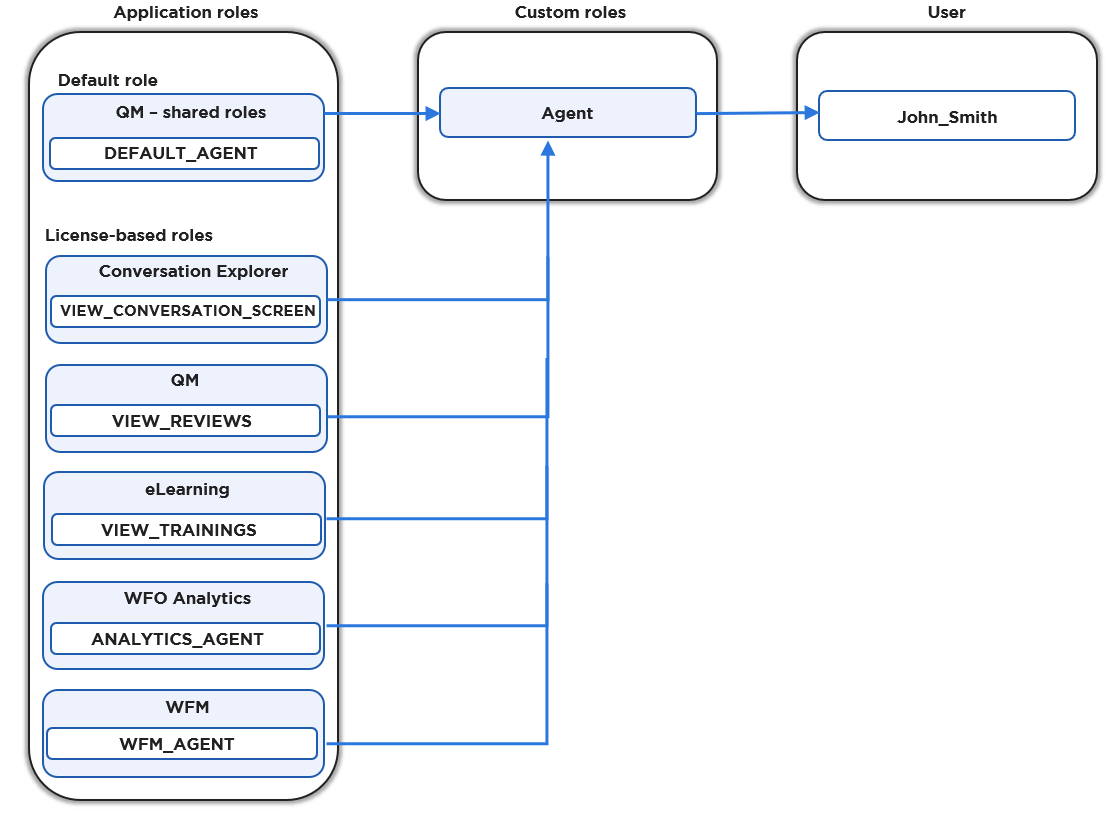
The diagram below shows how to create a new custom AGENT role and assign it to a user.
Assigning License-Based Roles to Users
License-based roles can be assigned to users as a part of a custom role (containing default application roles, as well as necessary license-based roles).
Interactive Guide