
Interactive Demo
Using the Review Form
The Review Form displays all sub-reviews and their associated conversations. From here, reviewers can add, replace, or remove specific conversations after listening to them.
Only agents enabled in User Management with the REVIEWS_AGENT_ENABLED permission can be reviewed
Accessing the Review Form
From the list of reviews on the Reviews screen, click on a review with the State of Awaiting Review or In Progress.
The Review Form opens.
Display and Access Information
The Review Form displays the review with any associated conversation if one was previously selected. If multiple call segments are available for a conversation, the connected segments can be viewed and played back. Reviewing connected segments is not supported.
Typically, reviewers must use one of the buttons to add a conversation for review. These buttons are enabled only if these privileges were granted when the review was created (see the Creating New Reviews page).
Understanding the Review Form
The Review form contains several sections/components:
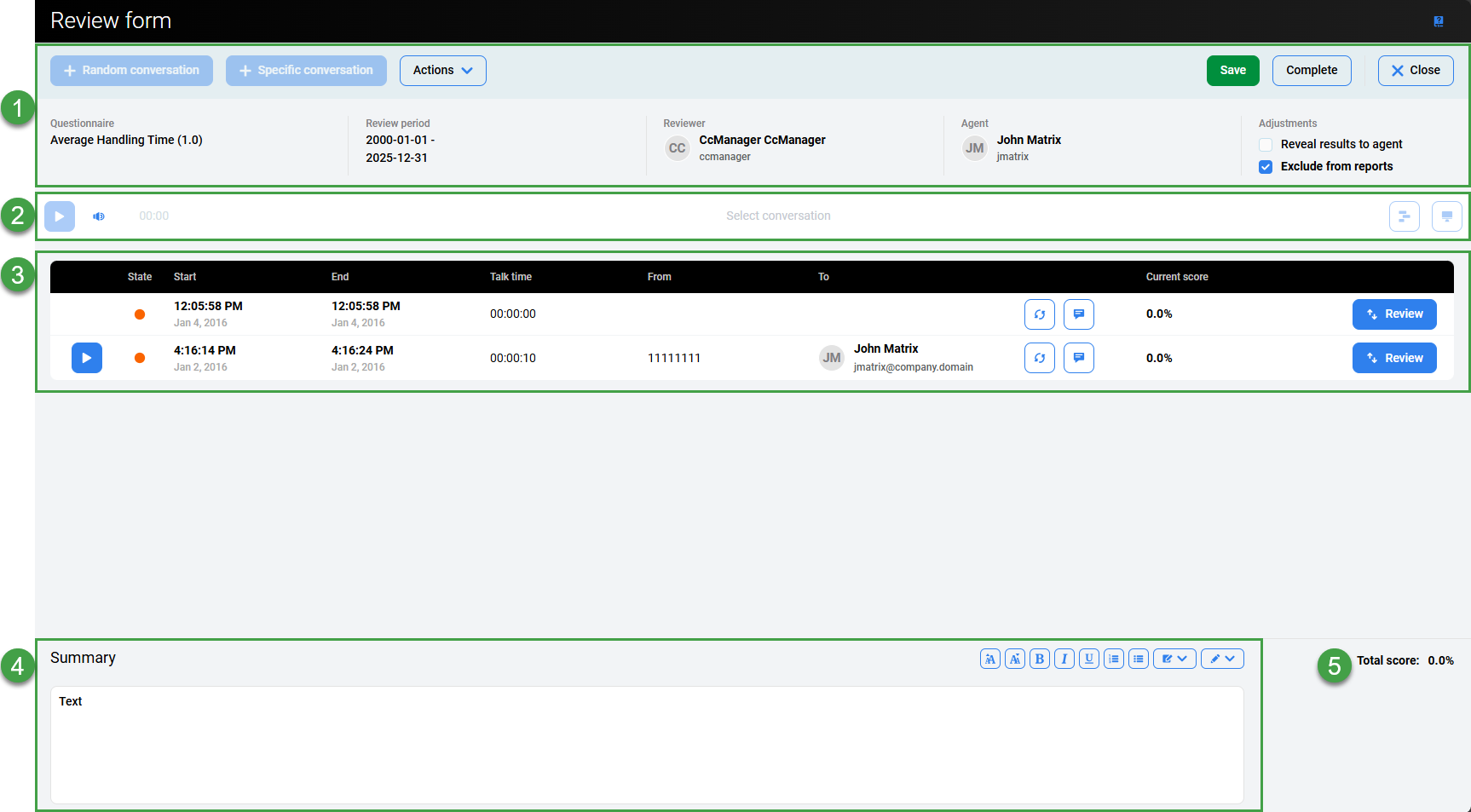
1. Header Section
The following options are available at the top of the screen:
-
Random Conversation – Click Random Conversations to have Quality Management select the conversation. If no conversations are found, a warning message displays. Only available if the Review was created from the Review Scheduler.
-
Specific Conversation – Click Specific Conversations to select a particular interaction. See the Adding a Specific Conversation section for further details.
These options are only enabled if the option to Allow replacement of the conversation was enabled when creating/scheduling the review. Only available if the Review was created from the Review Scheduler.
If enabled it is possible to:-
Replace the conversation/media recording .
-
-
Actions:
-
Send Feedback allows reviewers to send feedback to the reviewed agent. In order to send feedback the review must be in the state of “In Progress” or “Completed”. If multiple conversations (sub-reviews) are included in the Review Form then all feedback (things to improve, things to maintain) is sorted from newest to oldest (in the same order as displayed within the Review Form).
-
Feedback History allows reviewers to analyze and export all feedback that was created by different reviewers in the past for each agent. This feature provides reviewers with detailed information about an agent's review history. It can be printed or exported with or without internal notes. Click Feedback History to view and export feedback from earlier reviews for the same agent. It is possible to print or export previous feedback with or without internal notes. The comments that are added during the review process, including applied formatting, will also be displayed on the review report. By default, the internal notes are visible to the review author or the delegated user as well as to any user with permission to review a group belonging to the same hierarchy. This can be restricted to show only to the review author and the delegated user on the Preferences page.

-
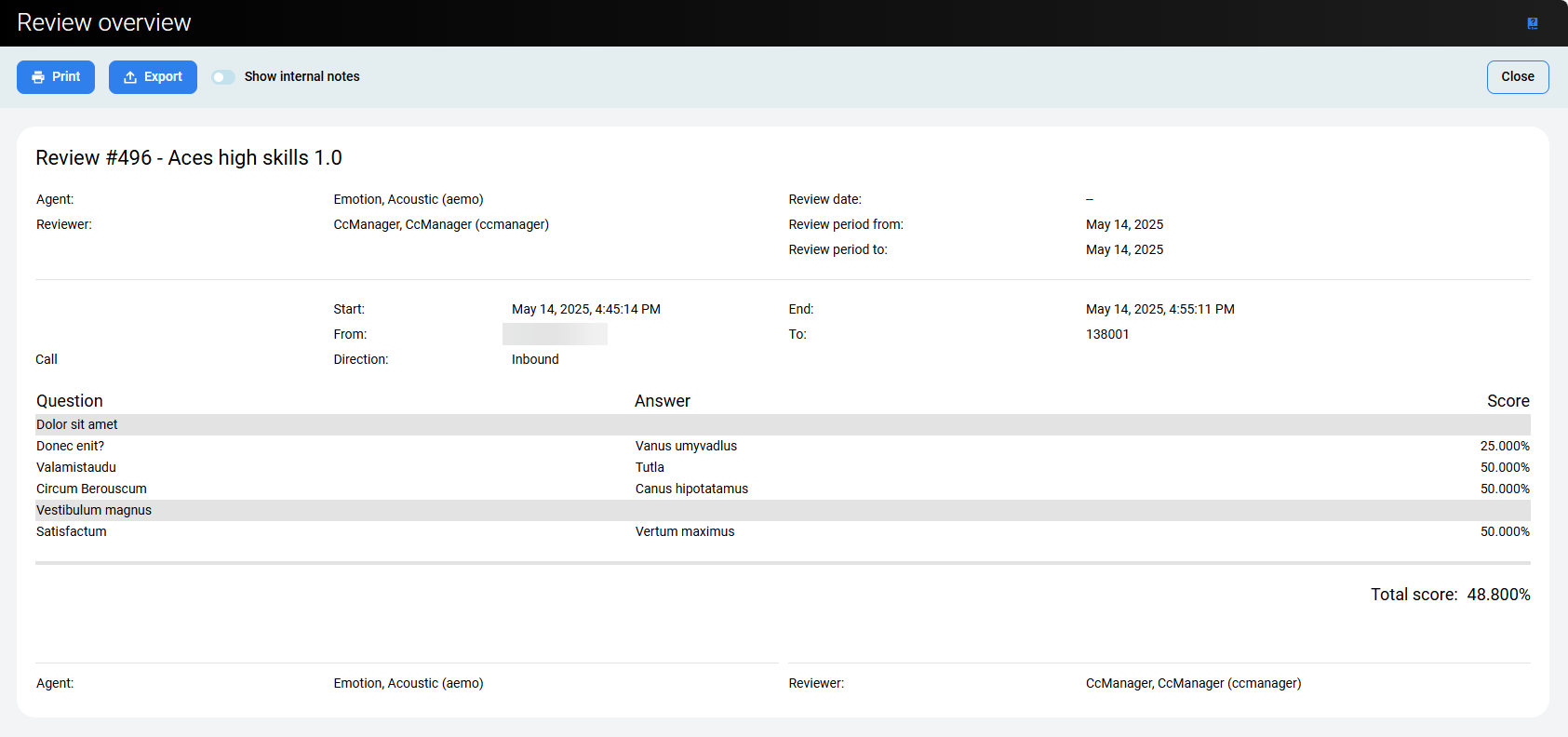
Overview – Opens the Review Overview screen. Toggle Show internal notes to view internal notes. Click Print to print the results, or click Export to download an .xlsx file.
-
-
Save – Click Save at the top of the grading form to keep all modifications made within the form fields. The current grading session will be saved and can be further edited later.
-
Complete – Click Complete to close the completed Review Form.
-
Close – Click Close to close the grading form.
-
A dialog may appear. This alert informs the reviewer that parts of the form have been left incomplete (for example, no feedback was added, or a required answer is missing). However, progress can still be saved and the form closed.
-
-
Questionnaire – Name of the questionnaire used for this review
-
Review Period – Indicates the time period used for the Review.
-
Reviewer – Name of the user who completed the review.
-
Agent – Name of the agent whose conversation was reviewed.
-
Adjustments:
-
Reveal results to agent – Gives the assigned agent access to the whole review. When deselected, the review is hidden from the agent entirely.
-
Exclude from reports – Dictates whether a review is included in the statistical reports. Regarding the compare reviewers report, all reviews are included in this report regardless of whether the check box is selected.
-
Quality Management selects only conversations that have not been reviewed yet when applying the Add Random Conversations feature in reviews that have not yet been completed. In addition, the Add Specific Conversations button used for adding conversations that meet specific criteria is unavailable when planning group reviews.
A conversation is excluded from random selection if it has already been reviewed for the evaluated agent — regardless of which evaluator performed the review or which questionnaire was used. A conversation included in any completed review for that agent is unavailable for random selection.
The time displayed in the output corresponds to the timezone of the current user. Not necessarily the server timezone.
2. Player
Playback – Click Play to play the call or video within the Player.
The interaction player can be expanded to display all available channels / or media that is available.
The Interaction Player and Its Functionality
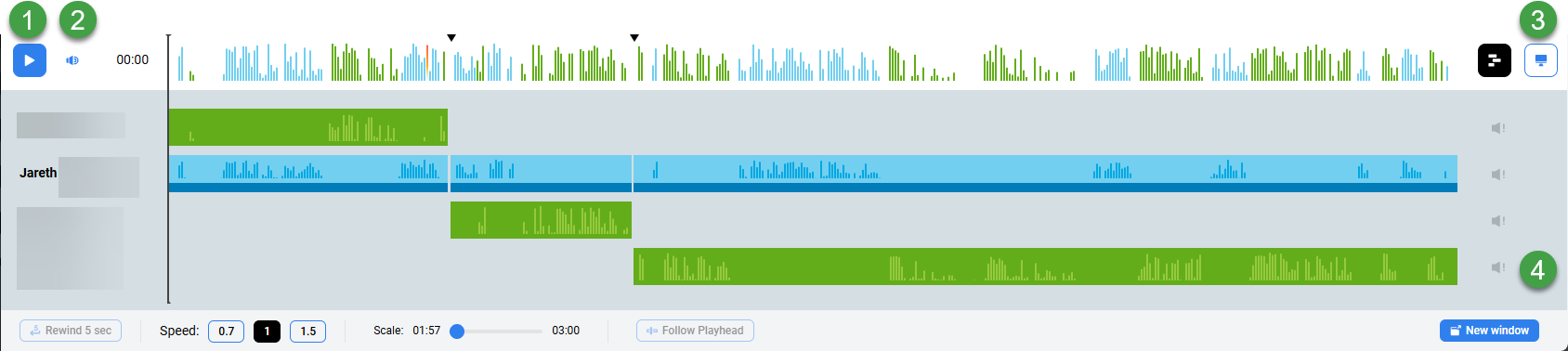
The various parties in the conversation are displayed below the primary waveform separately. Click the waveform button to view or hide the individual segments. Each individual waveform is color-coded: green for customers, blue for agents (if the ID or DN for the specific agent is available to be paired with the conversation or segment).
-
Click the Play or Pause button to control the conversation playback(long recordings may take some time to load before they are playable).
-
Hover over the volume icon and click to adjust the audio volume or click the speaker icon to mute the sound.
-
If media files are present, the following options may be visible:
-
Screen Recording – If the conversation you are playing contains a screen recording (record is marked with the Screen button). Click the button to open the playback window. If no screen recording is available, the button is greyed out.
During playback, the button is highlighted. Screen recordings are not loaded until you expand the playback window. Audio is playable at any time.
-
Video Recording – If the conversation you are playing contains a video recording (record ismarked with the Video recording button). Click the button to open the playback window. If no video recording is available, the button is grayed out.
-
-
The scroll bar (on the right-hand side) is only visible in the case that there are more than four media streams.
Video – When video is attached to recordings, the conversation plays from the beginning to the end without the ability to skip throughout the recording (seeking is not supported for video and conference video recordings). This is due to the way encryption and decryption work on the server side.
Webex Recordings – When multiple agents are part of a conversation their audio track may appear as part of a single waveform. This is a technological limitation of the recording solution.
3. List of Sub-Reviews
Visible columns – The following information/options related to the conversation for review are available:
-
Play icon – Allows playback of the conversation.
-
State – Status/state flags indicate if the review is Waiting to be performed, In Progress or Completed.
-
State time / End time – Indicate when the conversation occurred.
-
Talk time – Indicates the length of the call
-
From/To – Provides information about the calling party.
-
Notes– If any note/comments are available, they can be viewed conveniently from this screen.
-
Current score – The current score for this particular sub-item is displayed.
-
Review or View button – The options take you to the Grading form to view or complete the review.
If no existing conversations are specified when the review is created, the new review will not contain any conversations.
4. Summary
-
Summary – Contains notes for the review.
The content of the field can be copied for use elsewhere. To copy the text, right-click inside the field, then select and copy using Ctrl+C.
5. Total Score
The total score for all sub-reviews appears at the bottom of the Review Form and on the Reviews screen. This is also displayed on the Reviews screen.
Adding Notes
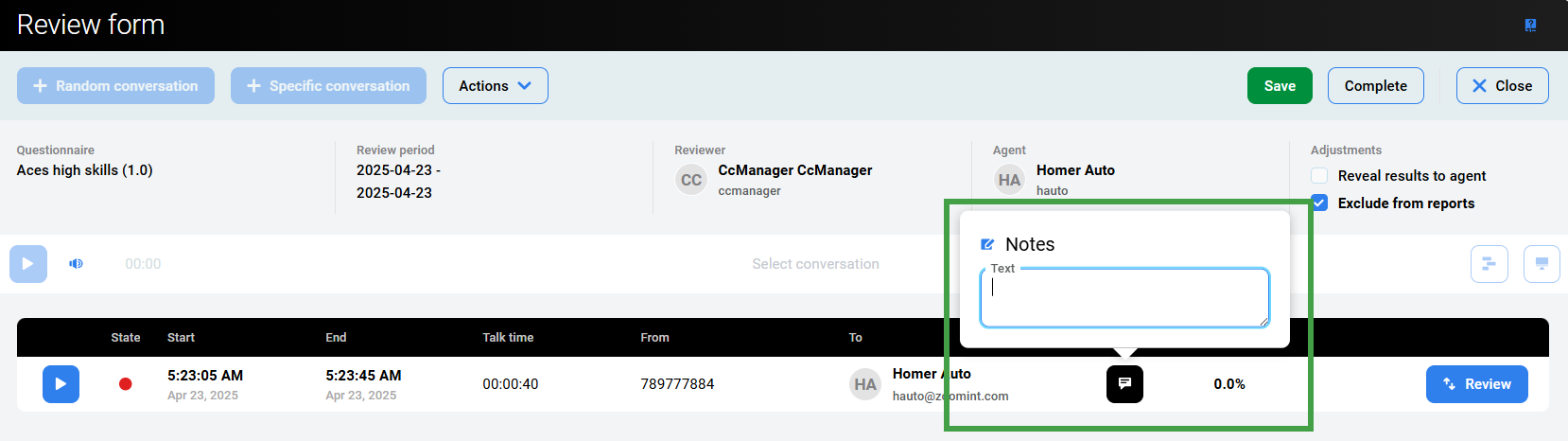
You may also wish to associate a comment or note with a conversation by clicking on the Notes icon.
A dialog opens. You can add an additional comment or observation related to the conversation. Notes are editable and visible only while the sub-review is in progress. Once the review is complete, notes are no longer visible on the form..
Adding a Specific Conversation
Quality Management allows adding specific conversations to reviews. The Specific Conversations button in the Review Form provides a useful and easy method for uploading a specific conversation to the review.
The option to add Specific Conversation is available only when the review has been created using the Review Scheduler and the user has adequate permissions(REVIEWS_CONV_ADD).
If the current user does not have adequate permissions an error message displays "You don´t have permission to view this page".
To add specific conversations from the Review Form, go to Reviews, click on a specific review, and click the Specific Conversations button.

A list of available conversations displays. Search for conversations the same way as when using the Searching for Conversations on the Conversation Explorer.
Click one on a conversation to select it, double-click to open the details pane and playback the available recording in the Interaction Player.
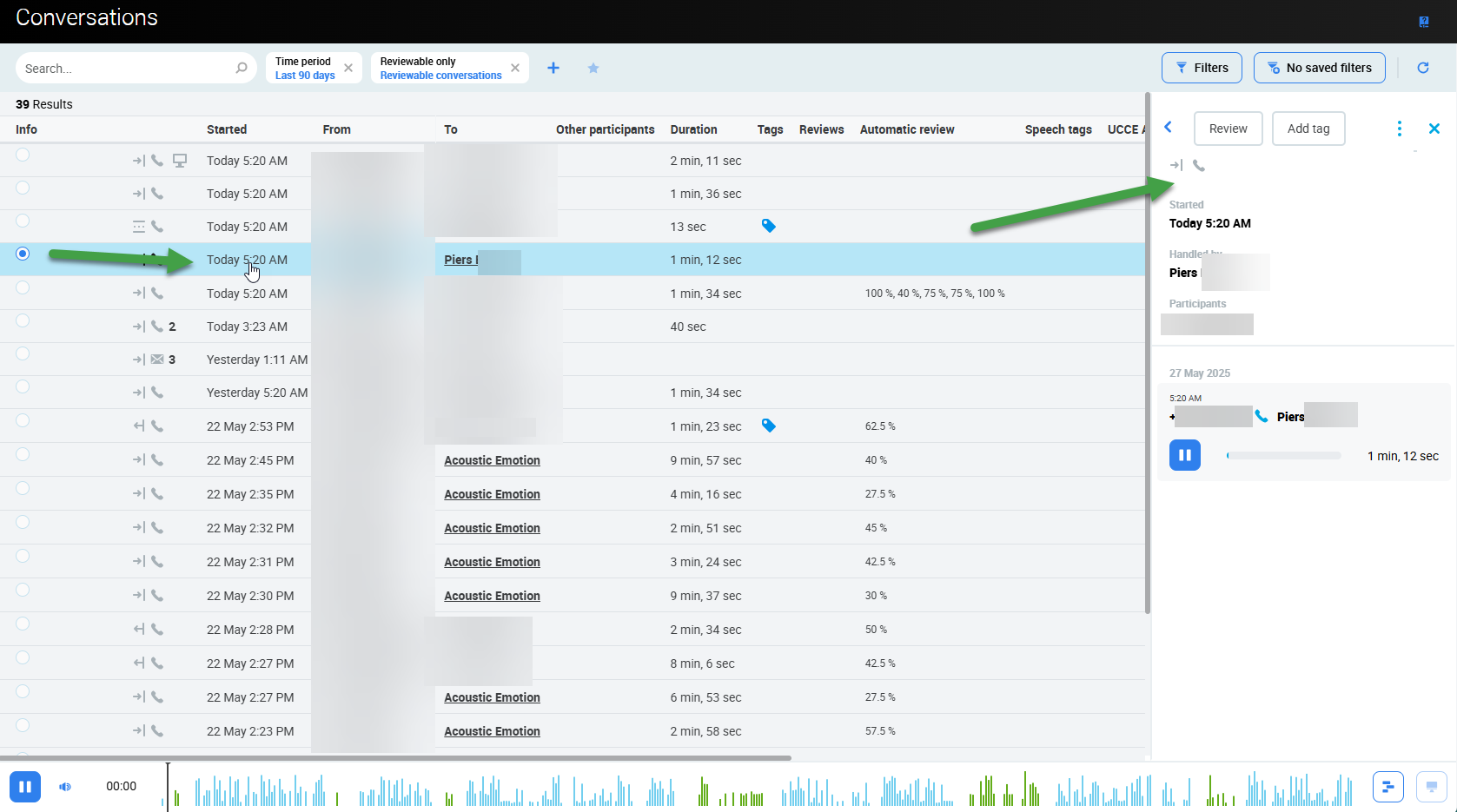
Once the needed conversation is found:
-
Select one or more
-
Click Select Conversation to confirm your selection and return to the Review Form page.
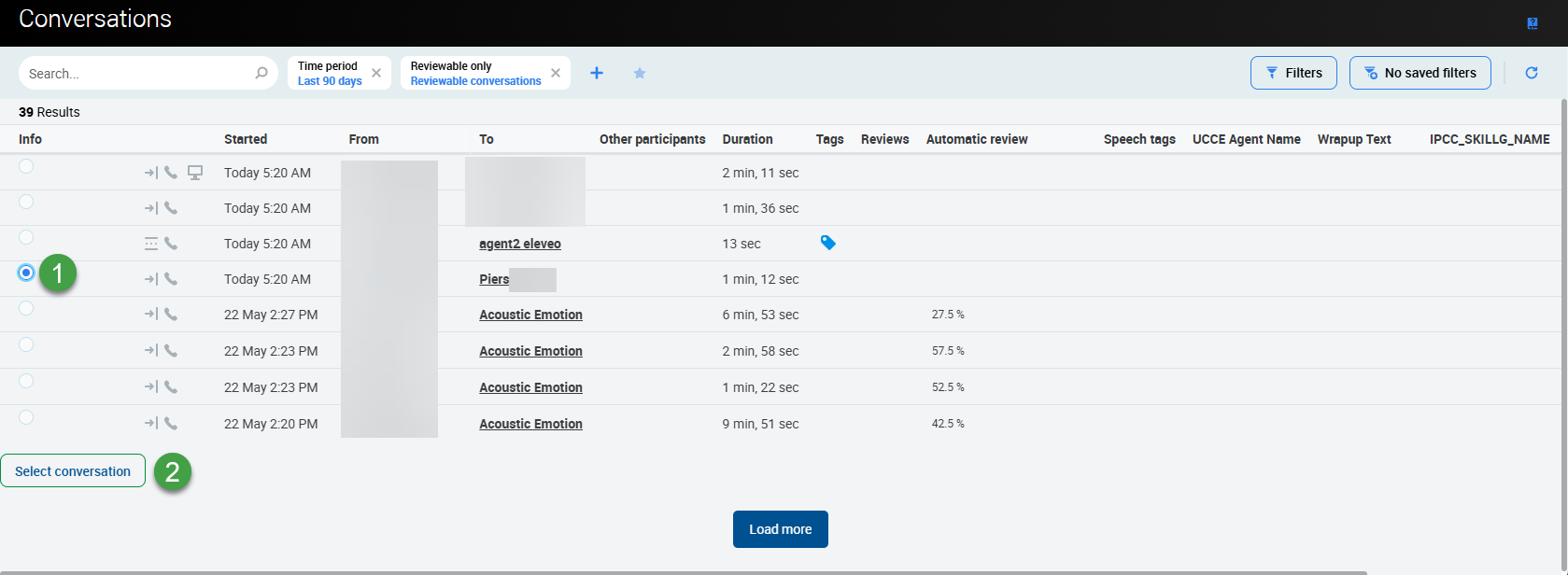
The option to Add Specific Conversation is available only when the review has been created using the Review Scheduler.
Adding Random Conversations for Review
The feature is available only for the reviews planned via the Plan Manager.
When contact centers have a long-term quality monitoring process they select calls for reviews based on random selection within parameters that are established in their search processes (for example, calls must be of a certain length).
The reason for making random call selections is to reduce bias in the process. When a call is selected randomly reviewers cannot select a good call to present an agent in a favorable light, and cannot selectively choose poor-performing calls either. Thus, random call selection enhances the impartiality of the quality process, thereby increasing the trust and confidence of agents and management. If agents do not trust the quality process, it becomes difficult to influence their behavior and drive improvement.
The Add Random Conversation process requires further preparation of Sub-criteria. For detailed information see the section on specifying how to select conversations on the Plan Manager page.
To add random conversations to a review, go to the Review Form and click the Add Random Conversations button.

When using Add Random Conversations, Quality Management selects only conversations that have not yet been reviewed, from reviews that are not yet complete. In addition, the Add Specific Conversations button is used for adding conversations that meet specific criteria is unavailable when planning group reviews.
A conversation is excluded from random selection if it has already been reviewed for the evaluated agent — regardless of which evaluator performed the review or which questionnaire was used. A conversation included in any completed review for that agent is unavailable for random selection.
Replacing a Conversation in a Review
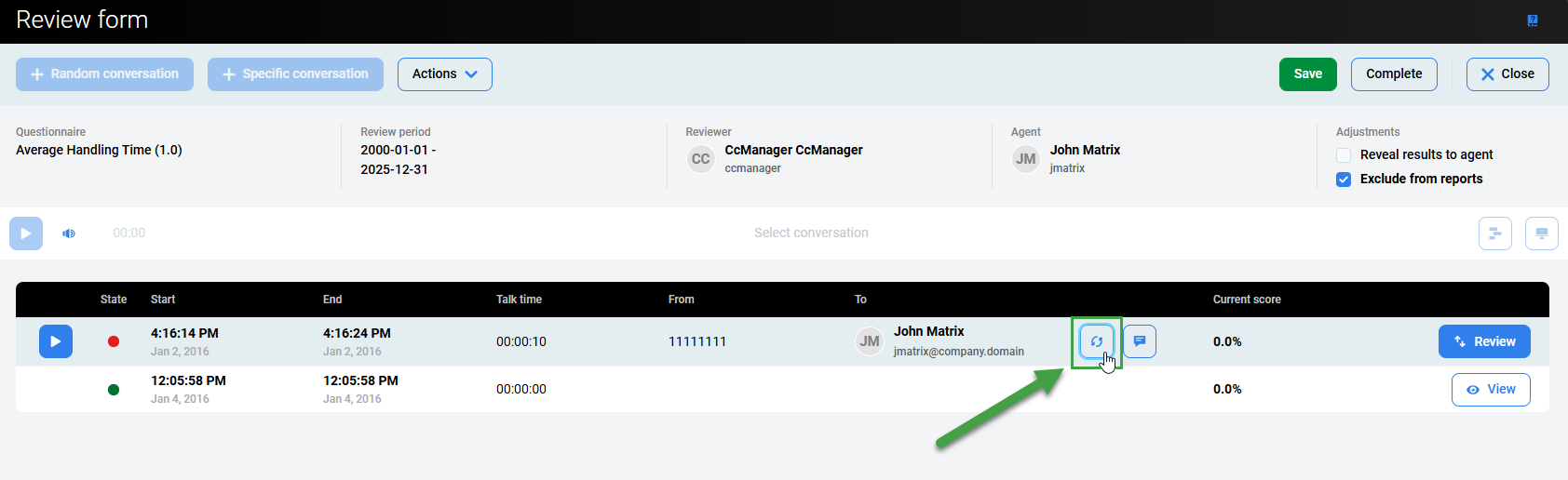
If the reviewers are dissatisfied with a random conversation that appears in the review, they can replace the particular conversation by using the Replace button located within the Review Form.
Replacing or Deleting Conversations
Replacing a conversation does not affect the order of conversations within the Review Form.
-
Click the replace icon to replace conversations that are available for review. This option is only available if the Allow Call Replacement option was enabled when the review was created.
-
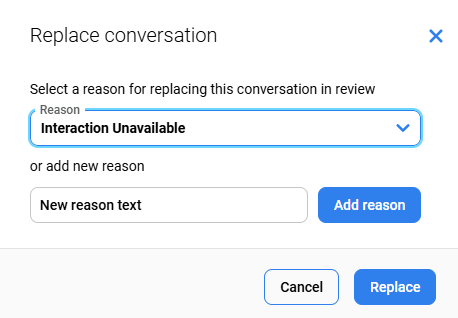
The Replace Conversation window appears and provides four default replacement options:
-
No customer contact
-
Playback Quality
-
Interaction Relevance
-
Interaction Unavailable
Users may also enter their own reasons. Either in the Replace Conversation dialog window or directly within the Replacement Reasons tab.
-
-
The conversation is replaced.
A conversation can also be deleted but the delete button is only available if someone has introduced a conversation into the review in addition to those provided using the "Add Random Conversations" button.
The same dialog window appears when deleting the conversation. (It is only possible to delete conversations if more conversations have been added to the review than the number required for the review.) If it is possible to delete a conversation a warning asks users to: "Reason for removing this conversation from review:"
Quickly Adding a New Replacement Reason
To add a reason in the Replace Conversation dialog window:
-
Type the name of the reason directly in the text field.
-
Click Add Reason to add a new reason for the replacement.
-
Click Replace.
The conversation will be updated and the new Replacement reason is saved and visible on the Replacement Reasons screen.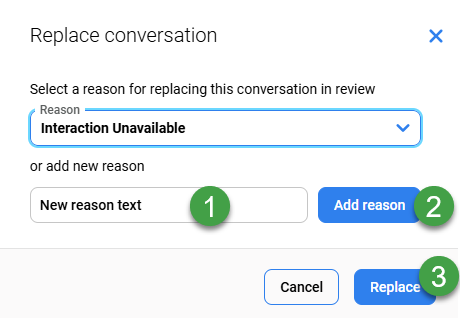
Completing a Review
Once the conversation/media recording have been fully graded, the reviewer must complete the review using the Complete tab in the right-hand corner of the Review Form. If all sub-reviews/questionnaires have been fully answered, Quality Management marks the review as complete by assigning it the Completed status in the Reviews. A warning message will indicate that it is not possible to edit the review once it is closed(it is still possible to reopen the review).
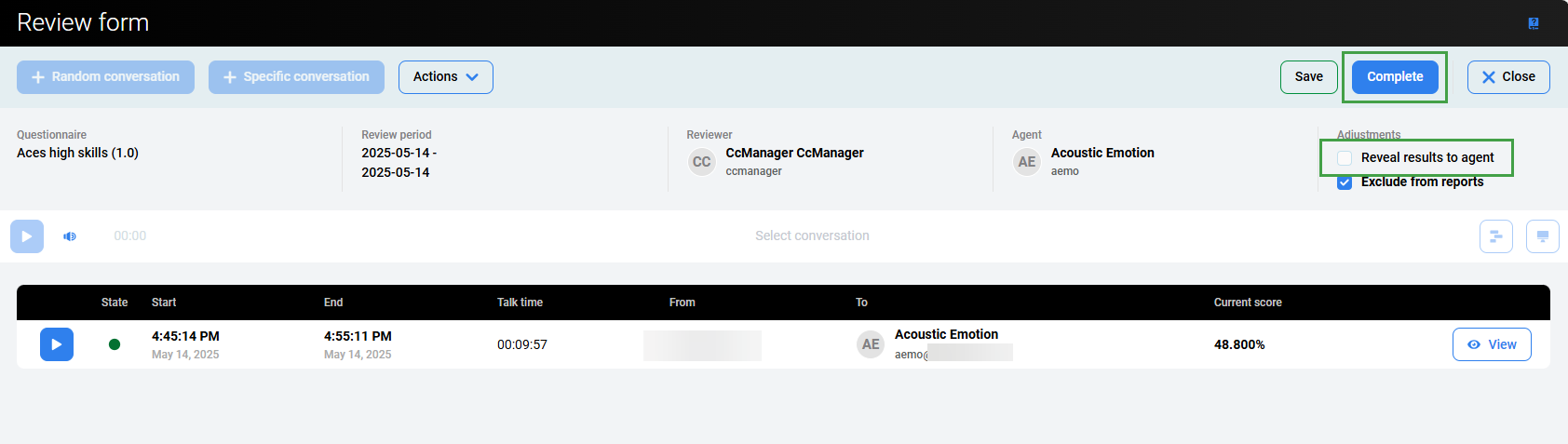
Enable the Reveal Results to Agent option to allow the agent to see the results. It can be done in two ways (alternatively):
-
select the Reveal Results to Agent check box on the review form
-
select the Reveal Results to Agent check box on the review list.
If the review is in progress or an awaiting state, the Reveal Results to Agent option can be changed in both places. For completed reviews, this option cannot normally be enabled or disabled(users with the role REVIEWS_EDIT_VISIBILITY can edit the option Reveal Results to Agent and Include in reports even if the review is in a completed state).
-
Once the Reveal Results to Agent option is selected the Agent will be able to view the results and submit feedback from this screen. Even if the review has not yet been completed, or is ongoing!
-
If multiple sub-reviews/questionnaires are listed, all of them must be fully graded before the Complete button can be clicked.
-
Reviews appear in reports only after all conversations in the plan are completed.
-
In order for an end user to see completed reviews within the Reviews tab. The Reveal Results to Agent checkbox must be ticked in every single review that the agent wants to see on their Reviews screen.
View the Score
View the score/rating in the Current Score column.
View the average score for all media in the review in the Total Score field.
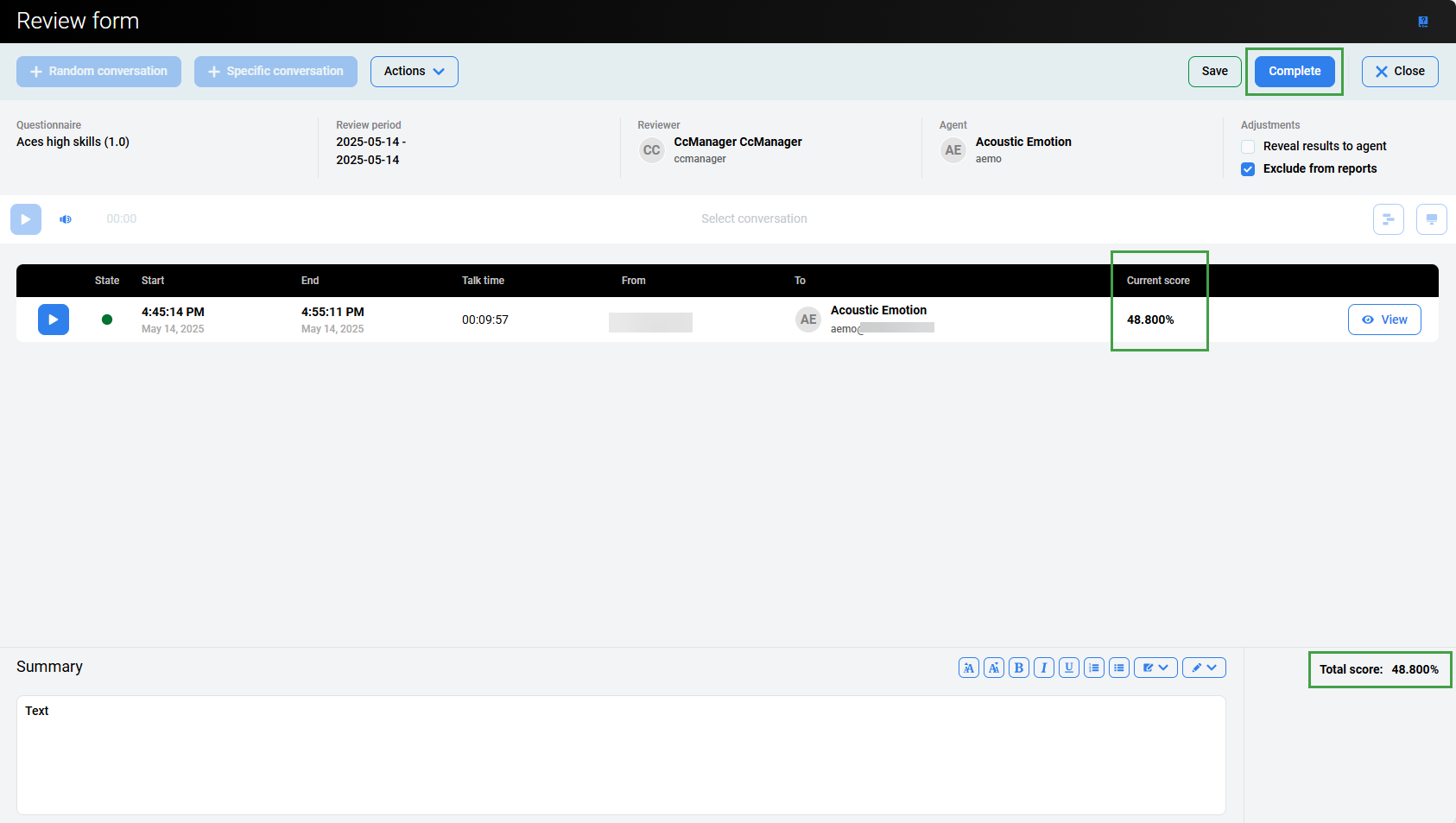
The following options are available via the Actions drop-down:
Send feedback – Click Send Feedback to send feedback to the agent. Different organizations have different policies for this. Use this option when the review is not a surprise in either a positive or negative way. Where agents have a much worse review than expected it's better to speak with them personally in private where their reaction can be more effectively managed. When an agent has had an outstanding performance personal congratulations and is much more motivating than an anonymous email.
If multiple conversations (sub-reviews) are included in the Review Form, then all feedback (things to improve, things to maintain) is sorted from newest to oldest (in the same order as displayed within the Review Form).
Feedback history – Click Feedback History to view and export feedback from earlier reviews for the same agent. This is useful for reviewers that are new to the team but can influence it with their impartiality. Additionally, it is possible to print or export previous feedback with or without internal comments.

The Reveal Results to Agent option controls the agent's access to the whole review.
-
When it is not selected, the review is hidden from the agent entirely, including its score and the Things to Improve and Things to Maintain feedback.
-
When it is selected, the agent can see the review and the feedback and can submit feedback, with the score presented according to the questionnaire’s Show to Agents scoring tier.
-
Internal Notes are never visible to the agent.
The time displayed corresponds to the timezone of the current user. Not necessarily the server timezone.
Overview – Click to open the Review overview.
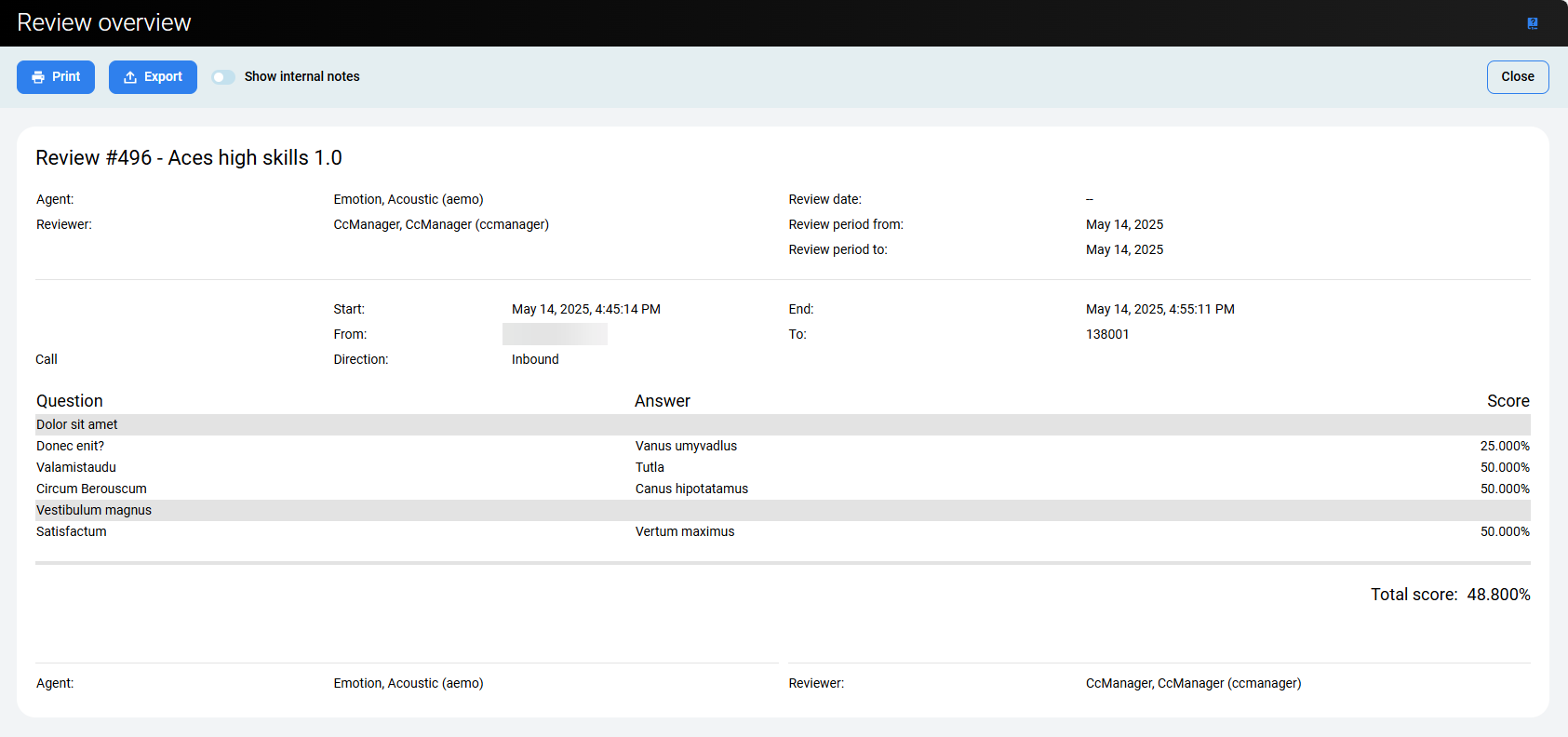
Reopening a Review
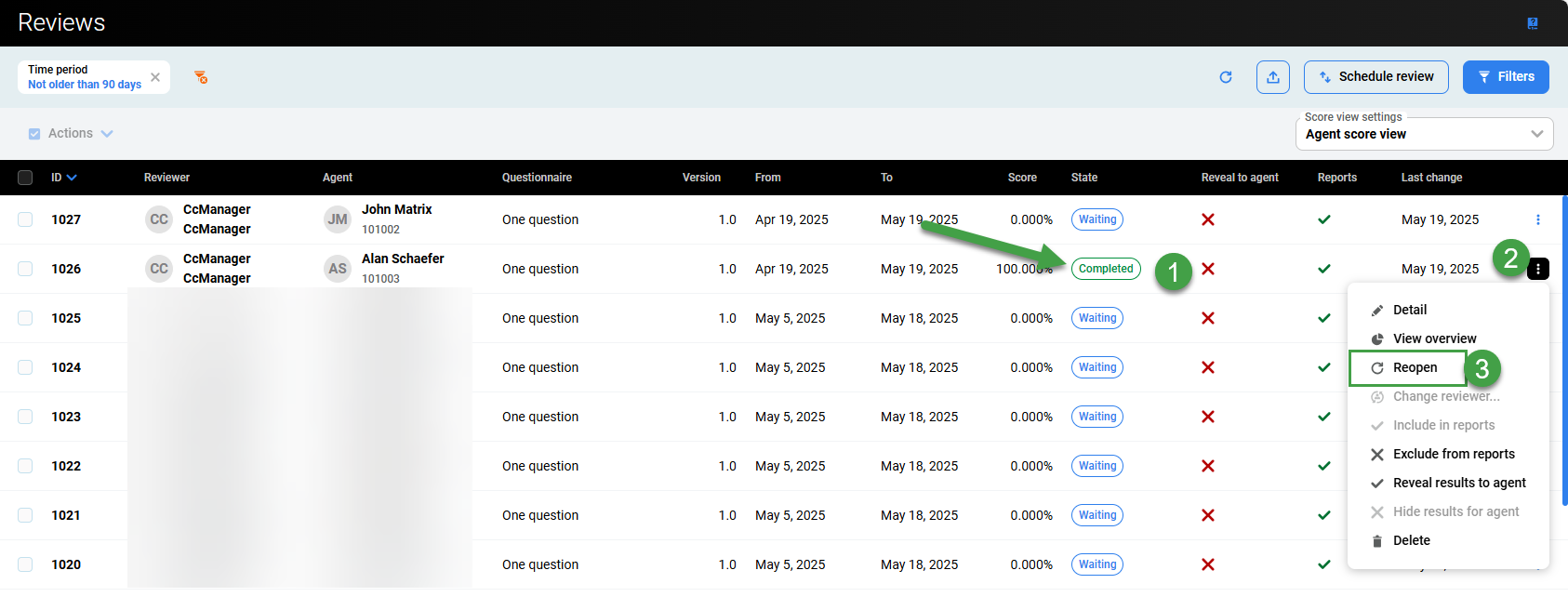
It's possible to change a completed review (i.e. assigned Completed status) for example if an agent successfully appeals the results of a negative review, however, only if the custom REVIEWS_REOPEN privilege has been assigned to the user’s role.
To reopen a review:
-
Select a review with the status Completed.
-
Click More actions.
-
Click Reopen from the drop-down list.
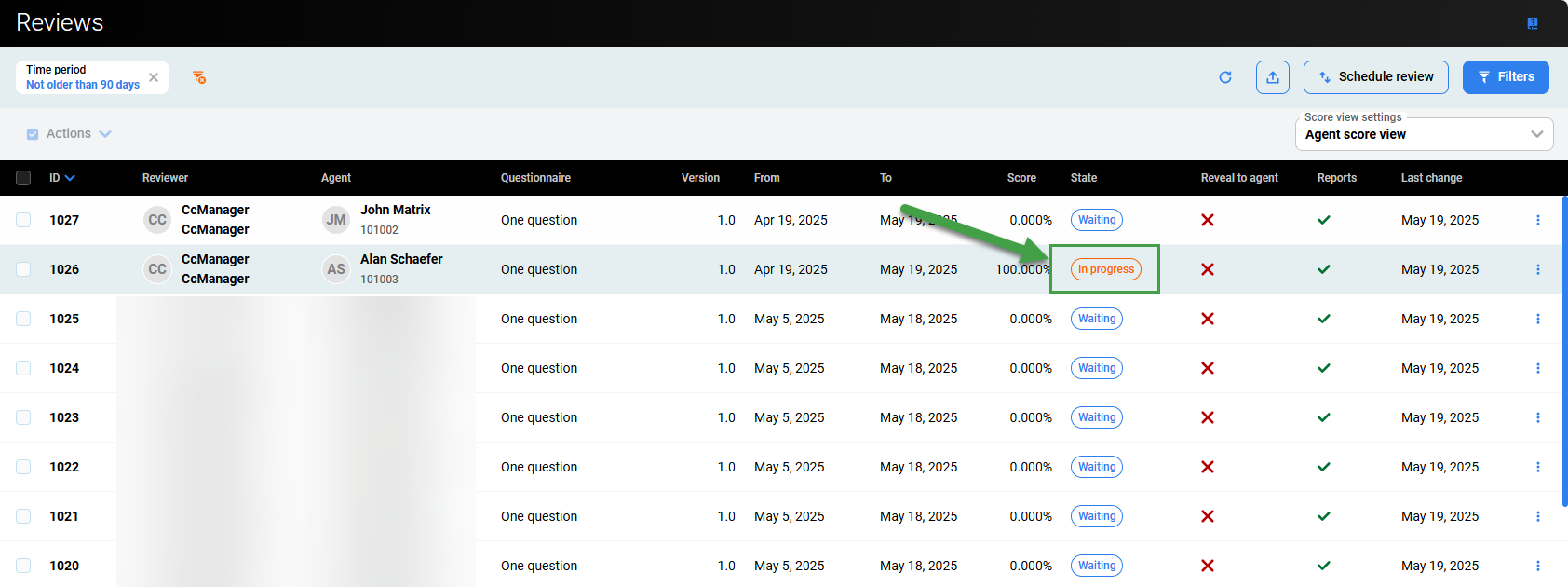
The status of the review becomes In Progress.
Important: After selecting a review to reopen only the assigned reviewer can view and modify the review scores.