
Understanding the Grading Form
Reviewers use the Grading Form to evaluate a specific call made by an agent
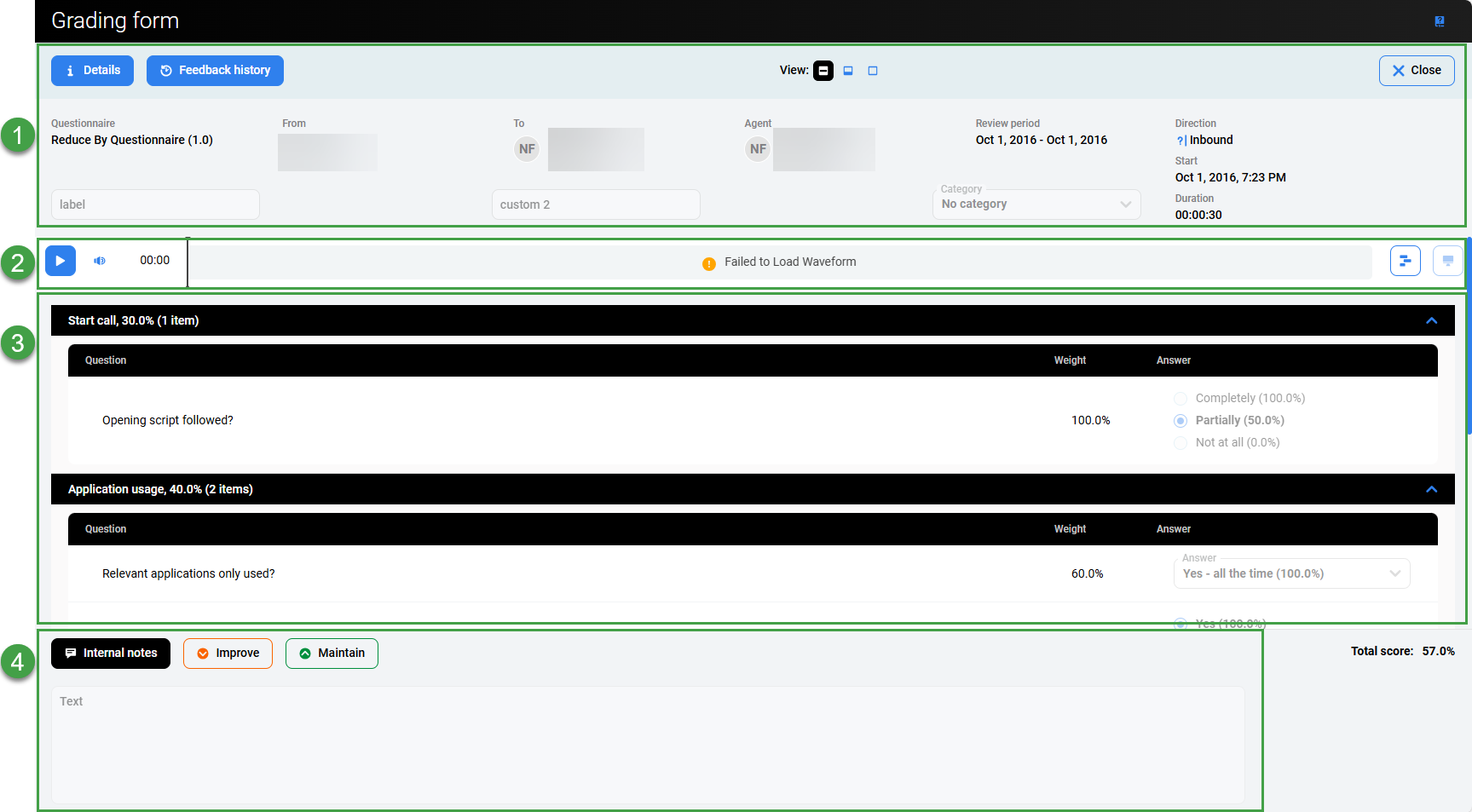
In the Grading Form, users can listen to a call and grade it simultaneously. Related calls may also appear in the Grading Form but are displayed in grey to indicate they are not the subject of the review. Displaying related calls gives reviewers additional context to better understand the conversation being graded.
Interactive Demo
Available options on the grading form include:
1. Header Section
-
Details – Opens a popup with details about the conversation used in the review. Click Close to return.
-
Feedback history – Displays all past feedback for this review. Export or print as needed. Click the toggle switch to include internal notes or not.

-
View – Select what level of detail should display on the screen. Switch between three available options to minimize or expand the panels at the top and/or bottom of the screen. Click on the icons in the center of the screen.

The questionnaire displays the relevant information at the top of the form, including which questionnaire is used, calling parties, review period and direction of the conversation(if known).
The Tracking Number, Ticket Number, and Category can be updated as required. They are saved when you click Save or Complete. (Field names may vary based on the configuration in system Preferences).
2. Player
Playback – Click Play to begin playing the call or video.
The interaction player can be expanded to display all available media channels.
3. Questions and Comments Section
Scroll down to view all questions. Individual items can be expanded or collapsed using the arrows in each section or question header. If not all options are visible, adjust the browser zoom level or try a different browser.
Select an appropriate answer for each question (options may vary based on the configured Scoring Tiers), stopping and replaying the media as necessary. All questions must be answered for all media records present in the review before the review can be marked as complete.
Note – If an answer was marked as ‘default’ when creating the questionnaire, it will be preselected in the grading form.
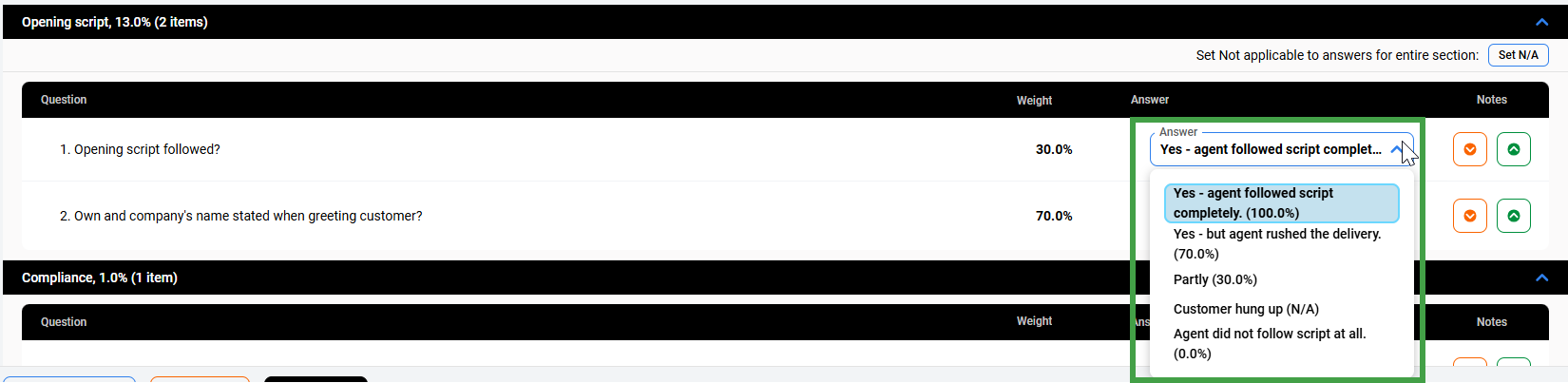
Quickly Selecting Answers
For questions with two or three options you can quickly select the correct answer. For questions with four or more options use the dropdown, and select the most suitable answer.
Quick select:

Or, Select from the dropdown menu:

Comments – Comments can be added to the Things To Improve and Things To Maintain sections only after selecting an answer for the relevant question The text is saved automatically and can be viewed, formatted, or edited in the Notes section.

4. Notes Section
The Grading Form allows reviewers to add positive or negative feedback to individual questions. All individual inputs are shown together in the Improve and Maintain feedback panel. This is useful for recording context when marking a question poorly, or for writing notes to reference when providing feedback to the agentThe system labels each note with the question it relates to, for clarity.
Click one of the three icons to view or edit the text. Rich-text controls for enhanced text formatting are available as well.

The purpose of the Internal Note field is for reviewers to be able to write notes that are never visible to the reviewed agent. Supervisors and higher roles are able to see internal notes in the review form, in the printed file, and in the exported file.
The following two feedback fields Improve and Maintain are visible to the reviewed agent and help in communication between a supervisor and an agent.
These feedback fields are cumulatively filled based on input during the review process (when adding positive or negative feedback). Additionally, you can write and edit text directly within these feedback fields. For example, Things To Maintain can be used to keep a list of points illustrating areas of good performance by the agent, whereas any areas for improvement should be noted in the Things To Improve field.
The content of the Internal Note/Things to Improve/Things to Maintain fields from the completed Grading Form can also be copied for use elsewhere. In order to copy the text, it is necessary to first click inside the field. Select the text and then copy the text using CTRL+C.
Post-Upgrade Changes
Legacy content may not display as expected. Note that customized formatting may be lost after an upgrade, text from multiple lines will be shown on a single line as a result.
Completing the Form
The Grading Form must be completed as part of the review process.
-
Click Save at the top of the grading form to keep all modifications made within the form fields. The current grading session will be saved and can be further edited later.
-
Click Close to close the grading form.
-
A dialog may appear, informing the reviewer that parts of the form have been left incomplete (for example, no feedback was added, or a required answer is missing). However, progress can still be saved and the form closed.
-
-
Click Complete to close the completed Form.
The Review Form where the Current Rating of the specific call and the Total Rating of all reviewed conversations are displayed.
Viewing Conversation Information and External Data in the Grading Form
To see information and external data associated with the call click Details.
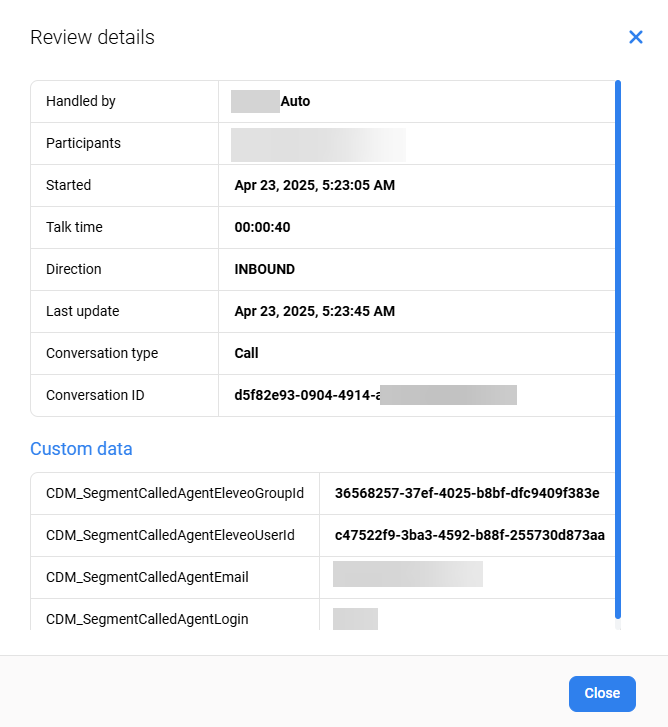
A Conversation Information dialog displays all the information and external data available for that segment of the call.
To close the dialog box click OK.
The time displayed corresponds to the timezone of the current user. Not necessarily the server timezone.
Customizing Fields
Labels on the form can be modified by editing the option in the Quality Management Preferences tab.
If the fields Label of custom tracking number 1: and Label of custom tracking number 2: have been filled in on the Preferences tab then the Grading form will appear slightly different as the default labels "Mail Tracking Number" and "Ticket Number" will change.