Custom roles in User Management allow admins to build any role from scratch — assign a name, add permissions, and save.
Eleveo specific roles are predefined roles that Eleveo recommends creating in every installation. These roles have predefined names such as AGENT, SUPERVISOR, or IT_ADMIN, each with a set of permissions already mapped.
To add and configure custom roles, a user needs the manage-custom-roles and view-custom-roles roles. These are assigned to the eleveo.admin by default in the User Management application.
Custom roles are composite: they can include other roles such as effective roles, composite roles, or previously created custom roles. After creation, they are listed on the Roles Mappings tab and can be assigned to users.
This page explains how to create and manage custom roles in User Management.
Displaying Custom Roles
To view custom roles that already exist in the system, click on User management > Roles within the navigation tree on the left. The Roles screen opens.
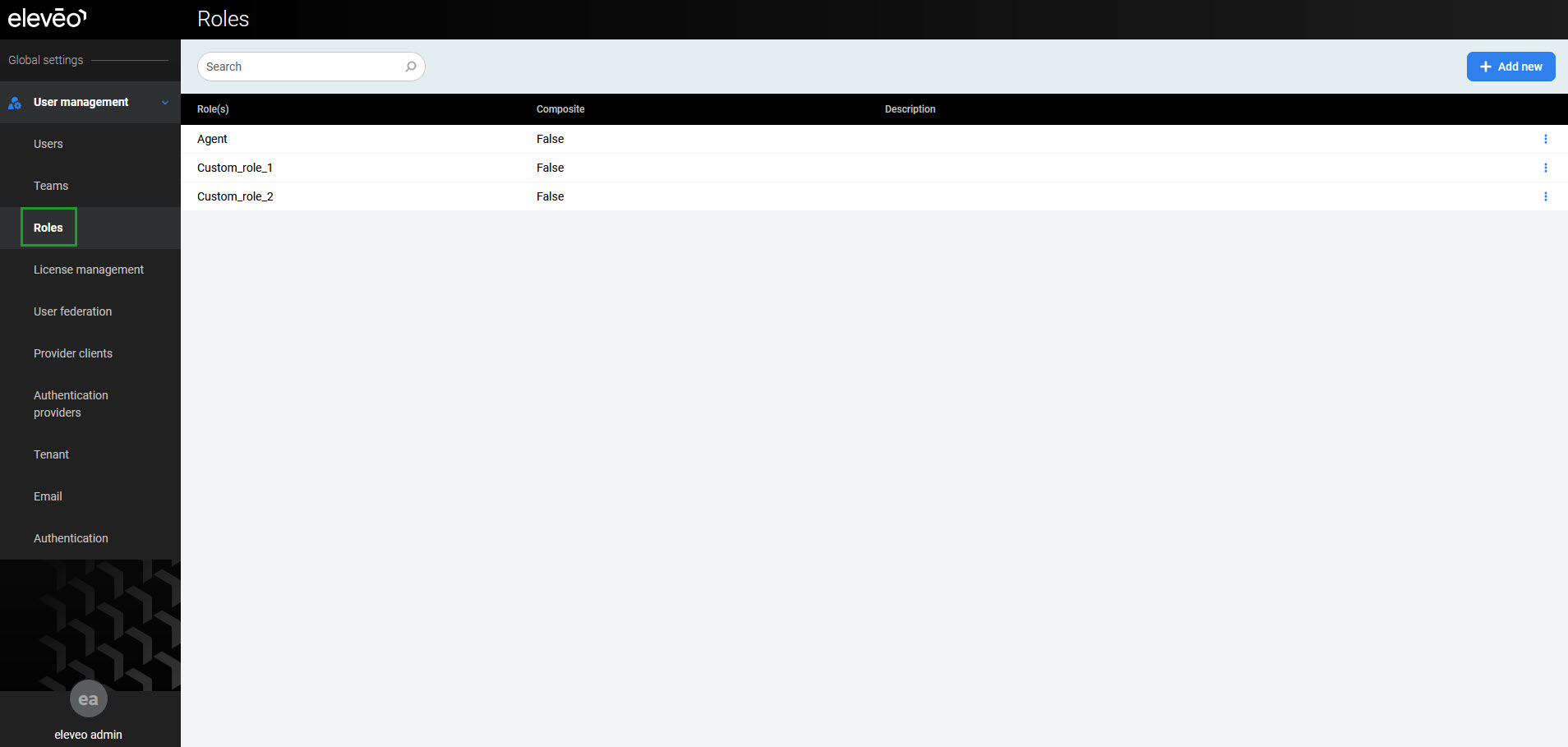
Basic information about each role is displayed in the following columns:
-
Role(s) – name of a role.
-
Composite – if a role is composite (contains other roles) or not.
-
Description – optional description of a role.
To search for a role in the database, enter the role's name in the search box and press Enter. All roles that match the entered criteria are displayed.
Interactive Guide
Adding a Custom Role
Role Details
-
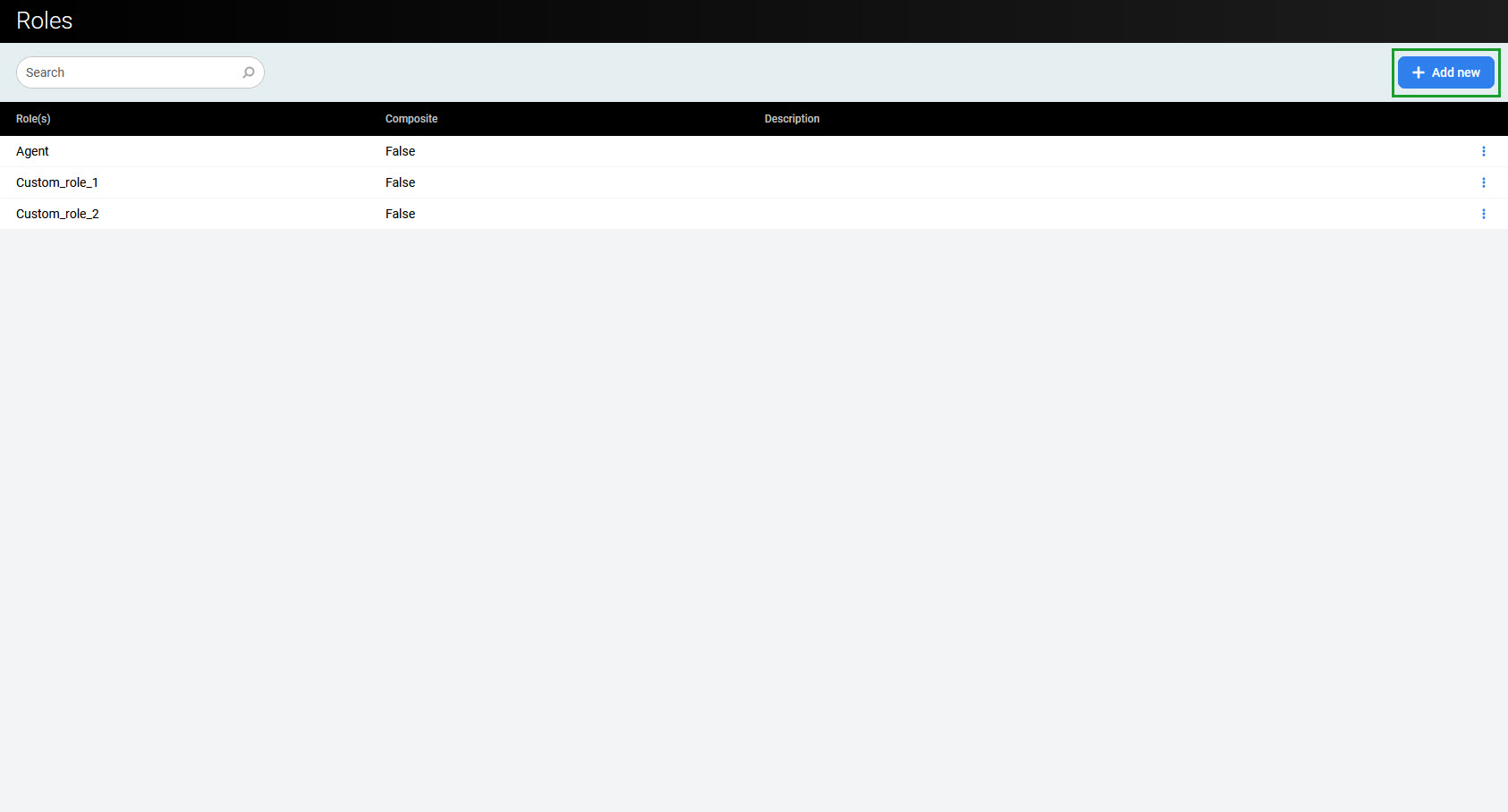
Click the Add new button.
-
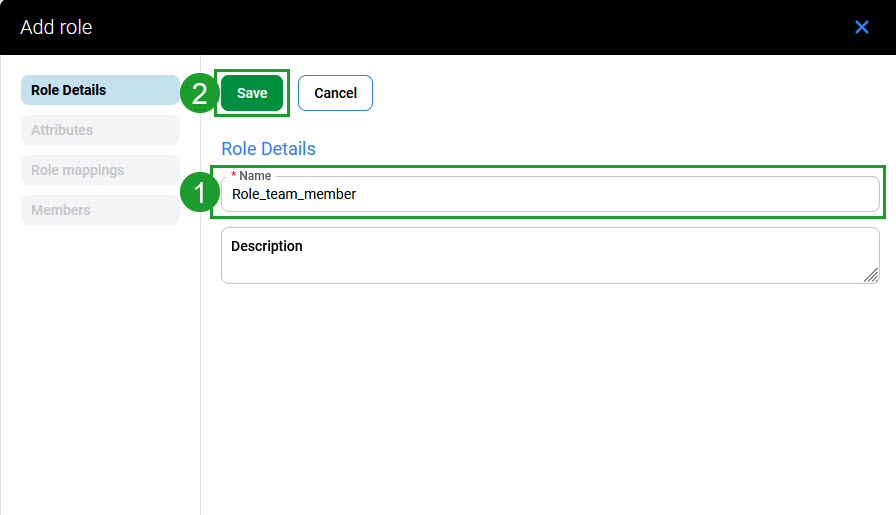
The Add role pane opens. On the Role Details tab, enter a Name.
-
Optionally, enter a Description.
-
Click Save to create the role, or click Cancel to discard changes.
A new custom role is not composite by default, so it doesn't contain any child roles.
Attributes
-
Go to the Attributes tab to add attributes as key-value pairs. All users with this role assigned automatically have these attributes configured.
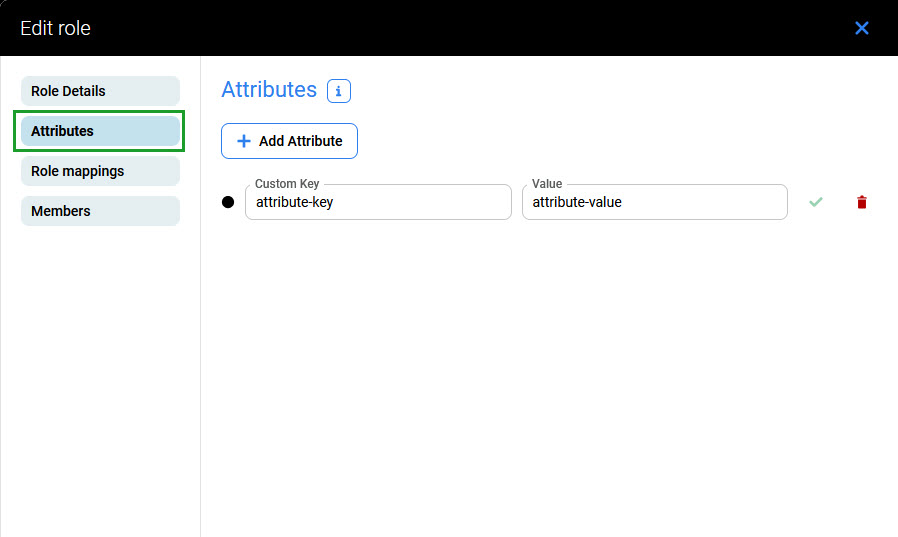
-
Click the Add Attribute button and provide a Custom Key and Value pair.
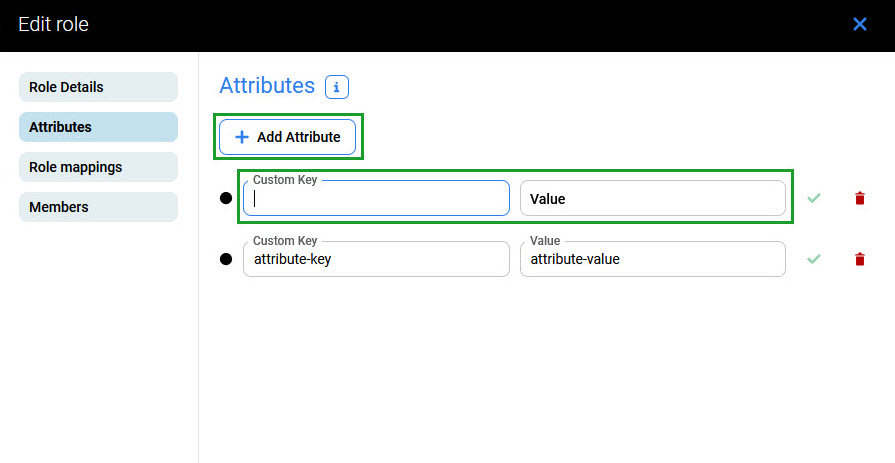
-
Click the bin icon on the right to remove an attribute.
Role Mappings
-
Go to the Role mappings tab to assign other custom or application roles to the newly created role.
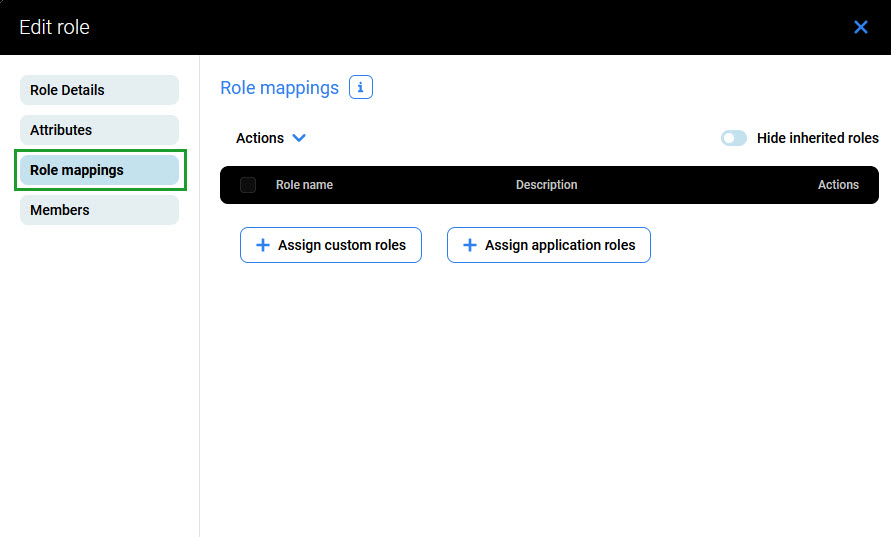
Assigning Application Roles
-
Click the Assign application roles button. A new window opens.
-
Expand the Application dropdown menu and select an application.
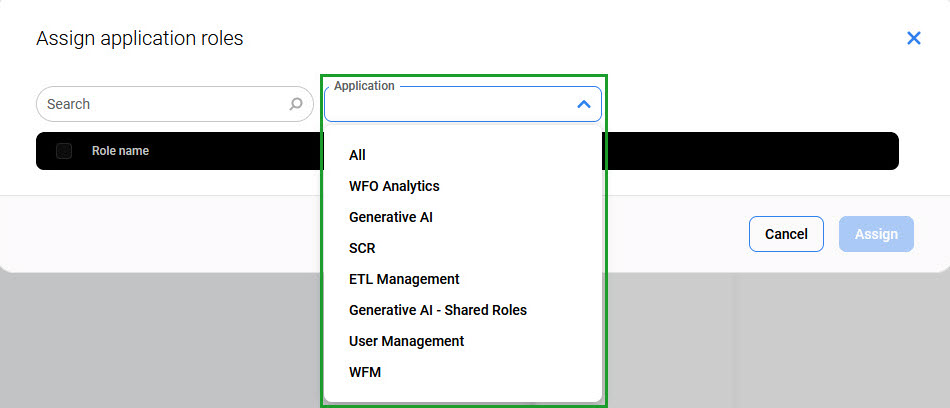
-
The list of available roles for the selected application is displayed. Select the checkboxes next to the roles to assign and click Assign.
-
The Role mappings tab displays all assigned roles, including inherited roles. Use the Hide inherited roles switch to show only the roles that were manually assigned in the previous step.
Assigning Custom Roles
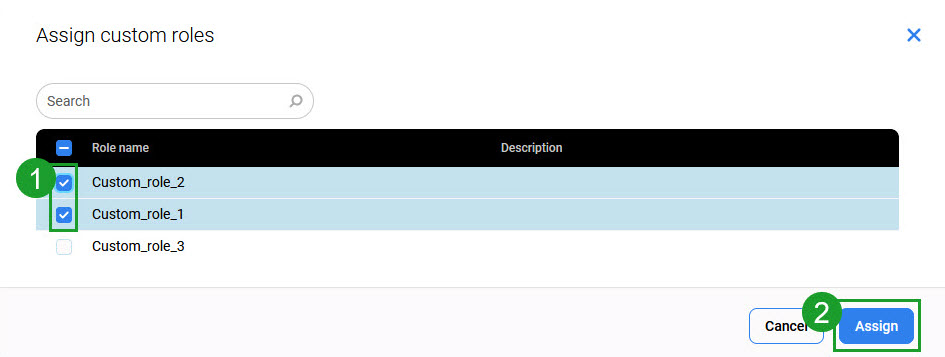
Custom roles can also be nested. To add an existing custom role to the new role, click the Assign custom roles button, select the roles, and click Assign. This creates a parent-child structure.
Unassigning Roles
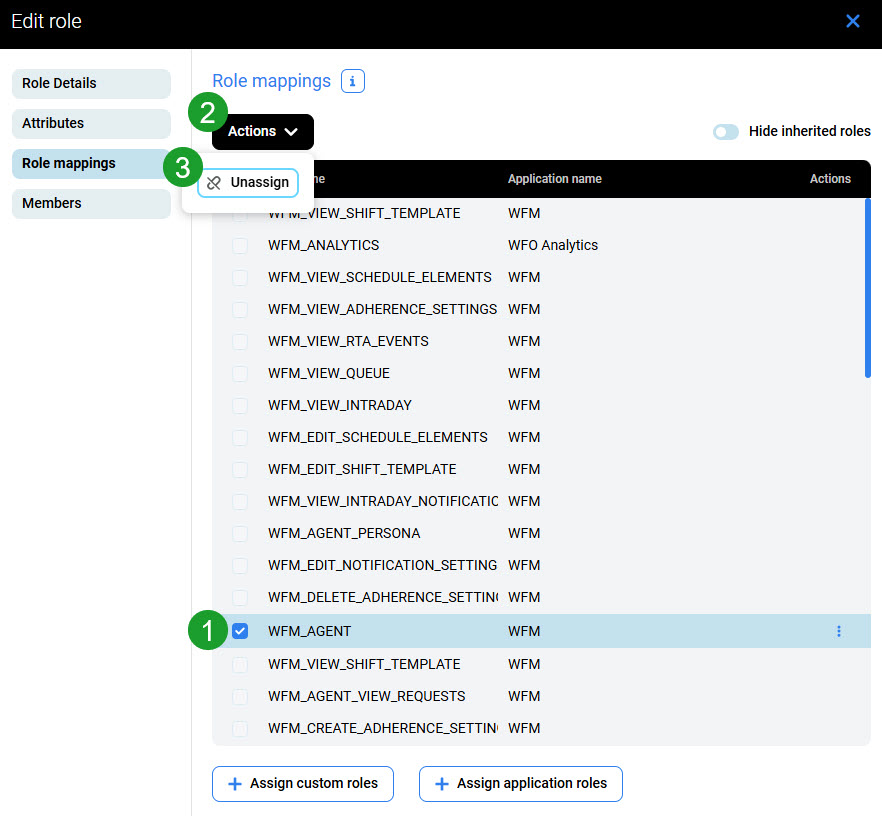
To unassign roles, select the checkboxes next to the roles, click the Actions button, and then click Unassign.
Members
-
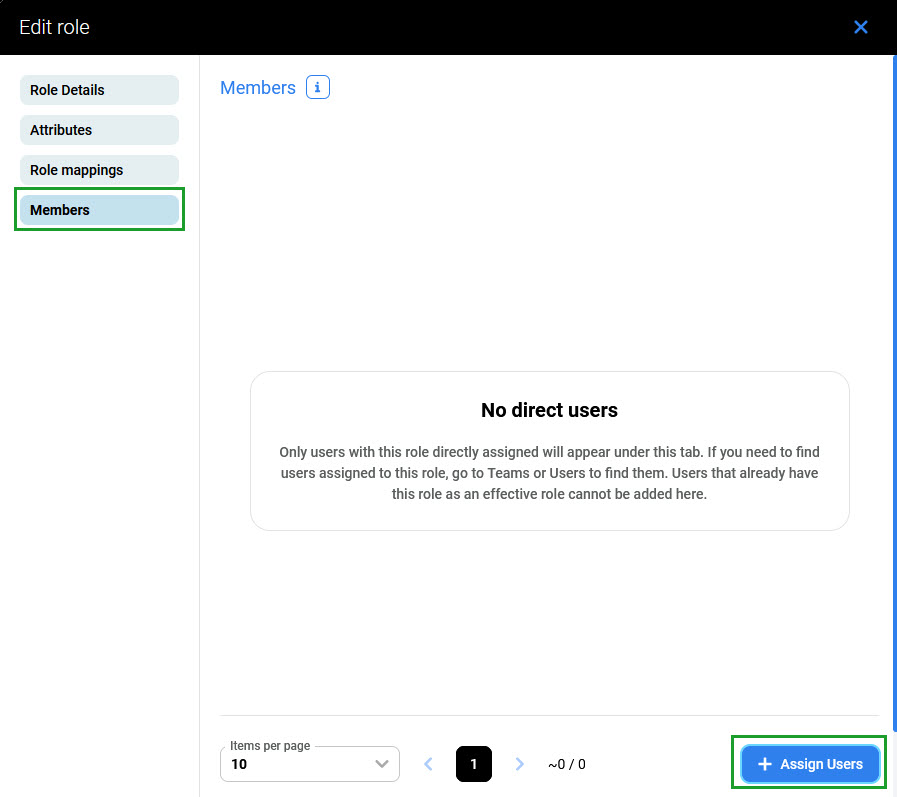
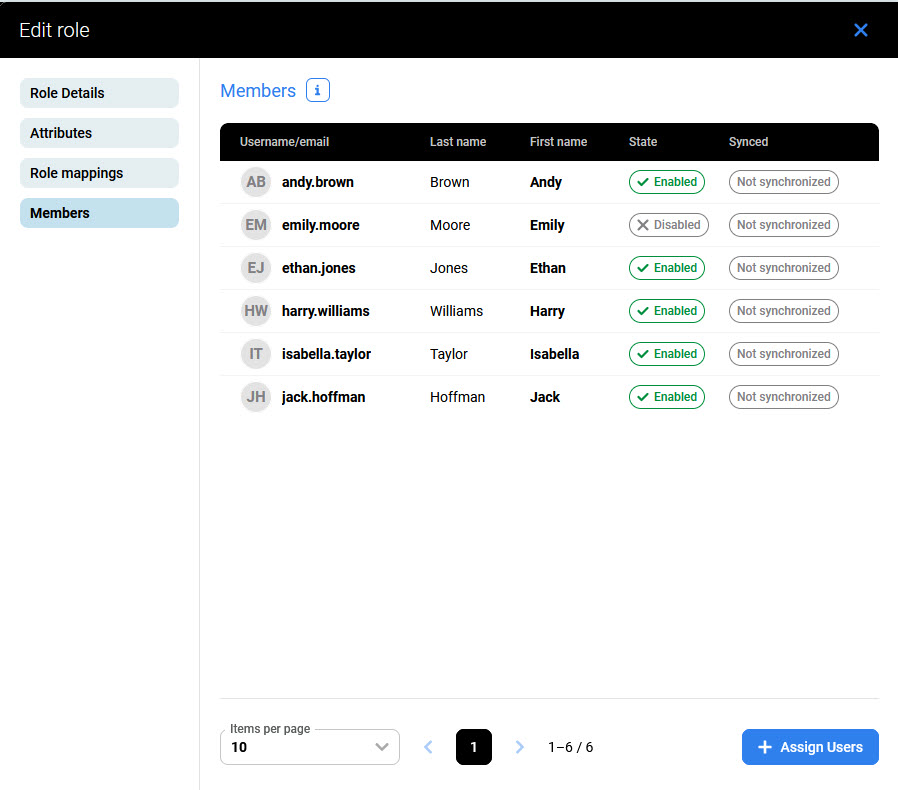
Go to the Members tab and click the Assign Users button.
-
A new window opens. Select the checkboxes next to the users and click Assign.
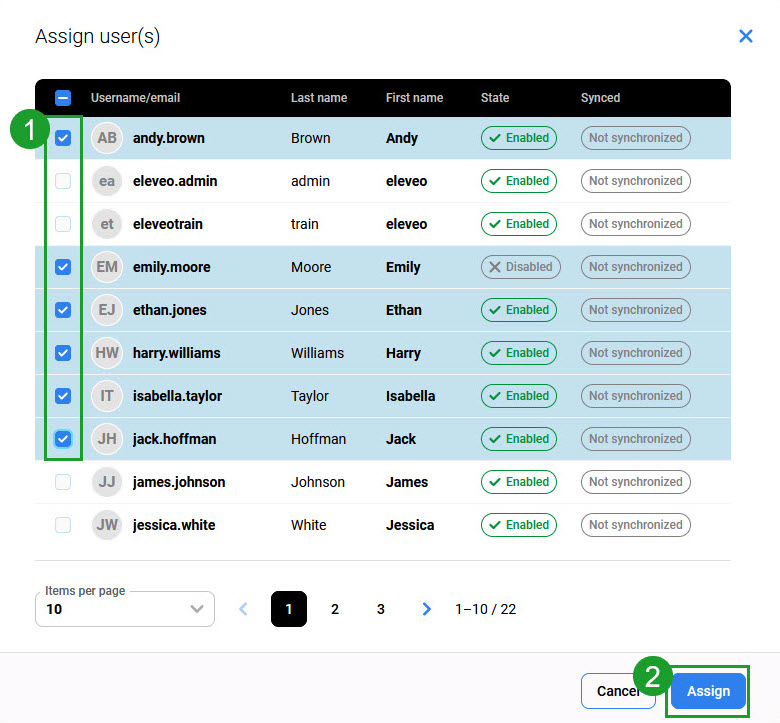
The Members tab displays all assigned users.
Users Assigned to a Role
To display users directly assigned to a role, go to the Roles screen and click on the role's row. Alternatively, expand the role's menu on the right and click Edit. Then go to the Members tab.
A role can also be assigned to a user in the following ways:
-
A parent role is assigned to the user. All child roles are inherited automatically.
-
The user belongs to a group that has a role assigned.
-
The user belongs to a child group. All roles from the parent group are inherited automatically.
To see these roles, go to Users or Teams settings and open the Role mappings tab.
For more details, see Assigning Roles.
Editing a Custom Role
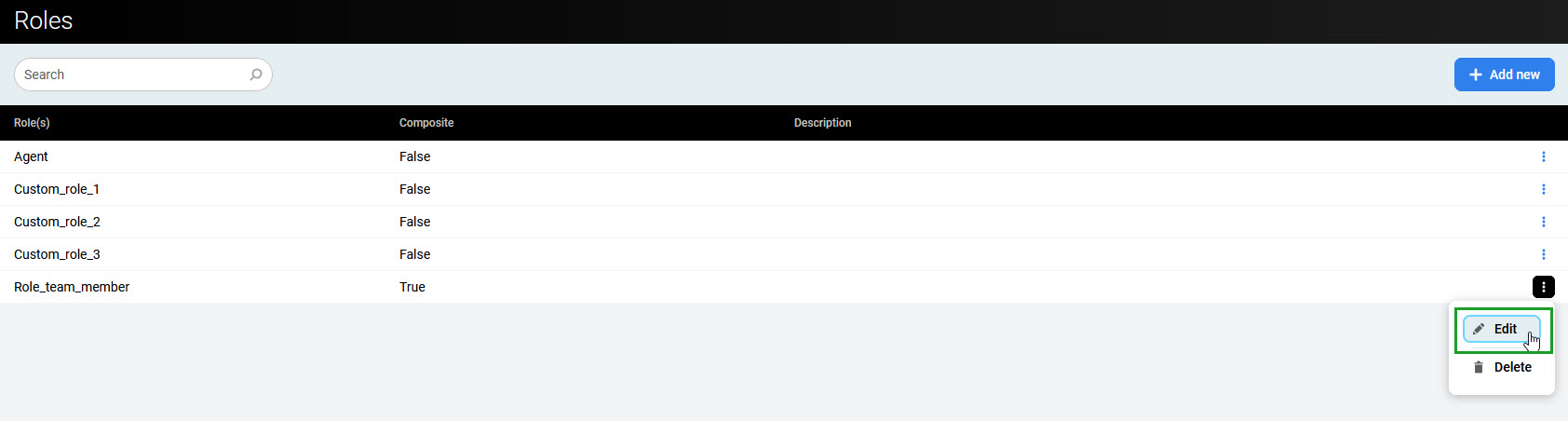
To edit a role, go to the Roles screen and click on the role's row. Alternatively, expand the role's menu on the right and click Edit.
Deleting a Custom Role
-
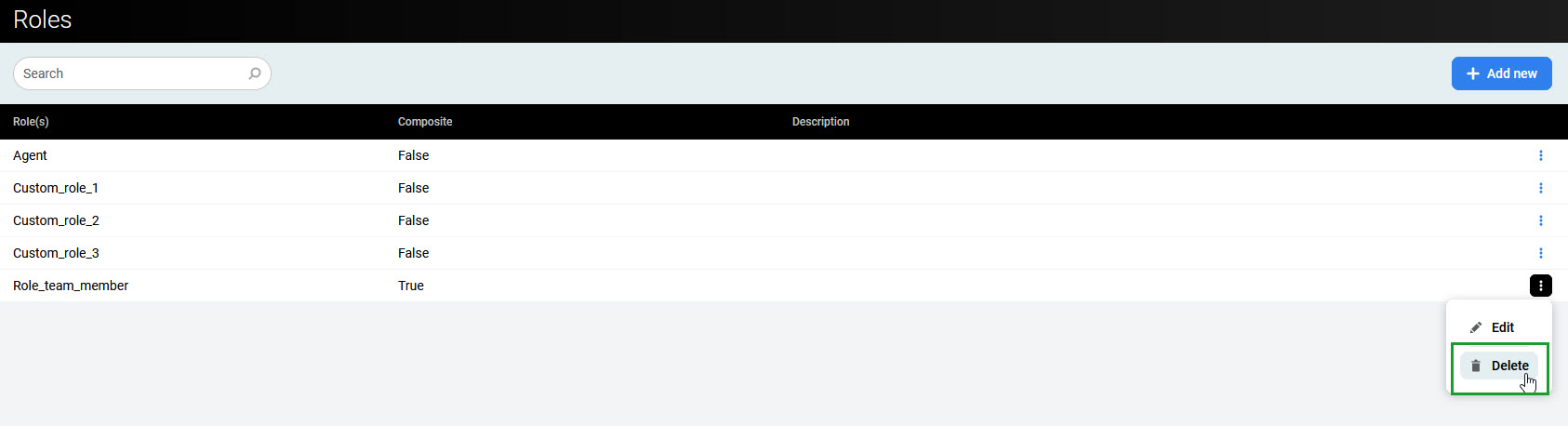
To delete a role, expand the role's menu on the right and click Delete.
-
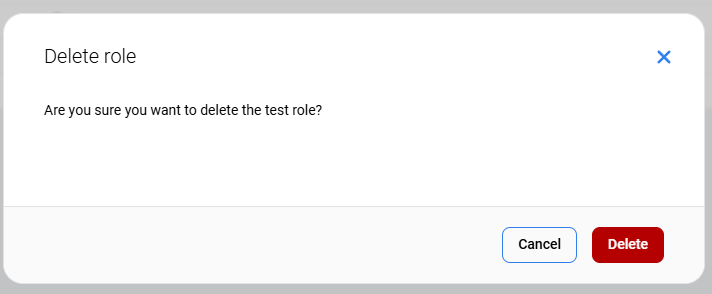
Click Delete to confirm.