
This procedure applies only to local users added from within User Management. For users imported from external systems (for example, from a UCCE server), manage passwords in the source system.
The realm-management/manage-users and realm-management/view-users effective roles are required to change passwords for other users. By default, only the eleveo.admin user has these roles.
Changing a Password
This procedure applies to setting a password for a new user and resetting a password for an existing user.
-
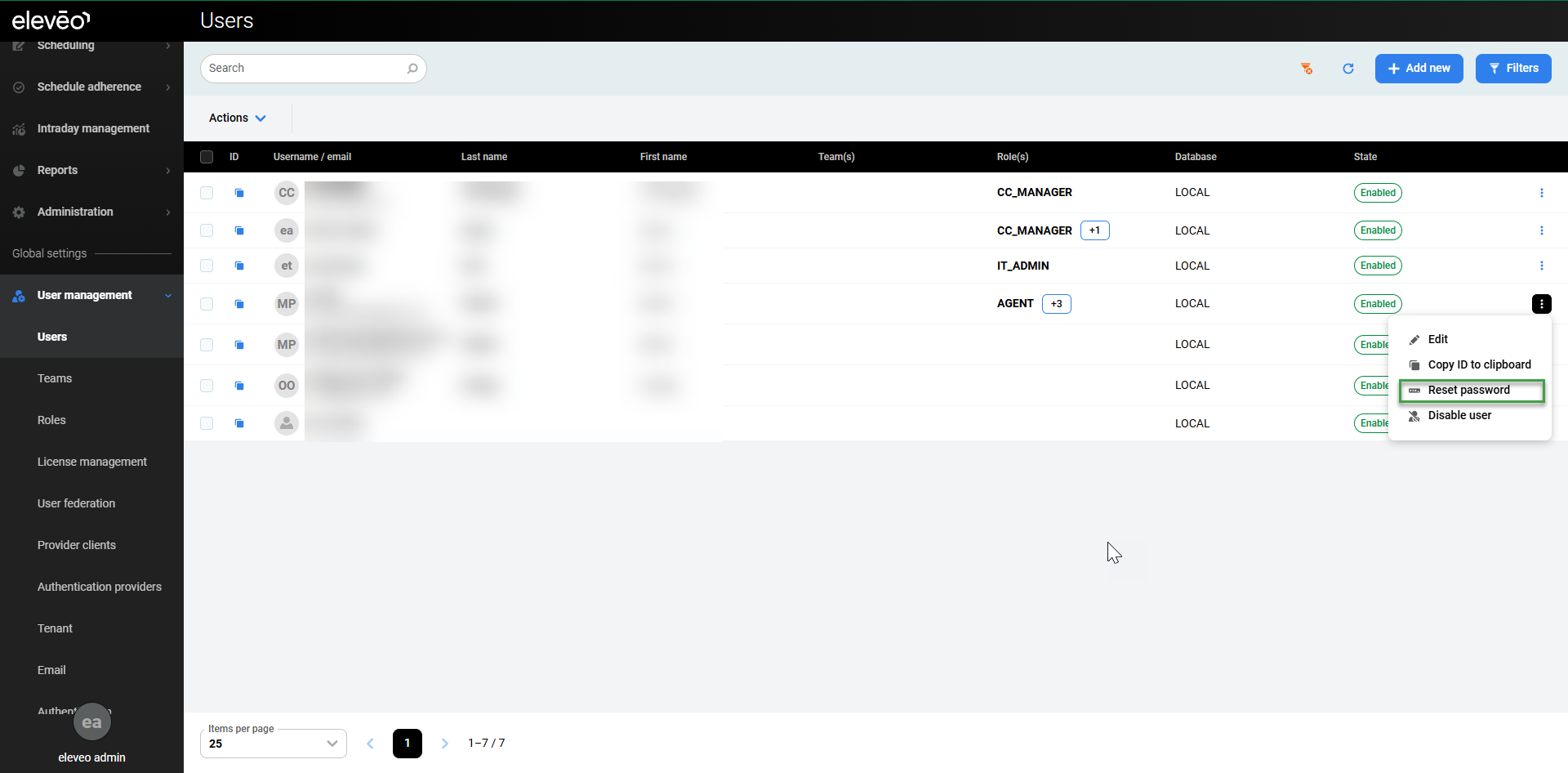
Go to the Users screen and click the user's row to open the edit pane. To go directly to the password settings, expand the user menu on the right, then click Reset password.
-
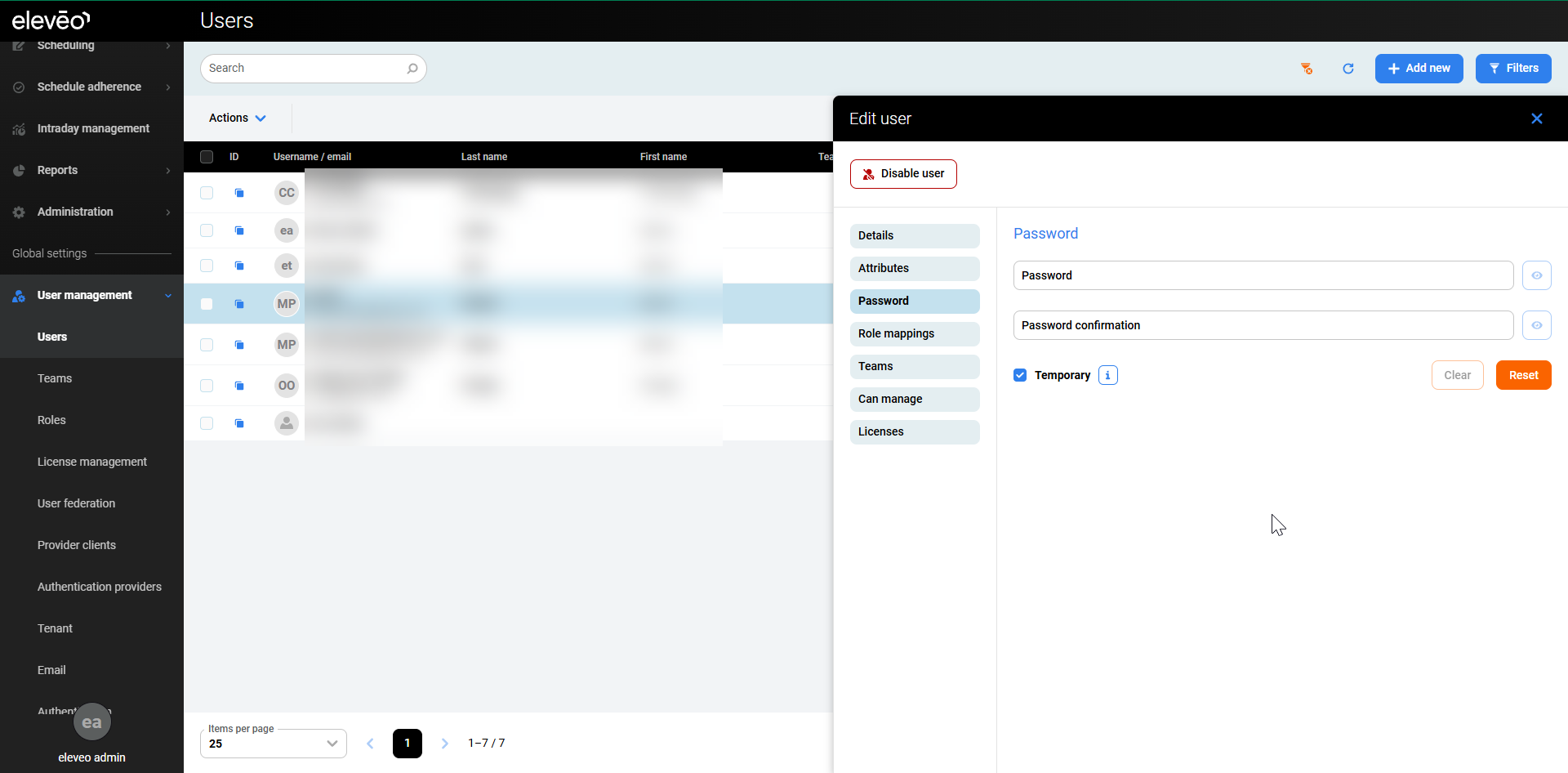
The Edit User window opened on the Password tab appears:
-
Type a new password in the Password and Password confirmation fields. Click

-
Select the Temporary checkbox to control how many times the password can be used:
-
Checked – the password can be used once. The user must change it after logging in.
-
Unchecked – the user is not asked to change the password.
-
-
Click Reset or Set password (for new users) to save a new password.
Disabling 2FA
If a user cannot log in using two-factor authentication (2FA), an administrator with master admin credentials can disable 2FA for that user:
-
Log in to the master realm using the master admin credentials.
-
Go to Users and locate the user who cannot log in.
-
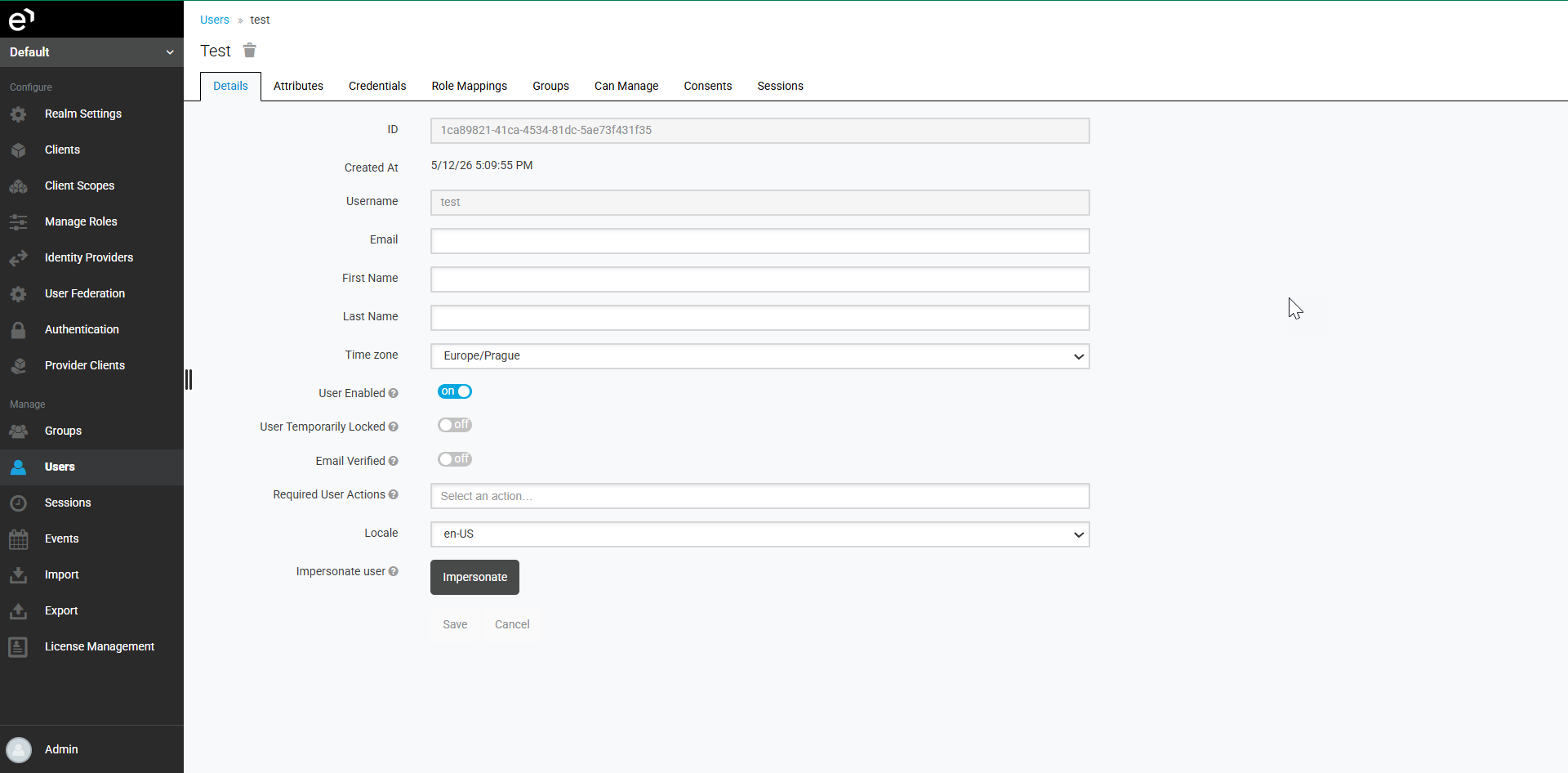
Open the user's Details page and click Impersonate to access that user's settings.
-
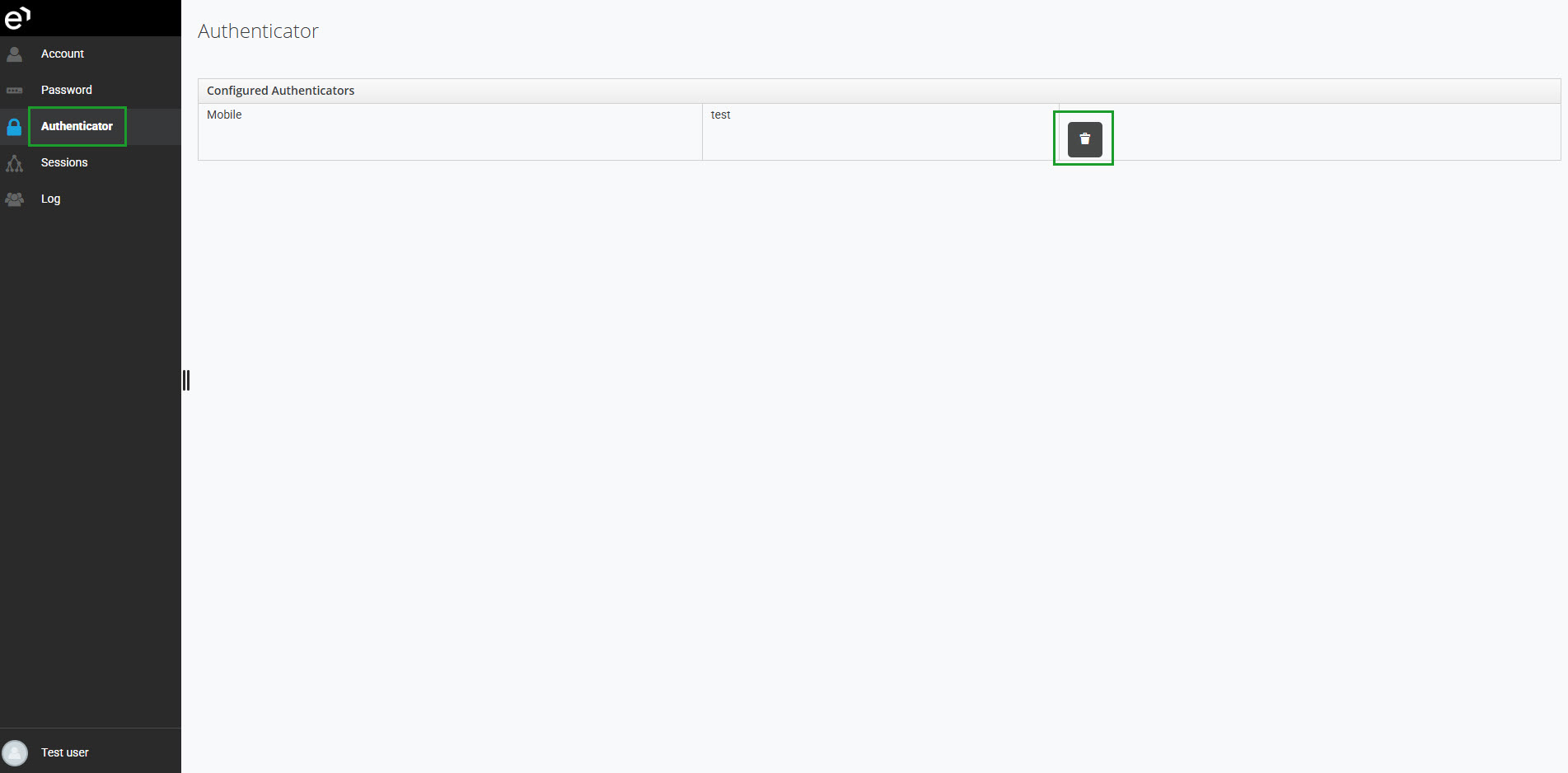
Go to Authenticator and remove the 2FA device.
It may happen that a user cannot log in with two-factor authentication. In such a case, a user with relevant credentials needs to disable 2FA for them. Please contact Eleveo Support to proceed.