
New users added in User Management become visible in other Eleveo applications after up to 10 minutes.
Interactive Guide
Add New User
To add a new user, go to the Users screen and click the Add new button in the top right corner.
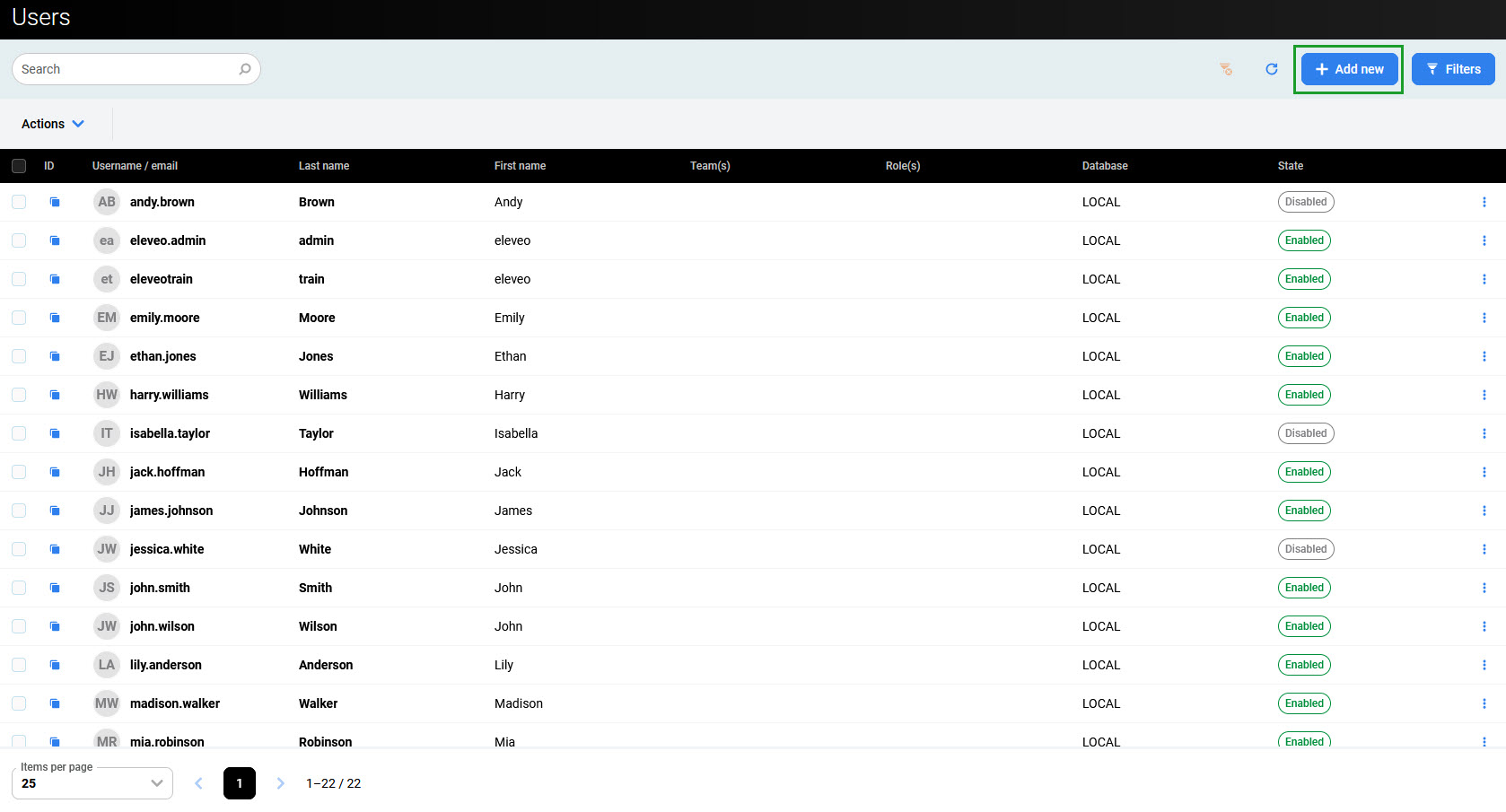
The Add user pane displays on the right.
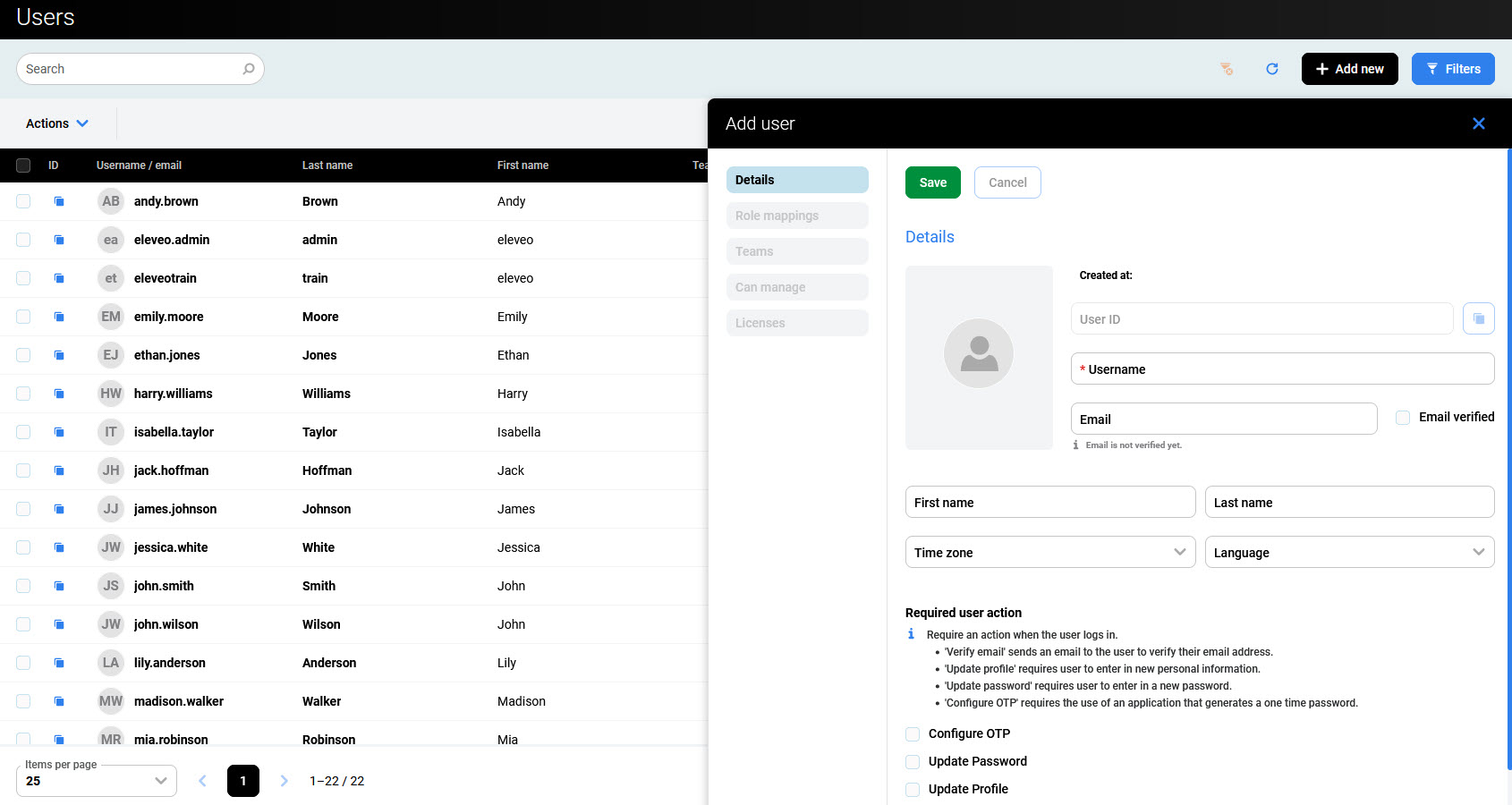
Configure as necessary:
-
Username (mandatory)
-
Email – email address of the user. Although not mandatory, a valid email is recommended — it is used for notifications and password resets.
-
Email Verified – indicates if the user's email address was verified or not
-
First Name – first name of the user
-
Last Name – last name of the user
-
Time Zone – time zone of the application (when not selected, the value from the Managing Tenant Settings is used)
-
Language – language of the application (when not selected, the default language is English)
Click Save to add the user.
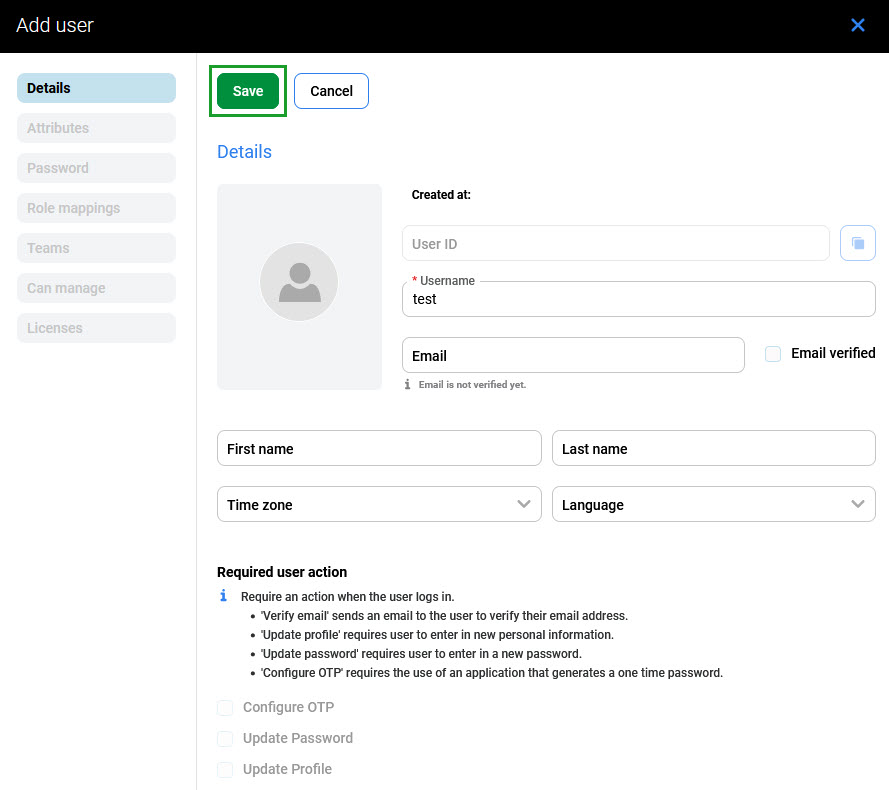
When the user is added, additional configuration options become active. To configure additional user settings, credentials, Phone Extension, and Agent ID, see Editing Users.