
Overview
Shift templates are pre-configured shift patterns used when configuring work plans. Work plans are then assigned to people, and the scheduling engine uses the shift templates defined in those work plans to automatically compose shifts when generating a schedule.
The WFM_VIEW_SHIFT_TEMPLATE role is required to view shift templates. This role is included by default in the WFM_ANALYST and WFM_SCHEDULER composite roles. The WFM_EDIT_SHIFT_TEMPLATE role is required to add or modify shift templates. The WFM_DELETE_SHIFT_TEMPLATE role is required to delete shift templates. Both roles are included by default in the WFM_ANALYST composite role. Read more about Workforce Management Roles.
Displaying Existing Shift Templates
To display shift templates that already exist in the system, expand the Administration module in the navigation tree and click Shift Templates. The Shift Templates screen displays.
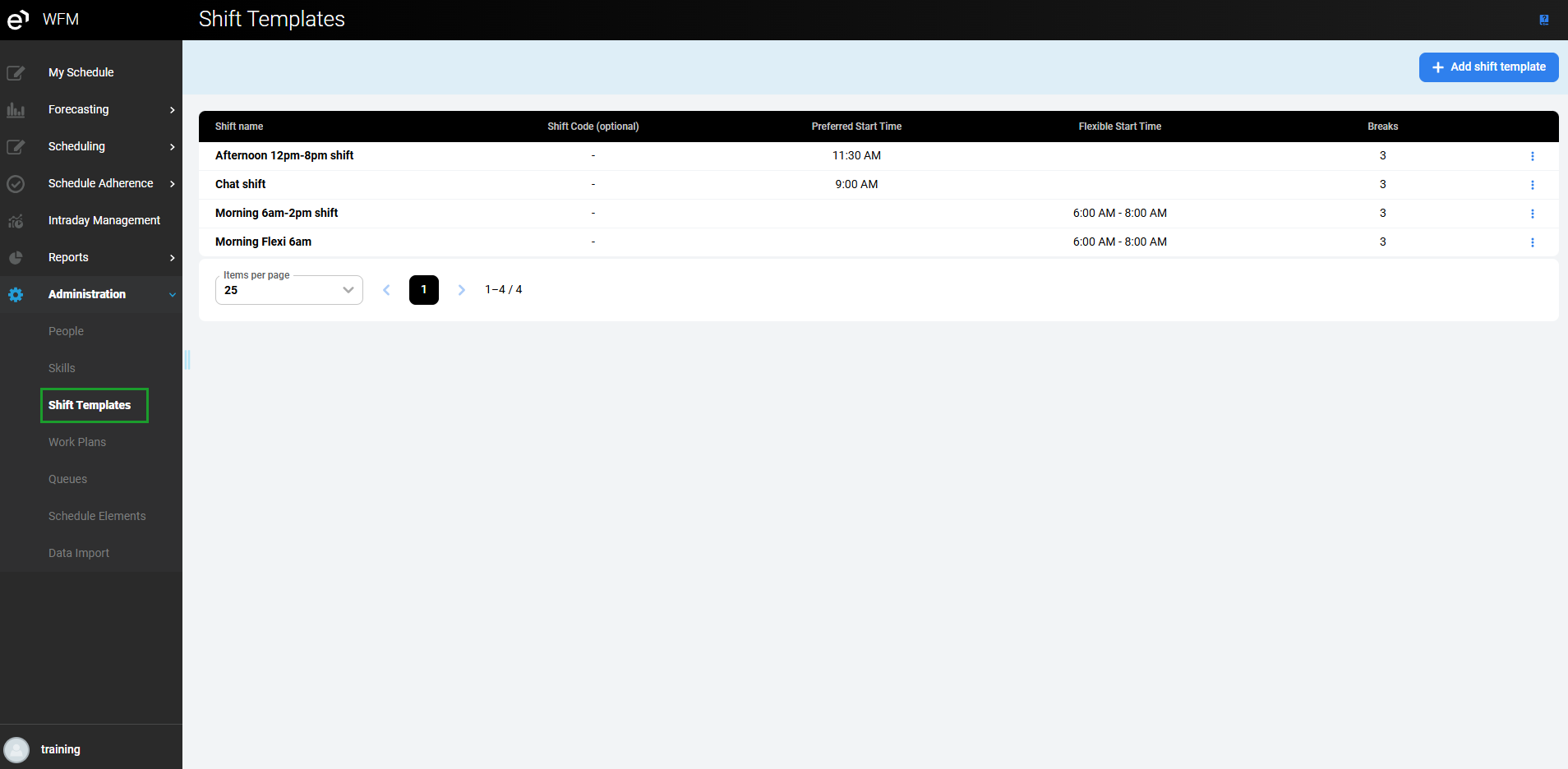
Basic information about each shift is displayed in the following columns:
-
Shift name – The name of a shift template.
-
Shift Code (optional) – A code used to identify the shift template in views and exports.
-
Preferred Start Time (mandatory if Flexible Start Time is empty) – The preferred start time for the shift. If not set, use flexible start times (15-minute increments).
-
Flexible Start Time (mandatory if Preferred Start Time is empty) – A range of times (with the selected interval) during which the shift may start to optimize the shift scheduling plan.
-
Breaks – The number of breaks.
The Actions column enables the following actions:
-
Edit – Permits modification of the shift template. Available only to users with the
WFM_ANALYSTrole assigned. -
Delete – Removes the shift template. Available only to users with the
WFM_ANALYSTrole.
Adding a New Shift Template
To add a new shift template, click the Add shift template button.
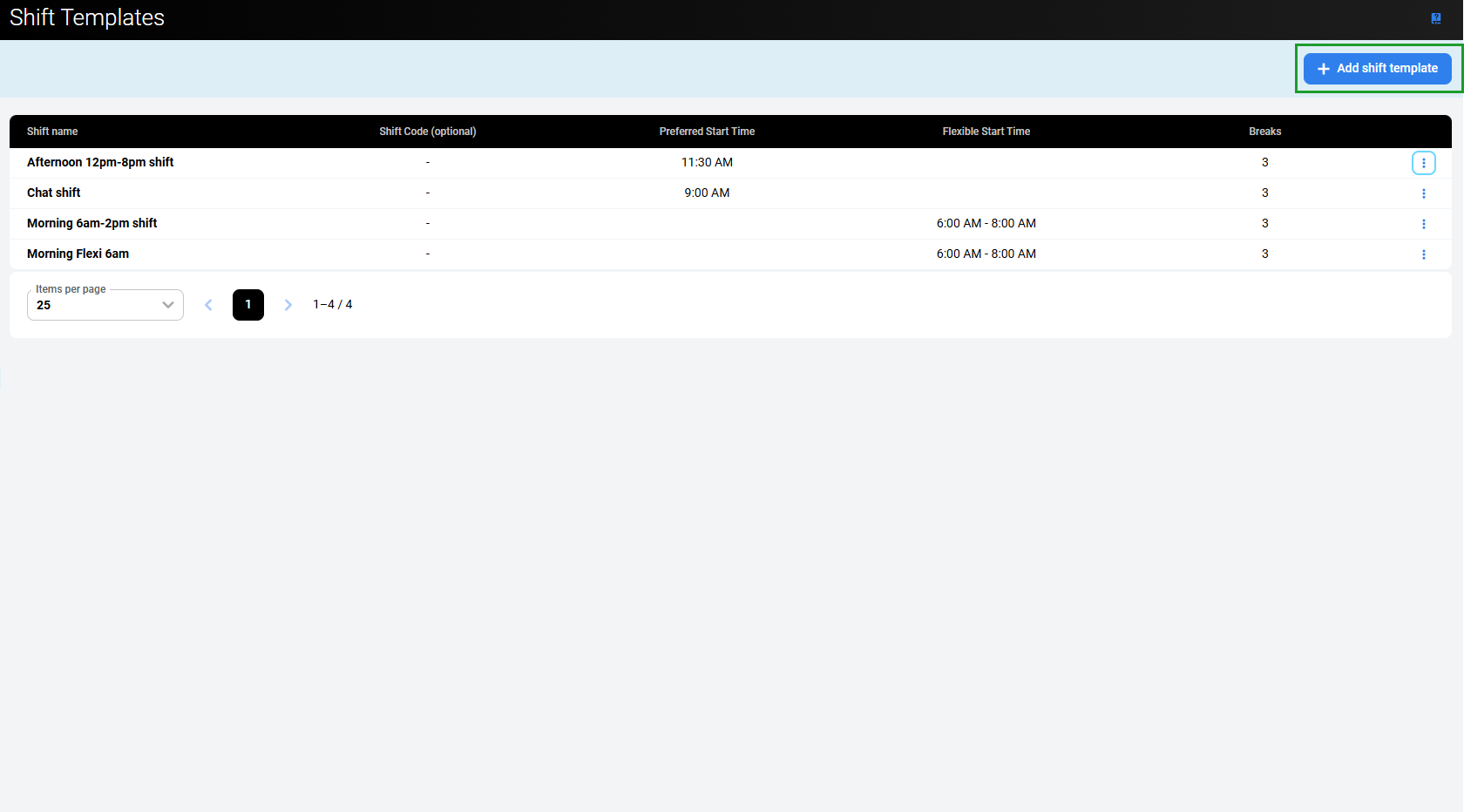
The New Shift Template pane opens.
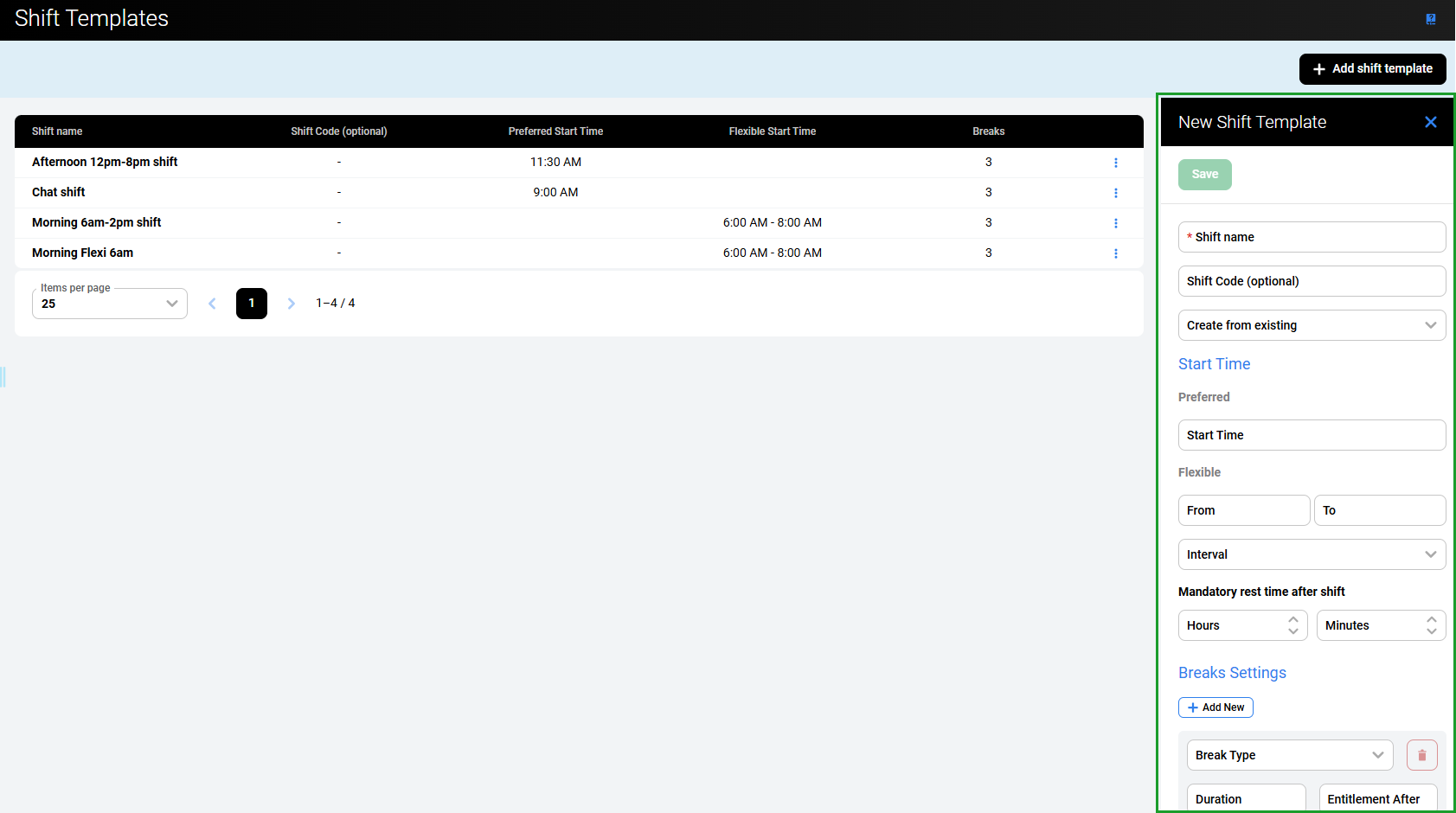
Enter the following details:
-
Shift name – A unique name for the shift template (case-sensitive). The name must contain at least one non-whitespace character and can be up to 50 characters long.
-
Shift Code (optional) – A short code used to identify the shift template in views and exports. The code must be unique, can contain alphanumeric and special characters, and is limited to 15 characters.
-
Create from existing (optional) – Select an existing shift template to automatically prefill all settings except the template name; all prefilled settings can be modified.
-
Start Time:
-
Preferred – The fixed preferred start time for the shift. Use this when the shift always begins at the same time. Mandatory if Flexible Start Time is not set. The value must be between 00:00 and 23:45 in 15-minute intervals.
-
Flexible From/To – The earliest and latest times within which the shift may start. Use this range instead of a fixed start time to allow the scheduling engine flexibility in placing shift starts. Both values must be between 00:00 and 23:45. The From value can be later than To to represent an overnight range (for example, 23:00 to 01:00), but From and To cannot be equal. Mandatory if Preferred Start Time is not set. When a Preferred Start Time is also set, it must fall within the Flexible From/To range.
-
Interval – the increment (in minutes) used when placing a shift start within the Flexible From/To range. For example, selecting a 15-minute interval allows the engine to place the shift start at 08:00, 08:15, 08:30, and so on.
-
-
Mandatory rest time after shift – The minimum required rest period between the end of this shift and the start of the next shift of the same type for the same person. If a shift of a different type is scheduled next and its own Mandatory Rest Time After Shift is shorter, the Minimum Time Between Shifts value configured at the Workplan level takes precedence to determine the required rest period. Set the value using the Hours and Minutes fields. The scheduling engine respects this gap and doesn't schedule another shift before the rest period expires. The value must be between 0:00 and 120:00.
-
Break Settings (optional; several breaks can be added; click Add New to add a break):
-
Break Type – Type of the break (for example, Break or Lunch). Only break-type activities are available in this dropdown.
-
Duration – Duration of the break. The duration must be between 0:05 and 23:55 in 5-minute intervals. A value of 0:00 is not allowed.
-
Entitlement After – Minimum shift length that entitles a person to this break. The value must be between 0:00 and 23:45 in 15-minute intervals. This field is optional.
-
Earliest After – The earliest point in the shift after which this break may be scheduled. For example, a value of 02:00 means the break can't start before two hours into the shift. Use this to prevent breaks from being placed too early in a shift. The value must be between 0:00 and 23:45 in 15-minute intervals. Earliest After must be less than Latest After.
-
Latest After – The latest point in the shift by which this break must be scheduled. For example, a value of 05:00 means the break must start no later than five hours into the shift. Use this together with Earliest After to define a scheduling window for the break. The value must be between 0:00 and 23:45 in 15-minute intervals.
-
The start time configuration chosen here determines which options are available when this template is used in a work plan:
-
A template with only a Preferred Start Time supports the Preferred start time option in the work plan's Shifts tab.
-
A template with a Flexible From/To range supports the Flexible start time option.
-
A template with both set supports either option.
This also affects a rotation mode: fixed rotation (shifts pinned to specific days) requires a Preferred start time; flexible rotation (engine places the shift) requires a Flexible From/To range.
Click the Set activities button to configure time allocations per channel.
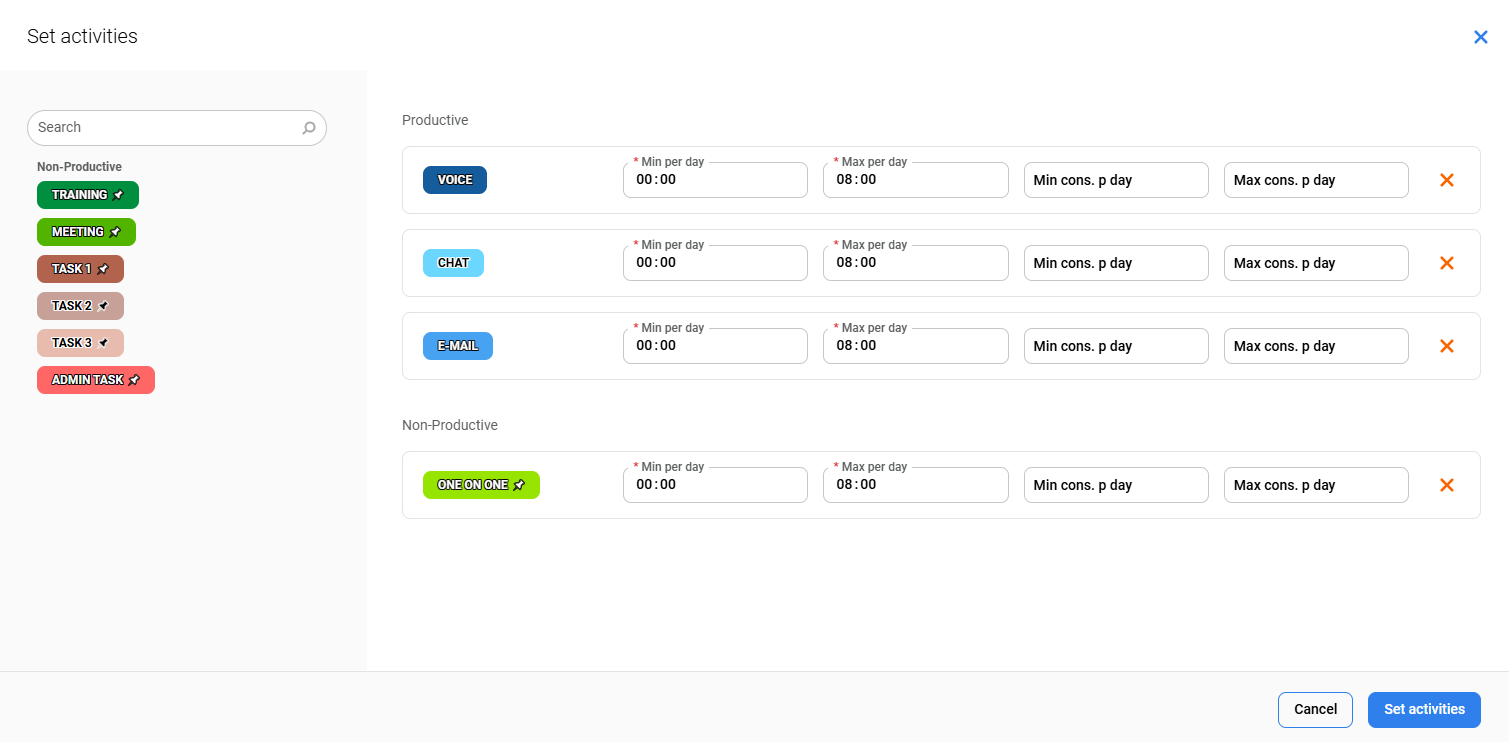
Select Productive or Non-Productive activities and set a time limit for each:
-
Min per day – Minimum duration that a person must spend with a given activity on a given day (uses 15-minute increments).
-
Max per day – Maximum duration that a person can spend with a given activity on a given day (uses 15-minute increments).
-
Min cons. p day – Minimum consecutive time per day that a person must be in the activity.
-
Max cons. p day – Maximum consecutive time per day that a person can be in the activity.
All productive activities are displayed by default with the following values:
-
Min per day – 0
-
Max per day – 8
-
Min cons. p day – not set
-
Max cons. p day – not set
These values can be adjusted as needed. Time-off and break activities are not shown.
The following validation rules apply to activity time settings:
-
Max per day cannot be 0:00.
-
Min per day must be less than Max per day.
-
Min cons. p day must be less than or equal to Max cons. p day.
-
Min cons. p day must be less than or equal to Max per day.
-
Max cons. p day must be less than or equal to Max per day.
-
All values use a 15-minute increment, with a range of 0:00–23:45.
-
Time-off and break activities don't appear in this list.
Click Set activities to save the activity settings.
When all mandatory fields are filled in, the Save button becomes active. Click Save to add the new shift template. Alternatively, click Close to abandon changes.
Editing a Shift Template
To edit a shift template, click the Edit button in the Actions column for the template.
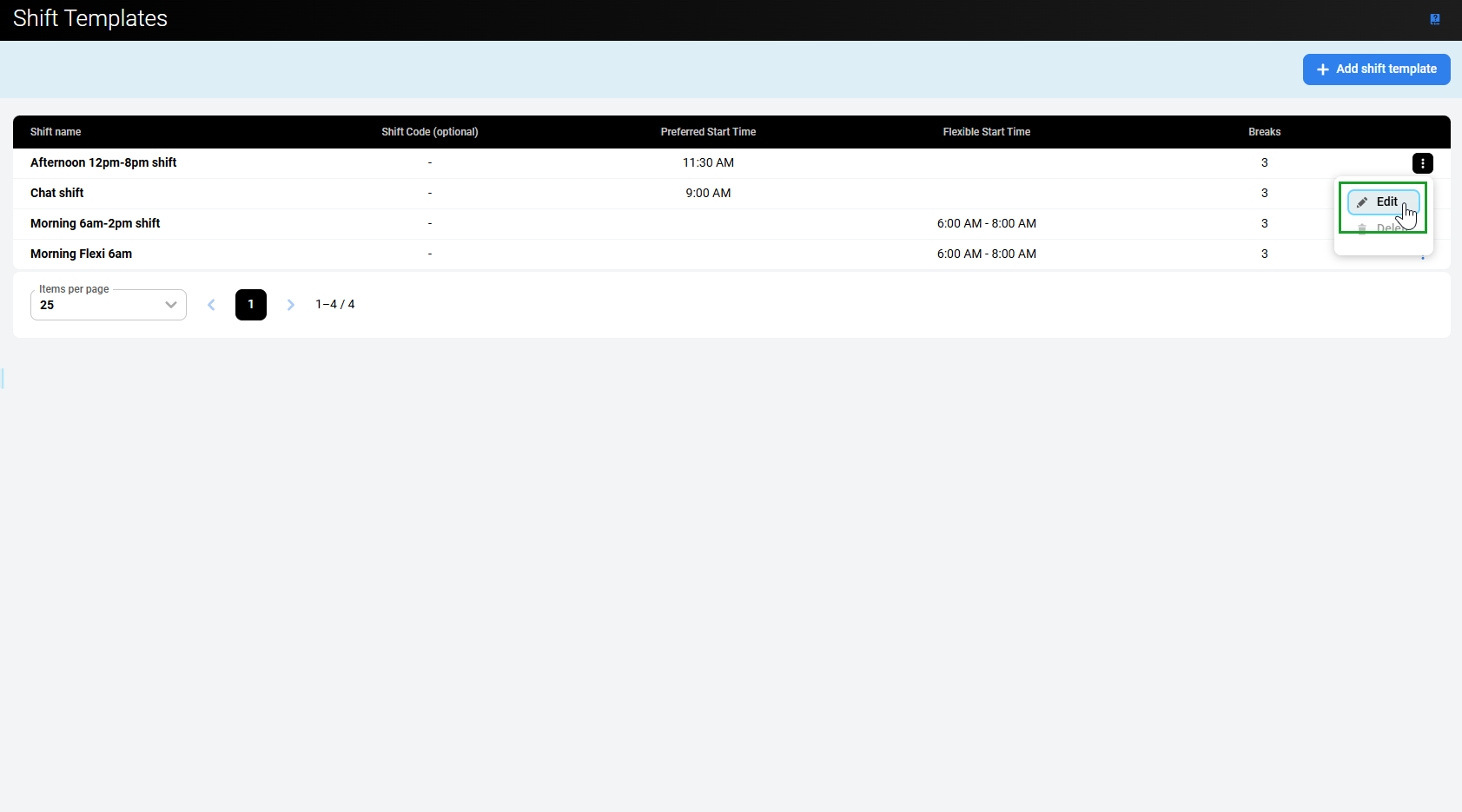
The Update Shift Template pane opens. A shift template already used in a work plan can be edited, and these changes will be applied during the next schedule generation.
For details on the available settings, see the Adding a New Shift Template section above. Click Save to save changes.
Deleting a Shift Template
To delete a shift template, click the Delete button in the Actions column.
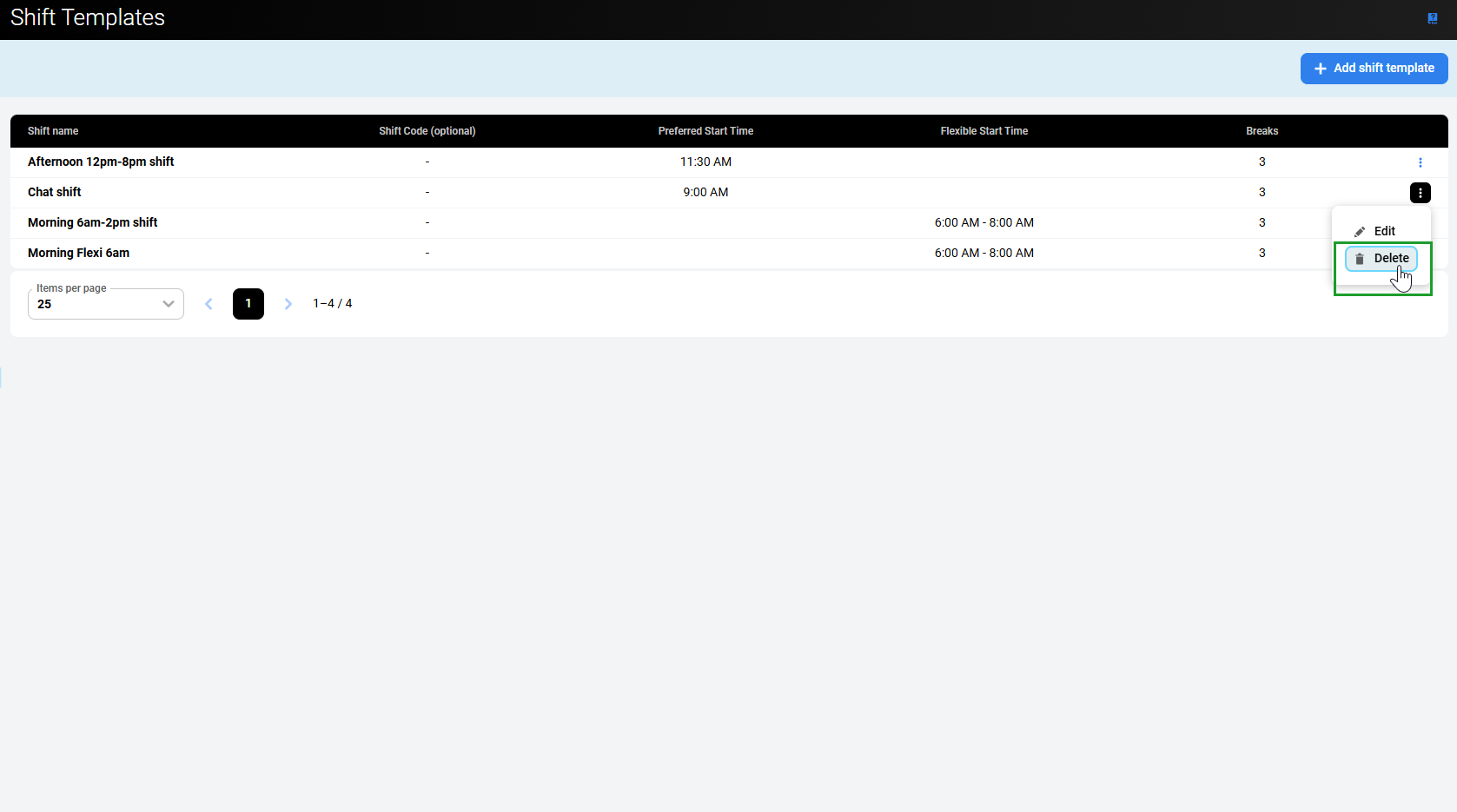
A confirmation dialog appears, asking for confirmation to delete the selected shift template.
Click Delete to confirm the removal.
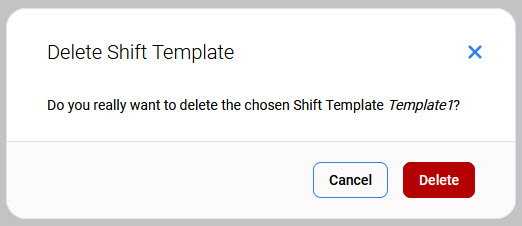
Alternatively, click Cancel to abandon changes.
Only users with the WFM_DELETE_SHIFT_TEMPLATE role can delete shift templates. Removing a shift template is possible only if the template isn't referenced by any work plan.