Overview
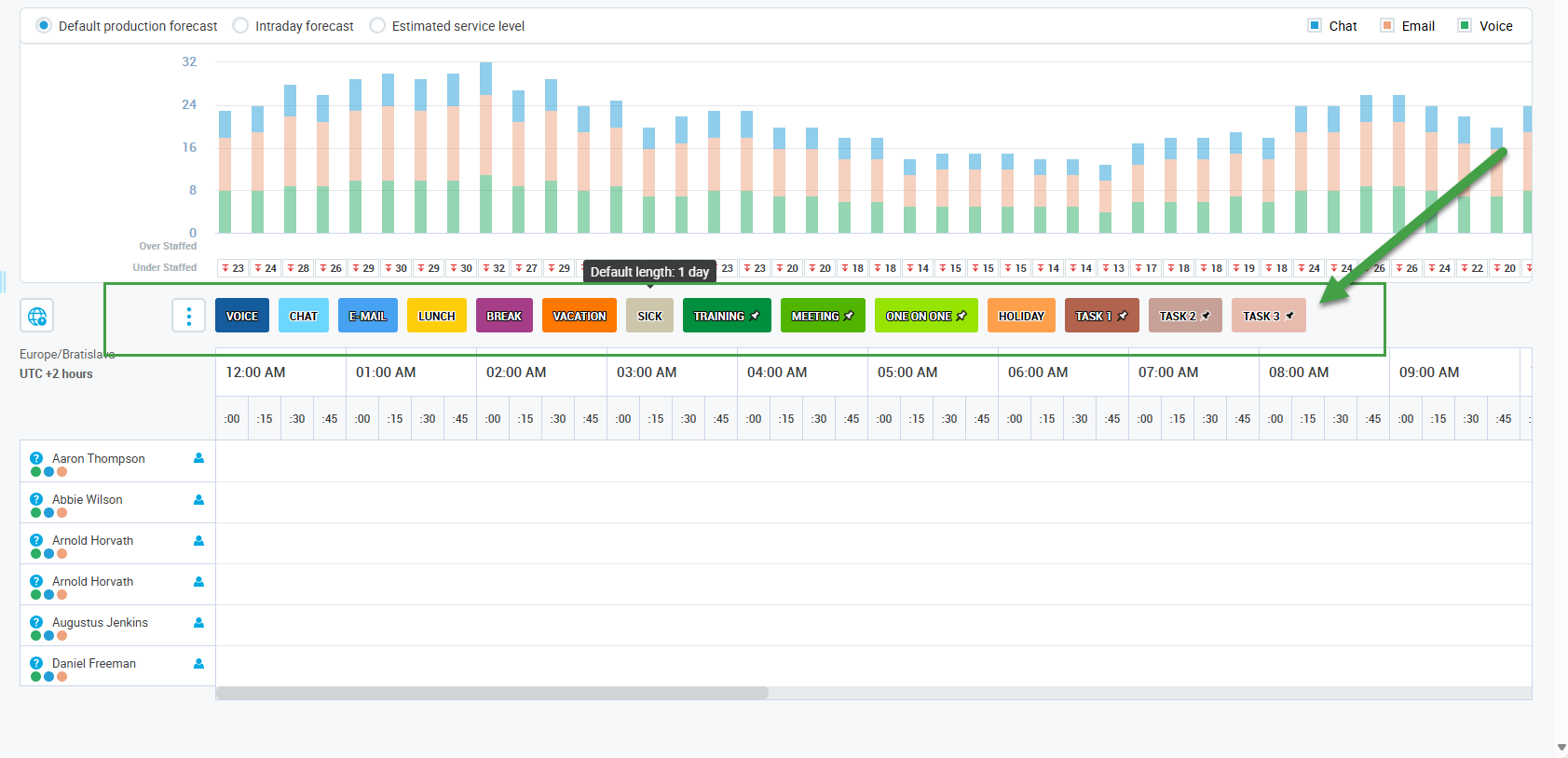
Schedule elements represent work, other activities, or non-working times, for example: lunch, break, training, meeting, or sick.
-
Default elements are predefined and cannot be fully edited.
-
Custom elements (manually created) behave the same way as other elements and can be used to:
-
Build schedules tailored to specific business needs.
-
Differentiate between channels of the same type (sub-channels).
-
The WFM_VIEW_SCHEDULE_ELEMENT role is required to view schedule elements. This role is included by default in the WFM_SCHEDULER composite role. The WFM_EDIT_SCHEDULE_ELEMENTS role is required to add or edit schedule elements. This role is included by default in the WFM_ANALYST composite role. Read more about Workforce Management Roles.
Displaying Schedule Elements
To display schedule elements that already exist in the system, expand the Administration module in the navigation tree, then click Schedule elements. The Schedule elements screen displays.
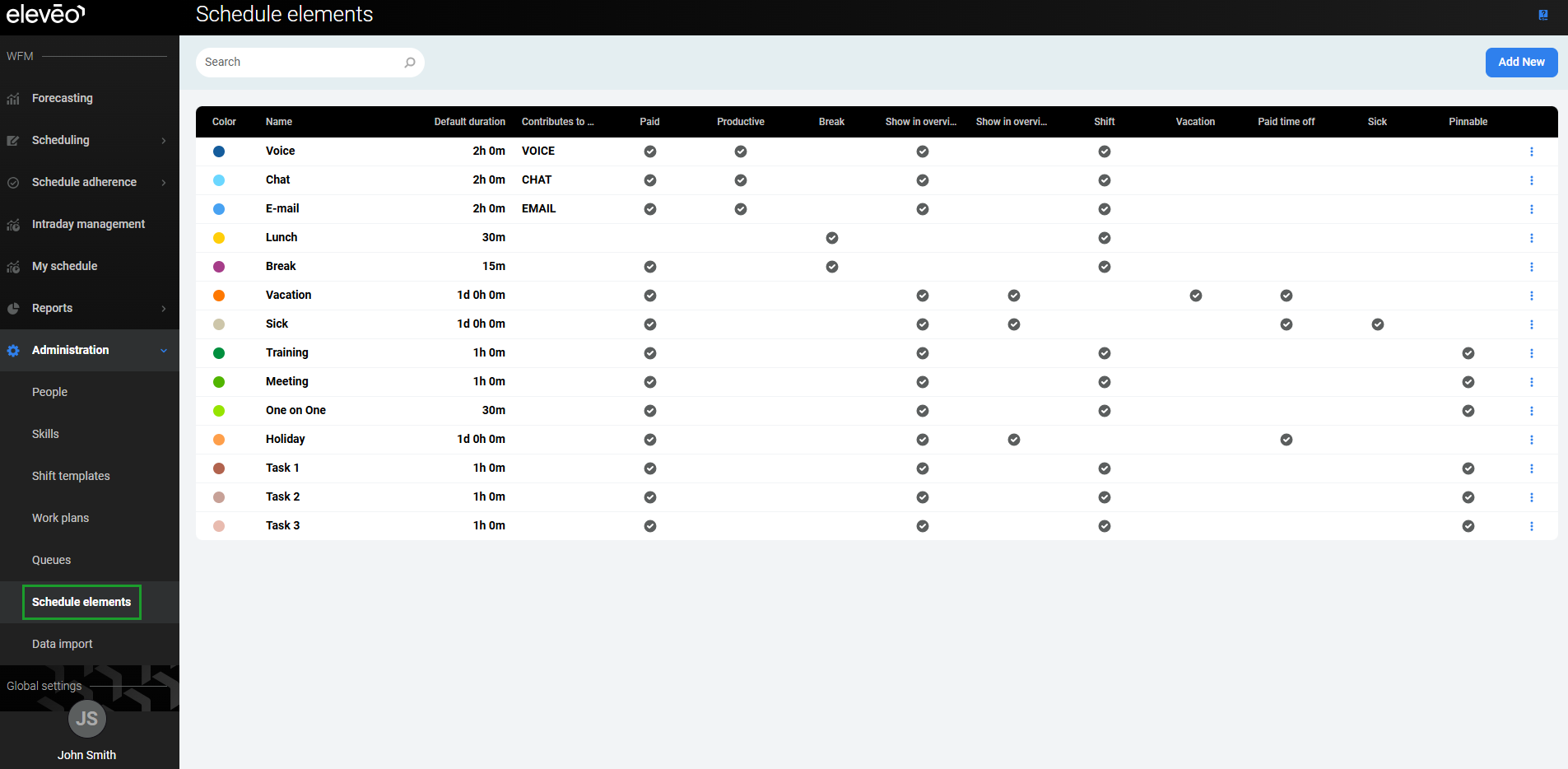
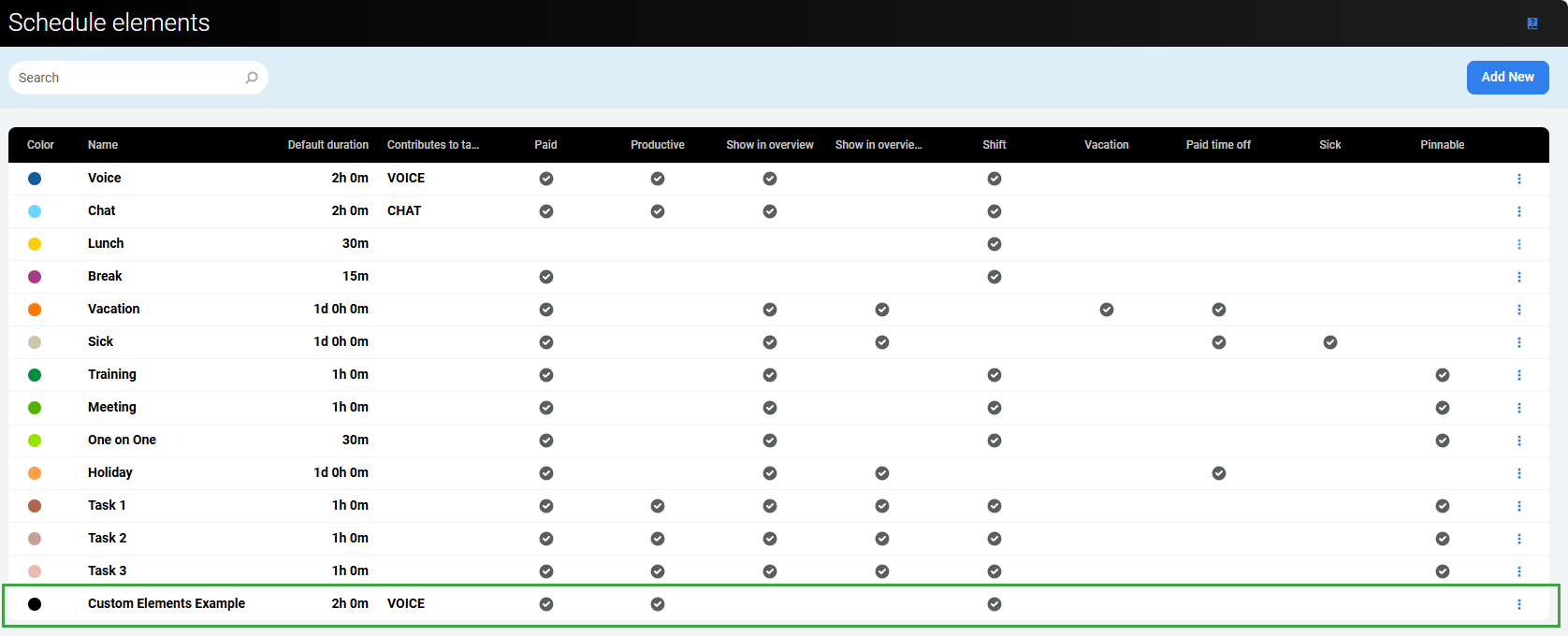
Information about each element is displayed in the following columns:
-
Color – Visible in the schedule, used to differentiate items.
-
Name – The name of the element; must be unique.
-
Default duration – Default length of time, modifiable when manually creating a schedule.
-
Contributes to tags – Productive items require a tag.
-
Paid – Indicates if the element is considered paid time; by default, 'Lunch' is not considered paid time. Custom elements can be paid or unpaid.
-
Productive – Indicates if the element is considered productive or not. If 'Productive' is selected, additional options are available (tags can be added to the element).
-
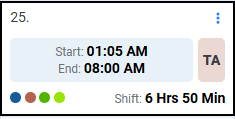
Show in overview – Items are displayed as a list in the user's calendar.
-
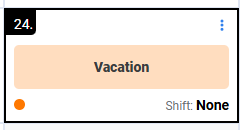
Show in overview big – The element is displayed prominently on the agent's calendar. Commonly used for full or half-day activities, such as Vacation or Sick days.
-
Shift – Indicates if the element is part of a shift, used by the backend when creating schedules.
-
Vacation – Indicates if the element is time off (used in reports).
-
Paid time off – Indicates if the element is paid time off.
-
Sick – Indicates if the element is considered Sick time, and therefore non-productive (used in reports).
-
Pinnable – If selected, the element can be pinned; if not selected, it is not pinnable.
Default Elements
The application contains a set of default, commonly used schedule activities. Each schedule element has the following parameters assigned: default length, type, and whether paid or unpaid. Length can be easily modified, whereas type and whether paid/unpaid are fixed values.
Default elements can be one of the following types:
-
Productive – Time spent working (for example, being available for incoming calls), only the Voice, Chat, and Email elements have this type assigned.
-
Non-productive – All other work-related activities, when a person is not performing their primary task (for example, is not available for incoming calls due to a meeting, training, or break).
The table below contains basic information about all default schedule elements:
|
Name |
Description |
Default length |
Type |
Paid? |
Pinnable?* |
|---|---|---|---|---|---|
|
Voice |
Basic work element representing time spent answering calls (channel type: voice). |
2 hours |
Productive |
Yes |
No |
|
Chat |
Basic work element representing time spent answering chats (channel type: chat). |
2 hours |
Productive |
Yes |
No |
|
|
Basic work element representing time spent answering emails (channel type: email). |
2 hours |
Productive |
Yes |
No |
|
Lunch |
Unpaid lunch break. |
30 minutes |
Non-Productive |
No |
No |
|
Break |
Any work break which is paid. |
15 minutes |
Non-Productive |
Yes |
No |
|
Vacation |
An element representing paid time off requested by a person. |
24 hours |
Non-Productive |
Yes |
Pinned by default |
|
Sick |
An element representing a day off due to illness. |
24 hours |
Non-Productive |
Yes |
Pinned by default |
|
Training |
Time spent on training. |
1 hour |
Non-Productive |
Yes |
Yes |
|
Meeting |
Time spent in a meeting. |
1 hour |
Non-Productive |
Yes |
Yes |
|
One on One |
Time spent in an individual meeting with a supervisor/leader. |
30 minutes |
Non-Productive |
Yes |
Yes |
|
Holiday |
An element representing all non-working days, like public/national holidays, Christmas etc. (not a user's paid time off). |
24 hours |
Non-Productive |
Yes |
Pinned by default |
|
Task 1 |
An element representing any other custom activity |
1 hour |
Non-Productive |
Yes |
Yes |
|
Task 2 |
An element representing any other custom activity |
1 hour |
Non-Productive |
Yes |
Yes |
|
Task 3 |
An element representing any other custom activity |
1 hour |
Non-Productive |
Yes |
Yes |
By default, the Vacation element is set to one day:
-
If a person has no elements assigned for a given day, the Vacation element automatically extends to cover the whole day.
-
If another element is already assigned to a person and then vacation is assigned for the same day, the Vacation element starts from the end of the previous element until the end of the day.
Custom Elements
Eleveo's default schedule elements may not suit every business. Custom elements allow businesses to define default activities that fit their specific needs. For example, elements such as administrative task or federal holiday can be created, or a Lunch 1 hour element if the default lunch 30 minutes does not meet requirements.
Adding New Elements
To add a new element, click Add New. The Add element pane opens.
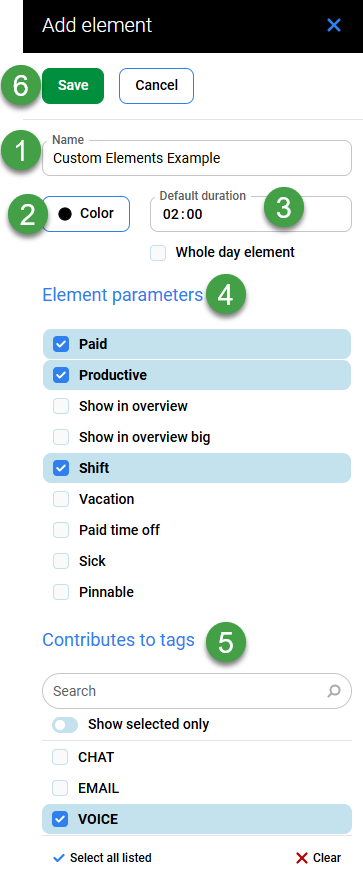
Enter the following details:
-
Name – Enter a unique name for the element.
-
Color – Select a color to associate with the element.
-
Default duration – Select the time period to associate with the element. Use 15-minute intervals ranging from 0:15 to 23:45.
-
Or use the checkbox to indicate a 24h interval (whole day element).
-
-
Element parameters – Select one or more parameters from the list. Available parameters are: Paid, Productive, Show in overview, Show in overview big, Shift, Vacation, Paid time off, Sick, and Pinnable. Refer to the Displaying Schedule Elements section above for a description of each.
-
Contributes to tags – Select which tags to link to the element (tags available depend on what has been configured; see Managing Queues for more details).
-
Click Save to save changes, or Cancel to discard them.
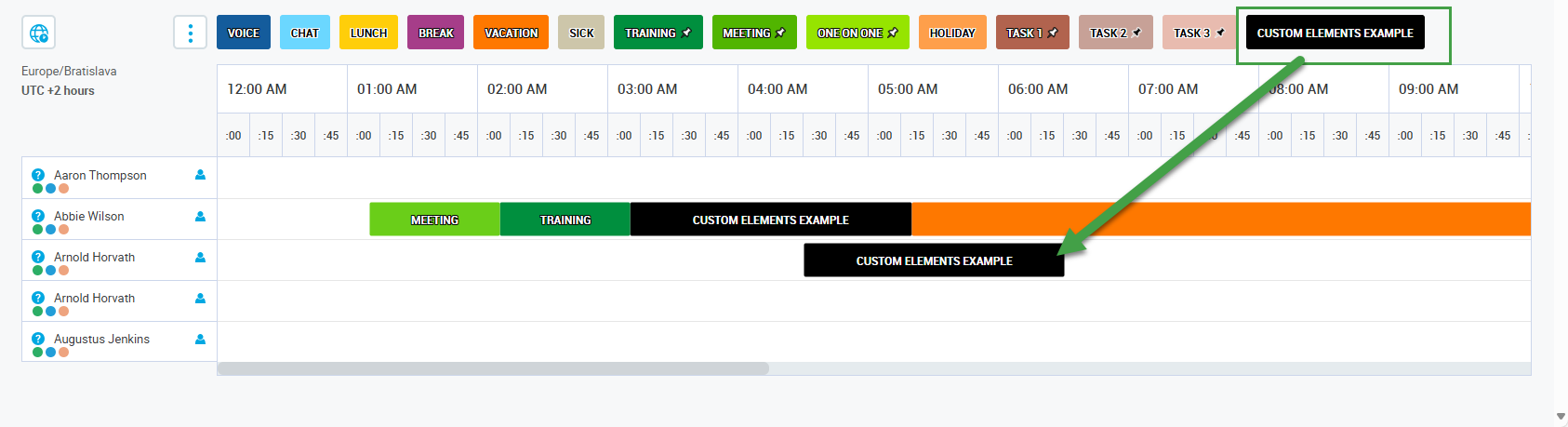
Tags assigned to elements also appear in the Schedule Studio.
The new item is visible in the list of elements.
It is also available for use when creating a schedule.
Editing Elements
Element parameters can be edited only if they are not used in any schedule or adherence settings. Items that cannot be edited are greyed out if the element is in use.
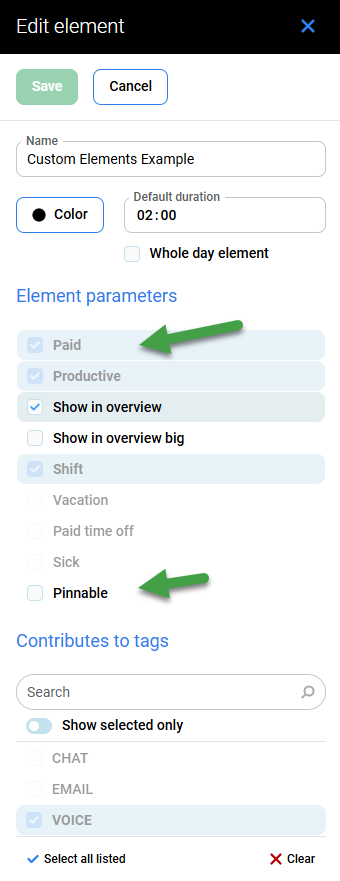
The following can be modified even if the element is part of the schedule or adherence settings:
-
Name – The name of the element must be unique.
-
Default duration – Use 15-minute intervals ranging from 0:15 to 23:45.
-
Checkbox for a 24h interval (since it's not possible to choose this in the time field).
-
-
Color
-
Show in overview
-
Show in overview big
-
Pinnable.
Moving or Removing Elements
Click on the three dots menu to the right side of each listed item to reorder, edit, or remove an item.
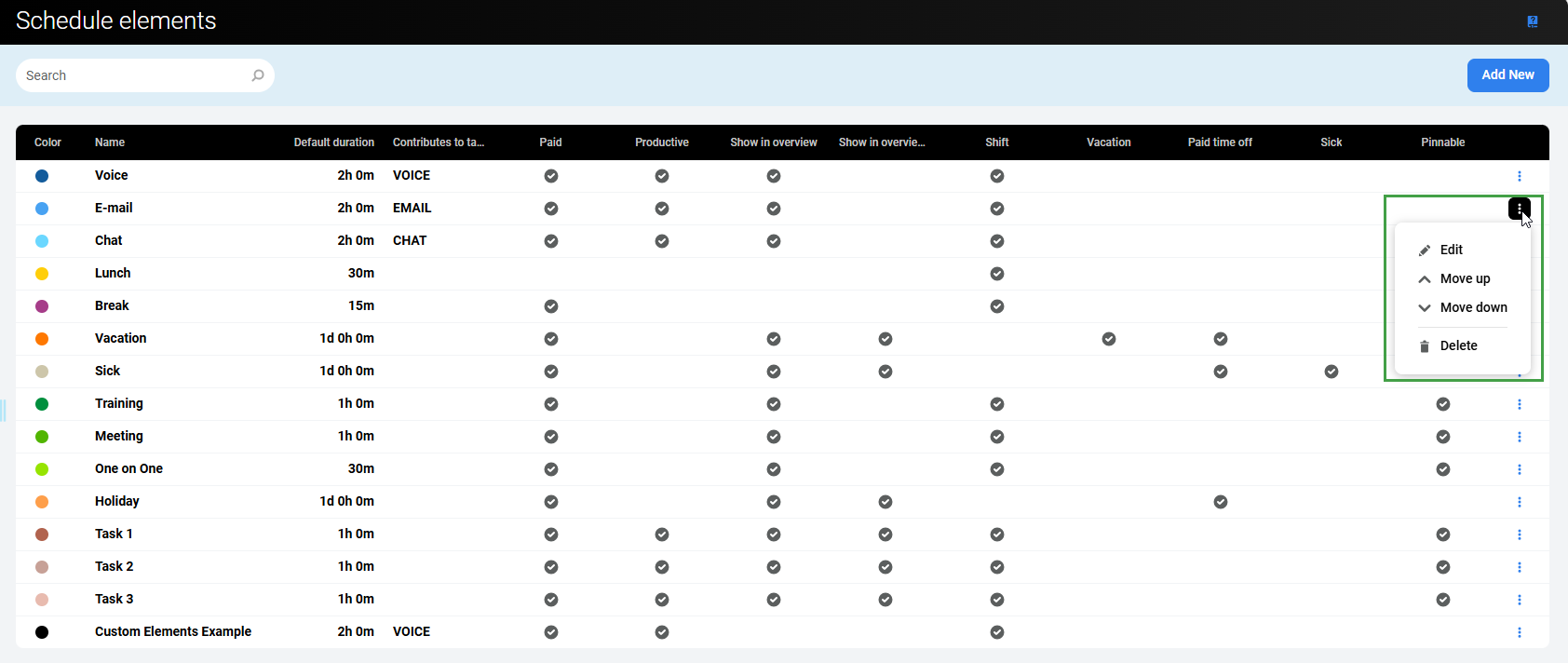
The following options are available:
-
Detail – View details about the item.
-
Move up – Move the item one line higher.
-
Move down – Move the item one line lower.
-
Delete – Deletes the item. Items can only be deleted if they are not currently in use in a schedule or adherence setting. If the element is in use, the following error is shown: "This schedule element cannot be deleted because it is currently used in a schedule or adherence setting".
Moving elements up or down in the list also changes the order in which elements are displayed in the Scheduling studio.
Limitations/Restrictions
The following combinations/options are not supported. An error message displays if they are selected or combined.
-
An element marked as Vacation or Sick cannot be a shift.
-
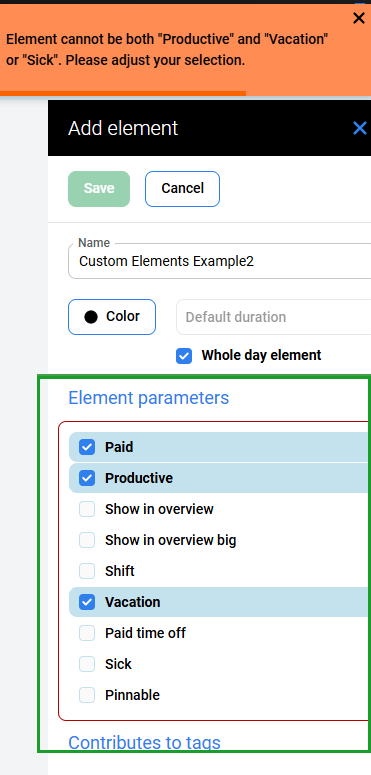
An element cannot be marked as both Vacation and Sick. Select only one.
-
An element cannot have both Shift and Show in overview big checked.
-
If Productive is checked, Shift must also be checked.
-
Productive cannot be checked along with Vacation or Sick.
-
Productive cannot be checked along with Break.
-
Productive cannot be checked together with Paid time off (these options are mutually exclusive).
-
Shift cannot be checked together with Paid time off.
-
Contributes to tags is applicable only for productive elements:
-
The tag section is disabled when Productive is unchecked.
-
More than one tag can be selected.
-
-
Shift elements cannot be marked as Show in overview big.
-
The Vacation and Sick default elements cannot be edited or deleted. All other default elements follow the same editing rules as custom elements.
Common Errors
After filling in all relevant details, click Save. If any errors are present, the system highlights them. An element with errors cannot be saved.