
Overview
Before a schedule can be created for a group of people (for example, employees, agents, back office assistants, or any individual who is going to be scheduled by Eleveo WFM), they need to be visible on the People screen. However, people are not added or removed from the Eleveo WFM application. This can only be achieved from the Eleveo User Management application. For more information, see Managing Users.
To be displayed on the People screen:
-
Users must have the
WFM_AGENT_PERSONAeffective role assigned (theWFM_AGENThas this role assigned by default). -
They must be members of a team that the currently logged-in user is a reviewer of.
-
People with the
WFM_ANALYSTandWFM_SCHEDULERroles are application users only, are not scheduled by Eleveo WFM, and are not visible on the People screen.
The WFM_VIEW_AGENT role is required to view people. This role is included by default in the WFM_ANALYST and WFM_SCHEDULER composite roles. The WFM_EDIT_AGENT role is required to edit people. This role is included by default in the WFM_ANALYST composite role. Read more about Workforce Management Roles.
Roles, group membership, and reviewers' permissions are set in User Management. To change them, go to the user's properties on the relevant tabs: Roles, Groups, Can review.
Displaying Existing People
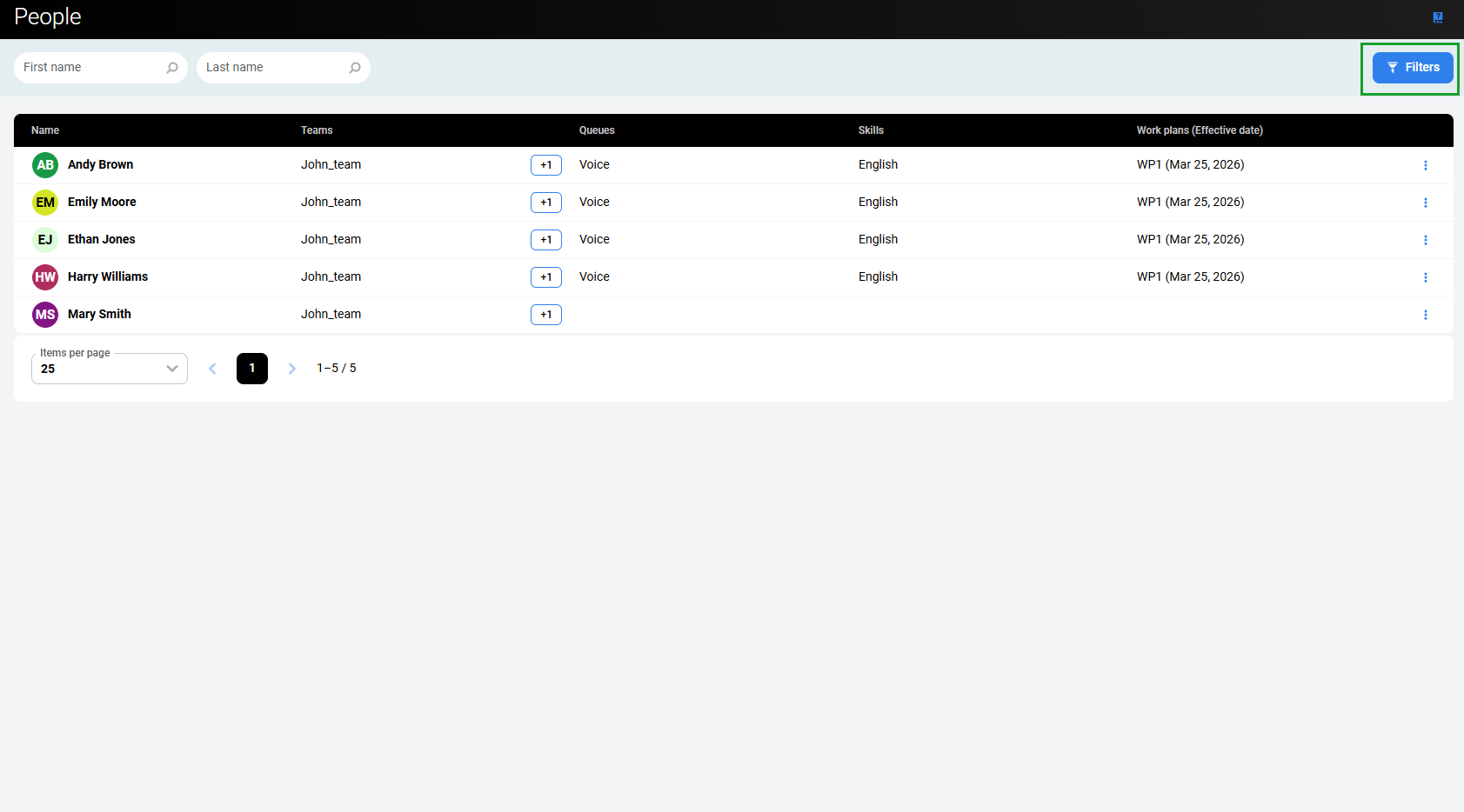
To display people already existing in the system, expand the Administration module in the navigation tree and click People. The People screen displays.
Only the users who belong to the team(s) that the currently logged-in user has assigned in the User Management > users' properties > Can Review tab are listed on the screen. For details, see the Can Review section of the Editing Users page.
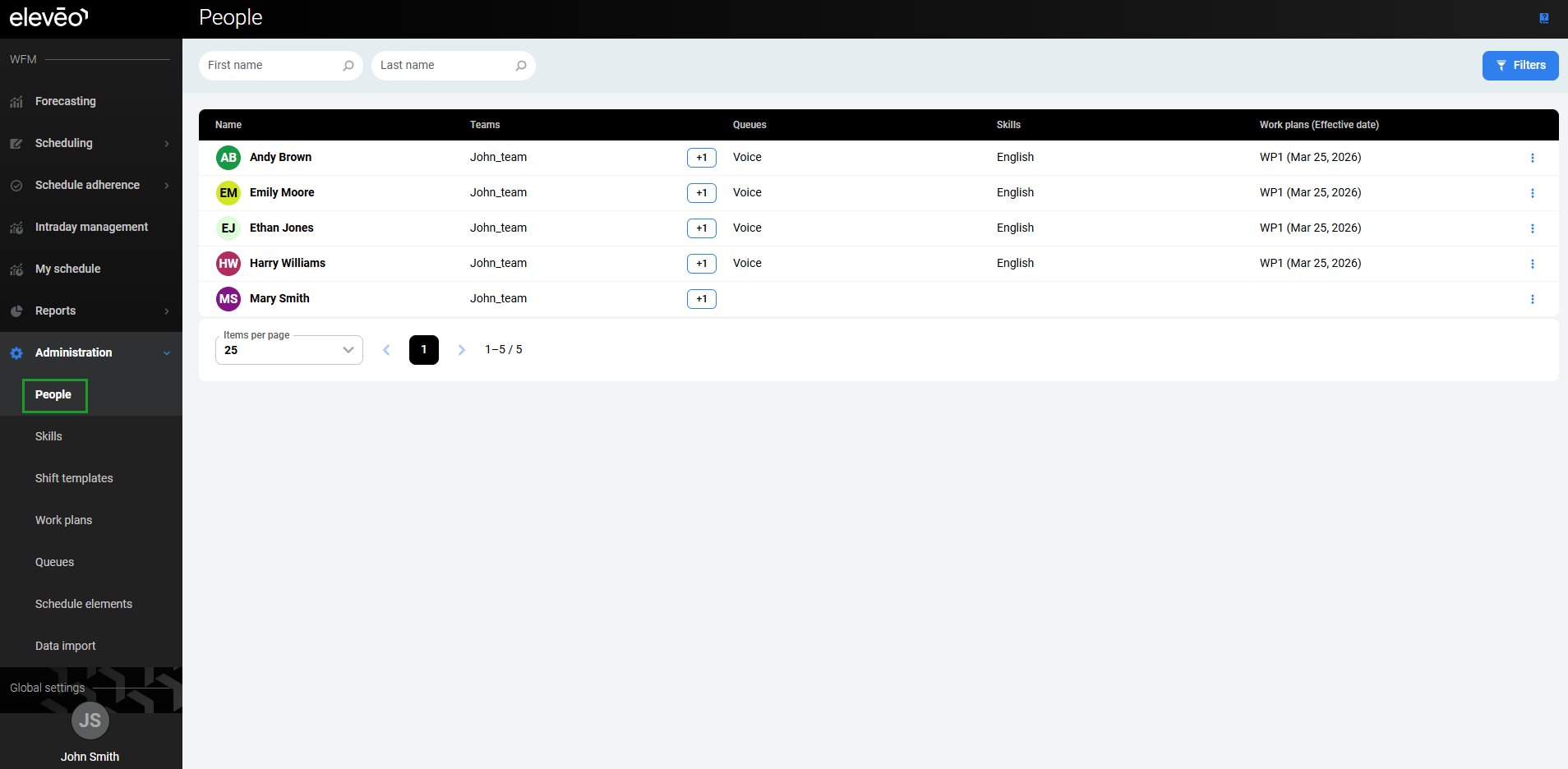
Basic information about each person is displayed in the following columns:
-
Name – the name of the employee.
-
Teams – the name of the team(s) that the person belongs to.
-
Queues – the name of the queue(s) to which the employee belongs.
-
Skills – the name of the skill(s) that are assigned to the employee.
-
Work plans (Effective date) – the name of the Work plan(s) assigned to the employee.
The Actions column enables actions related to the user, in this case, modifying the person. This option is available only to a user with the WFM_ANALYST role assigned.
Adding and Removing a Person
A new person can be added and an existing person removed only from the Eleveo User Management application. For more information, see Managing Users.
Editing a Person
To edit a person, click the Action button in the Actions column for the person. Select Edit.
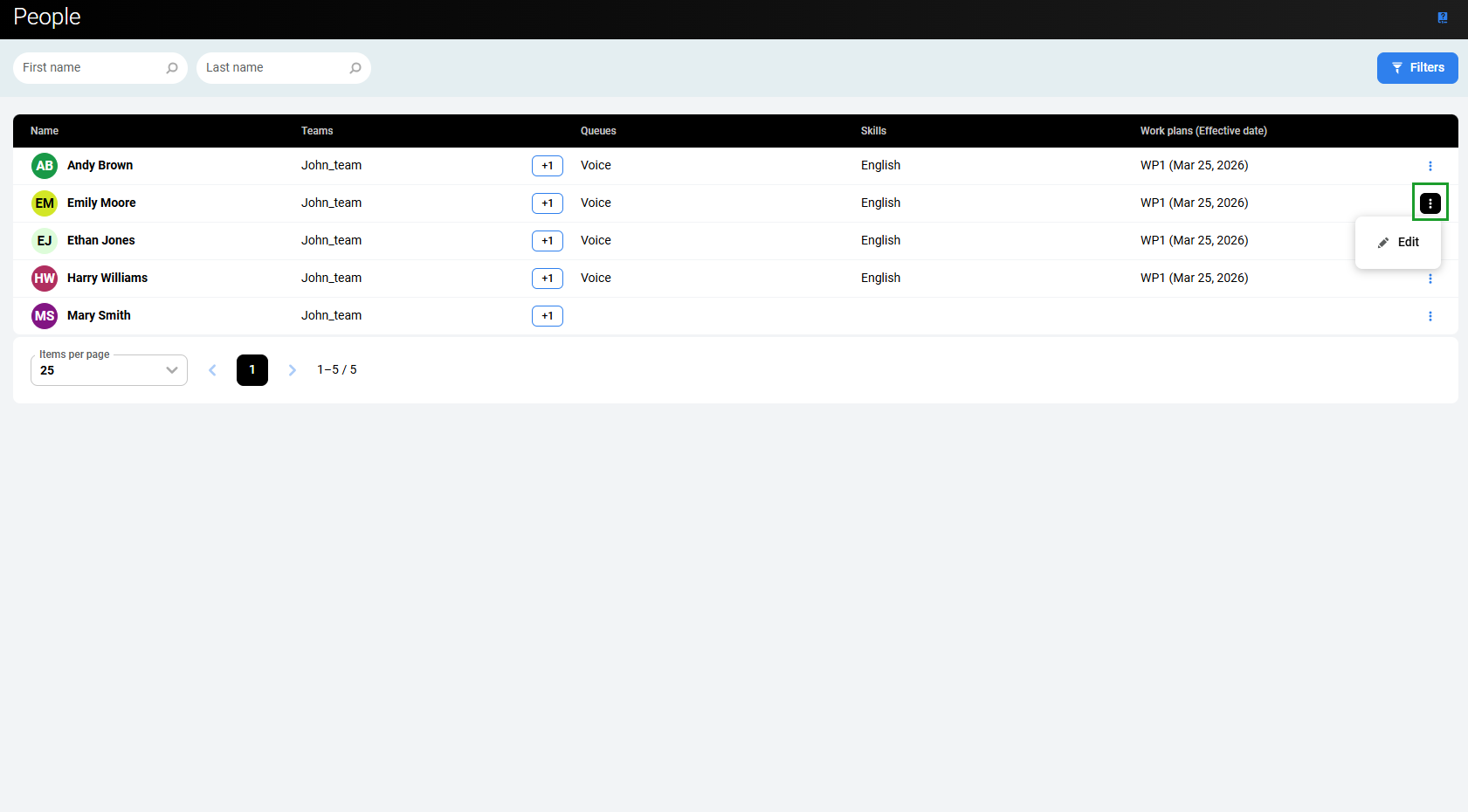
The Edit Person pane displays.
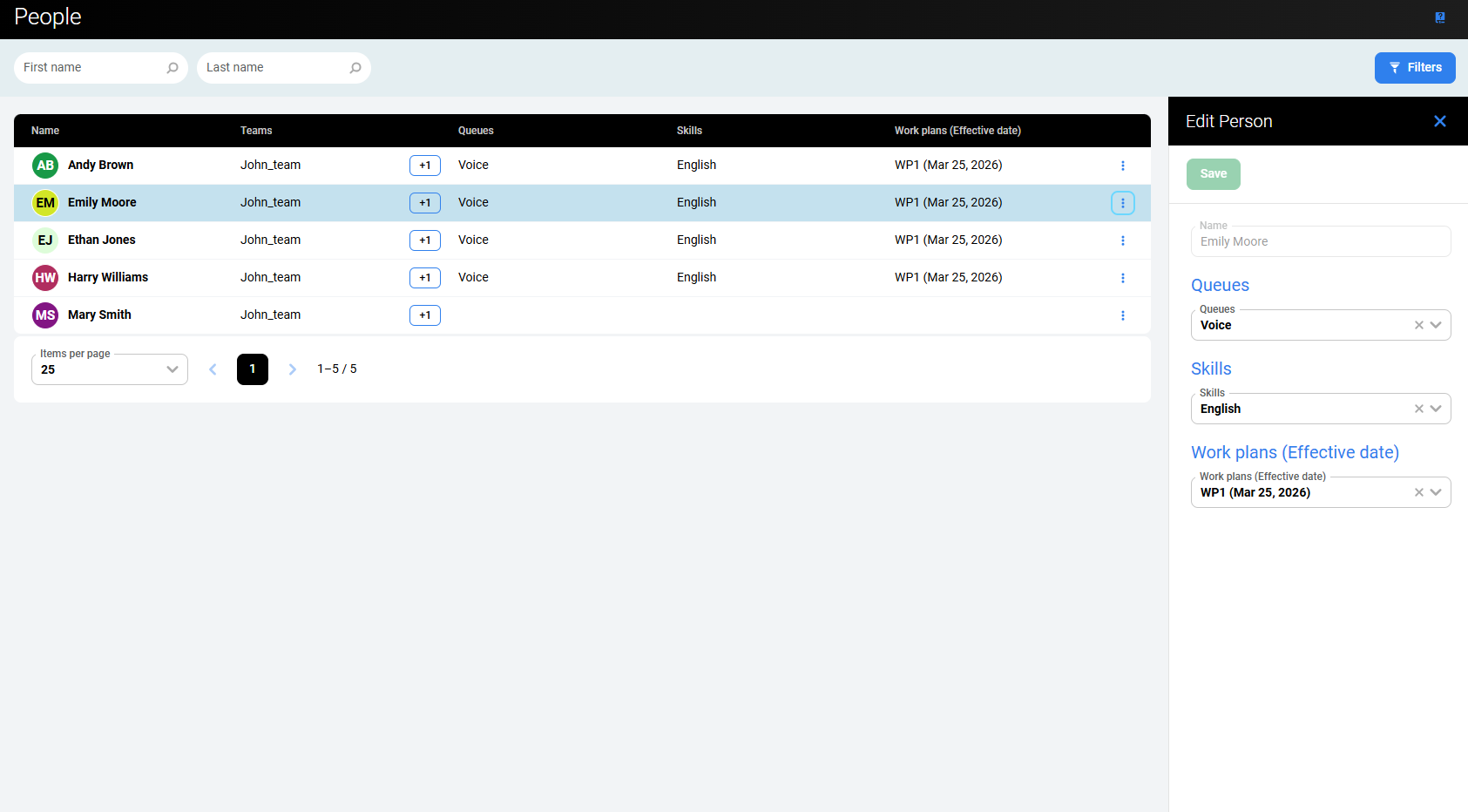
Queues, Skill assignments, and Work plans can be modified.
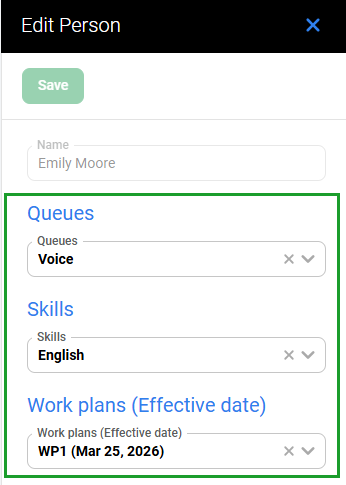
A queue can be configured in one of two ways: with or without an assigned skill. If a queue has a skill requirement, people must also have this skill assigned to them in order to have this queue available to them. If no skill is assigned to the queue, it is available to everyone regardless of their skills. For configuration options, see the Queues screen.
The configuration in the Edit Person pane works as follows:
-
If no skills are selected from the Skills dropdown menu, only queues that don't require any skill are displayed in the Queues dropdown menu and can be assigned to the currently selected person.
-
After selecting skills from the Skills dropdown menu, only queues that require these skills and queues with no skills at all are displayed in the Queues dropdown menu and can be assigned to the person.
-
If a person is already assigned to a queue that requires a specific skill they have, this skill cannot easily be removed from this person. A warning message appears indicating that this skill is required for the queue the person is assigned to. After confirming the removal, the person is automatically removed from the queue.
-
If a queue assignment is removed for a person already scheduled for this queue, a warning appears after clicking Save. The assignment can be confirmed and removed, but it affects the calculation of production schedules in the future time range:
-
If the person is assigned to other queues in the same schedule, they remain assigned to the schedule, and the work contribution is recalculated.
-
If the person is not assigned to any queue in the same schedule, they are treated as inactive and their work contribution is excluded.
-
Click Save to save changes.
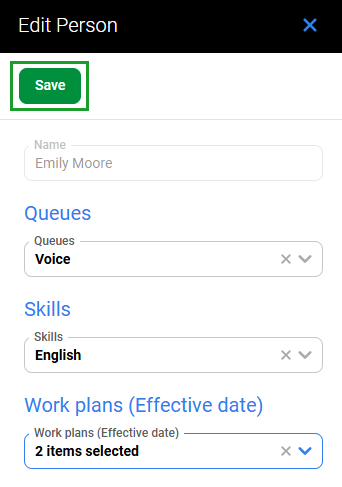
Alternatively, click Close to abandon changes.
Filtering People
People can be filtered by name or by configured criteria.
Filtering Based on a Name
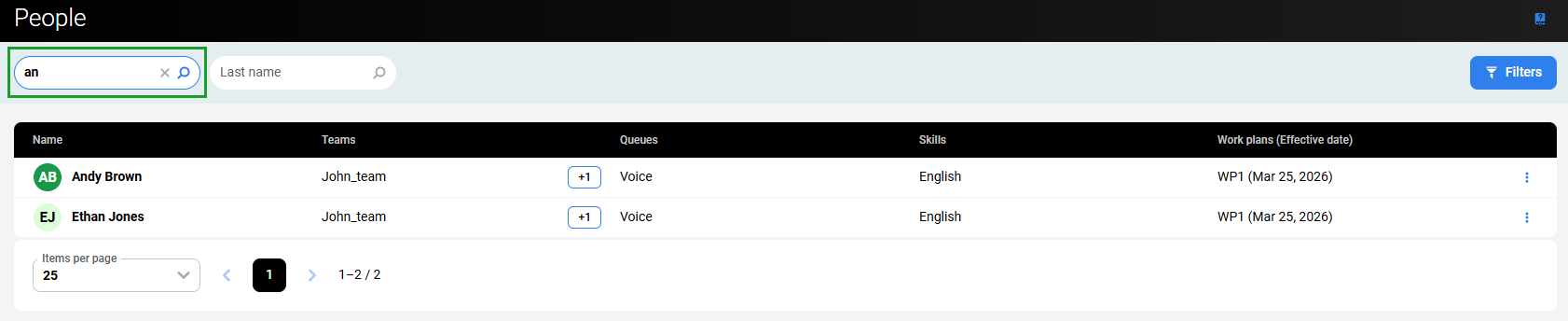
Enter a First name or Last name to find matching people. The search is not case-sensitive. Results display dynamically while entering the name. Click the Reset filter button to remove the name.
Filtering Based on Criteria (Filters)
To filter people based on configured criteria, click the Filters button in the top right corner of the screen.
The Filters pane displays.
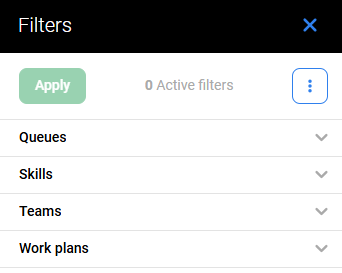
Click the tabs to expand them and display the following filters:
-
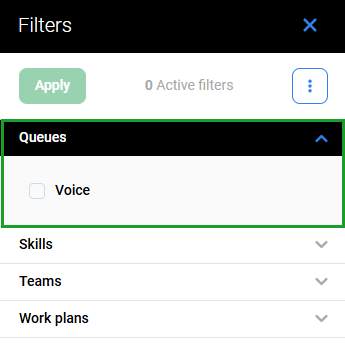
Queues – displays only people assigned to the selected queue(s).
-
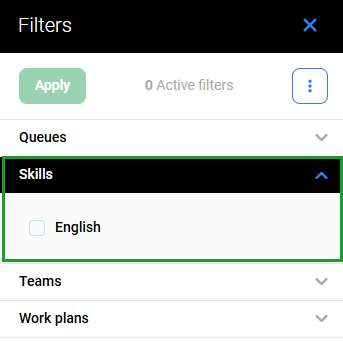
Skills – displays only people who handle the selected skill(s).
-
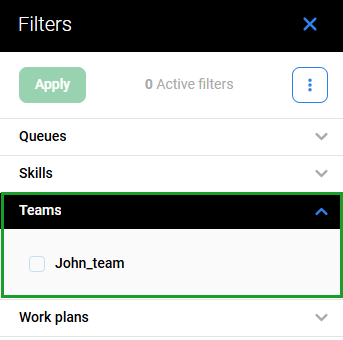
Teams – displays only people who belong to the selected team (only the teams that are managed by the person who is filtering are displayed).
-
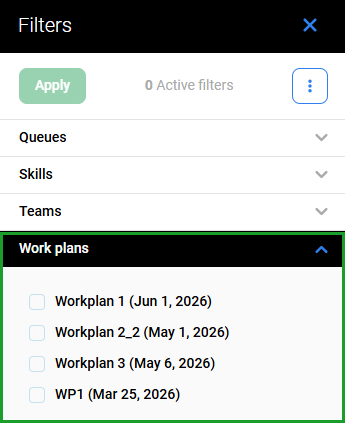
Work plans – displays only people who have the selected work plan(s) assigned.
See Using Filters for more information.