
About AI Topics Manager
Topics are detected by the Eleveo Speech Generative AI server based on the transcription of recordings. Topics are then displayed in the Details Pane of the Conversation Explorer. If the system does not provide information for a single conversation the message No items have been identified displays.
Existing Topics can be edited and new ones created on the AI Topics screen. Go to Administration > AI Topics.
Users with the following permissions can edit topics AI_FLAGS_TOPICS_MANAGE. This role should be assigned to the CCManager custom role. See Roles and Permissions for more details.
Additional permissions required to view outputs – The permission AI_Outputs_View is required in order to view the Summary, Topics, and Flags on the Conversation Explorer.
Topics are officially supported in English at this time. Other languages are not officially supported.
AI Topics Management
Topics are fully configurable by the user. There are no topics in the system by default.

Creating a New Topic
-
On the AI Topics screen, click the Add New button to get started.
-
A detail pane displays.
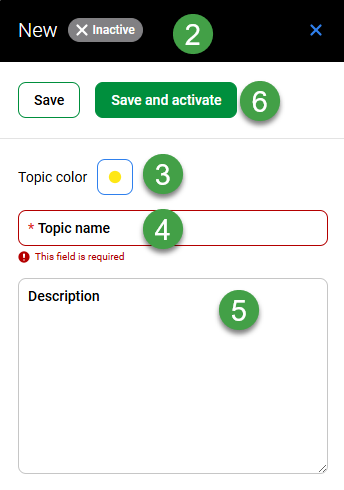
Enter details for the new topic
-
Topic color – Select a color to use when highlighting the Topic in the UI.
-
Topic Name – Name the new Topic. This is a mandatory field and is displayed to end users on the Conversation Explorer Details Pane. It is not recommended that the name be modified in the future, as this could cause variation in the output over time.
-
Description – Optionally, add a description to the new Topic. This is for administrators only; it does not impact the output and is not shown to users. This field can be left blank.
-
Click Save to save your changes, or Save and activate to enable this topic immediately.
A confirmation dialog displays, confirming the new topic was saved.
Enabling or Disabling Topics
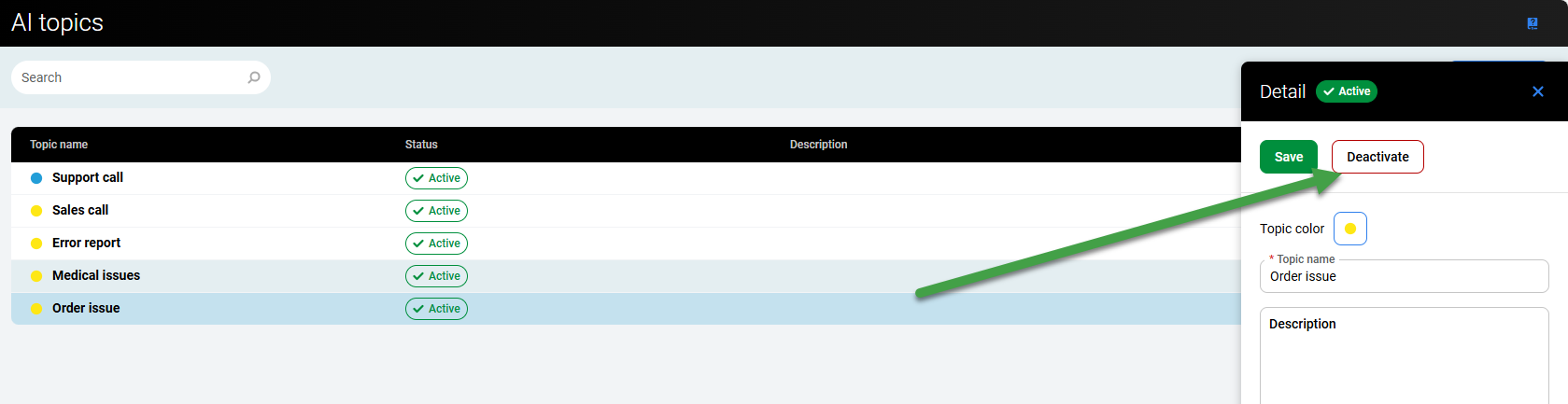
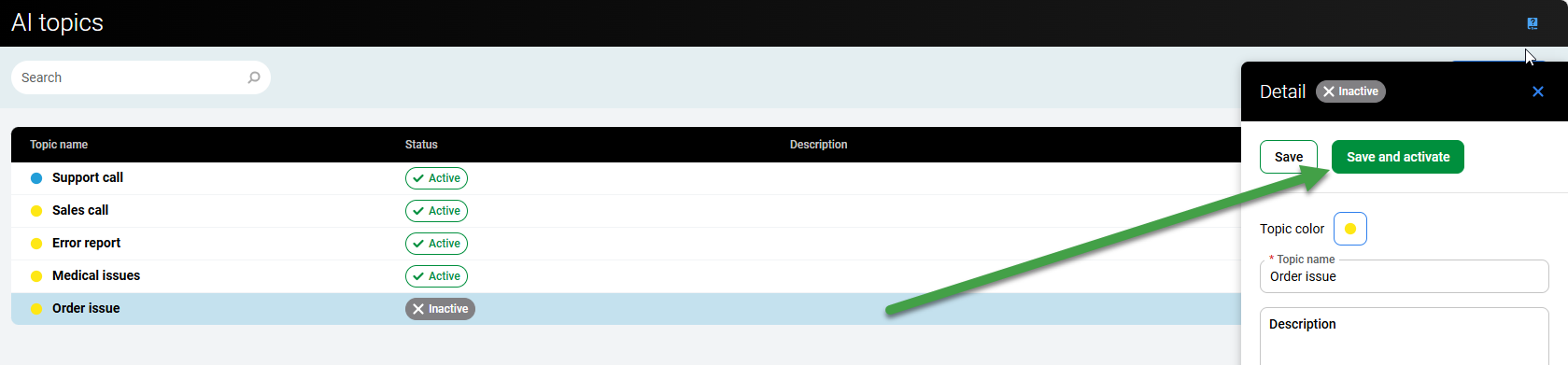
Topics can be Active or Inactive. If inactive they are not sent to the Speech Gen AI server and are therefore not 'detected' within conversations. In order to be correctly detected by the Speech Gen AI server the topics must be in and Active state. Topics can be enabled or disabled when they are created (save and activate vs save) or they can disabled by clicking Deactivate within the Detail pane.
How It Works
Once created, the system analyzes each new conversation for topics that match.
The Speech Generative AI server is asked to evaluate and classify every conversation based on the following question:
-
Please, classify the text into up to three classes if applicable. Classes: [list of topics separated by comma].
Based on the response the first 3 topics detected are displayed on the Conversation Explorer Details Pane for users with the appropriate privileges.
Discard Changes
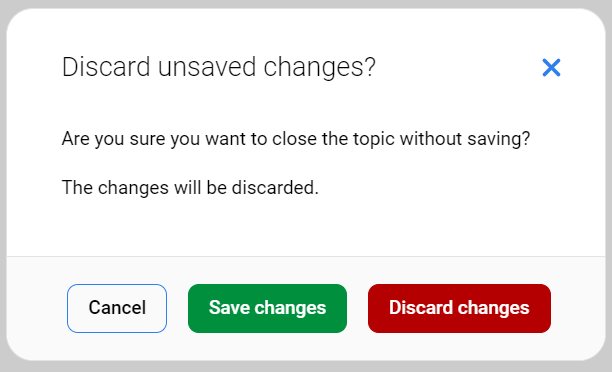
To discard unsaved changes, close the pane using the small x.
A confirmation message appears when changes are saved.
Changing the name – Once created/saved it is not recommended that the name of the AI Topic be modified. This is to ensure consistency in the database. Please deactivate the Topic instead, and create a new topic with a different name.
Editing Existing AI Topics
Double-click on the Topic you want to edit or click on the small pencil icon.
Any Topic can be edited following the same method described in the creating new Topics section. Click Save to apply changes.
Note that all changes are tracked within the Audit log.
Example Topics
As every industry is interested in different topics it is not possible to provide a comprehensive list. Eleveo recommends tuning the topics to suit your needs. This means testing out various topics over time.
Health Care
-
Smith's Orthopedics
-
Inspection
-
Patient
-
Prescription
-
Medical examination
-
Emergency
-
Medication
-
Doctor consultation/Doctor appointment
-
Compliance
-
Appointment