
Overview
This page describes how to use Speech Tags and Phrases with Speech Recognition and provides some advice for administrators on creating phrases and Speech Tags to better serve user requests for assistance.
Speech Tags and Phrases require that Speech Recognition be properly licensed and that transcriptions be generated.
Permissions Required
Users
All users can view found Speech Tags and Phrases. No additional permissions are required. However, Speech Recognition must be properly licensed.
Administrators
The Speech Tag Management Screen is only accessible if the Speech Recognition license is installed and the user role has the correct privileges granted, otherwise, it is not visible in the Quality Management main menu. The role needed is SPEECHREC_ADMIN, which should be assigned manually to the user(s) that will manage speech tags and speech phrases. By default, this role is assigned to the CC Manager role as part of the CC_MANAGER.
Architecture
The Speech Recognition engine uses transcriptions to find phrases defined by users and administrators.
Note the following process order:
-
Speech Tags and Phrases are created by users within Eleveo Quality Management (as described on this page).
-
The Speech Recognition service processes an audio recording. A transcript is generated.
-
The transcription file is then processed by the Speech Recognition component to find the user's pre-defined speech phrases.
-
The found phrases are then saved to the database and are displayed to users on the Conversation Explorer screen.
Understanding Phrase Detection
To detect speech phrases that have been pre-defined by the user, the system performs several steps.
The list of speech phrases is compared to the transcription of audio recordings for each channel. To do this the system:
-
First splits each speech phrase into a list of words,
-
Then it compares the transcription of the recording with the first word from the list of Speech Phrases
(Step A)until the words are matched. When a match happens, the system then attempts to match the whole speech phrase(Step A)within the transcription of the same channel. When there is a match, the system saves the speech phrase occurrence to the database. -
Found phrases are displayed within the Conversation Explorer.
Special Characters
-
Can I use Special Characters (like commas, periods, and question marks) when creating Speech Phrases?
-
Yes, the following special characters are supported
!, -, +, ., ^, :, ,(comma), \, ?
-
Numbers
-
Can numbers be found by speech tags?
-
Yes. Speech tags support alphanumeric characters. Speech tags support both numbers and words. (e.g. 20 min / twenty minutes). To ensure both variants are found, including multiple phrases when creating a new tag is recommended.
-
Are phrases case (in)sensitive?
-
When I create phrases, do I need to use capitalization of sentences?
-
No, the algorithm is not case-sensitive.
-
Use of Contractions
-
How does the algorithm deal with the use of contractions (words), such as it's vs it is?
-
At the moment, the algorithm supports exact match only,
it'sis NOT equal toit is.Multiple phrases are recommended to cover all variations.
-
Timestamps
-
How does the system display the found phrase based on the timestamp? If there is an entire sentence as a phrase, then what is the timestamp?
-
The timestamp is calculated in the following way – The speech phrase start-time is equal to the segment start-time shifted by the number of seconds of the first word matched from the transcription, the same applies to the speech phrase end-time, E.g. it is equal to the segment end-time shifted by the seconds of the last word matched from transcription.
-
-
How does the system determine the occurrence of the first word? Average? Last?
-
It takes the first matched occurrence.
-
Phrase Scan Timing
Phrase detection occurs once a transcription has been processed. If no transcription is available, then no Speech Tags/Phrases is found.
Re-Scan
Rescan is currently not supported.
Limitations
Scripted Greeting - Exact matches are required when searching for a phrase – It may be necessary to prepare several variants of the desired speech phrase, to capture all variations that an agent may use. For example: "Hello. Thank you for calling our Company. You are speaking to [agent name]. How may I help you?" May not be stated exactly the same each time, and therefore the transcription will vary. The speech phrases must be an exact match with the transcription in order to be matched. Several variants of the desired speech phrase are recommended.
Supported Languages – Phrase detection is supported for all languages supported by Speech Recognition.
Preparing Speech Tags and Phrases
Speech Recognition searches for targeted phrases called Speech Tags, grouped into categories created by users with the appropriate permission.
-
The first step is to create Speech Tags. This is done by inputting specific phrases to associate with each Speech Tag.
-
As the system searches for an exact match, each Speech Phrase should be short. This ensures that the search terms are sufficiently unique to be found.
-
Once created, enabled phrases can be searched by Speech Tag.
Working With the Speech Tags Tab
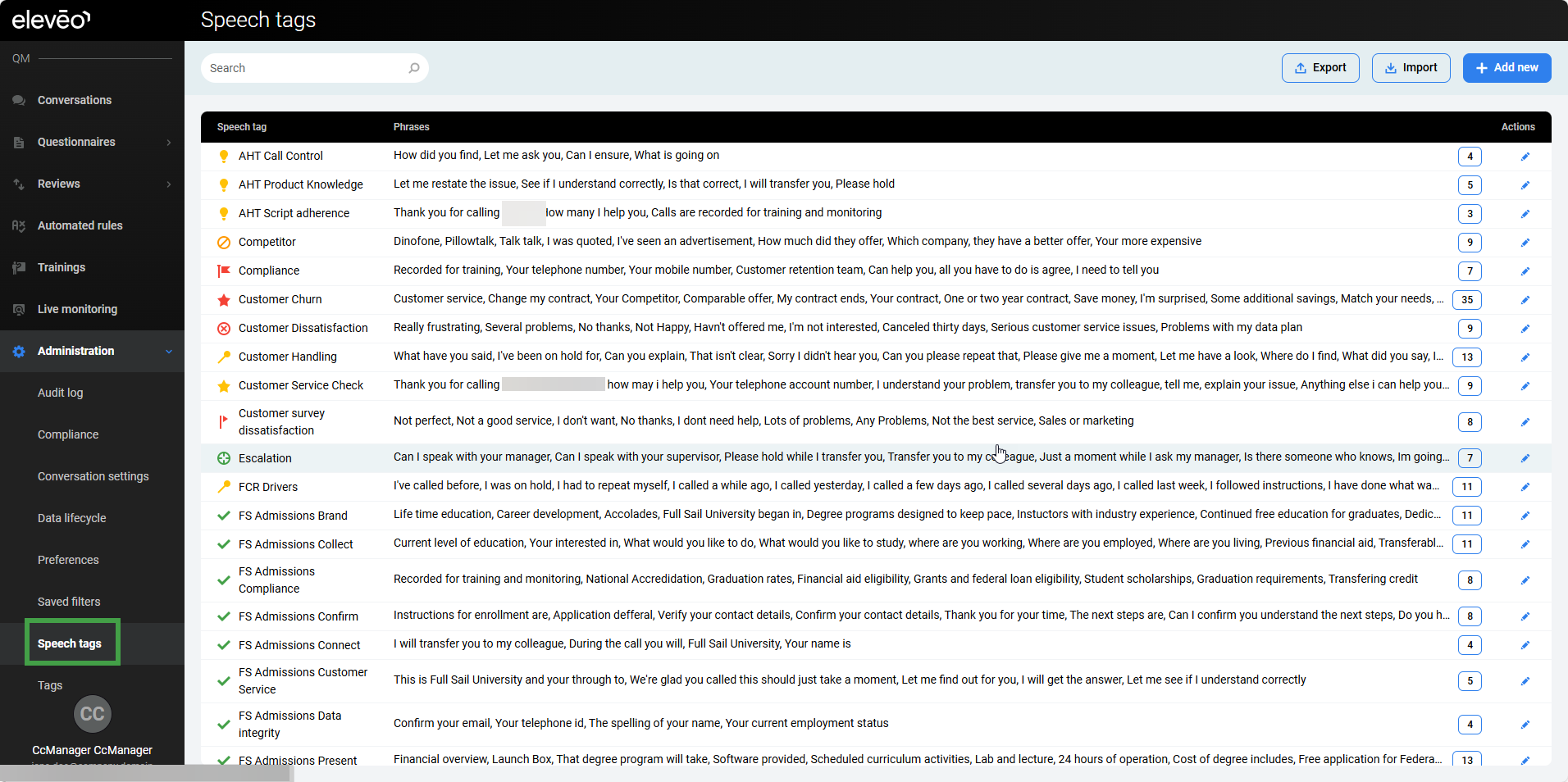
To open the Speech Tags screen, click the Speech Tags item on the left side menu.
Creating a New Speech Tag
The Speech Tags screen displays all existing Speech Tags. If none have been created yet, the list is empty.
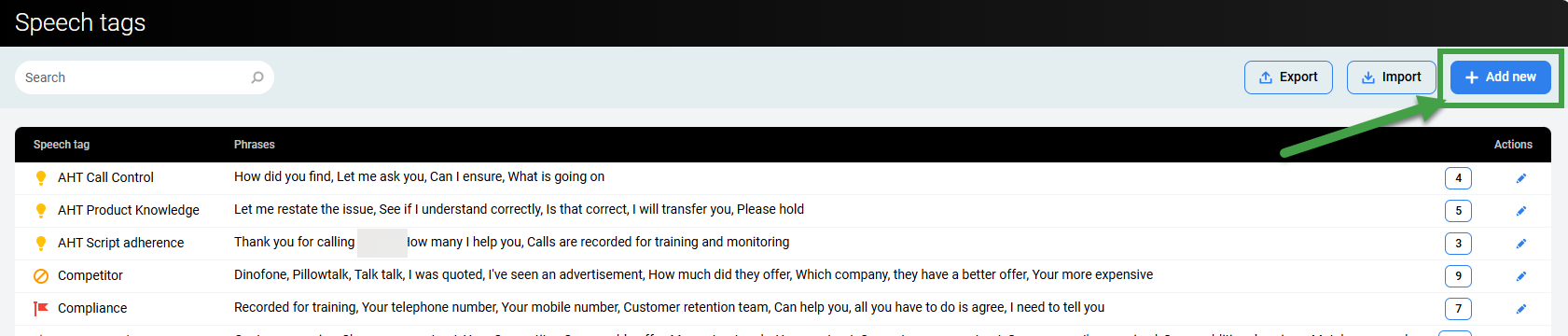
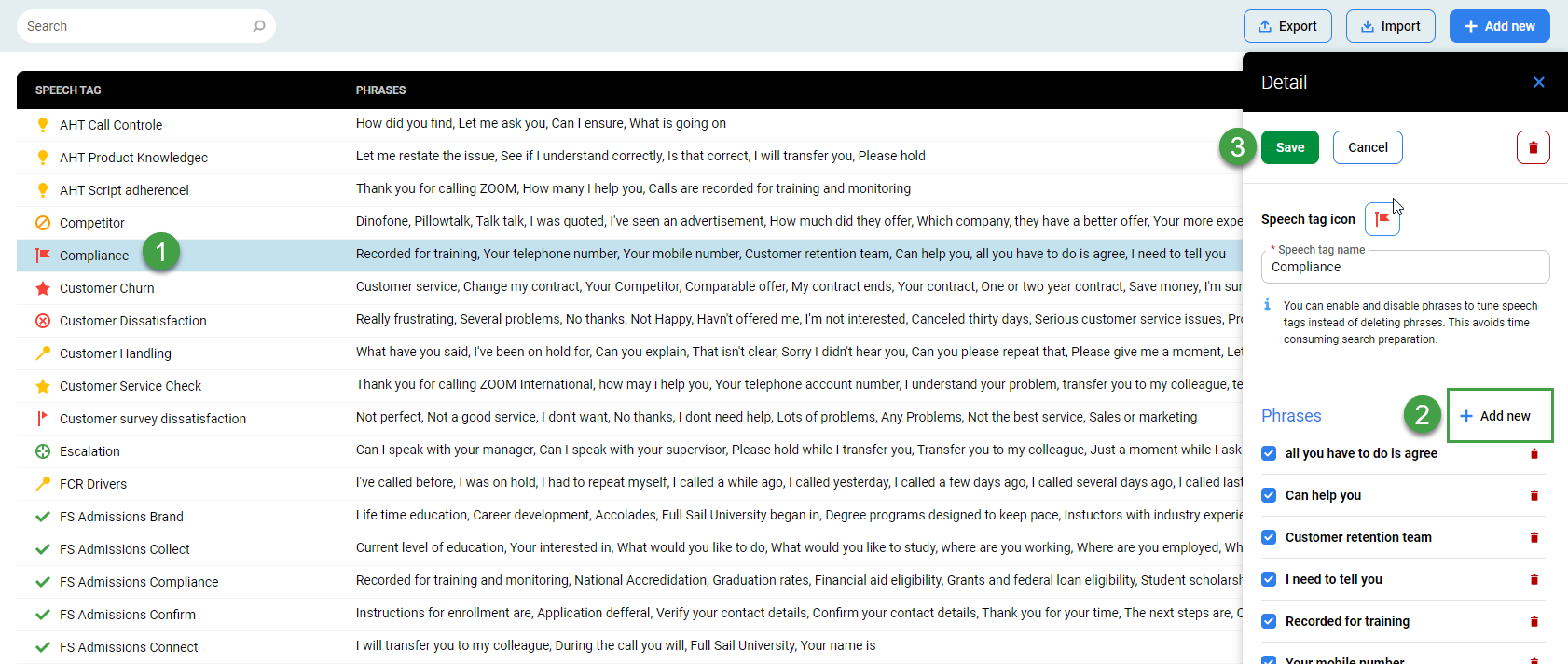
To create a new Speech Tag click Add New.
Enter the tag name in the Speech Tag field and add the Phrases you want to be associated with this tag.
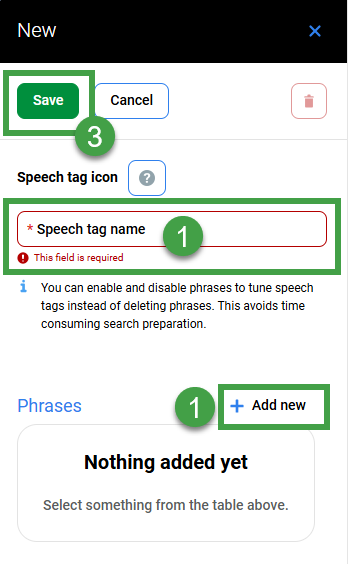
Then click Save.
Setting an Icon for a Speech Tag
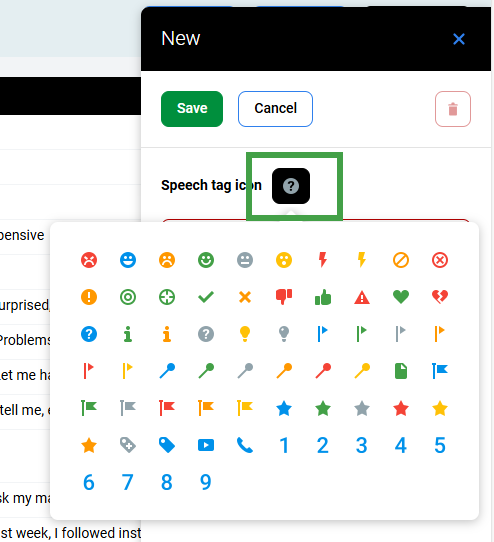
To make a particular Speech Tag easier to identify, assign it a unique icon. This icon appears next to any conversation in which Speech Recognition finds an enabled phrase associated with that Speech Tag.
The icon can be set when creating the tag or later by clicking the tag to open the editing menu.
Adding a New Phrase to a Speech Tag
To add new phrases to a Speech Tag, select the particular tag and click Add New next to Phrases. Then click Save.
Each Speech Phrase should be short. This ensures that the search terms are sufficiently unique to be found.
Only exact matches are found.
Editing a Speech Tag
To modify a speech tag, click the particular tag and make changes in the editing window on the right. The following actions are available:
-
Add New – Add a new phrase; click Add New to create a new phrase.
-
Edit the Speech Tag icon – Click the icon and select from the available options.
-
Name – Edit the Speech Tag name, change the title in the Speech Tag field.
-
Enabled – Enable/Disable a phrase, use the corresponding checkbox to enable or disable a phrase.
-
Delete Phrase – Remove a phrase – click the trash icon next to the phrase you want to delete.
-
Delete Speech Tag - click the trash icon on the top.
-
Click Save to apply changes.
Exporting Speech Tags
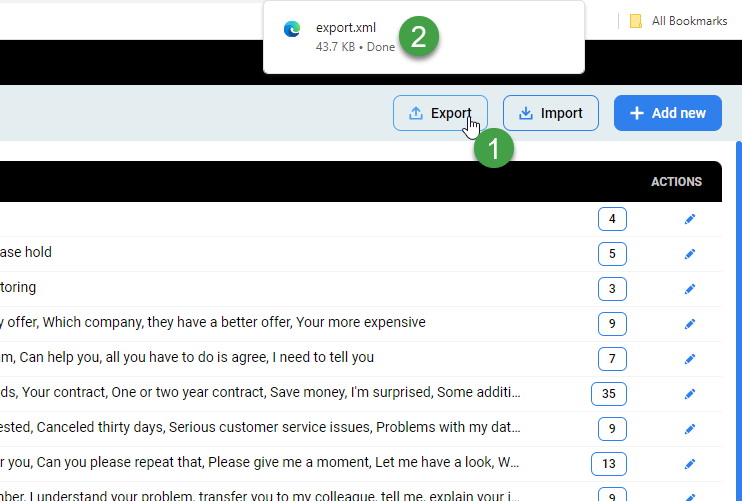
All or selected Speech Tags can be exported to an XML file for saving or importing to other Quality Management instances.
-
To export all speech tags – ensure no speech tag row is selected/highlighted and click Export to export all Speech Tags.
Importing Speech Tags
To import speech tags, you need a previously exported XML file (see Exporting Speech Tags above). Click Import and select the XML file.
Example Phrases
The following phrases can be associated with a Speech Tag:
|
Topic |
Sample Speech Phrases |
|---|---|
|
Upsell |
I would like to add do you have I want to have one year contract I would like to find out more |
|
Compliance |
your telephone number your mobile number can I help you all you have to do is agree |
|
Customer Handling |
let me have a look where do I find I've been on hold I said that before can you explain that isn't clear |
|
Customer Service Check |
how may I help you I understand your problem transfer you to my colleague explain your issue thank you for calling
|
Configuring Confidence Intervals in Speech Recognition
Speech Tags visibility in the Conversation Explorer is hardcoded
Normally, users can search by speech tag within the Conversation Explorer. Users may select to filter by the presence or absence of particular tags as well as their confidence as calculated by the Speech Engine. These values are hardcoded and can not be changed.
The confidence levels hardcoded in the system are: Certainly, Probably or Maybe.
-
Certainly indicates a high level of confidence that the returned interaction contains the Speech Tag.
-
Probably indicates a moderate to high level of confidence that the returned interaction contains the Speech Tag.
-
Maybe indicates a moderate level of confidence that the returned interaction contains the Speech Tag.
The confidence level is a complex calculation that indicates the likelihood that a particular tag has been found by the Speech Recognition engine.
Confidence Calculation
Confidence is calculated as the average confidence probability across all the words used in a speech phrase found by Speech Recognition.